change time LEXUS RC200T 2017 Owner's Manual
[x] Cancel search | Manufacturer: LEXUS, Model Year: 2017, Model line: RC200T, Model: LEXUS RC200T 2017Pages: 724, PDF Size: 42.04 MB
Page 299 of 724
2994-5. Using the driving support systems
4
Driving
RC200t_RC F_EE(OM24728E)
This mode employs a radar sensor to detect the presence of vehicles up to
approximately 120 m (400 ft.) ahead, determines the current vehicle-to-vehicle
following distance, and operates to maintain a suitable following distance from
the vehicle ahead.
Note that vehicle-to-vehicle distance will close in when traveling on long downhill slopes.
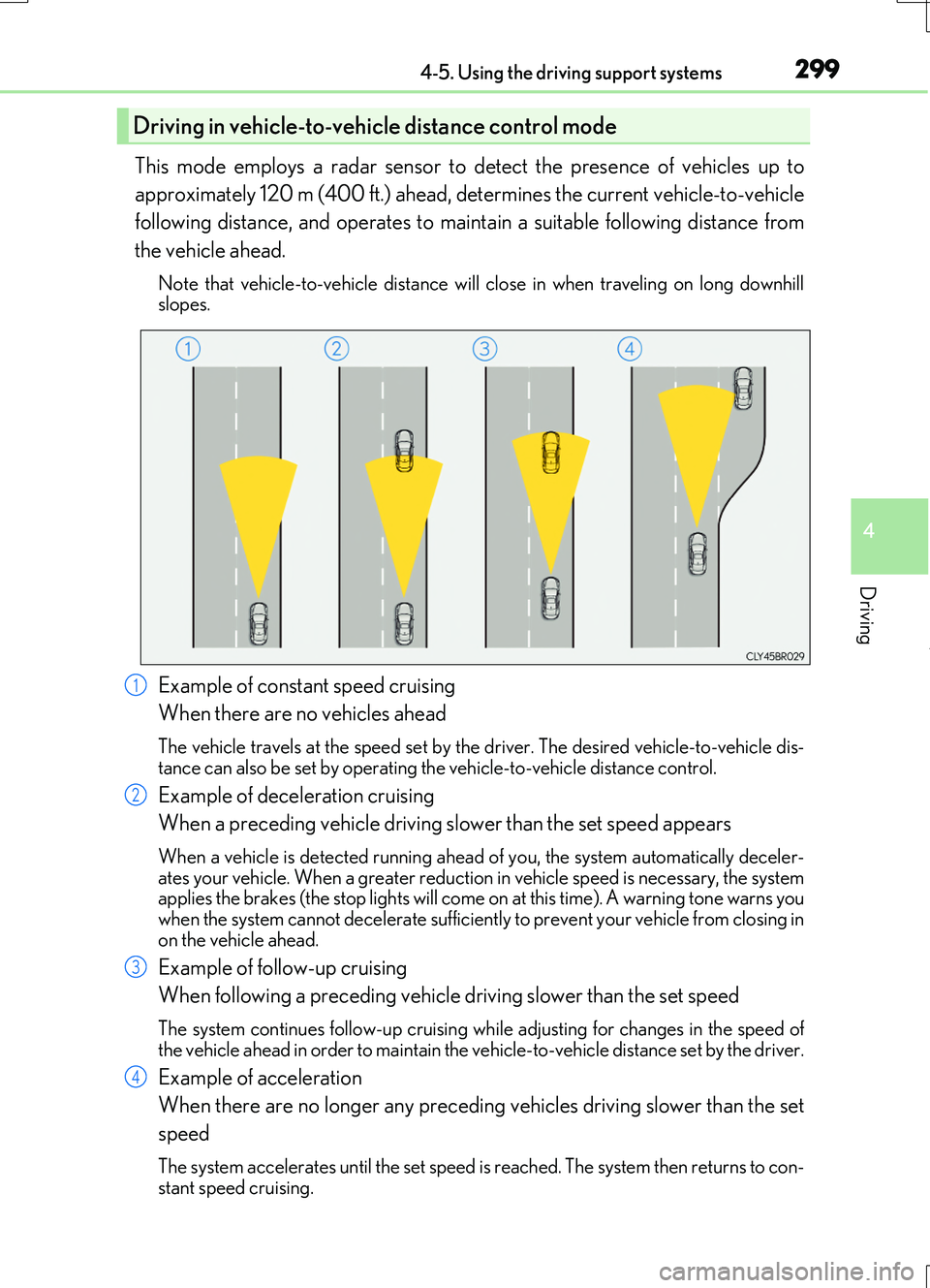
Example of constant speed cruising
When there are no vehicles ahead
The vehicle travels at the speed set by the driver. The desired vehicle-to-vehicle dis- tance can also be set by operating the vehicle-to-vehicle distance control.
Example of deceleration cruising
When a preceding vehicle driving slower than the set speed appears
When a vehicle is detected running ahead of you, the system automatically deceler- ates your vehicle. When a greater reductio n in vehicle speed is necessary, the system applies the brakes (the stop lights will come on at this time). A warning tone warns you
when the system cannot decelerate sufficiently to prevent your vehicle from closing in on the vehicle ahead.
Example of follow-up cruising
When following a preceding vehicle driving slower than the set speed
The system continues follow-up cruising wh ile adjusting for changes in the speed of
the vehicle ahead in order to maintain the vehicle-to-vehicle distance set by the driver.
Example of acceleration
When there are no longer any preceding vehicles driving slower than the set
speed
The system accelerates until the set speed is reached. The system then returns to con- stant speed cruising.
Driving in vehicle-to-veh icle distance control mode
1
2
3
4
Page 301 of 724
3014-5. Using the driving support systems
4
Driving
RC200t_RC F_EE(OM24728E)
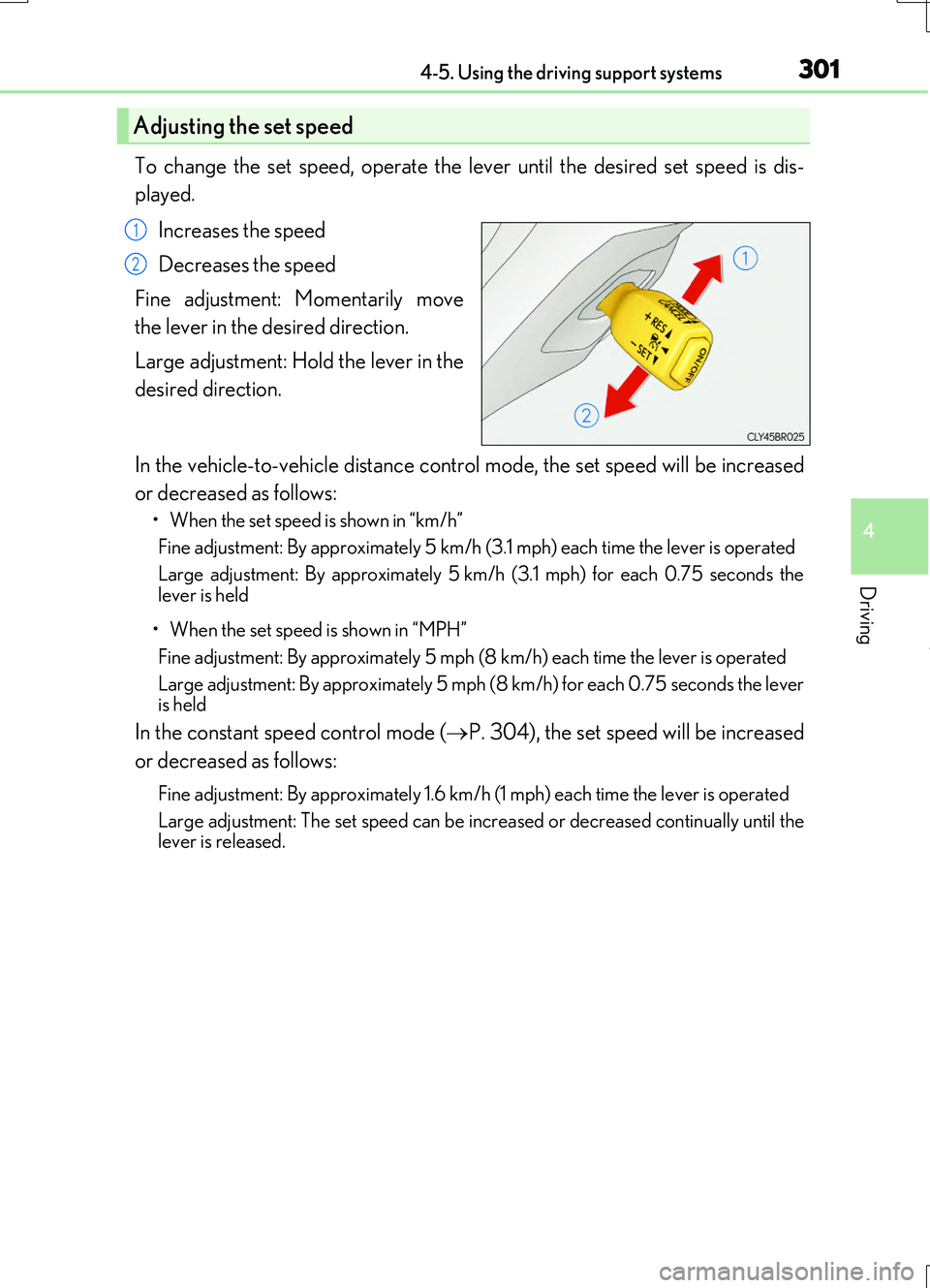
To change the set speed, operate the lever until the desired set speed is dis-
played.
Increases the speed
Decreases the speed
Fine adjustment: Momentarily move
the lever in the desired direction.
Large adjustment: Hold the lever in the
desired direction.
In the vehicle-to-vehicle distance control mode, the set speed will be increased
or decreased as follows:
• When the set speed is shown in “km/h”
Fine adjustment: By approximately 5 km/h (3.1 mph) each time the lever is operated
Large adjustment: By approximately 5 km/h (3.1 mph) for each 0.75 seconds the
lever is held
• When the set speed is shown in “MPH”
Fine adjustment: By approximately 5 mph (8 km/h) each time the lever is operated
Large adjustment: By approximately 5 mph (8 km/h) for each 0.75 seconds the lever is held
In the constant speed control mode ( P. 304), the set speed will be increased
or decreased as follows:
Fine adjustment: By approximately 1.6 km/h (1 mph) each time the lever is operated
Large adjustment: The set speed can be incr eased or decreased continually until the lever is released.
Adjusting the set speed
1
2
Page 319 of 724
3194-5. Using the driving support systems
4
Driving
RC200t_RC F_EE(OM24728E)
NOTICE
■To prevent damage to or incorrect operation of the LDA system
●Do not modify the headlights or attach stickers to the surface of the lights.
●Do not modify the suspension.
If any suspension parts need to be replac ed, contact any authorized Lexus dealer or repairer, or another duly qualified and equipped professional.
●Do not install or place anything on the h ood or the grille. Also, do not install a grille
guard (bull bars, kangaroo bar etc.).
●If your windshield needs repairs, contact any authorized Lexus dealer or repairer, or another duly qualified an d equipped professional.
■Camera sensor
Observe the following to ensure that the LDA system functions correctly.
●Keep the windshield clean at all times.
Performance could be affected if the windshie ld is dirty, or if raindrops, condensation or ice are adhering to the windshield.
●Do not spill liquid onto the camera sensor.
●Do not attach window tinting to the windshield.
●Do not install an antenna in front of the camera lens.
●If the area of the windshield in front of the camera sensor is fogged up, use the wind-
shield defogger to remove the fog. When it is cold, setting the heater to blow air to the feet only may cause the area ofthe windshield in front of the camera sensor to fog up. This will have a negative effect
on the images.
●Do not scratch the camera lens, or let it get dirty. When cleaning the inside of the windshield, be careful not to get any glass cleaner
etc. on the lens. Also, do not touch the lens. For lens repair, contact any authorized Lexus dealer or repairer, or another duly qual- ified and equipped professional.
●Do not change the installation position or direction of the camera sensor or remove it. The direction of the camera sensor is precisely adjusted.
●Do not subject the camera sensor to strong impact or force, and do not disassemble
the camera sensor.
●If the windshield needs to be replaced, contact any authorized Lexus dealer or repairer, or another duly qualified and equipped professional.
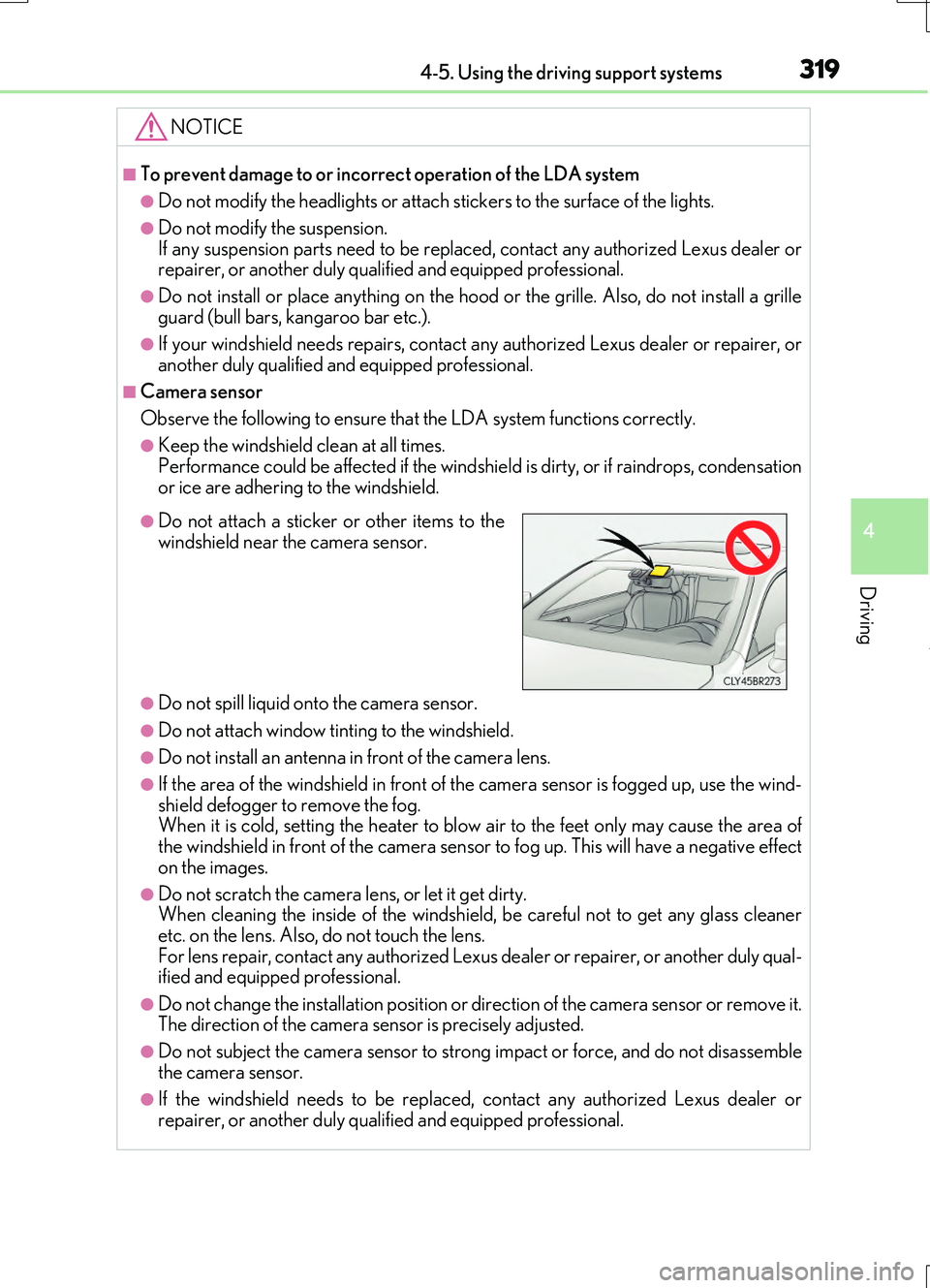
●Do not attach a sticker or other items to thewindshield near the camera sensor.
Page 406 of 724
406
RC200t_RC F_EE(OM24728E)
5-3. Using the audio system
Press the button to display the “Source” screen.
If the “Source” screen is not displayed, press the button again.
Select the desired audio source.
The audio source can be selected by pressing the “RADIO” or “MEDIA” button.
Press the “MODE” switch when the audio system is turned on. The audio source
changes each time the “MODE” switch is pressed.
■Rearranging the list
The listing order of the source list can be rearranged.
Move the controller to the left while on the “Source” screen.
Select “Audio source select”.
Select an item you wish to move and then select where to move the item to.
Selecting the audio source
Switching between audio sources such as radio and CD are explained in this
section.
Changing audio source
Using the steering wheel switches to change audio sources
1
2
1
2
3
Page 412 of 724
4125-3. Using the audio system
RC200t_RC F_EE(OM24728E)
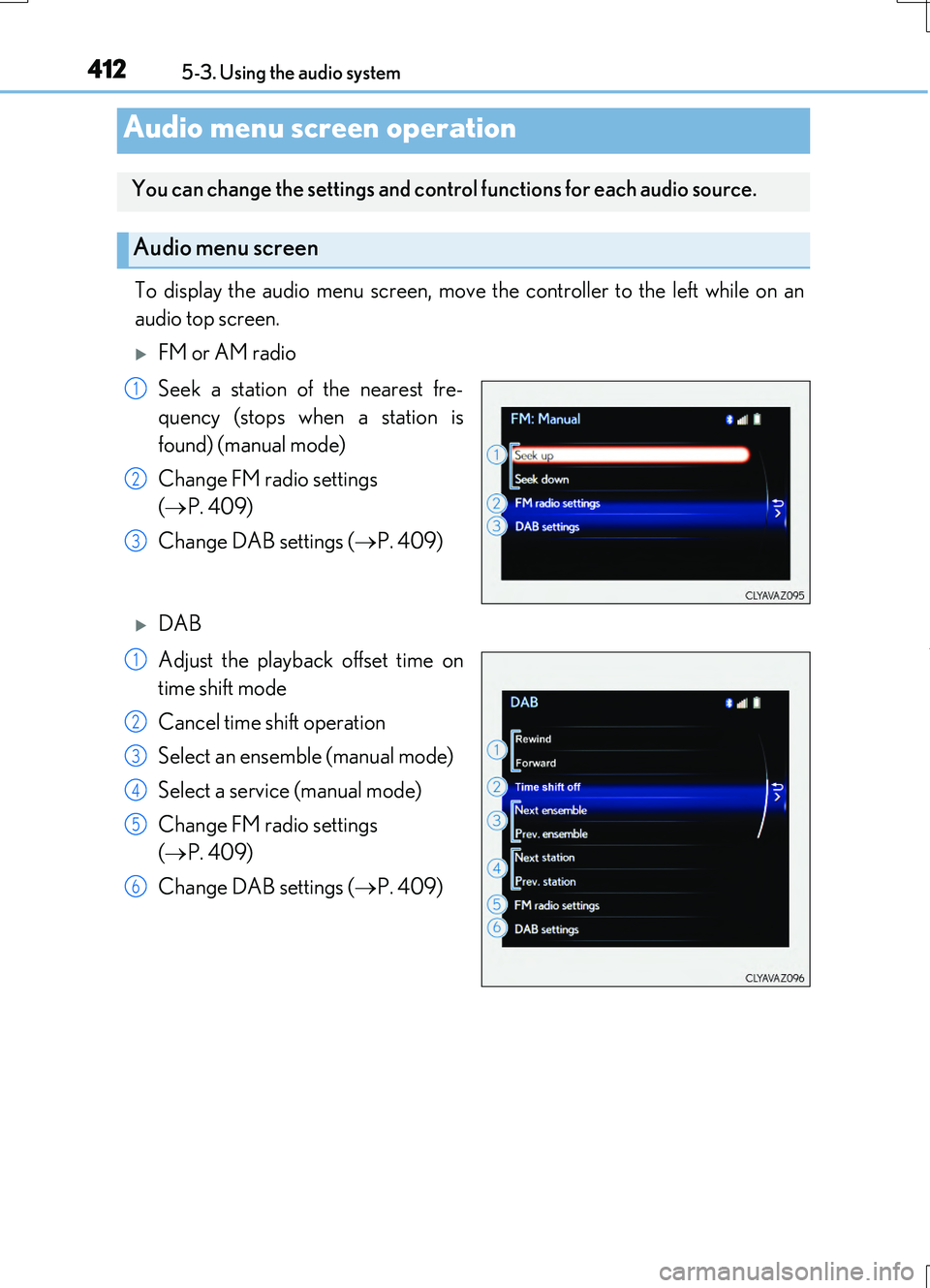
To display the audio menu screen, move the controller to the left while on an
audio top screen.
FM or AM radio
Seek a station of the nearest fre-
quency (stops when a station is
found) (manual mode)
Change FM radio settings
( P. 409)
Change DAB settings ( P. 409)
DAB
Adjust the playback offset time on
time shift mode
Cancel time shift operation
Select an ensemble (manual mode)
Select a service (manual mode)
Change FM radio settings
( P. 409)
Change DAB settings ( P. 409)
Audio menu screen operation
You can change the settings and control functions for each audio source.
Audio menu screen
1
2
3
1
2
3
4
5
6
Page 415 of 724
415
5
Lexus Display Audio system
RC200t_RC F_EE(OM24728E)
5-4. Using the radio
Pressing the “RADIO” button displays the radio top screen from any screen of
the selected source.
■Menu screen
P. 412
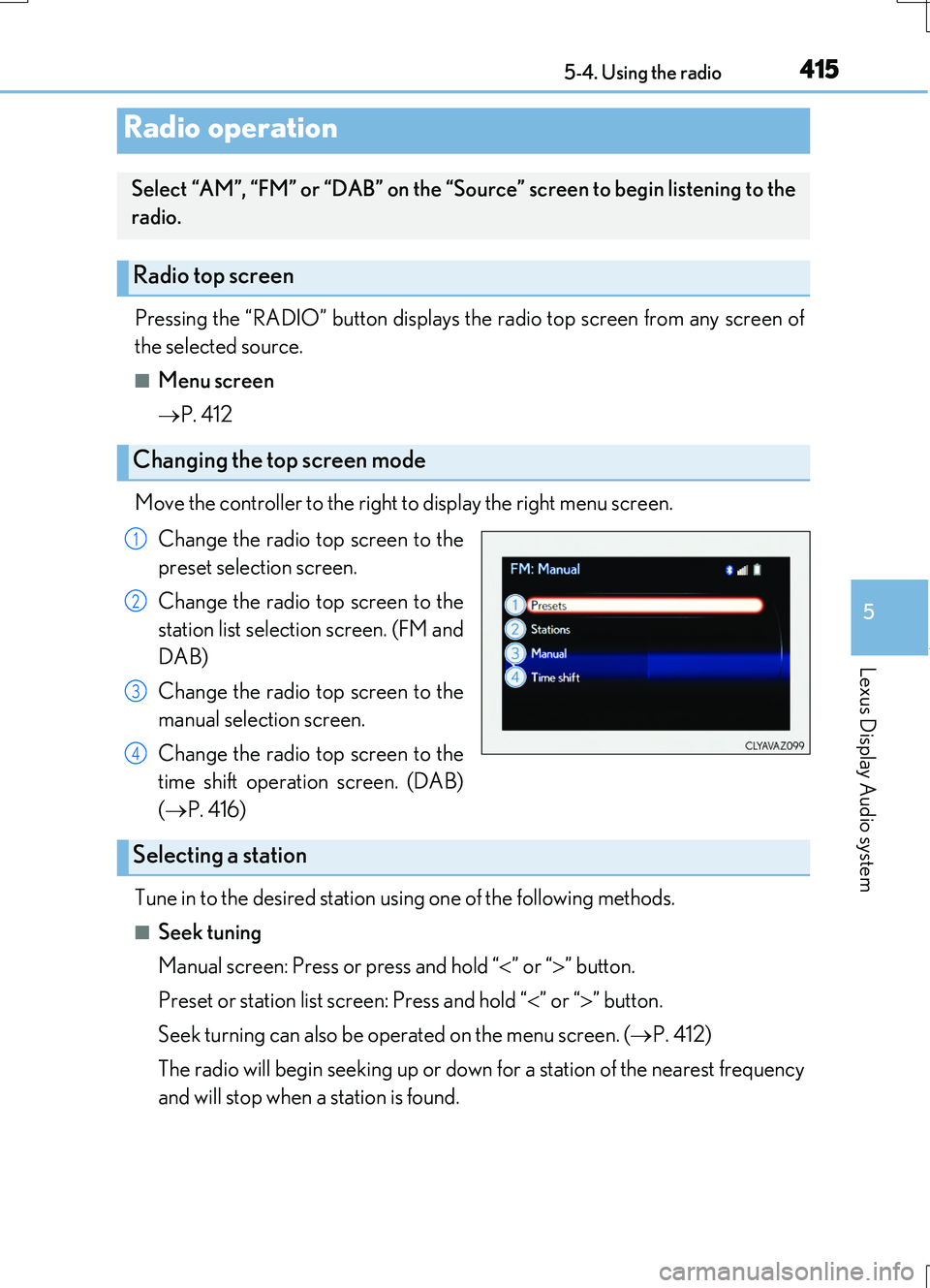
Move the controller to the right to display the right menu screen.
Change the radio top screen to the
preset selection screen.
Change the radio top screen to the
station list selection screen. (FM and
DAB)
Change the radio top screen to the
manual selection screen.
Change the radio top screen to the
time shift operation screen. (DAB)
( P. 416)
Tune in to the desired station using one of the following methods.
■Seek tuning
Manual screen: Press or press and hold “ ” or “” button.
Preset or station list screen: Press and hold “ ” or “” button.
Seek turning can also be operated on the menu screen. ( P. 412)
The radio will begin seeking up or down for a station of the nearest frequency
and will stop when a station is found.
Radio operation
Select “AM”, “FM” or “DAB” on the “Source” screen to begin listening to the
radio.
Radio top screen
Changing the top screen mode
1
2
3
4
Selecting a station
Page 424 of 724
4245-6. Using an external device
RC200t_RC F_EE(OM24728E)
■About iPod
●“Made for iPod” and “Made for iPhone” mean that an electronic accessory has been designed to connect specifically to an iPod , or iPhone, respectively, and has been certi-
fied by the developer to meet Apple performance standards.
●Apple is not responsible for the operation of this device or its compliance with safety and regulatory standards. Please note that th e use of this accessory with iPod or iPhone
may affect wireless performance.
●iPhone, iPod, iPod classic, iPod nano and iPod touch are trademarks of Apple Inc., reg- istered in the U.S. and other countries.
■iPod cover art
●Depending on the iPod and songs in the iPod, iPod cover art may be displayed.
●This function can be changed to on/off. (P. 411)
●It may take time to display iPod cover art, and the iPod may not be operated while the cover art display is in process.
■iPod functions
●When an iPod is connected and the audio sour ce is changed to iPod mode, the iPod will resume play from the same poin t in which it was last used.
●Depending on the iPod that is connected to the system, certain functions may not be
available. If a function is unavailable due to a malfunction (as opposed to a system spec- ification), disconnecting the device and reconnecting it may resolve the problem.
●Depending on the iPod, while connected to the system, the iPod cannot be operated
with its own controls. It is necessary to use the controls of the vehicle's audio system instead.
●When the battery level of an iPod is very low, the iPod may not operate. If so, charge the
iPod before use.
●Compatible models ( P. 426)
Page 450 of 724
4505-9. Bluetooth® Phone
RC200t_RC F_EE(OM24728E)
Phone number containing a “w” symbol
When the “w” symbol is dialed in an outgoing call, you need to go to the “Release
tones” screen to dial the following digits . Move the controller to the left and then
select “Release tones”.
Select “Handset mode” to change from a hands-free call to a cellular phone call
or vice versa.
Press the switch on the steering wheel or select .
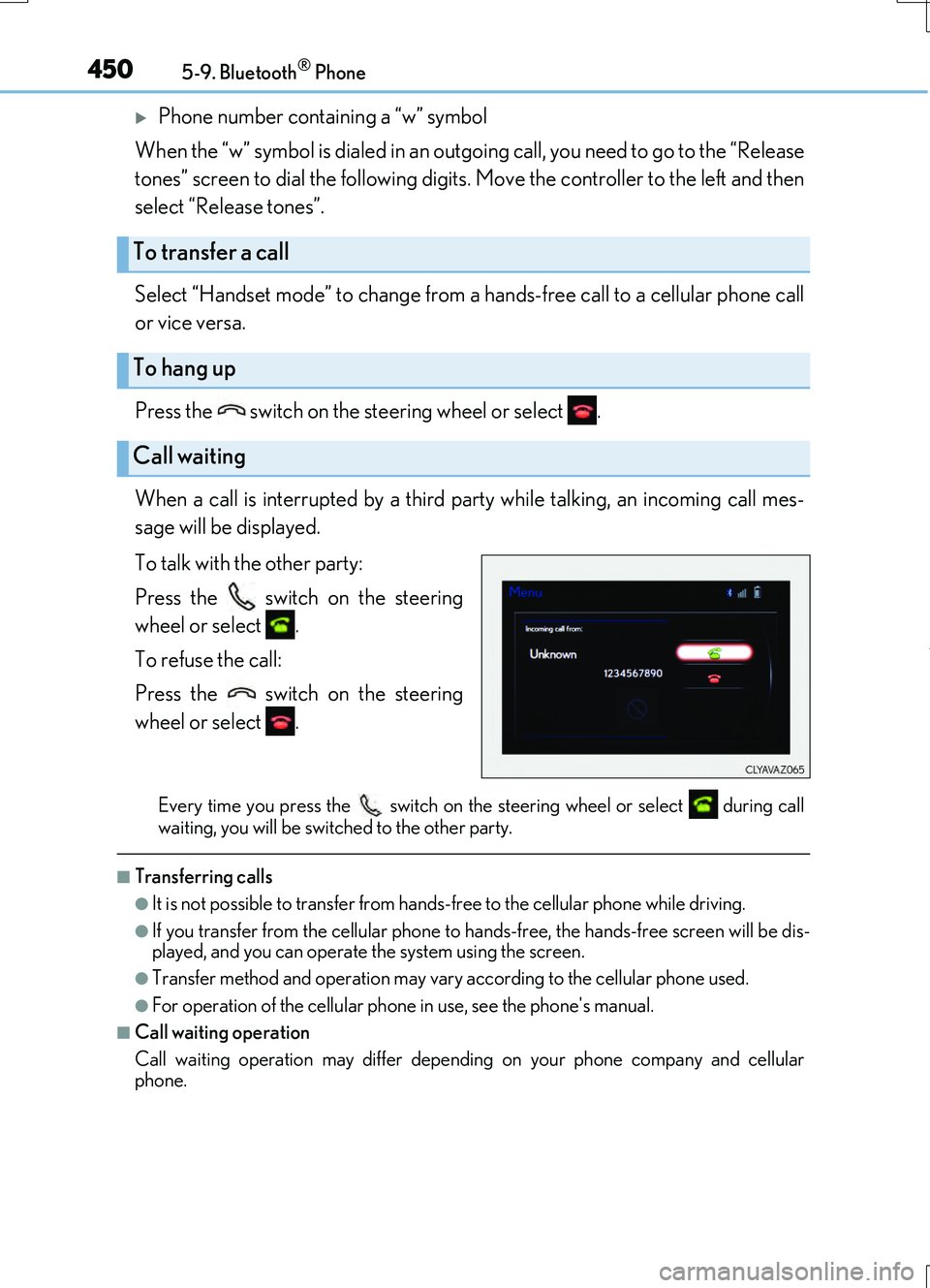
When a call is interrupted by a third party while talking, an incoming call mes-
sage will be displayed.
To talk with the other party:
Press the switch on the steering
wheel or select .
To refuse the call:
Press the switch on the steering
wheel or select .
Every time you press the switch on the steering wheel or select during call
waiting, you will be swit ched to the other party.
■Transferring calls
●It is not possible to transfer from hands-free to the cellular phone while driving.
●If you transfer from the cellul ar phone to hands-free, the hands-free screen will be dis-
played, and you can operate the system using the screen.
●Transfer method and operation may vary according to the cellular phone used.
●For operation of the cellular phone in use, see the phone's manual.
■Call waiting operation
Call waiting operation may differ dependin g on your phone company and cellular
phone.
To transfer a call
To hang up
Call waiting
Page 480 of 724
4806-1. Using the air conditioning system
RC200t_RC F_EE(OM24728E)
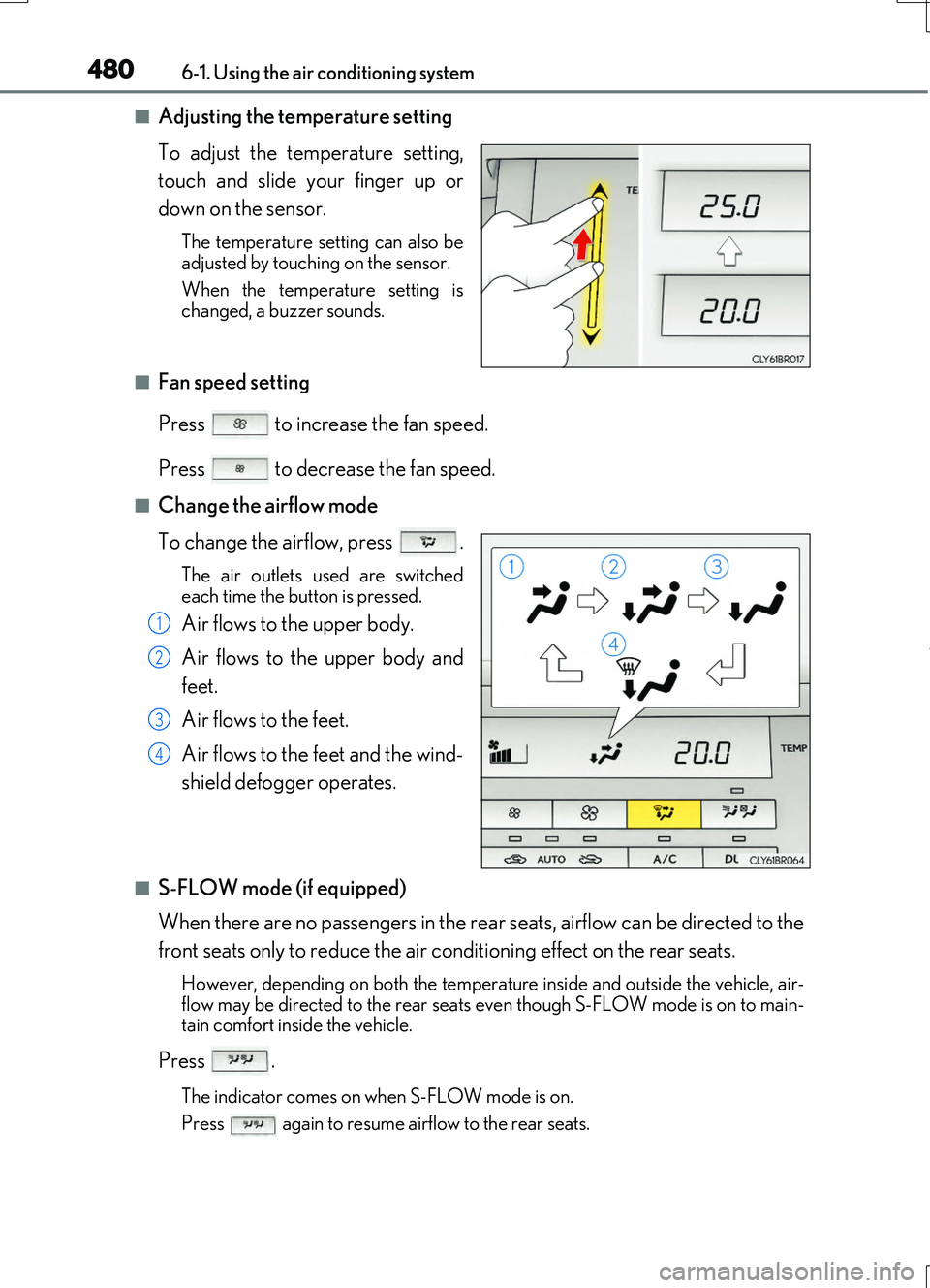
■Adjusting the temperature setting
To adjust the temperature setting,
touch and slide your finger up or
down on the sensor.
The temperature setting can also be adjusted by touching on the sensor.
When the temperature setting is changed, a buzzer sounds.
■Fan speed setting
Press to increase the fan speed.
Press to decrease the fan speed.
■Change the airflow mode
To change the airflow, press .
The air outlets used are switched
each time the button is pressed.
Air flows to the upper body.
Air flows to the upper body and
feet.
Air flows to the feet.
Air flows to the feet and the wind-
shield defogger operates.
■S-FLOW mode (if equipped)
When there are no passengers in the rear seats, airflow can be directed to the
front seats only to reduce the air conditioning effect on the rear seats.
However, depending on both the temperat ure inside and outside the vehicle, air- flow may be directed to the rear seats even though S-FLOW mode is on to main- tain comfort inside the vehicle.
Press .
The indicator comes on when S-FLOW mode is on.
Press again to resume airflow to the rear seats.
1
2
3
4
Page 485 of 724
4856-1. Using the air conditioning system
6
Interior features
RC200t_RC F_EE(OM24728E)
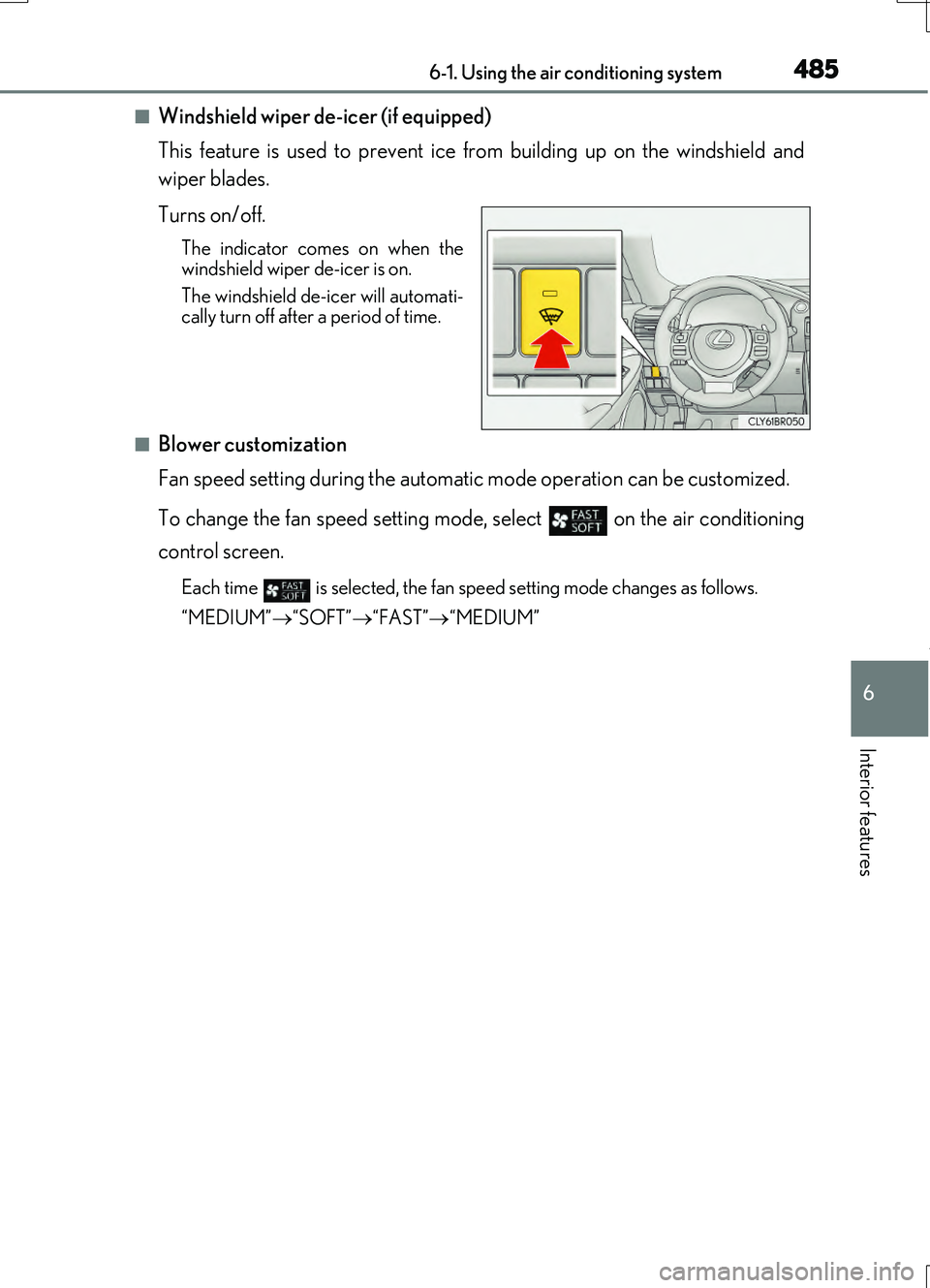
■Windshield wiper de-icer (if equipped)
This feature is used to prevent ice from building up on the windshield and
wiper blades.
Turns on/off.
The indicator come s on when the windshield wiper de-icer is on.
The windshield de-icer will automati- cally turn off after a period of time.
■Blower customization
Fan speed setting during the automatic mode operation can be customized.
To change the fan speed setting mode, select on the air conditioning
control screen.
Each time is selected, the fan speed setting mode changes as follows.
“MEDIUM” “SOFT”“FAST”“MEDIUM”