Low LEXUS RX200T 2017 Owners Manual
[x] Cancel search | Manufacturer: LEXUS, Model Year: 2017, Model line: RX200T, Model: LEXUS RX200T 2017Pages: 776, PDF Size: 44.51 MB
Page 522 of 776
5225-12. Other function
RX350/RX200t_EE_OM48F32E
■Operational conditions
●When MirrorLink™ is activated, previous applications, run with a USB, are closed, and vice versa.
●Compatible devices
Smartphones, which passed the Car Connectivity Consortium certification program ver1.1 or later. Confirm with the smartphone manufacture or the distributor for theMirrorLink™ compatibility.
●Compatible applications Applications, which are certified by Car Connectivity Consortium as MirrorLink™Base-Certified or Drive-Certified applications.
■About MirrorLink™
MirrorLink is a registered trademark of Car Connectivity Consortium, Inc.
■When using MirrorLink™
●Check that the smartphone screen is unlo cked. Unlock the smartphone screen before connecting it to the Lexus Display Audio system. (Some smartphones may not be able to be connected via MirrorLink™ if the screen is locked.)
●Make sure that the smartphone has been connected via Bluetooth®. (Some smart-phones may not be able to perform hands-free calls using the MirrorLink™ function if it has not been connected to the vehicle via Bluetooth®.
●If a MirrorLink™ application cannot be started, check that the MirrorLink™ applica-tion certificate has not expired. The certificates of MirrorLink™ applications have an expiration date. (An internet connection is required to automatically update the certifi-
cate.) If a MirrorLink™ application becomes unavailable, it may be due to the certifi- cate expiring. In this case, the certificat e must be updated manually. Check with the smartphone manufacturer or application developer for how to update the certificate.
●Make sure the volume of the smartphone is set to an appropriate level. If the Mirror-Link™ application volume is excessively low even when the volume of the Lexus Dis- play Audio system is increased, check the vo lume of the smartphone and increase it as
necessary.
WARNING
■While driving
Do not connect smartphone or operate the controls.
Page 525 of 776
5255-12. Other function
5
Lexus Display Audio system
RX350/RX200t_EE_OM48F32E
■USB memory functions
P. 477
■USB memory
●Compatible devices
USB memory device that can be used for JPEG display.
●Compatible device formats
The following device format can be used:
• USB communication format: USB2.0 FS (480 Mbps) • File system format: FAT16/32 (Windows)• Correspondence class: Mass storage class
●JPEG file compatibility
• Compatible image size: Maximum 10MB
• Compatible pixel size: Maximum 10,000,000 pixels
NOTICE
■To prevent damage to the USB memory device or its terminals
P. 480
Page 527 of 776
5275-12. Other function
5
Lexus Display Audio system
RX350/RX200t_EE_OM48F32E
■Microphone
P. 493
■Speech commands may not be recognized if:
●Spoken too quickly
●Spoken at a low or high volume
●Passengers are talking while speech commands are spoken
Page 530 of 776
530
RX350/RX200t_EE_OM48F32E
6-1. Basic operation of the Remote Touch screen
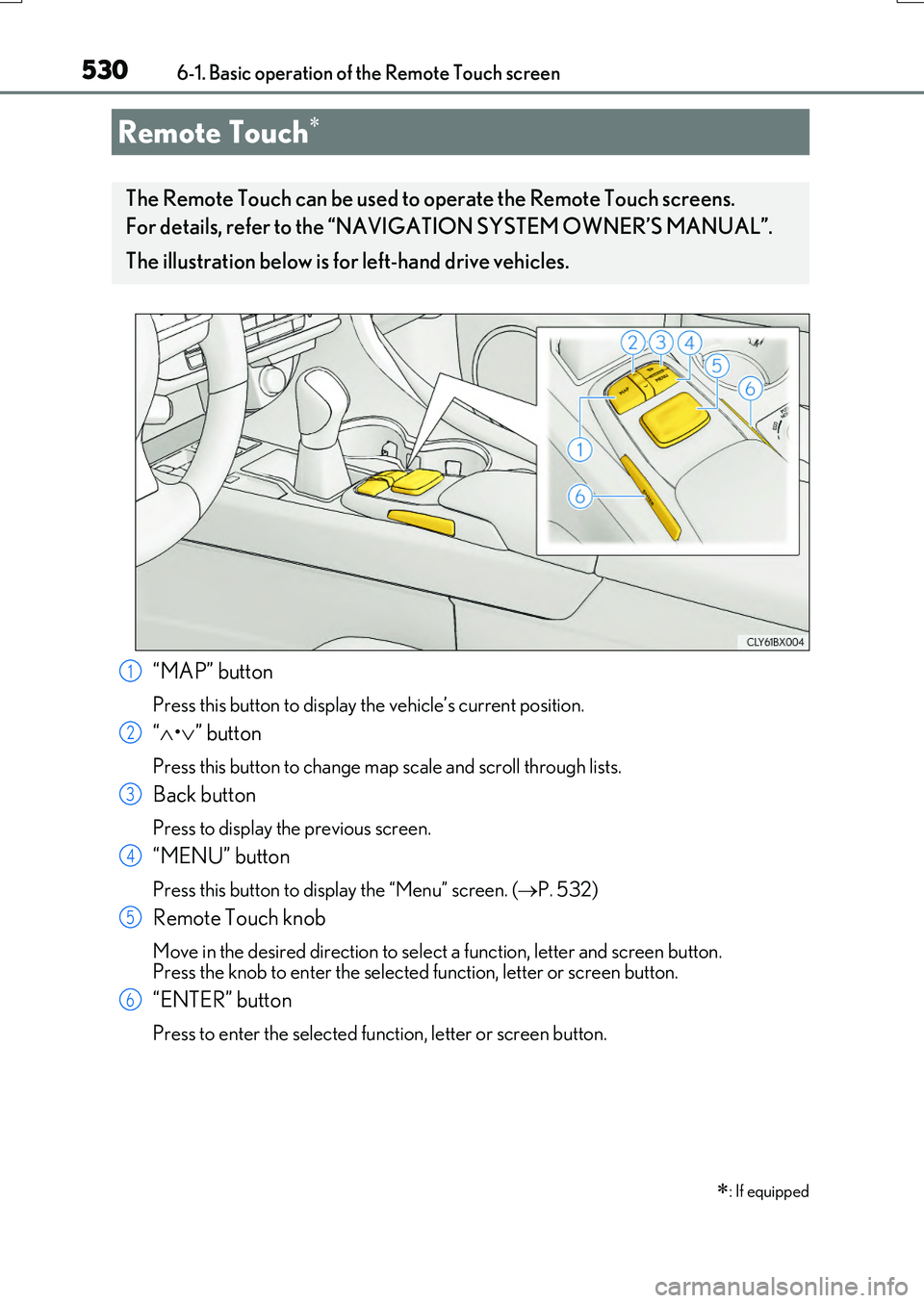
“MAP” button
Press this button to display the vehicle’s current position.
“ •” button
Press this button to change map scale and scroll through lists.
Back button
Press to display the previous screen.
“MENU” button
Press this button to display the “Menu” screen. (P. 532)
Remote Touch knob
Move in the desired direction to select a function, letter and screen button. Press the knob to enter the selected function, letter or screen button.
“ENTER” button
Press to enter the selected function, letter or screen button.
Remote Touch
: If equipped
The Remote Touch can be used to operate the Remote Touch screens.
For details, refer to the “NAVIGATION SYSTEM OWNER’S MANUAL”.
The illustration below is for left-hand drive vehicles.
1
2
3
4
5
6
Page 531 of 776
5316-1. Basic operation of the Remote Touch screen
6
Interior features
RX350/RX200t_EE_OM48F32E
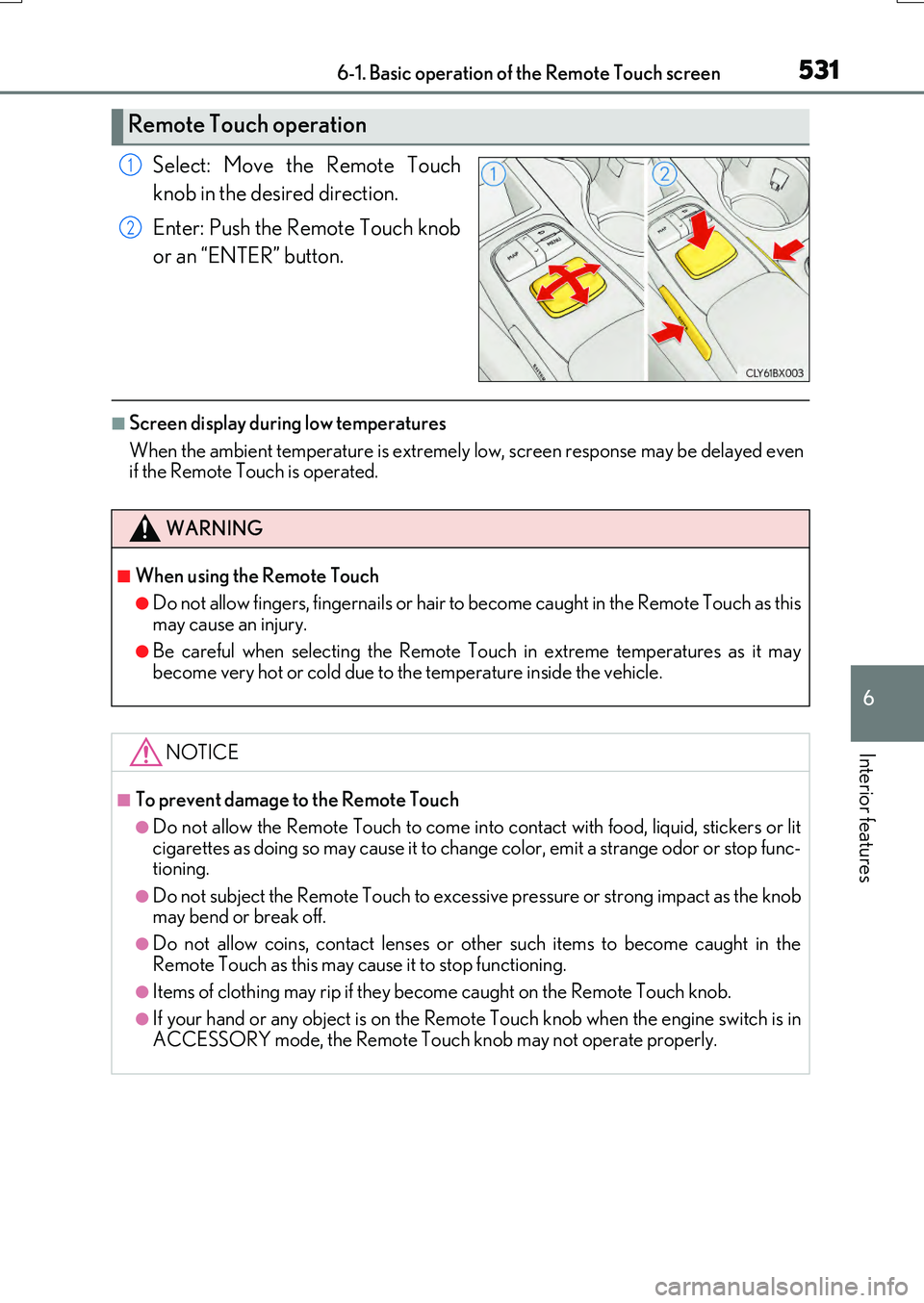
Select: Move the Remote Touch
knob in the desired direction.
Enter: Push the Remote Touch knob
or an “ENTER” button.
■Screen display during low temperatures
When the ambient temperature is extremely low, screen response may be delayed even if the Remote Touch is operated.
Remote Touch operation
1
2
WARNING
■When using the Remote Touch
●Do not allow fingers, fingernails or hair to become caught in the Remote Touch as this
may cause an injury.
●Be careful when selecting the Remote Touch in extreme temperatures as it may become very hot or cold due to the temperature inside the vehicle.
NOTICE
■To prevent damage to the Remote Touch
●Do not allow the Remote Touch to come into contact with food, liquid, stickers or lit
cigarettes as doing so may cause it to change color, emit a strange odor or stop func- tioning.
●Do not subject the Remote Touch to excessiv e pressure or strong impact as the knob may bend or break off.
●Do not allow coins, contact lenses or other such items to become caught in the
Remote Touch as this may cause it to stop functioning.
●Items of clothing may rip if they be come caught on the Remote Touch knob.
●If your hand or any object is on the Remote Touch knob when the engine switch is in
ACCESSORY mode, the Remote Touch knob may not operate properly.
Page 533 of 776
5336-1. Basic operation of the Remote Touch screen
6
Interior features
RX350/RX200t_EE_OM48F32E
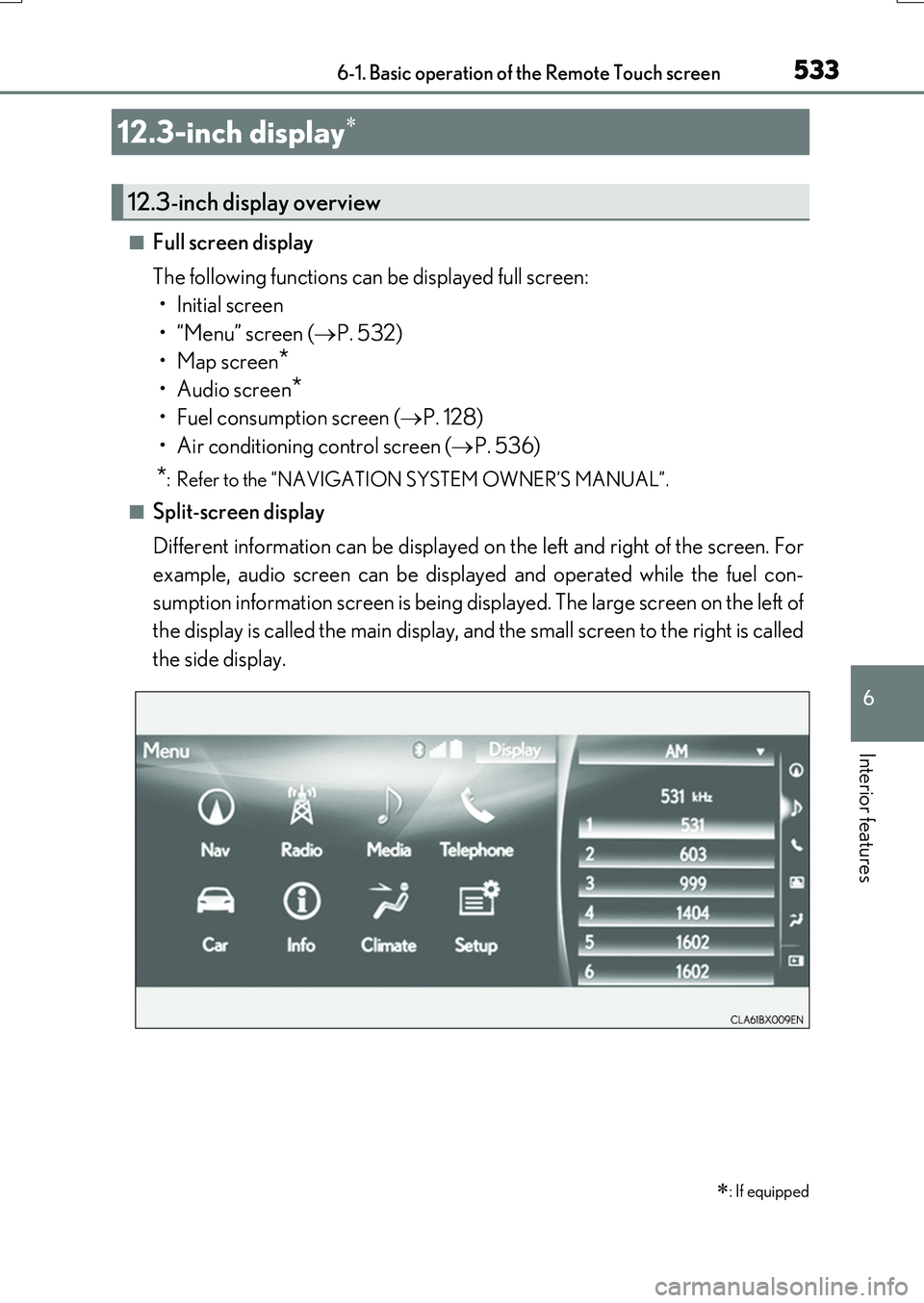
■Full screen display
The following functions can be displayed full screen:
•Initial screen
•“Menu” screen ( P. 532)
•Map screen*
•Audio screen*
• Fuel consumption screen ( P. 128)
• Air conditioning control screen ( P. 536)
*: Refer to the “NAVIGATION SYSTEM OWNER’S MANUAL”.
■Split-screen display
Different information can be displayed on the left and right of the screen. For
example, audio screen can be displayed and operated while the fuel con-
sumption information screen is being displayed. The large screen on the left of
the display is called the main display, and the small screen to the right is called
the side display.
12.3-inch display
: If equipped
12.3-inch display overview
Page 534 of 776
5346-1. Basic operation of the Remote Touch screen
RX350/RX200t_EE_OM48F32E
■Selecting the operation screen
When selecting the main display, move the Remote Touch knob to the left.
When selecting the side display, move the Remote Touch knob to the right.
■ Main display
For details about the functions and operation of the main display, refer to the
respective section and “NAVIGATION SYSTEM OWNER’S MANUAL”.
■Side display
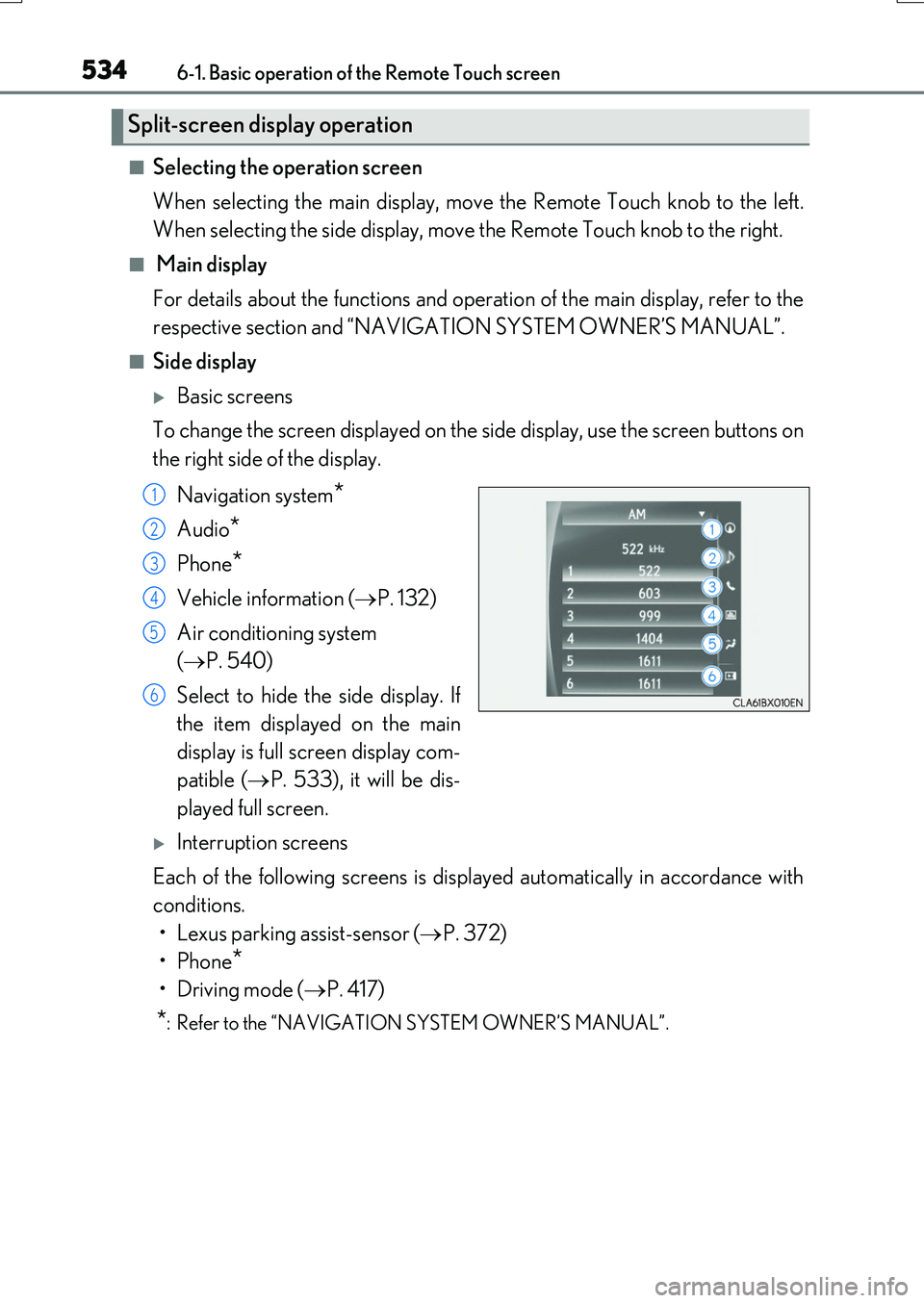
Basic screens
To change the screen displayed on the side display, use the screen buttons on
the right side of the display.
Navigation system*
Audio*
Phone*
Vehicle information ( P. 132)
Air conditioning system
( P. 540)
Select to hide the side display. If
the item displayed on the main
display is full screen display com-
patible ( P. 533), it will be dis-
played full screen.
Interruption screens
Each of the following screens is displayed automatically in accordance with
conditions.
• Lexus parking assist-sensor ( P. 372)
•Phone*
•Driving mode ( P. 417)
*: Refer to the “NAVIGATION SYSTEM OWNER’S MANUAL”.
Split-screen display operation
1
2
3
4
5
6
Page 535 of 776
535
RX350/RX200t_EE_OM48F32E
6
Interior features
6-2. Using the air conditioning system and defogger
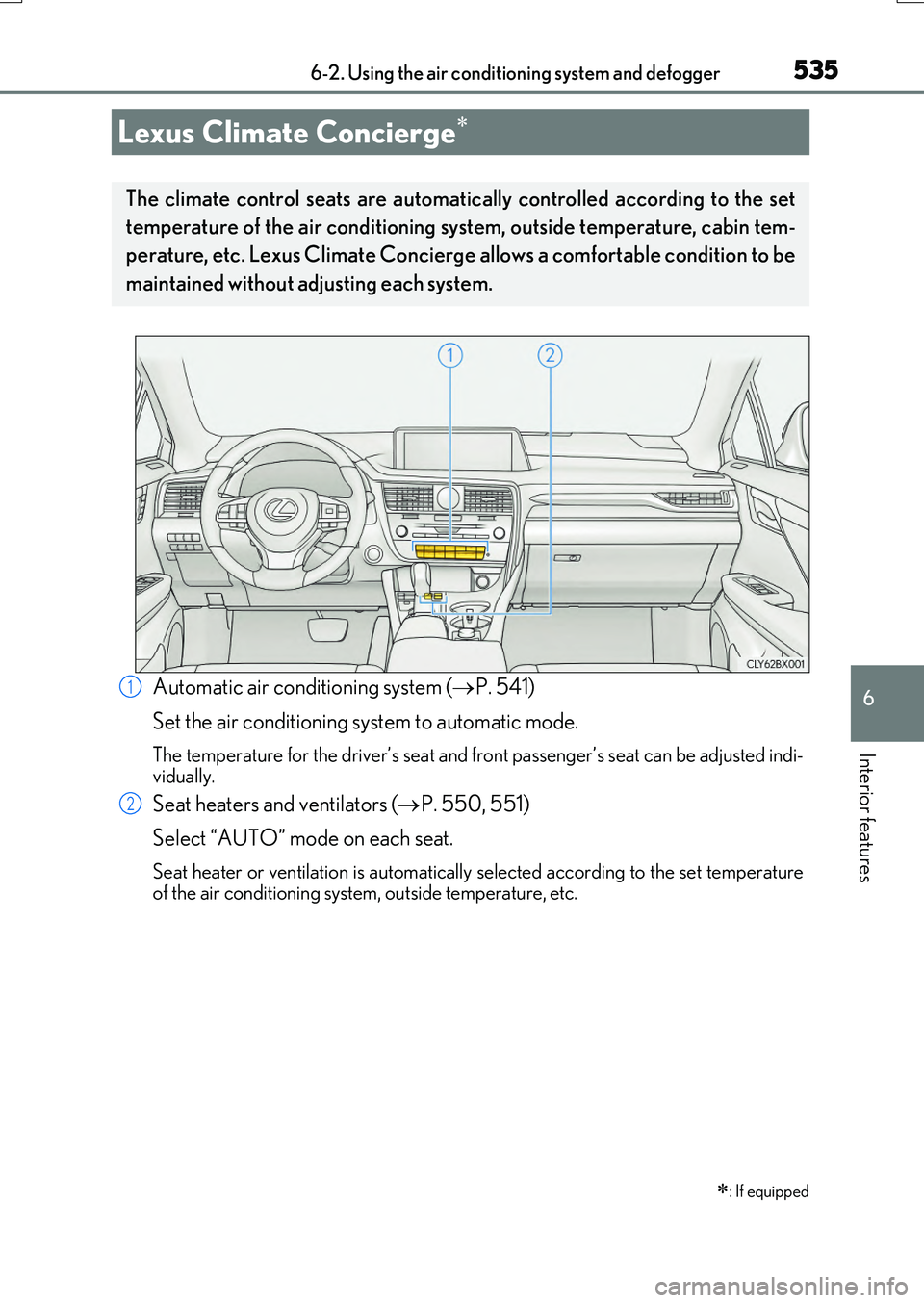
Automatic air conditioning system (P. 541)
Set the air conditioning system to automatic mode.
The temperature for the driver’s seat and front passenger’s seat can be adjusted indi-
vidually.
Seat heaters and ventilators ( P. 550, 551)
Select “AUTO” mode on each seat.
Seat heater or ventilation is automatically selected according to the set temperature of the air conditioning system, outside temperature, etc.
Lexus Climate Concierge
: If equipped
The climate control seats are automatical ly controlled according to the set
temperature of the air conditioning system, outside temperature, cabin tem-
perature, etc. Lexus Climate Concierge allows a comfortable condition to be
maintained without adjusting each system.
1
2
Page 538 of 776
5386-2. Using the air conditioning system and defogger
RX350/RX200t_EE_OM48F32E
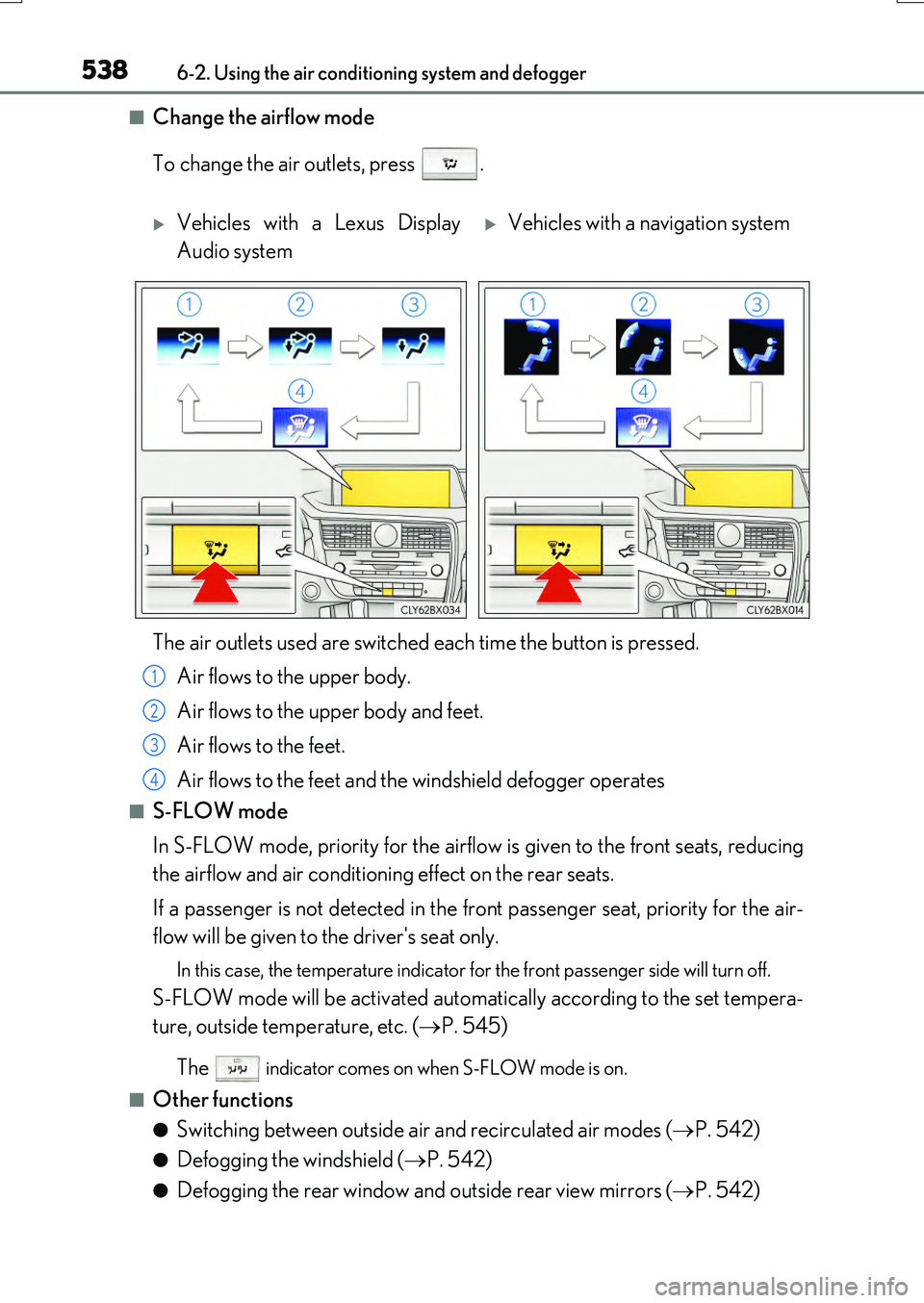
■Change the airflow mode
To change the air outlets, press .
■S-FLOW mode
In S-FLOW mode, priority for the airflow is given to the front seats, reducing
the airflow and air conditioning effect on the rear seats.
If a passenger is not detected in the front passenger seat, priority for the air-
flow will be given to the driver's seat only.
In this case, the temperature indicator for the front passenger side will turn off.
S-FLOW mode will be activated automatically according to the set tempera-
ture, outside temperature, etc. ( P. 545)
The indicator comes on when S-FLOW mode is on.
■Other functions
●Switching between outside air and recirculated air modes ( P. 542)
●Defogging the windshield (P. 542)
●Defogging the rear window and outside rear view mirrors (P. 542)
Vehicles with a Lexus Display
Audio system
Vehicles with a navigation system
The air outlets used are switched each time the button is pressed.
Air flows to the upper body.
Air flows to the upper body and feet.
Air flows to the feet.
Air flows to the feet and the windshield defogger operates
1
2
3
4
Page 539 of 776
5396-2. Using the air conditioning system and defogger
6
Interior features
RX350/RX200t_EE_OM48F32E
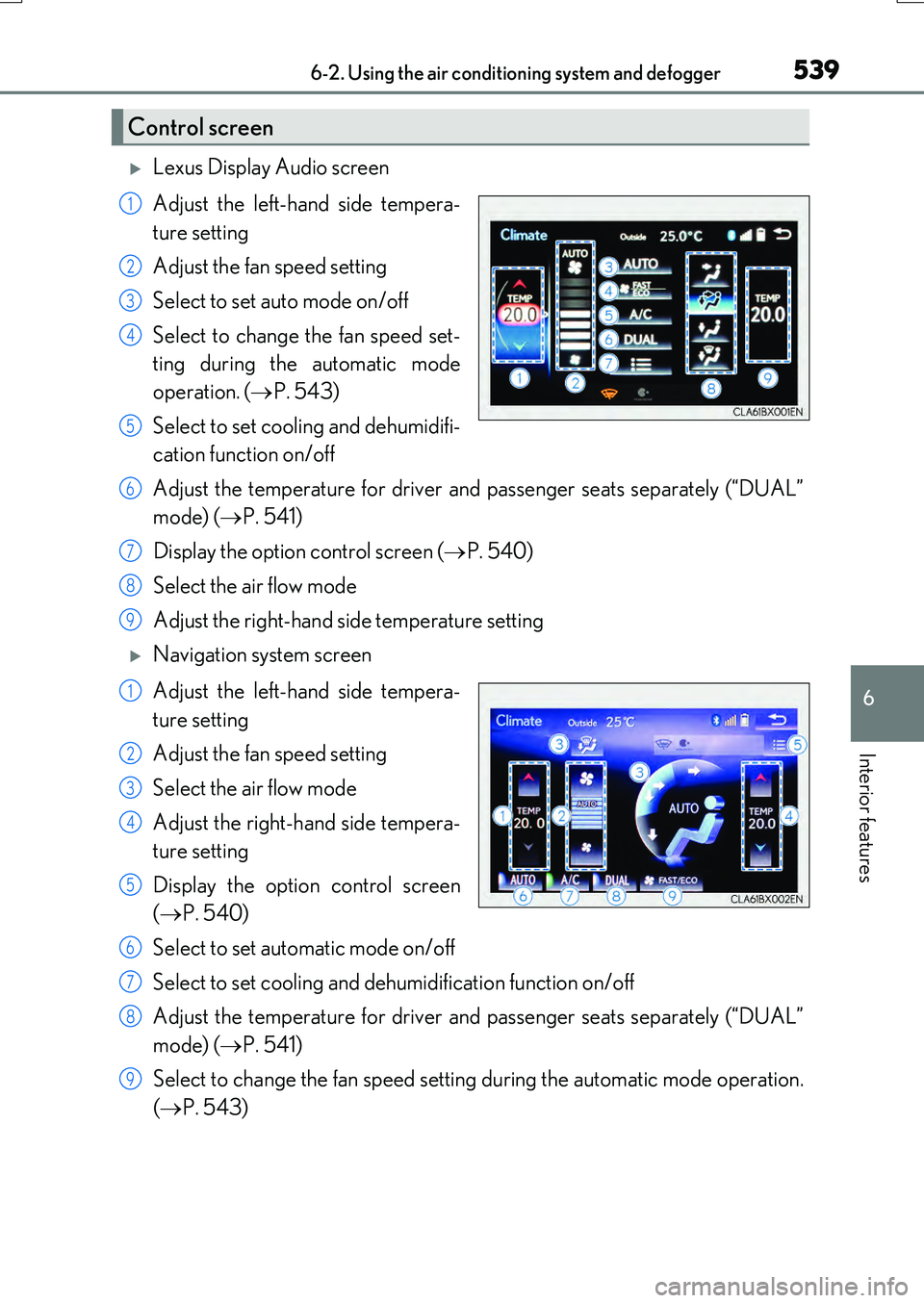
Lexus Display Audio screen
Adjust the left-hand side tempera-
ture setting
Adjust the fan speed setting
Select to set auto mode on/off
Select to change the fan speed set-
ting during the automatic mode
operation. ( P. 543)
Select to set cooling and dehumidifi-
cation function on/off
Adjust the temperature for driver and passenger seats separately (“DUAL”
mode) ( P. 541)
Display the option control screen ( P. 540)
Select the air flow mode
Adjust the right-hand side temperature setting
Navigation system screen
Adjust the left-hand side tempera-
ture setting
Adjust the fan speed setting
Select the air flow mode
Adjust the right-hand side tempera-
ture setting
Display the option control screen
( P. 540)
Select to set automatic mode on/off
Select to set cooling and dehumidification function on/off
Adjust the temperature for driver and passenger seats separately (“DUAL”
mode) ( P. 541)
Select to change the fan speed setting during the automatic mode operation.
( P. 543)
Control screen
1
2
3
4
5
6
7
8
9
1
2
3
4
5
6
7
8
9