USB LEXUS RX200T 2017 Owners Manual
[x] Cancel search | Manufacturer: LEXUS, Model Year: 2017, Model line: RX200T, Model: LEXUS RX200T 2017Pages: 776, PDF Size: 44.51 MB
Page 4 of 776
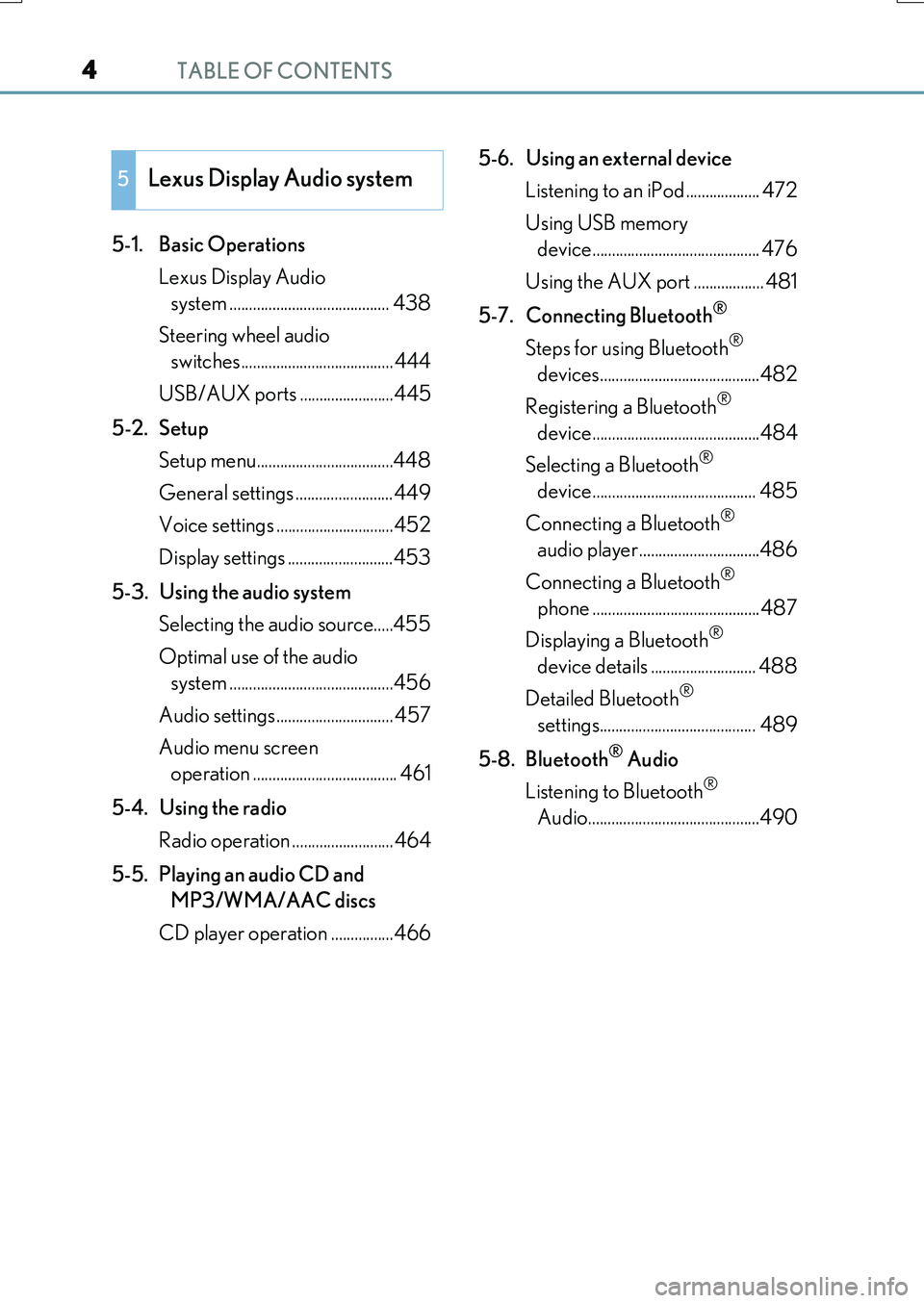
TABLE OF CONTENTS4
RX350/RX200t_EE_OM48F32E
5-1. Basic Operations
Lexus Display Audio
system ......................................... 438
Steering wheel audio
switches....................................... 444
USB/AUX ports ........................445
5-2. Setup
Setup menu...................................448
General settings .........................449
Voice settings ..............................452
Display settings ...........................453
5-3. Using the audio system
Selecting the audio source.....455
Optimal use of the audio
system ..........................................456
Audio settings.............................. 457
Audio menu screen
operation ..................................... 461
5-4. Using the radio
Radio operation ..........................464
5-5. Playing an audio CD and
MP3/WMA/AAC discs
CD player operation ................466
5-6. Using an external device
Listening to an iPod ................... 472
Using USB memory
device........................................... 476
Using the AUX port .................. 481
5-7. Connecting Bluetooth®
Steps for using Bluetooth®
devices.........................................482
Registering a Bluetooth®
device...........................................484
Selecting a Bluetooth®
device.......................................... 485
Connecting a Bluetooth®
audio player...............................486
Connecting a Bluetooth®
phone ...........................................487
Displaying a Bluetooth®
device details ........................... 488
Detailed Bluetooth®
settings........................................ 489
5-8. Bluetooth® Audio
Listening to Bluetooth®
Audio............................................490
5Lexus Display Audio system
Page 5 of 776
5
1
9
8
7
6
4
3
2
RX350/RX200t_EE_OM48F32E
5
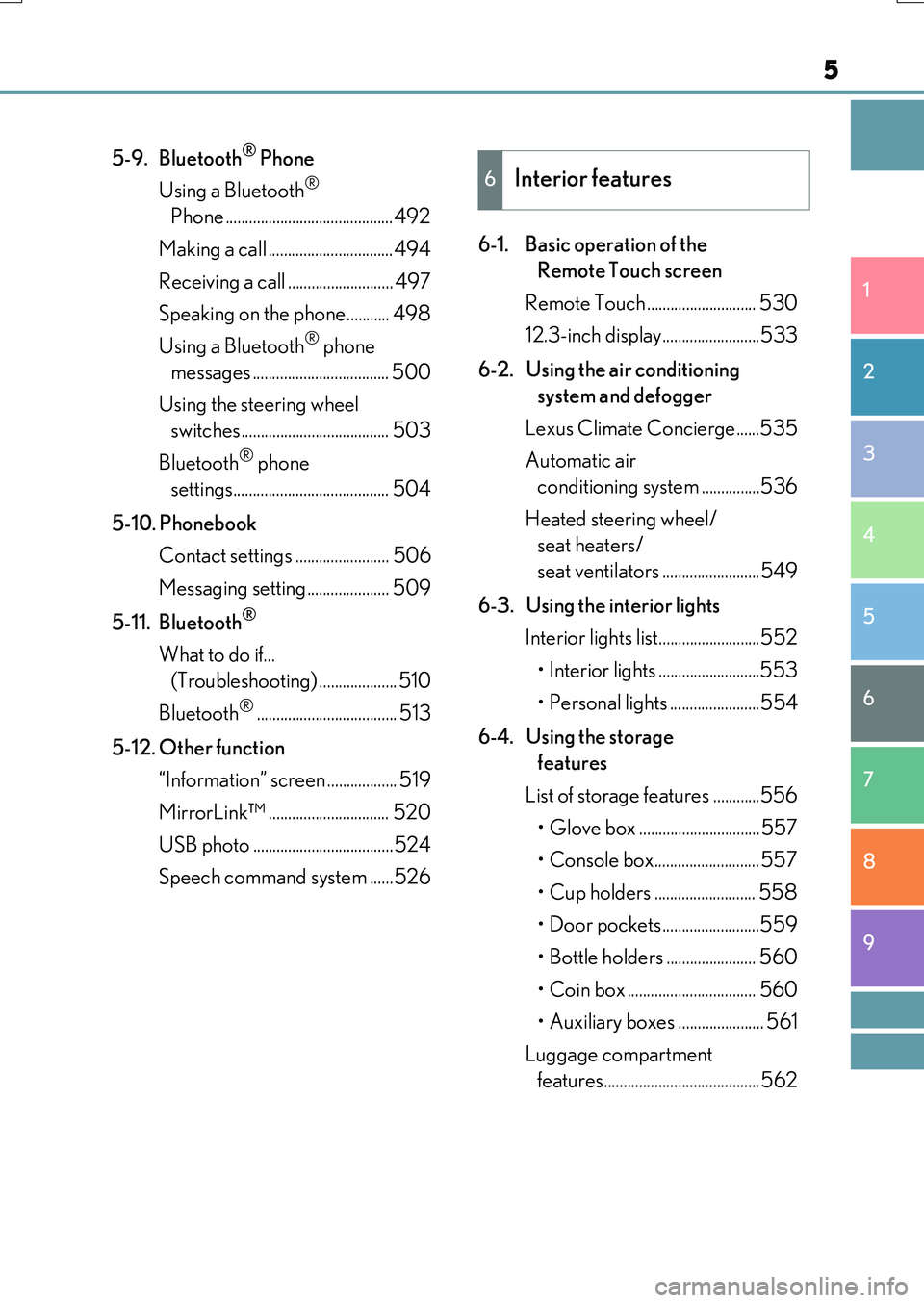
5-9. Bluetooth® Phone
Using a Bluetooth®
Phone ...........................................492
Making a call ................................494
Receiving a call ........................... 497
Speaking on the phone........... 498
Using a Bluetooth® phone
messages ................................... 500
Using the steering wheel
switches...................................... 503
Bluetooth® phone
settings........................................ 504
5-10. Phonebook
Contact settings ........................ 506
Messaging setting..................... 509
5-11. Bluetooth®
What to do if...
(Troubleshooting) .................... 510
Bluetooth®.................................... 513
5-12. Other function
“Information” screen .................. 519
MirrorLink™ ............................... 520
USB photo ....................................524
Speech command system ......526
6-1. Basic operation of the
Remote Touch screen
Remote Touch ............................ 530
12.3-inch display.........................533
6-2. Using the air conditioning
system and defogger
Lexus Climate Concierge......535
Automatic air
conditioning system ...............536
Heated steering wheel/
seat heaters/
seat ventilators .........................549
6-3. Using the interior lights
Interior lights list..........................552
• Interior lights ..........................553
• Personal lights .......................554
6-4. Using the storage
features
List of storage features ............556
• Glove box ...............................557
• Console box........................... 557
• Cup holders .......................... 558
• Door pockets.........................559
• Bottle holders ....................... 560
• Coin box ................................. 560
• Auxiliary boxes ...................... 561
Luggage compartment
features........................................562
6Interior features
Page 436 of 776
436
RX350/RX200t_EE_OM48F32E
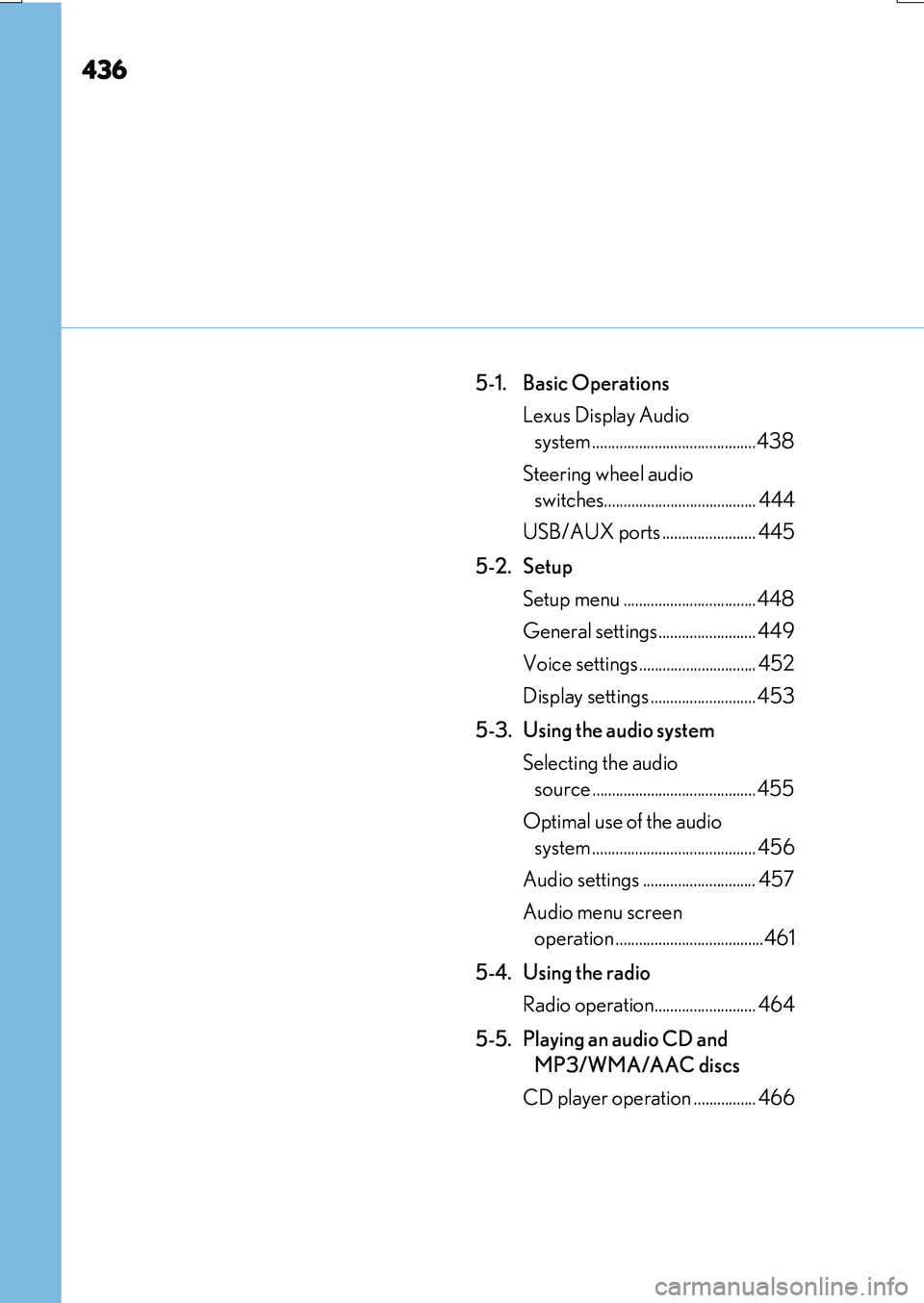
5-1. Basic Operations
Lexus Display Audio
system ..........................................438
Steering wheel audio
switches....................................... 444
USB/AUX ports ........................ 445
5-2. Setup
Setup menu ..................................448
General settings......................... 449
Voice settings.............................. 452
Display settings ........................... 453
5-3. Using the audio system
Selecting the audio
source ..........................................455
Optimal use of the audio
system .......................................... 456
Audio settings ............................. 457
Audio menu screen
operation ......................................461
5-4. Using the radio
Radio operation.......................... 464
5-5. Playing an audio CD and
MP3/WMA/AAC discs
CD player operation ................ 466
Page 437 of 776
437
5
Lexus Display
Audio system
RX350/RX200t_EE_OM48F32E
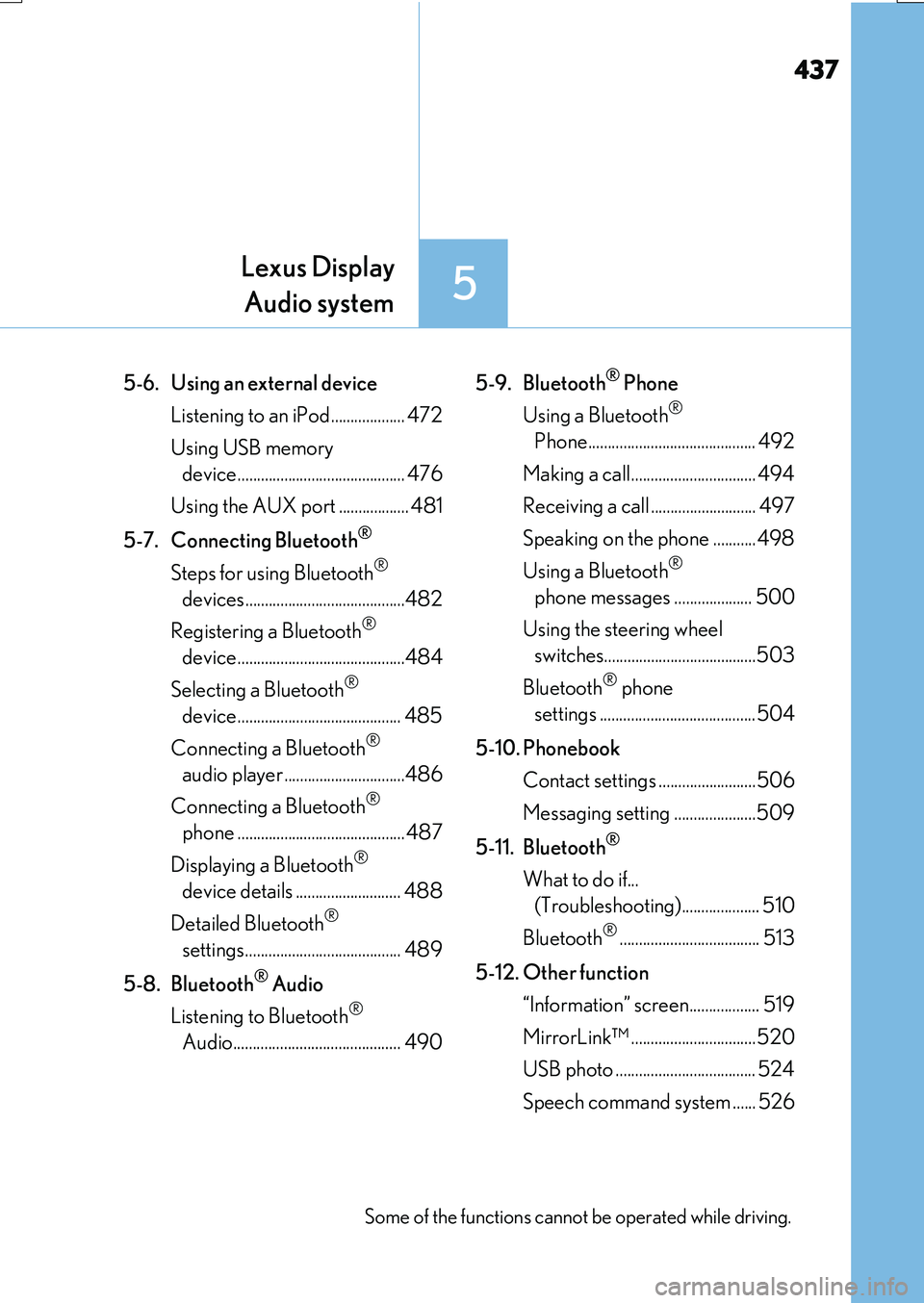
5-6. Using an external device
Listening to an iPod................... 472
Using USB memory
device........................................... 476
Using the AUX port .................. 481
5-7. Connecting Bluetooth®
Steps for using Bluetooth®
devices.........................................482
Registering a Bluetooth®
device...........................................484
Selecting a Bluetooth®
device.......................................... 485
Connecting a Bluetooth®
audio player ...............................486
Connecting a Bluetooth®
phone ...........................................487
Displaying a Bluetooth®
device details ........................... 488
Detailed Bluetooth®
settings........................................ 489
5-8. Bluetooth® Audio
Listening to Bluetooth®
Audio........................................... 490
5-9. Bluetooth® Phone
Using a Bluetooth®
Phone........................................... 492
Making a call................................ 494
Receiving a call ........................... 497
Speaking on the phone ...........498
Using a Bluetooth®
phone messages .................... 500
Using the steering wheel
switches.......................................503
Bluetooth® phone
settings ........................................504
5-10. Phonebook
Contact settings .........................506
Messaging setting .....................509
5-11. Bluetooth®
What to do if...
(Troubleshooting).................... 510
Bluetooth®.................................... 513
5-12. Other function
“Information” screen.................. 519
MirrorLink™ ................................520
USB photo .................................... 524
Speech command system ...... 526
Some of the functions cannot be operated while driving.
Page 444 of 776
4445-1. Basic Operations
RX350/RX200t_EE_OM48F32E
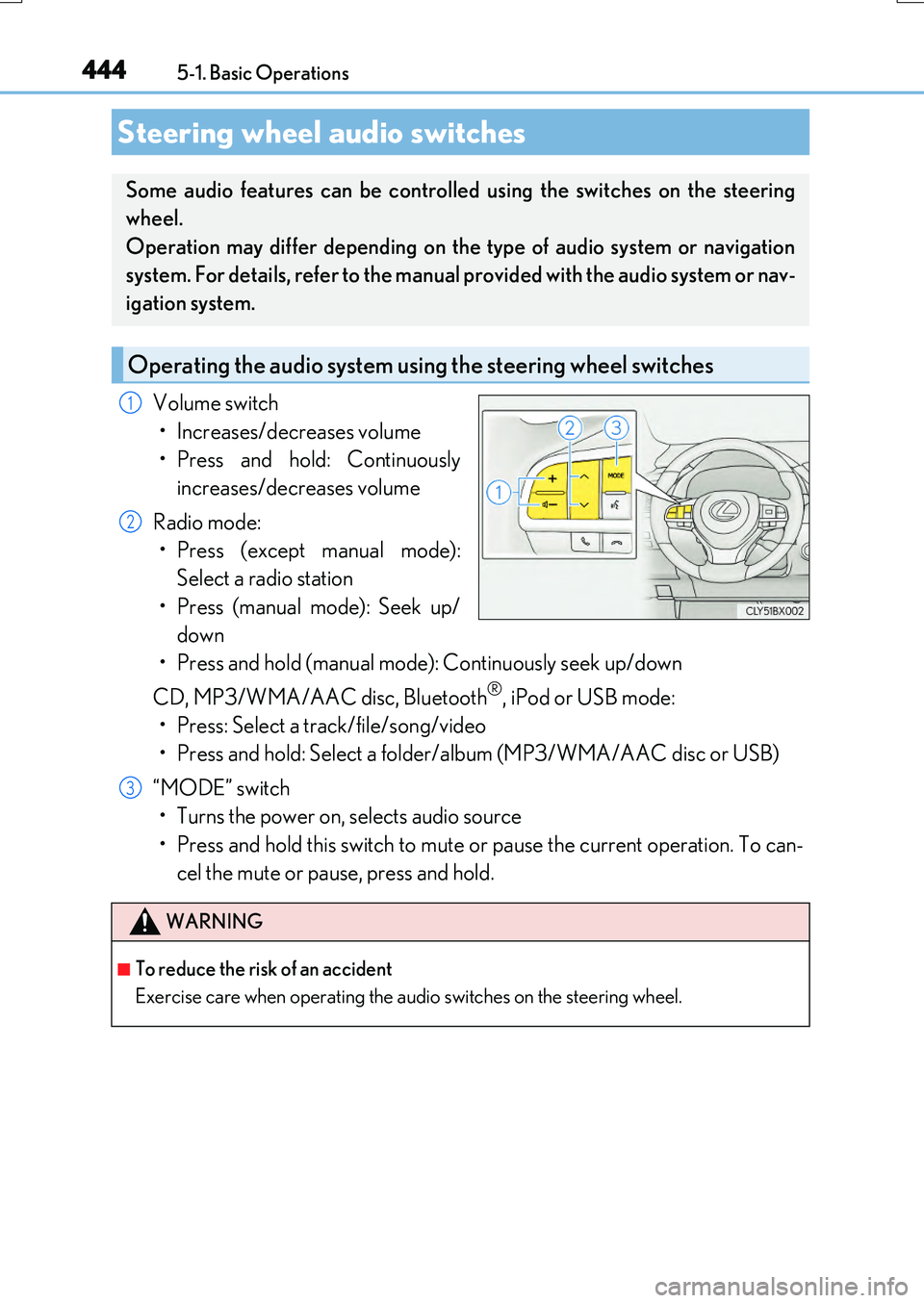
Volume switch
• Increases/decreases volume
• Press and hold: Continuously
increases/decreases volume
Radio mode:
• Press (except manual mode):
Select a radio station
• Press (manual mode): Seek up/
down
• Press and hold (manual mode): Continuously seek up/down
CD, MP3/WMA/AAC disc, Bluetooth®, iPod or USB mode:
• Press: Select a track/file/song/video
• Press and hold: Select a folder/album (MP3/WMA/AAC disc or USB)
“MODE” switch
• Turns the power on, selects audio source
• Press and hold this switch to mute or pause the current operation. To can-
cel the mute or pause, press and hold.
Steering wheel audio switches
Some audio features can be controlled using the switches on the steering
wheel.
Operation may differ depending on the type of audio system or navigation
system. For details, refer to the manual provided with the audio system or nav-
igation system.
Operating the audio system us ing the steering wheel switches
1
2
WARNING
■To reduce the risk of an accident
Exercise care when operating the audio switches on the steering wheel.
3
Page 445 of 776
4455-1. Basic Operations
5
Lexus Display Audio system
RX350/RX200t_EE_OM48F32E
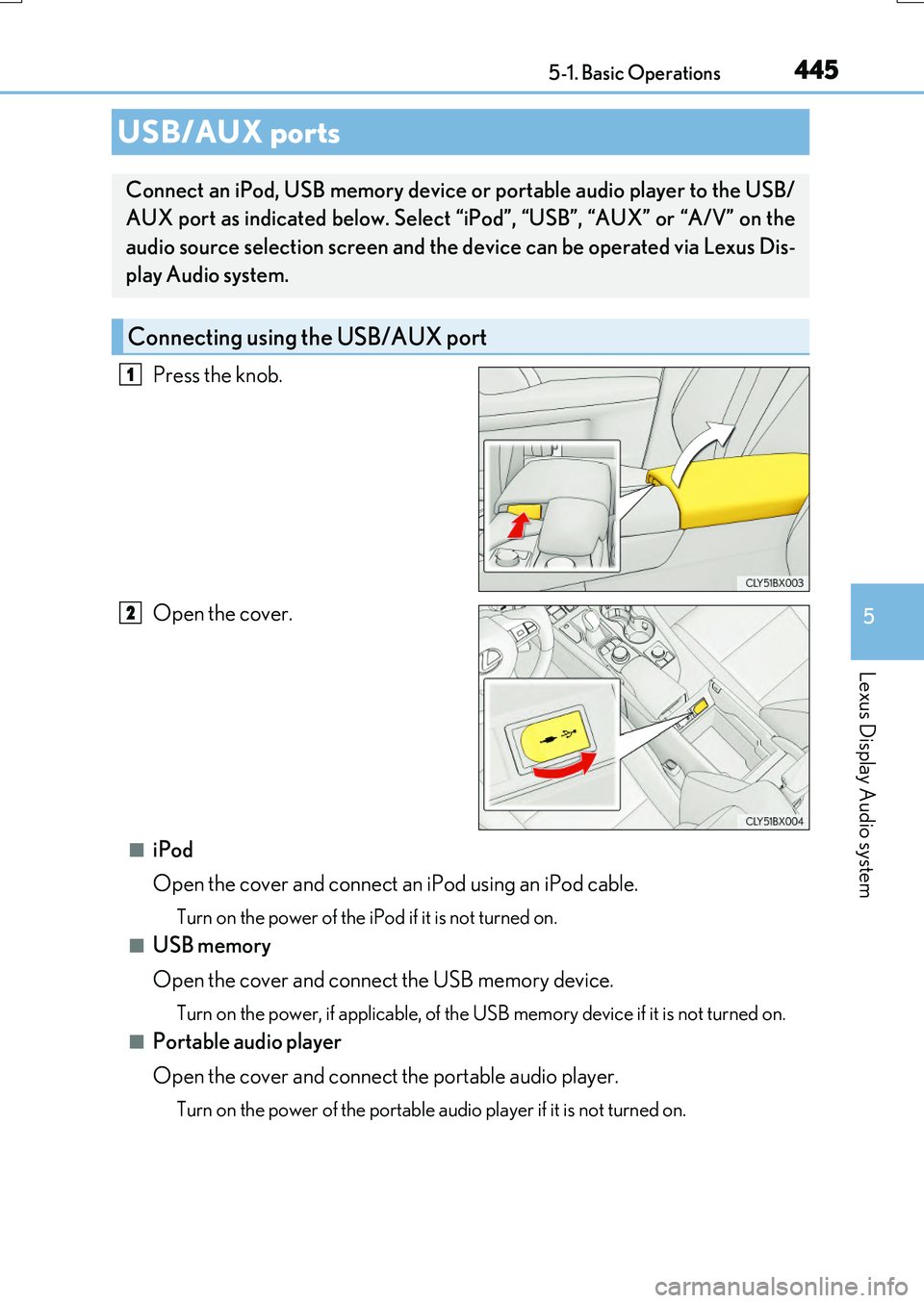
Press the knob.
Open the cover.
■iPod
Open the cover and connect an iPod using an iPod cable.
Turn on the power of the iPod if it is not turned on.
■USB memory
Open the cover and connect the USB memory device.
Turn on the power, if applicable, of the US B memory device if it is not turned on.
■Portable audio player
Open the cover and connect the portable audio player.
Turn on the power of the portable audio player if it is not turned on.
USB/AUX ports
Connect an iPod, USB memory device or portable audio player to the USB/
AUX port as indicated below. Select “iPod”, “USB”, “AUX” or “A/V” on the
audio source selection screen and the device can be operated via Lexus Dis-
play Audio system.
Connecting using the USB/AUX port
1
2
Page 446 of 776
4465-1. Basic Operations
RX350/RX200t_EE_OM48F32E
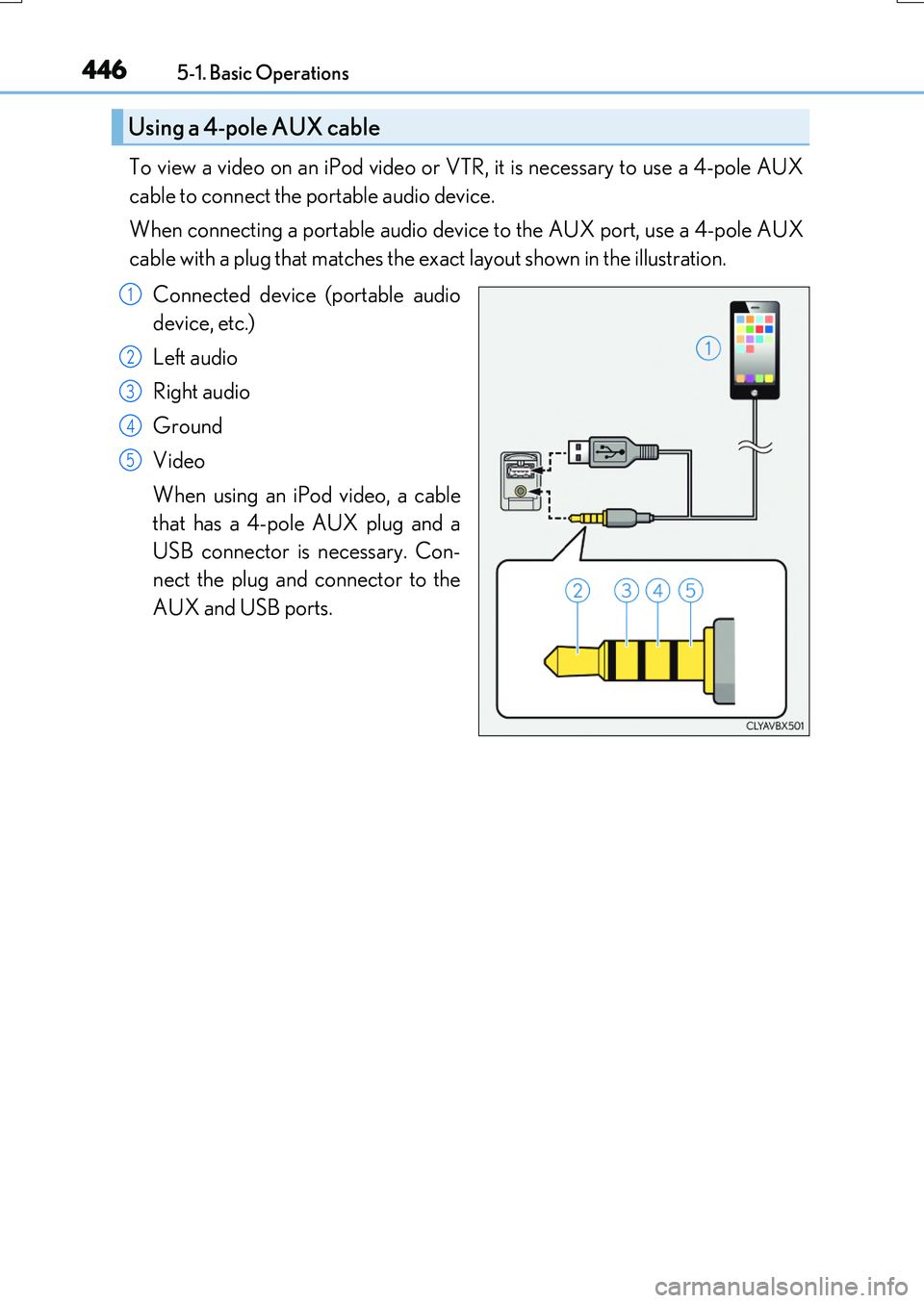
To view a video on an iPod video or VTR, it is necessary to use a 4-pole AUX
cable to connect the portable audio device.
When connecting a portable audio device to the AUX port, use a 4-pole AUX
cable with a plug that matches the exact layout shown in the illustration.
Connected device (portable audio
device, etc.)
Left audio
Right audio
Ground
Video
When using an iPod video, a cable
that has a 4-pole AUX plug and a
USB connector is necessary. Con-
nect the plug and connector to the
AUX and USB ports.
Using a 4-pole AUX cable
1
2
3
4
5
Page 447 of 776
4475-1. Basic Operations
5
Lexus Display Audio system
RX350/RX200t_EE_OM48F32E
■When using a 4-pole AUX cable
If a 4-pole AUX cable with a different layout is used, audio and/or video may not be out- put properly.
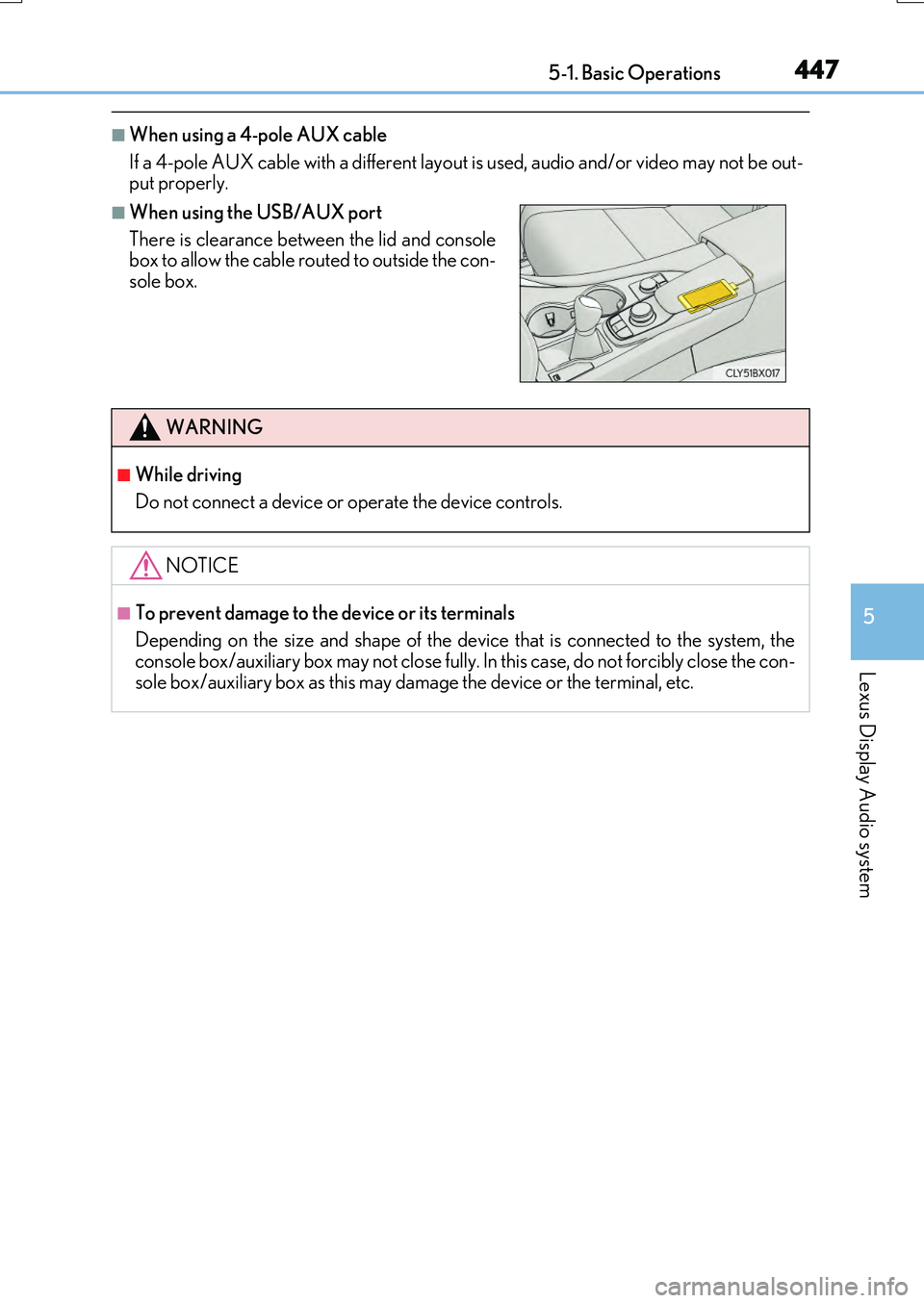
■When using the USB/AUX port
There is clearance between the lid and console box to allow the cable routed to outside the con-
sole box.
WARNING
■While driving
Do not connect a device or operate the device controls.
NOTICE
■To prevent damage to the device or its terminals
Depending on the size and shape of the device that is connected to the system, the console box/auxiliary box may not close fully. In this case, do not forcibly close the con-
sole box/auxiliary box as this may damage the device or the terminal, etc.
Page 450 of 776
4505-2. Setup
RX350/RX200t_EE_OM48F32E
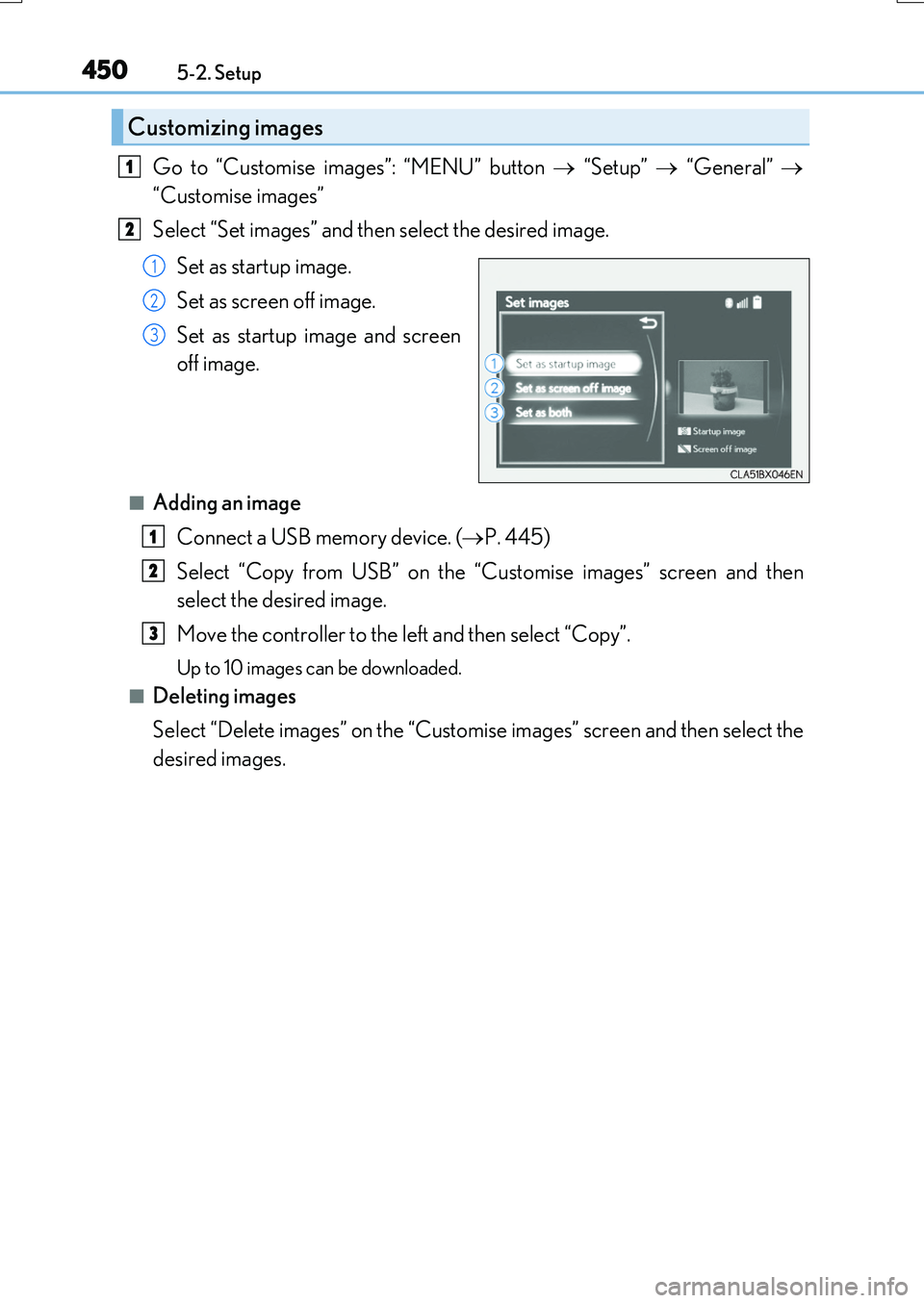
Go to “Customise images”: “MENU” button “Setup” “General”
“Customise images”
Select “Set images” and then select the desired image.
Set as startup image.
Set as screen off image.
Set as startup image and screen
off image.
■Adding an image
Connect a USB memory device. ( P. 445)
Select “Copy from USB” on the “C ustomise images” screen and then
select the desired image.
Move the controller to the left and then select “Copy”.
Up to 10 images can be downloaded.
■Deleting images
Select “Delete images” on the “Customise images” screen and then select the
desired images.
Customizing images
1
2
1
2
3
1
2
3
Page 451 of 776
4515-2. Setup
5
Lexus Display Audio system
RX350/RX200t_EE_OM48F32E
■USB memory
When saving the images to a USB memory device, name the folder that the images are saved to “Image”.
●Compatible device formats
The following device format can be used:
• The image’s file format must be JPEG • USB communication format: USB2.0 FS (480 Mbps)
• File system format: FAT16/32 (Windows) • Correspondence class: Mass storage class
●JPEG file compatibility
Compatible image size: Maximum 10 MB
Go to “Delete personal data”: “MENU” button “Setup” “General”
“Delete personal data”
Select “Delete”.
Check carefully beforehand, as data cannot be retrieved once deleted.
The following personal data will be deleted or changed to its default settings.
• Phonebook data •Voice tag
• Call history data •Favorite data
• Bluetooth® devices data
• Phone sound settings
• Detailed Bluetooth® settings • Audio/video setting
• Customized image data •FM info setting• Software update history
• Software update detail information • Phone display setting• Contact/call history setting
• Messaging setting
NOTICE
■To prevent damage to the USB memory device or its terminals
P. 480
Deleting personal data
1
2