audio LEXUS RX350 2015 Owner's Manual
[x] Cancel search | Manufacturer: LEXUS, Model Year: 2015, Model line: RX350, Model: LEXUS RX350 2015Pages: 886, PDF Size: 11 MB
Page 245 of 886
2452-4. Using other driving systems
2
When driving Intuitive parking assist The distance to obstacles measured by the sensors is communicated via
the multi-information display, screen (vehicles with the Lexus Display
Audio system) and a buzzer when parallel parking or maneuvering into a
garage is conducted. Always check the surrounding area when using this
system.
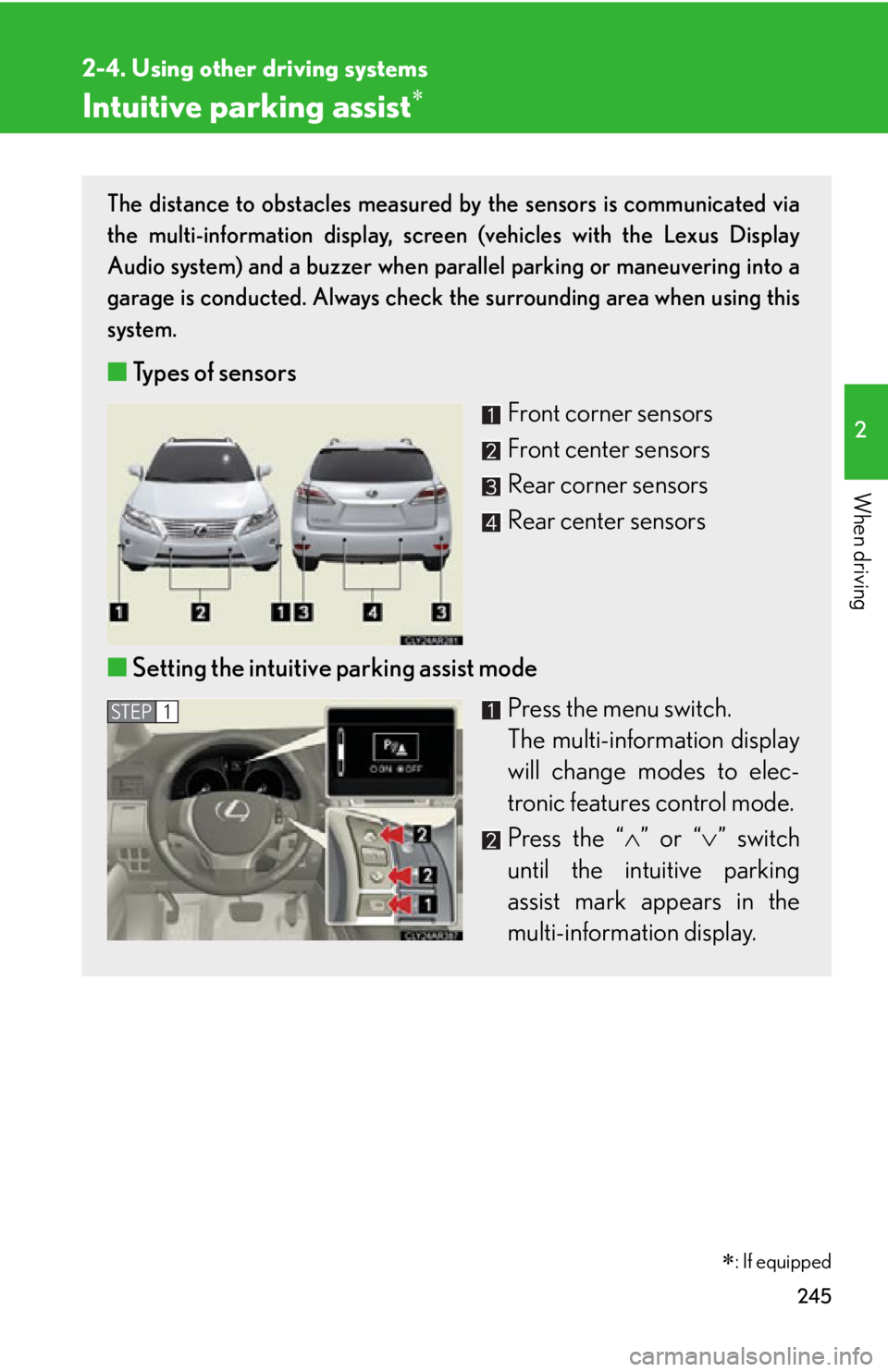
■ Types of sensors
Front corner sensors
Front center sensors
Rear corner sensors
Rear center sensors
■ Setting the intuitive parking assist mode
Press the menu switch.
The multi-information display
will change modes to elec-
tronic features control mode.
Press the “ ” or “ ” switch
until the intuitive parking
assist mark appears in the
multi-information display. STEP 1
: If equipped
Page 246 of 886
2462-4. Using other driving systems
Display
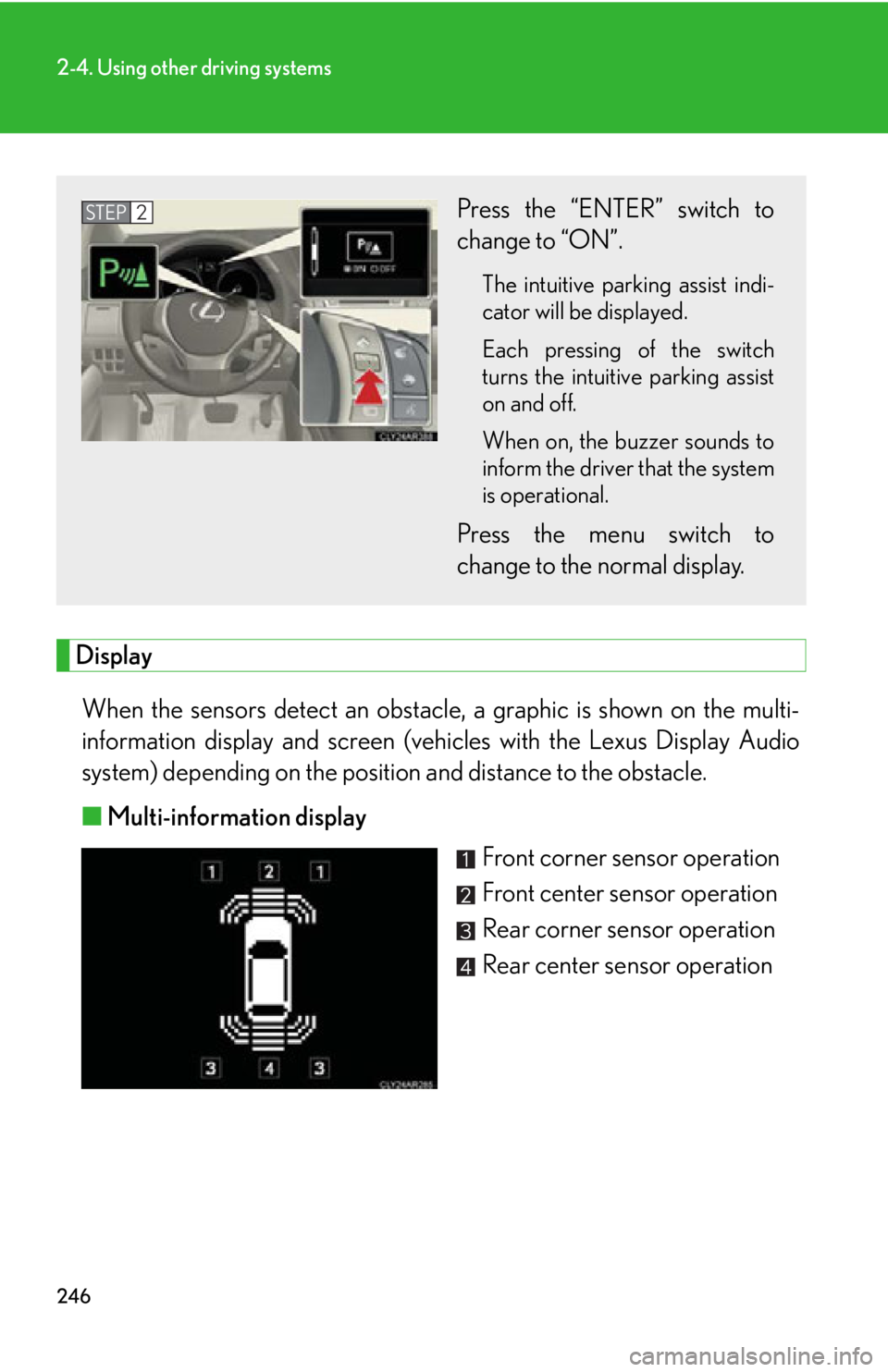
When the sensors detect an obstacle, a graphic is shown on the multi-
information display and screen (vehic les with the Lexus Display Audio
system) depending on the position and distance to the obstacle.
■ Multi-information display
Front corner sensor operation
Front center sensor operation
Rear corner sensor operation
Rear center sensor operationPress the “ENTER” switch to
change to “ON”. The intuitive parking assist indi-
cator will be displayed.
Each pressing of the switch
turns the intuitive parking assist
on and off.
When on, the buzzer sounds to
inform the driver that the system
is operational.
Press the menu switch to
change to the normal display.STEP 2
Page 247 of 886
2472-4. Using other driving systems
2
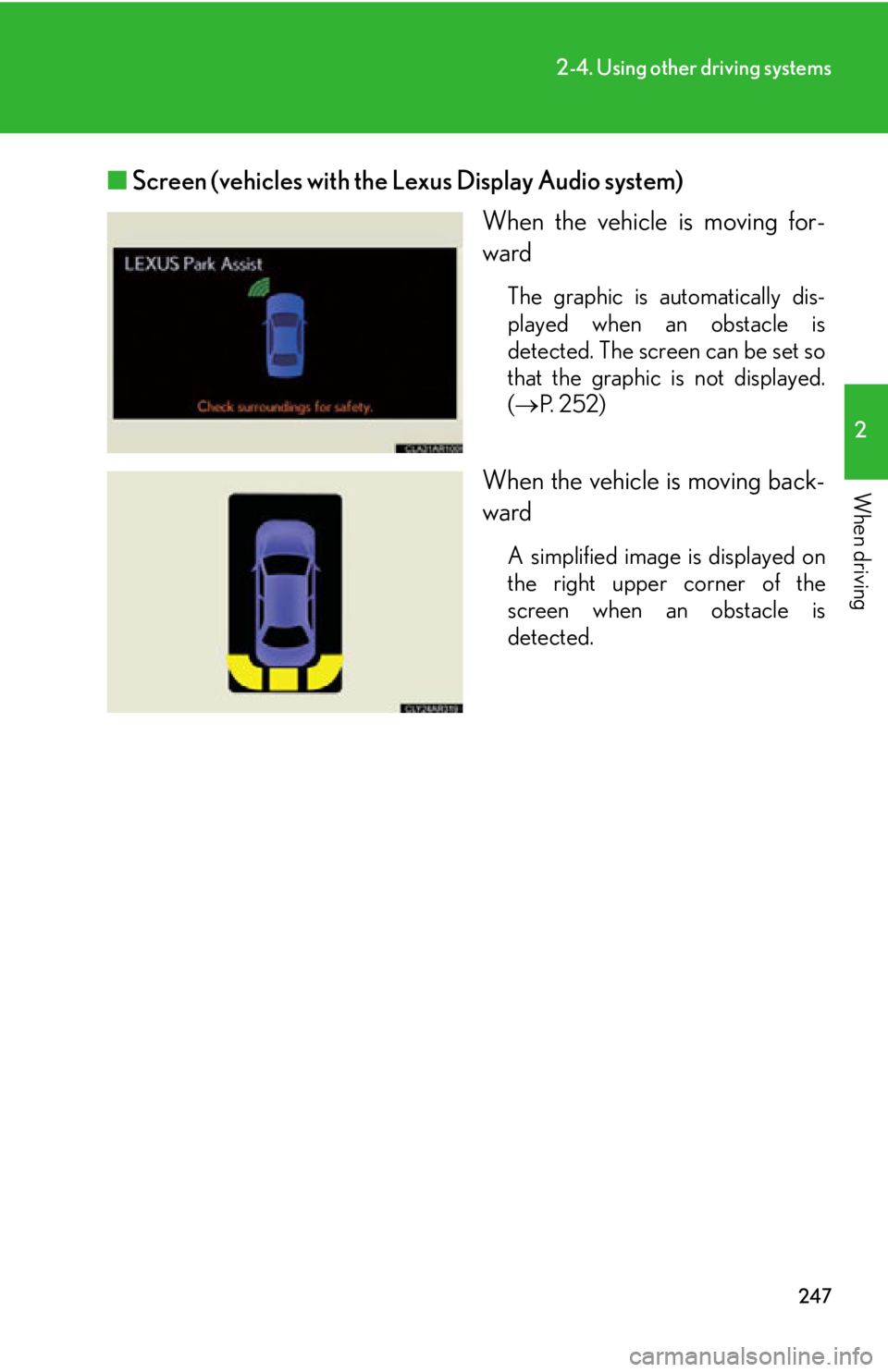
When driving ■ Screen (vehicles with the Lexus Display Audio system)
When the vehicle is moving for-
ward The graphic is automatically dis-
played when an obstacle is
detected. The screen can be set so
that the graphic is not displayed.
( P. 252)
When the vehicle is moving back-
ward A simplified image is displayed on
the right upper corner of the
screen when an obstacle is
detected.
Page 252 of 886

2522-4. Using other driving systems
Customization of the intuitive parkin g assist (vehicle with the Lexus
Display Audio system)
The buzzer volume, display and buzzer timing and display of the graphic
on the screen can be customized.
Press the “MENU” button on the Lexus Display Audio controller.
Select “Setup” on the “Menu” screen.
Select “Vehicle” on the “Setup” screen.
Select “LEXUS Park Assist” on the “Vehicle Settings” screen.
Alert volume setting
Display on/off
Alert distance setting
When you complete settings, select “Save”.STEP 1
STEP 2
STEP 3
STEP 4
■
The intuitive parking assist can be operated when ●
Front corner sensors:
• The “ENGINE START STOP” switch is in IGNITION ON mode.
• The shift lever is in a position other than P.
• The vehicle speed is less than about 6 mph (10 km/h).●
Front center sensors:
• The “ENGINE START STOP” switch is in IGNITION ON mode.
• The shift lever is in a position other than P or R.
• The vehicle speed is less than about 6 mph (10 km/h).
●
Rear corner and center sensors:
• The “ENGINE START STOP” switch is in IGNITION ON mode.
• The shift lever is in R. STEP 5
Page 264 of 886
2642-4. Using other driving systems
Rear view monitor system (vehicles with the Lexus Display Audio system)
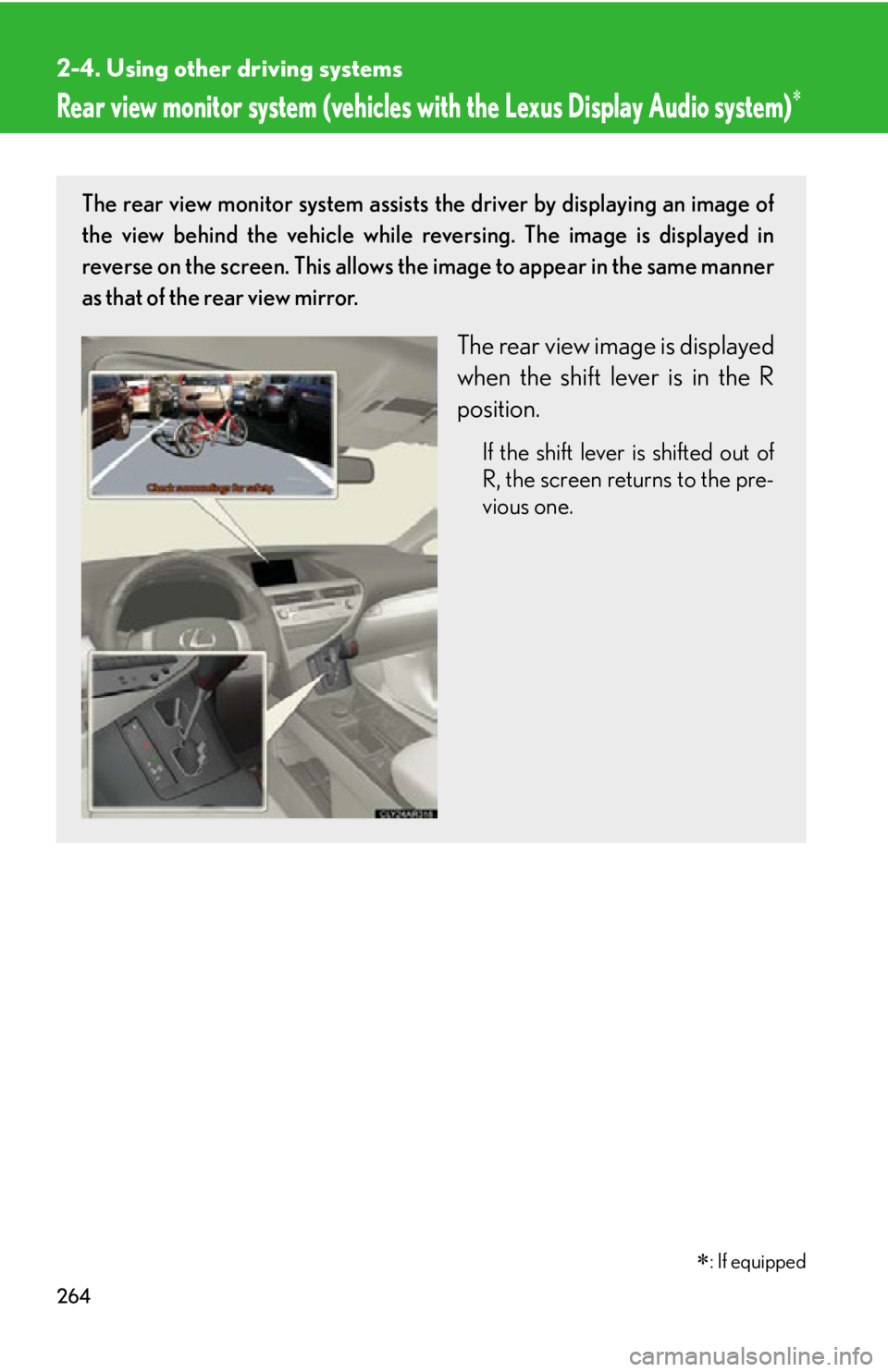
: If equippedThe rear view monitor system assists the driver by displaying an image of
the view behind the vehicle while re versing. The image is displayed in
reverse on the screen. This allows the image to appear in the same manner
as that of the rear view mirror.
The rear view image is displayed
when the shift lever is in the R
position. If the shift lever is shifted out of
R, the screen returns to the pre-
vious one.
Page 325 of 886
Interior features
3
3253-1. Lexus Display Audio
system
Lexus Display Audio
system..................................... 328
Display settings ...................... 332
Setup menu ............................. 334
Vehicle information............... 340
Mobile Assistant .................... 343
3-2. Using the air conditioning
system and defogger
Automatic air conditioning
system (with the Lexus
Display Audio system) ....... 345
Automatic air conditioning
system (without a
navigation system or the
Lexus Display Audio
system) ................................... 353
Rear window defogger
switch ....................................... 361
Windshield wiper de-icer .... 363
Page 326 of 886
326 3-3. Using the Lexus Display
Audio system
Audio system (with the
Lexus Display Audio
system).................................... 365
Using the radio....................... 368
Using the CD player ............ 383
Playing an audio CD and
MP3/WMA discs .............. 384
Listening to an iPod................ 394
Listening to a USB
memory ................................. 402
Using the AUX port ............... 412
Listening to Bluetooth ®
audio......................................... 414
Optimal use of the audio
system ..................................... 428
Using the steering wheel
audio switches ..................... 430
Hands-free system
(for mobile phone)............... 433
Using the Bluetooth ®
phone ....................................... 441
Setting the hands-free
system ..................................... 459
Bluetooth ®
settings .............. 472 3-4. Using the audio system
Audio system (without a
navigation system or the
Lexus Display Audio
system) ................................... 480
Using the radio ....................... 483
Using the CD player ............. 492
Playing MP3 and WMA
discs.......................................... 501
Operating an iPod .................. 510
Operating a USB
memory.................................. 520
Bluetooth ®
audio system .... 530
Using the Bluetooth ®
audio system ......................... 535
Operating a Bluetooth ®
enabled portable player ... 540
Setting up a Bluetooth ®
enabled portable player ... 544
Bluetooth ®
audio system
setup ........................................ 551
Optimal use of the audio
system..................................... 552
Using the AUX port .............. 554
Using the steering wheel
audio switches...................... 556
Hands-free system for
mobile phones...................... 560
Page 328 of 886
3283-1. Lexus Display Audio system
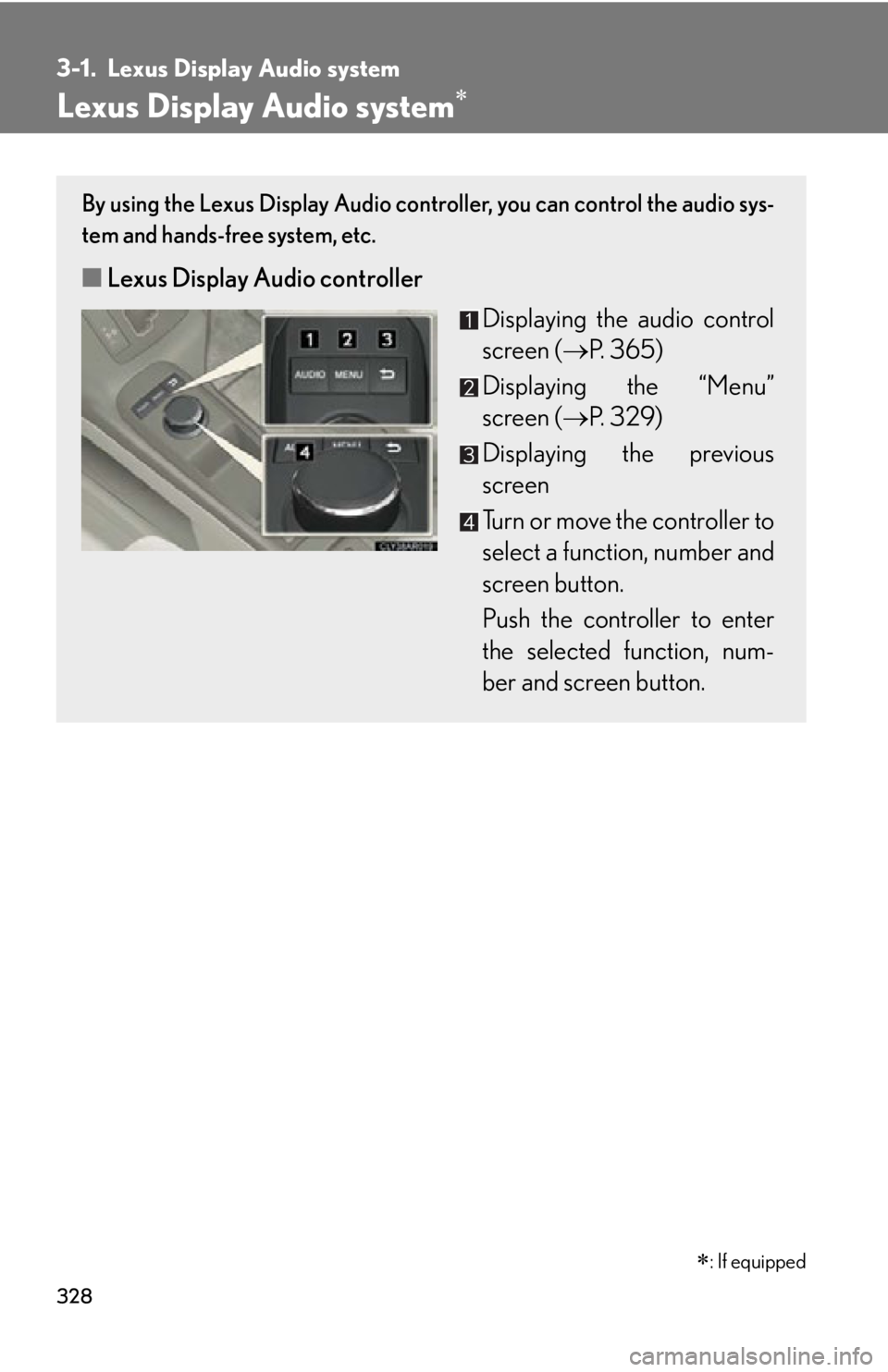
Lexus Display Audio system By using the Lexus Display Audio controller, you can control the audio sys-
tem and hands-free system, etc.
■ Lexus Display Audio controller
Displaying the audio control
screen ( P. 365)
Displaying the “Menu”
screen ( P. 3 2 9 )
Displaying the previous
screen
Turn or move the controller to
select a function, number and
screen button.
Push the controller to enter
the selected function, num-
ber and screen button.
: If equipped
Page 329 of 886
3293-1. Lexus Display Audio system
3
Interior features ■ “Menu” screen
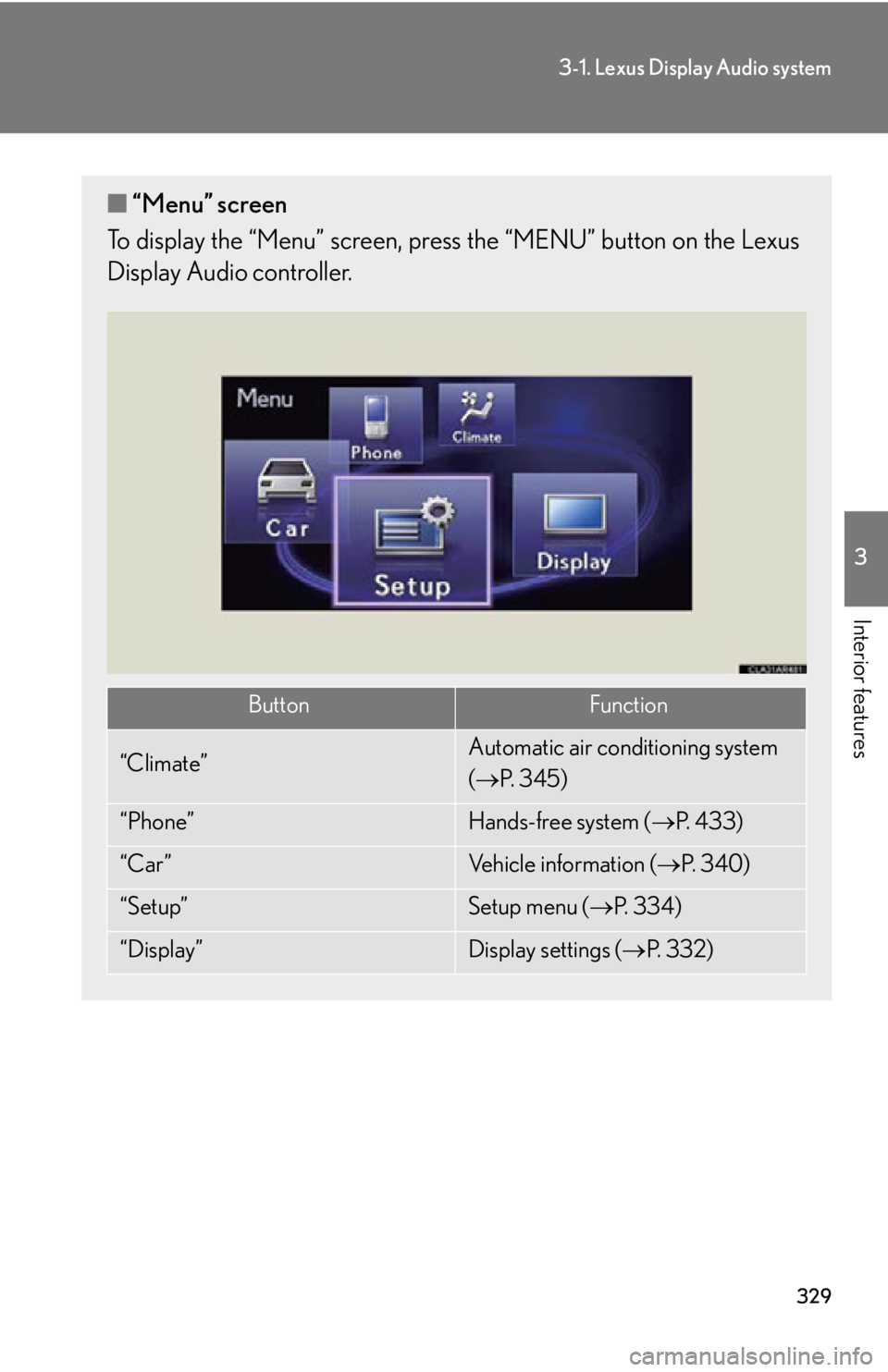
To display the “Menu” screen, pres s the “MENU” button on the Lexus
Display Audio controller.
Button Function
“Climate” Automatic air conditioning system
( P. 3 4 5 )
“Phone” Hands-free system ( P. 4 3 3 )
“Car ” Vehicle information ( P. 3 4 0 )
“Setup” Setup menu ( P. 3 3 4 )
“Display” Display settings ( P. 3 3 2 )
Page 330 of 886
3303-1. Lexus Display Audio system
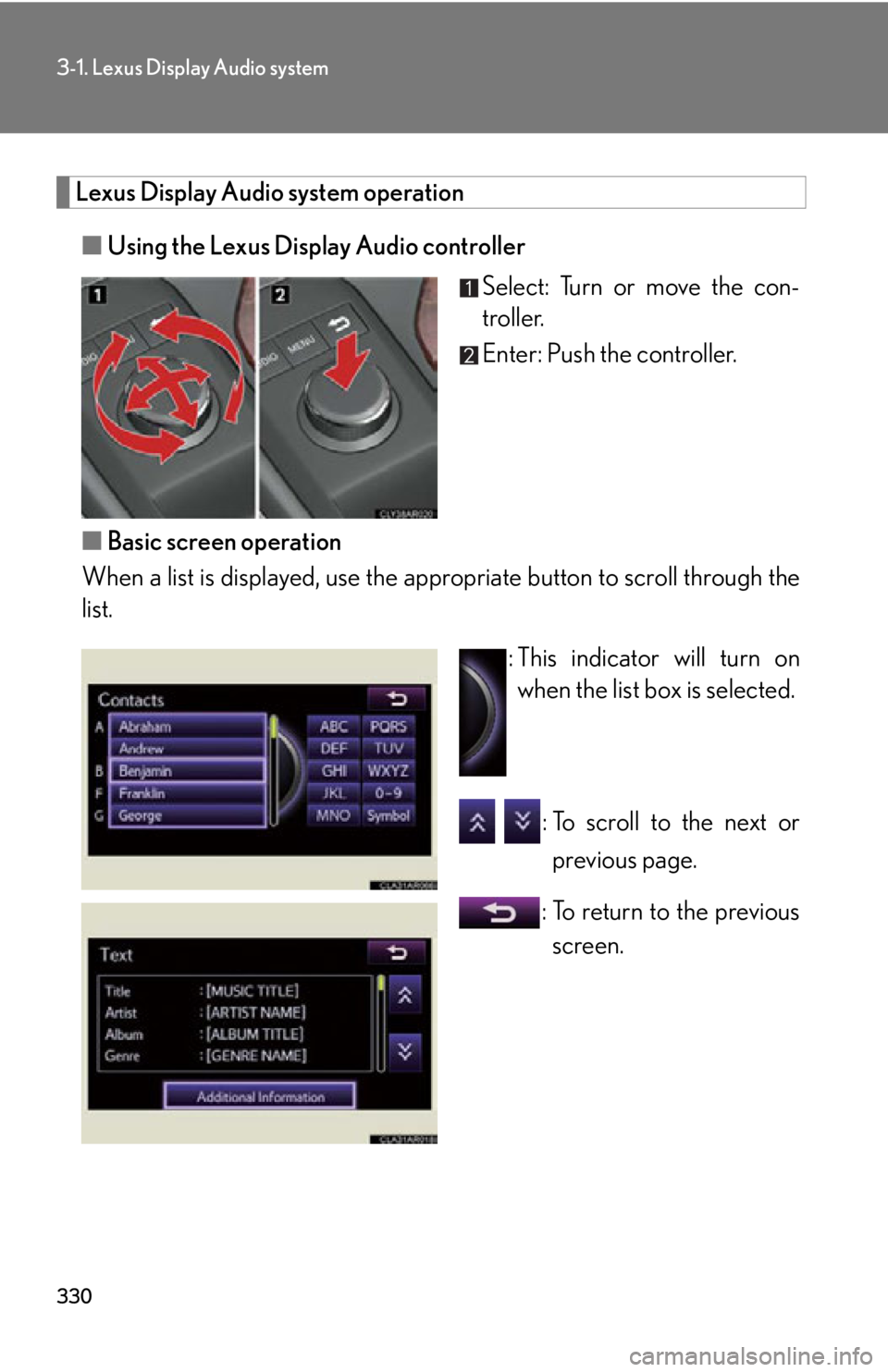
Lexus Display Audio system operation
■ Using the Lexus Display Audio controller
Select: Turn or move the con-
troller.
Enter: Push the controller.
■ Basic screen operation
When a list is displayed, use the a ppropriate button to scroll through the
list.
: This indicator will turn on
when the list box is selected.
: To scroll to the next or
previous page.
: To return to the previous
screen.