audio LEXUS RX350 2019 Owner's Guide
[x] Cancel search | Manufacturer: LEXUS, Model Year: 2019, Model line: RX350, Model: LEXUS RX350 2019Pages: 777, PDF Size: 12.44 MB
Page 365 of 777
364 4-5. Using the driving support systems
RX350/RX350L_U ■
Area displayed on screen
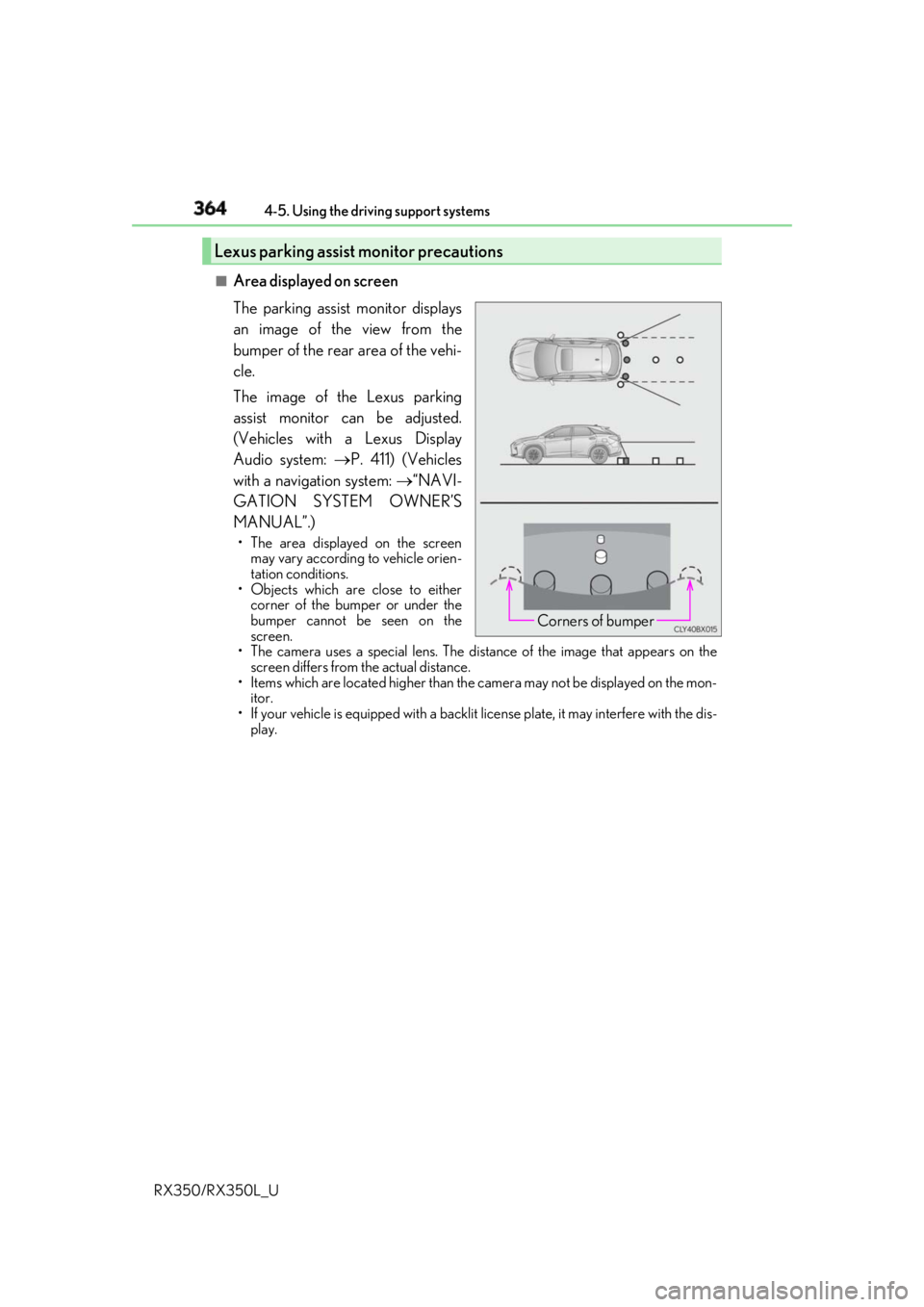
The parking assist monitor displays
an image of the view from the
bumper of the rear area of the vehi-
cle.
The image of the Lexus parking
assist monitor can be adjusted.
(Vehicles with a Lexus Display
Audio system: P. 411) (Vehicles
with a navigation system: “NAVI-
GATION SYSTEM OWNER’S
MANUAL”.) • The area displayed on the screen
may vary according to vehicle orien-
tation conditions.
• Objects which are close to either
corner of the bumper or under the
bumper cannot be seen on the
screen.
• The camera uses a special lens. The dist ance of the image that appears on the
screen differs from the actual distance.
• Items which are located higher than the camera may not be displayed on the mon-
itor.
• If your vehicle is equipped with a backlit license plate, it may interfere with the dis-
play.Lexus parking assist monitor precautions
Corners of bumper
Page 370 of 777
3694-5. Using the driving support systems
4
Driving
RX350/RX350L_U ■
If you notice any symptoms
If you notice any of the following symp toms, refer to the likely cause and the
solution, and re-check.
If the symptom is not resolved by the solution, have the vehicle inspected by
your Lexus dealer.Things you should know Likely cause Solution
The image is difficult to see
• The vehicle is in a dark area
• The temperature around the lens is
either high or low
• The outside temperature is low
• There are water droplets on the cam-
era
• It is raining or humid
• Foreign matter (mud, etc.) is adhering
to the camera
• There are scratches on the camera
• Sunlight or headlights are shining
directly into the camera
•The vehicle is unde r fluorescent lights,
sodium lights, mercury lights etc. If this happens due to these causes, it
does not indicate a malfunction.
Back up while visually checking the vehi-
cle’s surroundings. (Use the monitor
again once conditions have been
improved.)
The image on the Lexus parking assist
monitor system screen can be adjusted.
(Vehicles with a Lexus Display Audio sys-
tem: P. 411) (Vehicles with a navigation
system: “NAVIGATION SYSTEM
OWNER’S MANUAL”.)
The image is blurry
Dirt or foreign matter (such as water
droplets, snow, mud, etc.) is adhering to
the camera. Flush the camera with a large quantity of
water and wipe the camera lens clean
with a soft and wet cloth.
The image is out of alignment
The camera or surrounding area has
received a strong impact. Have the vehicle inspected by your Lexus
dealer.
The guide lines are very far out of alignment
The camera position is out of alignment. Have the vehicle inspected by your Lexus
dealer.
• The vehicle is tilted (there is a heavy
load on the vehicle, tire pressure is low
due to a tire puncture, etc.)
• The vehicle is used on an incline. If this happens due to these causes, it
does not indicate a malfunction.
Back up while visually checking the vehi-
cle’s surroundings.
Page 375 of 777
374 4-5. Using the driving support systems
RX350/RX350L_U
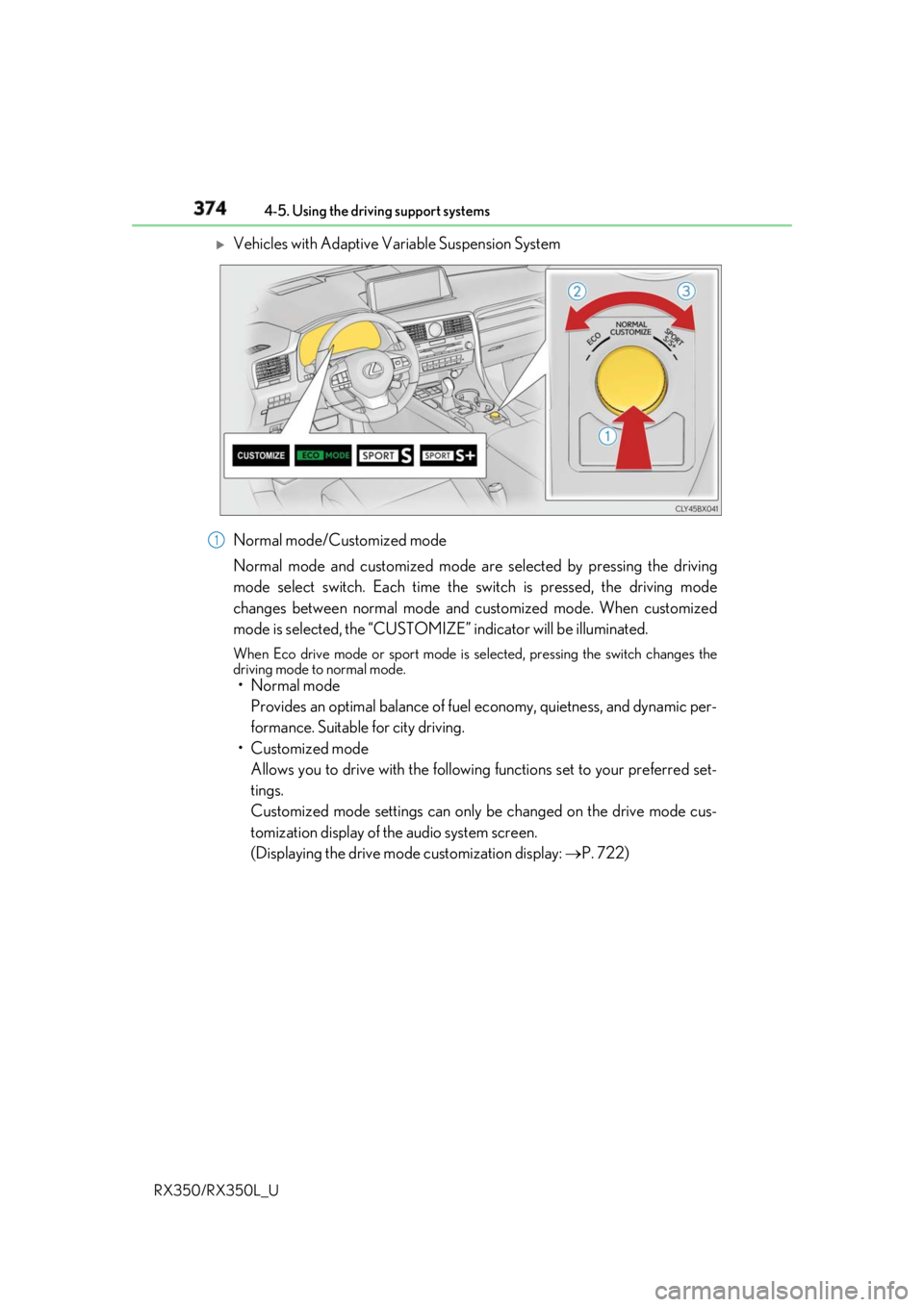
Vehicles with Adaptive Variable Suspension System
Normal mode/Customized mode
Normal mode and customized mode ar e selected by pressing the driving
mode select switch. Each time the switch is pressed, the driving mode
changes between normal mode and customized mode. When customized
mode is selected, the “CUSTOMIZE” indicator will be illuminated. When Eco drive mode or sport mode is se lected, pressing the switch changes the
driving mode to normal mode.
• Normal mode
Provides an optimal balance of fuel economy, quietness, and dynamic per-
formance. Suitable for city driving.
• Customized mode
Allows you to drive with the following functions set to your preferred set-
tings.
Customized mode settings can only be changed on the drive mode cus-
tomization display of the audio system screen.
(Displaying the drive mode customization display: P. 722)1
Page 393 of 777

392
RX350/RX350L_U 5-1. Basic Operations
Lexus Display Audio
system .......................................... 394
Steering wheel audio
switches...................................... 400
Mobile Assistant.......................... 401
USB/AUX ports ........................403
5-2. Setup
Setup menu ..................................406
General settings ......................... 407
Voice settings ............................... 410
Display settings .............................. 411
5-3. Using the audio system
Selecting the au dio source ......412
Optimal use of the audio
system ........................................... 413
Audio settings ...............................414
Audio menu screen
operation ......................................417
5-4. Using the radio
Radio operation.......................... 420
5-5. Playing an audio CD and
MP3/WMA/AAC discs
CD player operation ................ 4275 Lexus Display
Audio system
Page 394 of 777

393
5 Lexus Display
Audio system
RX350/RX350L_U 5-6. Using an external device
Listening to an iPod ...................434
Using USB memory
device.......................................... 438
Using the AUX port ................. 442
5-7. Connecting Bluetooth ®
Steps for using Bluetooth ®
devices .........................................443
Registering a Bluetooth ®
device...........................................445
Selecting a Bluetooth ®
device...........................................446
Connecting a Bluetooth ®
audio player ............................... 447
Connecting a Bluetooth ®
phone .......................................... 448
Displaying a Bluetooth ®
device details ............................449
Detailed Bluetooth ®
settings........................................ 450
5-8. Bluetooth ®
Audio
Listening to Bluetooth ®
Audio............................................453 5-9. Bluetooth ®
Phone
Using a Bluetooth ®
Phone ...........................................455
Making a call ................................ 457
Receiving a call ...........................460
Speaking on the phone............. 461
Using a Bluetooth ®
phone
message ...................................... 463
Using the steering wheel
switches....................................... 465
Bluetooth ®
phone
settings ........................................ 466
5-10. Phonebook
Contact settings .........................468
Messaging setting........................471
5-11. Bluetooth ®
What to do if...
(Troubleshooting)................... 472
Bluetooth ®
................................... 476
5-12. Other function
“Information” screen................. 482
USB photo ....................................484
Weather information................486
Voice command system ......... 487
Page 395 of 777
394
RX350/RX350L_U 5-1. Basic Operations
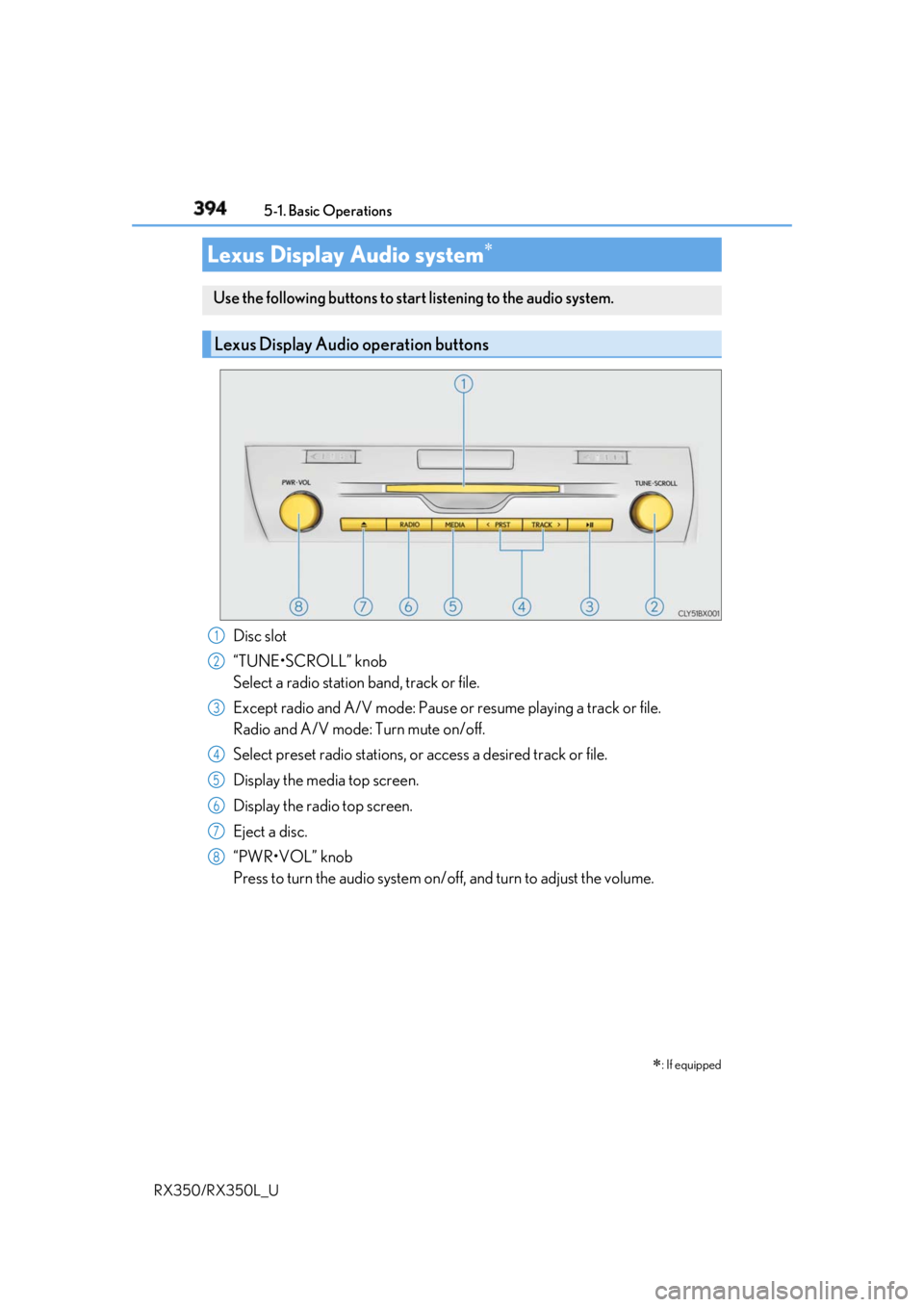
Disc slot
“TUNE•SCROLL” knob
Select a radio station band, track or file.
Except radio and A/V mode: Pause or resume playing a track or file.
Radio and A/V mode: Turn mute on/off.
Select preset radio stations, or access a desired track or file.
Display the media top screen.
Display the radio top screen.
Eject a disc.
“PWR•VOL” knob
Press to turn the audio system on/o ff, and turn to adjust the volume.Lexus Display Audio system
: If equippedUse the following buttons to star t listening to the audio system.
Lexus Display Audio operation buttons
1
2
3
4
5
6
7
8
Page 396 of 777
3955-1. Basic Operations
5
Lexus Display Audio system
RX350/RX350L_U ■
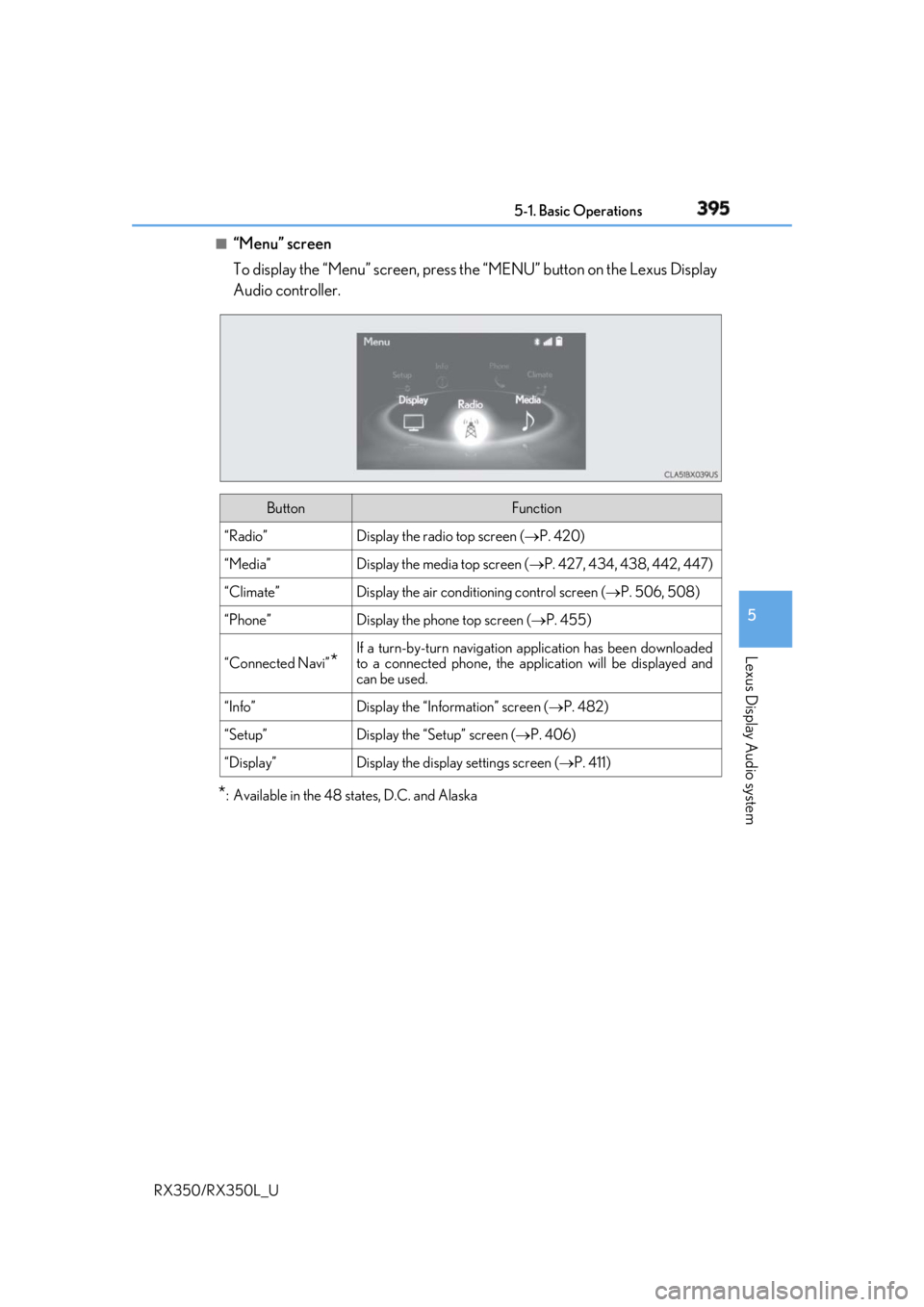
“Menu” screen
To display the “Menu” screen, press th e “MENU” button on the Lexus Display
Audio controller.
* : Available in the 48 states, D.C. and Alaska Button Function
“Radio” Display the radio top screen ( P. 420)
“Media” Display the media top screen ( P. 427, 434, 438, 442, 447)
“Climate” Display the air conditioning control screen ( P. 506, 508)
“Phone” Display the phone top screen ( P. 455)
“Connected Navi”
* If a turn-by-turn navigation application has been downloaded
to a connected phone, the appl ication will be displayed and
can be used.
“Info” Display the “Information” screen ( P. 482)
“Setup” Display the “Setup” screen ( P. 406)
“Display” Display the display settings screen ( P. 411)
Page 397 of 777
396 5-1. Basic Operations
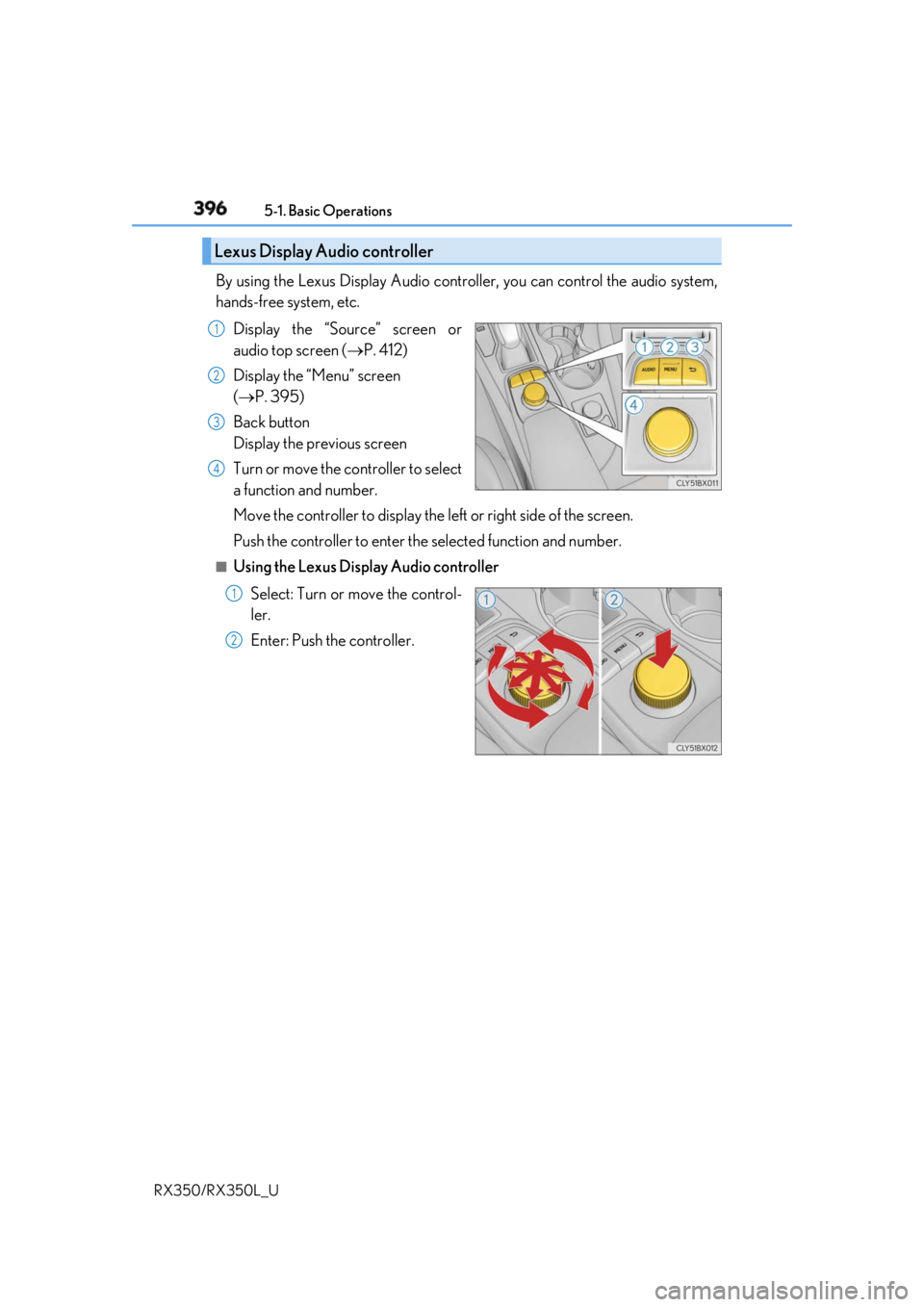
RX350/RX350L_U By using the Lexus Display Audio controlle r, you can control the audio system,
hands-free system, etc.
Display the “Source” screen or
audio top screen ( P. 412)
Display the “Menu” screen
( P. 395)
Back button
Display the previous screen
Turn or move the controller to select
a function and number.
Move the controller to display the le ft or right side of the screen.
Push the controller to enter the selected function and number. ■
Using the Lexus Display Audio controller
Select: Turn or move the control-
ler.
Enter: Push the controller.Lexus Display Audio controller 1
2
3
4
1
2
Page 398 of 777
3975-1. Basic Operations
5
Lexus Display Audio system
RX350/RX350L_U ■
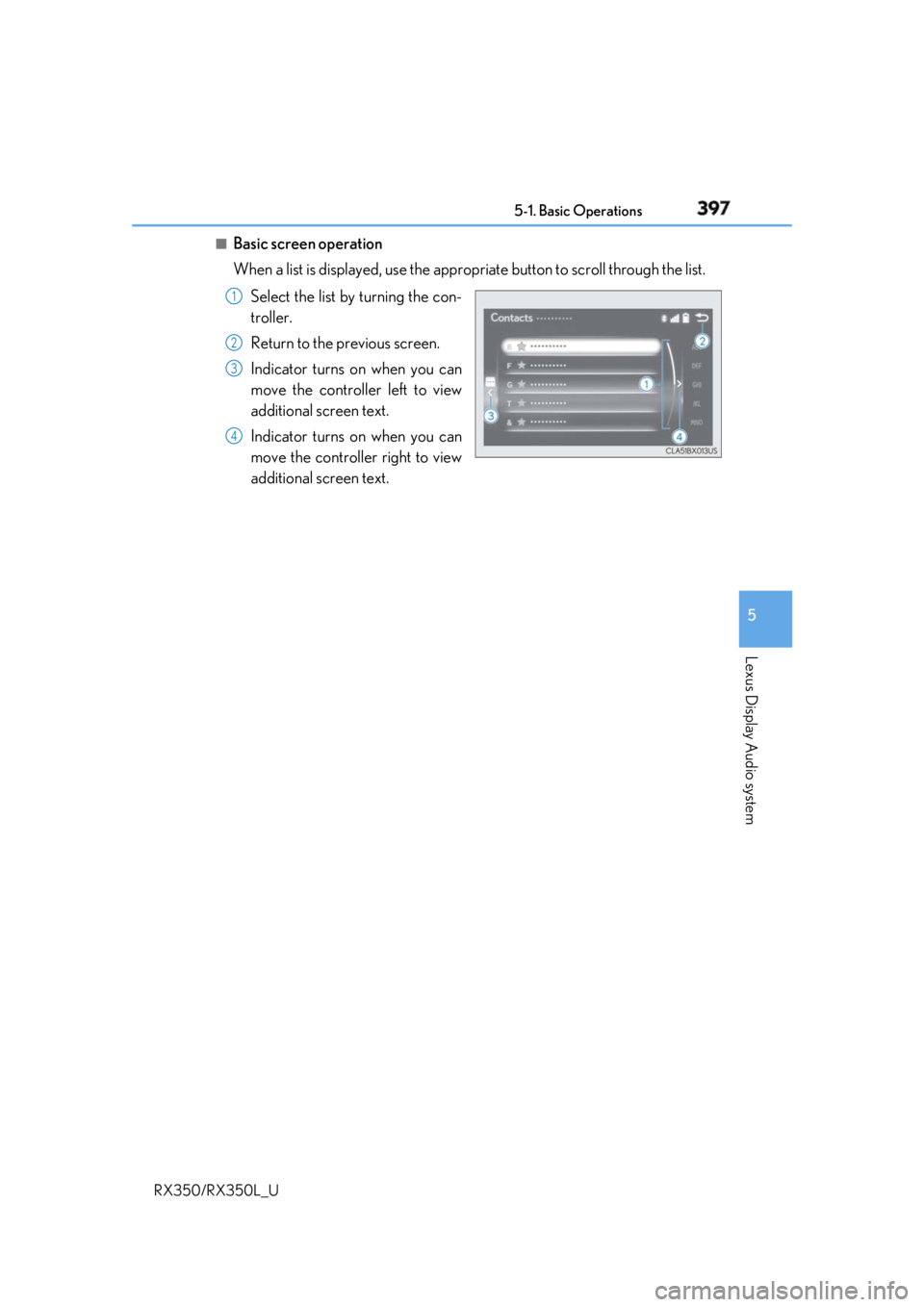
Basic screen operation
When a list is displayed, use the approp riate button to scroll through the list.
Select the list by turning the con-
troller.
Return to the previous screen.
Indicator turns on when you can
move the controller left to view
additional screen text.
Indicator turns on when you can
move the controller right to view
additional screen text. 1
2
3
4
Page 400 of 777
3995-1. Basic Operations
5
Lexus Display Audio system
RX350/RX350L_U ■
When using the screen ●
Under extremely cold conditions, the Lexus Display Audio controller may react slowly.●
If the screen is cold, the display may be da rk, or the system may seem to be operating
slightly slower than normal. ●
The screen may seem dark and hard to see when viewed through sunglasses. Change
your angle of viewing, adjust the display on the “Display” screen ( P. 411) or remove
your sunglasses. ■
Using cellular phones
Interference may be heard through the audi o system’s speakers if a cellular phone is
being used inside or close to the vehicle while the audio system is operating.
WARNING ■
Using the Lexus Display Audio controller
Be careful when touching the Lexus Display Audio controller in extreme temperatures
as it may become very hot or cold due to the temperature inside the vehicle. ■
Laser product ●
CAUTION
USE OF CONTROL OR ADJUSTMENT OR PERFORMANCE OF PROCE-
DURES OTHER THAN THOSE SPECIFIED HEREIN MAY RESULT IN HAZARD-
OUS RADIATION EXPOSURE. ●
CAUTION
THE USE OF OPTICAL INSTRUMENTS WITH THIS PRODUCT WILL
INCREASE EYE HAZARD.
NOTICE ■
To prevent Lexus Display Au dio controller malfunction●
Do not allow the Lexus Display Audio controll er to come into contact with food, liq-
uid, stickers or lit cigarettes as doing so may cause it to change color, emit a strange
odor or stop functioning. ●
Do not subject the Lexus Display Audio cont roller to excessive pressure or strong
impact as the controller may bend or break off.■
To prevent battery discharge
Do not leave the audio system on longer than necessary when the engine is off. ■
To avoid damaging the audio system
Take care not to spill drinks or other fluids on the audio system.