ignition LEXUS RX350 2019 Workshop Manual
[x] Cancel search | Manufacturer: LEXUS, Model Year: 2019, Model line: RX350, Model: LEXUS RX350 2019Pages: 777, PDF Size: 12.44 MB
Page 334 of 777

3334-5. Using the driving support systems
4
Driving
RX350/RX350L_U ■
The intuitive parking assist can be operated when ●
Front corner sensors:
• The engine switch is in IGNITION ON mode.
• The shift lever is in other than P.
• The vehicle speed is less than about 6 mph (10 km/h).
(At any speed when the shift lever is in R) ●
Front center sensors:
• The engine switch is in IGNITION ON mode.
• The shift lever is in other than P or R.
• The vehicle speed is less than about 6 mph (10 km/h). ●
Rear corner and rear center sensors:
• The engine switch is in IGNITION ON mode.
• The shift lever is in R. ■
Intuitive parking assist display ●
Vehicles with a Lexus Display Audio system/navigation system (8-inch display): When
an object is detected while the Lexus parking assist monito r or panoramic view monitor
is in use, the warning indicator will appear in the up per part of the scre en even if the dis-
play setting has been set to off.●
Vehicles with a navigation system (12.3-inch display): If the intuit ive parking assist dis-
play is set to on, detected objects will also be displayed on the panoramic view monitor.
For details, refer to “NAVIGATION SYSTEM OWNER’S MANUAL”. ■
Sensor detectio n information●
The sensor’s detection areas are limited to the areas around the vehicle’s bumper. ●
Certain vehicle conditions and the surrounding environment may affect the ability of a
sensor to correctly detect an object. Particular instances where this may occur are
listed below.
• There is dirt, snow or ice on the sensor . (Wiping the sensors will resolve this prob-
lem.)
• The sensor is frozen. (Thawing th e area will resolve this problem.)
In especially cold weather, if a sensor is frozen the screen may show an abnormal
display, or obstacles may not be detected.
• The sensor is covered in any way.
• The vehicle is leaning considerably to one side.
• When a sensor or the area around a sensor is extremely hot or cold.
• On an extremely bumpy road, on an incline, on gravel, or on grass.
• The vicinity of the vehicle is noisy due to vehicle horns, motorcycle engines, air
brakes of large vehicles, or other loud noises producing ultrasonic waves.
• There is another vehicle equipped with parking assist sensors in the vicinity.
• The sensor is coated with a sheet of spray or heavy rain.
• The bumper or sensor re ceives a strong impact.
• If the vehicle is significantly tilted.
• The vehicle is approaching a tall or curved curb.
• In harsh sunlight or intense cold weather.
• The area directly under the bumpers is not detected.
• If objects draw too close to the sensor.
• People may not be detected if they are wearing certain types of clothing.
In addition to the examples above, there ar e instances in which, because of their shape,
signs and other objects may be judged by a sensor to be closer than they are.
Page 340 of 777
3394-5. Using the driving support systems
4
Driving
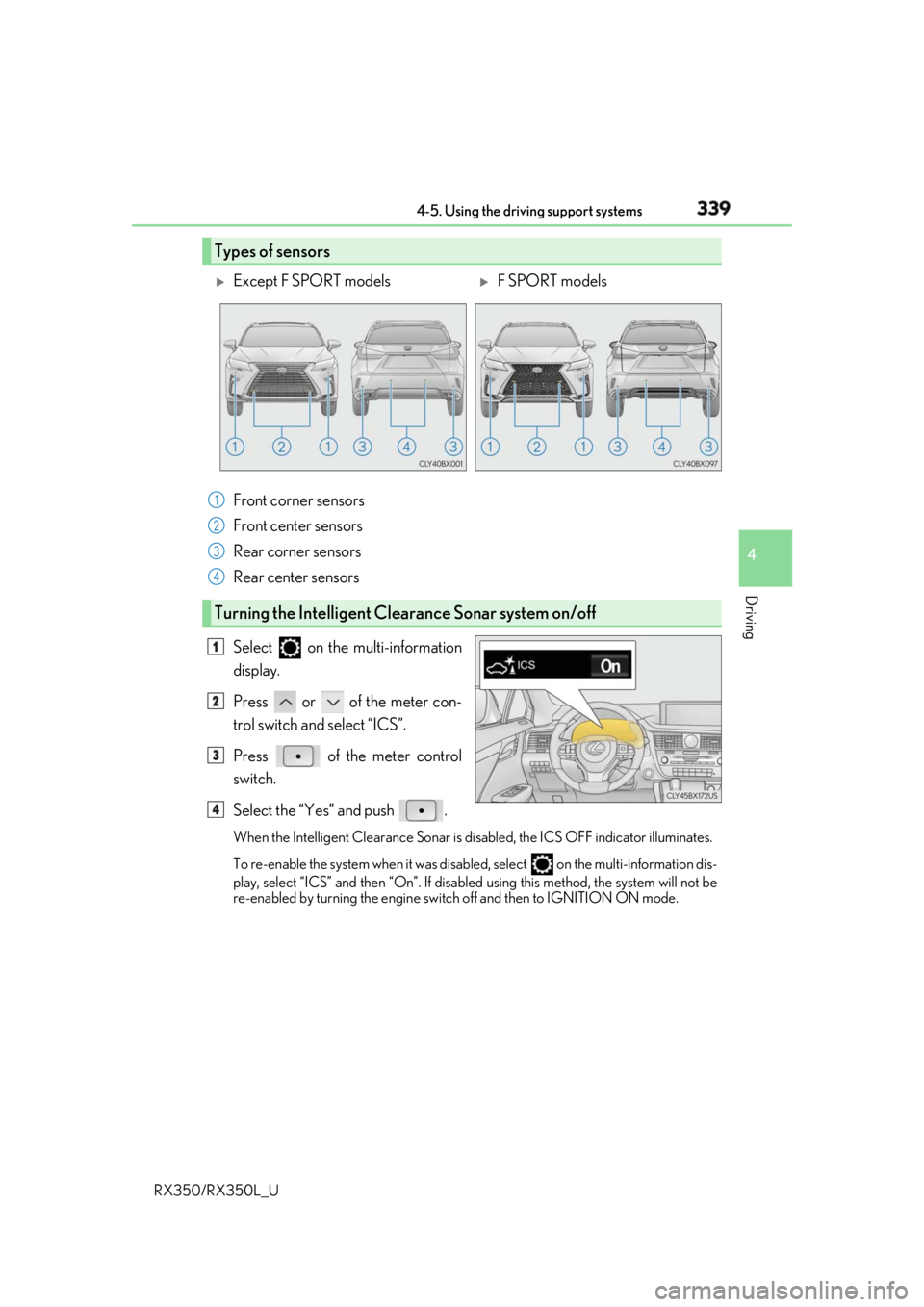
RX350/RX350L_U Front corner sensors
Front center sensors
Rear corner sensors
Rear center sensors
Select on the multi-information
display.
Press or of the meter con-
trol switch and select “ICS”.
Press of the meter control
switch.
Select the “Yes” and push . When the Intelligent Clearance Sonar is di sabled, the ICS OFF indicator illuminates.
To re-enable the system when it was disabl ed, select on the multi-information dis-
play, select “ICS” and then “On”. If disabled using this method, the system will not be
re-enabled by turning the engine switch off and then to IGNITION ON mode.Types of sensors
Except F SPORT models
F SPORT models
1
2
3
4
Turning the Intelligent Cle arance Sonar system on/off1
2
3
4
Page 345 of 777

344 4-5. Using the driving support systems
RX350/RX350L_U ■
Re-enabling the Intelligent Clearance Sonar system
To re-enable the Intelligent Clearance Sonar system when it is disabled due to operation
of the Intelligent Clearance Sonar function, either enable the system again ( P. 339), or
turn the engine switch off and th en back to IGNITION ON mode.
Additionally, if the object becomes no longer in the traveling directio n of the vehicle or if
the traveling direction of the vehicle change s (such as changing from moving forward to
backing up, or from backing up to moving fo rward), the system will be re-enabled auto-
matically. ■
Objects that the Intelligent Cleara nce Sonar function may not detect
The sensors may not be able to detect certain objects, such as the following. ●
Cotton cloth, snow, and other materials that are poor reflectors of ultrasonic waves.
(People may also not be detected depending on the type of clothing they are wearing.) ●
Objects which are not perpendicular to the ground, are not perpendicular to the travel-
ing direction of the vehicle, are uneven or are waving. ●
Low objects ●
Thin objects such as wires, fences, ropes and signposts ●
Objects that are extremely close to the bumper ■
Intuitive parking assist buzzer
Regardless of whether the in tuitive parking assist system is enabled or not ( P. 326), if
the Intelligent Clearance Sonar system is enabled ( P. 339), the front or rear sensors
detect an object and brake control is performed, the intuitive parking assist buzzer will
sound to notify the driver of the approximate distance to the object.
Page 354 of 777
3534-5. Using the driving support systems
4
Driving
RX350/RX350L_U ■
Re-enabling the Rear Cross Traffic Auto Brake function
To re-enable the Rear Cross Traffic Auto Brake function when it is disabled during opera-
tion of the Rear Cross Traffic Auto Brake function, either enable the system again ( P.
339), or turn the engine switch off and then back to IGNITION ON mode.
Additionally, if there is no longer a vehicle ap proaching from the right or left at the rear of
the vehicle, or if the traveling direction of the vehicle changes (such as changing from
moving forward to backing up or from backin g up to moving forward), the system will be
re-enabled automatically. ■
Conditions under which the Rear Cross Traffic Auto Brake function will not detect a
vehicle
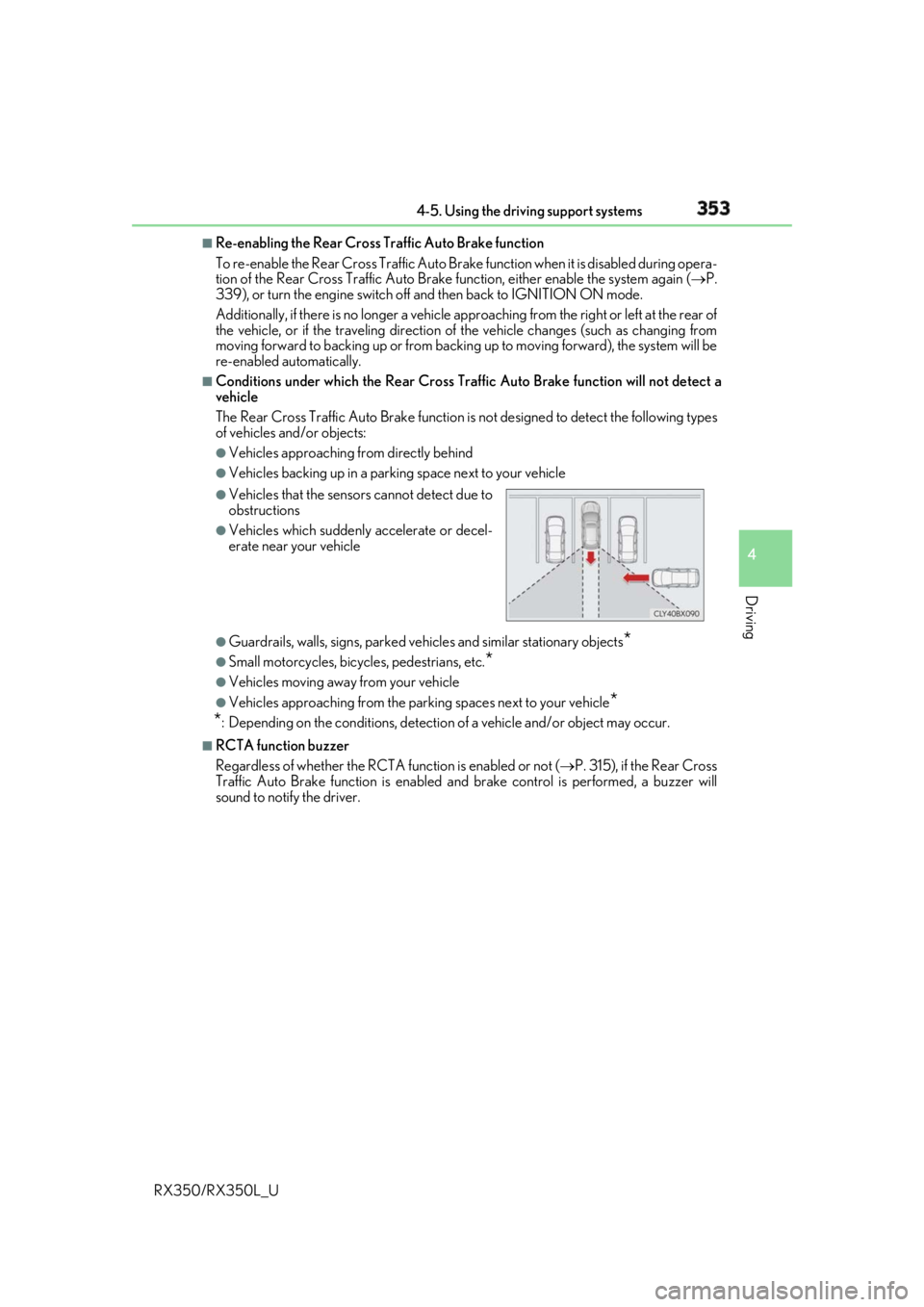
The Rear Cross Traffic Auto Brake function is not designed to detect the following types
of vehicles and/or objects: ●
Vehicles approaching from directly behind ●
Vehicles backing up in a parkin g space next to your vehicle
●
Guardrails, walls, signs, parked vehi cles and similar stationary objects
*●
Small motorcycles, bicycles, pedestrians, etc.
*●
Vehicles moving away from your vehicle ●
Vehicles approaching from the parking spaces next to your vehicle
*
* : Depending on the conditions, detection of a vehicle and/or object may occur.■
RCTA function buzzer
Regardless of whether the RCTA function is enabled or not ( P. 315), if the Rear Cross
Traffic Auto Brake function is enabled and brake control is performed, a buzzer will
sound to notify the driver. ●
Vehicles that the sensors cannot detect due to
obstructions ●
Vehicles which suddenly accelerate or decel-
erate near your vehicle
Page 358 of 777
3574-5. Using the driving support systems
4
Driving
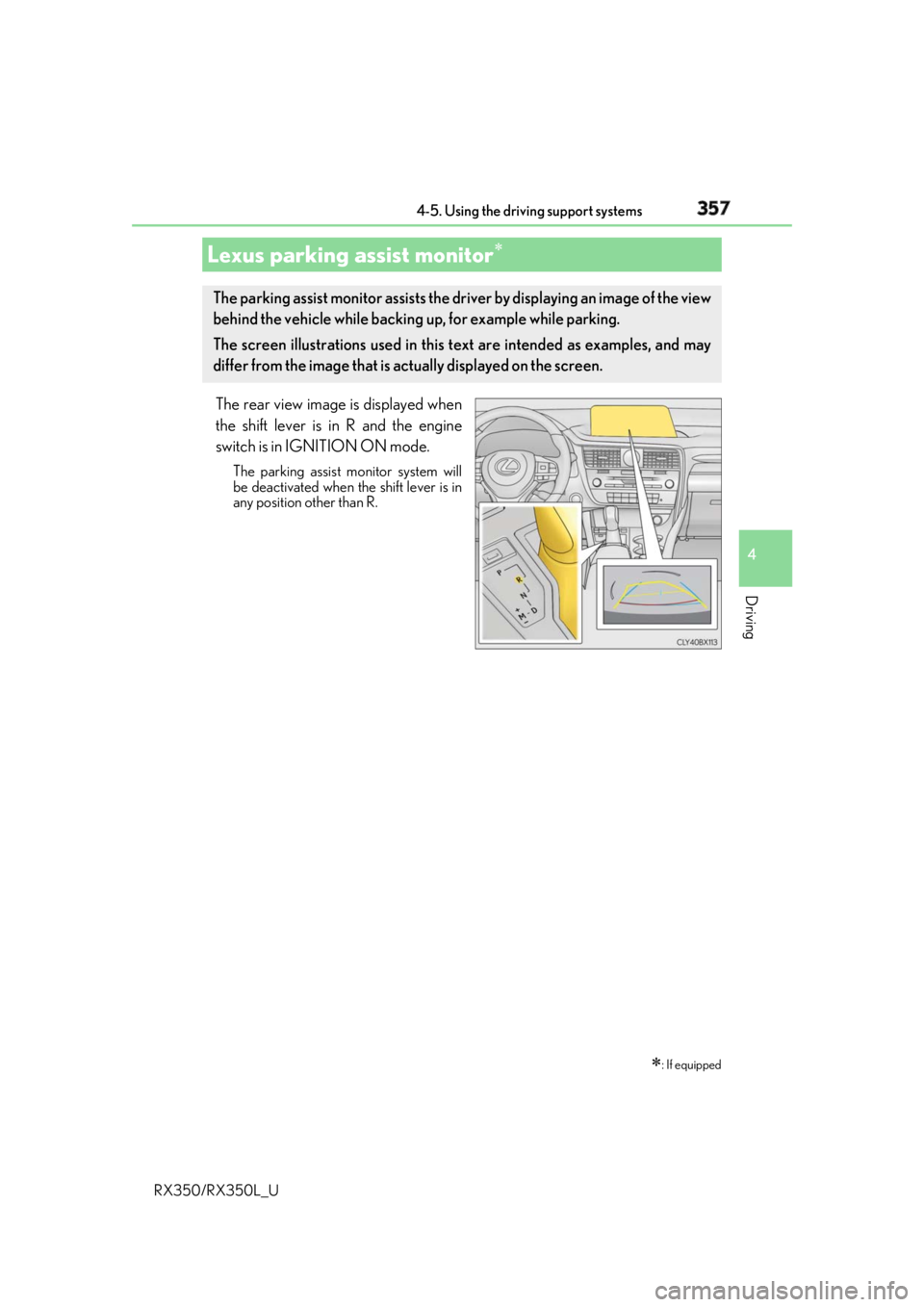
RX350/RX350L_U The rear view image is displayed when
the shift lever is in R and the engine
switch is in IGNITION ON mode. The parking assist monitor system will
be deactivated when the shift lever is in
any position other than R.
Lexus parking assist monitor
: If equippedThe parking assist monitor assists the driv er by displaying an image of the view
behind the vehicle while backing up, for example while parking.
The screen illustrations used in this text are intended as examples, and may
differ from the image that is ac tually displayed on the screen.
Page 359 of 777
358 4-5. Using the driving support systems
RX350/RX350L_U ■
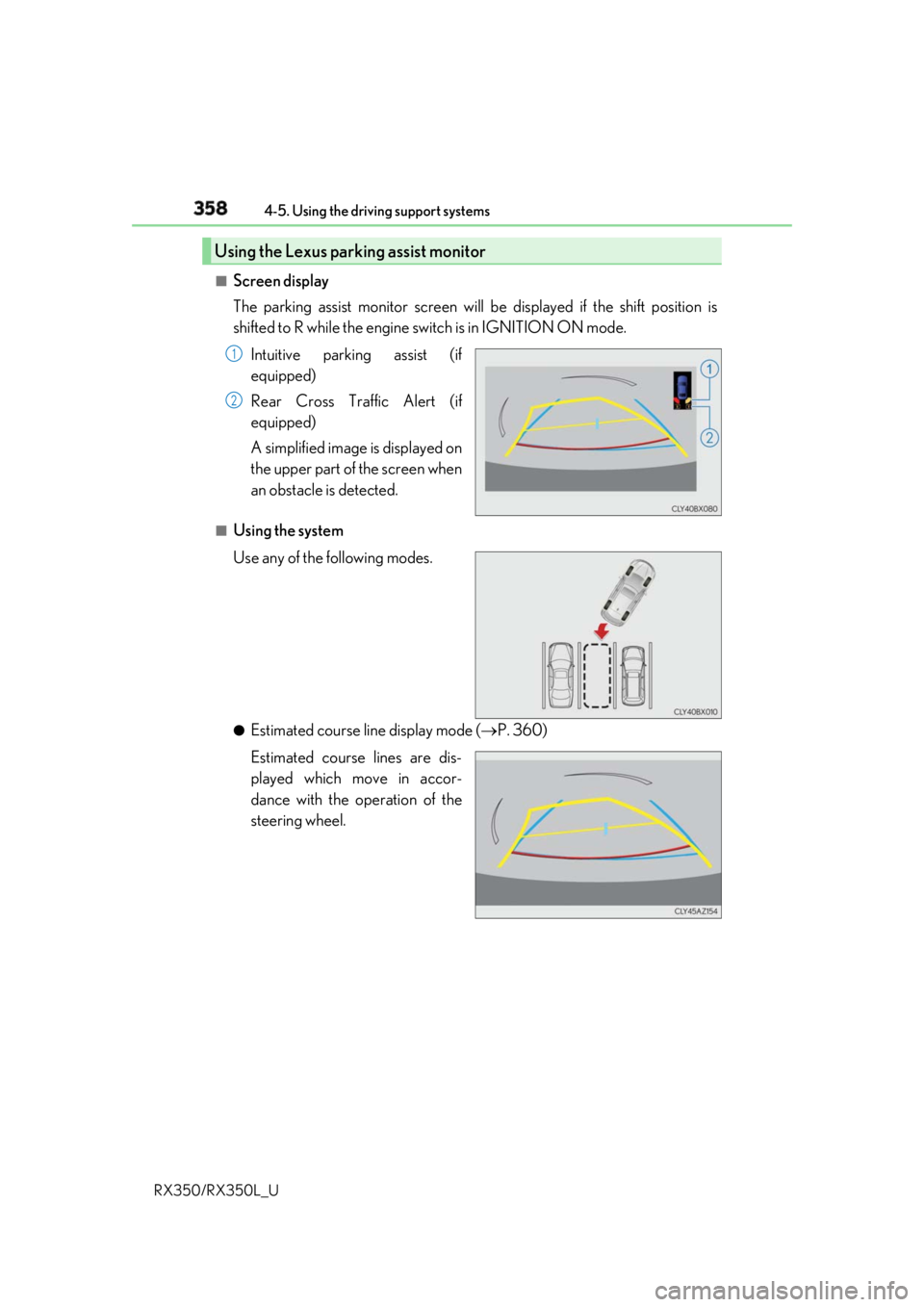
Screen display
The parking assist monitor screen will be displayed if the shift position is
shifted to R while the engine switch is in IGNITION ON mode.
Intuitive parking assist (if
equipped)
Rear Cross Traffic Alert (if
equipped)
A simplified image is displayed on
the upper part of the screen when
an obstacle is detected.■
Using the system
Use any of the following modes.
●
Estimated course line display mode ( P. 360)
Estimated course lines are dis-
played which move in accor-
dance with the operation of the
steering wheel.Using the Lexus parking assist monitor 1
2
Page 378 of 777
3774-5. Using the driving support systems
4
Driving
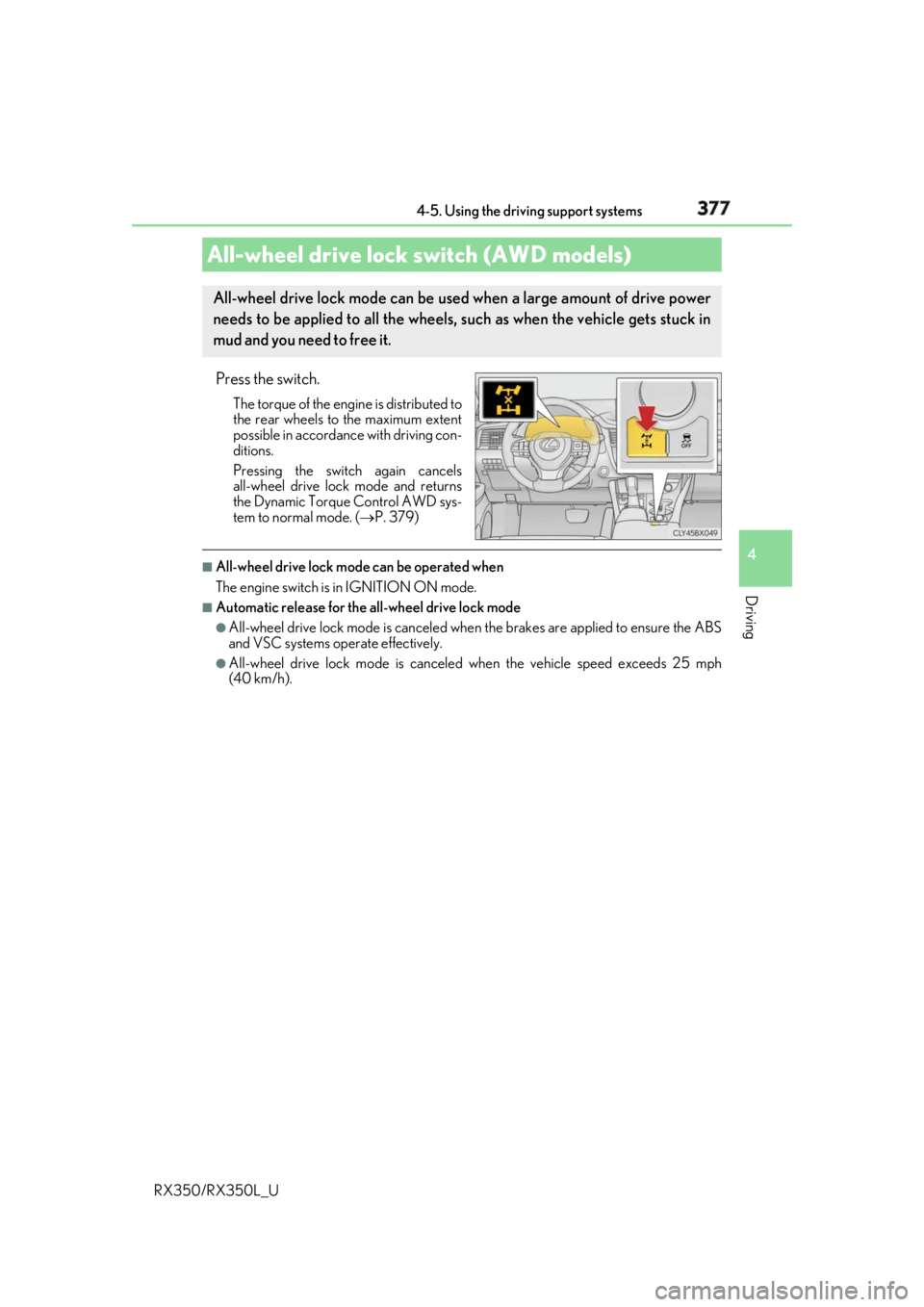
RX350/RX350L_U Press the switch. The torque of the engine is distributed to
the rear wheels to the maximum extent
possible in accordance with driving con-
ditions.
Pressing the switch again cancels
all-wheel drive lock mode and returns
the Dynamic Torque Control AWD sys-
tem to normal mode. ( P. 379)■
All-wheel drive lock mode can be operated when
The engine switch is in IGNITION ON mode. ■
Automatic release for the all-wheel drive lock mode●
All-wheel drive lock mode is canceled when the brakes are applied to ensure the ABS
and VSC systems operate effectively. ●
All-wheel drive lock mode is canceled when the vehicle speed exceeds 25 mph
(40 km/h).All-wheel drive lock switch (AWD models) All-wheel drive lock mode can be used when a large amount of drive power
needs to be applied to all the wheels, such as when the vehicle gets stuck in
mud and you need to free it.
Page 448 of 777
4475-7. Connecting Bluetooth ®
5
Lexus Display Audio system
RX350/RX350L_U When a registered Bluetooth ®
audio player is in standby for a connection, it will
automatically connect to the system wh en the engine switch is turned to
ACCESSORY or IGNITION ON mode.
When automatic connection priority is se t to on and there is more than one reg-
istered Bluetooth ®
audio player available, the system will automatically connect
to the Bluetooth ®
audio player with the highest priority. ( P. 450)
Operate the portable player and connect it to the Bluetooth ®
audio system.
Go to “Bluetooth
* 1
Setup”: “MENU” button “Setup” “Bluetooth
* 1
”
Select the device to connect.
Select “Connect XX
* 2
” or “Connect as an Audio Player”.
If the desired Bluetooth ®
device is not displayed, register the device.
( P. 445)
* 1
: Bluetooth is a registered trademark of Bluetooth SIG, Inc.
* 2
: XX represents the selected device name.Connecting a Bluetooth ®
audio playerThere are 2 portable audio player conne ction settings available: connecting
from the vehicle and connectin g from the portable player.
Connecting method is set to “Vehicle”
Connecting method is set to “Device” 1
2
3
Page 449 of 777
448 5-7. Connecting Bluetooth ®
RX350/RX350L_U When you register a phone, auto conn ection will be activated. It is recom-
mended to have the system set to this mode and leave the Bluetooth ®
phone in a
place where a good connection can be established.
When the engine switch is turned to ACCESSORY or IGNITION ON mode,
the system will search for a nearby cellular phone you have registered.
Next, the system automatically connects with the most recent phone that was
connected. The connected result is displayed.
When automatic connection priority is se t to on and there is more than one reg-
istered Bluetooth ®
phone available, the system will automatically connect to the
Bluetooth ®
phone with the highest priority. ( P. 450)
When auto connection has failed or “Bluetooth
* 1
Power” is turned off, you must
connect the Bluetooth ®
device manually.
Go to “Bluetooth
* 1
Setup”: “MENU” button “Setup” “Bluetooth
* 1
”
Select the device to connect.
Select “Connect XX
* 2
”, “Connect as a Phone” or “Connect as an Audio
Player”.
If the desired Bluetooth ®
device is not displayed, register the device.
( P. 445)
* 1
: Bluetooth is a registered trademark of Bluetooth SIG, Inc.
* 2
: XX represents the selected device name. ■
Reconnecting a Bluetooth ®
phone
If the system cannot connect due to poor signal strength with the engine switch in
ACCESSORY or IGNITION ON mode, the syst em will automatically attempt to recon-
nect. ■
Connecting a phone while Bluetooth ®
audio is playing●
Bluetooth ®
audio will stop temporarily.●
It may take time to connect.Connecting a Bluetooth ®
phoneThere are two connecting methods available: automatic and manual.
Auto connection
Manual connection 1
2
3
Page 479 of 777

478 5-11. Bluetooth ®
RX350/RX350L_U ■
Compatible models
The Bluetooth ®
audio system supports portable audi o players with the following specifi-
cations ●
Bluetooth ®
specifications:
Ver. 2.0 or higher (Recommend ed: Ver. 3.0 +EDR or higher)●
Profiles:
• A2DP (Advanced Audio Distribution Profile) Ver. 1.0, or higher
(Recommended: Ver. 1.3 or higher)
This is a profile to transmit stereo audio or high quality sound to the audio system.
• AVRCP (Audio/Video Remote Cont rol Profile) Ver. 1.0 or higher
(Recommended: Ver. 1.5 or higher)
This is a profile to allow re mote control the A/V equipment.
However, please note that some functions may be limited depending on the type of por-
table audio player connected.
The hands-free system supports cellular ph ones with the following specifications.●
Bluetooth ®
specification:
Ver. 2.0 or higher (Recommend ed: Ver. 3.0 +EDR or higher)●
Profiles:
• HFP (Hands Free Profile) Ver. 1.0 or higher (Recommended: Ver. 1.6 or higher)
This is a profile to allow hands-free phone calls using a cellular phone or head set. It
has outgoing and incoming call functions.
• OPP (Object Push Profile) Ver. 1.1 or higher (Recommended: Ver. 1.2)
This is a profile to transfer phonebook data. When a Bluetooth ®
compatible cellular
phone has both PBAP and OPP, OPP cannot be used.
• PBAP (Phone Book Access Profile) Ver. 1.0 or higher (Recommended: Ver. 1.1)
This is a profile to transfer phonebook data.
• MAP (Message Access Pr ofile) Ver.1.0 or higher
This is a profile to using phone message.
If the cellular phone does not support HFP, yo u cannot register it wi th the hands-free sys-
tem. OPP, PBAP or MAP services must be selected individually.■
Reconnecting the portable audio player
If the portable audio player is disconnected due to poor reception when the engine
switch is in ACCESSORY or IGNITION ON mode, the system automatically recon-
nects the portable audio player.
If you have switched off the portable audio pl ayer yourself, follow the instructions below
to reconnect: ●
Select the portable audio player again ●
Enter the portable audio player ■
When you sell your car
Be sure to delete your personal data. ( P. 409)