reset LEXUS RX450h 2015 Owner's Manual
[x] Cancel search | Manufacturer: LEXUS, Model Year: 2015, Model line: RX450h, Model: LEXUS RX450h 2015Pages: 878, PDF Size: 11.62 MB
Page 477 of 878
4773-4. Using the audio system
3
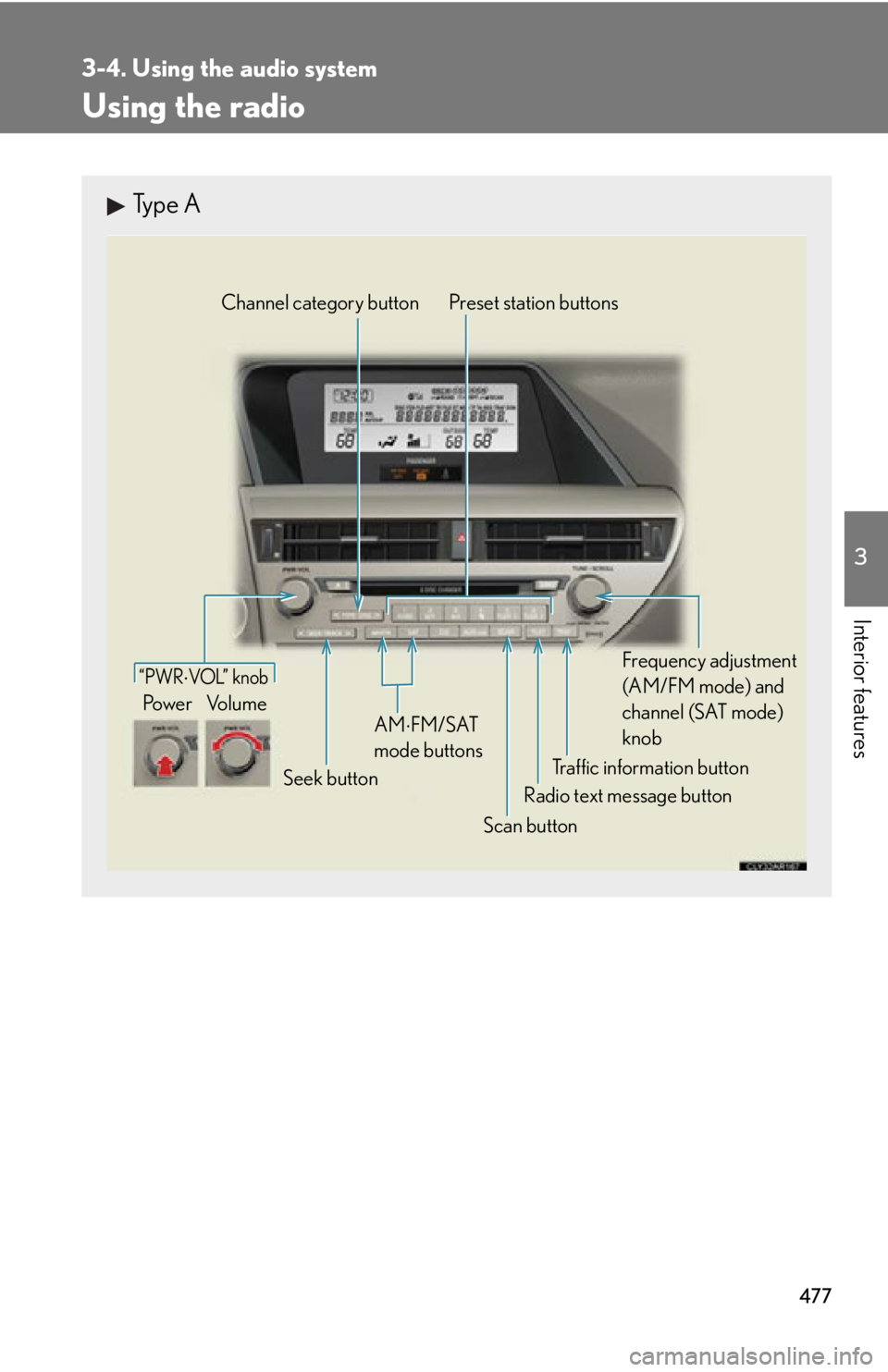
Interior features Using the radio Type A
Traffic information buttonPreset station buttons
Radio text message button
Scan buttonSeek buttonChannel category button
Frequency adjustment
(AM/FM mode) and
channel (SAT mode)
knobAM FM/SAT
mode buttons“PWR VOL” k nob
Po w e r Vo l u m e
Page 478 of 878
4783-4. Using the audio system
Setting station presets (excluding XM ®
Satellite Radio)
Search for the desired stations by turning or pressing “ ”
or “ ” on .
Press and hold th e button (from
to ) the station is to
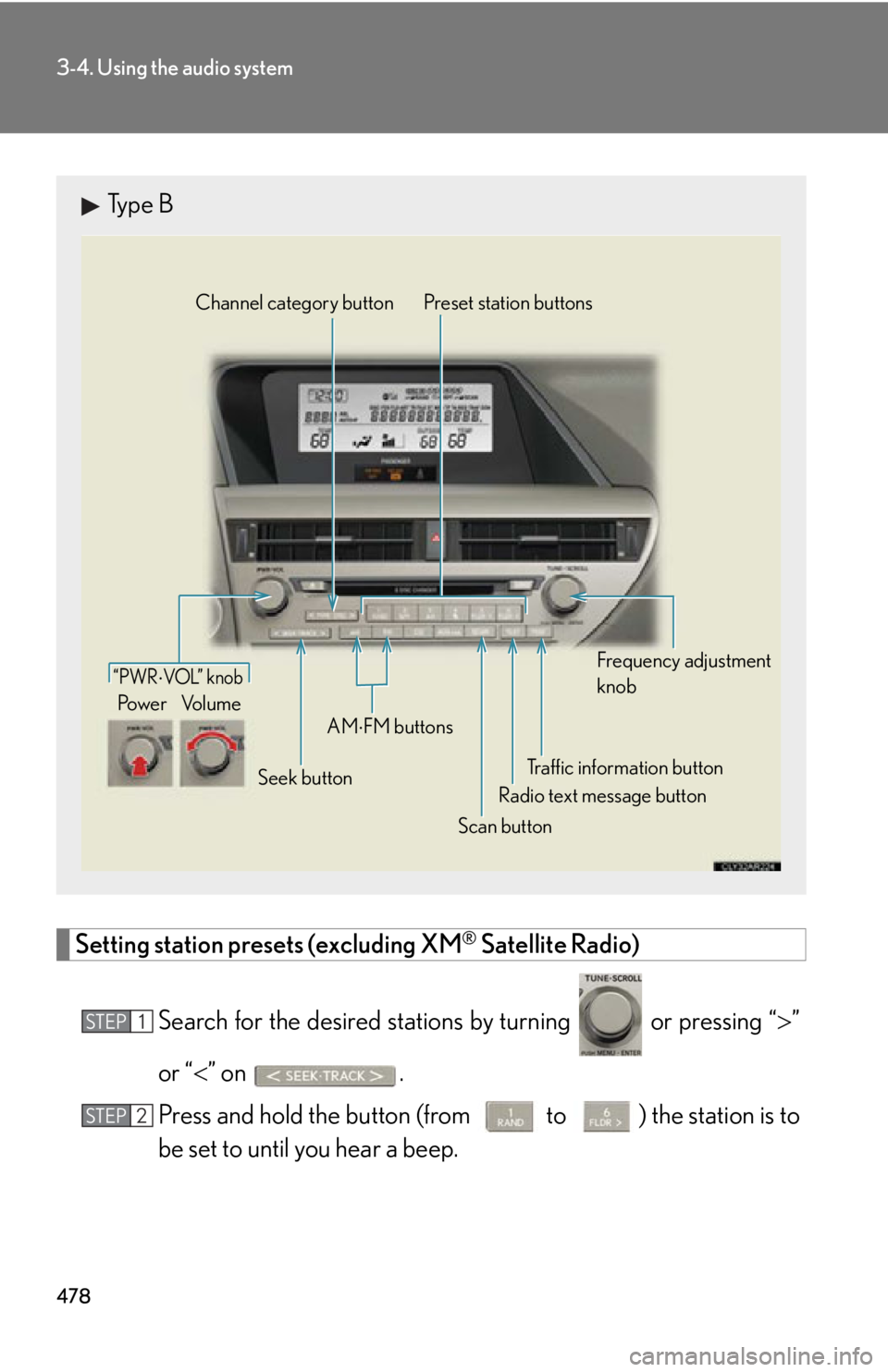
be set to until you hear a beep.Type B
Traffic information buttonPreset station buttons
Radio text message button
Scan buttonSeek buttonChannel category button
Frequency adjustment
knob
AM
FM buttons“PWR VOL” k nob
Po w e r Vo l u m e
STEP 1
STEP 2
Page 479 of 878
4793-4. Using the audio system
3
Interior features Scanning radio stations (excluding XM ®
Satellite Radio)
■ Scanning the preset radio stations
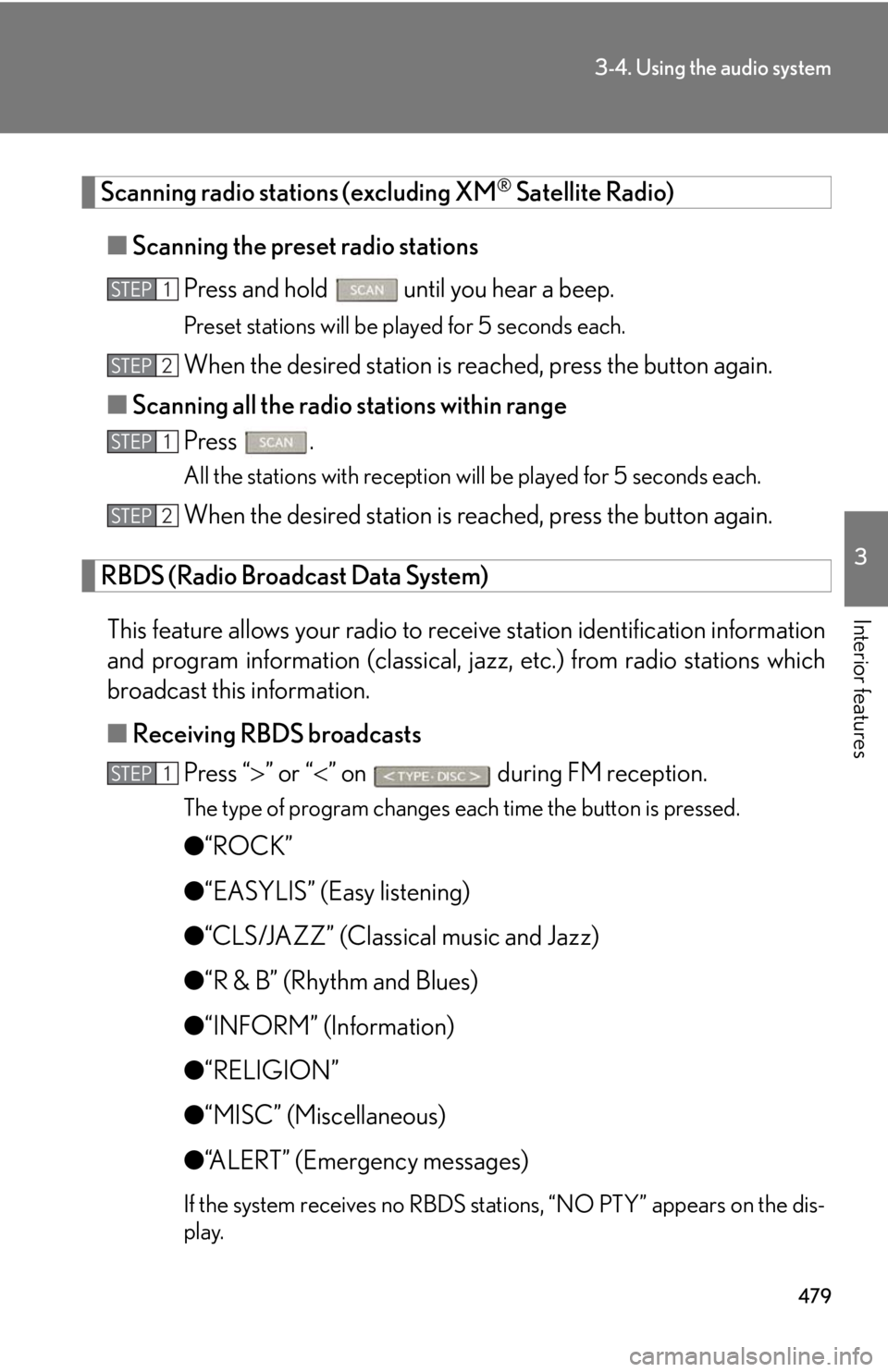
Press and hold
until you hear a beep.Preset stations will be played for 5 seconds each.
When the desired station is reached, press the button again.
■ Scanning all the radio stations within range
Press . All the stations with reception will be played for 5 seconds each.
When the desired station is reached, press the button again.
RBDS (Radio Broadcast Data System)
This feature allows your radio to receive station identification information
and program information (classical, ja zz, etc.) from radio stations which
broadcast this information.
■ Receiving RBDS broadcasts
Press “ ” or “ ” on during FM reception.The type of program changes each time the button is pressed.
● “ROCK”
● “EASYLIS” (Easy listening)
● “CLS/JAZZ” (Classical music and Jazz)
● “R & B” (Rhythm and Blues)
● “INFORM” (Information)
● “RELIGION”
● “MISC” (Miscellaneous)
● “ALERT” (Emergency messages)
If the system receives no RBDS stations, “NO PTY” appears on the dis-
play.STEP 1
STEP 2
STEP 1
STEP 2
STEP 1
Page 480 of 878
4803-4. Using the audio system
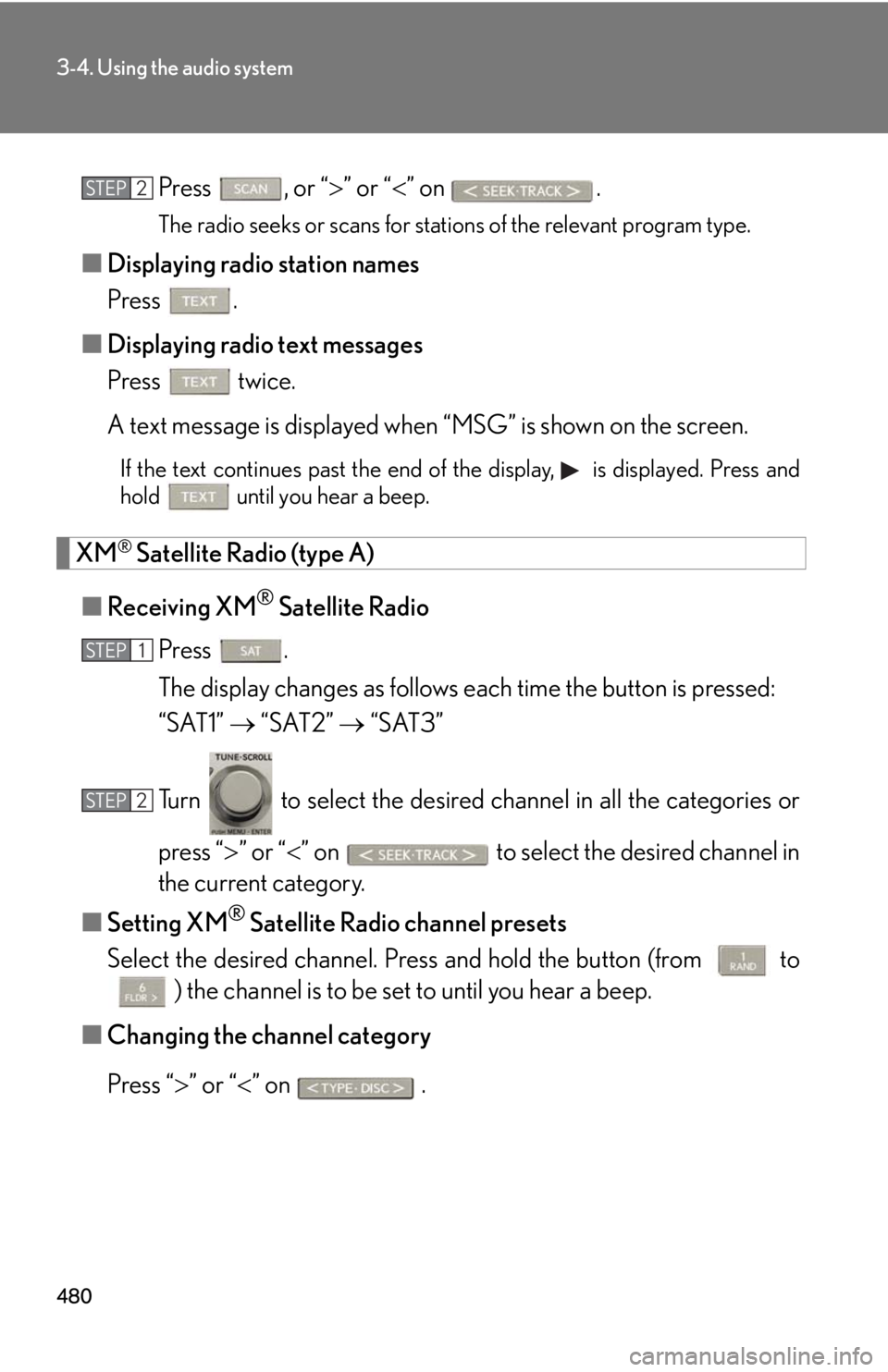
Press , or “ ” or “ ” on
.The radio seeks or scans for stations of the relevant program type.
■ Displaying radio station names
Press .
■ Displaying radio text messages
Press twice.
A text message is displayed when “MSG” is shown on the screen.If the text continues past the end of the display, is displayed. Press and
hold until you hear a beep.
XM ®
Satellite Radio (type A)
■ Receiving XM ®
Satellite Radio
Press .
The display changes as follows each time the button is pressed:
“SAT1” “SAT2” “SAT3”
Turn to select the desired channel in all the categories or
press “ ” or “ ” on to select the desired channel in
the current category.
■ Setting XM ®
Satellite Radio channel presets
Select the desired channel. Pr ess and hold the button (from
to
) the channel is to be set to until you hear a beep.
■ Changing the channel category
Press “ ” or “ ” on .STEP 2
STEP 1
STEP 2
Page 481 of 878
4813-4. Using the audio system
3
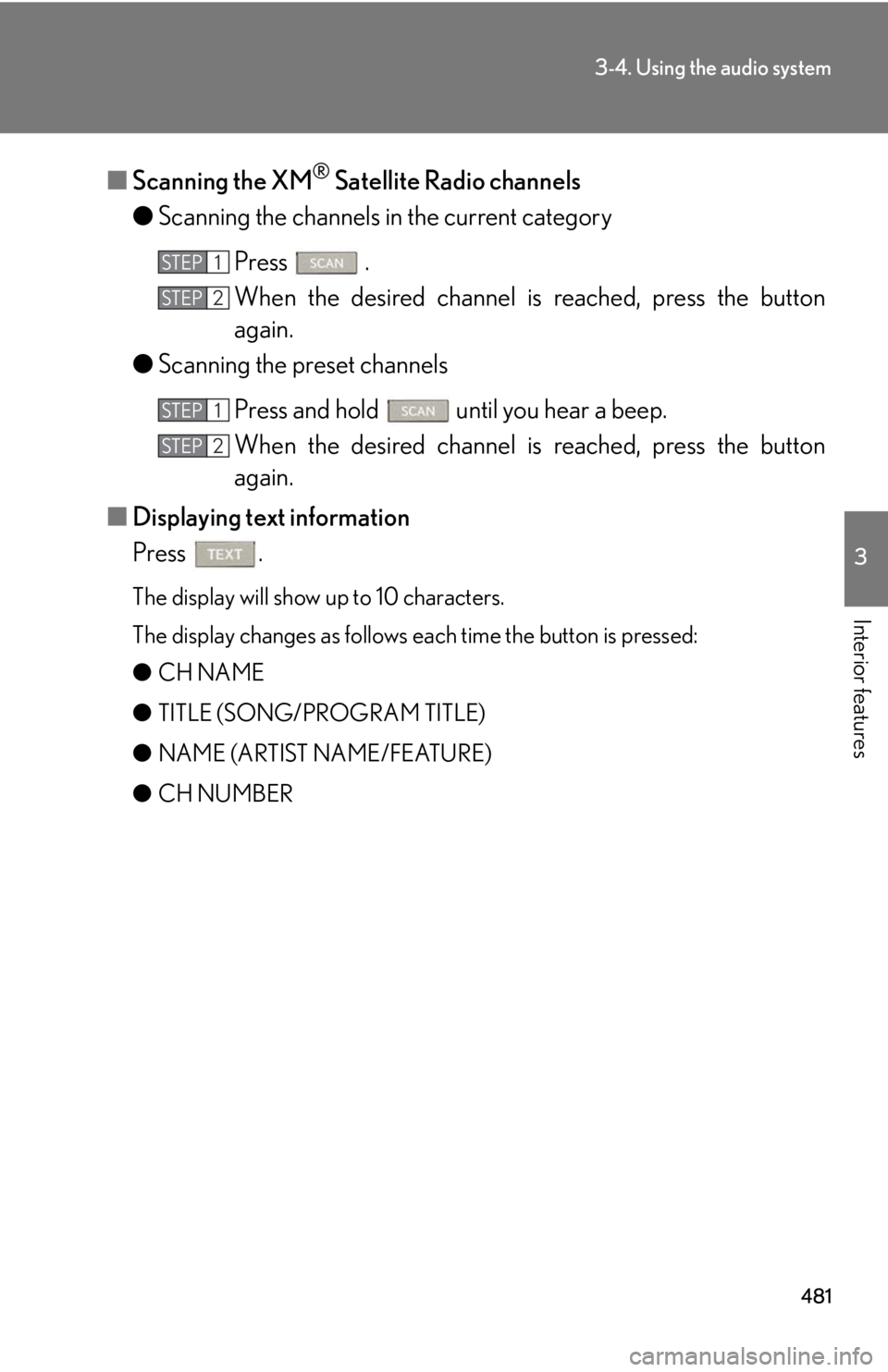
Interior features ■ Scanning the XM ®
Satellite Radio channels
● Scanning the channels in the current category
Press .
When the desired channel is reached, press the button
again.
● Scanning the preset channels
Press and hold until you hear a beep.
When the desired channel is reached, press the button
again.
■ Displaying text information
Press . The display will show up to 10 characters.
The display changes as follows each time the button is pressed:
● CH NAME
● TITLE (SONG/PROGRAM TITLE)
● NAME (ARTIST NAME/FEATURE)
● CH NUMBER STEP 1
STEP 2
STEP 1
STEP 2
Page 482 of 878
4823-4. Using the audio system
■
When the 12-volt battery is disconnected
All preset stations are erased.■
Reception sensitivity ●
Cargo loaded on the roof luggage carrier, especially metal objects, may
adversely affect the reception of XM ®
Satellite Radio.●
It is difficult to maintain perfect radio re ception at all times due to the continually
changing position of the antenna, differences in signal stre ngth and surrounding
objects, such as trains and transmitters.●
The radio antenna is mounted inside the rear spoiler and the rear window. To
maintain clear radio reception, do not attach metallic window tinting or other
metallic objects to the antenna wire mounted inside the rear window.■
Receiving XM ®
Satellite Radio
An XM ®
Satellite Radio is a tuner designed exclusively to receive broadcasts pro-
vided under a separate subscription. Availa bility is limited to the 48 contiguous
states and 10 Canadian provinces. ●
XM ®
subscriptions
For detailed information about XM ®
Satellite Radio or to subscribe:
U.S.A.
Visit on the web at www.siriusxm.com or call 1-877-515-3987.
Canada
Visit on the web at www.xmradio.ca or call 1-877-438-9677.●
Radio ID
You will need the radio ID when activating XM ®
service or reporting a problem.
Select “CH000” using , and the rece iver's 8-character ID number will
appear.
●
Satellite tuner
The tuner supports only Audio Services (Music and Talk) and the accompanying
Text Information of XM ®
Satellite Radio.
Page 507 of 878
5073-4. Using the audio system
3
Interior features ■
iPod functions ●
When an iPod is connected and the audio source is changed to iPod mode, the
iPod will resume play from the same point in which it was last used.●
Depending on the iPod that is connecte d to the system, certain functions may
not be available. If a function is unavailable due to a malfunction (as opposed to
a system specification), disconnecting the device and reconnecting it once
again may resolve the problem. ●
While connected to the system, the iPod cannot be operated with its own con-
trols. It is necessary to use the controls of the vehicle's audio system instead. ●
When the battery level of an iPod is very low, the iPod may not operate. If so,
charge the iPod before use.●
Supported models ( P. 5 0 8 )■
iPod problems
To resolve most problems encountered when using your iPod, disconnect your iPod
from the vehicle iPod connection and reset it.
For instructions on how to reset your iP od, refer to your iPod Owner's Manual.■
Display
P. 4 9 0■
Error messages
“ERROR”: This indicates a problem in the iPod or its connection.
“NO MUSIC”: This indicates that ther e is no music data in the iPod.
“EMPTY”: This indicates that some avai lable songs are not found in a selected
playlist.
“UPDATE”: This indicates that the version of the iPod is not compatible.
Upgrade your iPod software to the latest version.
Page 561 of 878
5613-4. Using the audio system
3
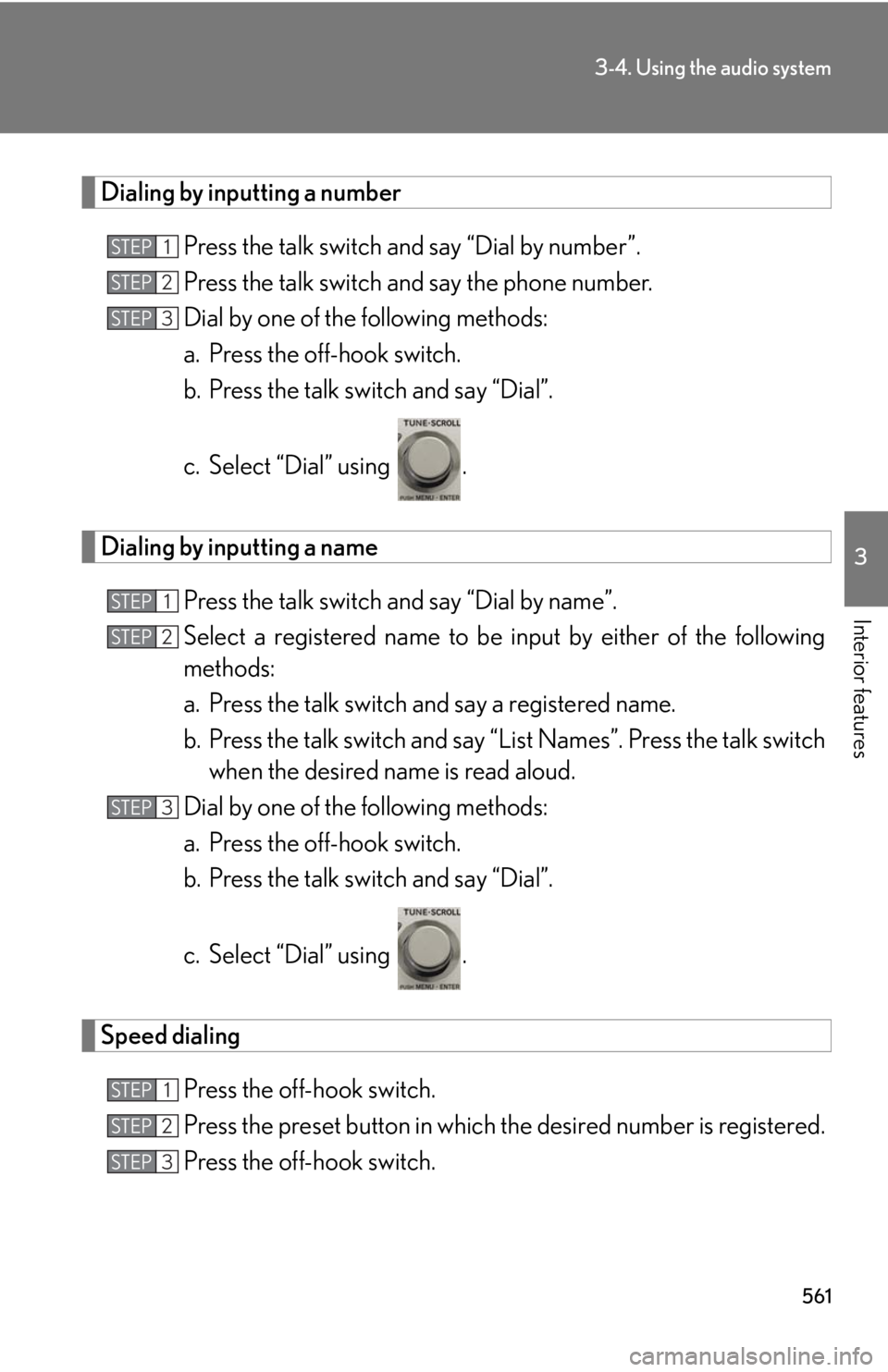
Interior features Dialing by inputting a number
Press the talk switch and say “Dial by number”.
Press the talk switch and say the phone number.
Dial by one of the following methods:
a. Press the off-hook switch.
b. Press the talk switch and say “Dial”.
c. Select “Dial” using .
Dialing by inputting a name
Press the talk switch and say “Dial by name”.
Select a registered name to be input by either of the following
methods:
a. Press the talk switch and say a registered name.
b. Press the talk switch and say “L ist Names”. Press the talk switch
when the desired name is read aloud.
Dial by one of the following methods:
a. Press the off-hook switch.
b. Press the talk switch and say “Dial”.
c. Select “Dial” using .
Speed dialing
Press the off-hook switch.
Press the preset button in which the desired number is registered.
Press the off-hook switch.STEP 1
STEP 2
STEP 3
STEP 1
STEP 2
STEP 3
STEP 1
STEP 2
STEP 3
Page 580 of 878
5803-4. Using the audio system
Setting speed dials
Select “Set Speed Dial (Speed Dial)” using a voice command or
.
Pattern A
Select the data to be registered as a speed dial by either of the
following methods and select “C onfirm” using a voice command
or :
a. Press the talk switch and say the desired name.
b. Press the talk switch and say “List Names”. When the desired
name is read aloud, press the talk switch.
Pattern B
Select the desired data using .
Select the desired preset button and register the data into speed
dial by either of the following methods:
a. Press the desired preset button and select “Confirm” by using a
voice command or .
b. Press and hold the desired preset button.STEP 1
STEP 2
STEP 2
STEP 3
Page 581 of 878
5813-4. Using the audio system
3
Interior features Deleting the registered data
Select “Delete Entry” using a voice command or .
Pattern A
Select the data to be deleted by either of the following methods
and select “Confirm” using a voice command or :
a. Press the talk switch and say the name of the desired phone
number.
b. Press the talk switch and sa y “List Names”. When the name of
the desired phone number is read aloud, press the talk switch.
Pattern B
Select the desired data to be deleted using .
Deleting speed dials
Select “Delete Speed Dial (Del Spd Dial)” using a voice com-
mand or .
Press the preset button to which th e desired speed dial is regis-
tered and select “Confirm” using a voice command or .
■
Limitation of number of digits
A phone number that exceeds 24 digits cannot be registered. STEP 1
STEP 2
STEP 2
STEP 1
STEP 2