service LEXUS RX450h 2015 Owner's Manual
[x] Cancel search | Manufacturer: LEXUS, Model Year: 2015, Model line: RX450h, Model: LEXUS RX450h 2015Pages: 878, PDF Size: 11.62 MB
Page 451 of 878
4513-3. Using the Lexus Display Audio system
3
Interior features Speaking on the phone
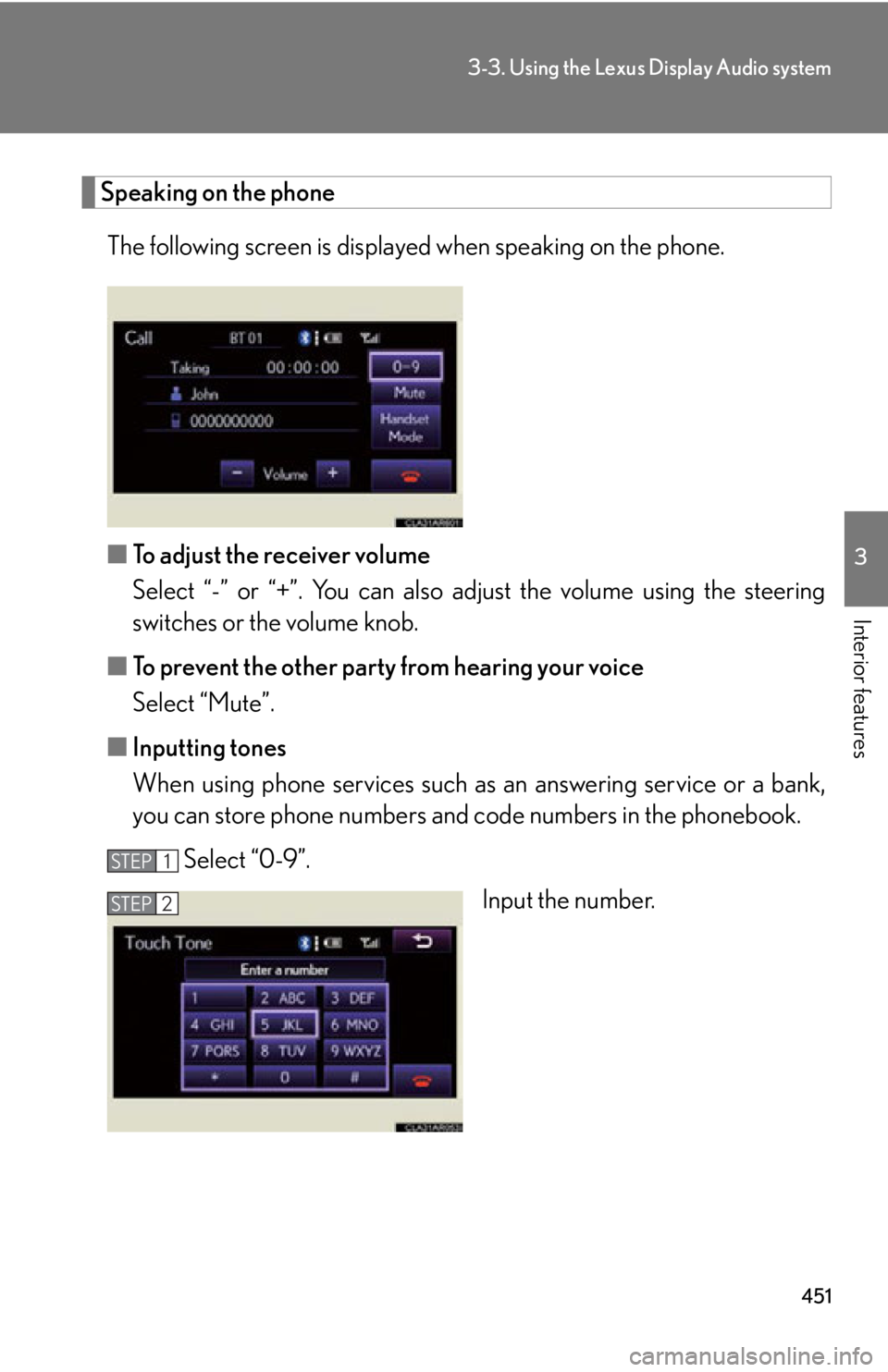
The following screen is displaye d when speaking on the phone.
■ To adjust the receiver volume
Select “-” or “+”. You can also adjust the volume using the steering
switches or the volume knob.
■ To prevent the other party from hearing your voice
Select “Mute”.
■ Inputting tones
When using phone services such as an answering service or a bank,
you can store phone numbers an d code numbers in the phonebook.
Select “0-9”.
Input the number.STEP 1
STEP 2
Page 457 of 878
4573-3. Using the Lexus Display Audio system
3
Interior features ■ Managing the contacts
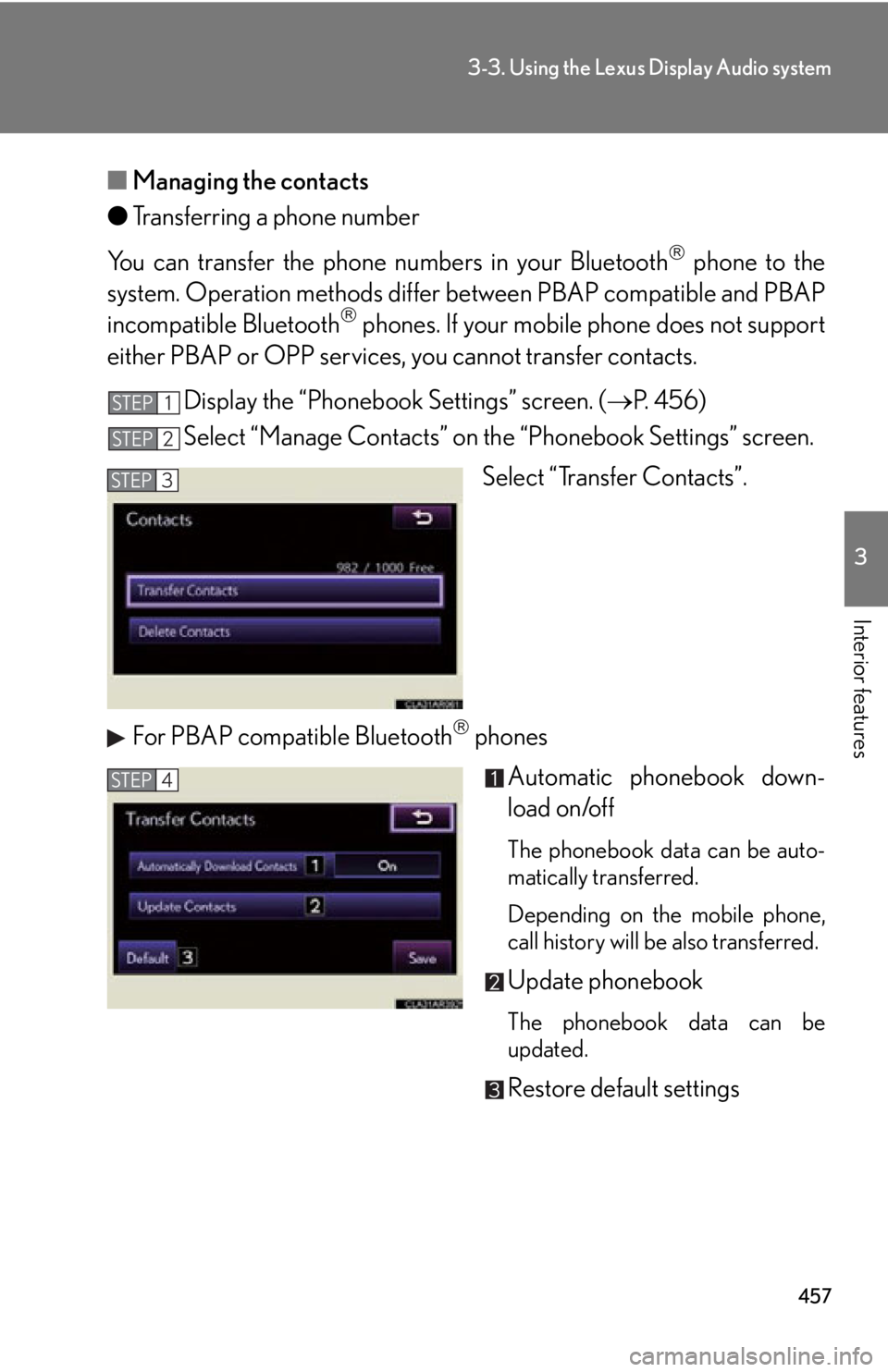
● Transferring a phone number
You can transfer the phone nu mbers in your Bluetooth
phone to the
system. Operation methods differ b etween PBAP compatible and PBAP
incompatible Bluetooth
phones. If your mobile phone does not support
either PBAP or OPP services, you cannot transfer contacts.
Display the “Phonebook Settings” screen. ( P. 4 5 6 )
Select “Manage Contacts” on th e “Phonebook Settings” screen.
Select “Transfer Contacts”.
For PBAP compatible Bluetooth
phones
Automatic phonebook down-
load on/off The phonebook data can be auto-
matically transferred.
Depending on the mobile phone,
call history will be also transferred.
Update phonebook
The phonebook data can be
updated.
Restore default settingsSTEP 1
STEP 2
STEP 3
STEP 4
Page 459 of 878
4593-3. Using the Lexus Display Audio system
3
Interior features ■
Phonebook data
Phonebook data is managed for every registered phone. When another phone is
connecting, you cannot read the registered data.■
Setting the phonebook in a different wa y (To display the “Contacts” screen)
Display the “Phone” screen. ( P. 4 3 7 )
Select “Contacts” on the “Phone” screen.
Select “Options” on the “Contacts” screen.
Select “Manage Contacts” on the “Contacts” screen.■
When transferring a phone number
Transfer the phone number while engine is running.
If your mobile phone is OPP or PBAP co mpatible, you may need to input “1234” by
your mobile phone for OBEX certification.■
When you have selected “Update Cont acts” to transfer the phone number●
If your mobile phone does not support PBAP service, you cannot use this func-
tion.●
If your phone supports PBAP service, you can transfer the phonebook data
without operating your phone.■
When you have selected “Replace Contacts” or “Add Contacts” to transfer the
phone number
If your mobile phone does not support OPP service, you cannot use these func-
tions. You can transfer the phonebook data only by operating your phone.■
Transferring the phone number in a different way (To display the “Transfer
Contacts” screen)
Display the “Phone” screen. ( P. 4 3 7 )
Select “Contacts” on the “Phone” screen.
Select “Transfer” on the “Contacts” screen.
■
Transferring the phone number while Bluetooth
audio is playing
Bluetooth
audio will disconnect. It will reconnect automatically when data transfer
finishes. It will not be reconnected depending on the phone you are using. STEP 1
STEP 2
STEP 3
STEP 4
STEP 1
STEP 2
STEP 3
Page 460 of 878
4603-3. Using the Lexus Display Audio system
■ Managing the speed dials
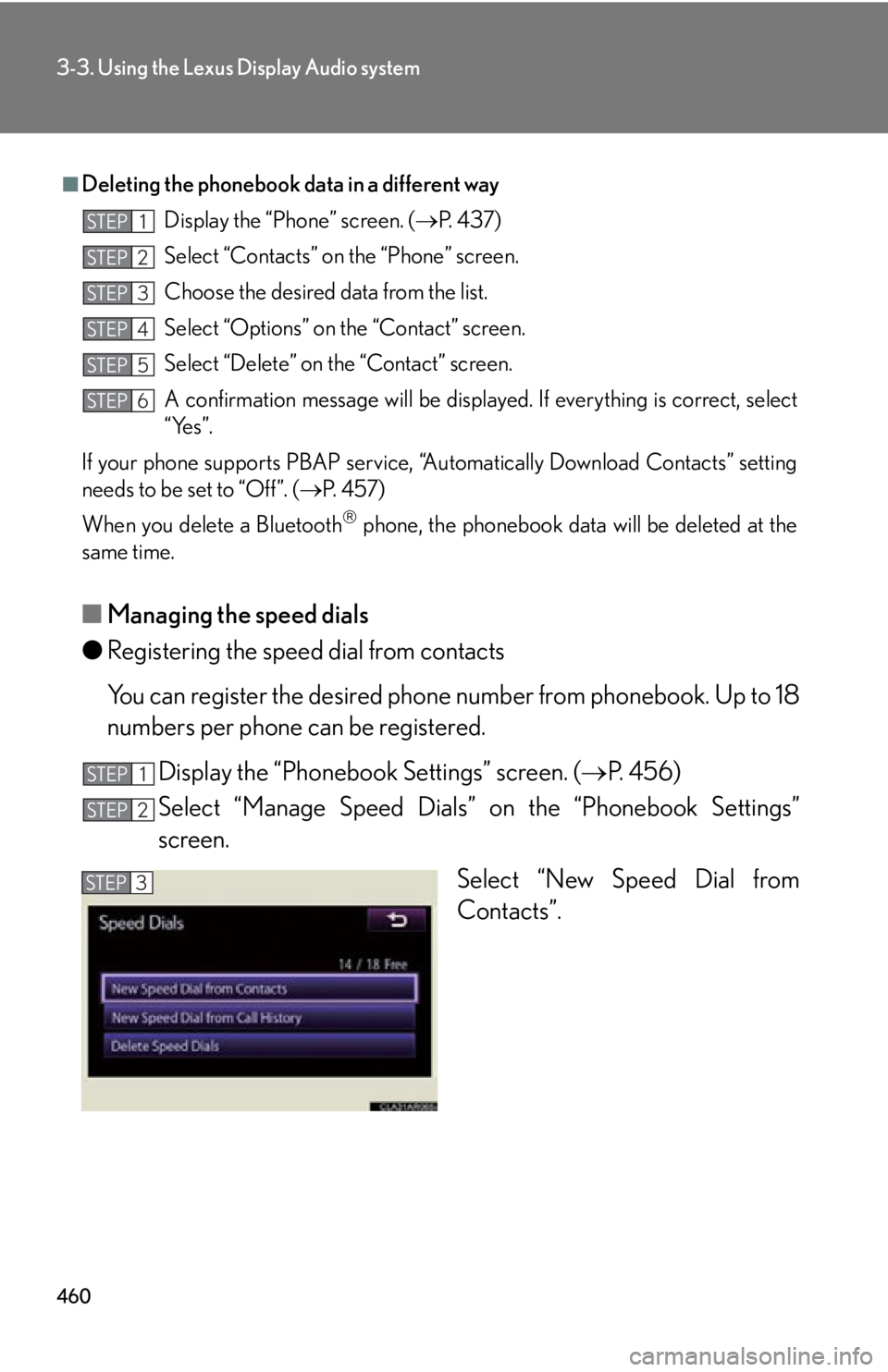
● Registering the speed dial from contacts
You can register the desired phone number from phonebook. Up to 18
numbers per phone can be registered.
Display the “Phonebook Settings” screen. ( P. 4 5 6 )
Select “Manage Speed Dials” on the “Phonebook Settings”
screen.
Select “New Speed Dial from
Contacts”.■
Deleting the phonebook da ta in a different way
Display the “Phone” screen. ( P. 4 3 7 )
Select “Contacts” on the “Phone” screen.
Choose the desired data from the list.
Select “Options” on the “Contact” screen.
Select “Delete” on the “Contact” screen.
A confirmation message will be displayed. If everything is correct, select
“Yes”.
If your phone supports PBAP service, “Automatically Download Contacts” setting
needs to be set to “Off”. ( P. 4 5 7 )
When you delete a Bluetooth
phone, the phonebook data will be deleted at the
same time. STEP 1
STEP 2
STEP 3
STEP 4
STEP 5
STEP 6
STEP 1
STEP 2
STEP 3
Page 465 of 878
4653-3. Using the Lexus Display Audio system
3
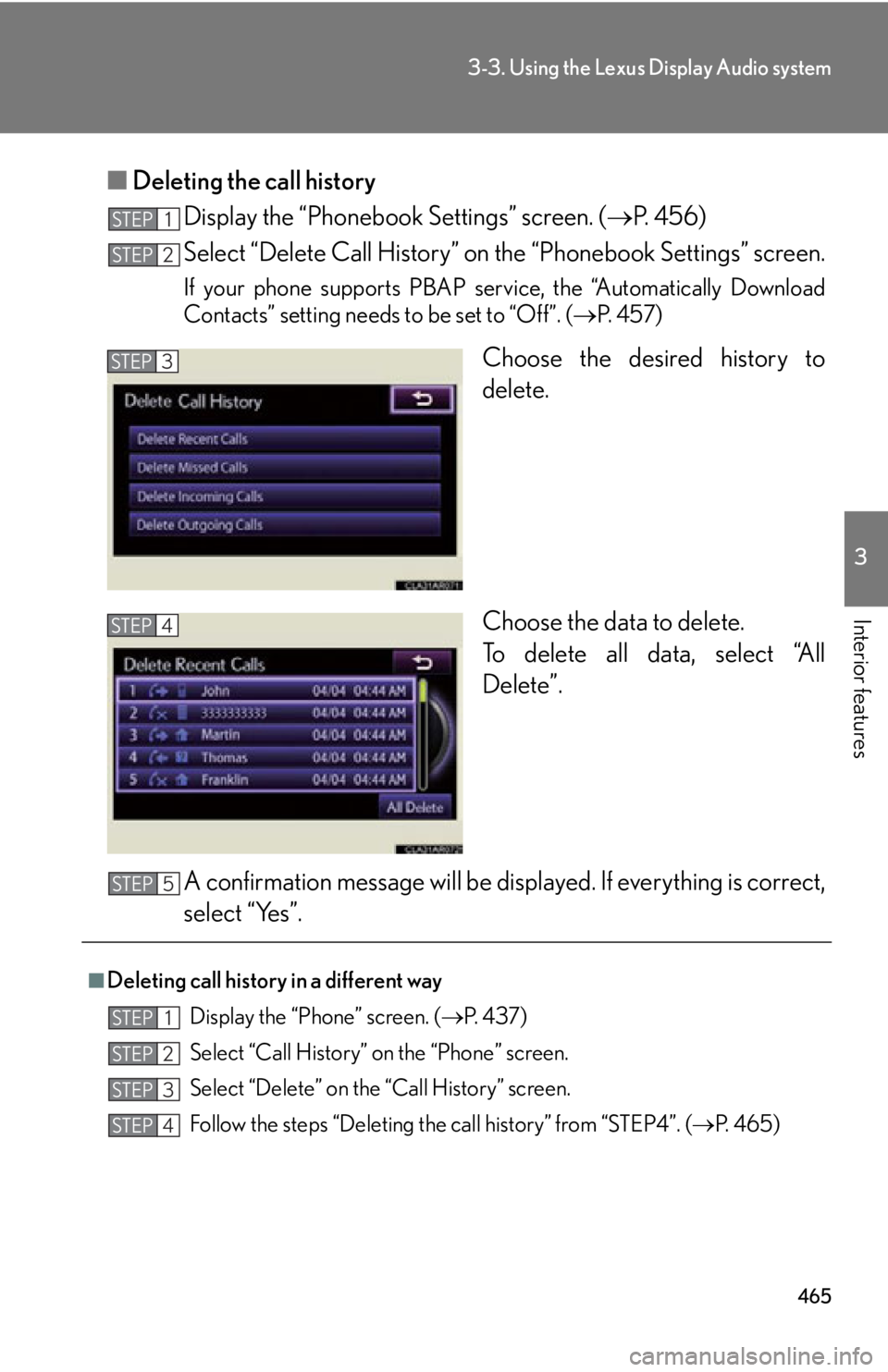
Interior features ■ Deleting the call history
Display the “Phonebook Settings” screen. ( P. 4 5 6 )
Select “Delete Call History” on the “Phonebook Settings” screen.If your phone supports PBAP service, the “Automatically Download
Contacts” setting needs to be set to “Off”. ( P. 4 5 7 )
Choose the desired history to
delete.
Choose the data to delete.
To delete all data, select “All
Delete”.
A confirmation message will be disp layed. If everything is correct,
select “Yes”.STEP 1
STEP 2
STEP 3
STEP 4
■
Deleting call history in a different way
Display the “Phone” screen. ( P. 4 3 7 )
Select “Call History” on the “Phone” screen.
Select “Delete” on the “Call History” screen.
Follow the steps “Deleting the call history” from “STEP4”. ( P. 4 6 5 )STEP 5
STEP 1
STEP 2
STEP 3
STEP 4
Page 482 of 878
4823-4. Using the audio system
■
When the 12-volt battery is disconnected
All preset stations are erased.■
Reception sensitivity ●
Cargo loaded on the roof luggage carrier, especially metal objects, may
adversely affect the reception of XM ®
Satellite Radio.●
It is difficult to maintain perfect radio re ception at all times due to the continually
changing position of the antenna, differences in signal stre ngth and surrounding
objects, such as trains and transmitters.●
The radio antenna is mounted inside the rear spoiler and the rear window. To
maintain clear radio reception, do not attach metallic window tinting or other
metallic objects to the antenna wire mounted inside the rear window.■
Receiving XM ®
Satellite Radio
An XM ®
Satellite Radio is a tuner designed exclusively to receive broadcasts pro-
vided under a separate subscription. Availa bility is limited to the 48 contiguous
states and 10 Canadian provinces. ●
XM ®
subscriptions
For detailed information about XM ®
Satellite Radio or to subscribe:
U.S.A.
Visit on the web at www.siriusxm.com or call 1-877-515-3987.
Canada
Visit on the web at www.xmradio.ca or call 1-877-438-9677.●
Radio ID
You will need the radio ID when activating XM ®
service or reporting a problem.
Select “CH000” using , and the rece iver's 8-character ID number will
appear.
●
Satellite tuner
The tuner supports only Audio Services (Music and Talk) and the accompanying
Text Information of XM ®
Satellite Radio.
Page 548 of 878
5483-4. Using the audio system
■
Conditions under which the system will not operate ●
If using a mobile phone that does not support Bluetooth ®
●
If the mobile phone is switched off●
If you are outside service range●
If the mobile phon e is not connected●
If the mobile phone's battery is low●
If the mobile phone is behind the seat or in the glove box or console box●
If metal is covering or touching the phone■
When using the hands-free system ●
The audio system and voice guidance are muted when making a call.●
If both parties speak at the same time, it may be difficult to hear.●
If the incoming call volume is overly loud, an echo may be heard.●
Try to face toward the microphone as much as possible when speaking.●
In the following circumstances, it may be difficult to hear the other party:
• When driving on unpaved roads
• When driving at high speeds
• When a window is open
• When the air conditioning is blowing directly on the microphone
• When the air conditioning is set to high■
When transferring ownership of the vehicle
Be sure to initialize the system to prev ent personal data from being improperly
accessed. ( P. 5 74 )■
About Bluetooth ®
Bluetooth is a registered trademark of
Bluetooth SIG. Inc.
Page 564 of 878
5643-4. Using the audio system
■
Call waiting ●
If your phone does not support HFP Ver. 1.5, this function cannot be used.●
Call waiting operation may differ depend ing on your mobile phone and service
provider.■
Call history
Up to 5 numbers can be stored in each of the outgoing and incoming call history
memories.■
When talking on the phone ●
Do not talk at the same time as the other party.●
Keep the volume of the incoming voice down. Otherwise, voice echo will
increase.
Page 626 of 878
6263-7. Other interior features
Safety Connect
: If equippedSafety Connect is a subscription-based telematics service that uses Global
Positioning System (GPS) data and emb edded cellular technology to pro-
vide safety and security features to subscribers. Safety Connect is sup-
ported by Lexus’ designated response center, which operates 24 hours per
day, 7 days per week.
Safety Connect service is available by subscription on select, telematics
hardware-equipped vehicles.
By using the Safety Connect service, you are agreeing to be bound by the
Telematics Subscription Service Agreement and its Terms and Conditions,
as in effect and amended from time to time, a current copy of which is avail-
able at Lexus.com. All use of the Safety Connect service is subject to such
then-applicable Terms and Conditions.
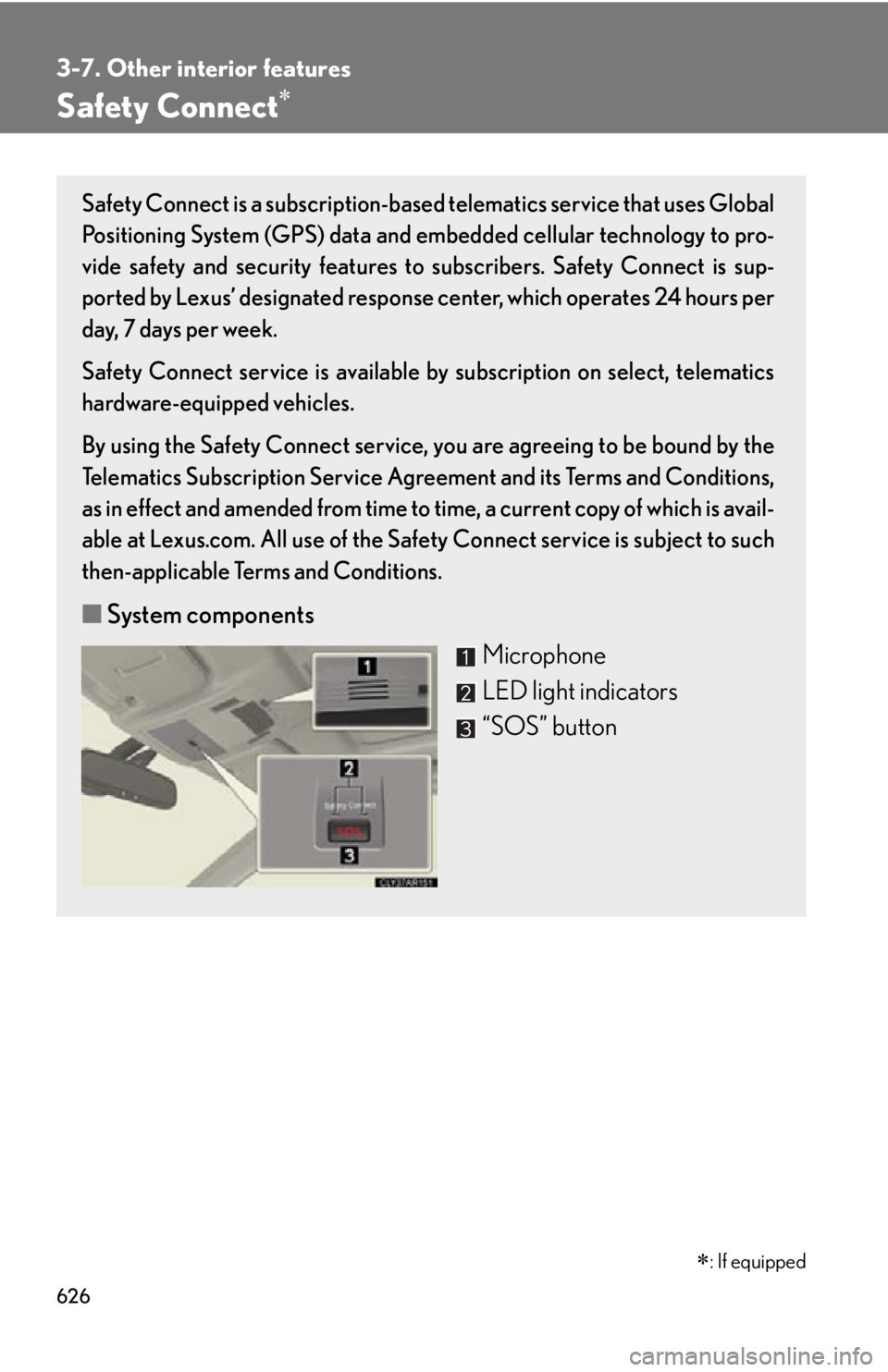
■ System components
Microphone
LED light indicators
“SOS” button
Page 627 of 878
6273-7. Other interior features
3
Interior features ■ Services
Subscribers have the following Safety Connect services available:
● Automatic Collision Notification
*Helps drivers receive necessary response from emergency ser-
vice providers. ( P. 6 2 9 )
* : U.S. Patent No. 7,508,298 B2
● Stolen Vehicle Location
Helps drivers in the event of vehicle theft. ( P. 630)
● Emergency Assistance Button (SOS)
Connects drivers to response-center support. ( P. 630)
● Enhanced Roadside Assistance
Provides drivers various on-road assistance. ( P. 6 3 0 )
■ Subscription
After you have signed the Telemati cs Subscription Service Agree-
ment and are enrolled, you can begin receiving services.
A variety of subscription terms is available for purchase. Contact
your Lexus dealer, call 1-800-25-LEXUS (1-800-255-3987) or
push the “SOS” button in your ve hicle for further subscription
details.