check LEXUS RX450H 2019 Manual PDF
[x] Cancel search | Manufacturer: LEXUS, Model Year: 2019, Model line: RX450H, Model: LEXUS RX450H 2019Pages: 792, PDF Size: 13.48 MB
Page 442 of 792
4425-6. Using an external device
RX450h_RX450hL_U
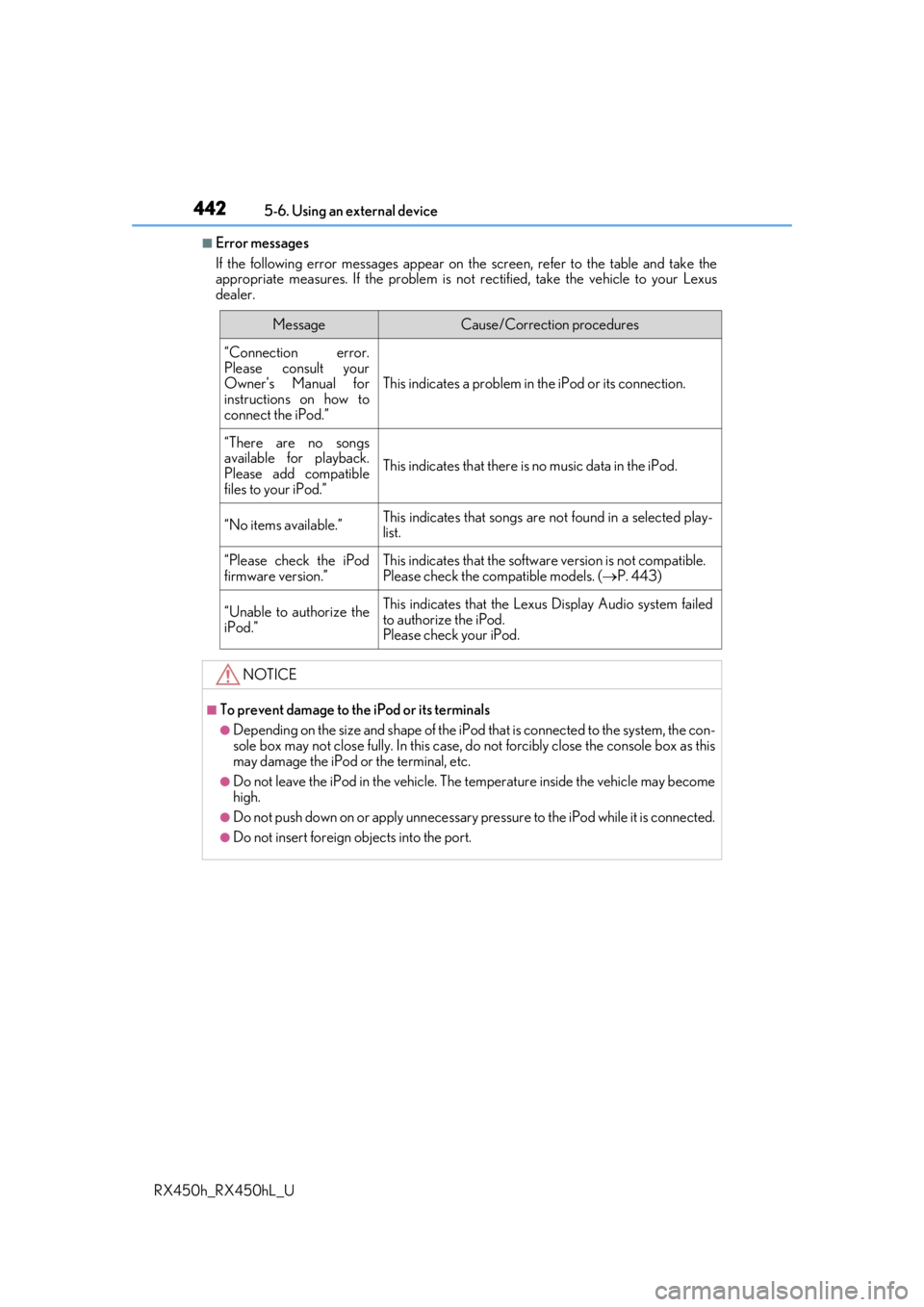
■Error messages
If the following error messages appear on th e screen, refer to the table and take the
appropriate measures. If the pr oblem is not rectified, take the vehicle to your Lexus
dealer.
MessageCause/Correction procedures
“Connection error.
Please consult your
Owner’s Manual for
instructions on how to
connect the iPod.”
This indicates a problem in the iPod or its connection.
“There are no songs
available for playback.
Please add compatible
files to your iPod.”
This indicates that there is no music data in the iPod.
“No items available.”This indicates that songs are not found in a selected play-
list.
“Please check the iPod
firmware version.”This indicates that the softwa re version is not compatible.
Please check the co mpatible models. (P. 443)
“Unable to authorize the
iPod.”This indicates that the Lexu s Display Audio system failed
to authorize the iPod.
Please check your iPod.
NOTICE
■To prevent damage to th e iPod or its terminals
●Depending on the size and shape of the iPod that is connected to the system, the con-
sole box may not close fully. In this case, do not forcibly close the console box as this
may damage the iPod or the terminal, etc.
●Do not leave the iPod in the vehicle. The temperature inside the vehicle may become
high.
●Do not push down on or apply unnecessary pr essure to the iPod while it is connected.
●Do not insert foreign objects into the port.
Page 447 of 792
4475-6. Using an external device
5
Lexus Display Audio system
RX450h_RX450hL_U
●ID3, WMA and AAC tags
ID3 tags can be added to MP3 files, making it possible to record the track title, artist
name, etc.
The system is compatible with ID3 Ver. 1.0, 1.1, and Ver. 2.2, 2.3 ID3 tags. (The number
of characters is based on ID3 Ver. 1.0 and 1.1.)
WMA tags can be added to WMA files, making it possible to record the track title and
artist name in the same way as with ID3 tags.
AAC tags can be added to AAC files, making it possible to record the track title and
artist name in the same way as with ID3 tags.
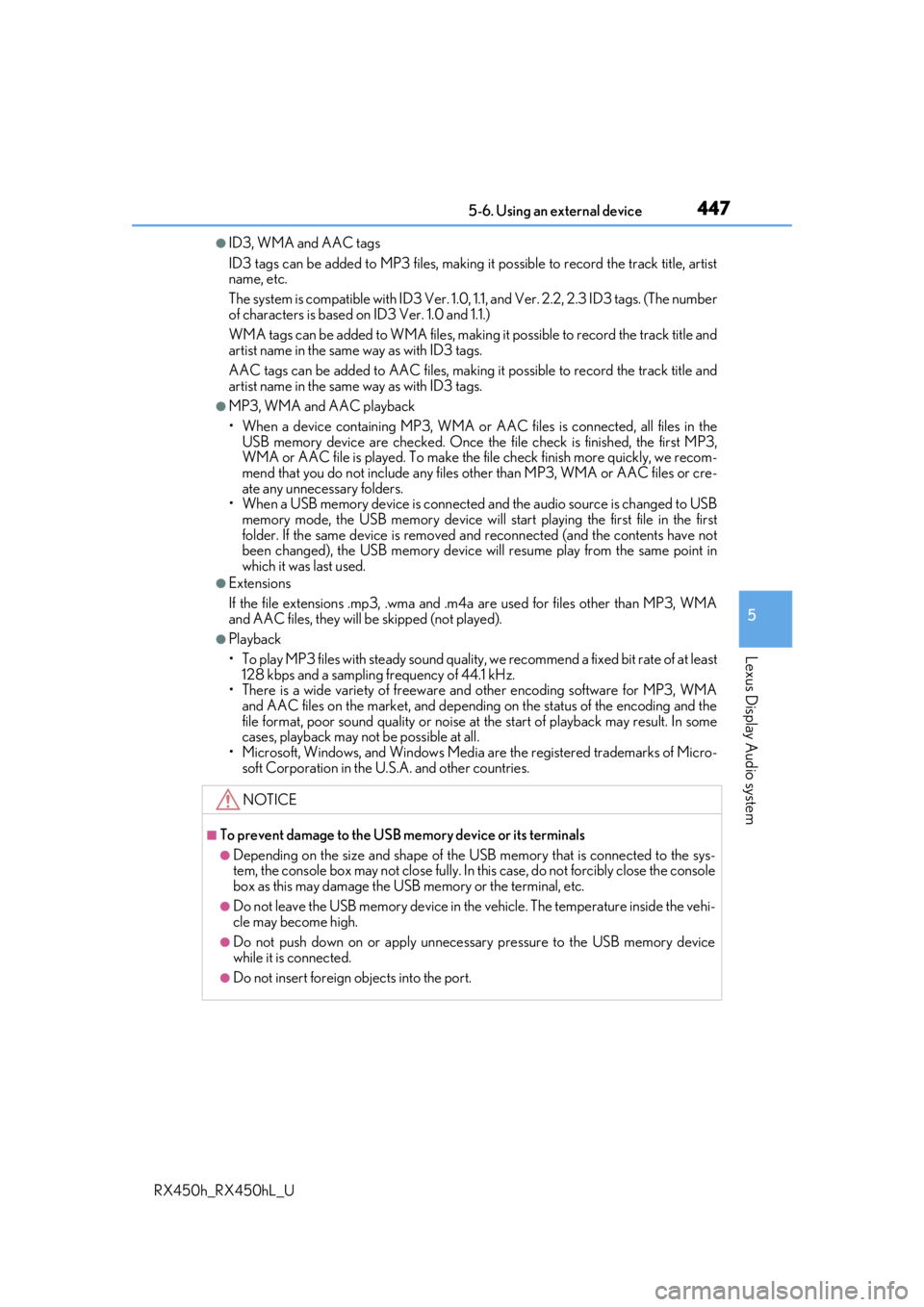
●MP3, WMA and AAC playback
• When a device containing MP3, WMA or AA C files is connected, all files in the
USB memory device are checked. Once th e file check is finished, the first MP3,
WMA or AAC file is played. To make the file check finish more quickly, we recom-
mend that you do not include any files other than MP3, WMA or AAC files or cre-
ate any unnecessary folders.
• When a USB memory device is connected and the audio source is changed to USB memory mode, the USB memory device will st art playing the first file in the first
folder. If the same device is removed an d reconnected (and the contents have not
been changed), the USB memory device w ill resume play from the same point in
which it was last used.
●Extensions
If the file extensions .mp3, .wma and .m4a are used for files other than MP3, WMA
and AAC files, they will be skipped (not played).
●Playback
• To play MP3 files with steady sound quality, we recommend a fixed bit rate of at least 128 kbps and a sampling frequency of 44.1 kHz.
• There is a wide variety of freeware an d other encoding software for MP3, WMA
and AAC files on the market, and depending on the status of the encoding and the
file format, poor sound quality or noise at the start of playback may result. In some
cases, playback may not be possible at all.
• Microsoft, Windows, and Windows Media ar e the registered trademarks of Micro-
soft Corporation in the U.S.A. and other countries.
NOTICE
■To prevent damage to the USB me mory device or its terminals
●Depending on the size and shape of the USB memory that is connected to the sys-
tem, the console box may not close fully. In th is case, do not forcibly close the console
box as this may damage the USB memory or the terminal, etc.
●Do not leave the USB memory device in the vehicle. The temperature inside the vehi-
cle may become high.
●Do not push down on or apply unnecessary pressure to the USB memory device
while it is connected.
●Do not insert foreign objects into the port.
Page 449 of 792
449
5
Lexus Display Audio system
RX450h_RX450hL_U5-7. Connecting Bluetooth
®
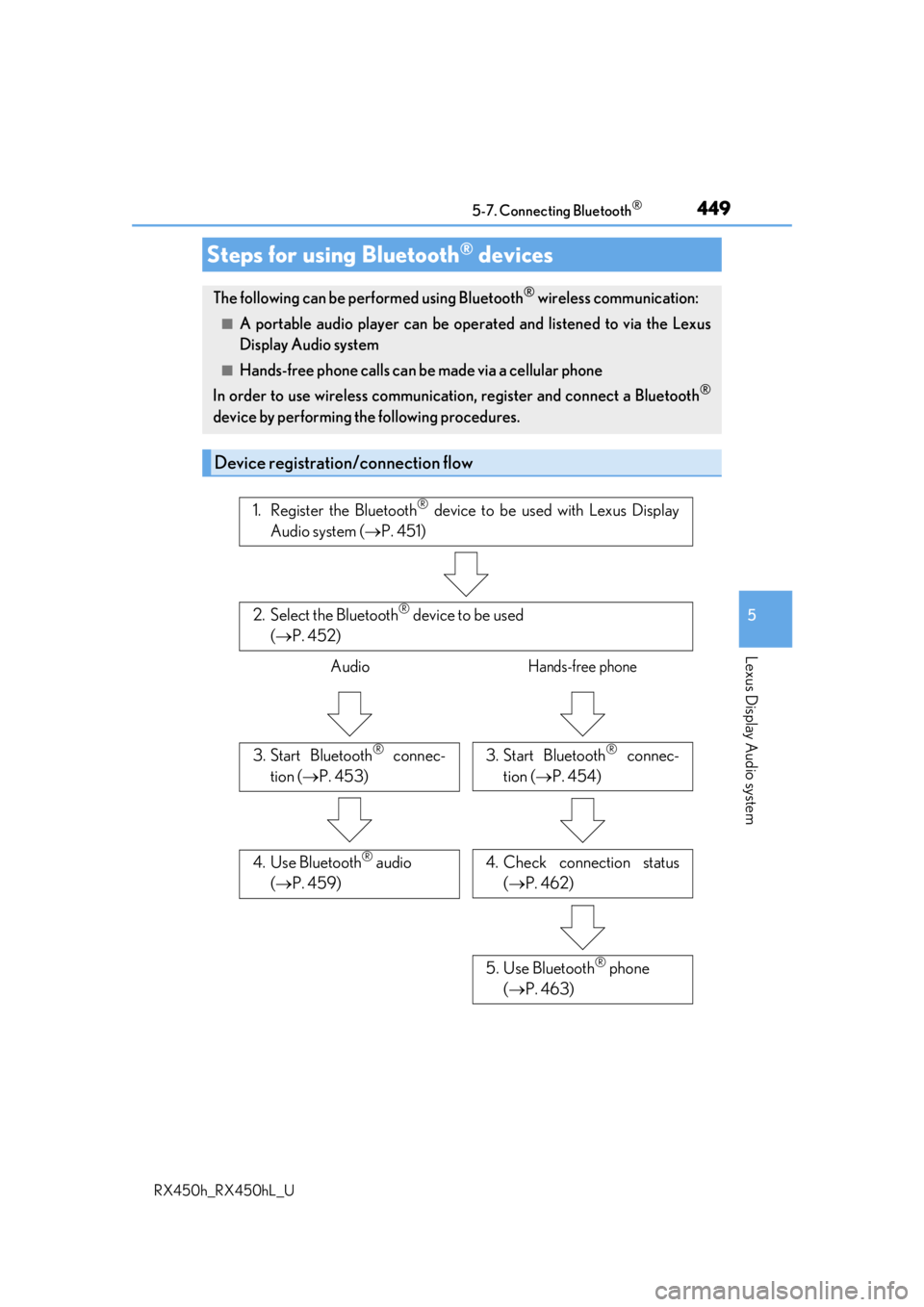
Steps for using Bluetooth® devices
The following can be performed using Bluetooth® wireless communication:
■A portable audio player can be operated and listened to via the Lexus
Display Audio system
■Hands-free phone calls can be made via a cellular phone
In order to use wireless communication, register and connect a Bluetooth
®
device by performing the following procedures.
Device registration/connection flow
1. Register the Bluetooth® device to be used with Lexus Display
Audio system ( P. 451)
2. Select the Bluetooth® device to be used
( P. 452)
AudioHands-free phone
3. Start Bluetooth® connec-
tion ( P. 453)3. Start Bluetooth® connec-
tion ( P. 454)
4. Check connection status
( P. 462)4. Use Bluetooth® audio
( P. 459)
5. Use Bluetooth® phone
( P. 463)
Page 459 of 792
459
5
Lexus Display Audio system
RX450h_RX450hL_U5-8. Bluetooth
® Audio
When a Bluetooth® device cannot be connected, check the connection status
on the “Bluetooth
* Audio” screen. If the device is not connected, either register
or reconnect the device. ( P. 451, 453)
*: Bluetooth is a registered trademark of Bluetooth SIG, Inc.
Listening to Bluetooth® Audio
The Bluetooth® audio system enables the user to enjoy music played on a por-
table player from the vehicle spea kers via wireless communication.
Page 461 of 792
461
5
Lexus Display Audio system
RX450h_RX450hL_U5-9. Bluetooth
® Phone
Before making a phone call, check the connection status, battery charge, call
area and signal strength. (
P. 462)
If a Bluetooth
® device cannot be connected, chec k the connection status. If the
device is not connected, either register or reconnect it. (
P. 451, 454)
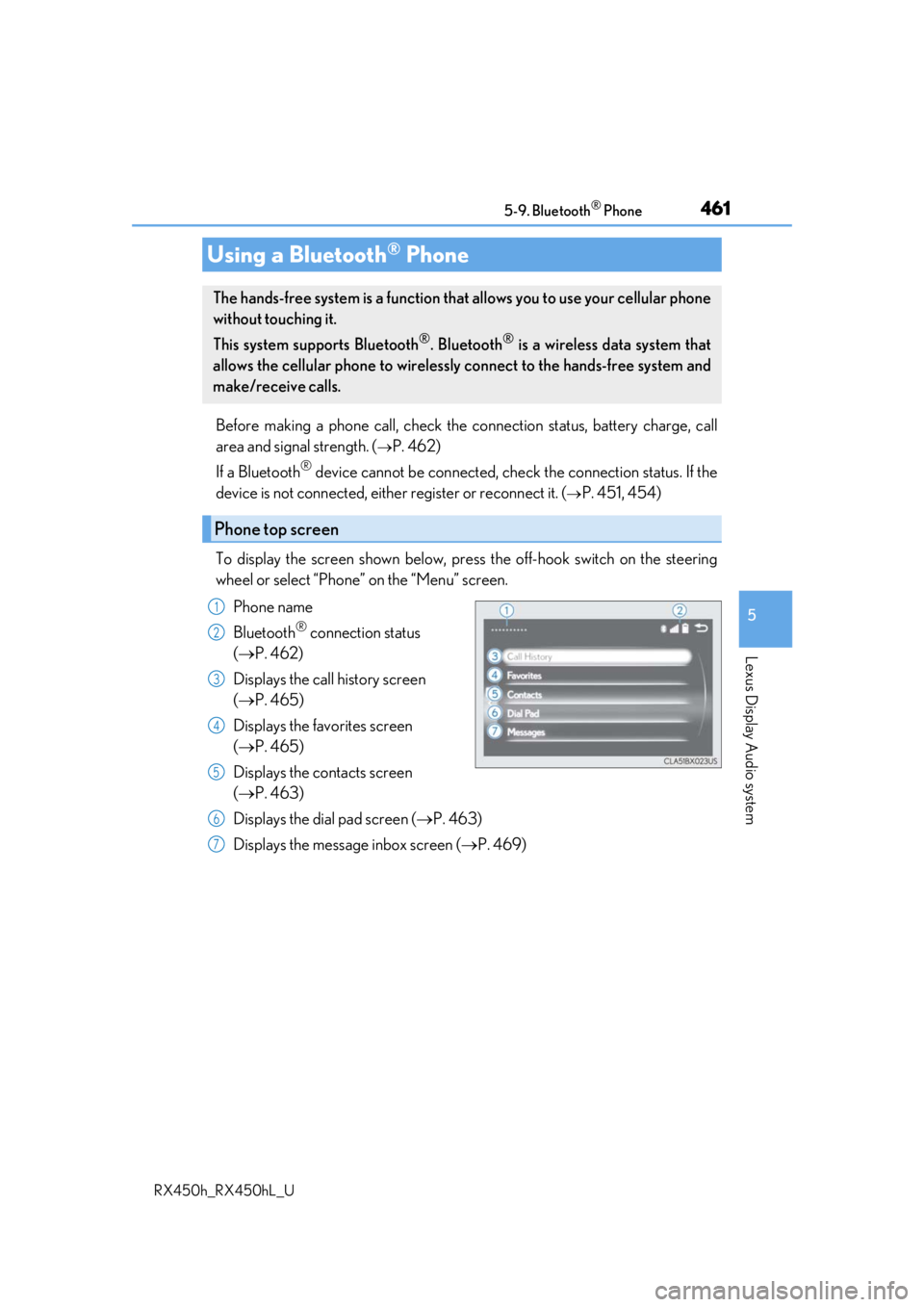
To display the screen shown below, press the off-hook switch on the steering
wheel or select “Phone” on the “Menu” screen. Phone name
Bluetooth
® connection status
( P. 462)
Displays the call history screen
( P. 465)
Displays the favorites screen
( P. 465)
Displays the contacts screen
( P. 463)
Displays the dial pad screen ( P. 463)
Displays the message inbox screen ( P. 469)
Using a Bluetooth® Phone
The hands-free system is a function that allows you to use your cellular phone
without touching it.
This system supports Bluetooth
®. Bluetooth® is a wireless data system that
allows the cellular phone to wirelessly connect to the hands-free system and
make/receive calls.
Phone top screen
1
2
3
4
5
6
7
Page 462 of 792
4625-9. Bluetooth® Phone
RX450h_RX450hL_U
◆Phone switch ( P. 471)
◆Microphone
The vehicle’s built-in microphone is
used when talking on the phone.
The person to whom you are speak-
ing to can be heard from the front
speakers.
To use the hands-free system, you
must register your Bluetooth
®
phone in the system. ( P. 451)
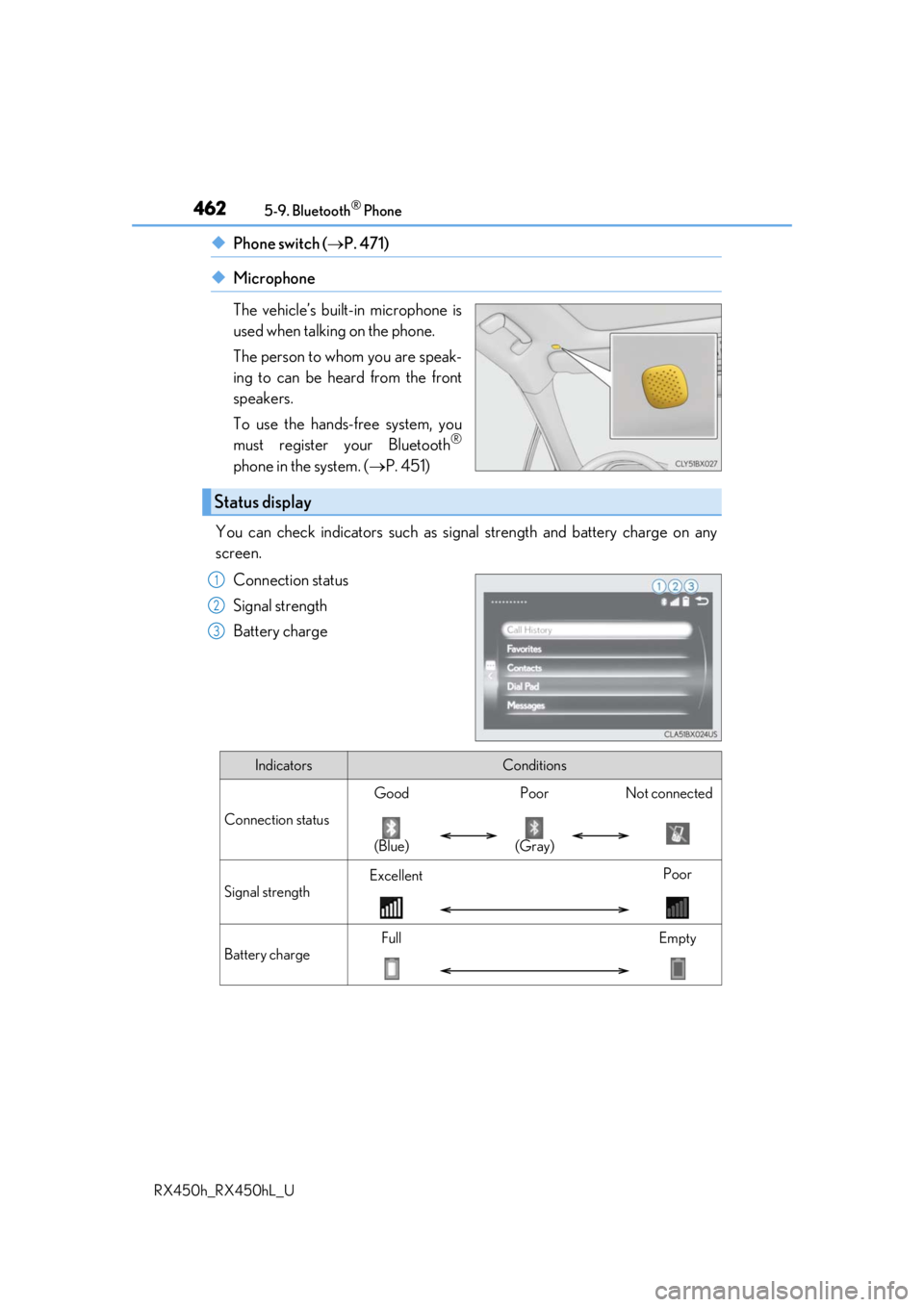
You can check indicators such as signal strength and battery charge on a\
ny
screen. Connection status
Signal strength
Battery charge
Status display
1
2
3
IndicatorsConditions
Connection status
GoodPoorNot connected
(Blue)(Gray)
Signal strength
ExcellentPoor
Battery charge
FullEmpty
Page 469 of 792
4695-9. Bluetooth® Phone
5
Lexus Display Audio system
RX450h_RX450hL_U
Go to message screen: “MENU” button “Phone” “Messages”
Select a message.
Moving the controller to the left while on the message list screen displays the setting
screen. ( P. 477)
Move the controller to the right while on the message screen and then select an
account to display a message list for the selected account.
Selecting “Next” or “Previous” disp lays the next or previous message.
If a message is too long, select “R ead More” to display the full text.
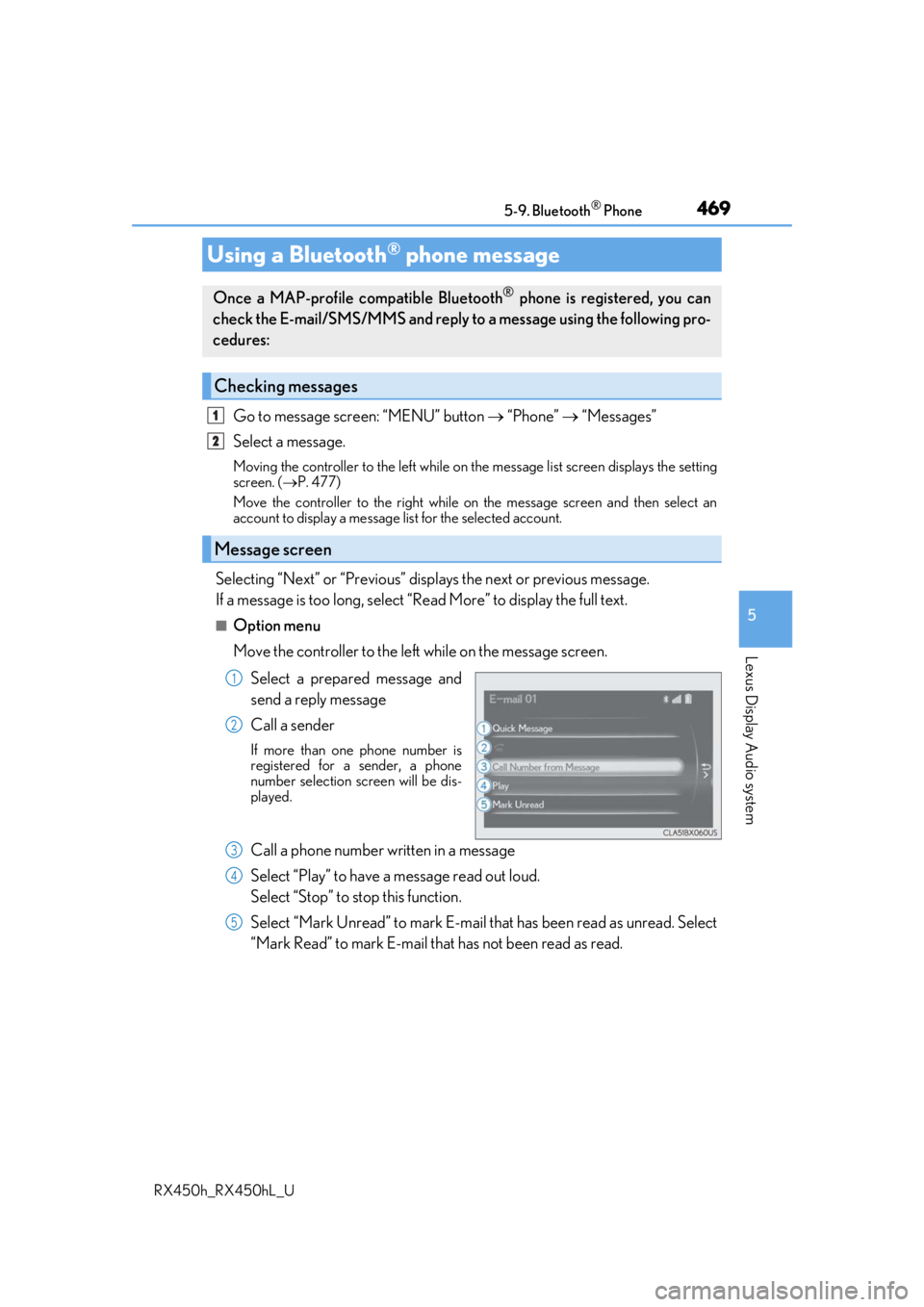
■Option menu
Move the controller to the left while on the message screen.
Select a prepared message and
send a reply message
Call a sender
If more than one phone number is
registered for a sender, a phone
number selection screen will be dis-
played.
Call a phone number written in a message
Select “Play” to have a message read out loud.
Select “Stop” to stop this function.
Select “Mark Unread” to mark E-mail th at has been read as unread. Select
“Mark Read” to mark E-mail that has not been read as read.
Using a Bluetooth® phone message
Once a MAP-profile compatible Bluetooth® phone is registered, you can
check the E-mail/SMS/MMS and reply to a message using the following pro-
cedures:
Checking messages
Message screen
1
2
1
2
3
4
5
Page 470 of 792
4705-9. Bluetooth® Phone
RX450h_RX450hL_U
Move the controller to the left while on the message screen.
Select “Quick Message” to display the “Quick Message” screen.
Select the desired message and then select “Send”.
■Editing a quick message Move the controller to the left while on the message screen.
Select “Quick Message” and move the cursor to the desired message.
Move the controller to the left and select “Edit”.
To return to the default message after editing, select “Default”.
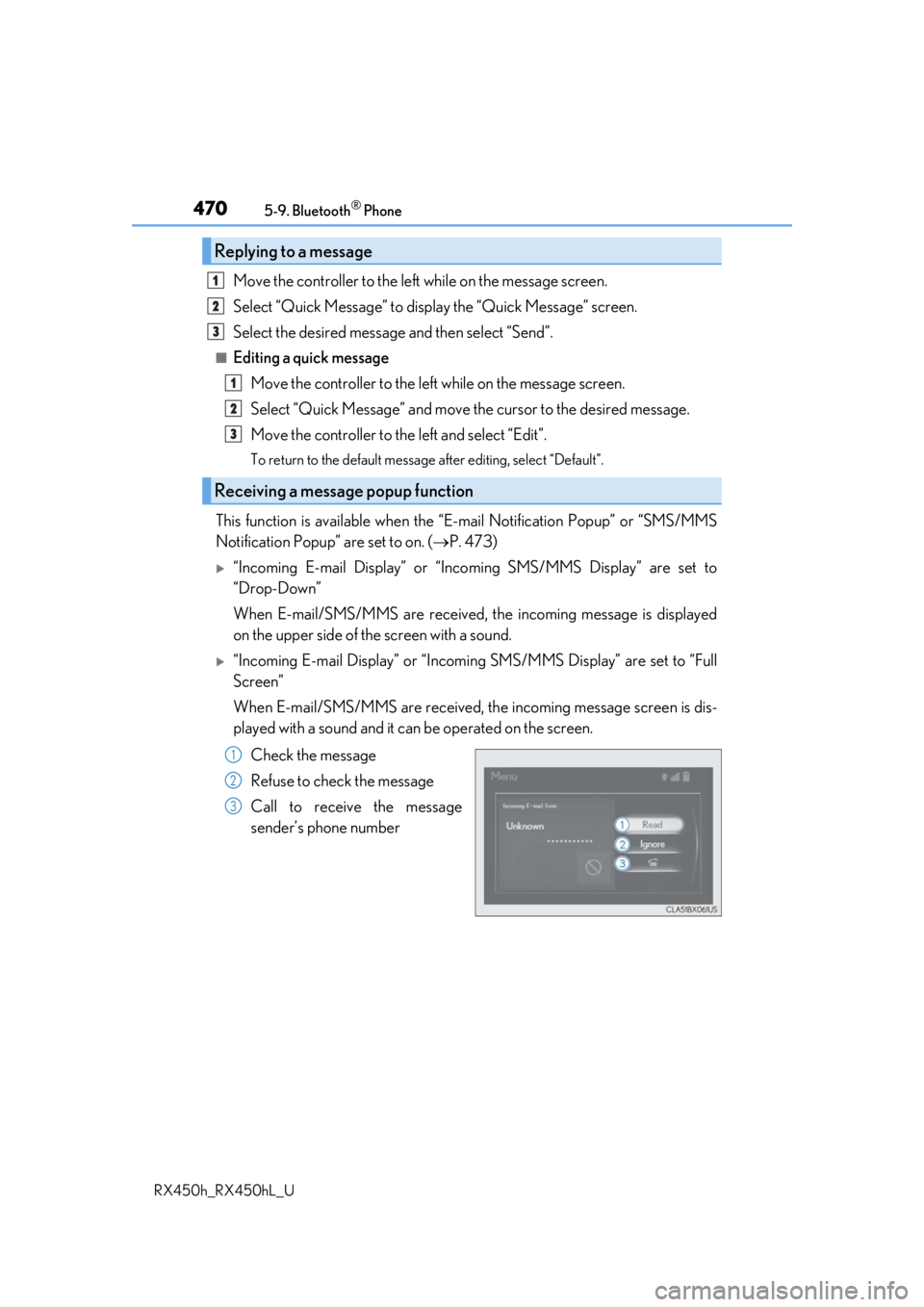
This function is available when the “E-mail Notification Popup” or\
“SMS/MMS
Notification Popup” are set to on. ( P. 473)
“Incoming E-mail Display” or “Inco ming SMS/MMS Display” are set to
“Drop-Down”
When E-mail/SMS/MMS are received, the incoming message is displayed
on the upper side of the screen with a sound.
“Incoming E-mail Display” or “Incoming SMS/MMS Display” are set to “Full
Screen”
When E-mail/SMS/MMS are received, th e incoming message screen is dis-
played with a sound and it can be operated on the screen.
Check the message
Refuse to check the message
Call to receive the message
sender’s phone number
Replying to a message
Receiving a message popup function
1
2
3
1
2
3
1
2
3
Page 478 of 792
478
RX450h_RX450hL_U5-11. Bluetooth
®
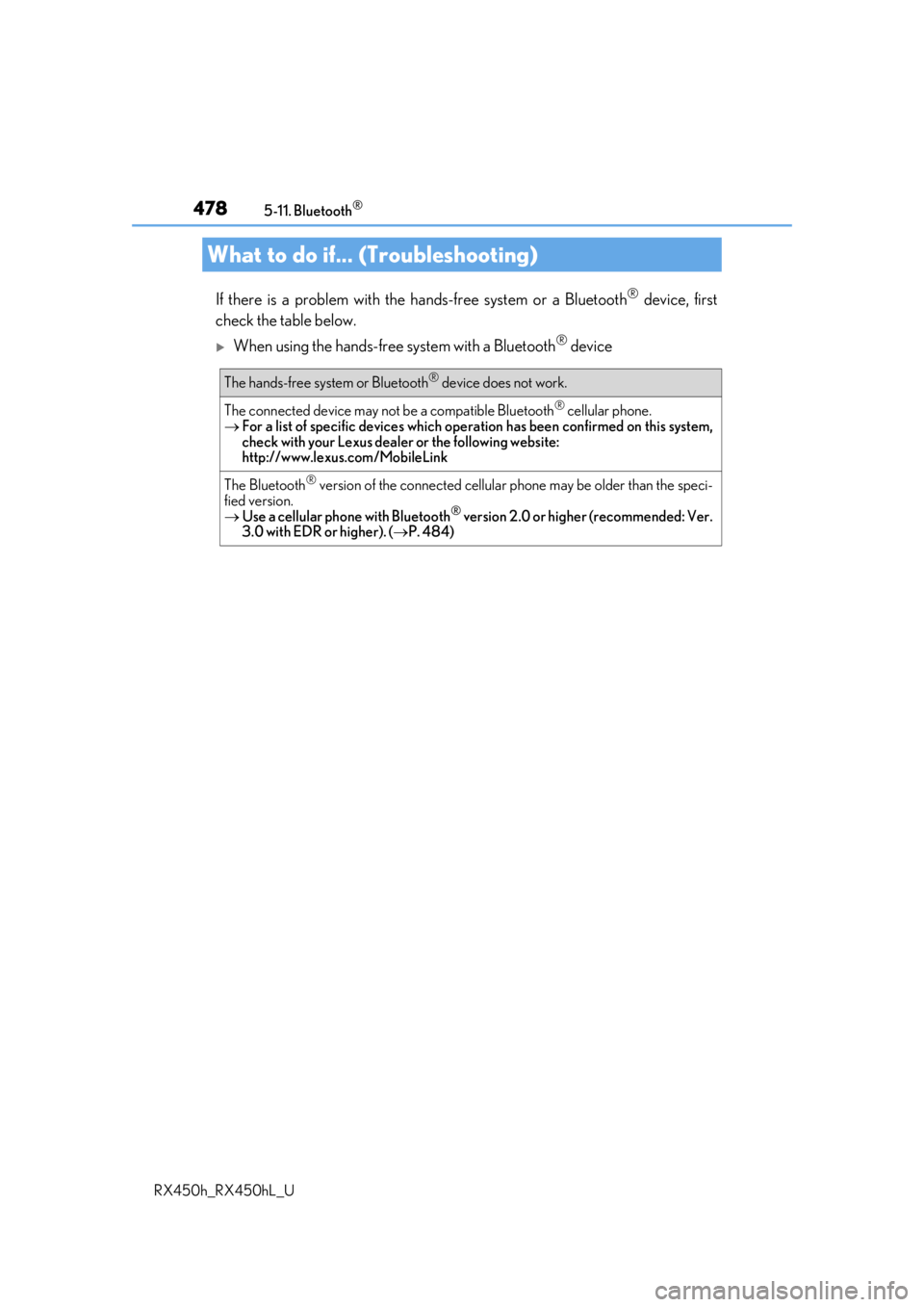
If there is a problem with the hands-free system or a Bluetooth® device, first
check the table below.
When using the hands-free system with a Bluetooth® device
What to do if... (Troubleshooting)
The hands-free system or Bluetooth® device does not work.
The connected device may not be a compatible Bluetooth® cellular phone.
For a list of specific devices which operat ion has been confirmed on this system,
check with your Lexus dealer or the following website:
http://www.lexus. com/MobileLink
The Bluetooth® version of the connected cellular phone may be older than the speci-
fied version.
Use a cellular phone with Bluetooth
® version 2.0 or higher (recommended: Ver.
3.0 with EDR or higher). ( P. 484)
Page 480 of 792
4805-11. Bluetooth®
RX450h_RX450hL_U
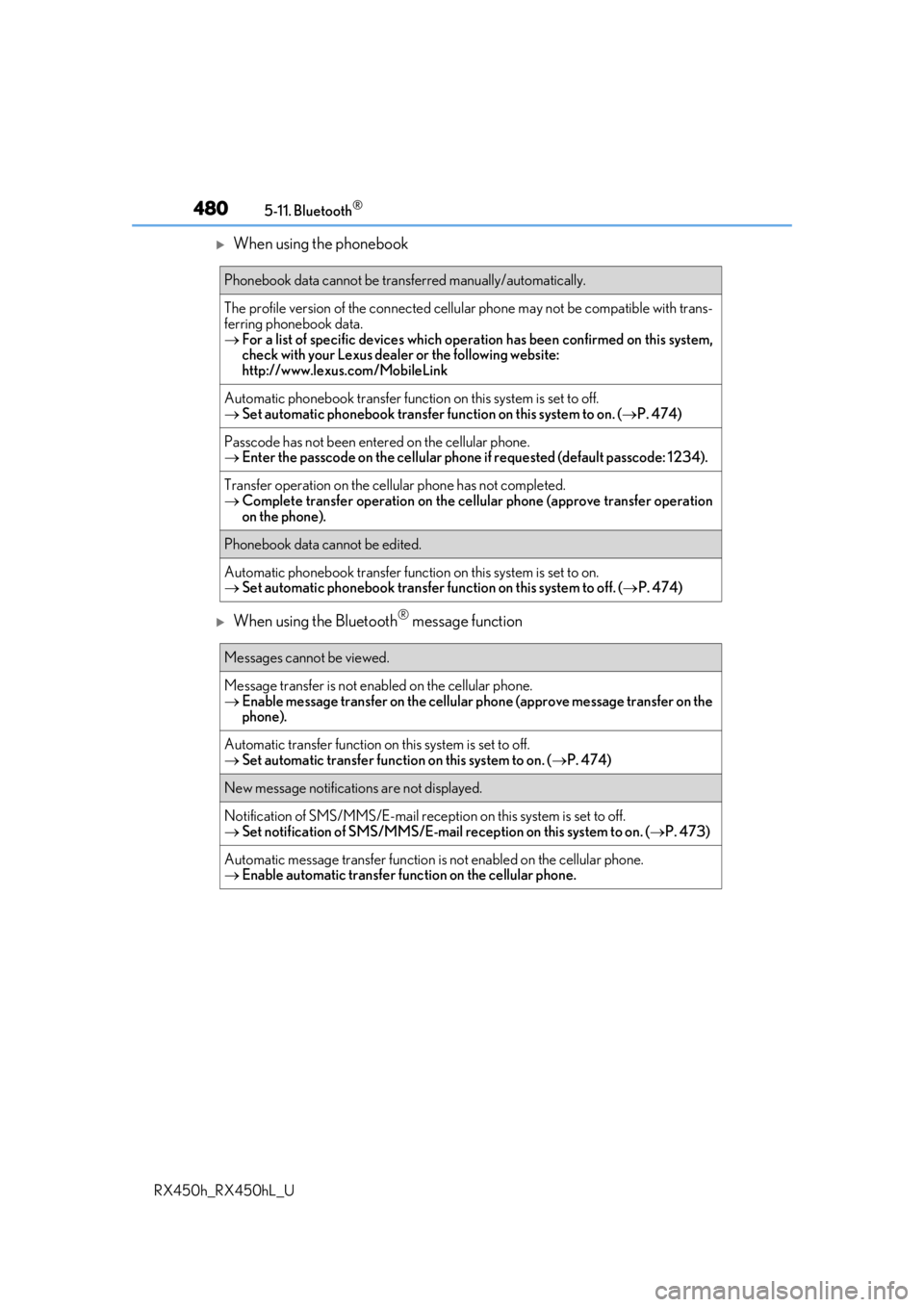
When using the phonebook
When using the Bluetooth® message function
Phonebook data cannot be transferred manually/automatically.
The profile version of the connected cellular phone may not be compatible with trans-
ferring phonebook data.
For a list of specific devices which operat ion has been confirmed on this system,
check with your Lexus dealer or the following website:
http://www.lexus. com/MobileLink
Automatic phonebook transfer function on this system is set to off.
Set automatic phonebook transfer function on this system to on. ( P. 474)
Passcode has not been entered on the cellular phone.
Enter the passcode on the cellular phone if requested (default passcode: 1234).
Transfer operation on the ce llular phone has not completed.
Complete transfer operation on the ce llular phone (approve transfer operation
on the phone).
Phonebook data cannot be edited.
Automatic phonebook transfer function on this system is set to on.
Set automatic phonebook transfer function on this system to off. ( P. 474)
Messages cannot be viewed.
Message transfer is not en abled on the cellular phone.
Enable message transfer on the cellular phone (approve message transfer on the
phone).
Automatic transfer function on this system is set to off.
Set automatic transfer function on this system to on. ( P. 474)
New message notifications are not displayed.
Notification of SMS/MMS/E-mail recept ion on this system is set to off.
Set notification of SMS/MMS/E-mail re ception on this system to on. (P. 473)
Automatic message transfer function is not enabled on the cellular phone.
Enable automatic transfer func tion on the cellular phone.