reset LINCOLN AVIATOR 2020 Owner's Manual
[x] Cancel search | Manufacturer: LINCOLN, Model Year: 2020, Model line: AVIATOR, Model: LINCOLN AVIATOR 2020Pages: 609, PDF Size: 5.4 MB
Page 176 of 609
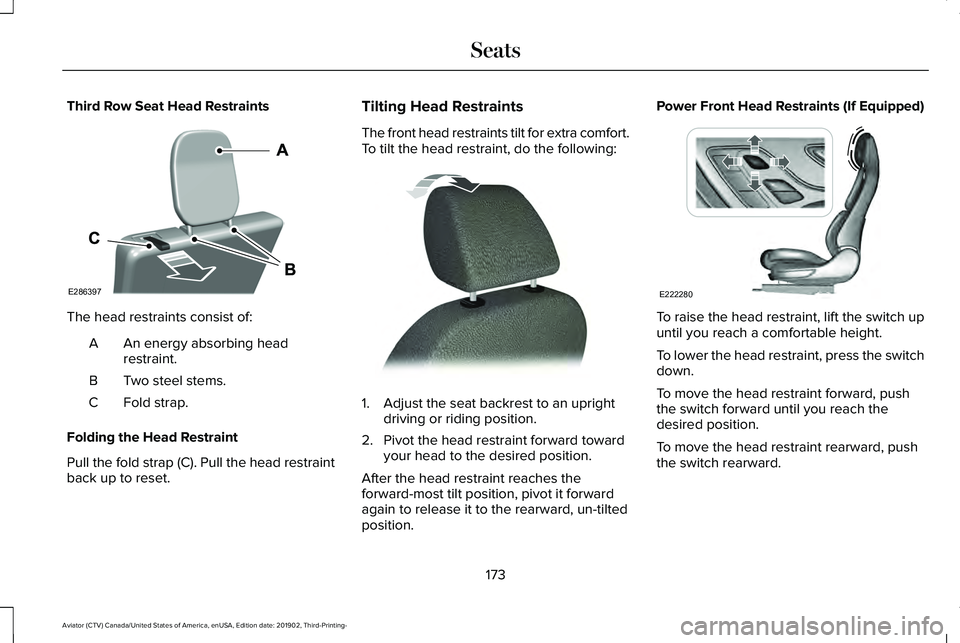
Third Row Seat Head Restraints
The head restraints consist of:
An energy absorbing head
restraint.
A
Two steel stems.
B
Fold strap.
C
Folding the Head Restraint
Pull the fold strap (C). Pull the head restraint
back up to reset. Tilting Head Restraints
The front head restraints tilt for extra comfort.
To tilt the head restraint, do the following:
1. Adjust the seat backrest to an upright
driving or riding position.
2. Pivot the head restraint forward toward your head to the desired position.
After the head restraint reaches the
forward-most tilt position, pivot it forward
again to release it to the rearward, un-tilted
position. Power Front Head Restraints (If Equipped)
To raise the head restraint, lift the switch up
until you reach a comfortable height.
To lower the head restraint, press the switch
down.
To move the head restraint forward, push
the switch forward until you reach the
desired position.
To move the head restraint rearward, push
the switch rearward.
173
Aviator (CTV) Canada/United States of America, enUSA, Edition date: 201902, Third-Printing- SeatsE286397 E144727 E222280
Page 181 of 609
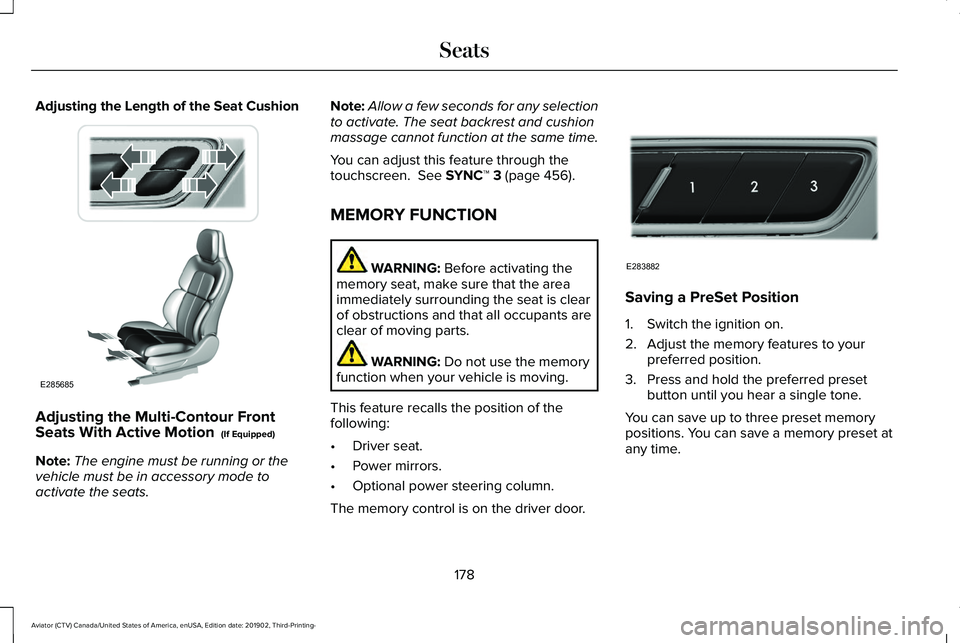
Adjusting the Length of the Seat Cushion
Adjusting the Multi-Contour Front
Seats With Active Motion (If Equipped)
Note: The engine must be running or the
vehicle must be in accessory mode to
activate the seats. Note:
Allow a few seconds for any selection
to activate. The seat backrest and cushion
massage cannot function at the same time.
You can adjust this feature through the
touchscreen.
See SYNC™ 3 (page 456).
MEMORY FUNCTION WARNING:
Before activating the
memory seat, make sure that the area
immediately surrounding the seat is clear
of obstructions and that all occupants are
clear of moving parts. WARNING:
Do not use the memory
function when your vehicle is moving.
This feature recalls the position of the
following:
• Driver seat.
• Power mirrors.
• Optional power steering column.
The memory control is on the driver door. Saving a PreSet Position
1. Switch the ignition on.
2. Adjust the memory features to your
preferred position.
3. Press and hold the preferred preset button until you hear a single tone.
You can save up to three preset memory
positions. You can save a memory preset at
any time.
178
Aviator (CTV) Canada/United States of America, enUSA, Edition date: 201902, Third-Printing- SeatsE285685 E283882
Page 182 of 609
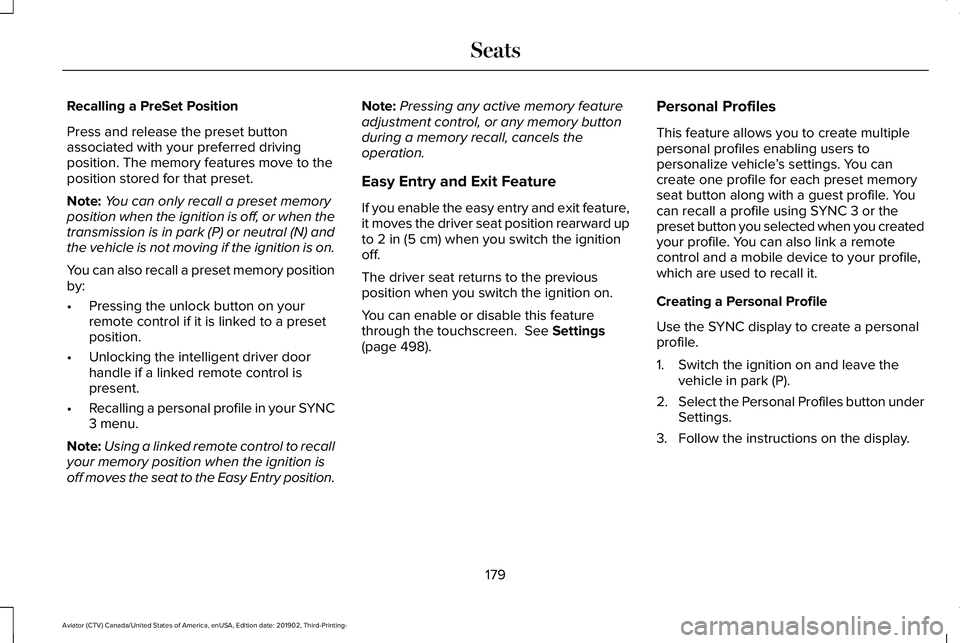
Recalling a PreSet Position
Press and release the preset button
associated with your preferred driving
position. The memory features move to the
position stored for that preset.
Note:
You can only recall a preset memory
position when the ignition is off, or when the
transmission is in park (P) or neutral (N) and
the vehicle is not moving if the ignition is on.
You can also recall a preset memory position
by:
• Pressing the unlock button on your
remote control if it is linked to a preset
position.
• Unlocking the intelligent driver door
handle if a linked remote control is
present.
• Recalling a personal profile in your SYNC
3 menu.
Note: Using a linked remote control to recall
your memory position when the ignition is
off moves the seat to the Easy Entry position. Note:
Pressing any active memory feature
adjustment control, or any memory button
during a memory recall, cancels the
operation.
Easy Entry and Exit Feature
If you enable the easy entry and exit feature,
it moves the driver seat position rearward up
to 2 in (5 cm) when you switch the ignition
off.
The driver seat returns to the previous
position when you switch the ignition on.
You can enable or disable this feature
through the touchscreen.
See Settings
(page 498). Personal Profiles
This feature allows you to create multiple
personal profiles enabling users to
personalize vehicle
’s settings. You can
create one profile for each preset memory
seat button along with a guest profile. You
can recall a profile using SYNC 3 or the
preset button you selected when you created
your profile. You can also link a remote
control and a mobile device to your profile,
which are used to recall it.
Creating a Personal Profile
Use the SYNC display to create a personal
profile.
1. Switch the ignition on and leave the vehicle in park (P).
2. Select the Personal Profiles button under
Settings.
3. Follow the instructions on the display.
179
Aviator (CTV) Canada/United States of America, enUSA, Edition date: 201902, Third-Printing- Seats
Page 183 of 609
Linking a Personal Profile to Your Remote
Control or Mobile Device
You can save preset memory positions for
up to three remote controls, by assigning a
remote control to a personal profile in your
SYNC 3. You can assign three additional
remote controls set up as Phone as a Key.
See Keys and Remote Controls (page 64).
Use the SYNC display to link a remote
control, mobile device or both to a personal
profile.
1. Switch the ignition on and leave the vehicle in park (P).
2. Select the Personal Profiles button under
Settings.
3. Touch the arrow for the profile you wish to link to a remote control or mobile
device.
4. Select the correct button to link a remote
control, mobile device, or both.
5. Follow the instructions on the display. Note:
To successfully link a mobile device,
the mobile device must be present in your
vehicle, and must have previously been
setup as a remote control for your vehicle.
Note: If more than one linked remote control
is in range, the memory function moves to
the settings of the first key to initiate a
memory recall.
Note: The guest profile consists of existing
settings when there is no driver profile
created. After you create a driver profile, the
guest profile serves as an additional driver
profile.
Note: You cannot link a personalized name,
a memory seat button or a remote control
to a guest profile.
Personal Settings
Personal Profiles allow you to personalize
positional settings such as seats and mirrors,
as well as non-positional settings such as
radio, navigation, driver assist and system
settings.
See SYNC™ 3 (page 456). You
cannot change the menu locations and
settings of those personalized features with
Personal Profiles. Note:
Non-positional settings are saved to
the active driver profile whenever you
change a setting.
Note: You can save positional settings if you
press and hold a memory seat button.
Recalling and Changing a Profile
You can recall a profile by:
• Using a remote control or mobile device
that has been linked to a driver profile to
access the remote start feature, press an
unlock button or open the door with the
exterior door handle.
• Pressing a memory seat button that has
been linked to a driver profile.
• Using the Personal Profiles menu on the
SYNC touchscreen.
Note: The recalled profile replaces the
previously active profile. If the active profile
is not your preferred profile, you can change
it using any of the three methods listed.
180
Aviator (CTV) Canada/United States of America, enUSA, Edition date: 201902, Third-Printing- Seats
Page 184 of 609
When you switch on the Personal Profiles
feature:
•
Unlocking a door with a remote control
or mobile device that is not linked to a
driver profile recalls non-positional
settings from the guest profile. It will not
change the positional settings.
• Pressing a memory seat button that is
not linked to a driver profile or has not
been saved to a preset setting recalls
non-positional settings from the guest
profile. It will not change the positional
settings.
• Pressing a memory seat button that is
not linked to a driver profile but has been
saved to a preset setting recalls
non-positional settings from the guest
profile. It recalls the positional settings
that you saved to that memory seat
button.
See SYNC™ 3 Troubleshooting (page 500). When you switch off a Personal Profiles
feature:
•
Unlocking a door with a remote control
or mobile device recalls non-positional
settings from the guest profile and still
recalls positional settings from the driver
profile which the remote control or
mobile device had been linked to.
• Pressing a memory seat button that has
not been linked to a driver profile or has
not been saved to a preset setting recalls
non-positional settings from the guest
profile. It will not change the positional
settings.
• Pressing a memory seat button that has
been linked to a driver profile or has
saved to a preset setting recalls
non-positional settings from the guest
profile. It recalls the positional settings
that you saved to that memory seat
button. REAR SEATS WARNING:
Always drive and ride
with your seatback upright and the lap belt
snug and low across the hips. WARNING:
Do not recline the seat
backrest too far as this can cause the
occupant to slide under the seatbelt,
resulting in personal injury in the event of
a crash.
181
Aviator (CTV) Canada/United States of America, enUSA, Edition date: 201902, Third-Printing- Seats
Page 193 of 609
SWITCHING REAR OCCUPANT
ALERT SYSTEM ON AND OFF
1. Press Settings on the touchscreen.
2. Press
Vehicle.
3. Switch
Rear Occupant Alert on or off.
Note: If you do not make a selection, the
system defaults to on.
Note: Performing a master reset causes the
system to switch on again. REAR OCCUPANT ALERT SYSTEM
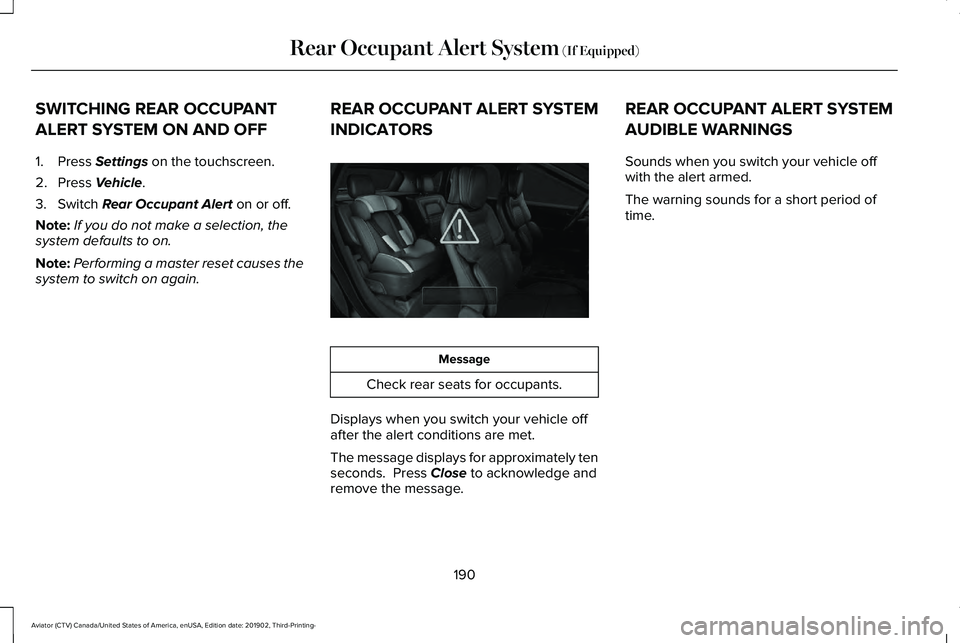
INDICATORS Message
Check rear seats for occupants.
Displays when you switch your vehicle off
after the alert conditions are met.
The message displays for approximately ten
seconds. Press
Close to acknowledge and
remove the message. REAR OCCUPANT ALERT SYSTEM
AUDIBLE WARNINGS
Sounds when you switch your vehicle off
with the alert armed.
The warning sounds for a short period of
time.
190
Aviator (CTV) Canada/United States of America, enUSA, Edition date: 201902, Third-Printing- Rear Occupant Alert System
(If Equipped)E325002
Page 201 of 609
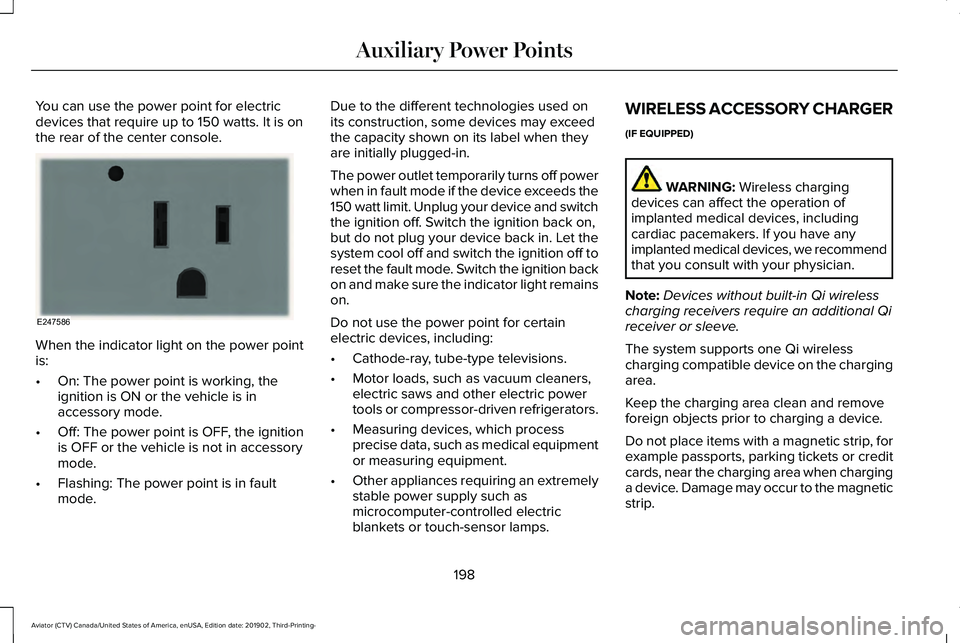
You can use the power point for electric
devices that require up to 150 watts. It is on
the rear of the center console.
When the indicator light on the power point
is:
•
On: The power point is working, the
ignition is ON or the vehicle is in
accessory mode.
• Off: The power point is OFF, the ignition
is OFF or the vehicle is not in accessory
mode.
• Flashing: The power point is in fault
mode. Due to the different technologies used on
its construction, some devices may exceed
the capacity shown on its label when they
are initially plugged-in.
The power outlet temporarily turns off power
when in fault mode if the device exceeds the
150 watt limit. Unplug your device and switch
the ignition off. Switch the ignition back on,
but do not plug your device back in. Let the
system cool off and switch the ignition off to
reset the fault mode. Switch the ignition back
on and make sure the indicator light remains
on.
Do not use the power point for certain
electric devices, including:
•
Cathode-ray, tube-type televisions.
• Motor loads, such as vacuum cleaners,
electric saws and other electric power
tools or compressor-driven refrigerators.
• Measuring devices, which process
precise data, such as medical equipment
or measuring equipment.
• Other appliances requiring an extremely
stable power supply such as
microcomputer-controlled electric
blankets or touch-sensor lamps. WIRELESS ACCESSORY CHARGER
(IF EQUIPPED)
WARNING: Wireless charging
devices can affect the operation of
implanted medical devices, including
cardiac pacemakers. If you have any
implanted medical devices, we recommend
that you consult with your physician.
Note: Devices without built-in Qi wireless
charging receivers require an additional Qi
receiver or sleeve.
The system supports one Qi wireless
charging compatible device on the charging
area.
Keep the charging area clean and remove
foreign objects prior to charging a device.
Do not place items with a magnetic strip, for
example passports, parking tickets or credit
cards, near the charging area when charging
a device. Damage may occur to the magnetic
strip.
198
Aviator (CTV) Canada/United States of America, enUSA, Edition date: 201902, Third-Printing- Auxiliary Power PointsE247586
Page 208 of 609
3.
Using the SYNC display enter the backup
password and select Enter within 30
seconds.
4. SYNC displays messages to start the vehicle.
5. Fully depress the brake pedal and press
the start button within 20 seconds to start
the engine.
Automatic Engine Shutdown
This feature shuts down the engine if it has
been idling for an extended period. The
ignition also turns off in order to save battery
power. Before your vehicle shuts down, a
message appears in the information display
showing a timer counting down from 30
seconds. If you do not intervene within 30
seconds, your vehicle shuts down. Another
message appears in the information display
to inform you that your vehicle has shut down
to save fuel. Start your vehicle as you
normally do.
Note: Automatic Engine Shutdown may be
more frequent for hybrid vehicles. Automatic Engine Shutdown Override
Note:
You cannot permanently switch off
the automatic shutdown feature. When you
switch it off temporarily, it turns on at the
next ignition cycle.
You can stop the shutdown, or reset the
timer, at any point before the 30-second
countdown has expired by doing any of the
following:
• You can reset the timer by interacting
with your vehicle, for example pressing
the brake or accelerator pedal.
• You can temporarily switch off the
shutdown feature any time the ignition is
on using the information display. See
Information Displays (page 130). The
feature only remains off for the current
ignition cycle.
• During the 30-second countdown, the
system prompts you to press OK or
RESET to temporarily switch the feature
off for the current ignition cycle only. Stopping the Engine When Your
Vehicle is Stationary
1. Shift into park (P).
2. Press the push button ignition switch.
3. Apply the parking brake.
Note:
The ignition, all electrical circuits and
all warning lamps and indicators will be
turned off.
Note: If the engine is idling for 30 minutes,
the ignition and engine shut down.
Vehicles using Phone as a Key
1. Shift into park (P).
2. Press the push button ignition switch.
3. Apply the parking brake.
Note: The ignition, all electrical circuits and
all warning lamps and indicators will be
turned off.
Note: If the engine is idling for 30 minutes,
the ignition and engine shut down.
205
Aviator (CTV) Canada/United States of America, enUSA, Edition date: 201902, Third-Printing- Starting and Stopping the Engine
Page 220 of 609
9. Fully close the fuel filler door.
Note:
The message may not immediately
reset. If the message continues to appear
and a warning lamp illuminates, have your
vehicle checked as soon as possible.
FUEL CONSUMPTION
Advertised Capacity
The advertised capacity is the maximum
amount of fuel that you can add to the fuel
tank when the fuel gauge indicates empty.
See Capacities and Specifications (page
421).
In addition, the fuel tank contains an empty
reserve. The empty reserve is an unspecified
amount of fuel that remains in the fuel tank
when the fuel gauge indicates empty.
Note: When refueling your vehicle after the
fuel gauge indicates empty, you might not
be able to refuel the full amount of the
advertised capacity due to the empty
reserve still present in the fuel tank. Filling the Fuel Tank
For consistent results when refueling:
•
Turn the ignition off before fueling; an
inaccurate reading results if the engine
is left running.
• Use the same fill rate (low-medium-high)
each time the tank is filled.
• Allow no more than one automatic
shut-off when refueling.
Results are most accurate when the filling
method is consistent.
Calculating Fuel Economy
Your vehicle calculates fuel economy figures
through the trip computer average fuel
function.
See Information Displays (page
130).
The first 1,000 mi (1,500 km) of driving is the
break-in period of the engine. A more
accurate measurement is obtained after
2,000 mi (3,000 km)
.
1. Completely fill the fuel tank and record the initial odometer reading. 2.
Each time you fill the fuel tank, record the
amount of fuel added.
3. After at least three fill ups, fill the fuel tank and record the current odometer
reading.
4. Subtract your initial odometer reading from the current odometer reading.
To calculate L/100 km (liters per 100
kilometers) fuel consumption, multiply the
liters used by 100, then divide by kilometers
traveled. To calculate MPG (miles per gallon)
fuel consumption, divide miles traveled by
gallons used.
Keep a record for at least one month and
record the type of driving, for example city
or highway. This provides an accurate
estimate of your vehicle ’s fuel economy
under current driving conditions. Keeping
records during summer and winter shows
how temperature impacts fuel economy.
217
Aviator (CTV) Canada/United States of America, enUSA, Edition date: 201902, Third-Printing- Fuel and Refueling
Page 286 of 609
USING DRIVER ALERT
Switching the System On and Off
Switch the system on or off using the
information display. See General
Information (page 130).
When active, the system monitors your
alertness level based upon your driving
behavior in relation to the lane markings, and
other factors.
System Warnings
Note: The system does not issue warnings
below approximately
40 mph (64 km/h).
Note: If you receive a warning you should
consider resting, even if the current
assessment is within the typical range.
The warning system has two stages. At first,
the system issues a temporary warning that
you need to take a rest. This message only
appears for a short time. If the system
detects further reduction in driving alertness,
it may issue another warning that remains in
the information display for a longer time. You
can press OK on the steering wheel control
to clear the warning. Resetting the System
You can reset the system by either:
•
Switching the ignition off and on.
• Stopping the vehicle and then opening
and closing the driver’ s door.
LANE KEEPING SYSTEM WARNING:
You are responsible for
controlling your vehicle at all times. The
system is designed to be an aid and does
not relieve you of your responsibility to
drive with due care and attention. Failure
to follow this instruction could result in the
loss of control of your vehicle, personal
injury or death. WARNING:
Always drive with due
care and attention when using and
operating the controls and features on your
vehicle. WARNING:
In cold and severe
weather conditions the system may not
function. Rain, snow and spray can all limit
sensor performance. WARNING: Large contrasts in outside
lighting can limit sensor performance. WARNING:
The system will not
operate if the sensor cannot track the road
lane markings. WARNING:
The sensor may
incorrectly track lane markings as other
structures or objects. This can result in a
false or missed warning. WARNING:
The system may not
operate properly if the sensor is blocked.
Keep the windshield free from obstruction. WARNING:
If damage occurs in the
immediate area surrounding the sensor,
have your vehicle checked as soon as
possible.
283
Aviator (CTV) Canada/United States of America, enUSA, Edition date: 201902, Third-Printing- Driving Aids