audio LINCOLN AVIATOR 2020 Service Manual
[x] Cancel search | Manufacturer: LINCOLN, Model Year: 2020, Model line: AVIATOR, Model: LINCOLN AVIATOR 2020Pages: 609, PDF Size: 5.4 MB
Page 485 of 609
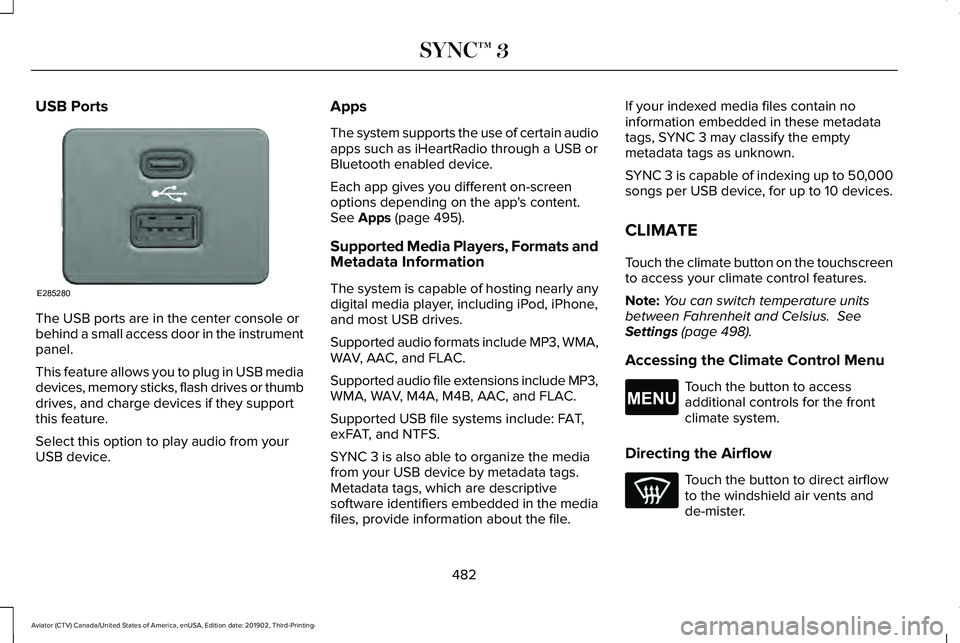
USB Ports
The USB ports are in the center console or
behind a small access door in the instrument
panel.
This feature allows you to plug in USB media
devices, memory sticks, flash drives or thumb
drives, and charge devices if they support
this feature.
Select this option to play audio from your
USB device. Apps
The system supports the use of certain audio
apps such as iHeartRadio through a USB or
Bluetooth enabled device.
Each app gives you different on-screen
options depending on the app's content.
See Apps (page 495).
Supported Media Players, Formats and
Metadata Information
The system is capable of hosting nearly any
digital media player, including iPod, iPhone,
and most USB drives.
Supported audio formats include MP3, WMA,
WAV, AAC, and FLAC.
Supported audio file extensions include MP3,
WMA, WAV, M4A, M4B, AAC, and FLAC.
Supported USB file systems include: FAT,
exFAT, and NTFS.
SYNC 3 is also able to organize the media
from your USB device by metadata tags.
Metadata tags, which are descriptive
software identifiers embedded in the media
files, provide information about the file. If your indexed media files contain no
information embedded in these metadata
tags, SYNC 3 may classify the empty
metadata tags as unknown.
SYNC 3 is capable of indexing up to 50,000
songs per USB device, for up to 10 devices.
CLIMATE
Touch the climate button on the touchscreen
to access your climate control features.
Note:
You can switch temperature units
between Fahrenheit and Celsius.
See
Settings (page 498).
Accessing the Climate Control Menu Touch the button to access
additional controls for the front
climate system.
Directing the Airflow Touch the button to direct airflow
to the windshield air vents and
de-mister.
482
Aviator (CTV) Canada/United States of America, enUSA, Edition date: 201902, Third-Printing- SYNC™ 3E285280 E265038
Page 501 of 609
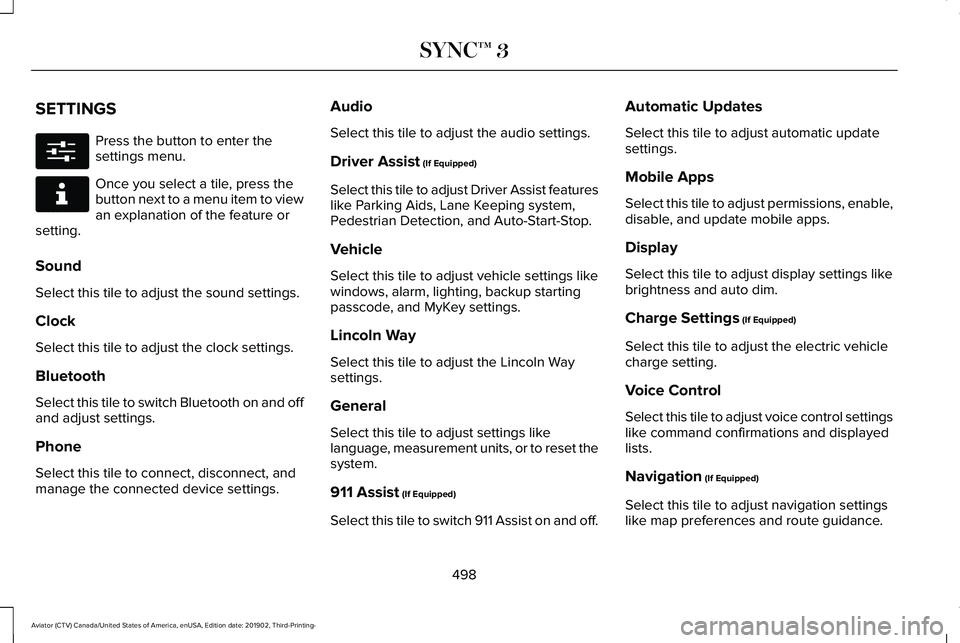
SETTINGS
Press the button to enter the
settings menu.
Once you select a tile, press the
button next to a menu item to view
an explanation of the feature or
setting.
Sound
Select this tile to adjust the sound settings.
Clock
Select this tile to adjust the clock settings.
Bluetooth
Select this tile to switch Bluetooth on and off
and adjust settings.
Phone
Select this tile to connect, disconnect, and
manage the connected device settings. Audio
Select this tile to adjust the audio settings.
Driver Assist (If Equipped)
Select this tile to adjust Driver Assist features
like Parking Aids, Lane Keeping system,
Pedestrian Detection, and Auto-Start-Stop.
Vehicle
Select this tile to adjust vehicle settings like
windows, alarm, lighting, backup starting
passcode, and MyKey settings.
Lincoln Way
Select this tile to adjust the Lincoln Way
settings.
General
Select this tile to adjust settings like
language, measurement units, or to reset the
system.
911 Assist
(If Equipped)
Select this tile to switch 911 Assist on and off. Automatic Updates
Select this tile to adjust automatic update
settings.
Mobile Apps
Select this tile to adjust permissions, enable,
disable, and update mobile apps.
Display
Select this tile to adjust display settings like
brightness and auto dim.
Charge Settings
(If Equipped)
Select this tile to adjust the electric vehicle
charge setting.
Voice Control
Select this tile to adjust voice control settings
like command confirmations and displayed
lists.
Navigation
(If Equipped)
Select this tile to adjust navigation settings
like map preferences and route guidance.
498
Aviator (CTV) Canada/United States of America, enUSA, Edition date: 201902, Third-Printing- SYNC™ 3E280315 E268570
Page 505 of 609
Possible Cause and Resolution
Symptom
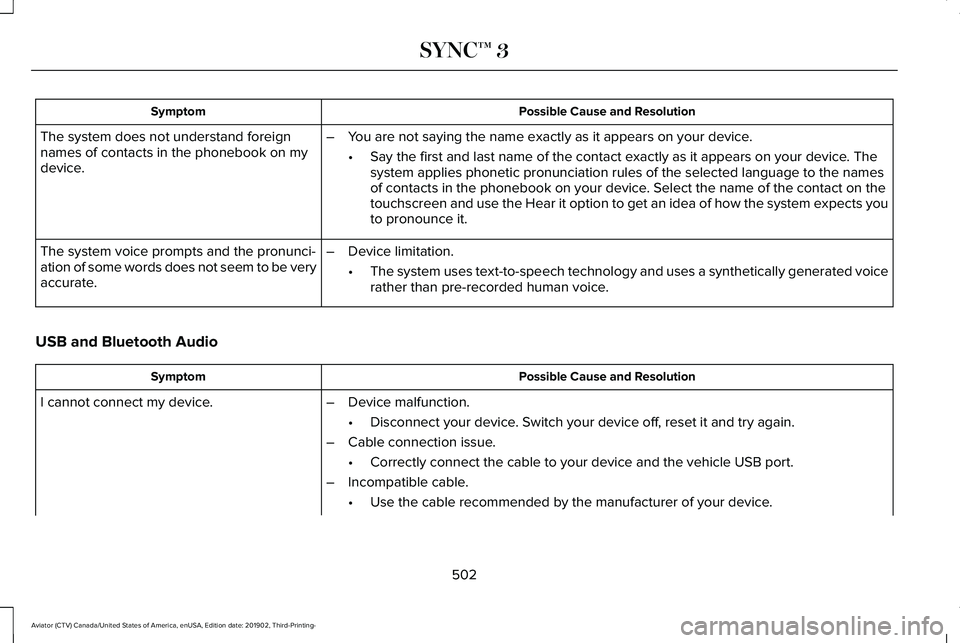
The system does not understand foreign
names of contacts in the phonebook on my
device. –
You are not saying the name exactly as it appears on your device.
•Say the first and last name of the contact exactly as it appears on your\
device. The
system applies phonetic pronunciation rules of the selected language to \
the names
of contacts in the phonebook on your device. Select the name of the contact on the
touchscreen and use the Hear it option to get an idea of how the system \
expects you
to pronounce it.
– Device limitation.
•The system uses text-to-speech technology and uses a synthetically gener\
ated voice
rather than pre-recorded human voice.
The system voice prompts and the pronunci-
ation of some words does not seem to be very
accurate.
USB and Bluetooth Audio Possible Cause and Resolution
Symptom
I cannot connect my device. –Device malfunction.
•Disconnect your device. Switch your device off, reset it and try again.
– Cable connection issue.
•Correctly connect the cable to your device and the vehicle USB port.
– Incompatible cable.
•Use the cable recommended by the manufacturer of your device.
502
Aviator (CTV) Canada/United States of America, enUSA, Edition date: 201902, Third-Printing- SYNC™ 3
Page 507 of 609
Possible Cause and Resolution
Symptom
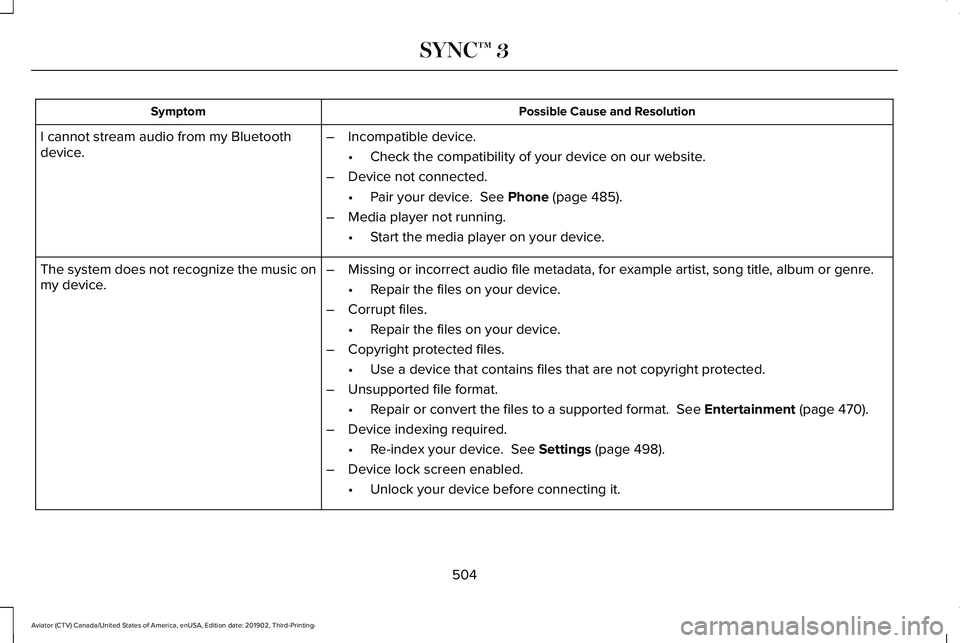
I cannot stream audio from my Bluetooth
device. –
Incompatible device.
•Check the compatibility of your device on our website.
– Device not connected.
•Pair your device. See Phone (page 485).
– Media player not running.
•Start the media player on your device.
The system does not recognize the music on
my device. –
Missing or incorrect audio file metadata, for example artist, song title\
, album or genre.
•Repair the files on your device.
– Corrupt files.
•Repair the files on your device.
– Copyright protected files.
•Use a device that contains files that are not copyright protected.
– Unsupported file format.
•Repair or convert the files to a supported format.
See Entertainment (page 470).
– Device indexing required.
•Re-index your device.
See Settings (page 498).
– Device lock screen enabled.
•Unlock your device before connecting it.
504
Aviator (CTV) Canada/United States of America, enUSA, Edition date: 201902, Third-Printing- SYNC™ 3
Page 508 of 609
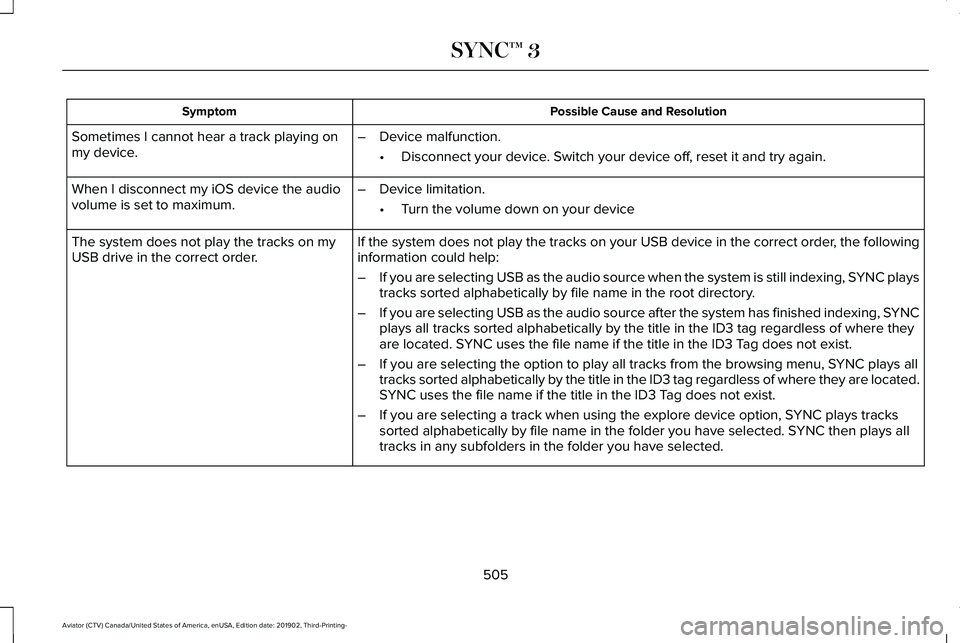
Possible Cause and Resolution
Symptom
Sometimes I cannot hear a track playing on
my device. –
Device malfunction.
•Disconnect your device. Switch your device off, reset it and try again.
When I disconnect my iOS device the audio
volume is set to maximum. –
Device limitation.
•Turn the volume down on your device
If the system does not play the tracks on your USB device in the correct\
order, the following
information could help:
The system does not play the tracks on my
USB drive in the correct order.
–If you are selecting USB as the audio source when the system is still in\
dexing, SYNC plays
tracks sorted alphabetically by file name in the root directory.
– If you are selecting USB as the audio source after the system has finish\
ed indexing, SYNC
plays all tracks sorted alphabetically by the title in the ID3 tag regar\
dless of where they
are located. SYNC uses the file name if the title in the ID3 Tag does not exist.
– If you are selecting the option to play all tracks from the browsing men\
u, SYNC plays all
tracks sorted alphabetically by the title in the ID3 tag regardless of w\
here they are located.
SYNC uses the file name if the title in the ID3 Tag does not exist.
– If you are selecting a track when using the explore device option, SYNC plays tracks
sorted alphabetically by file name in the folder you have selected. SYNC then plays all
tracks in any subfolders in the folder you have selected.
505
Aviator (CTV) Canada/United States of America, enUSA, Edition date: 201902, Third-Printing- SYNC™ 3
Page 509 of 609
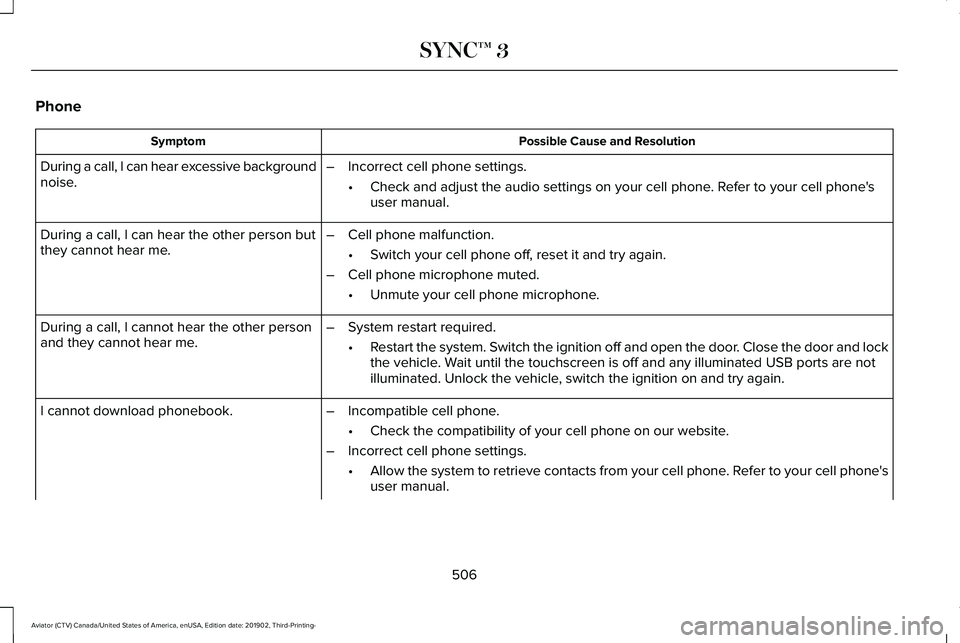
Phone
Possible Cause and Resolution
Symptom
During a call, I can hear excessive background
noise. –
Incorrect cell phone settings.
•Check and adjust the audio settings on your cell phone. Refer to your cell phone's
user manual.
– Cell phone malfunction.
•Switch your cell phone off, reset it and try again.
– Cell phone microphone muted.
•Unmute your cell phone microphone.
During a call, I can hear the other person but
they cannot hear me.
During a call, I cannot hear the other person
and they cannot hear me.
–
System restart required.
•Restart the system. Switch the ignition off and open the door. Close the door and lock
the vehicle. Wait until the touchscreen is off and any illuminated USB ports are not
illuminated. Unlock the vehicle, switch the ignition on and try again.
I cannot download phonebook. –Incompatible cell phone.
•Check the compatibility of your cell phone on our website.
– Incorrect cell phone settings.
•Allow the system to retrieve contacts from your cell phone. Refer to your cell phone's
user manual.
506
Aviator (CTV) Canada/United States of America, enUSA, Edition date: 201902, Third-Printing- SYNC™ 3
Page 519 of 609
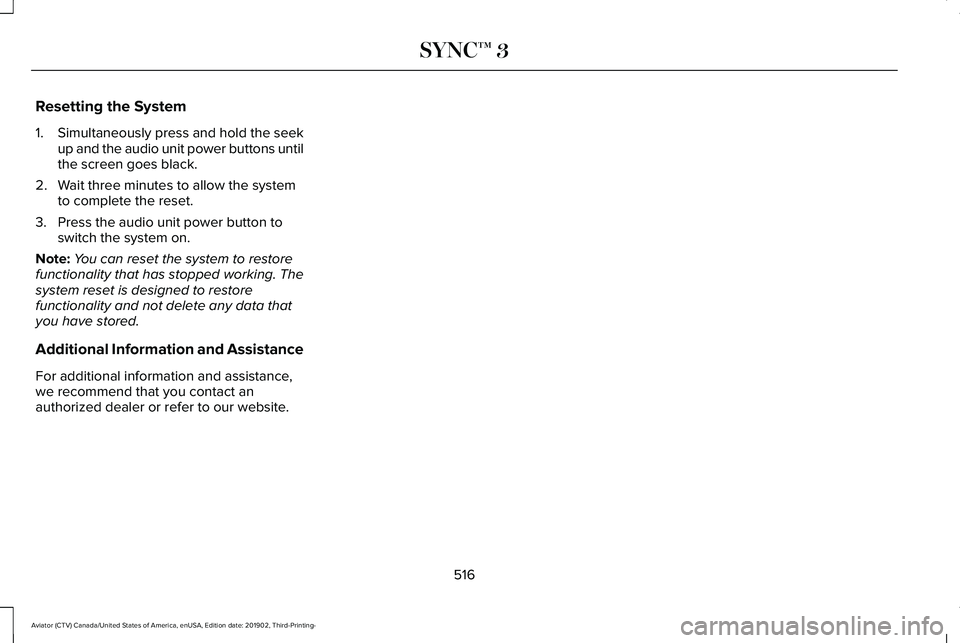
Resetting the System
1.
Simultaneously press and hold the seek
up and the audio unit power buttons until
the screen goes black.
2. Wait three minutes to allow the system to complete the reset.
3. Press the audio unit power button to switch the system on.
Note: You can reset the system to restore
functionality that has stopped working. The
system reset is designed to restore
functionality and not delete any data that
you have stored.
Additional Information and Assistance
For additional information and assistance,
we recommend that you contact an
authorized dealer or refer to our website.
516
Aviator (CTV) Canada/United States of America, enUSA, Edition date: 201902, Third-Printing- SYNC™ 3
Page 565 of 609
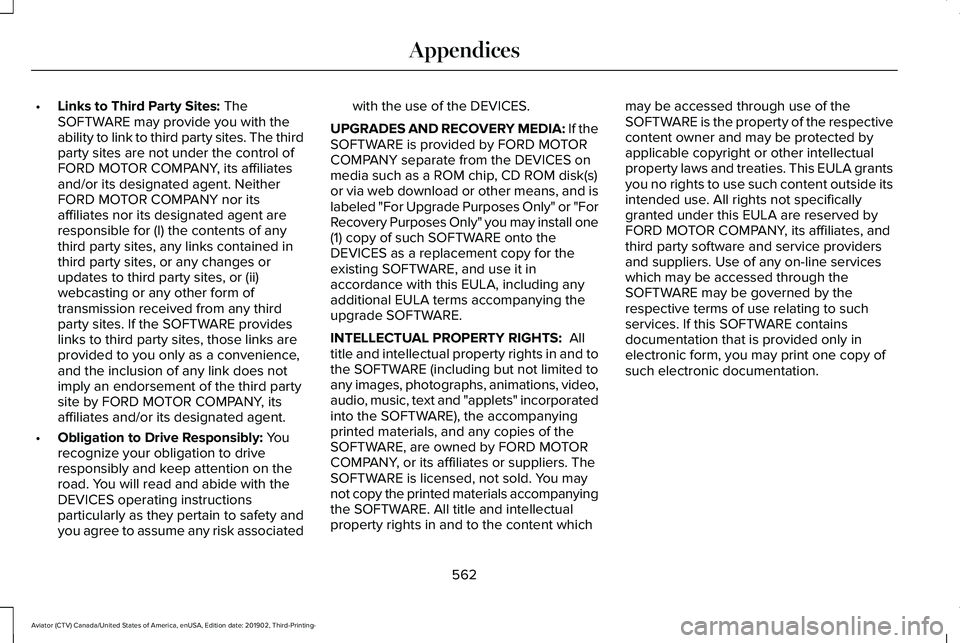
•
Links to Third Party Sites: The
SOFTWARE may provide you with the
ability to link to third party sites. The third
party sites are not under the control of
FORD MOTOR COMPANY, its affiliates
and/or its designated agent. Neither
FORD MOTOR COMPANY nor its
affiliates nor its designated agent are
responsible for (I) the contents of any
third party sites, any links contained in
third party sites, or any changes or
updates to third party sites, or (ii)
webcasting or any other form of
transmission received from any third
party sites. If the SOFTWARE provides
links to third party sites, those links are
provided to you only as a convenience,
and the inclusion of any link does not
imply an endorsement of the third party
site by FORD MOTOR COMPANY, its
affiliates and/or its designated agent.
• Obligation to Drive Responsibly:
You
recognize your obligation to drive
responsibly and keep attention on the
road. You will read and abide with the
DEVICES operating instructions
particularly as they pertain to safety and
you agree to assume any risk associated with the use of the DEVICES.
UPGRADES AND RECOVERY MEDIA: If the
SOFTWARE is provided by FORD MOTOR
COMPANY separate from the DEVICES on
media such as a ROM chip, CD ROM disk(s)
or via web download or other means, and is
labeled "For Upgrade Purposes Only" or "For
Recovery Purposes Only" you may install one
(1) copy of such SOFTWARE onto the
DEVICES as a replacement copy for the
existing SOFTWARE, and use it in
accordance with this EULA, including any
additional EULA terms accompanying the
upgrade SOFTWARE.
INTELLECTUAL PROPERTY RIGHTS:
All
title and intellectual property rights in and to
the SOFTWARE (including but not limited to
any images, photographs, animations, video,
audio, music, text and "applets" incorporated
into the SOFTWARE), the accompanying
printed materials, and any copies of the
SOFTWARE, are owned by FORD MOTOR
COMPANY, or its affiliates or suppliers. The
SOFTWARE is licensed, not sold. You may
not copy the printed materials accompanying
the SOFTWARE. All title and intellectual
property rights in and to the content which may be accessed through use of the
SOFTWARE is the property of the respective
content owner and may be protected by
applicable copyright or other intellectual
property laws and treaties. This EULA grants
you no rights to use such content outside its
intended use. All rights not specifically
granted under this EULA are reserved by
FORD MOTOR COMPANY, its affiliates, and
third party software and service providers
and suppliers. Use of any on-line services
which may be accessed through the
SOFTWARE may be governed by the
respective terms of use relating to such
services. If this SOFTWARE contains
documentation that is provided only in
electronic form, you may print one copy of
such electronic documentation.
562
Aviator (CTV) Canada/United States of America, enUSA, Edition date: 201902, Third-Printing- Appendices
Page 573 of 609
(b) use your own personal judgment while
driving. If you feel that a route suggested by
the TeleNav Software instructs you to
perform an unsafe or illegal maneuver,
places you in an unsafe situation, or directs
you into an area that you consider to be
unsafe, do not follow such instructions;
(c) do not input destinations, or otherwise
manipulate the TeleNav Software, unless
your vehicle is stationary and parked;
(d) do not use the TeleNav Software for any
illegal, unauthorized, unintended, unsafe,
hazardous, or unlawful purposes, or in any
manner inconsistent with this Agreement;
(e) arrange all GPS and wireless devices and
cables necessary for use of the TeleNav
Software in a secure manner in your vehicle
so that they will not interfere with your
driving and will not prevent the operation of
any safety device (such as an airbag).
You agree to indemnify and hold TeleNav
harmless against all claims resulting from any
dangerous or otherwise inappropriate use
of the TeleNav Software in any moving
vehicle, including as a result of your failure
to comply with the directions above.
2. Account Information
You agree: (a) when registering the TeleNav
Software, to provide TeleNav with true,
accurate, current, and complete information
about yourself, and (b) to inform TeleNav
promptly of any changes to such information,
and to keep it true, accurate, current and
complete.
3. Software License
•
Subject to your compliance with the
terms of this Agreement, TeleNav hereby
grants to you a personal, non-exclusive,
non-transferable license (except as
expressly permitted below in connection
with your permanent transfer of the
TeleNav Software license), without the
right to sublicense, to use the TeleNav
Software (in object code form only) in
order to access and use the TeleNav
Software. This license shall terminate
upon any termination or expiration of this
Agreement. You agree that you will use
the TeleNav Software only for your
personal business or leisure purposes,
and not to provide commercial navigation
services to other parties. 3.1 License Limitations
•
(a) reverse engineer, decompile,
disassemble, translate, modify, alter or
otherwise change the TeleNav Software
or any part thereof; (b) attempt to derive
the source code, audio library or
structure of the TeleNav Software without
the prior express written consent of
TeleNav;
(c) remove from the TeleNav
Software, or alter, any of TeleNav's or its
suppliers' trademarks, trade names,
logos, patent or copyright notices, or
other notices or markings;
(d) distribute,
sublicense or otherwise transfer the
TeleNav Software to others, except as
part of your permanent transfer of the
TeleNav Software; or (e) use the TeleNav
Software in any manner that
I. infringes the intellectual property or
proprietary rights, rights of publicity or
privacy or other rights of any party,
ii. violates any law, statute, ordinance or
regulation, including but not limited to laws
and regulations related to spamming, privacy,
consumer and child protection, obscenity or
defamation, or
570
Aviator (CTV) Canada/United States of America, enUSA, Edition date: 201902, Third-Printing- Appendices
Page 595 of 609
Air Filter
See: Changing the Engine Air Filter..............363
Air Suspension...............................................314 Switching the systems on or off......................314
Using Cargo Loading..........................................314
Using Easy Entry..................................................314
Using the Service Mode....................................314
Alarm See: Anti-Theft Alarm..........................................95
All-Wheel Drive.............................................228
Ambient Lighting............................................112 Adjusting the Brightness....................................113
Changing the Color..............................................113
Switching Ambient Lighting Off........................113
Switching Ambient Lighting On........................113
Anti-Theft Alarm..............................................95 Arming the Alarm..................................................95
Disarming the Alarm............................................96
Using the System..................................................95
Appendices....................................................554
Apps................................................................495 SiriusXM Traffic and Travel Link.....................496
Using Apps on an Android Device................496
Using Apps on an iOS Device........................495
Using Mobile Navigation on an Android
Device...............................................................496
At a Glance........................................................21 Audible Warnings and Indicators..............129
Headlamps On Warning Chime.......................
129
Keyless Warning Alert........................................129
Parking Brake On Warning Chime..................129
Audio Control
..................................................99
You can operate the following functions with
the control:.........................................................99
Audio System
................................................445
General Information...........................................445
Audio Unit
......................................................446
Accessing the Source Menu............................447
Adjusting the Volume........................................446
Changing Radio Stations..................................446
Locking the Rear Audio Controls....................447
Playing or Pausing Media.................................447
Rear Audio Control Lock Message................448
Rear Passenger Audio Controls......................447
Selecting a Preset..............................................447
Selecting the Audio Modes..............................447
Switching Repeat Mode On and Off..............447
Switching Shuffle Mode On and Off..............447
Switching the Audio Control On and
Off......................................................................448
Switching the Audio Unit On and Off............447
Switching the Display On and Off..................447
Using Seek, Fast Forward and Reverse.......447
Auto Hold
.......................................................239
Auto Hold Indicator............................................240 Switching Auto Hold On and Off....................239
Using Auto Hold.................................................239
Autolamps
.......................................................107
Windshield Wiper Activated Headlamps.......107
Automatic Climate Control
.........................160
Accessing Rear Climate Controls...................160
Accessing the Air Distribution Controls........160
Accessing the Climate Control Menu............160
Setting the Blower Motor Speed....................160
Setting the Temperature.....................................161
Switching Auto Mode On and Off....................161
Switching Maximum Air Conditioning On and Off.......................................................................163
Switching Maximum Defrost On and Off.......163
Switching Recirculated Air On and Off..........163
Switching the Air Conditioning On and Off.......................................................................162
Switching the Climate Control On and Off.......................................................................162
Automatic High Beam Control
....................114
Automatic High Beam Control Indicators.......................................................115
Automatic Transmission
.............................223
Automatic Return to Park.................................224
If Your Vehicle Gets Stuck in Mud or
Snow.................................................................227
Manual Park Release (MPR).............................226
SelectShift Automatic ™ Transmission............225
592
Aviator (CTV) Canada/United States of America, enUSA, Edition date: 201902, Third-Printing- Index