wheel LINCOLN AVIATOR 2021 Owners Manual
[x] Cancel search | Manufacturer: LINCOLN, Model Year: 2021, Model line: AVIATOR, Model: LINCOLN AVIATOR 2021Pages: 667, PDF Size: 7.01 MB
Page 445 of 667

TECHNICAL SPECIFICATIONS
Wheel Lug Nut Torque Specifications
WARNING: When you install a wheel, always remove any corrosion, dirt or foreign m\
aterials present on the mounting surfaces of the
wheel or the surface of the wheel hub, brake drum or brake disc that contacts the wheel. Make sure to secure any fasteners that attach
the rotor to the hub so they do not interfere with the mounting surfaces\
of the wheel. Installing wheels without correct metal-to-metal contact
at the wheel mounting surfaces can cause the wheel nuts to loosen and th\
e wheel to come off while your vehicle is in motion, resulting in
loss of vehicle control, personal injury or death. lb.ft (Nm)
*
Bolt size
150 lb.ft (204 Nm)
M14 x 1.5
* Torque specifications are for nut and bolt threads free of dirt and rust.\
Use only our recommended replacement fasteners.
Retighten the lug nuts to the specified torque within 100 mi (160 km) after any wheel disturbance (such as tire rotation, changing a flat ti\
re,
wheel removal).
442
Aviator (CTV) Canada/United States of America, enUSA, Edition date: 202007, Second-Printing Wheels and Tires
Page 446 of 667
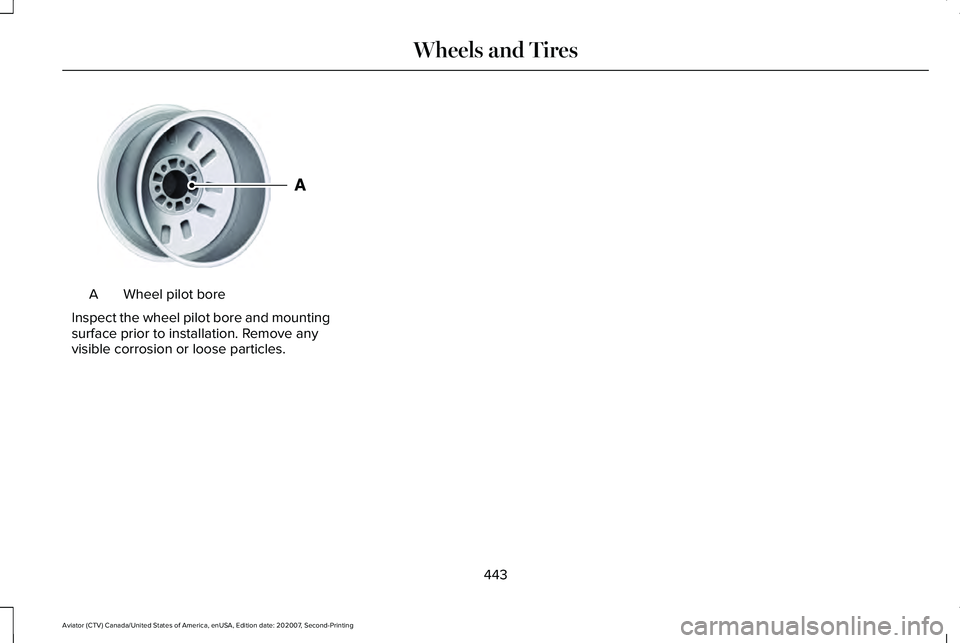
Wheel pilot bore
A
Inspect the wheel pilot bore and mounting
surface prior to installation. Remove any
visible corrosion or loose particles.
443
Aviator (CTV) Canada/United States of America, enUSA, Edition date: 202007, Second-Printing Wheels and TiresE145950
Page 462 of 667
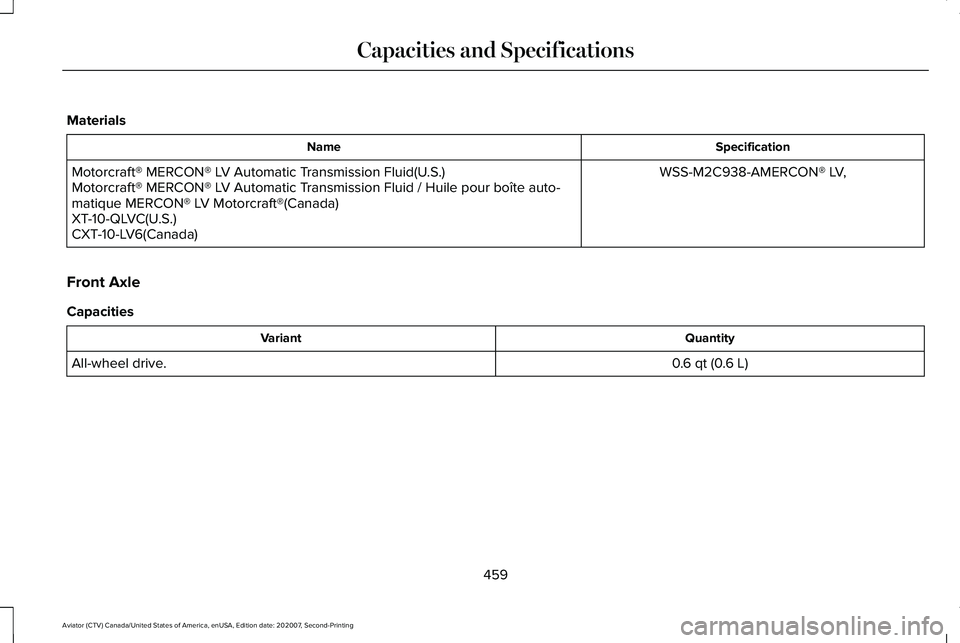
Materials
Specification
Name
WSS-M2C938-AMERCON® LV,
Motorcraft® MERCON® LV Automatic Transmission Fluid(U.S.)
Motorcraft® MERCON® LV Automatic Transmission Fluid / Huile pour boîte auto-
matique MERCON® LV Motorcraft®(Canada)
XT-10-QLVC(U.S.)
CXT-10-LV6(Canada)
Front Axle
Capacities Quantity
Variant
0.6 qt (0.6 L)
All-wheel drive.
459
Aviator (CTV) Canada/United States of America, enUSA, Edition date: 202007, Second-Printing Capacities and Specifications
Page 473 of 667
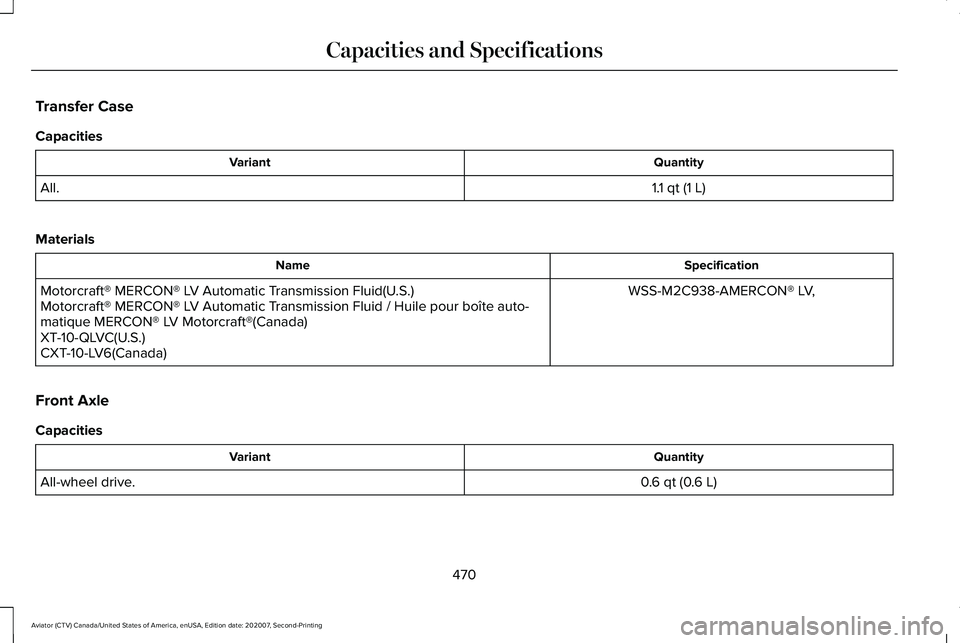
Transfer Case
Capacities
Quantity
Variant
1.1 qt (1 L)
All.
Materials Specification
Name
WSS-M2C938-AMERCON® LV,
Motorcraft® MERCON® LV Automatic Transmission Fluid(U.S.)
Motorcraft® MERCON® LV Automatic Transmission Fluid / Huile pour boîte auto-
matique MERCON® LV Motorcraft®(Canada)
XT-10-QLVC(U.S.)
CXT-10-LV6(Canada)
Front Axle
Capacities Quantity
Variant
0.6 qt (0.6 L)
All-wheel drive.
470
Aviator (CTV) Canada/United States of America, enUSA, Edition date: 202007, Second-Printing Capacities and Specifications
Page 497 of 667
Installing an Update
Note:
You can use the system when an
installation is in progress.
1. Disconnect all other USB devices from the USB ports.
2. Connect the USB drive with the update to a USB port.
Note: Installation starts automatically within
a few minutes.
Updating the System Using a Wi-Fi Network
Connection
Switching Automatic System Updates On Select the settings option on the
feature bar.
1. Select Automatic Updates.
2. Switch
Automatic System Updates on.
The system is now set to check for and
receive system updates when it is connected
to a Wi-Fi network. Note:
You can use the system when a
download is in progress.
Note: If the system is disconnected from the
Wi-Fi network when a download is in
progress, the download continues the next
time the system is connected to a Wi-Fi
network.
Connecting to a Wi-Fi Network
See
Vehicle Wi-Fi Hotspot (page 479).
Additional Information and Assistance
For additional information and assistance,
we recommend that you contact an
authorized dealer or refer to the local
website.
USING VOICE RECOGNITION
The system allows you to interact with the
entertainment, information and
communication systems on your vehicle
using voice commands. This allows you to
keep your hands on the steering wheel and
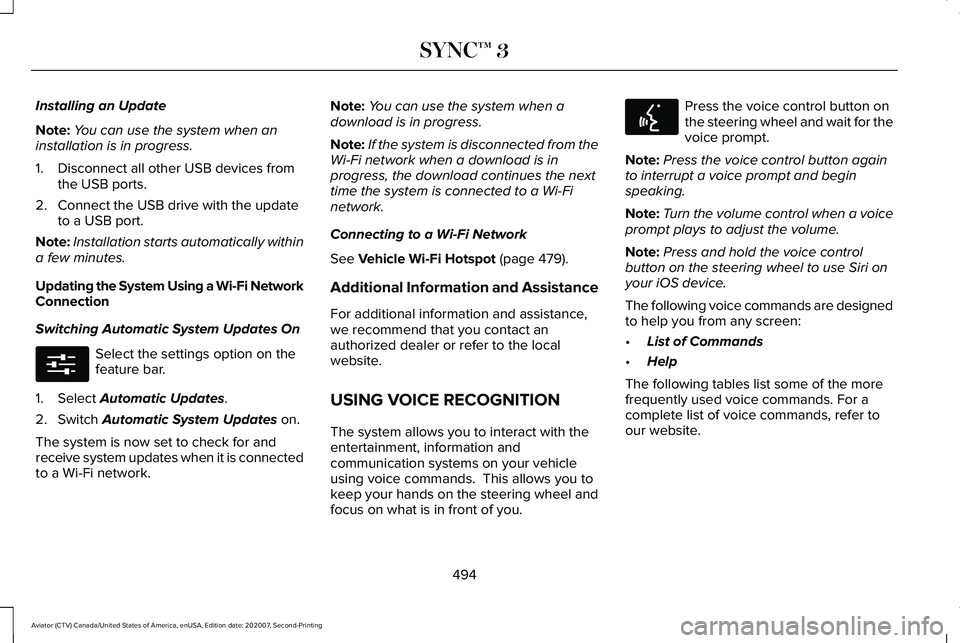
focus on what is in front of you. Press the voice control button on
the steering wheel and wait for the
voice prompt.
Note: Press the voice control button again
to interrupt a voice prompt and begin
speaking.
Note: Turn the volume control when a voice
prompt plays to adjust the volume.
Note: Press and hold the voice control
button on the steering wheel to use Siri on
your iOS device.
The following voice commands are designed
to help you from any screen:
• List of Commands
• Help
The following tables list some of the more
frequently used voice commands. For a
complete list of voice commands, refer to
our website.
494
Aviator (CTV) Canada/United States of America, enUSA, Edition date: 202007, Second-Printing SYNC™ 3E280315 E142599
Page 523 of 667
Switching the Heated Exterior Mirrors
On and Off
Touch the button.
Switching the Heated Windshield On
and Off Touch the button to clear the
windshield of thin ice and fog. The
heated windshield turns off after a
short period of time.
Switching the Heated Rear Window On
and Off Touch the button to clear the rear
window of thin ice and fog.
Switching the Heated Seats On and Off Touch the button to cycle through
the various heat settings. Switching the Heated Steering Wheel
On and Off Touch the button.
Switching Maximum Air Conditioning
On and Off Touch the button for maximum
cooling.
Recirculated air flows through the instrument
panel air vents, air conditioning turns on and
the blower motor adjusts to the highest
speed.
Switching Maximum Defrost On and
Off Touch the button for maximum
defrosting.
Air flows through the windshield air vents,
and the blower motor adjusts to the highest
speed.
You can also use this setting to defog and
clear the windshield of a thin covering of ice. Note:
To prevent window fogging, you
cannot select recirculated air when
maximum defrost is on.
Note: The heated rear window also turns on
when you select maximum defrost.
Switching Recirculated Air On and Off Touch the button to switch
between outside air and
recirculated air.
The air currently in the passenger
compartment recirculates. This may reduce
the time needed to cool the interior, when
used with A/C, and reduce unwanted odors
from entering your vehicle.
Note: Recirculated air may turn off, or
prevent you from switching on, in all air flow
modes except MAX A/C to reduce the risk
of fogging. Recirculation may also turn on
and off in various air distribution control
combinations during hot weather to improve
cooling efficiency.
520
Aviator (CTV) Canada/United States of America, enUSA, Edition date: 202007, Second-Printing SYNC™ 3E266189 E184884
Page 534 of 667
The navigation system map data may contain
inaccurate or incomplete information due to
the passage of time, changing
circumstances, sources used and the nature
of collecting comprehensive geographic
data, any of which may lead to incorrect
results. Inaccurate speed limit information,
turn restrictions and other road attributes
may affect the determined route and
associated guidance
Annual navigation map updates are available
for purchase through your dealership.
Depending on your purchase agreement,
you might be eligible for free Map update.
You can choose to download the Map data
update onto a USB, order a USB, or use Wi-Fi
to deliver automatic updates. To update your
Map data over Wi-Fi, your vehicle must be
connected to a Wi-Fi access point. Map Data
files are large, so it is highly recommended
to perform the update when free Wi-Fi is
available otherwise high data rates may
apply. For USB updates, free map update
eligibility, and other details, contact dealers
at 1-866-462-8837 in the United States and
Canada or 01-800-557-5539 in Mexico or
visit our local website for more information.
ELECTRIC VEHICLE INFORMATION
(IF EQUIPPED)
Power Flow The Power Flow information for
your plug-in hybrid vehicle is
available through the Home screen
or under Apps.
Vehicle Operational States
Power will flow to or from the front and rear
wheels depending on operational state and
drive conditions.
• Idling: The vehicle is running and in park
(P). The engine and, or the high voltage
battery are on.
• Electric Driving: The vehicle is running
and in drive (D) or neutral (N). The high
voltage battery provides power to the
wheels.
• Hybrid Driving: The vehicle is running
and in drive (D) or neutral (N). The engine
and the high voltage battery provide
power to the wheels. •
Engine Driving: The vehicle is running
and in drive (D) or neutral (N). The engine
provides power to the wheels.
• Regenerative Braking: The vehicle is
running in drive gear (D) and is slowing
down. The regenerative braking system
captures power and sends it back to the
high voltage battery.
• Charging: The vehicle is plugged in and
the high voltage battery is being charged.
Engine On Due To
The following conditions help to explain why
the engine is on, and what you can do to
allow all electric operation.
• Drive Power: The engine is on due to
accelerator pedal pressure or speed
control activation. Reduce pressure on
the accelerator pedal or switch off the
speed control to return to full electric
mode.
• High Speed: The engine is on because
the vehicle speed exceeds the level for
full electric operation. Reduce the speed
to return to electric operation.
531
Aviator (CTV) Canada/United States of America, enUSA, Edition date: 202007, Second-Printing SYNC™ 3E304437
Page 540 of 667
you have selected your preferred times
then press Next to return to the Preferred
Charge Times screen. Repeat for
WEEKEND or WEEKDAY as desired.
Once you are done setting preferred
charge times, press Save.
Note: Selecting all or none of the 24 hours
results in any time of day given equal priority
for charging.
8. Your saved location now shows on the Charge Times screen. Select Done to
return to the main charge settings screen.
Whenever your vehicle is at a saved
charging location, the charge settings
screen displays the location name, and
the charging times are based on your
Charge Time settings for that location
plus the next Departure Time.
Note: A 100% charge by your next Departure
Time is always the priority. When Charge
Times are set, charging outside your
preferred charging time windows could be
necessary in order to finish by your next
Departure Time. A notification appears when
this condition occurs. Note:
When a 100% charge cannot be done
by your next departure time, a notification
appears which includes an estimate of the
charge level you will have at your departure
time.
Departure Time Settings
1. Select Charge Preferences on the Charge Settings screen.
2. Select Departure Time Setup on the Edit
Charge Preferences screen.
3. Two time settings show for each day of the week on the Departure Times
schedule screen. Select any one.
4. On the Departure Time settings screen, set your desired departure time, cabin
temperature and days of the week to
repeat. Press Save.
5. Your settings are now shown on the Departure Times schedule screen. Press
Back two times to return to the main
charge settings screen. The next
departure time and cabin temperature
setting display. Note:
Cabin conditioning can perform
differently depending on if you plug in with
the included convenience cord or a higher
power charging station. The power available
for conditioning is limited to the charging
station power available.
Note: Your vehicle may not always reach
the set cabin temperature due to charging
and ambient temperature conditions. This is
normal operation
APPS
The system allows you interact with select
mobile apps while keeping your eyes on the
road. Voice commands, your steering wheel
buttons, or a quick tap on your touchscreen
give you advanced control of compatible
mobile apps. You can also stream your
favorite music or podcasts, share your time
of arrival with friends, and keep connected
safely.
537
Aviator (CTV) Canada/United States of America, enUSA, Edition date: 202007, Second-Printing SYNC™ 3
Page 546 of 667
Possible Cause and Resolution
Symptom
–Device limitation. Bluetooth does not support voice commands.
•Connect your device to a USB port.
• If you have an iOS device, press and hold the voice control button on the steering
wheel to use Siri to play specific tracks.
– You are using the wrong voice commands.
•See Using Voice Recognition (page 494).
• For a complete list of voice commands, refer to our website.
– You are not saying the name exactly as it appears on your device.
•Say the name of the track or artist exactly as it appears on your device\
. Spell out any
abbreviations in the name.
The song or artist name may have some special characters that are not be\
ing recognized
by the system.
– The name contains special characters, for example *, - or +.
•Rename the files on your device or use the touchscreen to select and play\
the track.
The system does not understand the name of
a track or artist.
–You are not saying the name exactly as it appears on your device.
•Say the first and last name of the contact exactly as it appears on your\
device. Spell
out any abbreviations in the name.
– The name contains special characters, for example *, - or +.
•Rename the contact on your device or use the touchscreen to select and ca\
ll the
contact.
The system does not understand the name of
a contact in the phonebook on my device and
calls the wrong contact.
543
Aviator (CTV) Canada/United States of America, enUSA, Edition date: 202007, Second-Printing SYNC™ 3
Page 548 of 667

Possible Cause and Resolution
Symptom
–Incorrect device settings.
•Make sure that your device does not have an auto-install program or active \
security
settings.
• Check that your device is not set only to charge.
– Device lock screen enabled.
•Unlock your device before connecting it.
The system does not recognize my device. –Device limitation.
•Do not leave your device in your vehicle during very hot or very cold we\
ather condi-
tions.
– Cable connection issue.
•Correctly connect the cable to your device and the vehicle USB port.
– Incompatible cable.
•Use the cable recommended by the manufacturer of your device.
The system does not understand the name of
a track or artist. –
Device limitation. Bluetooth does not support voice commands.
•Connect your device to a USB port.
• If you have an iOS device, press and hold the voice control button on the steering
wheel to use Siri to play specific tracks.
545
Aviator (CTV) Canada/United States of America, enUSA, Edition date: 202007, Second-Printing SYNC™ 3