remote control LINCOLN AVIATOR 2021 User Guide
[x] Cancel search | Manufacturer: LINCOLN, Model Year: 2021, Model line: AVIATOR, Model: LINCOLN AVIATOR 2021Pages: 667, PDF Size: 7.01 MB
Page 77 of 667
5. Press the brake pedal and the ignition
button within 20 seconds to start the
vehicle.
6. If your vehicle does not start, repeat steps 1-5.
System Lockout
The system locks after five attempts of trying
to enter a Backup Start Passcode, resetting
a current passcode or entering an incorrect
Valet Mode passcode.
Note: The system remains locked for five
minutes. After five minutes the system allows
codes to be entered again. PHONE AS A KEY –
TROUBLESHOOTING
Phone as a Key – Frequently Asked
Questions
How can I tell if my vehicle has Phone as a
Key?
The touchscreen shows the Phone as a
Key reset option if your vehicle has
Phone as a Key. If you have registered
your vehicle through the Lincoln Way
app, a control button appears on the
home screen of the Lincoln Way app. What happens if I cannot unlock the vehicle
with Phone as a Key?
Attempt to move your phone closer to
the vehicle. Check that the Lincoln Way
app is still running and that the Phone
as a Key control screen shows
connected. If the phone is connected,
attempt to press the remote unlock
button in the Lincoln Way app. If the
phone is not connected or the remote
unlock button does not work in the
Lincoln Way app, attempt to force close
and restart the app.
Why do I get a No Key Detected message
in the instrument cluster display when I am
using Phone as a Key and my phone is in
the car? Your phone ’s Bluetooth connection has
been disrupted or is not connected. Try
reconnecting your phone's Bluetooth
connection. Move the phone closer to
the center of the vehicle near the cup
holder or center console. Verify your
Phone as a Key is still active, enabled
and has not been revoked.
74
Aviator (CTV) Canada/United States of America, enUSA, Edition date: 202007, Second-Printing Phone as a Key (If Equipped)
Page 80 of 667
Note:
Not every feature applies to every
vehicle in every market. When they are
available for your vehicle, then they appear
in your information display, providing choices
to switch them on or off, or to select a more
specific setting.
• Various vehicle speed limits so the
MyKey driver cannot exceed certain
speeds. The information display shows
warnings followed by an audible tone
when the MyKey driver reaches the set
speed. You cannot override the set
speed by fully depressing the accelerator
pedal. WARNING: Do not set MyKey
maximum speed limit to a limit that will
prevent the driver from maintaining a safe
speed considering posted speed limits and
prevailing road conditions. The driver is
always responsible to drive in accordance
with local laws and prevailing conditions.
Failure to do so could result in accident or
injury. •
Various vehicle speed reminders so
MyKey drivers know when their vehicle
speed approaches the limits. Warnings
appear in your information display and a
tone sounds when the MyKey drivers
exceed the set vehicle speed.
• The audio system's maximum volume
limits to 45% so MyKey drivers can
concentrate on the road. A message
appears in the information display when
MyKey drivers attempt to exceed the
limited volume. MyKey also disables the
automatic volume control.
Note: If your
vehicle includes an AM/FM radio or a
very basic audio system, then the radio
may not limit.
• Always on setting. This setting forces
certain features to remain on and active
for MyKey drivers. For example, E911 or
emergency assistance and the do not
disturb features stay on even if a MyKey
driver uses the feature's control to switch
it off. When selected, you will not be able
to turn off Advance Trac or traction
control (if your vehicle has this feature). CREATING A MYKEY
Use the touchscreen to create a MyKey:
1. Insert the key you want to program into
the ignition. If your vehicle has a
push-button start, place the remote
control into the backup slot. See Starting
a Gasoline Engine
(page 209).
2. Switch the ignition on.
3. Access the main menu in the touchscreen and then scroll through the
menus to change the settings of your
MyKey. From the MyKey menu, select the
option Create MyKey.
See Settings
(page 540).
4. Press Yes if you want to create the key as a MyKey. A confirmation message
appears on the screen.
5. Switch the ignition off.
You have successfully created a MyKey.
Make sure you label it so you can distinguish
it from the admin keys.
You can also program configurable settings
for the key.
77
Aviator (CTV) Canada/United States of America, enUSA, Edition date: 202007, Second-Printing MyKey™
Page 81 of 667
Programming and Changing
Configurable Settings
Use the touchscreen to access your
configurable MyKey settings.
1.
Switch the ignition on using an admin key
or the remote control you want to
program.
2. Access the main menu in the information
display and then scroll through the
menus to change the settings of your
MyKey. See Settings (page 540).
3. Follow the instructions in the touchscreen.
The programmed restrictions apply when
you switch the vehicle off, open and close
the driver door and restart your vehicle with
the programmed key or remote control. Note:
You can clear or change your MyKey
settings at any time during the same key
cycle as you created the MyKey. Once you
have switched the vehicle off, however, you
need an admin key to change or clear your
MyKey settings. When you make any
changes to your MyKey settings, you change
the settings for every MyKey. You cannot
make individual changes to apply to specific
MyKeys.
CLEARING ALL MYKEYS
When you clear your MyKeys, you remove
all restrictions and return all MyKeys to their
original admin key status at once. To clear
all MyKeys of all MyKey settings, use the
touchscreen.
1. Switch the ignition on using an admin key.
2. Access the main menu in the touchscreen and then scroll through the
menus to begin clearing your MyKey
programming. See Settings (page 540).
3. Follow the instructions in the display. 4. A confirmation message appears in the
display after you finish clearing your
MyKeys.
Note: When you clear your MyKeys, you
remove all restrictions and return all MyKeys
to their original admin key status. You cannot
remove the MyKey restrictions individually.
CHECKING MYKEY SYSTEM
STATUS
You can find information about your
programmed MyKeys by using the
touchscreen.
See Settings (page 540).
MyKey Distance
Tracks the distance when drivers use a
MyKey. The only way to delete the
accumulated distance is by using an admin
key to clear all MyKeys. If the distance does
not accumulate as expected, then the
intended user is not using the MyKey, or an
admin key user recently cleared and then
recreated a MyKey.
78
Aviator (CTV) Canada/United States of America, enUSA, Edition date: 202007, Second-Printing MyKey™
Page 84 of 667
LOCKING AND UNLOCKING
Your vehicle has an intelligent electronically
controlled door system that is in constant
communication with overall vehicle systems.
When you lock your vehicle using the lock
switch on each door interior trim panel, or
by using the keyless entry keypad or the lock
sensor on each door exterior trim panel, the
exterior door handle switches do not release
the doors. This helps to secure your vehicle
and prevent unauthorized entry. Also, when
your vehicle reaches a speed greater than
12 mph (20 km/h) the exterior door handle
switches do not release the doors.
If the airbags deploy or the fuel pump shutoff
switch activates, all interior and exterior
unlock switches do not unlock your door for
six seconds. This helps to secure the doors
in the event of a crash. After six seconds, all
switches reset and you can open the doors
using the interior and exterior unlatch
switches. Door Lock Indicator
An LED on each door lock switch illuminates
when you lock the doors. It remains on for
2 to 5 seconds after you switch the ignition
off.
Door Lock Switch Inhibitor
When you electronically lock your vehicle,
the door lock switches and the interior
luggage compartment release switch do not
operate after 20 seconds. You must unlock
your vehicle with the remote control or
keyless entry keypad, or switch the ignition
on, to restore function to these switches.
You can switch this feature on or off in the
information display.
See General
Information (page 134).
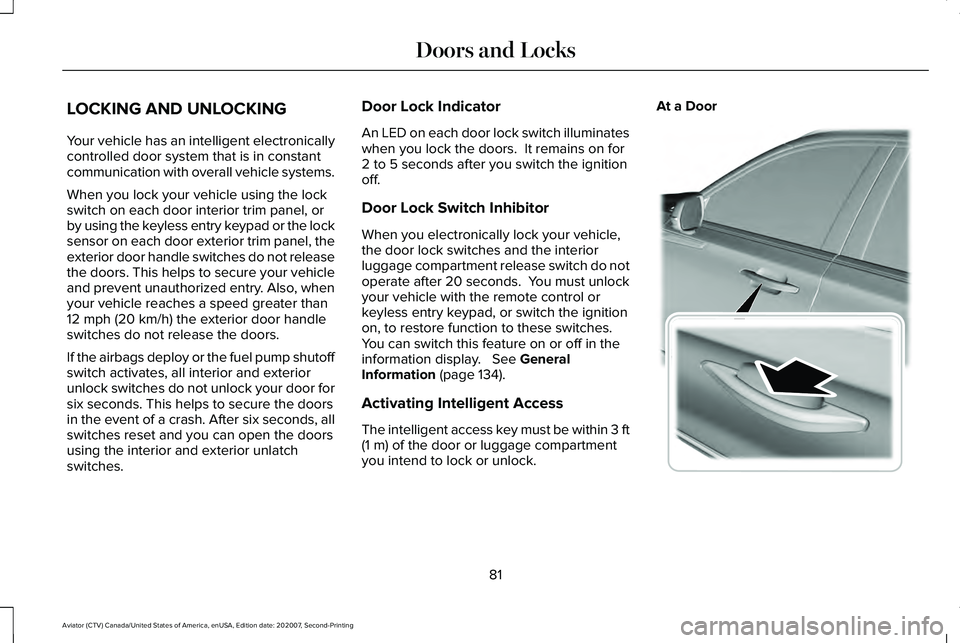
Activating Intelligent Access
The intelligent access key must be within 3 ft
(1 m)
of the door or luggage compartment
you intend to lock or unlock. At a Door
81
Aviator (CTV) Canada/United States of America, enUSA, Edition date: 202007, Second-Printing Doors and LocksE295769
Page 86 of 667
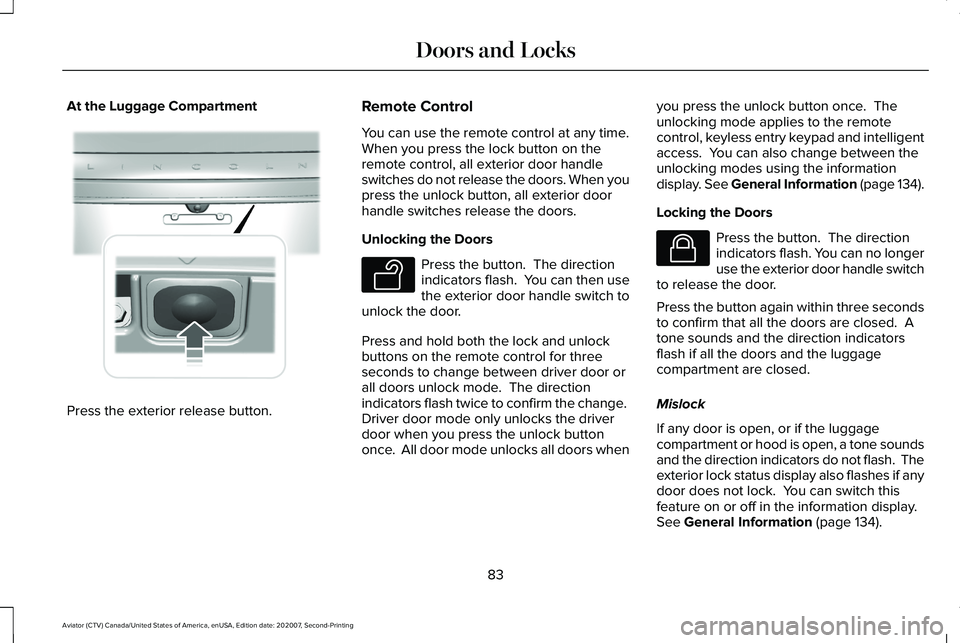
At the Luggage Compartment
Press the exterior release button. Remote Control
You can use the remote control at any time.
When you press the lock button on the
remote control, all exterior door handle
switches do not release the doors. When you
press the unlock button, all exterior door
handle switches release the doors.
Unlocking the Doors Press the button. The direction
indicators flash. You can then use
the exterior door handle switch to
unlock the door.
Press and hold both the lock and unlock
buttons on the remote control for three
seconds to change between driver door or
all doors unlock mode. The direction
indicators flash twice to confirm the change.
Driver door mode only unlocks the driver
door when you press the unlock button
once. All door mode unlocks all doors when you press the unlock button once. The
unlocking mode applies to the remote
control, keyless entry keypad and intelligent
access. You can also change between the
unlocking modes using the information
display. See General Information (page 134).
Locking the Doors Press the button. The direction
indicators flash. You can no longer
use the exterior door handle switch
to release the door.
Press the button again within three seconds
to confirm that all the doors are closed. A
tone sounds and the direction indicators
flash if all the doors and the luggage
compartment are closed.
Mislock
If any door is open, or if the luggage
compartment or hood is open, a tone sounds
and the direction indicators do not flash. The
exterior lock status display also flashes if any
door does not lock. You can switch this
feature on or off in the information display.
See General Information (page 134).
83
Aviator (CTV) Canada/United States of America, enUSA, Edition date: 202007, Second-Printing Doors and Locks E291416 E138629 E138623
Page 90 of 667
Illuminated Entry
The interior lamps and some exterior lamps
illuminate when you unlock the doors with
the remote control.
The illuminated entry system turns off the
lights if:
•
The ignition is on.
• You press the remote control lock button.
• After 25 seconds of illumination.
The lights do not turn off if:
• You turn them on with the lamp control.
• Any door is open.
Illuminated Exit
The interior lamps and some exterior lamps
illuminate when all doors are closed and you
switch the ignition off.
The lamps turn off if all the doors remain
closed and:
• 25 seconds have elapsed.
• You press the push button ignition
switch. Battery Saver
If you leave the courtesy lamps, interior
lamps or headlamps on, the battery saver
shuts them off 10 minutes after you switch
the ignition off.
Battery Saver for Intelligent Access Keys
If you leave the ignition switched on, it shuts
off when it detects a certain amount of
battery drain, or after 45 minutes.
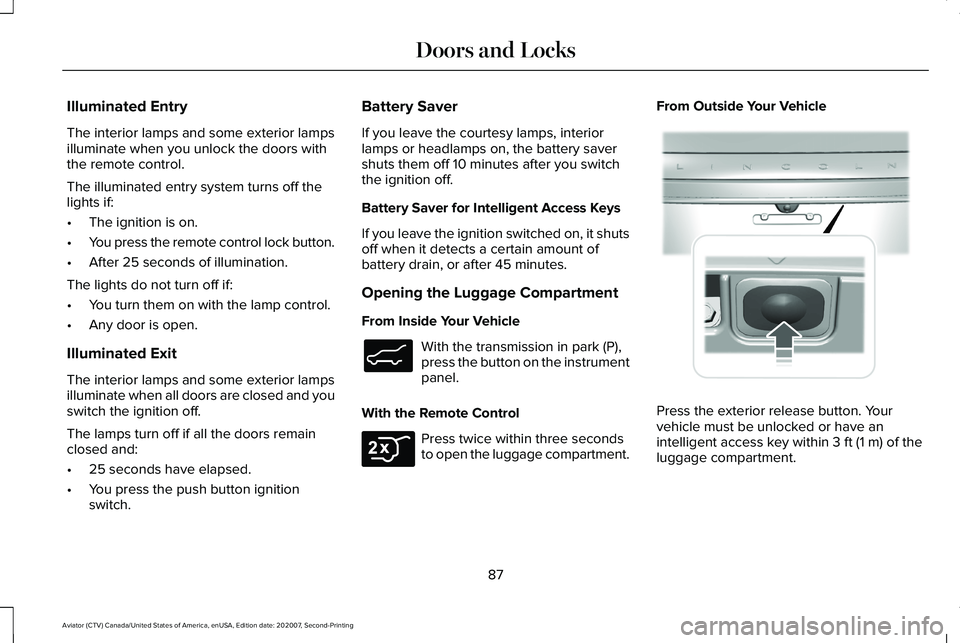
Opening the Luggage Compartment
From Inside Your Vehicle
With the transmission in park (P),
press the button on the instrument
panel.
With the Remote Control Press twice within three seconds
to open the luggage compartment.From Outside Your Vehicle
Press the exterior release button. Your
vehicle must be unlocked or have an
intelligent access key within 3 ft (1 m) of the
luggage compartment.
87
Aviator (CTV) Canada/United States of America, enUSA, Edition date: 202007, Second-Printing Doors and LocksE138633 E306276 E291416
Page 91 of 667
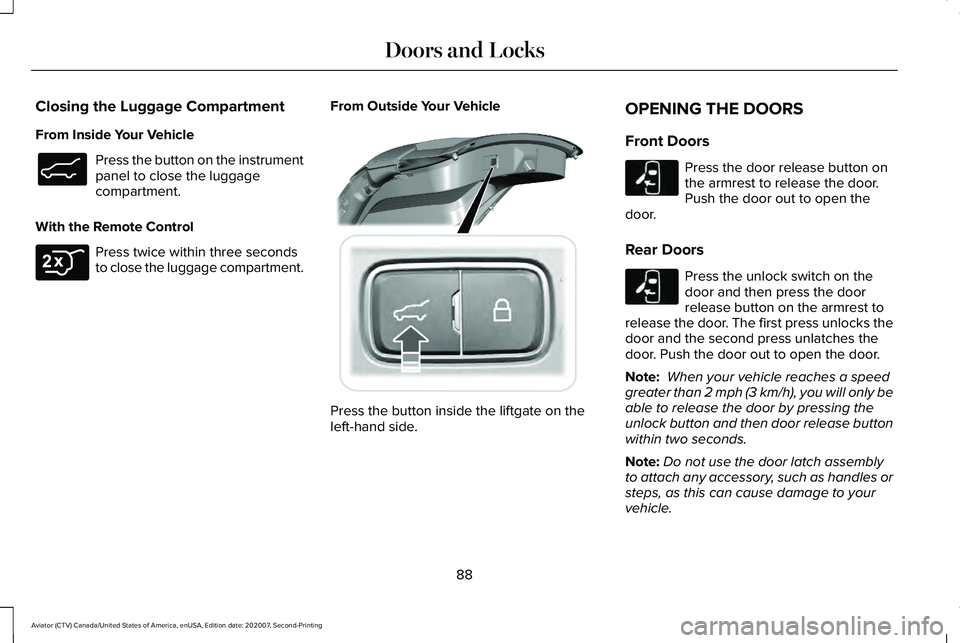
Closing the Luggage Compartment
From Inside Your Vehicle
Press the button on the instrument
panel to close the luggage
compartment.
With the Remote Control Press twice within three seconds
to close the luggage compartment.
From Outside Your Vehicle Press the button inside the liftgate on the
left-hand side.OPENING THE DOORS
Front Doors Press the door release button on
the armrest to release the door.
Push the door out to open the
door.
Rear Doors Press the unlock switch on the
door and then press the door
release button on the armrest to
release the door. The first press unlocks the
door and the second press unlatches the
door. Push the door out to open the door.
Note: When your vehicle reaches a speed
greater than 2 mph (3 km/h), you will only be
able to release the door by pressing the
unlock button and then door release button
within two seconds.
Note: Do not use the door latch assembly
to attach any accessory, such as handles or
steps, as this can cause damage to your
vehicle.
88
Aviator (CTV) Canada/United States of America, enUSA, Edition date: 202007, Second-Printing Doors and LocksE138633 E306276 E295919 E232417 E232417
Page 93 of 667
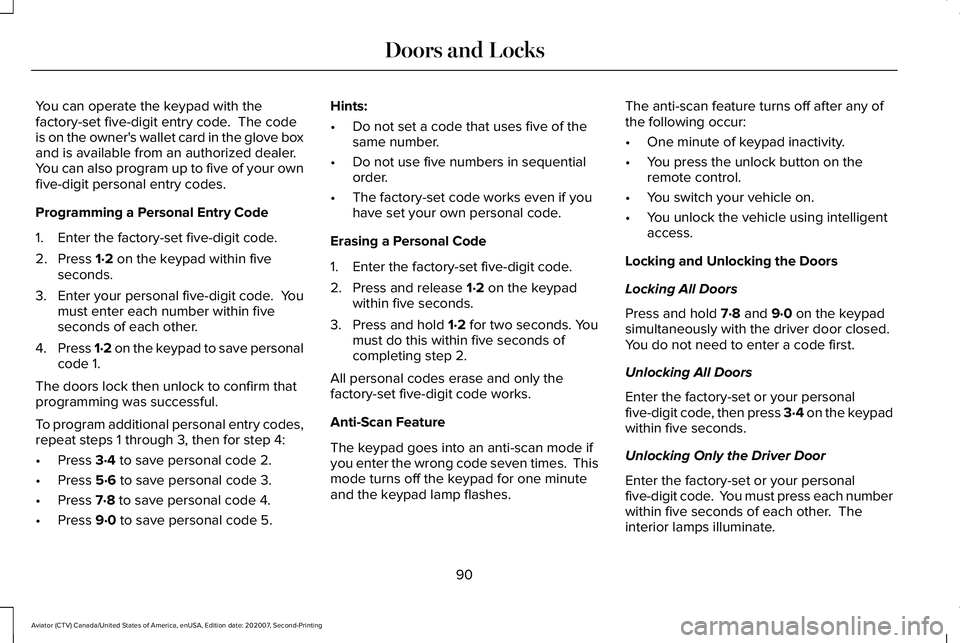
You can operate the keypad with the
factory-set five-digit entry code. The code
is on the owner's wallet card in the glove box
and is available from an authorized dealer.
You can also program up to five of your own
five-digit personal entry codes.
Programming a Personal Entry Code
1. Enter the factory-set five-digit code.
2. Press 1·2 on the keypad within five
seconds.
3. Enter your personal five-digit code. You
must enter each number within five
seconds of each other.
4. Press 1·2 on the keypad to save personal
code 1.
The doors lock then unlock to confirm that
programming was successful.
To program additional personal entry codes,
repeat steps 1 through 3, then for step 4:
• Press
3·4 to save personal code 2.
• Press
5·6 to save personal code 3.
• Press
7·8 to save personal code 4.
• Press
9·0 to save personal code 5. Hints:
•
Do not set a code that uses five of the
same number.
• Do not use five numbers in sequential
order.
• The factory-set code works even if you
have set your own personal code.
Erasing a Personal Code
1. Enter the factory-set five-digit code.
2. Press and release
1·2 on the keypad
within five seconds.
3. Press and hold
1·2 for two seconds. You
must do this within five seconds of
completing step 2.
All personal codes erase and only the
factory-set five-digit code works.
Anti-Scan Feature
The keypad goes into an anti-scan mode if
you enter the wrong code seven times. This
mode turns off the keypad for one minute
and the keypad lamp flashes. The anti-scan feature turns off after any of
the following occur:
•
One minute of keypad inactivity.
• You press the unlock button on the
remote control.
• You switch your vehicle on.
• You unlock the vehicle using intelligent
access.
Locking and Unlocking the Doors
Locking All Doors
Press and hold 7·8 and 9·0 on the keypad
simultaneously with the driver door closed.
You do not need to enter a code first.
Unlocking All Doors
Enter the factory-set or your personal
five-digit code, then press 3·4 on the keypad
within five seconds.
Unlocking Only the Driver Door
Enter the factory-set or your personal
five-digit code. You must press each number
within five seconds of each other. The
interior lamps illuminate.
90
Aviator (CTV) Canada/United States of America, enUSA, Edition date: 202007, Second-Printing Doors and Locks
Page 96 of 667
Note:
Make sure the area behind your
vehicle is free from obstruction and that
there is enough room for you to operate the
liftgate. Make sure the area behind your
vehicle is free from obstruction and that
there is enough room for you to operate the
liftgate.
Note: Be careful when opening or closing
the liftgate in a garage or other enclosed
area to avoid damaging the liftgate.
Note: Do not leave the liftgate open when
you are driving. This could damage the
liftgate and its components.
Opening from the Instrument Panel With the transmission in park (P),
press the button on the instrument
panel.
Opening with the Remote Control Press the button twice within three
seconds. Opening with the Outside Control Button
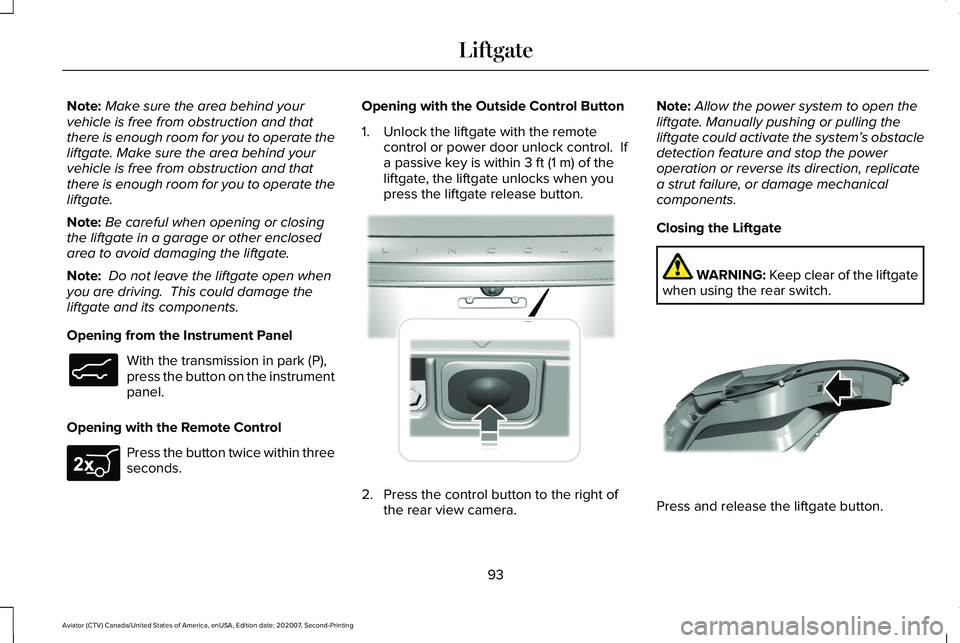
1. Unlock the liftgate with the remote
control or power door unlock control. If
a passive key is within 3 ft (1 m) of the
liftgate, the liftgate unlocks when you
press the liftgate release button. 2. Press the control button to the right of
the rear view camera. Note:
Allow the power system to open the
liftgate. Manually pushing or pulling the
liftgate could activate the system’ s obstacle
detection feature and stop the power
operation or reverse its direction, replicate
a strut failure, or damage mechanical
components.
Closing the Liftgate WARNING: Keep clear of the liftgate
when using the rear switch. Press and release the liftgate button.
93
Aviator (CTV) Canada/United States of America, enUSA, Edition date: 202007, Second-Printing LiftgateE138633 E267940 E291416 E291417
Page 97 of 667
Stopping the Liftgate Movement
Note:
Do not apply sudden excessive force
to the liftgate while it is in motion. This could
damage the power liftgate and its
components.
You can stop the liftgate movement by doing
any of the following:
• Pressing the liftgate control button.
• Pressing the liftgate button on the remote
control twice.
• Pressing the liftgate button on the
instrument panel.
• Moving your foot under and away from
the center rear bumper in a single-kick
motion.*
*This method only works for vehicles with
the hands-free liftgate feature.
Setting the Liftgate Open Height
1. Open the liftgate.
2. Stop the liftgate movement by pressing the control button on the liftgate when it
reaches the desired height. Note:
Once the liftgate has stopped moving,
you can also manually move it to the desired
height.
3. Press and hold the liftgate control button
on the liftgate until you hear a tone,
indicating programming is complete.
Note: You can only use the liftgate control
button to program the height.
Note: You cannot program the height if the
liftgate position is too low.
The new open liftgate height is recalled
when the power liftgate is opened. To
change the programmed height, repeat the
above procedure. Once you open the power
liftgate, you can manually move it to a
different height.
Note: The system recalls the new
programmed height until you reprogram it,
even if you disconnect the battery.
When operating the power liftgate after you
have programmed a lower height than fully
open, you can fully open the liftgate by
manually pushing it upward to the maximum
open position. Obstacle Detection
Note:
Entering your vehicle while the liftgate
is closing can cause your vehicle to bounce
and activate obstacle detection. To prevent
this, let the power liftgate close completely
before you enter your vehicle. Before driving
off, check the instrument cluster for a liftgate
or door ajar message or warning indicator.
Failure to do this could result in
unintentionally leaving the liftgate open
while driving.
When Closing
The system stops when it detects an
obstacle. A tone sounds and the system
reverses to open. Once you remove the
obstacle, you can power close the liftgate.
When Opening
The system stops when it detects an
obstacle and a tone sounds. Once you
remove the obstacle, you can continue to
operate the liftgate.
94
Aviator (CTV) Canada/United States of America, enUSA, Edition date: 202007, Second-Printing Liftgate