ad blue LINCOLN AVIATOR 2021 Owner's Manual
[x] Cancel search | Manufacturer: LINCOLN, Model Year: 2021, Model line: AVIATOR, Model: LINCOLN AVIATOR 2021Pages: 667, PDF Size: 7.01 MB
Page 524 of 667
Switching the Ventilated Seats On and
Off
Touch the button to cycle through
the various ventilated seat settings.
Accessing Rear Climate Controls Touch the button to access
additional controls for the rear
climate system.
Rear Climate Control Lock Indicator Touch the button.
When on, you can only operate the
rear passenger settings through
the front controls.
Switching Rear Auto Mode On and Off Touch the button to switch on rear
automatic operation, then set the
temperature. Switching the Rear Climate Controlled
Seats On and Off Touch the button to cycle through
the various climate controlled seat
settings.
Switching the Rear Heated Seats On
and Off Touch the button to cycle through
the various heat settings.
Switching the Rear Ventilated Seats
On and Off Touch the button to cycle through
the various ventilated seat settings.PHONE WARNING: Driving while distracted
can result in loss of vehicle control, crash
and injury. We strongly recommend that
you use extreme caution when using any
device that may take your focus off the
road. Your primary responsibility is the safe
operation of your vehicle. We recommend
against the use of any hand-held device
while driving and encourage the use of
voice-operated systems when possible.
Make sure you are aware of all applicable
local laws that may affect the use of
electronic devices while driving.
Check the compatibility of your device on
the regional website.
Pairing Your Cell Phone for the First
Time
Go to the settings menu on your cell phone
and switch Bluetooth on. Select the phone option on the
feature bar.
521
Aviator (CTV) Canada/United States of America, enUSA, Edition date: 202007, Second-Printing SYNC™ 3E268558 E270447 E265289 E265282 E268558
Page 525 of 667
1. Select Add Phone.
Note: A prompt alerts you to search for your
vehicle on your cell phone.
2. Select your vehicle on your cell phone.
Note: A number appears on your cell phone
and on the touchscreen.
3. Confirm that the number on your cell phone matches the number on the
touchscreen.
Note: The touchscreen indicates that you
have successfully paired your cell phone.
4. Download the phonebook from your cell
phone when you are prompted.
Note: If you pair more than one cell phone,
use the phone settings to specify the primary
phone. You can change this setting at any
time.
Using Your Cell Phone
Recent Call List
Display and select an entry from a list of
previous calls. Contacts
Display a smart search form to look up your
contacts. Use the List button to alphabetically
sort your contacts.
Change Phone
Display the list of paired or connected
devices that you can select.
Phone Settings
Change ring tones, alerts or pair another
phone.
Do Not Disturb
Reject incoming calls and switch ring tones
and alerts off.
Phone Keypad
Directly dial a number.
Mute
Mute the microphone when in a call or voice
recognition session.
Text Messaging
Setting Text Message Notification
iOS
1. Go to the settings menu on your cell
phone.
2. Select Bluetooth.
3. Select the information icon to the right of
your vehicle.
4. Switch text message notification on.
Android
1. Go to the settings menu on your cell phone.
2. Select Bluetooth.
3. Select the profiles option.
4. Select the phone profile.
5. Switch text message notification on.
522
Aviator (CTV) Canada/United States of America, enUSA, Edition date: 202007, Second-Printing SYNC™ 3
Page 541 of 667
When you start an app through the system
for the first time, you could be asked to grant
certain permissions. You can review and
change the permissions that you have
granted at any time when your vehicle is not
moving. We recommend that you check your
data plan before using your apps through
the system. Using them could result in
additional charges. We also recommend that
you check the app provider's terms and
conditions and privacy policy before using
their app. Make sure that you have an active
account for apps that you want to use
through the system. Some apps will work
with no setup. Others require you to
configure some personal settings before you
can use them.
Note:
For more information about available
apps, visit catalog.ford.com.
Using Apps on an iOS Device Select the apps option on the
feature bar.
1. If your device is connected via USB, switch Apple CarPlay off. See Phone
(page 521). 2. Connect your device to a USB port or
pair and connect using Bluetooth.
3. If prompted to enable CarPlay, select Disable
.
4. Start the apps on your device that you want to use through SYNC.
Note: If you close the apps on your device,
you will not be able to use them through the
system.
5. Select the app that you want to use on the touchscreen.
Note: Connect your device to a USB port if
you want to use a navigation app. When
using a navigation app, keep your device
unlocked and the app open.
Using Apps on an Android Device Select the apps option on the
feature bar.
1. If your device is connected via USB, switch Android Auto off.
See Phone
(page 521).
2. Pair your device. See Phone (page 521). 3. Start the apps on your device that you
want to use through SYNC.
Note: If you close the apps on your device,
you will not be able to use them through the
system.
4. Select
Find Mobile Apps.
Note: The system searches and connects to
compatible apps that are running on your
device.
5. Select the app that you want to use on the touchscreen.
Note: Mobile Apps on your device use the
USB port to establish a connection with
SYNC. Some devices may lose the ability to
play music over USB when Mobile Apps are
enabled.
Using Mobile Navigation on an Android
Device
1. Connect your device to a USB port.
2. Switch Android Auto off.
See Phone
(page 521).
3. Switch on
Enable Mobile Apps via USB
in the Mobile Apps Settings tile.
538
Aviator (CTV) Canada/United States of America, enUSA, Edition date: 202007, Second-Printing SYNC™ 3
Page 543 of 667

Action and Description
Menu Item
Touch this button to view nearby movie theaters and their show times, if \
available.
Movie Listings
Touch this button to view the nearby weather, current weather, or the five-day forecast for the
chosen area.
Weather
Select to see the weather map, which can show storms,
radar information, charts and winds.
Map
Select to choose from a listing of weather locations.
Area
Touch this button to view scores and schedules from a variety of sports. \
You can also save up to
10 favorite teams for easier access. The score automatically refreshes w\
hen a game is in progress.
Sports Info
Touch this button to view ski conditions for a specific area.
Ski Conditions
SETTINGS Press the button to enter the
settings menu.
Once you select a tile, press the
button next to a menu item to view
an explanation of the feature or
setting. Sound
Select this tile to adjust the sound settings.
Clock
Select this tile to adjust the clock settings.
Bluetooth
Select this tile to switch Bluetooth on and off
and adjust settings.Phone
Select this tile to connect, disconnect, and
manage the connected device settings.
Audio
Select this tile to adjust the audio settings.
540
Aviator (CTV) Canada/United States of America, enUSA, Edition date: 202007, Second-Printing SYNC™ 3E280315 E268570
Page 546 of 667
Possible Cause and Resolution
Symptom
–Device limitation. Bluetooth does not support voice commands.
•Connect your device to a USB port.
• If you have an iOS device, press and hold the voice control button on the steering
wheel to use Siri to play specific tracks.
– You are using the wrong voice commands.
•See Using Voice Recognition (page 494).
• For a complete list of voice commands, refer to our website.
– You are not saying the name exactly as it appears on your device.
•Say the name of the track or artist exactly as it appears on your device\
. Spell out any
abbreviations in the name.
The song or artist name may have some special characters that are not be\
ing recognized
by the system.
– The name contains special characters, for example *, - or +.
•Rename the files on your device or use the touchscreen to select and play\
the track.
The system does not understand the name of
a track or artist.
–You are not saying the name exactly as it appears on your device.
•Say the first and last name of the contact exactly as it appears on your\
device. Spell
out any abbreviations in the name.
– The name contains special characters, for example *, - or +.
•Rename the contact on your device or use the touchscreen to select and ca\
ll the
contact.
The system does not understand the name of
a contact in the phonebook on my device and
calls the wrong contact.
543
Aviator (CTV) Canada/United States of America, enUSA, Edition date: 202007, Second-Printing SYNC™ 3
Page 547 of 667
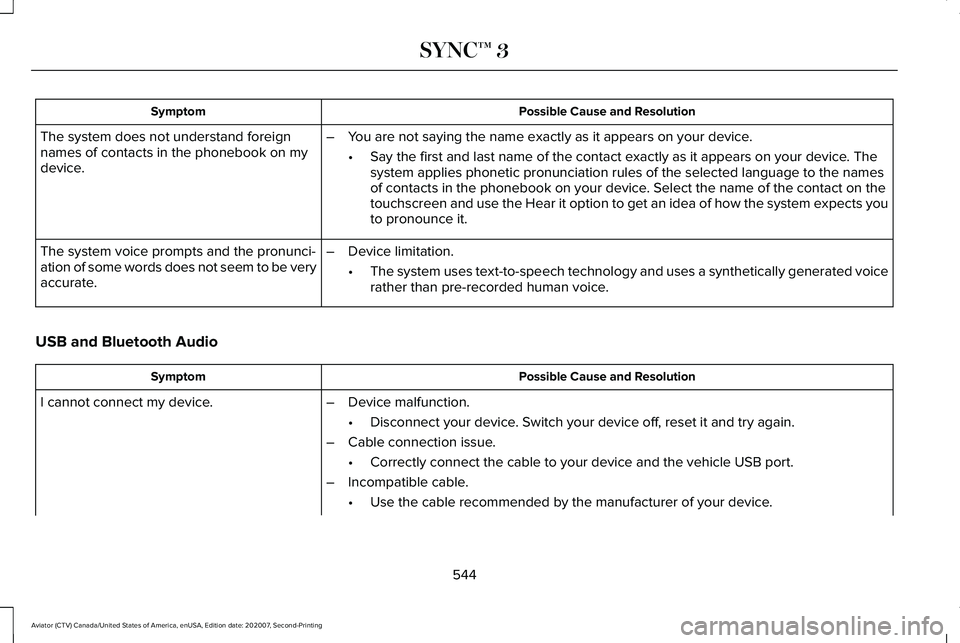
Possible Cause and Resolution
Symptom
The system does not understand foreign
names of contacts in the phonebook on my
device. –
You are not saying the name exactly as it appears on your device.
•Say the first and last name of the contact exactly as it appears on your\
device. The
system applies phonetic pronunciation rules of the selected language to \
the names
of contacts in the phonebook on your device. Select the name of the contact on the
touchscreen and use the Hear it option to get an idea of how the system \
expects you
to pronounce it.
– Device limitation.
•The system uses text-to-speech technology and uses a synthetically gener\
ated voice
rather than pre-recorded human voice.
The system voice prompts and the pronunci-
ation of some words does not seem to be very
accurate.
USB and Bluetooth Audio Possible Cause and Resolution
Symptom
I cannot connect my device. –Device malfunction.
•Disconnect your device. Switch your device off, reset it and try again.
– Cable connection issue.
•Correctly connect the cable to your device and the vehicle USB port.
– Incompatible cable.
•Use the cable recommended by the manufacturer of your device.
544
Aviator (CTV) Canada/United States of America, enUSA, Edition date: 202007, Second-Printing SYNC™ 3
Page 548 of 667

Possible Cause and Resolution
Symptom
–Incorrect device settings.
•Make sure that your device does not have an auto-install program or active \
security
settings.
• Check that your device is not set only to charge.
– Device lock screen enabled.
•Unlock your device before connecting it.
The system does not recognize my device. –Device limitation.
•Do not leave your device in your vehicle during very hot or very cold we\
ather condi-
tions.
– Cable connection issue.
•Correctly connect the cable to your device and the vehicle USB port.
– Incompatible cable.
•Use the cable recommended by the manufacturer of your device.
The system does not understand the name of
a track or artist. –
Device limitation. Bluetooth does not support voice commands.
•Connect your device to a USB port.
• If you have an iOS device, press and hold the voice control button on the steering
wheel to use Siri to play specific tracks.
545
Aviator (CTV) Canada/United States of America, enUSA, Edition date: 202007, Second-Printing SYNC™ 3
Page 549 of 667
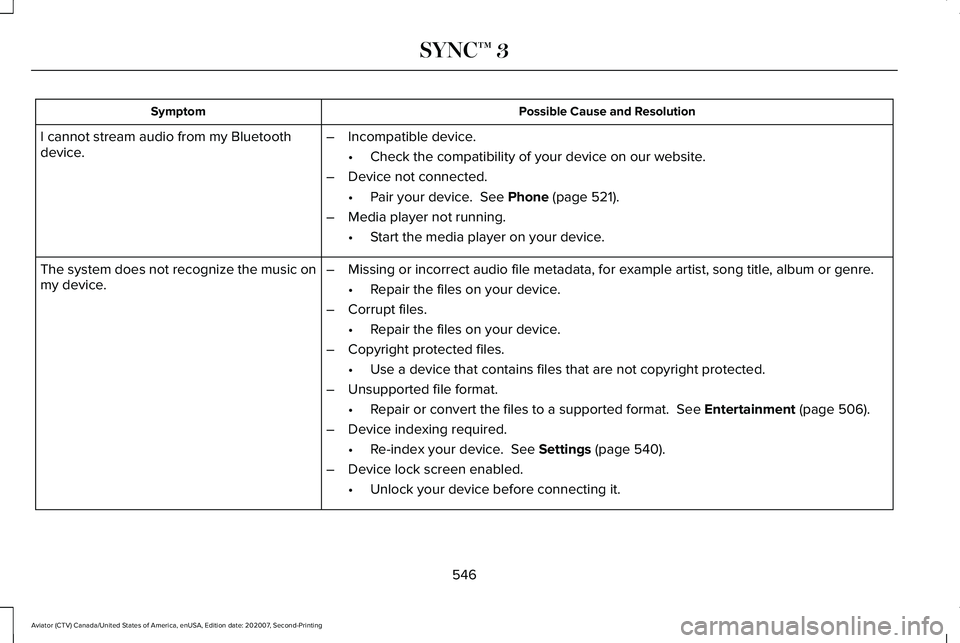
Possible Cause and Resolution
Symptom
I cannot stream audio from my Bluetooth
device. –
Incompatible device.
•Check the compatibility of your device on our website.
– Device not connected.
•Pair your device. See Phone (page 521).
– Media player not running.
•Start the media player on your device.
The system does not recognize the music on
my device. –
Missing or incorrect audio file metadata, for example artist, song title\
, album or genre.
•Repair the files on your device.
– Corrupt files.
•Repair the files on your device.
– Copyright protected files.
•Use a device that contains files that are not copyright protected.
– Unsupported file format.
•Repair or convert the files to a supported format.
See Entertainment (page 506).
– Device indexing required.
•Re-index your device.
See Settings (page 540).
– Device lock screen enabled.
•Unlock your device before connecting it.
546
Aviator (CTV) Canada/United States of America, enUSA, Edition date: 202007, Second-Printing SYNC™ 3
Page 551 of 667
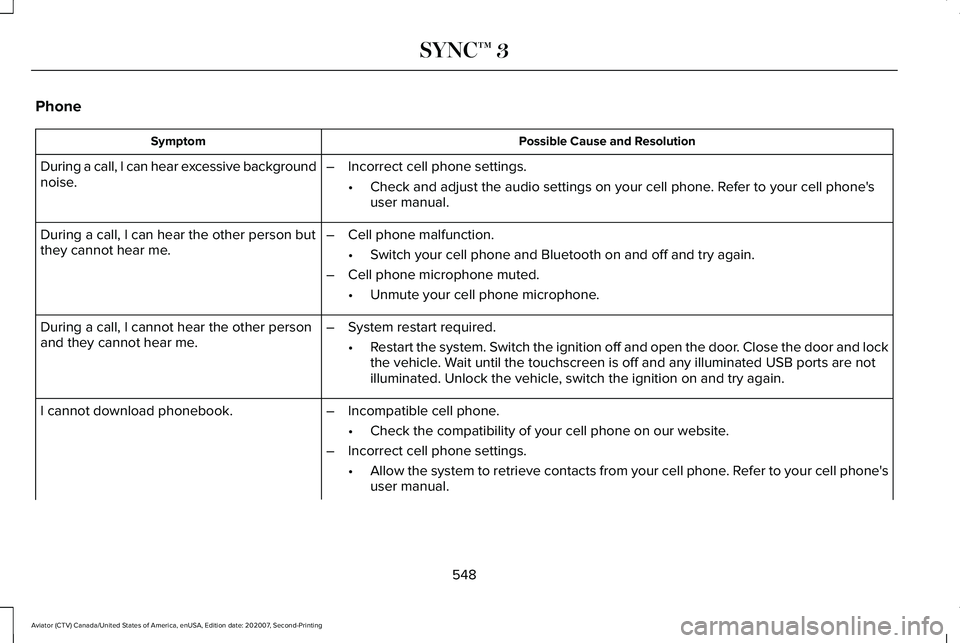
Phone
Possible Cause and Resolution
Symptom
During a call, I can hear excessive background
noise. –
Incorrect cell phone settings.
•Check and adjust the audio settings on your cell phone. Refer to your cell phone's
user manual.
– Cell phone malfunction.
•Switch your cell phone and Bluetooth on and off and try again.
– Cell phone microphone muted.
•Unmute your cell phone microphone.
During a call, I can hear the other person but
they cannot hear me.
During a call, I cannot hear the other person
and they cannot hear me.
–
System restart required.
•Restart the system. Switch the ignition off and open the door. Close the door and lock
the vehicle. Wait until the touchscreen is off and any illuminated USB ports are not
illuminated. Unlock the vehicle, switch the ignition on and try again.
I cannot download phonebook. –Incompatible cell phone.
•Check the compatibility of your cell phone on our website.
– Incorrect cell phone settings.
•Allow the system to retrieve contacts from your cell phone. Refer to your cell phone's
user manual.
548
Aviator (CTV) Canada/United States of America, enUSA, Edition date: 202007, Second-Printing SYNC™ 3
Page 555 of 667

Apps
Possible Cause and Resolution
Symptom
The system cannot find any apps. –Incompatible device.
•You will need an Android device with OS 4.3 or higher or an iOS device wi\
th iOS 8.0
or higher. Pair and connect your Android device to find AppLink compatible apps.
Connect your iOS device to a USB port or pair and connect using Bluetoot\
h.
I have a compatible device and it is correctly
connected but the system still cannot find any
apps. –
AppLink compatible apps not installed on your device.
•Download and install the latest version of the app.
– AppLink compatible apps not running on your device.
•Start the apps to allow the system to find them and make sure you sign in to any apps
if required.
– Incorrect app settings.
•Check and adjust the app settings on your device and allow SYNC to access the app
if required.
I have a compatible device, it is correctly
connected and my apps are running but the
system still cannot find any apps. –
Apps failed to fully close.
•Restart the apps and try again.
• If you have an Android device with apps that have an exit or quit option\
, use this and
then restart the apps. Alternatively, use the force stop option in the settings menu on
your device.
• If you have an iOS device with iOS 7.0 or higher, tap the home button on your device
twice and then swipe the app upward to close it.
552
Aviator (CTV) Canada/United States of America, enUSA, Edition date: 202007, Second-Printing SYNC™ 3