ad blue LINCOLN AVIATOR 2021 User Guide
[x] Cancel search | Manufacturer: LINCOLN, Model Year: 2021, Model line: AVIATOR, Model: LINCOLN AVIATOR 2021Pages: 667, PDF Size: 7.01 MB
Page 244 of 667
Note:
Do not force the charge port door
open or closed. Forcing the door open or
closed damages the charge port.
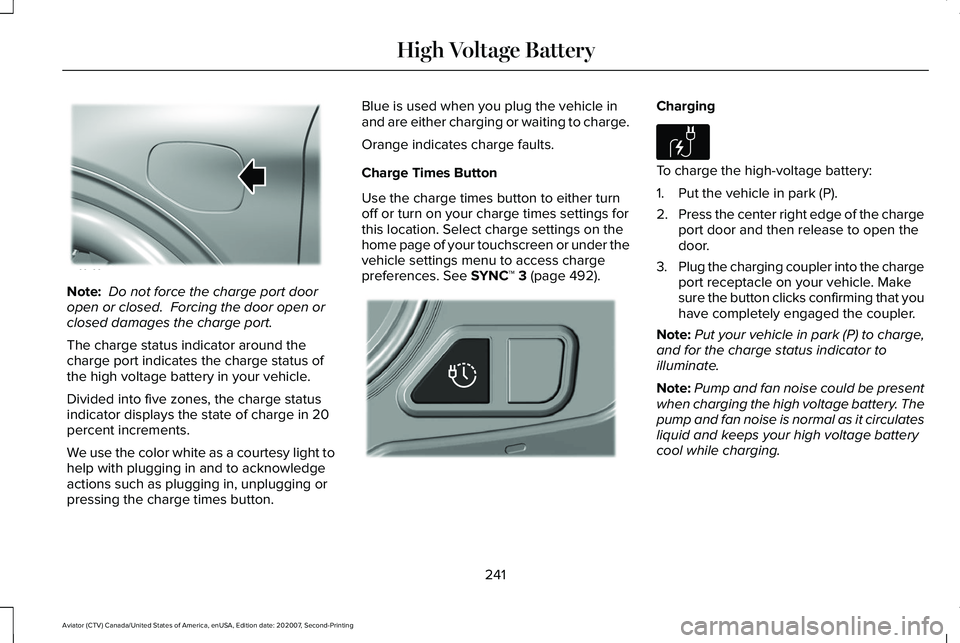
The charge status indicator around the
charge port indicates the charge status of
the high voltage battery in your vehicle.
Divided into five zones, the charge status
indicator displays the state of charge in 20
percent increments.
We use the color white as a courtesy light to
help with plugging in and to acknowledge
actions such as plugging in, unplugging or
pressing the charge times button. Blue is used when you plug the vehicle in
and are either charging or waiting to charge.
Orange indicates charge faults.
Charge Times Button
Use the charge times button to either turn
off or turn on your charge times settings for
this location. Select charge settings on the
home page of your touchscreen or under the
vehicle settings menu to access charge
preferences. See SYNC™ 3 (page 492). Charging
To charge the high-voltage battery:
1. Put the vehicle in park (P).
2.
Press the center right edge of the charge
port door and then release to open the
door.
3. Plug the charging coupler into the charge
port receptacle on your vehicle. Make
sure the button clicks confirming that you
have completely engaged the coupler.
Note: Put your vehicle in park (P) to charge,
and for the charge status indicator to
illuminate.
Note: Pump and fan noise could be present
when charging the high voltage battery. The
pump and fan noise is normal as it circulates
liquid and keeps your high voltage battery
cool while charging.
241
Aviator (CTV) Canada/United States of America, enUSA, Edition date: 202007, Second-Printing High Voltage BatteryE295258 E301111 E306676
Page 246 of 667
Note:
When charging stops, the charge
status indicator shows all the completed
zones solidly lit up in a blue color for 30
seconds before turning off. For example, if
charging stops at 70 percent, then the
bottom three zones light up solidly to
indicate a battery charge level of at least 60
percent but less than 80 percent. Charging
stops when complete or when paused due
to preferred charge settings or charge
station actions.
Note: If the charge status indicator does not
light up or pulse after plugging in, please
verify that the charge port light setting is On.
If you do not wish to have the charge status
indicator light up at all while charging, then
you can switch it Off. See charge port light
under vehicle settings on your touchscreen.
See SYNC™ 3 (page 492). Note:
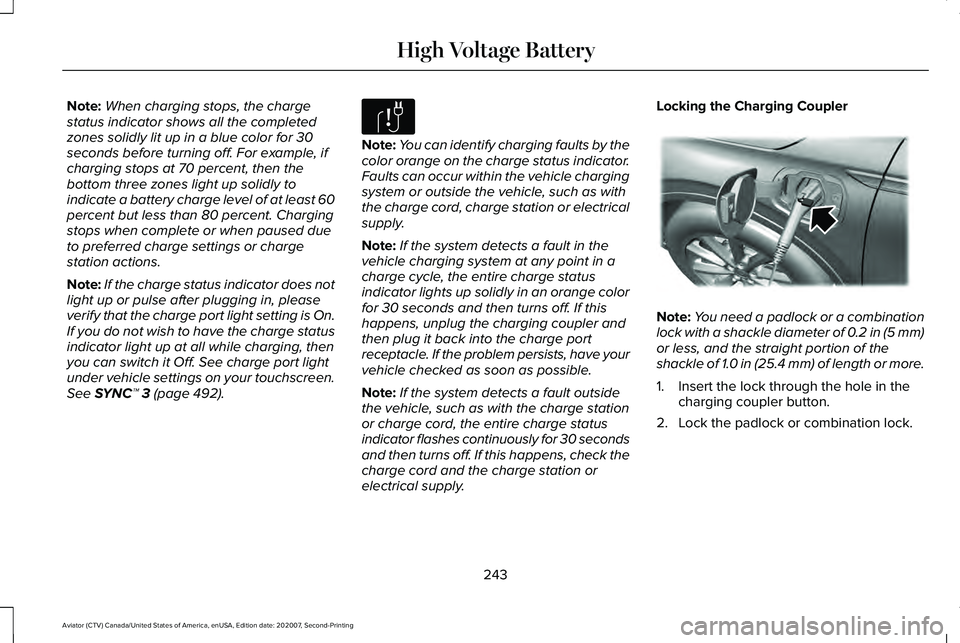
You can identify charging faults by the
color orange on the charge status indicator.
Faults can occur within the vehicle charging
system or outside the vehicle, such as with
the charge cord, charge station or electrical
supply.
Note: If the system detects a fault in the
vehicle charging system at any point in a
charge cycle, the entire charge status
indicator lights up solidly in an orange color
for 30 seconds and then turns off. If this
happens, unplug the charging coupler and
then plug it back into the charge port
receptacle. If the problem persists, have your
vehicle checked as soon as possible.
Note: If the system detects a fault outside
the vehicle, such as with the charge station
or charge cord, the entire charge status
indicator flashes continuously for 30 seconds
and then turns off. If this happens, check the
charge cord and the charge station or
electrical supply. Locking the Charging Coupler
Note:
You need a padlock or a combination
lock with a shackle diameter of 0.2 in (5 mm)
or less, and the straight portion of the
shackle of 1.0 in (25.4 mm) of length or more.
1. Insert the lock through the hole in the charging coupler button.
2. Lock the padlock or combination lock.
243
Aviator (CTV) Canada/United States of America, enUSA, Edition date: 202007, Second-Printing High Voltage BatteryE306677 E295451
Page 382 of 667
Protected Component
Fuse Rating
Fuse or Relay Number
Switch interface module A.
Smart datalink connector.
Instrument cluster.
Not used (spare).
15A
14
SYNC.
15A
15
Electronic finish panel.
Not used.
—
16
Headlamp control module.
7.5A
17
Not used (spare).
7.5A
18
Headlamp switch.
5A
19
Push button ignition switch.
Telematics control unit module.
5A
20
eCall.
Bluetooth low energy module.
Not used.
5A
21
Not used (spare).
5A
22
Not used (spare).
30A
23
Moonroof.
30A
24
379
Aviator (CTV) Canada/United States of America, enUSA, Edition date: 202007, Second-Printing Fuses
Page 408 of 667
Specification
Name
Motorcraft® Spot and Stain Remover, ZC-14 (U.S.) ESR-M14P5-A
Motorcraft® Ultra-Clear Spray Glass Cleaner, ZC-23 (U.S.)
Motorcraft® Wheel and Tire Cleaner, ZC-37-A (U.S. & Canada)
CLEANING THE EXTERIOR
Wash your vehicle regularly with cool or
lukewarm water and a neutral pH shampoo,
we recommend Motorcraft Detail Wash.
• Never use strong household detergents
or soap, for example dish washing or
laundry liquid. These products can
discolor and spot painted surfaces.
• Never wash your vehicle when it is hot
to the touch, or during strong or direct
sunlight.
• Dry your vehicle with a chamois or soft
terry cloth towel to eliminate water
spotting. •
Immediately remove fuel spillages, bird
droppings, insect deposits and road tar.
These may cause damage to your
vehicle ’s paintwork or trim over time. We
recommend Motorcraft Bug and Tar
Remover.
• Remove any exterior accessories, for
example antennas, before entering a car
wash.
• When filling with AdBlue®, remove any
residue on painted surfaces immediately.
Note: Suntan lotions and insect repellents
can damage painted surfaces. If these
substances come in contact with your
vehicle, wash the affected area as soon as
possible. Cleaning the Exterior Precautions
Immediately remove fuel spillages, AdBlue
residuals, bird droppings, insect deposits
and road tar. These may cause damage to
your vehicle
’s paintwork or trim over time.
Remove any exterior accessories, for
example antennas, before entering a car
wash.
Cleaning the Exterior Lamps
Note: Do not scrape the exterior lamps
lenses or use abrasives, alcoholic solvents
or chemical solvents to clean them.
Note: Do not wipe the exterior lamps when
they are dry.
405
Aviator (CTV) Canada/United States of America, enUSA, Edition date: 202007, Second-Printing Vehicle Care
Page 496 of 667
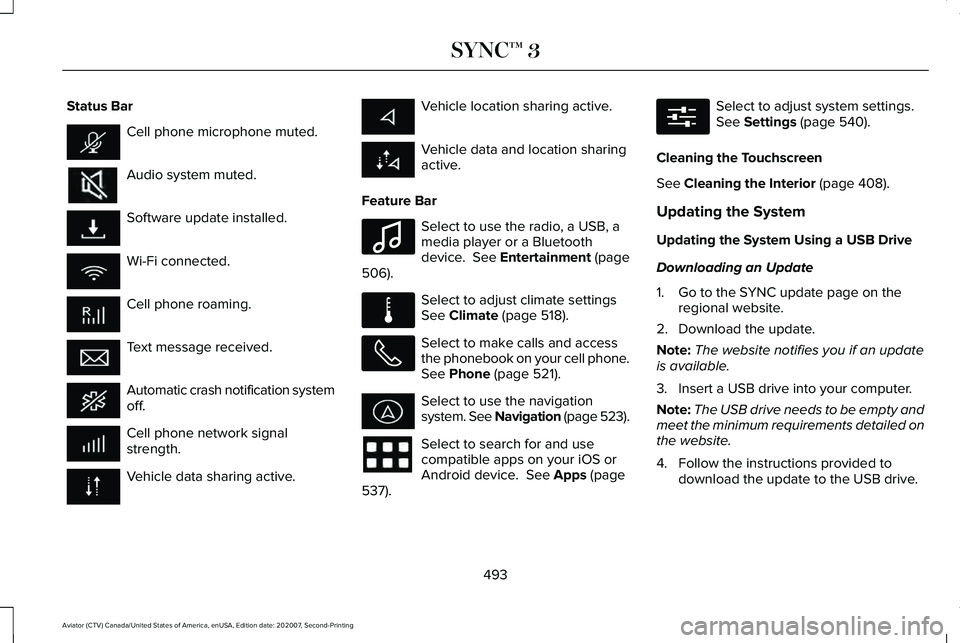
Status Bar
Cell phone microphone muted.
Audio system muted.
Software update installed.
Wi-Fi connected.
Cell phone roaming.
Text message received.
Automatic crash notification system
off.
Cell phone network signal
strength.
Vehicle data sharing active. Vehicle location sharing active.
Vehicle data and location sharing
active.
Feature Bar Select to use the radio, a USB, a
media player or a Bluetooth
device. See Entertainment (page
506). Select to adjust climate settings
See
Climate (page 518).
Select to make calls and access
the phonebook on your cell phone.
See
Phone (page 521).
Select to use the navigation
system. See Navigation (page 523).
Select to search for and use
compatible apps on your iOS or
Android device.
See Apps (page
537). Select to adjust system settings.
See
Settings (page 540).
Cleaning the Touchscreen
See
Cleaning the Interior (page 408).
Updating the System
Updating the System Using a USB Drive
Downloading an Update
1. Go to the SYNC update page on the regional website.
2. Download the update.
Note: The website notifies you if an update
is available.
3. Insert a USB drive into your computer.
Note: The USB drive needs to be empty and
meet the minimum requirements detailed on
the website.
4. Follow the instructions provided to download the update to the USB drive.
493
Aviator (CTV) Canada/United States of America, enUSA, Edition date: 202007, Second-Printing SYNC™ 3 E100027 E283811 E280315
Page 499 of 667
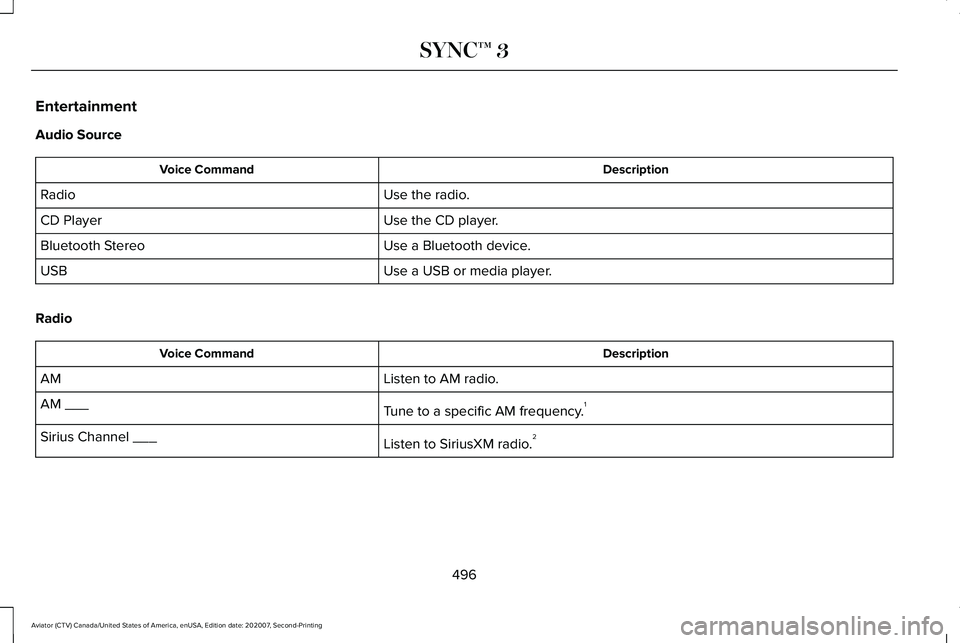
Entertainment
Audio Source
Description
Voice Command
Use the radio.
Radio
Use the CD player.
CD Player
Use a Bluetooth device.
Bluetooth Stereo
Use a USB or media player.
USB
Radio Description
Voice Command
Listen to AM radio.
AM
Tune to a specific AM frequency.1
AM ___
Listen to SiriusXM radio.2
Sirius Channel ___
496
Aviator (CTV) Canada/United States of America, enUSA, Edition date: 202007, Second-Printing SYNC™ 3
Page 502 of 667
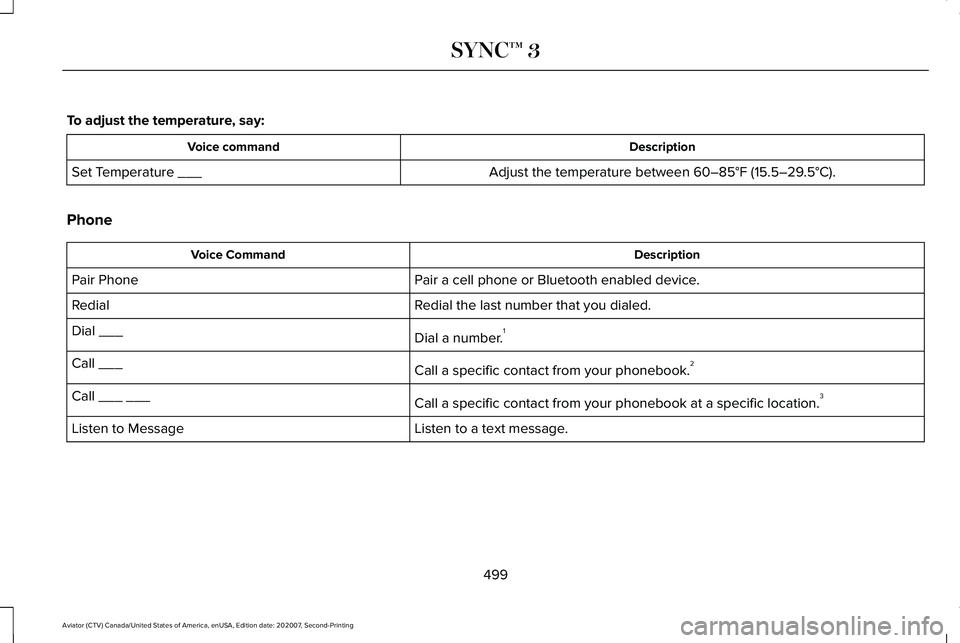
To adjust the temperature, say:
Description
Voice command
Adjust the temperature between 60–85°F (15.5–29.5°C).
Set Temperature ___
Phone Description
Voice Command
Pair a cell phone or Bluetooth enabled device.
Pair Phone
Redial the last number that you dialed.
Redial
Dial a number.1
Dial ___
Call a specific contact from your phonebook.2
Call ___
Call a specific contact from your phonebook at a specific location. 3
Call ___ ___
Listen to a text message.
Listen to Message
499
Aviator (CTV) Canada/United States of America, enUSA, Edition date: 202007, Second-Printing SYNC™ 3
Page 510 of 667
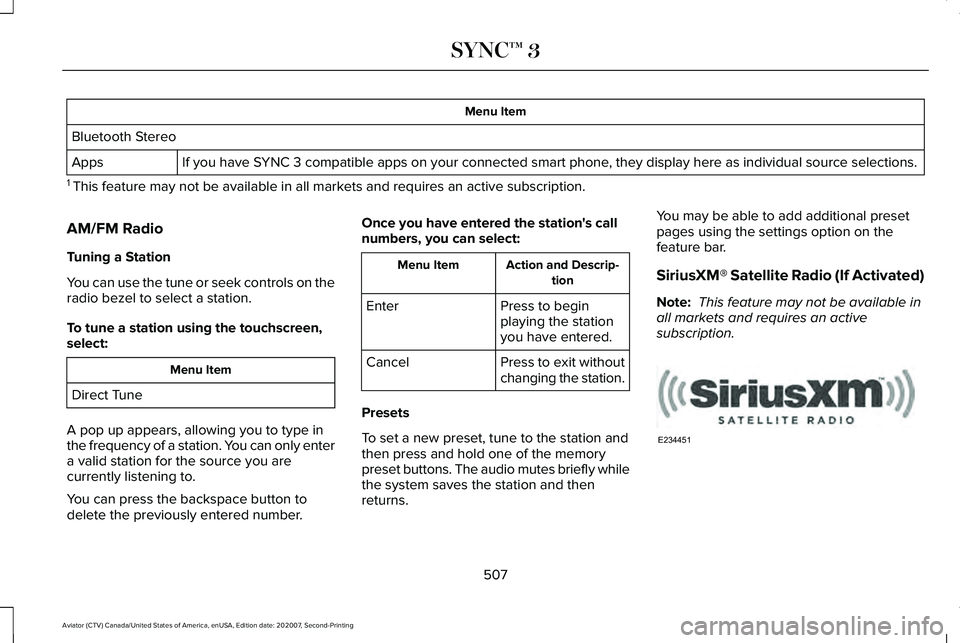
Menu Item
Bluetooth Stereo If you have SYNC 3 compatible apps on your connected smart phone, they display here as individual source selections.
Apps
1 This feature may not be available in all markets and requires an active subscription.
AM/FM Radio
Tuning a Station
You can use the tune or seek controls on the
radio bezel to select a station.
To tune a station using the touchscreen,
select: Menu Item
Direct Tune
A pop up appears, allowing you to type in
the frequency of a station. You can only enter
a valid station for the source you are
currently listening to.
You can press the backspace button to
delete the previously entered number. Once you have entered the station's call
numbers, you can select: Action and Descrip-
tion
Menu Item
Press to begin
playing the station
you have entered.
Enter
Press to exit without
changing the station.
Cancel
Presets
To set a new preset, tune to the station and
then press and hold one of the memory
preset buttons. The audio mutes briefly while
the system saves the station and then
returns. You may be able to add additional preset
pages using the settings option on the
feature bar.
SiriusXM® Satellite Radio (If Activated)
Note:
This feature may not be available in
all markets and requires an active
subscription. 507
Aviator (CTV) Canada/United States of America, enUSA, Edition date: 202007, Second-Printing SYNC™ 3E234451
Page 519 of 667
You can use the forward, reverse, pause or
play buttons to control the audio playback.
Bluetooth Stereo or USB
Bluetooth Stereo and USB allow you to
access media that you store on your
Bluetooth device or USB device such as
music, audio books or podcasts.
The following buttons are available for Bluetooth and USB: Function
Button
Pressing the repeat button toggles the repeat setting through three mode\
s: repeat off (button not
highlighted), repeat all (button highlighted) and repeat track (butt\
on highlighted with a small number
one).
Repeat
Play the tracks in random order.
Shuffle
You can use the forward, reverse, pause or
play buttons to control the audio playback.
To get more information about the currently
playing track, press the cover art or Info
button. For some devices, SYNC 3 is able to provide
30-second skip buttons when you listen to
audio books or podcasts. These buttons
allow you to skip forward or backward within
a track.
While playing audio from a USB device you
can look for certain music by selecting the
following:
516
Aviator (CTV) Canada/United States of America, enUSA, Edition date: 202007, Second-Printing SYNC™ 3
Page 521 of 667
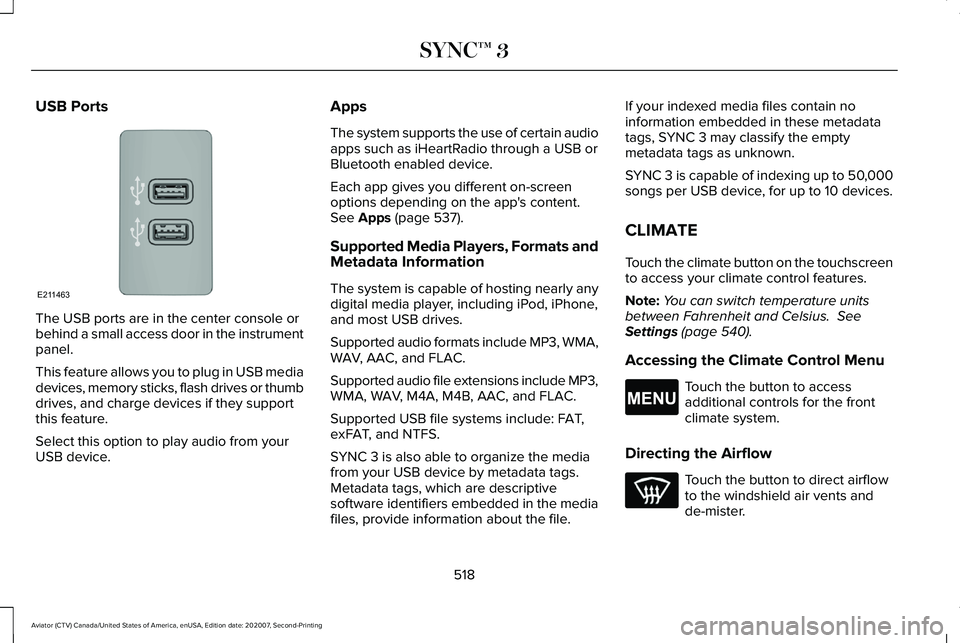
USB Ports
The USB ports are in the center console or
behind a small access door in the instrument
panel.
This feature allows you to plug in USB media
devices, memory sticks, flash drives or thumb
drives, and charge devices if they support
this feature.
Select this option to play audio from your
USB device. Apps
The system supports the use of certain audio
apps such as iHeartRadio through a USB or
Bluetooth enabled device.
Each app gives you different on-screen
options depending on the app's content.
See Apps (page 537).
Supported Media Players, Formats and
Metadata Information
The system is capable of hosting nearly any
digital media player, including iPod, iPhone,
and most USB drives.
Supported audio formats include MP3, WMA,
WAV, AAC, and FLAC.
Supported audio file extensions include MP3,
WMA, WAV, M4A, M4B, AAC, and FLAC.
Supported USB file systems include: FAT,
exFAT, and NTFS.
SYNC 3 is also able to organize the media
from your USB device by metadata tags.
Metadata tags, which are descriptive
software identifiers embedded in the media
files, provide information about the file. If your indexed media files contain no
information embedded in these metadata
tags, SYNC 3 may classify the empty
metadata tags as unknown.
SYNC 3 is capable of indexing up to 50,000
songs per USB device, for up to 10 devices.
CLIMATE
Touch the climate button on the touchscreen
to access your climate control features.
Note:
You can switch temperature units
between Fahrenheit and Celsius.
See
Settings (page 540).
Accessing the Climate Control Menu Touch the button to access
additional controls for the front
climate system.
Directing the Airflow Touch the button to direct airflow
to the windshield air vents and
de-mister.
518
Aviator (CTV) Canada/United States of America, enUSA, Edition date: 202007, Second-Printing SYNC™ 3E211463 E265038