audio LINCOLN CONTINENTAL 2017 User Guide
[x] Cancel search | Manufacturer: LINCOLN, Model Year: 2017, Model line: CONTINENTAL, Model: LINCOLN CONTINENTAL 2017Pages: 584, PDF Size: 6.13 MB
Page 215 of 584
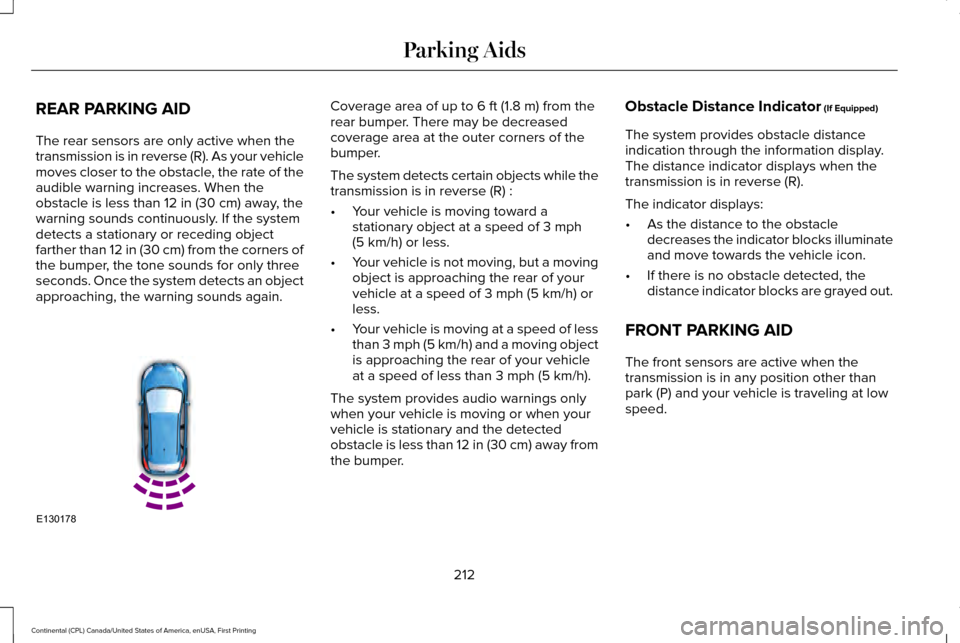
REAR PARKING AID
The rear sensors are only active when the
transmission is in reverse (R). As your vehicle
moves closer to the obstacle, the rate of the
audible warning increases. When the
obstacle is less than 12 in (30 cm) away, the
warning sounds continuously. If the system
detects a stationary or receding object
farther than
12 in (30 cm) from the corners of
the bumper, the tone sounds for only three
seconds. Once the system detects an object
approaching, the warning sounds again. Coverage area of up to
6 ft (1.8 m) from the
rear bumper. There may be decreased
coverage area at the outer corners of the
bumper.
The system detects certain objects while the
transmission is in reverse (R) :
• Your vehicle is moving toward a
stationary object at a speed of
3 mph
(5 km/h) or less.
• Your vehicle is not moving, but a moving
object is approaching the rear of your
vehicle at a speed of
3 mph (5 km/h) or
less.
• Your vehicle is moving at a speed of less
than 3 mph (5 km/h) and a moving object
is approaching the rear of your vehicle
at a speed of less than
3 mph (5 km/h).
The system provides audio warnings only
when your vehicle is moving or when your
vehicle is stationary and the detected
obstacle is less than 12 in (30 cm) away from
the bumper. Obstacle Distance Indicator
(If Equipped)
The system provides obstacle distance
indication through the information display.
The distance indicator displays when the
transmission is in reverse (R).
The indicator displays:
• As the distance to the obstacle
decreases the indicator blocks illuminate
and move towards the vehicle icon.
• If there is no obstacle detected, the
distance indicator blocks are grayed out.
FRONT PARKING AID
The front sensors are active when the
transmission is in any position other than
park (P) and your vehicle is traveling at low
speed.
212
Continental (CPL) Canada/United States of America, enUSA, First Printing Parking AidsE130178
Page 216 of 584
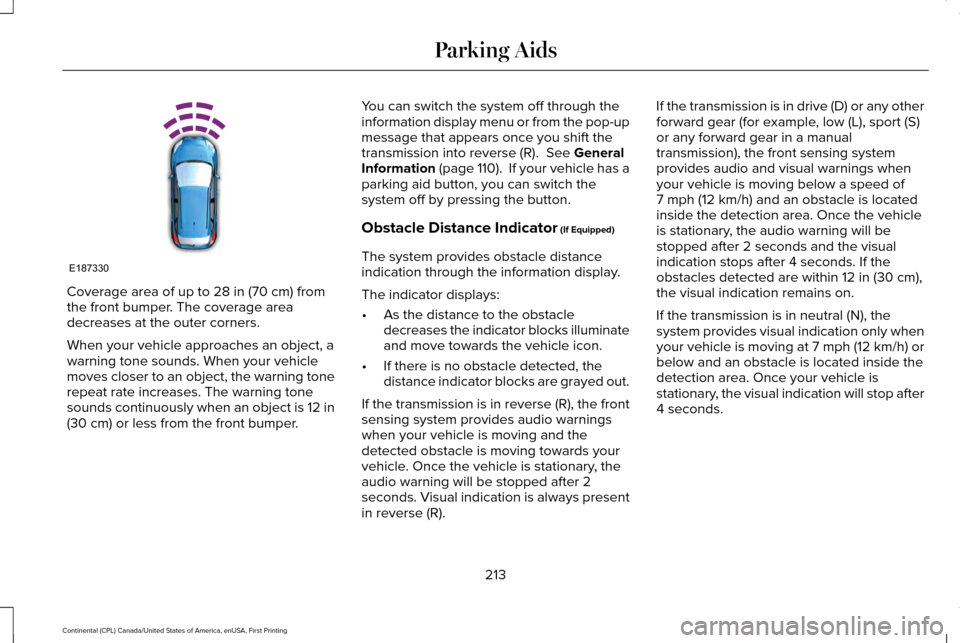
Coverage area of up to 28 in (70 cm) from
the front bumper. The coverage area
decreases at the outer corners.
When your vehicle approaches an object, a
warning tone sounds. When your vehicle
moves closer to an object, the warning tone
repeat rate increases. The warning tone
sounds continuously when an object is 12 in
(30 cm)
or less from the front bumper. You can switch the system off through the
information display menu or from the pop-up
message that appears once you shift the
transmission into reverse (R).
See General
Information (page 110). If your vehicle has a
parking aid button, you can switch the
system off by pressing the button.
Obstacle Distance Indicator
(If Equipped)
The system provides obstacle distance
indication through the information display.
The indicator displays:
• As the distance to the obstacle
decreases the indicator blocks illuminate
and move towards the vehicle icon.
• If there is no obstacle detected, the
distance indicator blocks are grayed out.
If the transmission is in reverse (R), the front
sensing system provides audio warnings
when your vehicle is moving and the
detected obstacle is moving towards your
vehicle. Once the vehicle is stationary, the
audio warning will be stopped after 2
seconds. Visual indication is always present
in reverse (R). If the transmission is in drive (D) or any other
forward gear (for example, low (L), sport (S)
or any forward gear in a manual
transmission), the front sensing system
provides audio and visual warnings when
your vehicle is moving below a speed of
7 mph (12 km/h)
and an obstacle is located
inside the detection area. Once the vehicle
is stationary, the audio warning will be
stopped after 2 seconds and the visual
indication stops after 4 seconds. If the
obstacles detected are within
12 in (30 cm),
the visual indication remains on.
If the transmission is in neutral (N), the
system provides visual indication only when
your vehicle is moving at 7 mph (12 km/h) or
below and an obstacle is located inside the
detection area. Once your vehicle is
stationary, the visual indication will stop after
4 seconds.
213
Continental (CPL) Canada/United States of America, enUSA, First Printing Parking AidsE187330
Page 328 of 584
performance of the engine. The clock and
radio station presets are also maintained in
memory by power from the low-voltage
battery. These settings are erased when a
technician disconnects and connects the
low-voltage battery.
To restore the settings, do the following:
Note:
Until you switch the ignition to the on
position, you will receive a message in your
information display stating that your vehicle
is not in park.
1. Apply the parking brake.
2. Shift into park (P) or neutral (N).
3. Switch off all accessories.
4. Press the brake pedal and start your vehicle.
5. Run the engine until it reaches normal operating temperature. While the engine
is warming up, complete the following:
Reset the clock. See Audio System
(page 396). Reset the power windows
bounce-back feature. See Windows and
Mirrors
(page 96). Reset the radio station
presets. See Audio System (page 396). 6. Allow the engine to idle for at least one
minute.
7. Drive the vehicle at least 10 mi (16 km) to
completely relearn the idle trim and fuel
trim strategy.
Note: If you do not allow the engine to
relearn the idle and fuel trim strategy, the
idle quality of your vehicle may be adversely
affected until the engine computer
eventually relearns the idle trim and fuel trim
strategy.
Note: Certain features may not operate if
the battery monitor system is not reset with
a scan tool following a jump start or battery
replacement. Normal electrical accessory
operation should resume after your vehicle
is left undisturbed for 8 hours.
Make sure that you dispose of old batteries
in an environmentally friendly way. Seek
advice from your local authority about
recycling old batteries.
If storing your vehicle for more than 30 days
without recharging the battery, we
recommend that you disconnect the battery
cables to maintain battery charge for quick
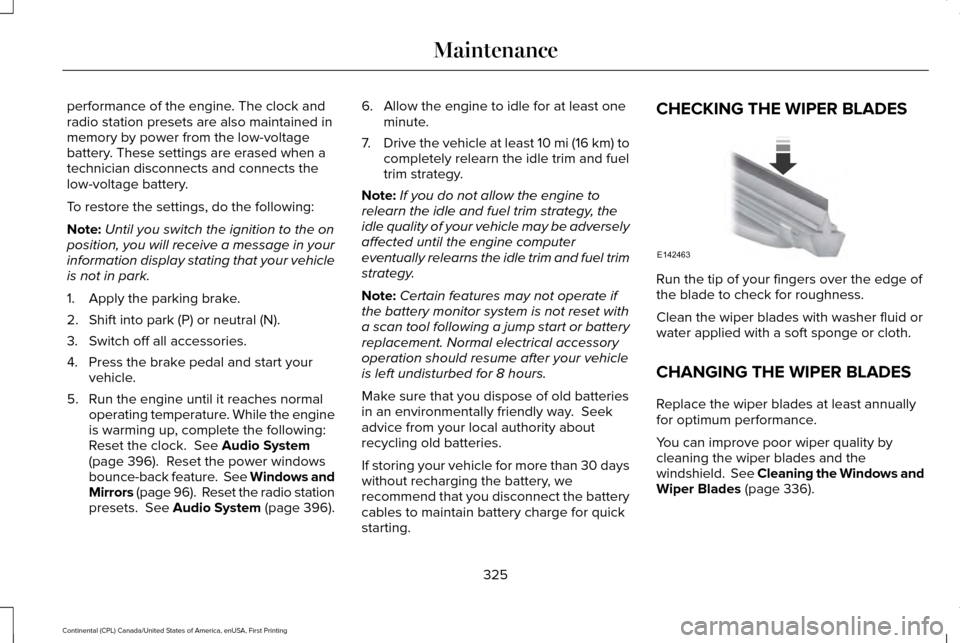
starting. CHECKING THE WIPER BLADES
Run the tip of your fingers over the edge of
the blade to check for roughness.
Clean the wiper blades with washer fluid or
water applied with a soft sponge or cloth.
CHANGING THE WIPER BLADES
Replace the wiper blades at least annually
for optimum performance.
You can improve poor wiper quality by
cleaning the wiper blades and the
windshield. See Cleaning the Windows and
Wiper Blades (page 336).
325
Continental (CPL) Canada/United States of America, enUSA, First Printing MaintenanceE142463
Page 399 of 584
GENERAL INFORMATION
Radio Frequencies and Reception
Factors
AM and FM frequencies are established by
the Federal Communications Commission
(FCC) and the Canadian Radio and
Telecommunications Commission (CRTC).
Those frequencies are:
•
AM: 530, 540-1700, 1710 kHz
• FM: 87.9-107.7, 107.9 MHz Radio Reception Factors
The further you travel from an AM or FM station, the weaker the signal and the weaker the reception.
Distance and strength
Hills, mountains, tall buildings, bridges, tunnels, freeway overpasses, \
parking garages, dense tree foliage and
thunderstorms can interfere with the reception.
Terrain
When you pass a ground-based broadcast repeating tower, a stronger signal may overtake a weaker one and
result in the audio system muting.
Station overload
CD and CD Player Information
Note: CD units play commercially pressed
4.7 in (12 cm) audio compact discs only. Due
to technical incompatibility, certain
recordable and re-recordable compact discs
may not function correctly when used in Ford
CD players. Note:
Do not insert CDs with homemade
paper (adhesive) labels into the CD player
as the label may peel and cause the CD to
become jammed. You should use a
permanent felt tip marker rather than
adhesive labels on your homemade CDs.
Ballpoint pens may damage CDs. Please
contact an authorized dealer for further
information. Note:
Do not use any irregularly shaped
discs or discs with a scratch protection film
attached.
Always handle discs by their edges only.
Clean the disc with an approved CD cleaner
only. Wipe it from the center of the disc
toward the edge. Do not clean in a circular
motion.
396
Continental (CPL) Canada/United States of America, enUSA, First Printing Audio System
Page 400 of 584
Do not expose discs to direct sunlight or heat
sources for extended periods.
MP3 and WMA Track and Folder
Structure
Audio systems capable of recognizing and
playing MP3 and WMA individual tracks and
folder structures work as follows:
•
There are two different modes for MP3
and WMA disc playback: MP3 and WMA
track mode (system default) and MP3 and
WMA folder mode.
• MP3 and WMA track mode ignores any
folder structure on the MP3 and WMA
disc. The player numbers each MP3 and
WMA track on the disc (noted by the MP3
or WMA file extension) from T001 to a
maximum of T255. The maximum number
of playable MP3 and WMA files may be
less depending on the structure of the
CD and exact model of radio present. •
MP3 and WMA folder mode represents
a folder structure consisting of one level
of folders. The CD player numbers all
MP3 and WMA tracks on the disc (noted
by the MP3 or WMA file extension) and
all folders containing MP3 and WMA files,
from F001 (folder) T001 (track) to F253
T255.
• Creating discs with only one level of
folders helps with navigation through the
disc files.
If you are burning your own MP3 and WMA
discs, it is important to understand how the
system reads the structures you create. While
various files may be present (files with
extensions other than MP3 and WMA), only
files with the MP3 and WMA extension are
played; other files are ignored by the system.
This enables you to use the same MP3 and
WMA disc for a variety of tasks on your work
computer, home computer and your
in-vehicle system. In track mode, the system displays and plays
the structure as if it were only one level deep
(all MP3 and WMA files play, regardless of
being in a specific folder). In folder mode,
the system only plays the MP3 and WMA files
in the current folder.
AUDIO UNIT - VEHICLES WITH:
PREMIUM AM/FM/CD
WARNING
Driving while distracted can result in
loss of vehicle control, crash and injury.
We strongly recommend that you use
extreme caution when using any device that
may take your focus off the road. Your
primary responsibility is the safe operation
of your vehicle. We recommend against the
use of any hand-held device while driving
and encourage the use of voice-operated
systems when possible. Make sure you are
aware of all applicable local laws that may
affect the use of electronic devices while
driving. 397
Continental (CPL) Canada/United States of America, enUSA, First Printing Audio System
Page 401 of 584
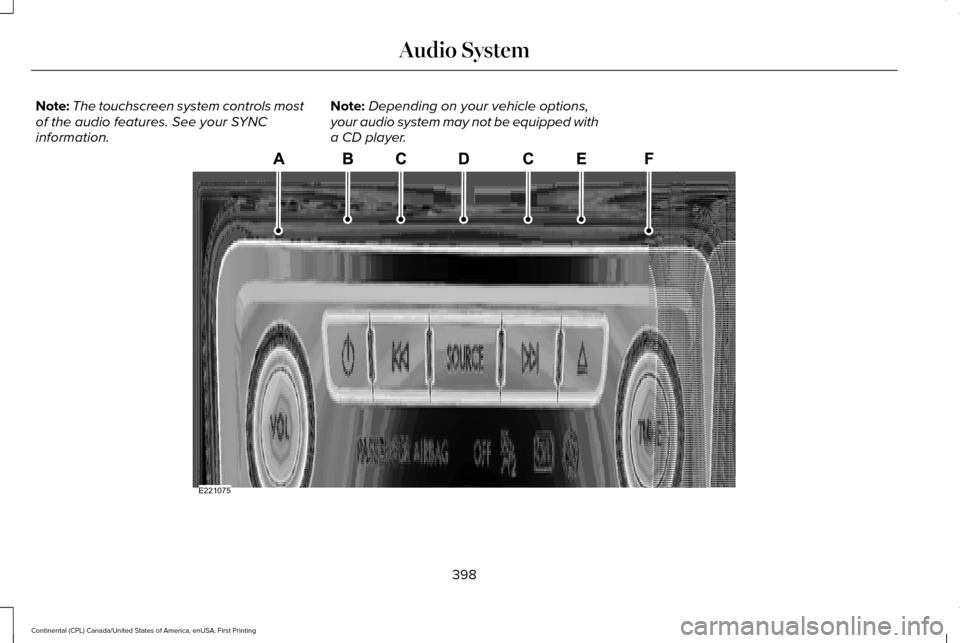
Note:
The touchscreen system controls most
of the audio features. See your SYNC
information. Note:
Depending on your vehicle options,
your audio system may not be equipped with
a CD player. 398
Continental (CPL) Canada/United States of America, enUSA, First Printing Audio SystemE221075
Page 402 of 584
Volume: Turn to adjust the volume.
A
Power:
Press to switch the system on and off.
B
Seek, Fast Forward and Reverse:
In radio mode, select a frequency band and press either button. The system stops at t\
he first
station it finds in that direction. In CD mode, press to select the next or previous track. Press and hold to move qui\
ckly forward or
backward through the current track.
C
SOURCE:
Press to access different audio modes, for example AM, FM and CD.
D
Eject:
Eject a CD.
E
TUNE:
In radio mode, adjust to manually search through the radio frequency band.
F
399
Continental (CPL) Canada/United States of America, enUSA, First Printing Audio System
Page 403 of 584
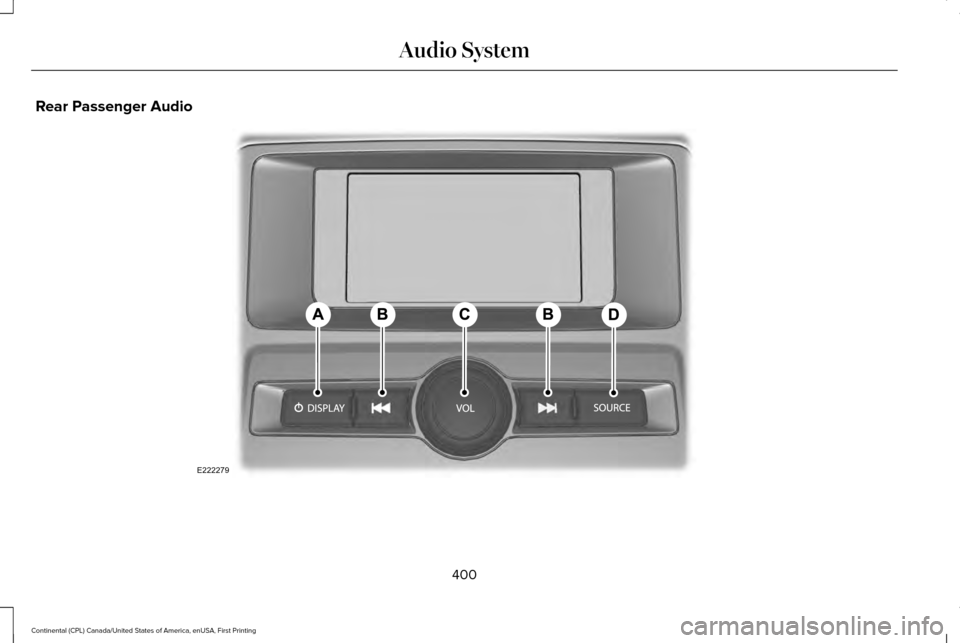
Rear Passenger Audio
400
Continental (CPL) Canada/United States of America, enUSA, First Printing Audio SystemE222279
Page 404 of 584

DISPLAY: Press to switch the display on and off.
A
Seek, Fast Forward and Reverse:
In radio mode, press either button to scroll through the presets from the front radio\
. To select a
radio station, press and hold to move quickly forward or backward throug\
h the radio stations. In CD or USB mode, press to select
the next or previous track. Press and hold to move quickly forward or ba\
ckward through the selected media source.
B
Volume:
Turn to adjust the volume.
C
SOURCE:
Press to access different media modes, for example AM, FM, CD, and USB.
D
USB PORT
(If Equipped) WARNING
Driving while distracted can result in
loss of vehicle control, crash and injury.
We strongly recommend that you use
extreme caution when using any device that
may take your focus off the road. Your
primary responsibility is the safe operation
of your vehicle. We recommend against the
use of any hand-held device while driving
and encourage the use of voice-operated
systems when possible. Make sure you are
aware of all applicable local laws that may
affect the use of electronic devices while
driving. The USB port allows you to plug in media
playing devices, memory sticks and charge
devices (if supported). See your SYNC
information.MEDIA HUB
You can locate the media hub inside the
center console or on the instrument panel.
See your SYNC information.
401
Continental (CPL) Canada/United States of America, enUSA, First Printing Audio SystemE205592 E211463
Page 405 of 584
GENERAL INFORMATION
WARNING
Driving while distracted can result in
loss of vehicle control, crash and injury.
We strongly recommend that you use
extreme caution when using any device that
may take your focus off the road. Your
primary responsibility is the safe operation
of your vehicle. We recommend against the
use of any hand-held device while driving
and encourage the use of voice-operated
systems when possible. Make sure you are
aware of all applicable local laws that may
affect the use of electronic devices while
driving. Getting to Know Your System
The SYNC 3 system allows you to interact
with a variety of features using the
touchscreen and voice commands. By
integrating with your Bluetooth-enabled
phone, the touchscreen provides easy
interaction with audio, multimedia, climate
control, navigation, and your phone's SYNC
3 compatible apps.
Using the Touchscreen
To operate the touchscreen, you can simply
touch the item or option that you want to
select. The button changes color when you
select it.
The SYNC 3 layout allows you to quickly
select the feature you wish to use.
402
Continental (CPL) Canada/United States of America, enUSA, First Printing SYNC™ 3