audio LINCOLN CONTINENTAL 2017 Service Manual
[x] Cancel search | Manufacturer: LINCOLN, Model Year: 2017, Model line: CONTINENTAL, Model: LINCOLN CONTINENTAL 2017Pages: 584, PDF Size: 6.13 MB
Page 473 of 584
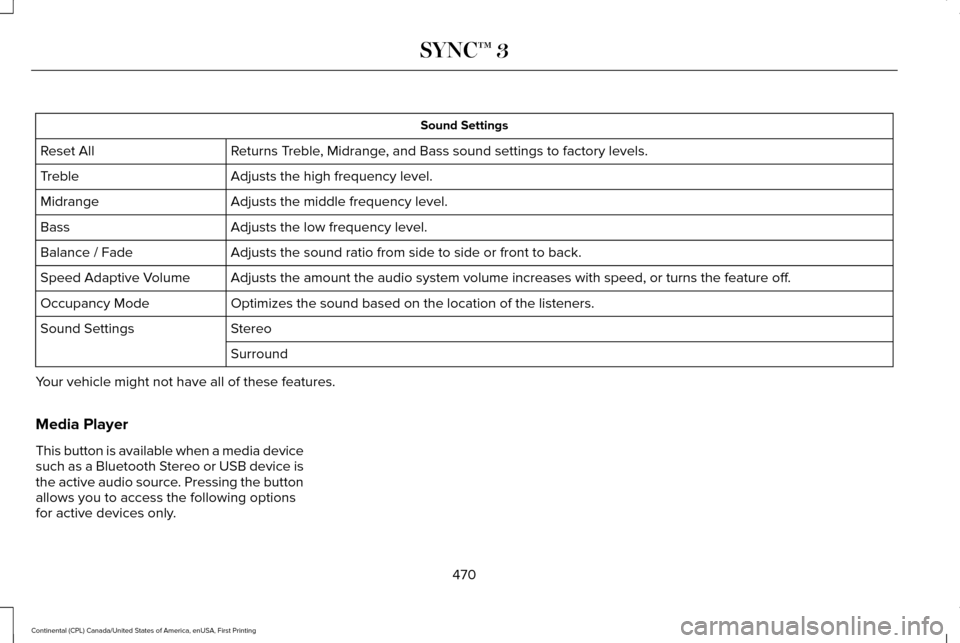
Sound Settings
Returns Treble, Midrange, and Bass sound settings to factory levels.
Reset All
Adjusts the high frequency level.
Treble
Adjusts the middle frequency level.
Midrange
Adjusts the low frequency level.
Bass
Adjusts the sound ratio from side to side or front to back.
Balance / Fade
Adjusts the amount the audio system volume increases with speed, or turn\
s the feature off.
Speed Adaptive Volume
Optimizes the sound based on the location of the listeners.
Occupancy Mode
Stereo
Sound Settings
Surround
Your vehicle might not have all of these features.
Media Player
This button is available when a media device
such as a Bluetooth Stereo or USB device is
the active audio source. Pressing the button
allows you to access the following options
for active devices only.
470
Continental (CPL) Canada/United States of America, enUSA, First Printing SYNC™ 3
Page 474 of 584

Action and Description
Menu Item
For some Apple devices, SYNC 3 can adjust the playback speed of podcasts. When a podcast is playi\
ng,
you can choose:
Podcast Speed
Faster
Normal
Slower
For some Apple devices, SYNC 3 can adjust the playback speed of audiobooks. When an audiobook is
playing, you can choose:
Audiobook Speed
Faster
Normal
Slower
Cover art displays from your device ’s music files. If no cover art for the files
exists on the device, then the Gracenote Database provides cover art.
Media Player
Cover Art Priority
The Gracenote Database supplied cover art is used for your music files.
This overrides any cover art from your device.
Gracenote®
Erase the stored media information in order to re-index.
Reset Media
This allows you to view the version level of the Gracenote Database.
Gracenote® Database Info
This allows you to view the manufacturer and model number of your media \
device.
Device Information
471
Continental (CPL) Canada/United States of America, enUSA, First Printing SYNC™ 3
Page 479 of 584
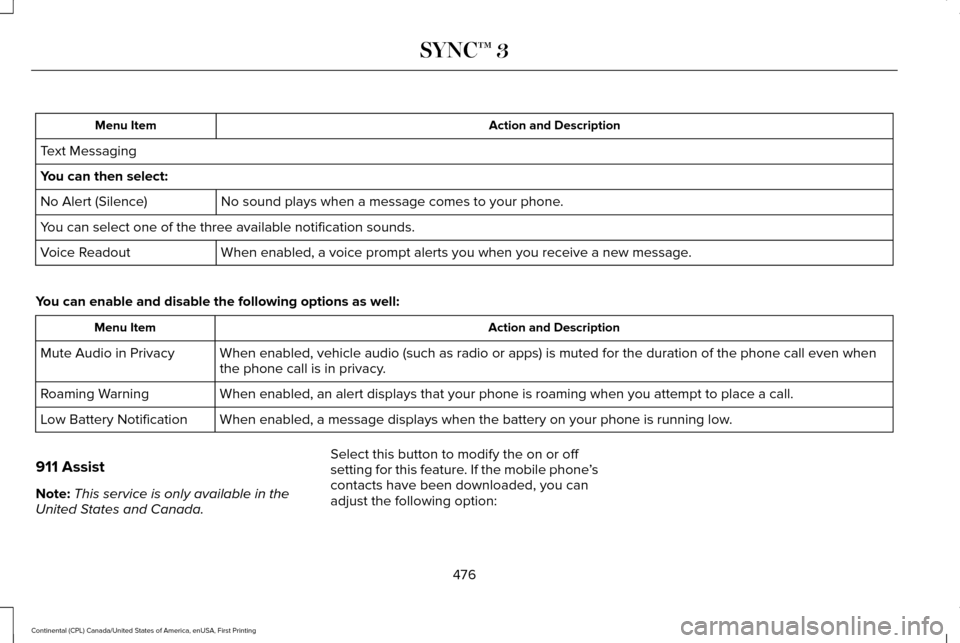
Action and Description
Menu Item
Text Messaging
You can then select: No sound plays when a message comes to your phone.
No Alert (Silence)
You can select one of the three available notification sounds.
When enabled, a voice prompt alerts you when you receive a new message.
Voice Readout
You can enable and disable the following options as well: Action and Description
Menu Item
When enabled, vehicle audio (such as radio or apps) is muted for the d\
uration of the phone call even when
the phone call is in privacy.
Mute Audio in Privacy
When enabled, an alert displays that your phone is roaming when you atte\
mpt to place a call.
Roaming Warning
When enabled, a message displays when the battery on your phone is runni\
ng low.
Low Battery Notification
911 Assist
Note: This service is only available in the
United States and Canada. Select this button to modify the on or off
setting for this feature. If the mobile phone
’s
contacts have been downloaded, you can
adjust the following option:
476
Continental (CPL) Canada/United States of America, enUSA, First Printing SYNC™ 3
Page 490 of 584
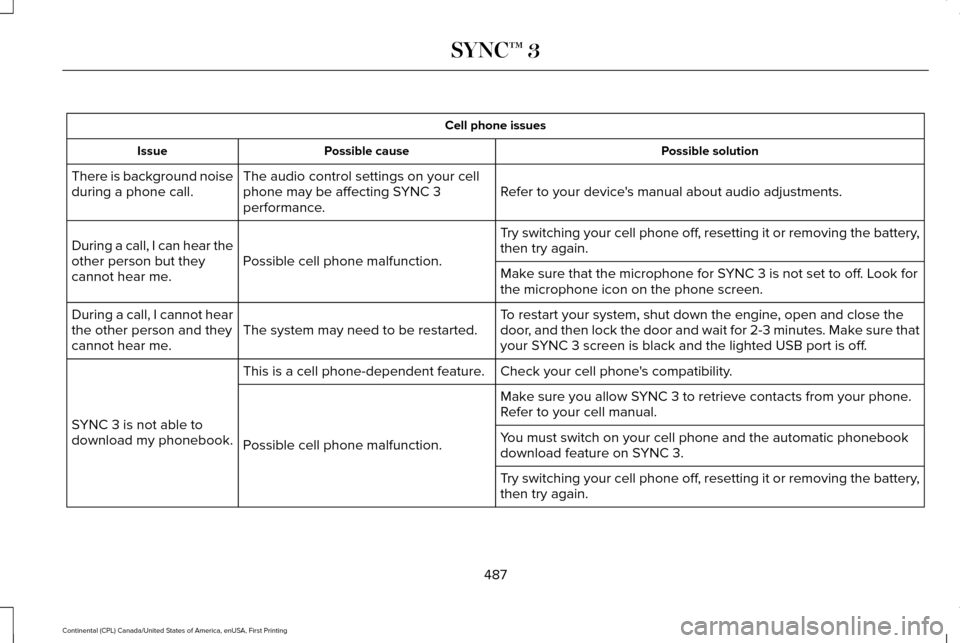
Cell phone issues
Possible solution
Possible cause
Issue
Refer to your device's manual about audio adjustments.
The audio control settings on your cell
phone may be affecting SYNC 3
performance.
There is background noise
during a phone call.
Try switching your cell phone off, resetting it or removing the battery,
then try again.
Possible cell phone malfunction.
During a call, I can hear the
other person but they
cannot hear me.
Make sure that the microphone for SYNC 3 is not set to off. Look for
the microphone icon on the phone screen.
To restart your system, shut down the engine, open and close the
door, and then lock the door and wait for 2-3 minutes. Make sure that
your SYNC 3 screen is black and the lighted USB port is off.
The system may need to be restarted.
During a call, I cannot hear
the other person and they
cannot hear me.
Check your cell phone's compatibility.
This is a cell phone-dependent feature.
SYNC 3 is not able to
download my phonebook. Make sure you allow SYNC 3 to retrieve contacts from your phone.
Refer to your cell manual.
Possible cell phone malfunction. You must switch on your cell phone and the automatic phonebook
download feature on SYNC 3.
Try switching your cell phone off, resetting it or removing the battery,
then try again.
487
Continental (CPL) Canada/United States of America, enUSA, First Printing SYNC™ 3
Page 494 of 584
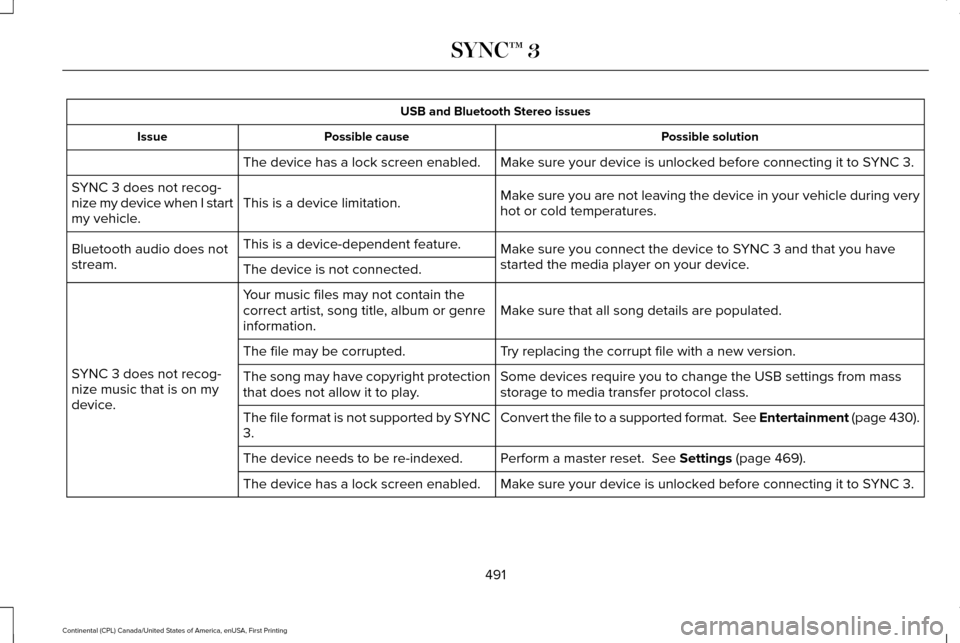
USB and Bluetooth Stereo issues
Possible solution
Possible cause
Issue
Make sure your device is unlocked before connecting it to SYNC 3.
The device has a lock screen enabled.
Make sure you are not leaving the device in your vehicle during very
hot or cold temperatures.
This is a device limitation.
SYNC 3 does not recog-
nize my device when I start
my vehicle.
Make sure you connect the device to SYNC 3 and that you have
started the media player on your device.
This is a device-dependent feature.
Bluetooth audio does not
stream. The device is not connected.
Make sure that all song details are populated.
Your music files may not contain the
correct artist, song title, album or genre
information.
SYNC 3 does not recog-
nize music that is on my
device. Try replacing the corrupt file with a new version.
The file may be corrupted.
Some devices require you to change the USB settings from mass
storage to media transfer protocol class.
The song may have copyright protection
that does not allow it to play.
Convert the file to a supported format. See Entertainment (page 430).
The file format is not supported by SYNC
3.
Perform a master reset.
See Settings (page 469).
The device needs to be re-indexed.
Make sure your device is unlocked before connecting it to SYNC 3.
The device has a lock screen enabled.
491
Continental (CPL) Canada/United States of America, enUSA, First Printing SYNC™ 3
Page 501 of 584
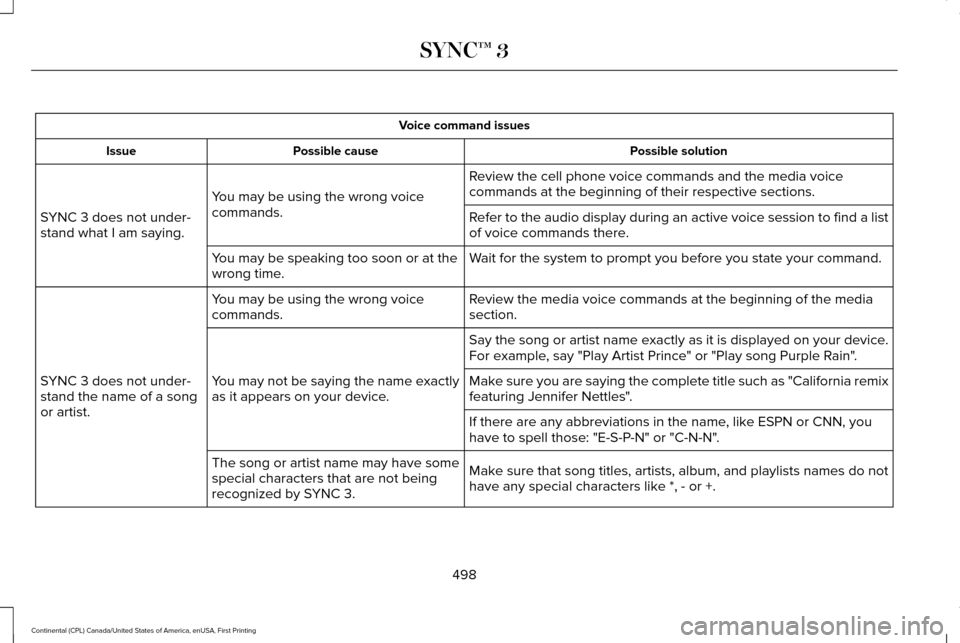
Voice command issues
Possible solution
Possible cause
Issue
Review the cell phone voice commands and the media voice
commands at the beginning of their respective sections.
You may be using the wrong voice
commands.
SYNC 3 does not under-
stand what I am saying. Refer to the audio display during an active voice session to find a list
of voice commands there.
Wait for the system to prompt you before you state your command.
You may be speaking too soon or at the
wrong time.
Review the media voice commands at the beginning of the media
section.
You may be using the wrong voice
commands.
SYNC 3 does not under-
stand the name of a song
or artist. Say the song or artist name exactly as it is displayed on your device.
For example, say "Play Artist Prince" or "Play song Purple Rain".
You may not be saying the name exactly
as it appears on your device. Make sure you are saying the complete title such as "California remix
featuring Jennifer Nettles".
If there are any abbreviations in the name, like ESPN or CNN, you
have to spell those: "E-S-P-N" or "C-N-N".
Make sure that song titles, artists, album, and playlists names do not
have any special characters like *, - or +.
The song or artist name may have some
special characters that are not being
recognized by SYNC 3.
498
Continental (CPL) Canada/United States of America, enUSA, First Printing SYNC™ 3
Page 504 of 584
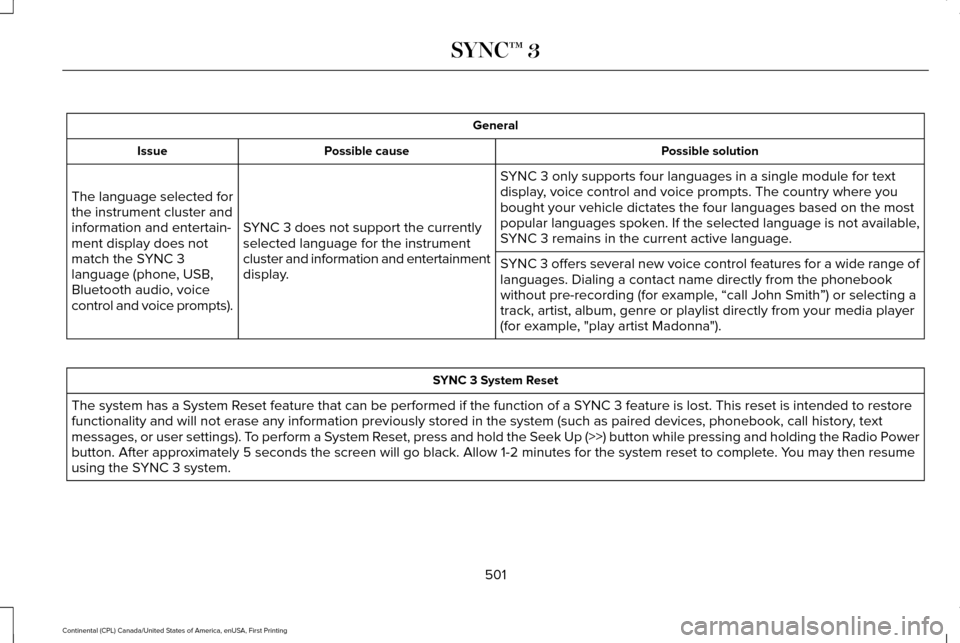
General
Possible solution
Possible cause
Issue
SYNC 3 only supports four languages in a single module for text
display, voice control and voice prompts. The country where you
bought your vehicle dictates the four languages based on the most
popular languages spoken. If the selected language is not available,
SYNC 3 remains in the current active language.
SYNC 3 does not support the currently
selected language for the instrument
cluster and information and entertainment
display.
The language selected for
the instrument cluster and
information and entertain-
ment display does not
match the SYNC 3
language (phone, USB,
Bluetooth audio, voice
control and voice prompts).
SYNC 3 offers several new voice control features for a wide range of
languages. Dialing a contact name directly from the phonebook
without pre-recording (for example, “call John Smith
”) or selecting a
track, artist, album, genre or playlist directly from your media player
(for example, "play artist Madonna"). SYNC 3 System Reset
The system has a System Reset feature that can be performed if the function of a SYNC 3 feature is lost. This reset is intended to restore
functionality and will not erase any information previously stored in th\
e system (such as paired devices, phonebook, call history , text
messages, or user settings). To perform a System Reset, press and hold the Seek Up (>>) button while pressing and holdin\
g the Radio Power
button. After approximately 5 seconds the screen will go black. Allow 1-2 minutes for the s\
ystem reset to complete. You may then resume
using the SYNC 3 system.
501
Continental (CPL) Canada/United States of America, enUSA, First Printing SYNC™ 3
Page 547 of 584
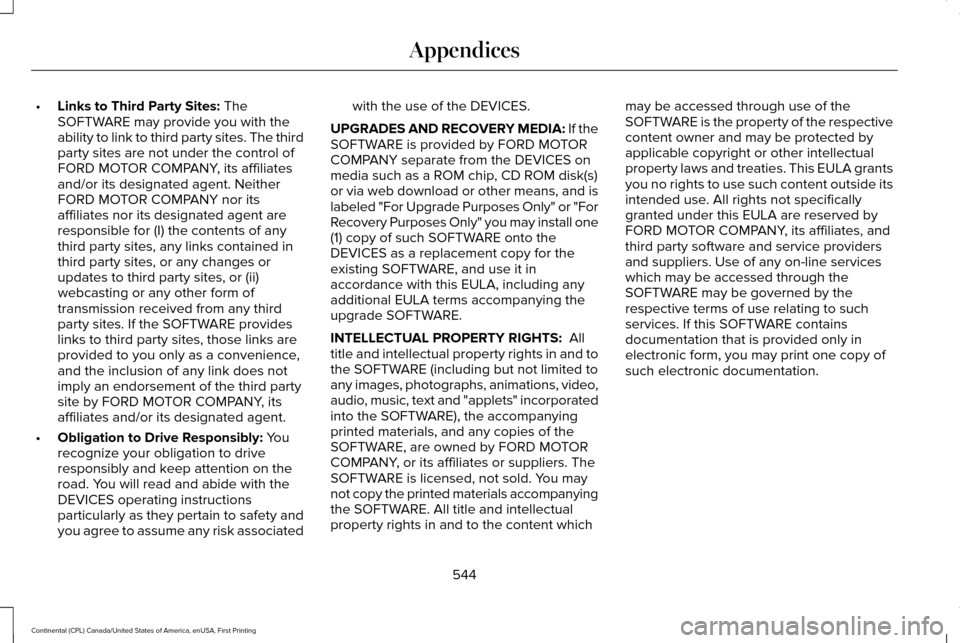
•
Links to Third Party Sites: The
SOFTWARE may provide you with the
ability to link to third party sites. The third
party sites are not under the control of
FORD MOTOR COMPANY, its affiliates
and/or its designated agent. Neither
FORD MOTOR COMPANY nor its
affiliates nor its designated agent are
responsible for (I) the contents of any
third party sites, any links contained in
third party sites, or any changes or
updates to third party sites, or (ii)
webcasting or any other form of
transmission received from any third
party sites. If the SOFTWARE provides
links to third party sites, those links are
provided to you only as a convenience,
and the inclusion of any link does not
imply an endorsement of the third party
site by FORD MOTOR COMPANY, its
affiliates and/or its designated agent.
• Obligation to Drive Responsibly:
You
recognize your obligation to drive
responsibly and keep attention on the
road. You will read and abide with the
DEVICES operating instructions
particularly as they pertain to safety and
you agree to assume any risk associated with the use of the DEVICES.
UPGRADES AND RECOVERY MEDIA: If the
SOFTWARE is provided by FORD MOTOR
COMPANY separate from the DEVICES on
media such as a ROM chip, CD ROM disk(s)
or via web download or other means, and is
labeled "For Upgrade Purposes Only" or "For
Recovery Purposes Only" you may install one
(1) copy of such SOFTWARE onto the
DEVICES as a replacement copy for the
existing SOFTWARE, and use it in
accordance with this EULA, including any
additional EULA terms accompanying the
upgrade SOFTWARE.
INTELLECTUAL PROPERTY RIGHTS:
All
title and intellectual property rights in and to
the SOFTWARE (including but not limited to
any images, photographs, animations, video,
audio, music, text and "applets" incorporated
into the SOFTWARE), the accompanying
printed materials, and any copies of the
SOFTWARE, are owned by FORD MOTOR
COMPANY, or its affiliates or suppliers. The
SOFTWARE is licensed, not sold. You may
not copy the printed materials accompanying
the SOFTWARE. All title and intellectual
property rights in and to the content which may be accessed through use of the
SOFTWARE is the property of the respective
content owner and may be protected by
applicable copyright or other intellectual
property laws and treaties. This EULA grants
you no rights to use such content outside its
intended use. All rights not specifically
granted under this EULA are reserved by
FORD MOTOR COMPANY, its affiliates, and
third party software and service providers
and suppliers. Use of any on-line services
which may be accessed through the
SOFTWARE may be governed by the
respective terms of use relating to such
services. If this SOFTWARE contains
documentation that is provided only in
electronic form, you may print one copy of
such electronic documentation.
544
Continental (CPL) Canada/United States of America, enUSA, First Printing Appendices
Page 555 of 584
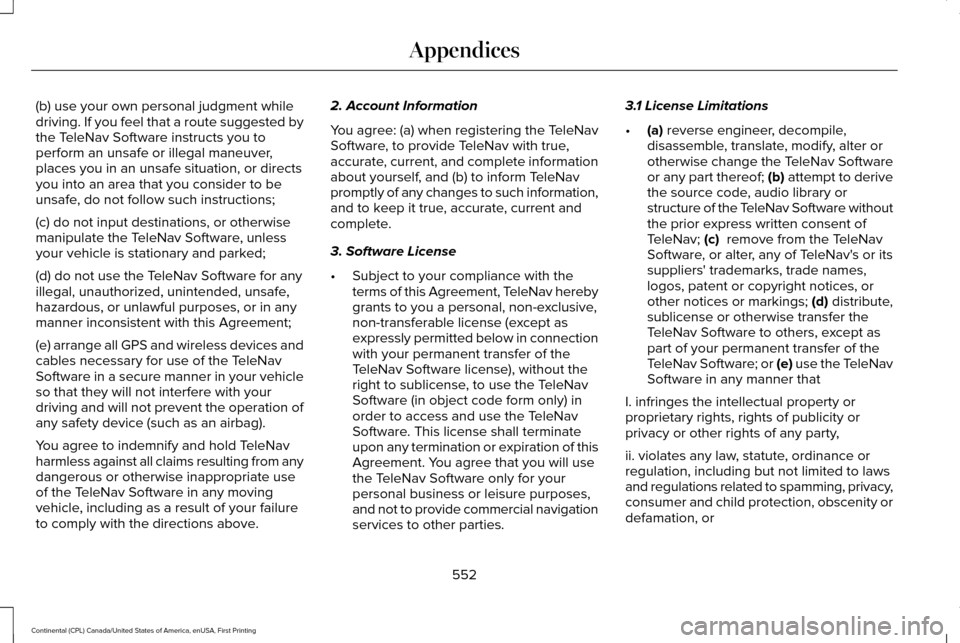
(b) use your own personal judgment while
driving. If you feel that a route suggested by
the TeleNav Software instructs you to
perform an unsafe or illegal maneuver,
places you in an unsafe situation, or directs
you into an area that you consider to be
unsafe, do not follow such instructions;
(c) do not input destinations, or otherwise
manipulate the TeleNav Software, unless
your vehicle is stationary and parked;
(d) do not use the TeleNav Software for any
illegal, unauthorized, unintended, unsafe,
hazardous, or unlawful purposes, or in any
manner inconsistent with this Agreement;
(e) arrange all GPS and wireless devices and
cables necessary for use of the TeleNav
Software in a secure manner in your vehicle
so that they will not interfere with your
driving and will not prevent the operation of
any safety device (such as an airbag).
You agree to indemnify and hold TeleNav
harmless against all claims resulting from any
dangerous or otherwise inappropriate use
of the TeleNav Software in any moving
vehicle, including as a result of your failure
to comply with the directions above.
2. Account Information
You agree: (a) when registering the TeleNav
Software, to provide TeleNav with true,
accurate, current, and complete information
about yourself, and (b) to inform TeleNav
promptly of any changes to such information,
and to keep it true, accurate, current and
complete.
3. Software License
•
Subject to your compliance with the
terms of this Agreement, TeleNav hereby
grants to you a personal, non-exclusive,
non-transferable license (except as
expressly permitted below in connection
with your permanent transfer of the
TeleNav Software license), without the
right to sublicense, to use the TeleNav
Software (in object code form only) in
order to access and use the TeleNav
Software. This license shall terminate
upon any termination or expiration of this
Agreement. You agree that you will use
the TeleNav Software only for your
personal business or leisure purposes,
and not to provide commercial navigation
services to other parties. 3.1 License Limitations
•
(a) reverse engineer, decompile,
disassemble, translate, modify, alter or
otherwise change the TeleNav Software
or any part thereof; (b) attempt to derive
the source code, audio library or
structure of the TeleNav Software without
the prior express written consent of
TeleNav;
(c) remove from the TeleNav
Software, or alter, any of TeleNav's or its
suppliers' trademarks, trade names,
logos, patent or copyright notices, or
other notices or markings;
(d) distribute,
sublicense or otherwise transfer the
TeleNav Software to others, except as
part of your permanent transfer of the
TeleNav Software; or (e) use the TeleNav
Software in any manner that
I. infringes the intellectual property or
proprietary rights, rights of publicity or
privacy or other rights of any party,
ii. violates any law, statute, ordinance or
regulation, including but not limited to laws
and regulations related to spamming, privacy,
consumer and child protection, obscenity or
defamation, or
552
Continental (CPL) Canada/United States of America, enUSA, First Printing Appendices
Page 574 of 584
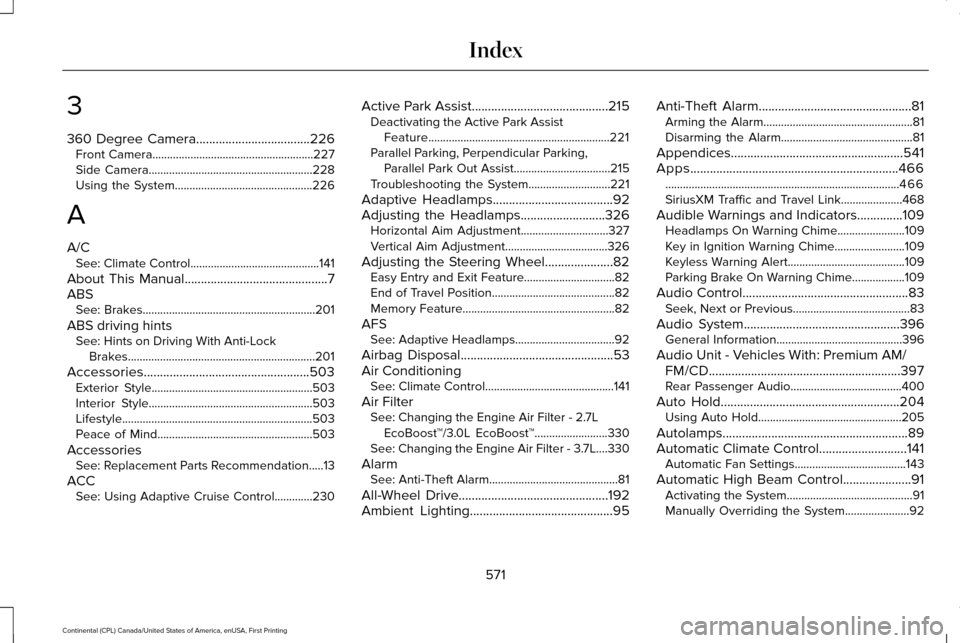
3
360 Degree Camera...................................226
Front Camera.......................................................227
Side Camera........................................................228
Using the System...............................................226
A
A/C See: Climate Control............................................141
About This Manual............................................7
ABS See: Brakes...........................................................201
ABS driving hints See: Hints on Driving With Anti-Lock
Brakes................................................................201
Accessories...................................................503 Exterior Style.......................................................503
Interior Style........................................................503
Lifestyle.................................................................503
Peace of Mind.....................................................503
Accessories See: Replacement Parts Recommendation.....13
ACC See: Using Adaptive Cruise Control.............230 Active Park Assist
..........................................215
Deactivating the Active Park Assist
Feature..............................................................221
Parallel Parking, Perpendicular Parking, Parallel Park Out Assist.................................215
Troubleshooting the System............................221
Adaptive Headlamps
.....................................92
Adjusting the Headlamps..........................326
Horizontal Aim Adjustment..............................327
Vertical Aim Adjustment...................................326
Adjusting the Steering Wheel.....................82 Easy Entry and Exit Feature...............................
82
End of Travel Position..........................................82
Memory Feature....................................................82
AFS See: Adaptive Headlamps..................................92
Airbag Disposal
...............................................53
Air Conditioning See: Climate Control............................................141
Air Filter See: Changing the Engine Air Filter - 2.7L
EcoBoost™/3.0L EcoBoost™.........................330
See: Changing the Engine Air Filter - 3.7L....330
Alarm See: Anti-Theft Alarm............................................81
All-Wheel Drive
..............................................192
Ambient Lighting............................................95 Anti-Theft Alarm
...............................................81
Arming the Alarm...................................................81
Disarming the Alarm.............................................81
Appendices.....................................................541
Apps
................................................................466
........................................................................\
........466
SiriusXM Traffic and Travel Link.....................468
Audible Warnings and Indicators
..............109
Headlamps On Warning Chime.......................109
Key in Ignition Warning Chime........................109
Keyless Warning Alert........................................109
Parking Brake On Warning Chime..................
109
Audio Control
...................................................83
Seek, Next or Previous........................................83
Audio System................................................396 General Information...........................................396
Audio Unit - Vehicles With: Premium AM/ FM/CD
...........................................................397
Rear Passenger Audio......................................400
Auto Hold
.......................................................204
Using Auto Hold.................................................205
Autolamps.........................................................89
Automatic Climate Control...........................141 Automatic Fan Settings......................................
143
Automatic High Beam Control.....................91 Activating the System...........................................91
Manually Overriding the System......................92
571
Continental (CPL) Canada/United States of America, enUSA, First Printing Index