display LINCOLN CONTINENTAL 2019 Owners Manual
[x] Cancel search | Manufacturer: LINCOLN, Model Year: 2019, Model line: CONTINENTAL, Model: LINCOLN CONTINENTAL 2019Pages: 627, PDF Size: 6.39 MB
Page 496 of 627
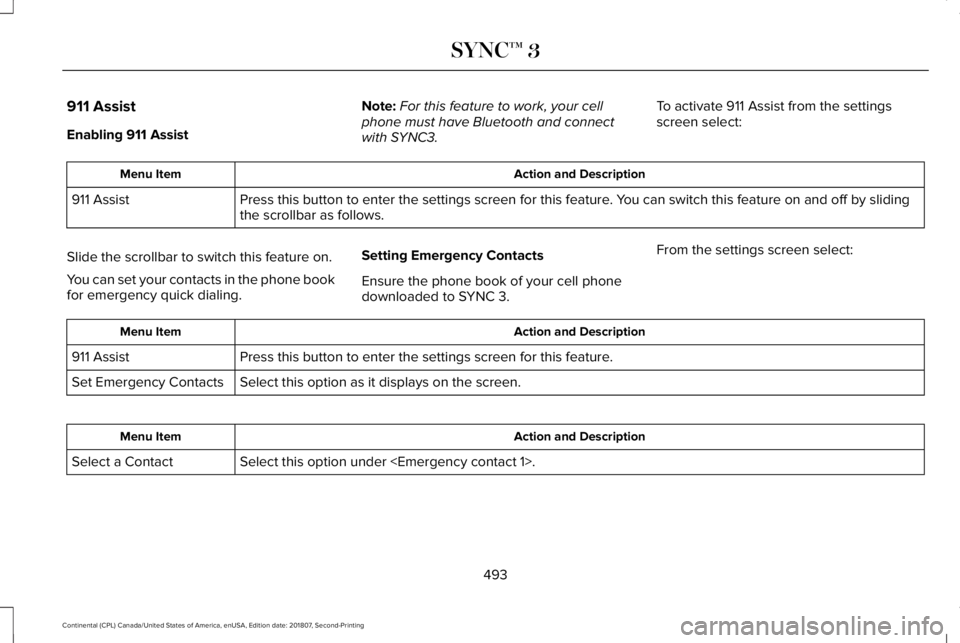
911 Assist
Enabling 911 Assist
Note:
For this feature to work, your cell
phone must have Bluetooth and connect
with SYNC3. To activate 911 Assist from the settings
screen select: Action and Description
Menu Item
Press this button to enter the settings screen for this feature. You can switch this feature on and off by sliding
the scrollbar as follows.
911 Assist
Slide the scrollbar to switch this feature on.
You can set your contacts in the phone book
for emergency quick dialing. Setting Emergency Contacts
Ensure the phone book of your cell phone
downloaded to SYNC 3.From the settings screen select: Action and Description
Menu Item
Press this button to enter the settings screen for this feature.
911 Assist
Select this option as it displays on the screen.
Set Emergency Contacts Action and Description
Menu Item
Select this option under
Select a Contact
493
Continental (CPL) Canada/United States of America, enUSA, Edition date: 201807, Second-Printing SYNC™ 3
Page 497 of 627
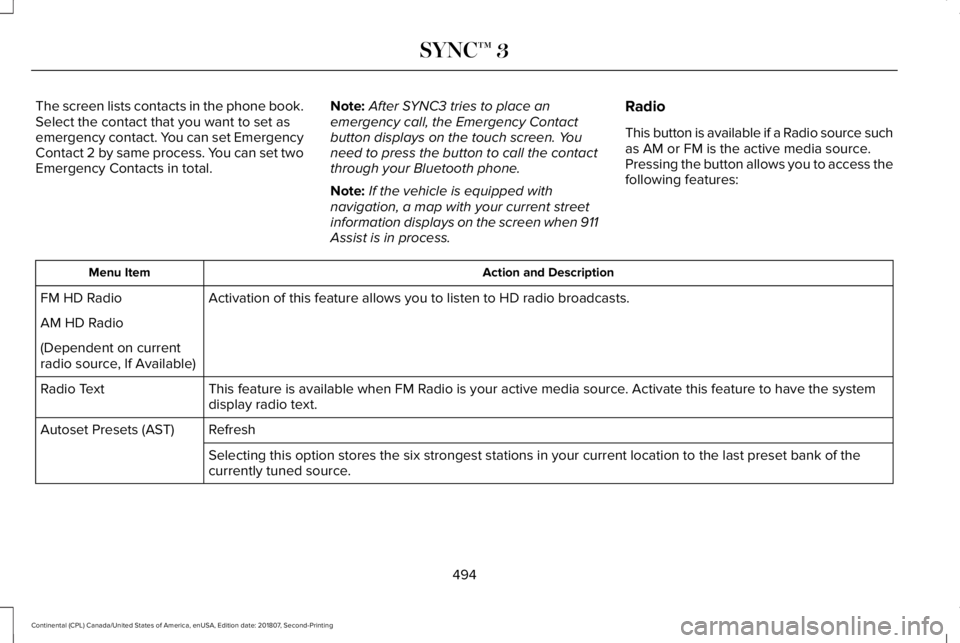
The screen lists contacts in the phone book.
Select the contact that you want to set as
emergency contact. You can set Emergency
Contact 2 by same process. You can set two
Emergency Contacts in total.
Note:
After SYNC3 tries to place an
emergency call, the Emergency Contact
button displays on the touch screen. You
need to press the button to call the contact
through your Bluetooth phone.
Note: If the vehicle is equipped with
navigation, a map with your current street
information displays on the screen when 911
Assist is in process. Radio
This button is available if a Radio source such
as AM or FM is the active media source.
Pressing the button allows you to access the
following features: Action and Description
Menu Item
Activation of this feature allows you to listen to HD radio broadcasts.
FM HD Radio
AM HD Radio
(Dependent on current
radio source, If Available)
This feature is available when FM Radio is your active media source. Activate this feature to have the system
display radio text.
Radio Text
Refresh
Autoset Presets (AST)
Selecting this option stores the six strongest stations in your current \
location to the last preset bank of the
currently tuned source.
494
Continental (CPL) Canada/United States of America, enUSA, Edition date: 201807, Second-Printing SYNC™ 3
Page 498 of 627
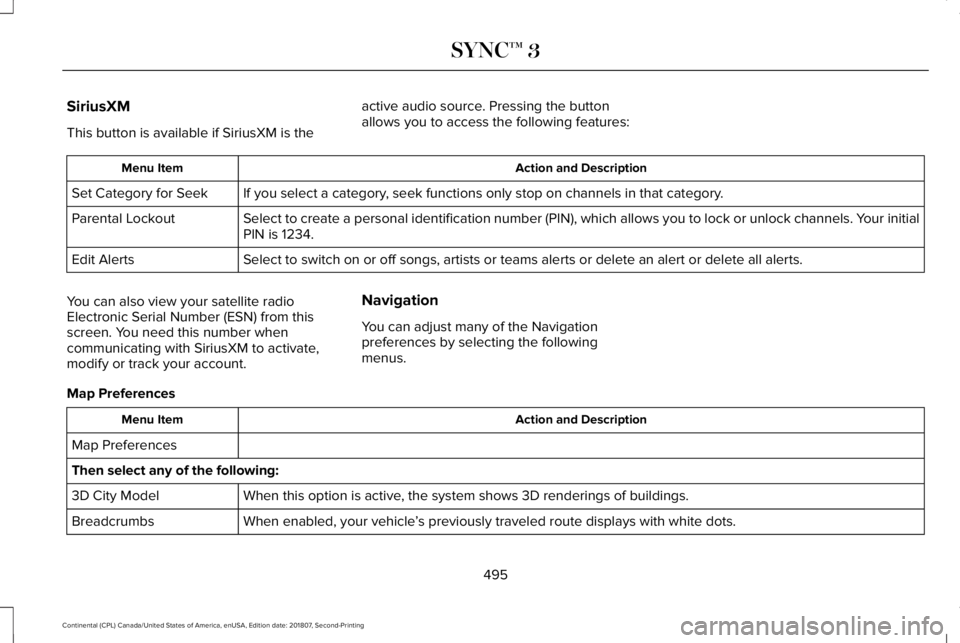
SiriusXM
This button is available if SiriusXM is the
active audio source. Pressing the button
allows you to access the following features: Action and Description
Menu Item
If you select a category, seek functions only stop on channels in that category.
Set Category for Seek
Select to create a personal identification number (PIN), which allows \
you to lock or unlock channels. Your initial
PIN is 1234.
Parental Lockout
Select to switch on or off songs, artists or teams alerts or delete an a\
lert or delete all alerts.
Edit Alerts
You can also view your satellite radio
Electronic Serial Number (ESN) from this
screen. You need this number when
communicating with SiriusXM to activate,
modify or track your account. Navigation
You can adjust many of the Navigation
preferences by selecting the following
menus.
Map Preferences Action and Description
Menu Item
Map Preferences
Then select any of the following: When this option is active, the system shows 3D renderings of buildings.
3D City Model
When enabled, your vehicle ’s previously traveled route displays with white dots.
Breadcrumbs
495
Continental (CPL) Canada/United States of America, enUSA, Edition date: 201807, Second-Printing SYNC™ 3
Page 499 of 627
Action and Description
Menu Item
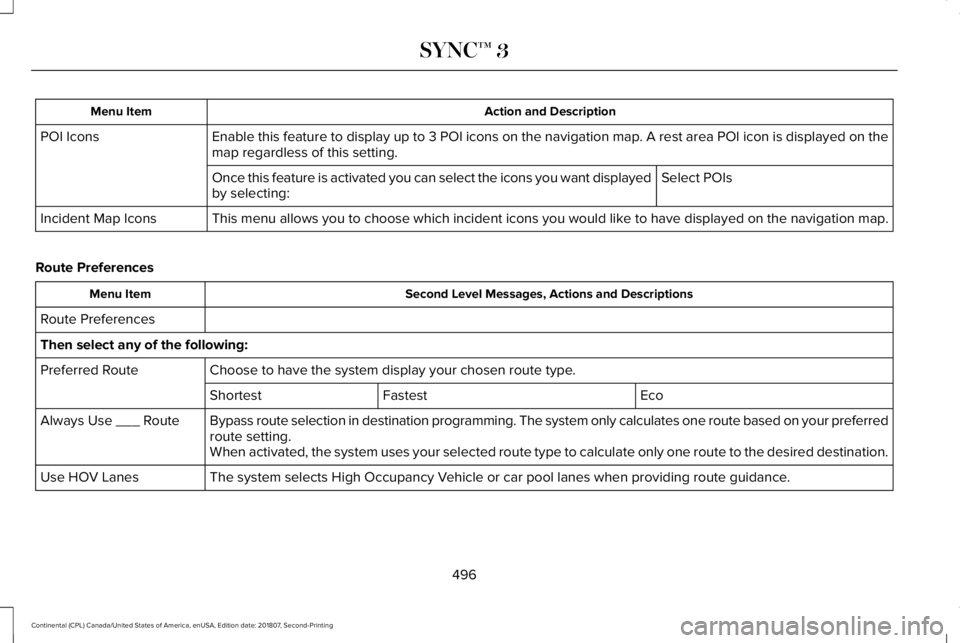
Enable this feature to display up to 3 POI icons on the navigation map. A rest area POI icon is displayed on the
map regardless of this setting.
POI Icons
Select POIs
Once this feature is activated you can select the icons you want display\
ed
by selecting:
This menu allows you to choose which incident icons you would like to have displayed on the navigation map.
Incident Map Icons
Route Preferences Second Level Messages, Actions and Descriptions
Menu Item
Route Preferences
Then select any of the following: Choose to have the system display your chosen route type.
Preferred Route
Eco
Fastest
Shortest
Bypass route selection in destination programming. The system only calcu\
lates one route based on your preferred
route setting.
Always Use ___ Route
When activated, the system uses your selected route type to calculate on\
ly one route to the desired destination.
The system selects High Occupancy Vehicle or car pool lanes when providing route guidance.
Use HOV Lanes
496
Continental (CPL) Canada/United States of America, enUSA, Edition date: 201807, Second-Printing SYNC™ 3
Page 500 of 627

Second Level Messages, Actions and Descriptions
Menu Item
The system searches for and displays available parking locations as you \
approach your destination.
Automatically Find Parking
Select a level of cost for the calculated Eco Route. The higher the setting, the longer the time allotment is for
the route.
Eco Time Penalty
Enable or disable considering traffic information when planning a route. The system can find a faster route based
on heavy traffic flow information or detect a Road Closed incident and find a detour route if possible.
Dynamic Route Guidance
Navigation Preferences Action and Description
Menu Item
Navigation Preferences You can adjust how the system provides prompts.
Guidance Prompts
Then select any of the following:
Voice and Tones
Voice Only
Tones Only
497
Continental (CPL) Canada/United States of America, enUSA, Edition date: 201807, Second-Printing SYNC™ 3
Page 503 of 627
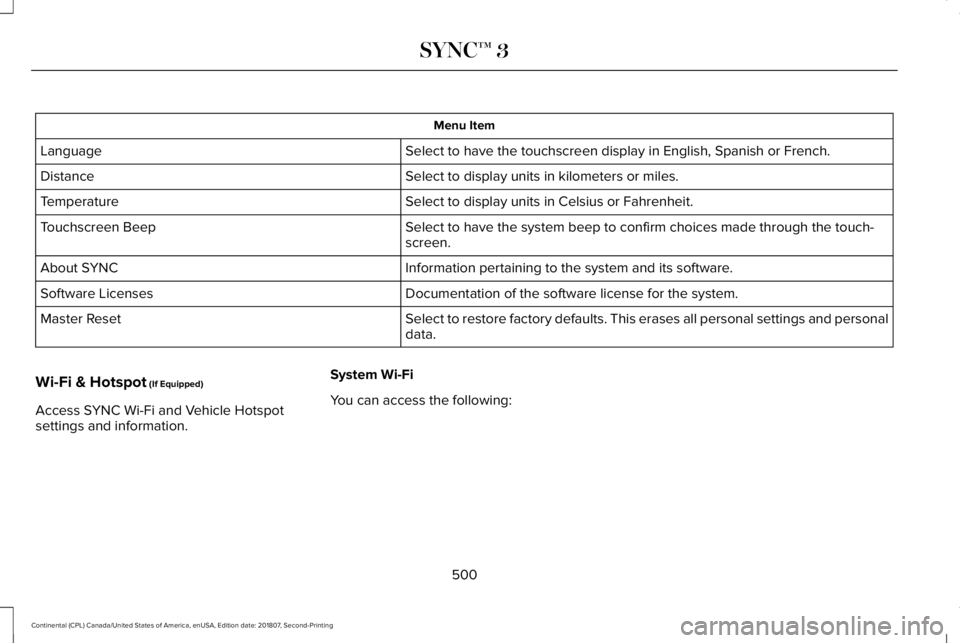
Menu Item
Select to have the touchscreen display in English, Spanish or French.
Language
Select to display units in kilometers or miles.
Distance
Select to display units in Celsius or Fahrenheit.
Temperature
Select to have the system beep to confirm choices made through the touch\
-
screen.
Touchscreen Beep
Information pertaining to the system and its software.
About SYNC
Documentation of the software license for the system.
Software Licenses
Select to restore factory defaults. This erases all personal settings an\
d personal
data.
Master Reset
Wi-Fi & Hotspot (If Equipped)
Access SYNC Wi-Fi and Vehicle Hotspot
settings and information. System Wi-Fi
You can access the following:
500
Continental (CPL) Canada/United States of America, enUSA, Edition date: 201807, Second-Printing SYNC™ 3
Page 504 of 627
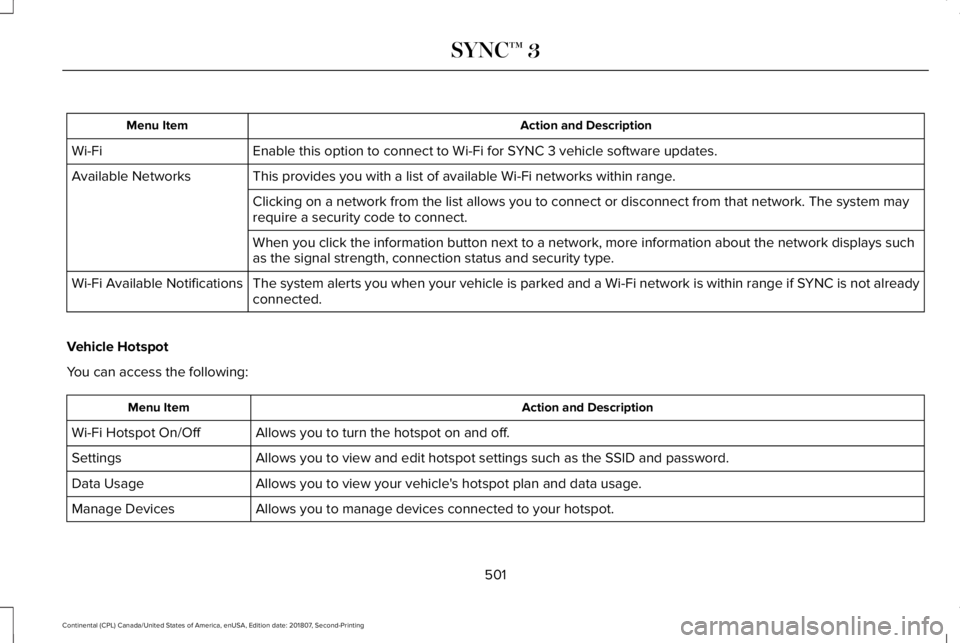
Action and Description
Menu Item
Enable this option to connect to Wi-Fi for SYNC 3 vehicle software updates.
Wi-Fi
This provides you with a list of available Wi-Fi networks within range.
Available Networks
Clicking on a network from the list allows you to connect or disconnect \
from that network. The system may
require a security code to connect.
When you click the information button next to a network, more informatio\
n about the network displays such
as the signal strength, connection status and security type.
The system alerts you when your vehicle is parked and a Wi-Fi network is within range if SYNC is not already
connected.
Wi-Fi Available Notifications
Vehicle Hotspot
You can access the following: Action and Description
Menu Item
Allows you to turn the hotspot on and off.
Wi-Fi Hotspot On/Off
Allows you to view and edit hotspot settings such as the SSID and passwo\
rd.
Settings
Allows you to view your vehicle's hotspot plan and data usage.
Data Usage
Allows you to manage devices connected to your hotspot.
Manage Devices
501
Continental (CPL) Canada/United States of America, enUSA, Edition date: 201807, Second-Printing SYNC™ 3
Page 507 of 627
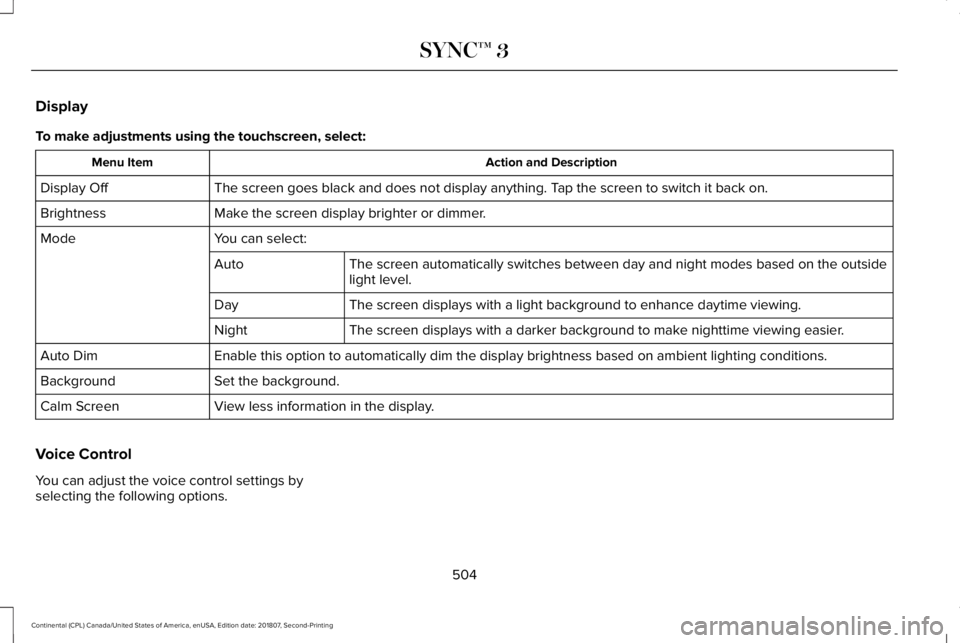
Display
To make adjustments using the touchscreen, select:
Action and Description
Menu Item
The screen goes black and does not display anything. Tap the screen to switch it back on.
Display Off
Make the screen display brighter or dimmer.
Brightness
You can select:
Mode
The screen automatically switches between day and night modes based on t\
he outside
light level.
Auto
The screen displays with a light background to enhance daytime viewing.
Day
The screen displays with a darker background to make nighttime viewing easier.
Night
Enable this option to automatically dim the display brightness based on \
ambient lighting conditions.
Auto Dim
Set the background.
Background
View less information in the display.
Calm Screen
Voice Control
You can adjust the voice control settings by
selecting the following options.
504
Continental (CPL) Canada/United States of America, enUSA, Edition date: 201807, Second-Printing SYNC™ 3
Page 508 of 627

Menu Item
Enable this option to remove additional voice prompts and confirmations.\
Advanced Mode
Enable this option to have the system confirm a contact's name with you before
making a call.
Phone Confirmation
Enable this option to have the system display a list of available voice \
commands
when you press the voice.
Voice Command List
Valet Mode
Valet mode allows you to lock the system.
No information is accessible until the system
is unlocked with the correct PIN.
When you select valet mode, a pop up
appears informing you that a four digit code
must be entered to enable and disable valet
mode. You can use any PIN you chose but
you must use the same PIN to disable valet
mode. The system asks you to input the
code.
Note: If the system is locked and you cannot
remember the PIN, please contact the
Customer Relationship Center. For Lincoln
United States: 1-800-521-4140
Canada: 1-800-387-9333 Lincoln
Ford
United States: 1-800-521-4140
United States and
Canada: 1-800-392- 3673 Canada: 1-800-387-
9333
To enable valet mode, enter your chosen
PIN. The system then asks to confirm your
PIN by reentering it. The system then locks. To unlock the system, enter the same pin
number. The system reconnects to your
phone and all of your options are available
again.
SYNC™ 3 TROUBLESHOOTING
Your SYNC 3 system is easy to use.
However, should questions arise, please
refer to the tables below.
To check your cell phone's compatibility,
refer to the regional Ford or Lincoln website.
505
Continental (CPL) Canada/United States of America, enUSA, Edition date: 201807, Second-Printing SYNC™ 3
Page 514 of 627
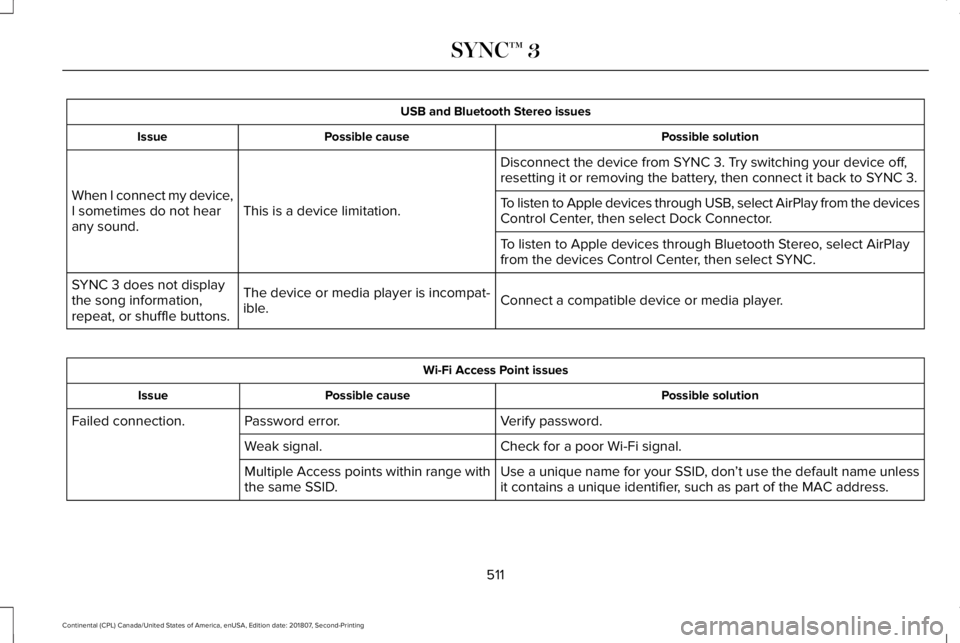
USB and Bluetooth Stereo issues
Possible solution
Possible cause
Issue
Disconnect the device from SYNC 3. Try switching your device off,
resetting it or removing the battery, then connect it back to SYNC 3.
This is a device limitation.
When I connect my device,
I sometimes do not hear
any sound. To listen to Apple devices through USB, select AirPlay from the devices
Control Center, then select Dock Connector.
To listen to Apple devices through Bluetooth Stereo, select AirPlay
from the devices Control Center, then select SYNC.
Connect a compatible device or media player.
The device or media player is incompat-
ible.
SYNC 3 does not display
the song information,
repeat, or shuffle buttons. Wi-Fi Access Point issues
Possible solution
Possible cause
Issue
Verify password.
Password error.
Failed connection.
Check for a poor Wi-Fi signal.
Weak signal.
Use a unique name for your SSID, don’t use the default name unless
it contains a unique identifier, such as part of the MAC address.
Multiple Access points within range with
the same SSID.
511
Continental (CPL) Canada/United States of America, enUSA, Edition date: 201807, Second-Printing SYNC™ 3