transmission LINCOLN CONTINENTAL 2019 User Guide
[x] Cancel search | Manufacturer: LINCOLN, Model Year: 2019, Model line: CONTINENTAL, Model: LINCOLN CONTINENTAL 2019Pages: 627, PDF Size: 6.39 MB
Page 104 of 627
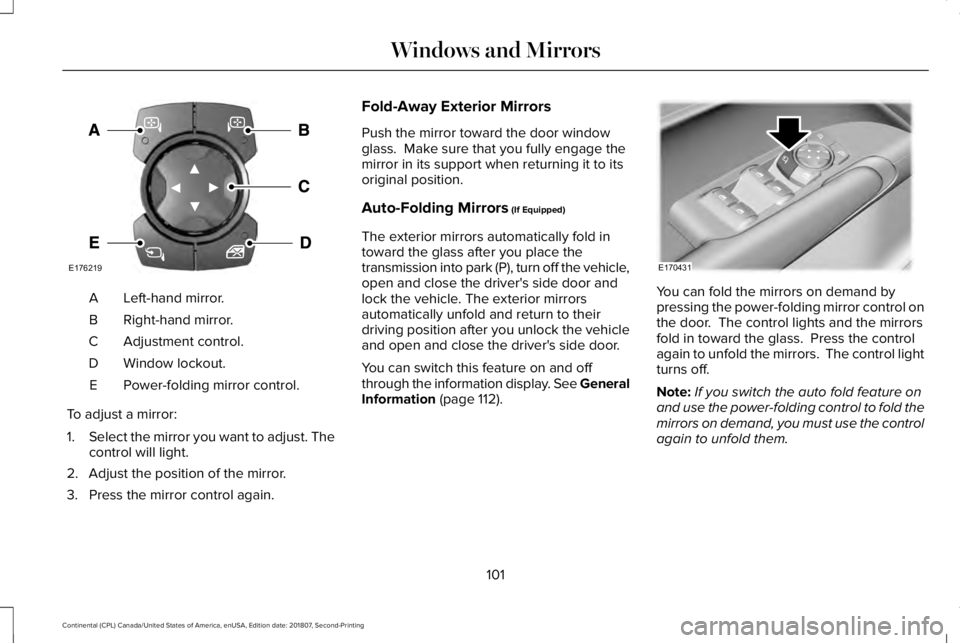
Left-hand mirror.
A
Right-hand mirror.
B
Adjustment control.
C
Window lockout.
D
Power-folding mirror control.
E
To adjust a mirror:
1. Select the mirror you want to adjust. The
control will light.
2. Adjust the position of the mirror.
3. Press the mirror control again. Fold-Away Exterior Mirrors
Push the mirror toward the door window
glass. Make sure that you fully engage the
mirror in its support when returning it to its
original position.
Auto-Folding Mirrors (If Equipped)
The exterior mirrors automatically fold in
toward the glass after you place the
transmission into park (P), turn off the vehicle,
open and close the driver's side door and
lock the vehicle. The exterior mirrors
automatically unfold and return to their
driving position after you unlock the vehicle
and open and close the driver's side door.
You can switch this feature on and off
through the information display. See General
Information
(page 112). You can fold the mirrors on demand by
pressing the power-folding mirror control on
the door. The control lights and the mirrors
fold in toward the glass. Press the control
again to unfold the mirrors. The control light
turns off.
Note:
If you switch the auto fold feature on
and use the power-folding control to fold the
mirrors on demand, you must use the control
again to unfold them.
101
Continental (CPL) Canada/United States of America, enUSA, Edition date: 201807, Second-Printing Windows and MirrorsE176219 E170431
Page 107 of 627
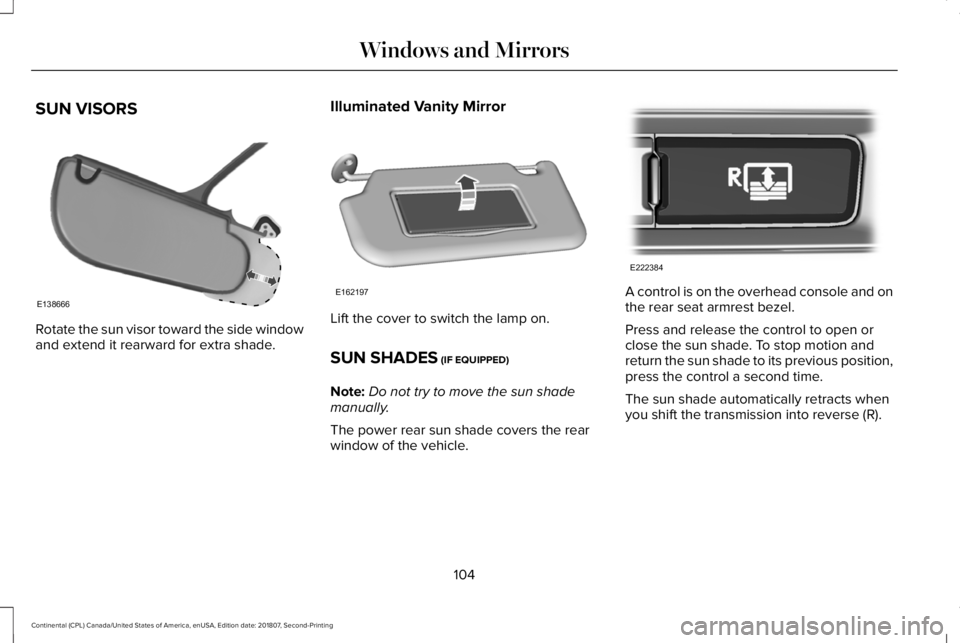
SUN VISORS
Rotate the sun visor toward the side window
and extend it rearward for extra shade.
Illuminated Vanity Mirror Lift the cover to switch the lamp on.
SUN SHADES (IF EQUIPPED)
Note: Do not try to move the sun shade
manually.
The power rear sun shade covers the rear
window of the vehicle. A control is on the overhead console and on
the rear seat armrest bezel.
Press and release the control to open or
close the sun shade. To stop motion and
return the sun shade to its previous position,
press the control a second time.
The sun shade automatically retracts when
you shift the transmission into reverse (R).
104
Continental (CPL) Canada/United States of America, enUSA, Edition date: 201807, Second-Printing Windows and MirrorsE138666 E162197 E222384
Page 140 of 627
Tire Pressure Monitoring System
Action
Message
One or more tires on your vehicle have low tire pressure. See Tire Pressure Monitoring System (page 357).
Tire Pressure Low
The tire pressure monitoring system is malfunctioning. If the warning st\
ays on or continues tocome on, contact an authorized dealer.
See Tire Pressure Monitoring System (page 357).
Tire Pressure Monitor Fault
A tire pressure sensor is malfunctioning, or your spare tire is in use. For more information on
how the system operates under these conditions, See Tire Pressure Monitoring System (page
357
). If the warning stays on or continues to come on, contact an authorized \
dealer as soon as possible.
Tire Pressure Sensor Fault
Transmission Action
Message
You switched the engine off and shift select lever is in any position oth\
er than park (P).
Shift to Park
Transmission is too cold. Wait for it to warm up before you drive.
Transmission Warming Up Please Wait
Displays when the brake pedal needs to be depressed.
Press Brake Pedal
The transmission is overheating and needs to cool. Stop in a safe place as soon as it’ s possible.
Transmission Over Temperature Stop
Safely
See an authorized dealer.
Transmission Service Required
137
Continental (CPL) Canada/United States of America, enUSA, Edition date: 201807, Second-Printing Information Displays
Page 141 of 627
Action
Message
The transmission is overheating and needs to cool. Stop in a safe place as soon as it’ s possible.
Transmission Too Hot Press Brake
The transmission has limited functionality. See an authorized dealer.
Transmission Limited Function See Manual
A reminder to shift into park. In addition, this message is typical afte\
r reconnecting or rechargingthe battery until you cycle the ignition to the on mode. See Changing the 12V Battery (page
325).
Transmission Not in Park
Displays when there is a system fault and the park brake needs to be depressed before exitingthe vehicle. See your authorized dealer.
SHIFT SYS FAULT Confirm Park Brake
Apply Before Exiting the Vehicle
See your authorized dealer.
SHIFT SYS FAULT Service Required
Displays when there is a system fault while the vehicle is shifting to p\
ark. See your authorized dealer.
SHIFT SYS FAULT Vehicle is Shifting to
Park
Displays when there is a system fault while the vehicle is shifting to r\
everse. See your authorized dealer.
SHIFT SYS FAULT Reverse Unavailable
Service Required
See an authorized dealer.
SHIFT SYS FAULT Drive Unavailable Select
S for Drive Service Required
See your authorized dealer.
SHIFT SYS FAULT Neutral Unavailable
Service Required
See your authorized dealer.
SHIFT SYS FAULT Sport Unavailable
Service Required
Displays when an invalid gear has been selected.
Invalid Gear Selection
138
Continental (CPL) Canada/United States of America, enUSA, Edition date: 201807, Second-Printing Information Displays
Page 142 of 627
Action
Message
Displays when the brake pedal needs to be depressed to enable the transmission to shift from park.
Depress Brake to Shift from Park
Displays when neutral hold is active. See Automatic Transmission (page 191).
Stay in Neutral Mode Engaged
Displays when the neutral button N needs to be pressed again to enter ne\
utral hold. See Auto-matic Transmission
(page 191).
To Stay in Neutral When Exiting Vehicle
Select N Again
HEAD UP DISPLAY
(IF EQUIPPED)
Head Up Display (HUD)
This is a visual system that shows information
in your field of view as you drive. The
information comes from various vehicle
systems and includes vehicle speed, speed
limit, navigation, and advanced driver
assistance systems (ADAS), such as adaptive
cruise control (ACC) and the lane keeping
system. This system projects the information
off the windshield, and focuses the image near the end of the hood approximately
7 ft
(2 m) in front of the driver. Viewing this
information does not require you to
significantly move your head, allowing you
to keep your eyes on the road while having
quick and easy access to information. Head Up Display Information Signaling and Traffic Indication.
A
Left Information Group.
B
ADAS Display Area.
C
139
Continental (CPL) Canada/United States of America, enUSA, Edition date: 201807, Second-Printing Information DisplaysE228521
Page 143 of 627
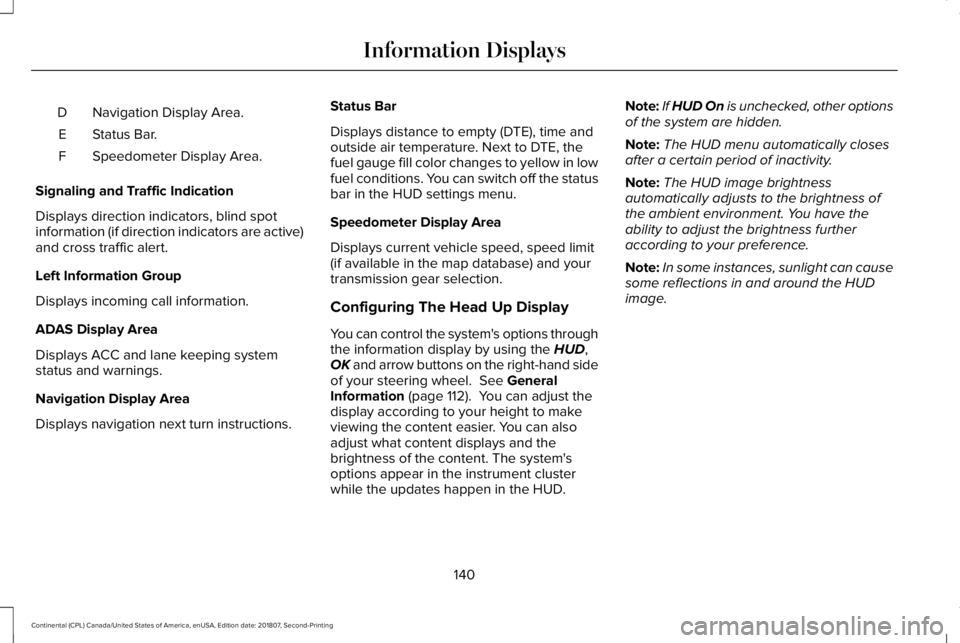
Navigation Display Area.
D
Status Bar.
E
Speedometer Display Area.
F
Signaling and Traffic Indication
Displays direction indicators, blind spot
information (if direction indicators are active)
and cross traffic alert.
Left Information Group
Displays incoming call information.
ADAS Display Area
Displays ACC and lane keeping system
status and warnings.
Navigation Display Area
Displays navigation next turn instructions. Status Bar
Displays distance to empty (DTE), time and
outside air temperature. Next to DTE, the
fuel gauge fill color changes to yellow in low
fuel conditions. You can switch off the status
bar in the HUD settings menu.
Speedometer Display Area
Displays current vehicle speed, speed limit
(if available in the map database) and your
transmission gear selection.
Configuring The Head Up Display
You can control the system's options through
the information display by using the HUD,
OK and arrow buttons on the right-hand side
of your steering wheel.
See General
Information (page 112). You can adjust the
display according to your height to make
viewing the content easier. You can also
adjust what content displays and the
brightness of the content. The system's
options appear in the instrument cluster
while the updates happen in the HUD. Note:
If HUD On is unchecked, other options
of the system are hidden.
Note: The HUD menu automatically closes
after a certain period of inactivity.
Note: The HUD image brightness
automatically adjusts to the brightness of
the ambient environment. You have the
ability to adjust the brightness further
according to your preference.
Note: In some instances, sunlight can cause
some reflections in and around the HUD
image.
140
Continental (CPL) Canada/United States of America, enUSA, Edition date: 201807, Second-Printing Information Displays
Page 164 of 627
You can save up to three preset memory
positions. You can save a memory preset at
any time.
Recalling a Preset Position
Press and release the preset button
associated with your desired driving position.
The memory features move to the position
stored for that preset.
Note:
You can only recall a preset memory
position when the ignition is off, or when the
transmission is in park (P) or neutral (N) (and
your vehicle is not moving) if the ignition is
on.
You can also recall a preset memory position
by:
• Pressing the unlock button on your
intelligent access key fob if it is linked to
a preset position.
• Unlocking the intelligent driver door
handle if a linked key fob is present.
Note: Using a linked key fob to recall your
memory position when the ignition is off
moves the seat to the Easy Entry position. Note:
Pressing any active memory feature
adjustment control, or any memory button
during a memory recall, cancels the
operation.
Linking a Preset Position to your
Remote Control or Intelligent Access
Key Fob
You can save preset memory positions for
up to three remote controls or intelligent
access (IA) keys.
1. With the ignition on, move the memory features to the desired positions.
2. Press and hold the preset button you desire for about five seconds. A tone
sounds after a few seconds. Continue
holding until you hear a second tone.
3. Within three seconds, press the lock button on the remote control you are
linking.
To unlink a remote control, follow the same
procedure – except in step 3, press the
unlock button on the remote control. Note:
If more than one linked remote control
or intelligent access key is in range, the
memory function moves to the settings of
the first key to initiate a memory recall.
Easy Entry and Exit Feature
If you enable the easy entry and exit feature,
it moves the driver seat position rearward up
to 2 in (5 cm) when you switch the ignition
off.
The driver seat returns to its previous
position when you switch the ignition on.
Note: If you press any adjustment or memory
button when in easy exit mode, the system
cancels the operation.
You can enable or disable this feature
through the information display. See General
Information
(page 112).
161
Continental (CPL) Canada/United States of America, enUSA, Edition date: 201807, Second-Printing Seats
Page 171 of 627
Note:
Put a new battery in the hand-held
transmitter. This helps ensure quicker
training and accurate transmission of the
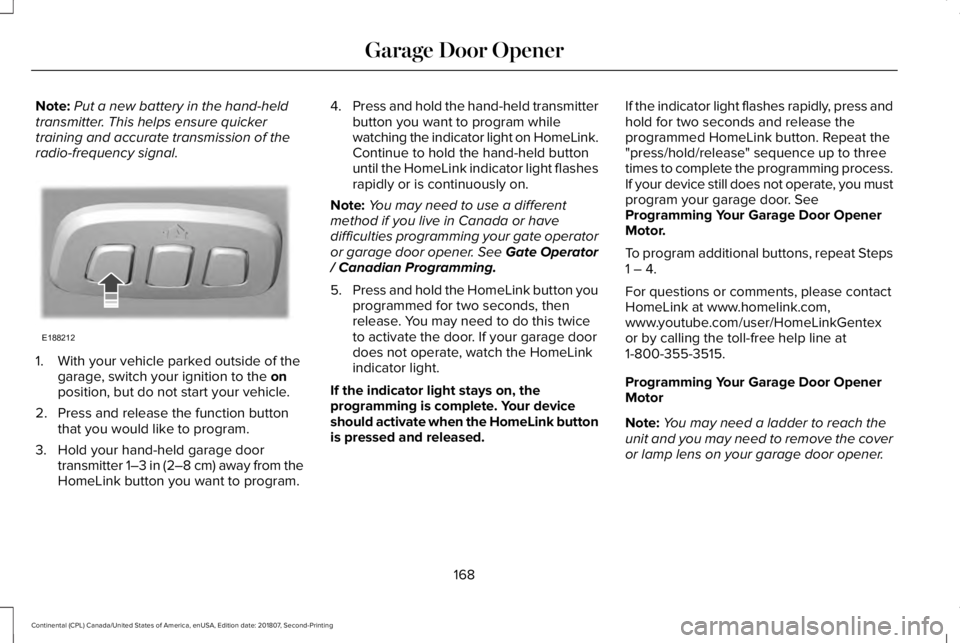
radio-frequency signal. 1. With your vehicle parked outside of the
garage, switch your ignition to the on
position, but do not start your vehicle.
2. Press and release the function button that you would like to program.
3. Hold your hand-held garage door transmitter 1–3 in (2–8 cm) away from the
HomeLink button you want to program. 4.
Press and hold the hand-held transmitter
button you want to program while
watching the indicator light on HomeLink.
Continue to hold the hand-held button
until the HomeLink indicator light flashes
rapidly or is continuously on.
Note: You may need to use a different
method if you live in Canada or have
difficulties programming your gate operator
or garage door opener. See Gate Operator
/ Canadian Programming.
5. Press and hold the HomeLink button you
programmed for two seconds, then
release. You may need to do this twice
to activate the door. If your garage door
does not operate, watch the HomeLink
indicator light.
If the indicator light stays on, the
programming is complete. Your device
should activate when the HomeLink button
is pressed and released. If the indicator light flashes rapidly, press and
hold for two seconds and release the
programmed HomeLink button. Repeat the
"press/hold/release" sequence up to three
times to complete the programming process.
If your device still does not operate, you must
program your garage door. See
Programming Your Garage Door Opener
Motor.
To program additional buttons, repeat Steps
1 – 4.
For questions or comments, please contact
HomeLink at www.homelink.com,
www.youtube.com/user/HomeLinkGentex
or by calling the toll-free help line at
1-800-355-3515.
Programming Your Garage Door Opener
Motor
Note:
You may need a ladder to reach the
unit and you may need to remove the cover
or lamp lens on your garage door opener.
168
Continental (CPL) Canada/United States of America, enUSA, Edition date: 201807, Second-Printing Garage Door OpenerE188212
Page 172 of 627
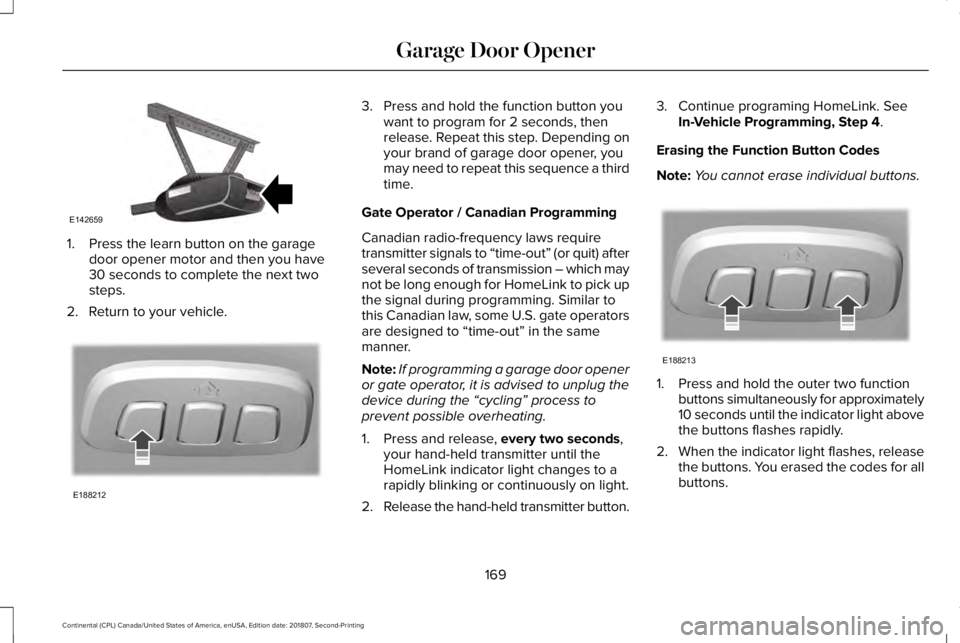
1. Press the learn button on the garage
door opener motor and then you have
30 seconds to complete the next two
steps.
2. Return to your vehicle. 3. Press and hold the function button you
want to program for 2 seconds, then
release. Repeat this step. Depending on
your brand of garage door opener, you
may need to repeat this sequence a third
time.
Gate Operator / Canadian Programming
Canadian radio-frequency laws require
transmitter signals to “time-out” (or quit) after
several seconds of transmission – which may
not be long enough for HomeLink to pick up
the signal during programming. Similar to
this Canadian law, some U.S. gate operators
are designed to “time-out” in the same
manner.
Note: If programming a garage door opener
or gate operator, it is advised to unplug the
device during the “cycling” process to
prevent possible overheating.
1. Press and release, every two seconds,
your hand-held transmitter until the
HomeLink indicator light changes to a
rapidly blinking or continuously on light.
2. Release the hand-held transmitter button. 3. Continue programing HomeLink. See
In-Vehicle Programming, Step 4
.
Erasing the Function Button Codes
Note: You cannot erase individual buttons. 1. Press and hold the outer two function
buttons simultaneously for approximately
10 seconds until the indicator light above
the buttons flashes rapidly.
2. When the indicator light flashes, release
the buttons. You erased the codes for all
buttons.
169
Continental (CPL) Canada/United States of America, enUSA, Edition date: 201807, Second-Printing Garage Door OpenerE142659 E188212 E188213
Page 179 of 627
•
Without applying the brake pedal, press
and release the button once when the
ignition is in the on mode, or when your
vehicle is running but is not moving.
On: All electrical circuits are operational and
the warning lamps and indicators illuminate.
• Without applying the brake pedal, press
and release the button once.
Start:
Starts your vehicle. The engine may
not start when your vehicle starts.
• Press the brake pedal, and then press
the button for any length of time. An
indicator light on the button illuminates
when the ignition is on and when your
vehicle starts.
STARTING A GASOLINE ENGINE
When you start the engine, the idle speed
increases. This helps to warm up the engine.
If the engine idle speed does not slow down
by itself, have your vehicle checked as soon
as possible. Note:
You can only attempt to start the
engine for a limited amount of time before
the starting system temporarily disables. If
you exceed the starting time limit, a message
may appear and you cannot attempt to start
the engine for at least 15 minutes.
Before starting your vehicle, check the
following:
• Make sure all occupants have fastened
their seatbelts.
• Make sure the headlamps and electrical
accessories are off.
• Make sure the parking brake is on.
• Make sure the transmission is in park (P).
Starting Your Vehicle
Note: Do not touch the accelerator pedal.
1. Press the brake pedal.
2. Press the push button ignition switch.
Failure to Start
The system does not function if:
• The passive key frequencies are jammed.
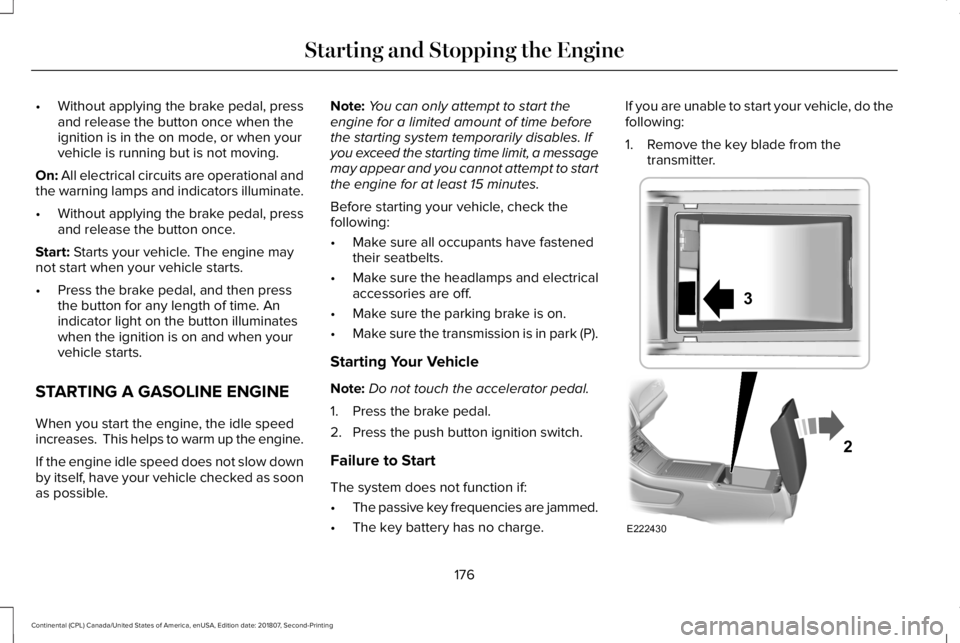
• The key battery has no charge. If you are unable to start your vehicle, do the
following:
1. Remove the key blade from the
transmitter. 176
Continental (CPL) Canada/United States of America, enUSA, Edition date: 201807, Second-Printing Starting and Stopping the EngineE222430
2
3