navigation LINCOLN CONTINENTAL 2019 Owner's Guide
[x] Cancel search | Manufacturer: LINCOLN, Model Year: 2019, Model line: CONTINENTAL, Model: LINCOLN CONTINENTAL 2019Pages: 627, PDF Size: 6.39 MB
Page 485 of 627
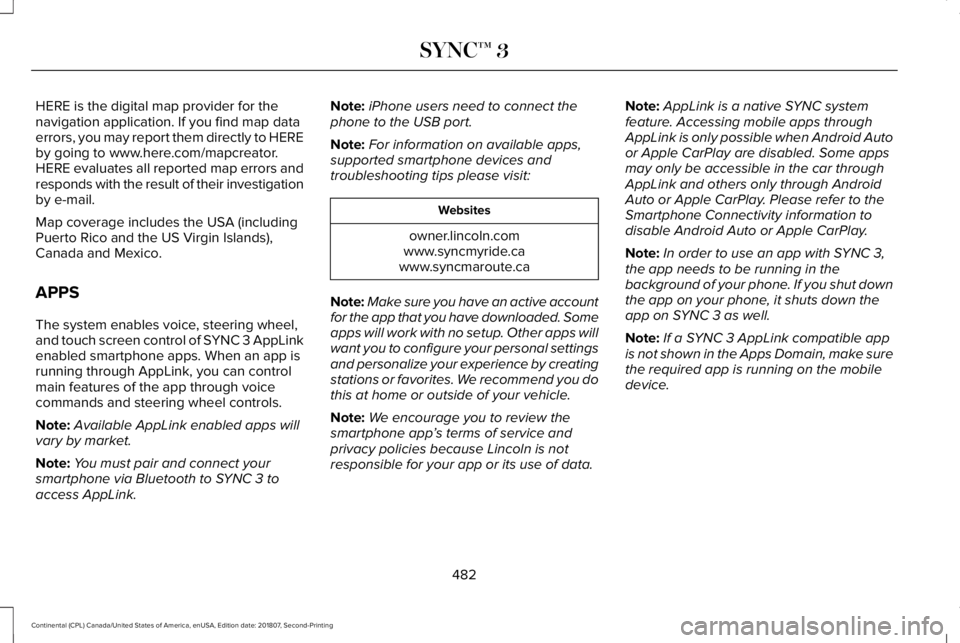
HERE is the digital map provider for the
navigation application. If you find map data
errors, you may report them directly to HERE
by going to www.here.com/mapcreator.
HERE evaluates all reported map errors and
responds with the result of their investigation
by e-mail.
Map coverage includes the USA (including
Puerto Rico and the US Virgin Islands),
Canada and Mexico.
APPS
The system enables voice, steering wheel,
and touch screen control of SYNC 3 AppLink
enabled smartphone apps. When an app is
running through AppLink, you can control
main features of the app through voice
commands and steering wheel controls.
Note:
Available AppLink enabled apps will
vary by market.
Note: You must pair and connect your
smartphone via Bluetooth to SYNC 3 to
access AppLink. Note:
iPhone users need to connect the
phone to the USB port.
Note: For information on available apps,
supported smartphone devices and
troubleshooting tips please visit: Websites
owner.lincoln.com
www.syncmyride.ca
www.syncmaroute.ca
Note: Make sure you have an active account
for the app that you have downloaded. Some
apps will work with no setup. Other apps will
want you to configure your personal settings
and personalize your experience by creating
stations or favorites. We recommend you do
this at home or outside of your vehicle.
Note: We encourage you to review the
smartphone app ’s terms of service and
privacy policies because Lincoln is not
responsible for your app or its use of data. Note:
AppLink is a native SYNC system
feature. Accessing mobile apps through
AppLink is only possible when Android Auto
or Apple CarPlay are disabled. Some apps
may only be accessible in the car through
AppLink and others only through Android
Auto or Apple CarPlay. Please refer to the
Smartphone Connectivity information to
disable Android Auto or Apple CarPlay.
Note: In order to use an app with SYNC 3,
the app needs to be running in the
background of your phone. If you shut down
the app on your phone, it shuts down the
app on SYNC 3 as well.
Note: If a SYNC 3 AppLink compatible app
is not shown in the Apps Domain, make sure
the required app is running on the mobile
device.
482
Continental (CPL) Canada/United States of America, enUSA, Edition date: 201807, Second-Printing SYNC™ 3
Page 487 of 627
operation of your vehicle. We recommend
against the use of any hand-held device
while driving and encourage the use of
voice-operated systems when possible.
Make sure you are aware of all applicable
local laws that may affect the use of
electronic devices while driving.
Note: SiriusXM Traffic and Travel Link may
not be available in all markets. Note:
In order to use SiriusXM Traffic and
Travel Link, your vehicle must have
navigation.
Note: A paid subscription is required to
access and use these features. Go to
www.siriusxm.com/travellink for more
information.
Note: Visit www.siriusxm.com/traffic and click
on Coverage map and details for a complete
listing of all traffic areas covered by SiriusXM
Traffic and Travel Link. Note:
Neither Sirius nor Lincoln is
responsible for any errors or inaccuracies in
the SiriusXM Traffic and Travel Link services
or its use in vehicles.
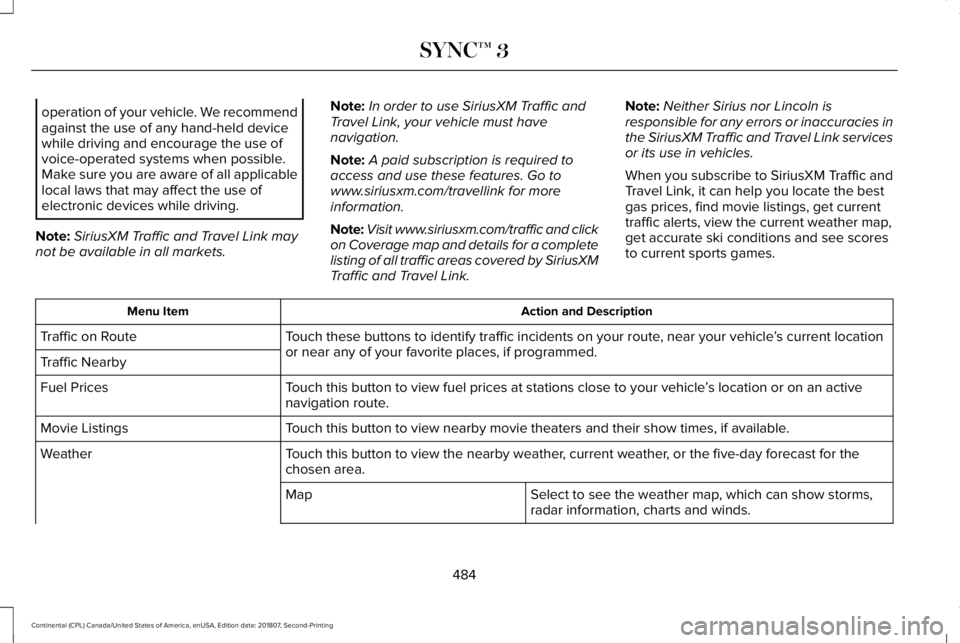
When you subscribe to SiriusXM Traffic and
Travel Link, it can help you locate the best
gas prices, find movie listings, get current
traffic alerts, view the current weather map,
get accurate ski conditions and see scores
to current sports games. Action and Description
Menu Item
Touch these buttons to identify traffic incidents on your route, near your vehicle ’s current location
or near any of your favorite places, if programmed.
Traffic on Route
Traffic Nearby
Touch this button to view fuel prices at stations close to your vehicle ’s location or on an active
navigation route.
Fuel Prices
Touch this button to view nearby movie theaters and their show times, if \
available.
Movie Listings
Touch this button to view the nearby weather, current weather, or the five-day forecast for the
chosen area.
Weather
Select to see the weather map, which can show storms,
radar information, charts and winds.
Map
484
Continental (CPL) Canada/United States of America, enUSA, Edition date: 201807, Second-Printing SYNC™ 3
Page 491 of 627
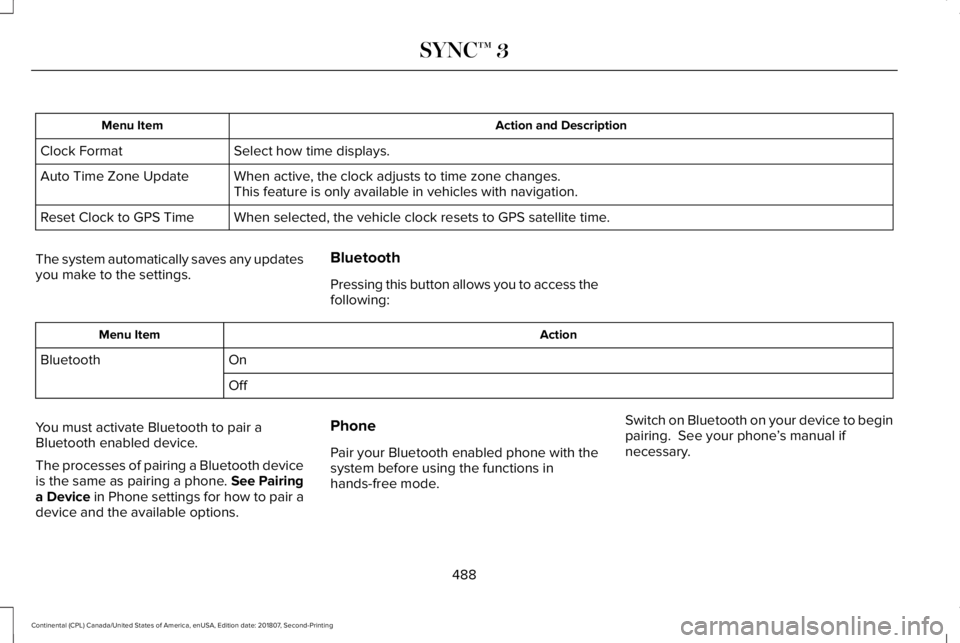
Action and Description
Menu Item
Select how time displays.
Clock Format
When active, the clock adjusts to time zone changes.
Auto Time Zone Update
This feature is only available in vehicles with navigation.
When selected, the vehicle clock resets to GPS satellite time.
Reset Clock to GPS Time
The system automatically saves any updates
you make to the settings. Bluetooth
Pressing this button allows you to access the
following: Action
Menu Item
On
Bluetooth
Off
You must activate Bluetooth to pair a
Bluetooth enabled device.
The processes of pairing a Bluetooth device
is the same as pairing a phone. See Pairing
a Device in Phone settings for how to pair a
device and the available options. Phone
Pair your Bluetooth enabled phone with the
system before using the functions in
hands-free mode.
Switch on Bluetooth on your device to begin
pairing. See your phone
’s manual if
necessary.
488
Continental (CPL) Canada/United States of America, enUSA, Edition date: 201807, Second-Printing SYNC™ 3
Page 497 of 627
The screen lists contacts in the phone book.
Select the contact that you want to set as
emergency contact. You can set Emergency
Contact 2 by same process. You can set two
Emergency Contacts in total.
Note:
After SYNC3 tries to place an
emergency call, the Emergency Contact
button displays on the touch screen. You
need to press the button to call the contact
through your Bluetooth phone.
Note: If the vehicle is equipped with
navigation, a map with your current street
information displays on the screen when 911
Assist is in process. Radio
This button is available if a Radio source such
as AM or FM is the active media source.
Pressing the button allows you to access the
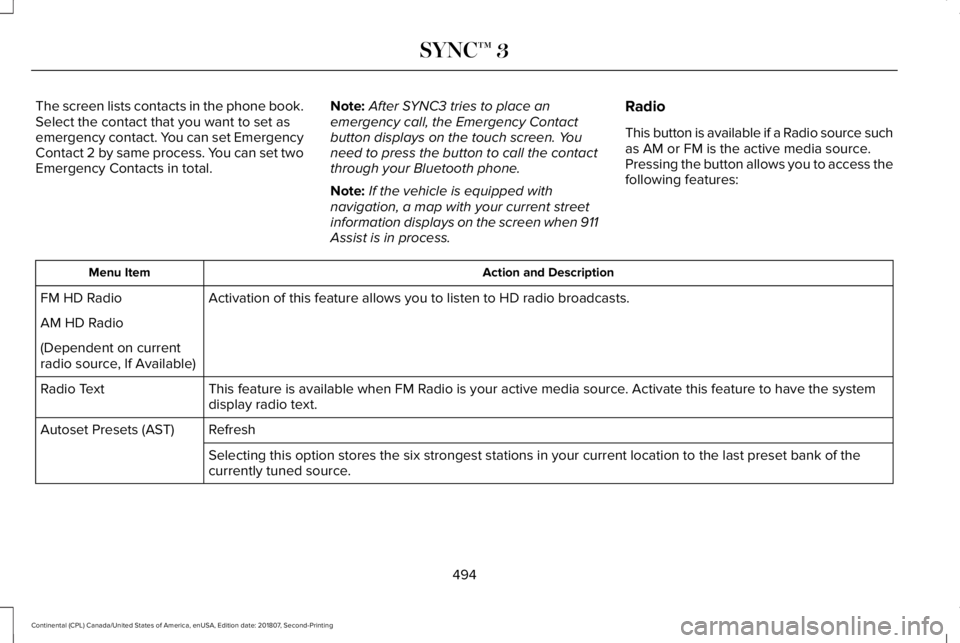
following features: Action and Description
Menu Item
Activation of this feature allows you to listen to HD radio broadcasts.
FM HD Radio
AM HD Radio
(Dependent on current
radio source, If Available)
This feature is available when FM Radio is your active media source. Activate this feature to have the system
display radio text.
Radio Text
Refresh
Autoset Presets (AST)
Selecting this option stores the six strongest stations in your current \
location to the last preset bank of the
currently tuned source.
494
Continental (CPL) Canada/United States of America, enUSA, Edition date: 201807, Second-Printing SYNC™ 3
Page 498 of 627
SiriusXM
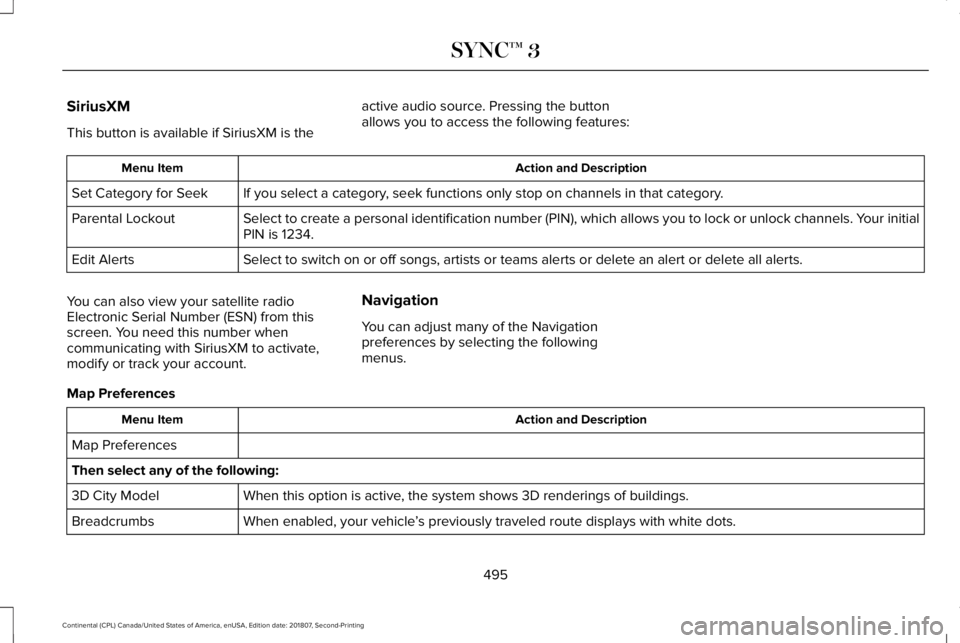
This button is available if SiriusXM is the
active audio source. Pressing the button
allows you to access the following features: Action and Description
Menu Item
If you select a category, seek functions only stop on channels in that category.
Set Category for Seek
Select to create a personal identification number (PIN), which allows \
you to lock or unlock channels. Your initial
PIN is 1234.
Parental Lockout
Select to switch on or off songs, artists or teams alerts or delete an a\
lert or delete all alerts.
Edit Alerts
You can also view your satellite radio
Electronic Serial Number (ESN) from this
screen. You need this number when
communicating with SiriusXM to activate,
modify or track your account. Navigation
You can adjust many of the Navigation
preferences by selecting the following
menus.
Map Preferences Action and Description
Menu Item
Map Preferences
Then select any of the following: When this option is active, the system shows 3D renderings of buildings.
3D City Model
When enabled, your vehicle ’s previously traveled route displays with white dots.
Breadcrumbs
495
Continental (CPL) Canada/United States of America, enUSA, Edition date: 201807, Second-Printing SYNC™ 3
Page 499 of 627
Action and Description
Menu Item
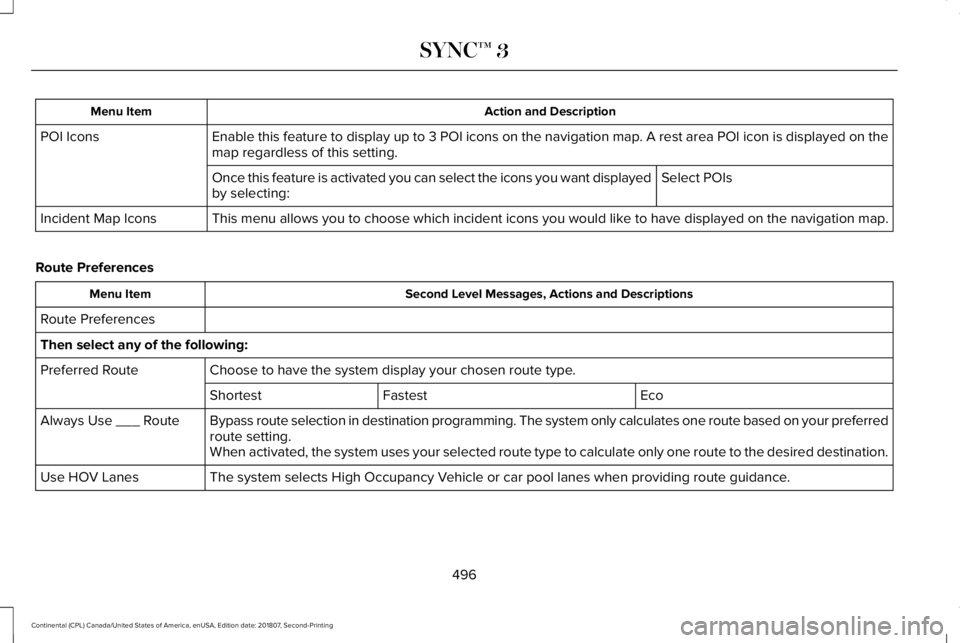
Enable this feature to display up to 3 POI icons on the navigation map. A rest area POI icon is displayed on the
map regardless of this setting.
POI Icons
Select POIs
Once this feature is activated you can select the icons you want display\
ed
by selecting:
This menu allows you to choose which incident icons you would like to have displayed on the navigation map.
Incident Map Icons
Route Preferences Second Level Messages, Actions and Descriptions
Menu Item
Route Preferences
Then select any of the following: Choose to have the system display your chosen route type.
Preferred Route
Eco
Fastest
Shortest
Bypass route selection in destination programming. The system only calcu\
lates one route based on your preferred
route setting.
Always Use ___ Route
When activated, the system uses your selected route type to calculate on\
ly one route to the desired destination.
The system selects High Occupancy Vehicle or car pool lanes when providing route guidance.
Use HOV Lanes
496
Continental (CPL) Canada/United States of America, enUSA, Edition date: 201807, Second-Printing SYNC™ 3
Page 500 of 627

Second Level Messages, Actions and Descriptions
Menu Item
The system searches for and displays available parking locations as you \
approach your destination.
Automatically Find Parking
Select a level of cost for the calculated Eco Route. The higher the setting, the longer the time allotment is for
the route.
Eco Time Penalty
Enable or disable considering traffic information when planning a route. The system can find a faster route based
on heavy traffic flow information or detect a Road Closed incident and find a detour route if possible.
Dynamic Route Guidance
Navigation Preferences Action and Description
Menu Item
Navigation Preferences You can adjust how the system provides prompts.
Guidance Prompts
Then select any of the following:
Voice and Tones
Voice Only
Tones Only
497
Continental (CPL) Canada/United States of America, enUSA, Edition date: 201807, Second-Printing SYNC™ 3
Page 501 of 627
Navigation Source Selection
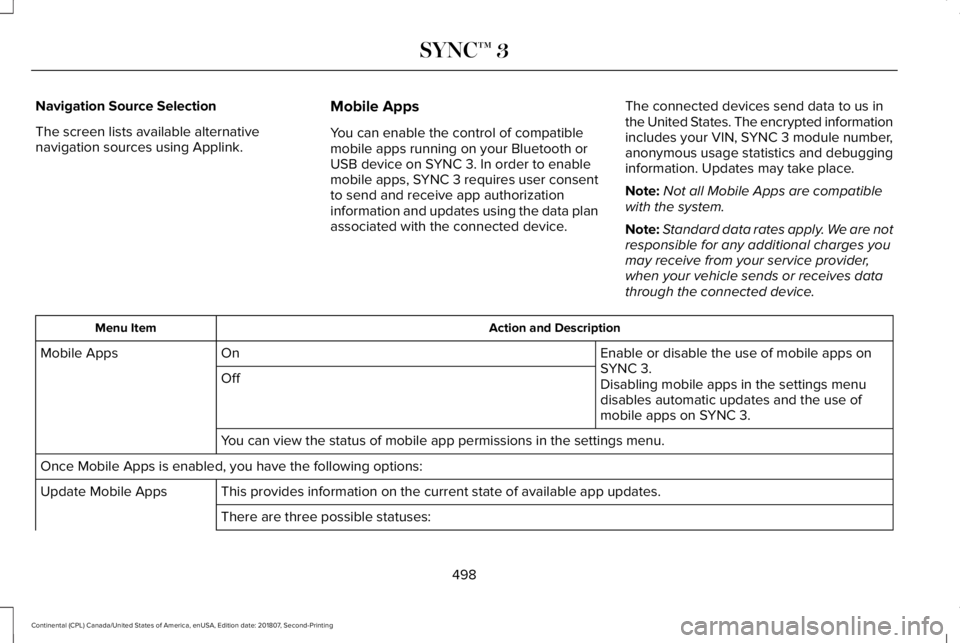
The screen lists available alternative
navigation sources using Applink.
Mobile Apps
You can enable the control of compatible
mobile apps running on your Bluetooth or
USB device on SYNC 3. In order to enable
mobile apps, SYNC 3 requires user consent
to send and receive app authorization
information and updates using the data plan
associated with the connected device.The connected devices send data to us in
the United States. The encrypted information
includes your VIN, SYNC 3 module number,
anonymous usage statistics and debugging
information. Updates may take place.
Note:
Not all Mobile Apps are compatible
with the system.
Note: Standard data rates apply. We are not
responsible for any additional charges you
may receive from your service provider,
when your vehicle sends or receives data
through the connected device. Action and Description
Menu Item
Enable or disable the use of mobile apps on
SYNC 3.
On
Mobile Apps
Off Disabling mobile apps in the settings menu
disables automatic updates and the use of
mobile apps on SYNC 3.
You can view the status of mobile app permissions in the settings menu.
Once Mobile Apps is enabled, you have the following options: This provides information on the current state of available app updates.\
Update Mobile Apps
There are three possible statuses:
498
Continental (CPL) Canada/United States of America, enUSA, Edition date: 201807, Second-Printing SYNC™ 3
Page 502 of 627
Action and Description
Menu Item
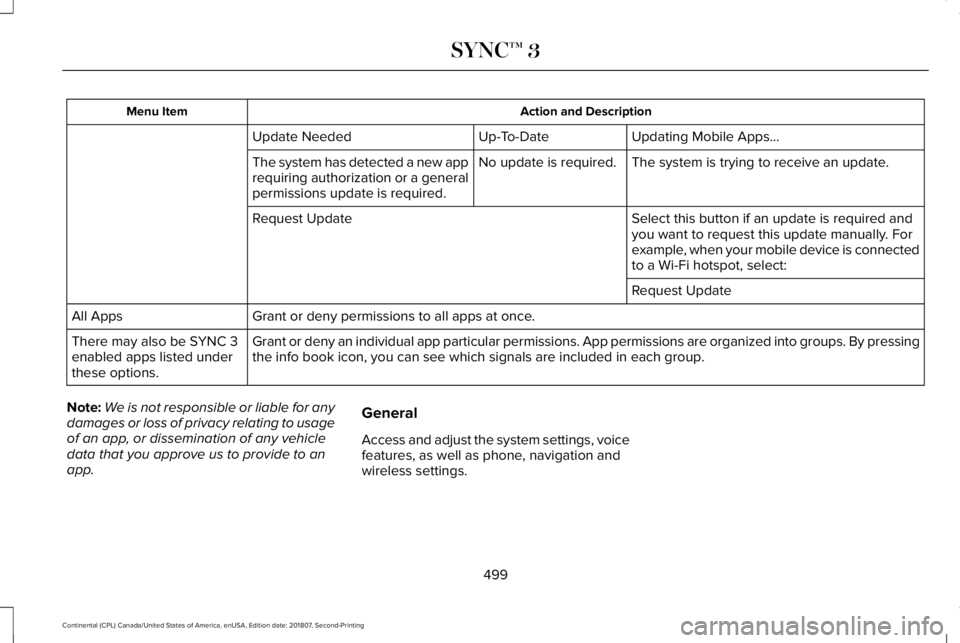
Updating Mobile Apps…
Up-To-Date
Update Needed
The system is trying to receive an update.
No update is required.
The system has detected a new app
requiring authorization or a general
permissions update is required.
Select this button if an update is required and
you want to request this update manually. For
example, when your mobile device is connected
to a Wi-Fi hotspot, select:
Request Update
Request Update
Grant or deny permissions to all apps at once.
All Apps
Grant or deny an individual app particular permissions. App permissions \
are organized into groups. By pressing
the info book icon, you can see which signals are included in each group\
.
There may also be SYNC 3
enabled apps listed under
these options.
Note: We is not responsible or liable for any
damages or loss of privacy relating to usage
of an app, or dissemination of any vehicle
data that you approve us to provide to an
app. General
Access and adjust the system settings, voice
features, as well as phone, navigation and
wireless settings.
499
Continental (CPL) Canada/United States of America, enUSA, Edition date: 201807, Second-Printing SYNC™ 3
Page 574 of 627
•
Navigation Features: Any navigation
features included in the system are
intended to provide turn by turn
instructions to get you to a desired
destination. Please make certain all
persons using this system carefully read
and follow instructions and safety
information fully.
• Distraction Hazard:
Any navigation
features may require manual (non-verbal)
setup. Attempting to perform such set-up
or insert data while driving can distract
your attention and could cause an
accident or other serious injury. Stop the
vehicle in a safe and legal manner before
attempting these operations.
• Let Your Judgment Prevail:
Any
navigation features are provided only as
an aid. Make your driving decisions
based on your observations of local
conditions and existing traffic regulations.
Any such feature is not a substitute for
your personal judgment. Any route
suggestions made by this system should
never replace any local traffic regulations
or your personal judgment or knowledge
of safe driving practices. •
Route Safety:
Do not follow the route
suggestions if doing so would result in
an unsafe or illegal maneuver, if you
would be placed in an unsafe situation,
or if you would be directed into an area
that you consider unsafe. The driver is
ultimately responsible for the safe
operation of the vehicle and therefore,
must evaluate whether it is safe to follow
the suggested directions.
• Potential Map Inaccuracy:
Maps used
by this system may be inaccurate
because of changes in roads, traffic
controls or driving conditions. Always use
good judgment and common sense when
following the suggested routes.
• Emergency Services:
Do not rely on any
navigation features included in the
system to route you to emergency
services. Ask local authorities or an
emergency services operator for these
locations. Not all emergency services
such as police, fire stations, hospitals and
clinics are likely to be contained in the
map database for such navigation
features.
571
Continental (CPL) Canada/United States of America, enUSA, Edition date: 201807, Second-Printing Appendices