phone LINCOLN CONTINENTAL 2019 Workshop Manual
[x] Cancel search | Manufacturer: LINCOLN, Model Year: 2019, Model line: CONTINENTAL, Model: LINCOLN CONTINENTAL 2019Pages: 627, PDF Size: 6.39 MB
Page 493 of 627

Action and Description
Menu Item
View Devices
You can then select: You can add a Bluetooth enabled device by following the steps in the prev\
ious table.
Add a Bluetooth Device
You can select a phone by touching the name of the phone on the screen. Y\
ou then have the following options:
Depending on the status of the device, you can select either of these options to interact with the selected
device.
Connect
Disconnect
Allows you to select this device to be your preferred device.
Make Primary
Removes the selected device from the system.
Delete
Press the info icon next to the device name
to see phone and device information. Action and Description
Menu Item
Manage Contacts
You can then select: Enable this option to have SYNC 3 periodically re-download your phonebook to keep your contact list up to
date.
Auto-Download Contacts
490
Continental (CPL) Canada/United States of America, enUSA, Edition date: 201807, Second-Printing SYNC™ 3
Page 494 of 627
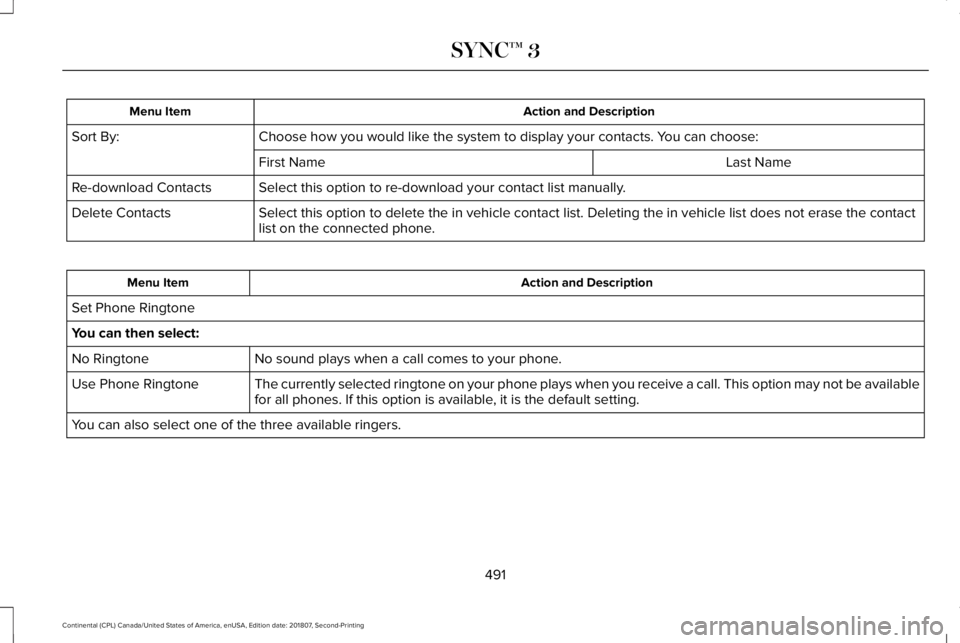
Action and Description
Menu Item
Choose how you would like the system to display your contacts. You can choose:
Sort By:
Last Name
First Name
Select this option to re-download your contact list manually.
Re-download Contacts
Select this option to delete the in vehicle contact list. Deleting the i\
n vehicle list does not erase the contact
list on the connected phone.
Delete Contacts Action and Description
Menu Item
Set Phone Ringtone
You can then select: No sound plays when a call comes to your phone.
No Ringtone
The currently selected ringtone on your phone plays when you receive a c\
all. This option may not be available
for all phones. If this option is available, it is the default setting.
Use Phone Ringtone
You can also select one of the three available ringers.
491
Continental (CPL) Canada/United States of America, enUSA, Edition date: 201807, Second-Printing SYNC™ 3
Page 495 of 627
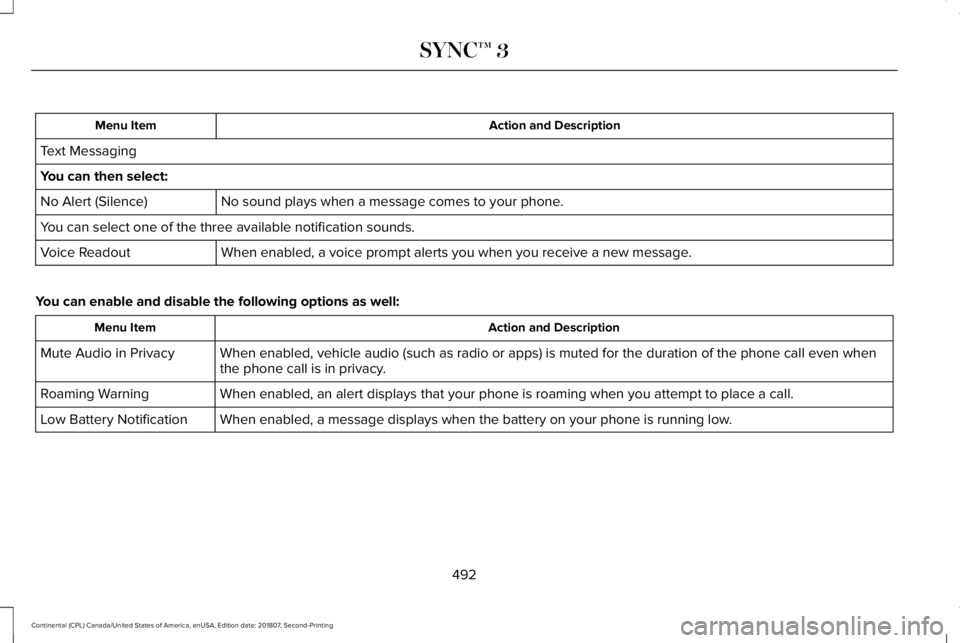
Action and Description
Menu Item
Text Messaging
You can then select: No sound plays when a message comes to your phone.
No Alert (Silence)
You can select one of the three available notification sounds.
When enabled, a voice prompt alerts you when you receive a new message.
Voice Readout
You can enable and disable the following options as well: Action and Description
Menu Item
When enabled, vehicle audio (such as radio or apps) is muted for the d\
uration of the phone call even when
the phone call is in privacy.
Mute Audio in Privacy
When enabled, an alert displays that your phone is roaming when you atte\
mpt to place a call.
Roaming Warning
When enabled, a message displays when the battery on your phone is runni\
ng low.
Low Battery Notification
492
Continental (CPL) Canada/United States of America, enUSA, Edition date: 201807, Second-Printing SYNC™ 3
Page 496 of 627
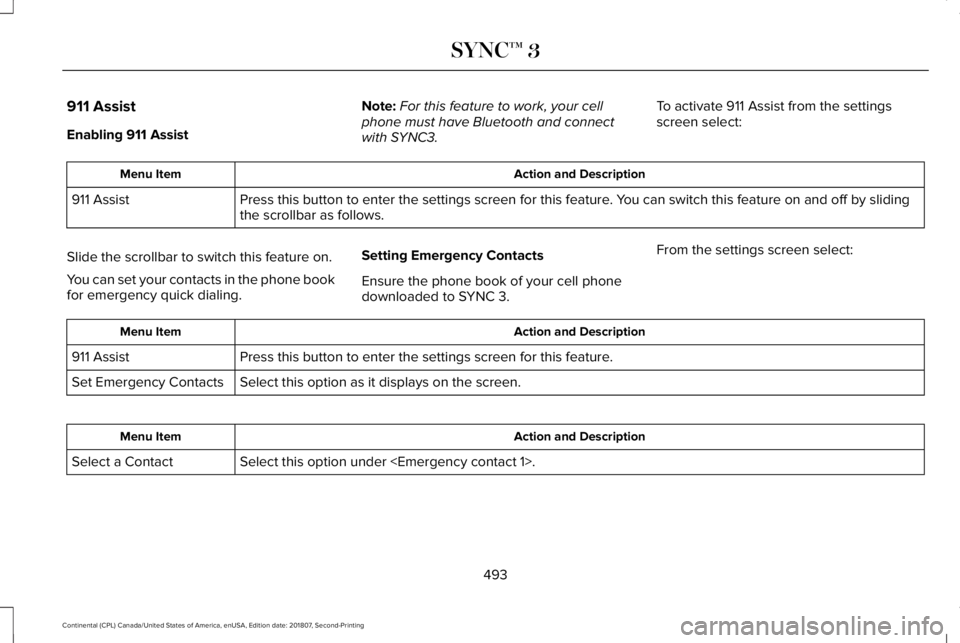
911 Assist
Enabling 911 Assist
Note:
For this feature to work, your cell
phone must have Bluetooth and connect
with SYNC3. To activate 911 Assist from the settings
screen select: Action and Description
Menu Item
Press this button to enter the settings screen for this feature. You can switch this feature on and off by sliding
the scrollbar as follows.
911 Assist
Slide the scrollbar to switch this feature on.
You can set your contacts in the phone book
for emergency quick dialing. Setting Emergency Contacts
Ensure the phone book of your cell phone
downloaded to SYNC 3.From the settings screen select: Action and Description
Menu Item
Press this button to enter the settings screen for this feature.
911 Assist
Select this option as it displays on the screen.
Set Emergency Contacts Action and Description
Menu Item
Select this option under
Select a Contact
493
Continental (CPL) Canada/United States of America, enUSA, Edition date: 201807, Second-Printing SYNC™ 3
Page 497 of 627
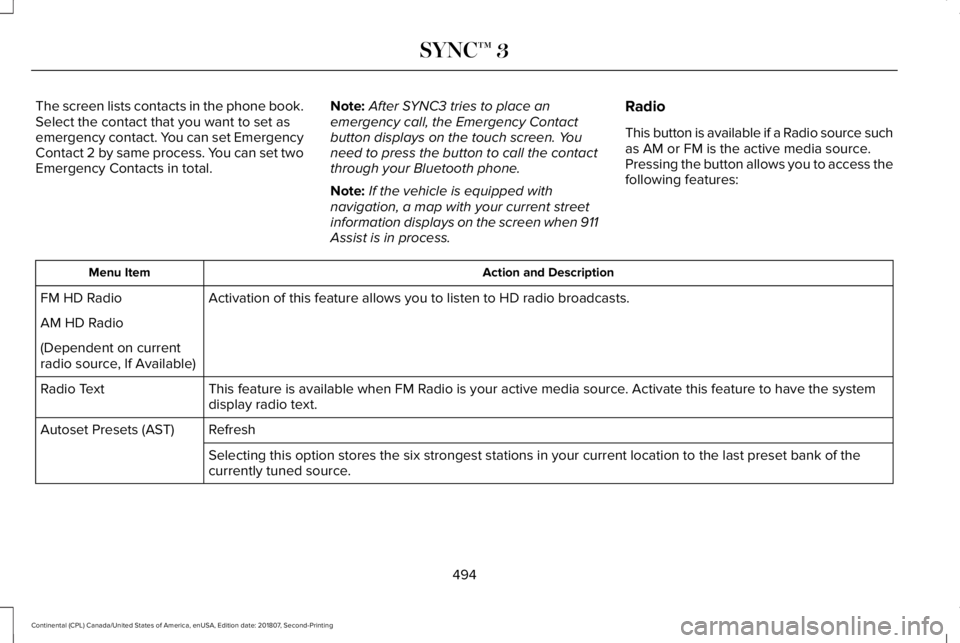
The screen lists contacts in the phone book.
Select the contact that you want to set as
emergency contact. You can set Emergency
Contact 2 by same process. You can set two
Emergency Contacts in total.
Note:
After SYNC3 tries to place an
emergency call, the Emergency Contact
button displays on the touch screen. You
need to press the button to call the contact
through your Bluetooth phone.
Note: If the vehicle is equipped with
navigation, a map with your current street
information displays on the screen when 911
Assist is in process. Radio
This button is available if a Radio source such
as AM or FM is the active media source.
Pressing the button allows you to access the
following features: Action and Description
Menu Item
Activation of this feature allows you to listen to HD radio broadcasts.
FM HD Radio
AM HD Radio
(Dependent on current
radio source, If Available)
This feature is available when FM Radio is your active media source. Activate this feature to have the system
display radio text.
Radio Text
Refresh
Autoset Presets (AST)
Selecting this option stores the six strongest stations in your current \
location to the last preset bank of the
currently tuned source.
494
Continental (CPL) Canada/United States of America, enUSA, Edition date: 201807, Second-Printing SYNC™ 3
Page 502 of 627
Action and Description
Menu Item
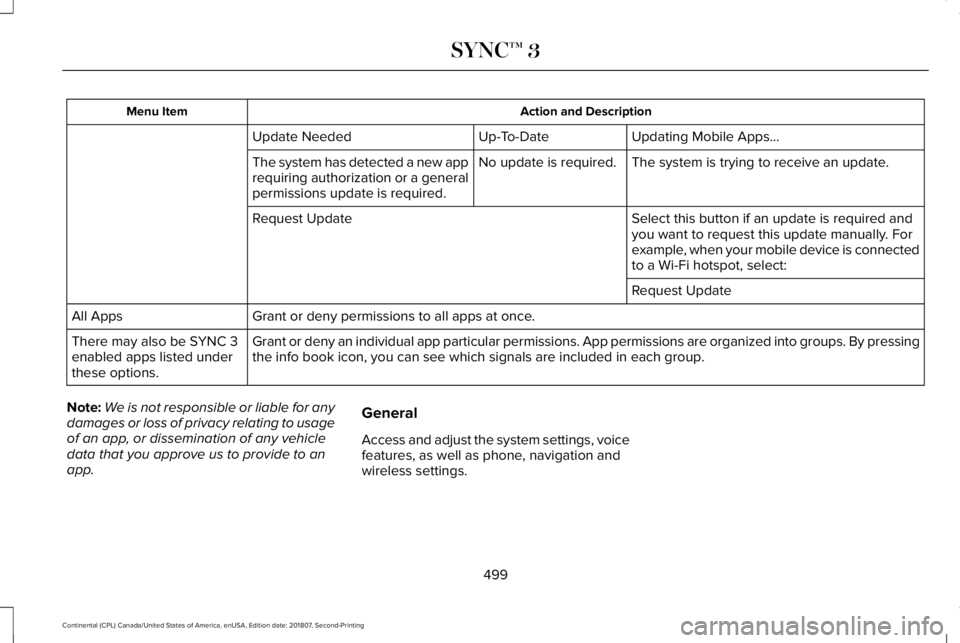
Updating Mobile Apps…
Up-To-Date
Update Needed
The system is trying to receive an update.
No update is required.
The system has detected a new app
requiring authorization or a general
permissions update is required.
Select this button if an update is required and
you want to request this update manually. For
example, when your mobile device is connected
to a Wi-Fi hotspot, select:
Request Update
Request Update
Grant or deny permissions to all apps at once.
All Apps
Grant or deny an individual app particular permissions. App permissions \
are organized into groups. By pressing
the info book icon, you can see which signals are included in each group\
.
There may also be SYNC 3
enabled apps listed under
these options.
Note: We is not responsible or liable for any
damages or loss of privacy relating to usage
of an app, or dissemination of any vehicle
data that you approve us to provide to an
app. General
Access and adjust the system settings, voice
features, as well as phone, navigation and
wireless settings.
499
Continental (CPL) Canada/United States of America, enUSA, Edition date: 201807, Second-Printing SYNC™ 3
Page 508 of 627

Menu Item
Enable this option to remove additional voice prompts and confirmations.\
Advanced Mode
Enable this option to have the system confirm a contact's name with you before
making a call.
Phone Confirmation
Enable this option to have the system display a list of available voice \
commands
when you press the voice.
Voice Command List
Valet Mode
Valet mode allows you to lock the system.
No information is accessible until the system
is unlocked with the correct PIN.
When you select valet mode, a pop up
appears informing you that a four digit code
must be entered to enable and disable valet
mode. You can use any PIN you chose but
you must use the same PIN to disable valet
mode. The system asks you to input the
code.
Note: If the system is locked and you cannot
remember the PIN, please contact the
Customer Relationship Center. For Lincoln
United States: 1-800-521-4140
Canada: 1-800-387-9333 Lincoln
Ford
United States: 1-800-521-4140
United States and
Canada: 1-800-392- 3673 Canada: 1-800-387-
9333
To enable valet mode, enter your chosen
PIN. The system then asks to confirm your
PIN by reentering it. The system then locks. To unlock the system, enter the same pin
number. The system reconnects to your
phone and all of your options are available
again.
SYNC™ 3 TROUBLESHOOTING
Your SYNC 3 system is easy to use.
However, should questions arise, please
refer to the tables below.
To check your cell phone's compatibility,
refer to the regional Ford or Lincoln website.
505
Continental (CPL) Canada/United States of America, enUSA, Edition date: 201807, Second-Printing SYNC™ 3
Page 509 of 627
Cell phone issues
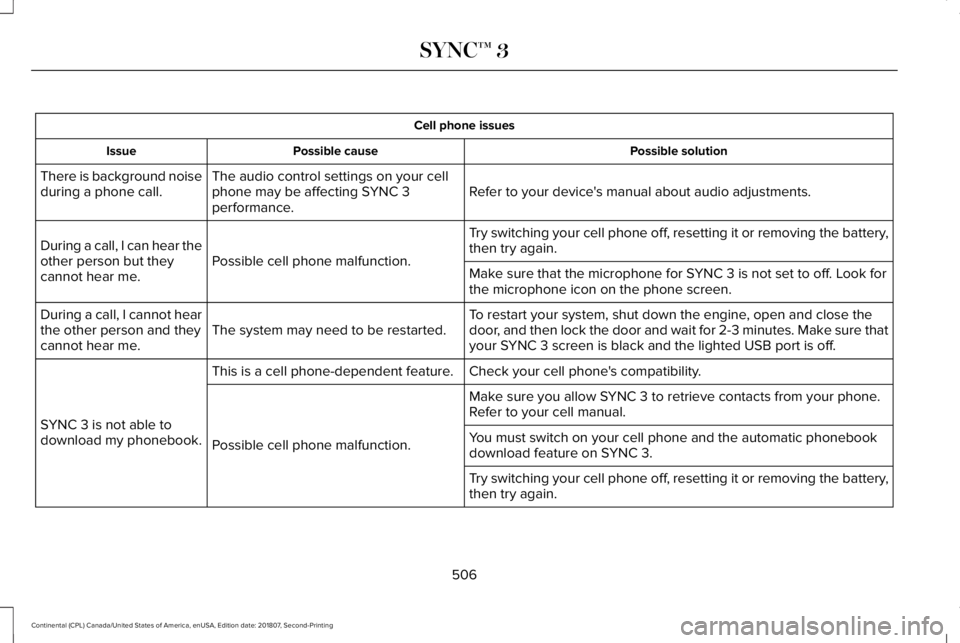
Possible solution
Possible cause
Issue
Refer to your device's manual about audio adjustments.
The audio control settings on your cell
phone may be affecting SYNC 3
performance.
There is background noise
during a phone call.
Try switching your cell phone off, resetting it or removing the battery,
then try again.
Possible cell phone malfunction.
During a call, I can hear the
other person but they
cannot hear me.
Make sure that the microphone for SYNC 3 is not set to off. Look for
the microphone icon on the phone screen.
To restart your system, shut down the engine, open and close the
door, and then lock the door and wait for 2-3 minutes. Make sure that
your SYNC 3 screen is black and the lighted USB port is off.
The system may need to be restarted.
During a call, I cannot hear
the other person and they
cannot hear me.
Check your cell phone's compatibility.
This is a cell phone-dependent feature.
SYNC 3 is not able to
download my phonebook. Make sure you allow SYNC 3 to retrieve contacts from your phone.
Refer to your cell manual.
Possible cell phone malfunction. You must switch on your cell phone and the automatic phonebook
download feature on SYNC 3.
Try switching your cell phone off, resetting it or removing the battery,
then try again.
506
Continental (CPL) Canada/United States of America, enUSA, Edition date: 201807, Second-Printing SYNC™ 3
Page 510 of 627
Cell phone issues
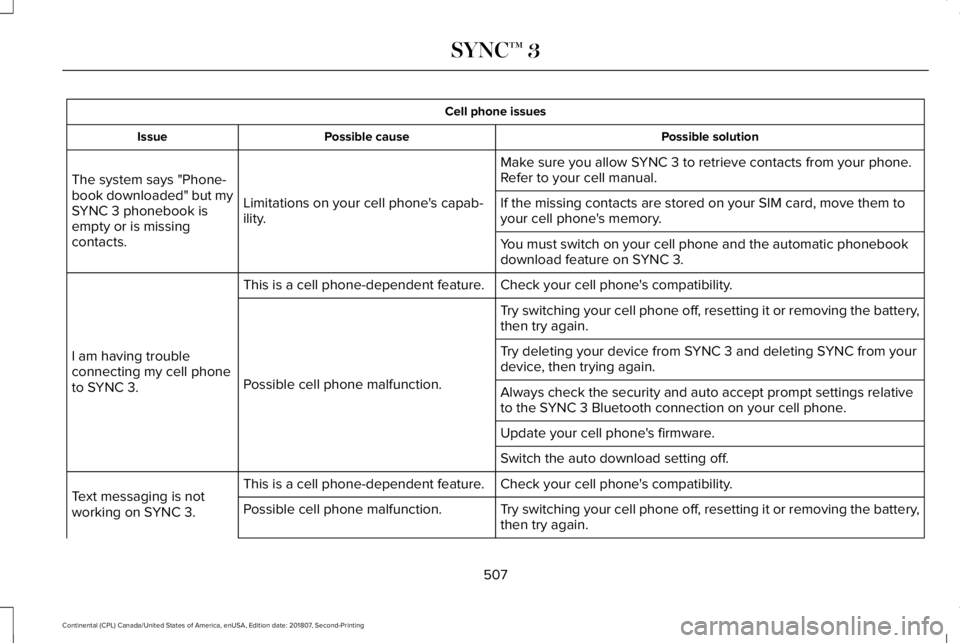
Possible solution
Possible cause
Issue
Make sure you allow SYNC 3 to retrieve contacts from your phone.
Refer to your cell manual.
Limitations on your cell phone's capab-
ility.
The system says "Phone-
book downloaded" but my
SYNC 3 phonebook is
empty or is missing
contacts. If the missing contacts are stored on your SIM card, move them to
your cell phone's memory.
You must switch on your cell phone and the automatic phonebook
download feature on SYNC 3.
Check your cell phone's compatibility.
This is a cell phone-dependent feature.
I am having trouble
connecting my cell phone
to SYNC 3. Try switching your cell phone off, resetting it or removing the battery,
then try again.
Possible cell phone malfunction. Try deleting your device from SYNC 3 and deleting SYNC from your
device, then trying again.
Always check the security and auto accept prompt settings relative
to the SYNC 3 Bluetooth connection on your cell phone.
Update your cell phone's firmware.
Switch the auto download setting off.
Check your cell phone's compatibility.
This is a cell phone-dependent feature.
Text messaging is not
working on SYNC 3. Try switching your cell phone off, resetting it or removing the battery,
then try again.
Possible cell phone malfunction.
507
Continental (CPL) Canada/United States of America, enUSA, Edition date: 201807, Second-Printing SYNC™ 3
Page 511 of 627
Cell phone issues
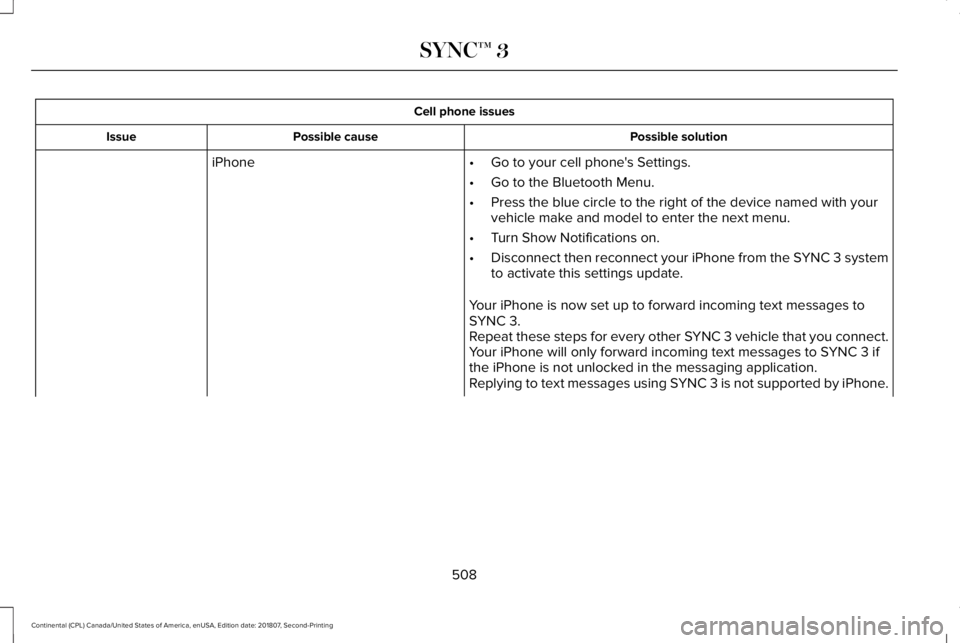
Possible solution
Possible cause
Issue
iPhone •Go to your cell phone's Settings.
• Go to the Bluetooth Menu.
• Press the blue circle to the right of the device named with your
vehicle make and model to enter the next menu.
• Turn Show Notifications on.
• Disconnect then reconnect your iPhone from the SYNC 3 system
to activate this settings update.
Your iPhone is now set up to forward incoming text messages to
SYNC 3.
Repeat these steps for every other SYNC 3 vehicle that you connect.
Your iPhone will only forward incoming text messages to SYNC 3 if
the iPhone is not unlocked in the messaging application.
Replying to text messages using SYNC 3 is not supported by iPhone.
508
Continental (CPL) Canada/United States of America, enUSA, Edition date: 201807, Second-Printing SYNC™ 3