charging LINCOLN CORSAIR 2020 User Guide
[x] Cancel search | Manufacturer: LINCOLN, Model Year: 2020, Model line: CORSAIR, Model: LINCOLN CORSAIR 2020Pages: 591, PDF Size: 6 MB
Page 356 of 591
We engineer and test all motor vehicles and
their components for reliable, regular driving.
Under various conditions, long-term storage
may lead to degraded engine performance
or failure unless you use specific precautions
to preserve engine components.
General
•
Store all vehicles in a dry, ventilated
place.
• Protect from sunlight, if possible.
• If vehicles are stored outside, they
require regular maintenance to protect
against rust and damage.
Body
• Wash your vehicle thoroughly to remove
dirt, grease, oil, tar or mud from exterior
surfaces, rear-wheel housing and the
underside of front fenders.
• Periodically wash your vehicle if it is
stored in exposed locations.
• Touch-up exposed or primed metal to
prevent rust. •
Cover chrome and stainless steel parts
with a thick coat of auto wax to prevent
discoloration. Re-wax as necessary when
you wash your vehicle.
• Lubricate all hood, door and luggage
compartment hinges and latches with a
light grade oil.
• Cover interior trim to prevent fading.
• Keep all rubber parts free from oil and
solvents.
Engine
• Change the engine oil and filter prior to
storage because used engine oil contains
contaminates which may cause engine
damage.
• Start the engine every 15 days for a
minimum of 15 minutes. Run at fast idle
with the climate controls set to defrost
until the engine reaches normal
operating temperature.
• With your foot on the brake, shift through
all the gears while the engine is running.
• We recommend that you change the
engine oil before you use your vehicle
again. Fuel system
•
Fill the fuel tank with high-quality fuel
until the first automatic shutoff of the fuel
pump nozzle.
Cooling system
• Protect against freezing temperatures.
• When removing your vehicle from
storage, check coolant fluid level.
Confirm that there are no cooling system
leaks and that fluid is at the
recommended level.
Disconnecting Your 12 Volt Battery
• Check and recharge as necessary. Keep
connections clean.
• If storing your vehicle for more than 30
days without recharging the battery, we
recommend that you disconnect the
battery cables to maintain battery charge
for quick starting.
Note: It is necessary to reset memory
features if you disconnect the battery cables.
353
Corsair (CTF) Canada/United States of America, enUSA, Edition date: 201906, Second-Printing Vehicle Care
Page 472 of 591
The navigation system map data may contain
inaccurate or incomplete information due to
the passage of time, changing
circumstances, sources used and the nature
of collecting comprehensive geographic
data, any of which may lead to incorrect
results. Inaccurate speed limit information,
turn restrictions and other road attributes
may affect the determined route and
associated guidance
Annual navigation map updates are available
for purchase through your dealership.
Depending on your purchase agreement,
you might be eligible for free Map update.
You can choose to download the Map data
update onto a USB, order a USB, or use Wi-Fi
to deliver automatic updates. To update your
Map data over Wi-Fi, your vehicle must be
connected to a Wi-Fi access point. Map Data
files are large, so it is highly recommended
to perform the update when free Wi-Fi is
available otherwise high data rates may
apply. For USB updates, free map update
eligibility, and other details, contact dealers
at 1-866-462-8837 in the United States and
Canada or 01-800-557-5539 in Mexico or
visit our local website for more information.
ELECTRIC VEHICLE INFORMATION
Power Flow The Power Flow information for
your plug-in hybrid vehicle is
available through the Home screen
or under Apps.
Vehicle Operational States
Power will flow to or from the front and rear
wheels depending on operational state and
drive conditions.
• Idling: The vehicle is running and in park
(P). The engine and, or the high voltage
battery are on.
• Electric Driving: The vehicle is running
and in drive (D) or neutral (N). The high
voltage battery provides power to the
wheels.
• Hybrid Driving: The vehicle is running
and in drive (D) or neutral (N). The engine
and the high voltage battery provide
power to the wheels. •
Engine Driving: The vehicle is running
and in drive (D) or neutral (N). The engine
provides power to the wheels.
• Regenerative Braking: The vehicle is
running in drive gear (D) and is slowing
down. The regenerative braking system
captures power and sends it back to the
high voltage battery.
• Charging: The vehicle is plugged in and
the high voltage battery is being charged.
Engine On Due To
The following conditions help to explain why
the engine is on, and what you can do to
allow all electric operation.
• Drive Power: The engine is on due to
accelerator pedal pressure or speed
control activation. Reduce pressure on
the accelerator pedal or switch off the
speed control to return to full electric
mode.
• High Speed: The engine is on because
the vehicle speed exceeds the level for
full electric operation. Reduce the speed
to return to electric operation.
469
Corsair (CTF) Canada/United States of America, enUSA, Edition date: 201906, Second-Printing SYNC™ 3E304437
Page 473 of 591
•
Heater Setting: The engine is on because
of the heater setting. Reduce or switch
off the heater setting to return to electric
operation.
• Neutral Gear: The engine is on because
the vehicle is in neutral (N). Shift out of
neutral gear to return to electric
operation.
• Engine Cold: The engine is on because
it is cold. The vehicle returns to electric
operation once the engine is sufficiently
warm.
• Battery Charging: The engine is on to
charge the high-voltage battery. The
vehicle returns to electric operation once
the battery is sufficiently charged.
• Low Gear: The engine is on because the
vehicle is in low gear. Shift out of low
gear to return to electric operation.
• Normal Operation: The engine is on to
optimize vehicle operation. The vehicle
returns to electric operation when
possible. •
Low Use: The engine is on to maintain
engine oil quality. The vehicle returns to
electric operation when low engine use
mode is complete.
• Engine Braking Active: The engine is on
to provide increased powertrain braking.
This can occur when you turn on the
grade assist feature, when speed control
is on or when driving with your foot off
the accelerator pedal. Turning off grade
assist or speed control may allow the
vehicle to return to electric operation.
• Battery Temperature: The engine is on
due to high or low high-voltage battery
temperature. This is a normal operating
condition. The vehicle returns to electric
operation when possible.
• Drive Mode: The engine is on due to the
drive mode selection. Select an
appropriate drive mode for electric only
operation. Charge Settings The Charge Settings information
for your plug-in hybrid vehicle is
available through the Home screen
or under Vehicle Settings. To Improve your
charging experience, your vehicle has the
following convenience features.
Charge Times
Once you set up Charge Times for a specific
charging location, your vehicle prioritizes
charging based on your preferred time
settings. You can set two preferred charging
time windows for weekdays and two for
weekends. This feature allows you to take
advantage of electric utility rate plans that
offer lower pricing during certain times of
day. Contact your utility company to see what
plans are available.
Note: You can also set up and use these
features using the Lincoln Way app.
470
Corsair (CTF) Canada/United States of America, enUSA, Edition date: 201906, Second-Printing SYNC™ 3E304452
Page 474 of 591
Departure Times
Setting Departure Times allows you to
control charging schedules and have the
vehicle cabin heated or cooled while
plugged in, so your vehicle is ready to drive
when you are. By setting a departure time
your vehicle can use your charge time
settings to minimize your electricity costs but
still prioritize finishing charging before your
scheduled departure. A calendar view allows
you to program two departure times per day
for each day of the week.
Note:
You can also set up and use these
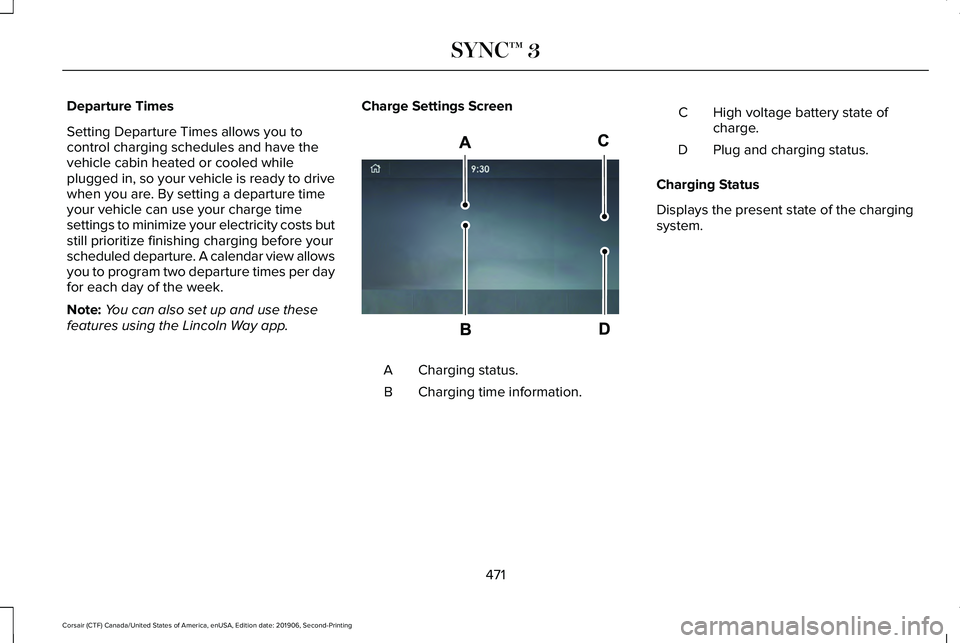
features using the Lincoln Way app. Charge Settings Screen Charging status.
A
Charging time information.
B High voltage battery state of
charge.
C
Plug and charging status.
D
Charging Status
Displays the present state of the charging
system.
471
Corsair (CTF) Canada/United States of America, enUSA, Edition date: 201906, Second-Printing SYNC™ 3E304455
Page 475 of 591
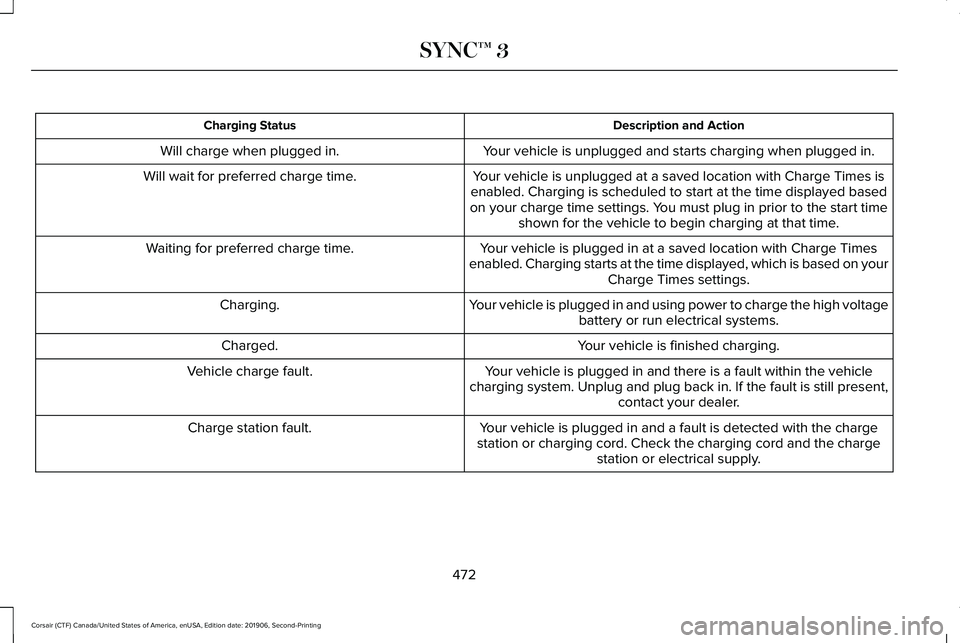
Description and Action
Charging Status
Your vehicle is unplugged and starts charging when plugged in.
Will charge when plugged in.
Your vehicle is unplugged at a saved location with Charge Times is
enabled. Charging is scheduled to start at the time displayed based
on your charge time settings. You must plug in prior to the start time shown for the vehicle to begin charging at that time.
Will wait for preferred charge time.
Your vehicle is plugged in at a saved location with Charge Times
enabled. Charging starts at the time displayed, which is based on your Charge Times settings.
Waiting for preferred charge time.
Your vehicle is plugged in and using power to charge the high voltagebattery or run electrical systems.
Charging.
Your vehicle is finished charging.
Charged.
Your vehicle is plugged in and there is a fault within the vehicle
charging system. Unplug and plug back in. If the fault is still present,\
contact your dealer.
Vehicle charge fault.
Your vehicle is plugged in and a fault is detected with the charge
station or charging cord. Check the charging cord and the charge station or electrical supply.
Charge station fault.
472
Corsair (CTF) Canada/United States of America, enUSA, Edition date: 201906, Second-Printing SYNC™ 3
Page 476 of 591
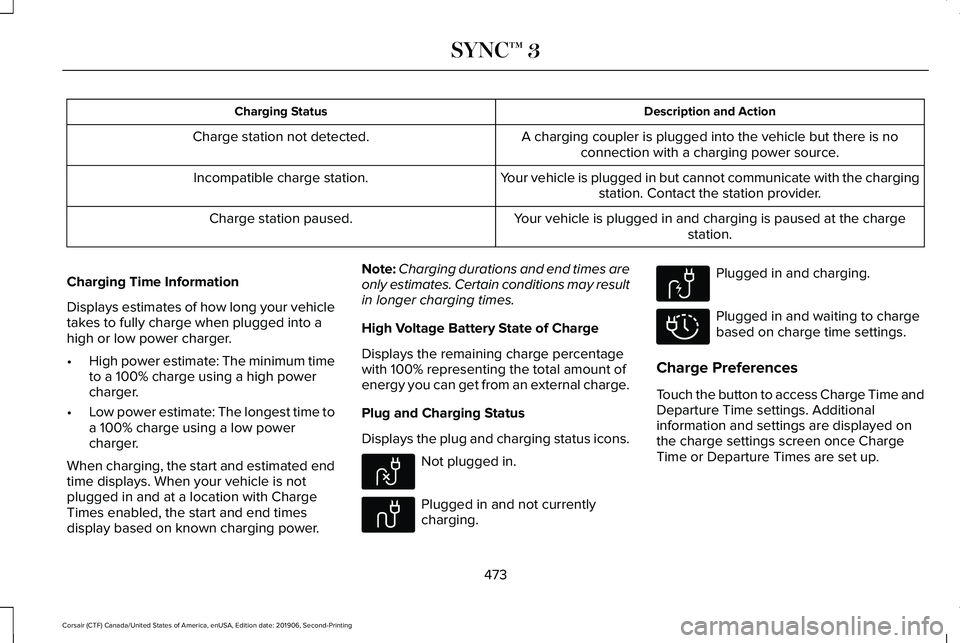
Description and Action
Charging Status
A charging coupler is plugged into the vehicle but there is noconnection with a charging power source.
Charge station not detected.
Your vehicle is plugged in but cannot communicate with the chargingstation. Contact the station provider.
Incompatible charge station.
Your vehicle is plugged in and charging is paused at the chargestation.
Charge station paused.
Charging Time Information
Displays estimates of how long your vehicle
takes to fully charge when plugged into a
high or low power charger.
• High power estimate: The minimum time
to a 100% charge using a high power
charger.
• Low power estimate: The longest time to
a 100% charge using a low power
charger.
When charging, the start and estimated end
time displays. When your vehicle is not
plugged in and at a location with Charge
Times enabled, the start and end times
display based on known charging power. Note:
Charging durations and end times are
only estimates. Certain conditions may result
in longer charging times.
High Voltage Battery State of Charge
Displays the remaining charge percentage
with 100% representing the total amount of
energy you can get from an external charge.
Plug and Charging Status
Displays the plug and charging status icons. Not plugged in.
Plugged in and not currently
charging. Plugged in and charging.
Plugged in and waiting to charge
based on charge time settings.
Charge Preferences
Touch the button to access Charge Time and
Departure Time settings. Additional
information and settings are displayed on
the charge settings screen once Charge
Time or Departure Times are set up.
473
Corsair (CTF) Canada/United States of America, enUSA, Edition date: 201906, Second-Printing SYNC™ 3E304458 E304459 E304460 E304461
Page 477 of 591
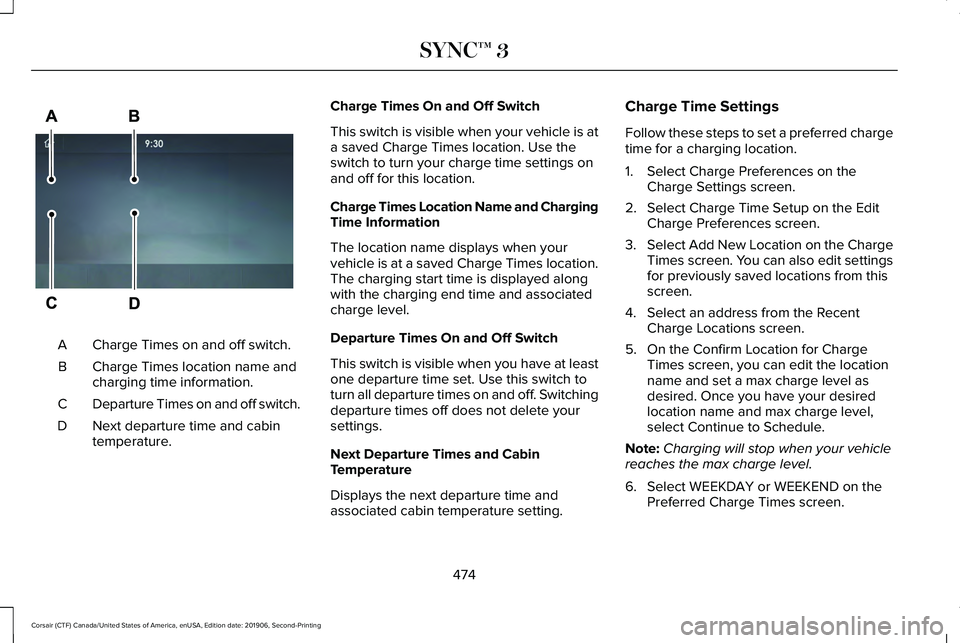
Charge Times on and off switch.
A
Charge Times location name and
charging time information.
B
Departure Times on and off switch.
C
Next departure time and cabin
temperature.
D Charge Times On and Off Switch
This switch is visible when your vehicle is at
a saved Charge Times location. Use the
switch to turn your charge time settings on
and off for this location.
Charge Times Location Name and Charging
Time Information
The location name displays when your
vehicle is at a saved Charge Times location.
The charging start time is displayed along
with the charging end time and associated
charge level.
Departure Times On and Off Switch
This switch is visible when you have at least
one departure time set. Use this switch to
turn all departure times on and off. Switching
departure times off does not delete your
settings.
Next Departure Times and Cabin
Temperature
Displays the next departure time and
associated cabin temperature setting. Charge Time Settings
Follow these steps to set a preferred charge
time for a charging location.
1. Select Charge Preferences on the
Charge Settings screen.
2. Select Charge Time Setup on the Edit Charge Preferences screen.
3. Select Add New Location on the Charge
Times screen. You can also edit settings
for previously saved locations from this
screen.
4. Select an address from the Recent Charge Locations screen.
5. On the Confirm Location for Charge Times screen, you can edit the location
name and set a max charge level as
desired. Once you have your desired
location name and max charge level,
select Continue to Schedule.
Note: Charging will stop when your vehicle
reaches the max charge level.
6. Select WEEKDAY or WEEKEND on the Preferred Charge Times screen.
474
Corsair (CTF) Canada/United States of America, enUSA, Edition date: 201906, Second-Printing SYNC™ 3E304454
Page 478 of 591
7. On the Select preferred WEEKDAY or
WEEKEND Charge Times screen, use the
circular 24 hour clock to select your
charging time windows. You can select
up to two time windows by pressing and
dragging across the hour buttons. When
you have selected your preferred times
then press Next to return to the Preferred
Charge Times screen. Repeat for
WEEKEND or WEEKDAY as desired.
Once you are done setting preferred
charge times, press Save.
Note: Selecting all or none of the 24 hours
results in any time of day given equal priority
for charging.
8. Your saved location now shows on the Charge Times screen. Select Done to
return to the main charge settings screen.
Whenever your vehicle is at a saved
charging location, the charge settings
screen displays the location name, and
the charging times are based on your
Charge Time settings for that location
plus the next Departure Time. Note:
Reaching your max charge level by
your next Departure Time is always the
priority. When Charge Times are set,
charging outside your preferred charging
time windows could be necessary in order
to finish by your next Departure Time.
Departure Time Settings
1. Select Charge Preferences on the Charge Settings screen.
2. Select Departure Time Setup on the Edit
Charge Preferences screen.
3. Two time settings show for each day of the week on the Departure Times
schedule screen. Select any one.
4. On the Departure Time settings screen, set your desired departure time, cabin
temperature and days of the week to
repeat. Press Save.
5. Your settings are now shown on the Departure Times schedule screen. Press
Back two times to return to the main
charge settings screen. The next
departure time and cabin temperature
setting display. Note:
Cabin conditioning can perform
differently depending on if you plug in with
the included convenience cord or a higher
power charging station. The power available
for conditioning is limited to the charging
station power available.
Note: Your vehicle may not always reach
the set cabin temperature due to charging
and ambient temperature conditions. This is
normal operation
APPS
The system allows you interact with select
mobile apps while keeping your eyes on the
road. Voice commands, your steering wheel
buttons, or a quick tap on your touchscreen
give you advanced control of compatible
mobile apps. You can also stream your
favorite music or podcasts, share your time
of arrival with friends, and keep connected
safely.
475
Corsair (CTF) Canada/United States of America, enUSA, Edition date: 201906, Second-Printing SYNC™ 3
Page 583 of 591
Head Restraints.............................................159
Folding the Rear Seat Outermost Head
Restraint............................................................160
Installing the Head Restraint.............................161
Lowering the Head Restraint...........................160
Raising the Head Restraint...............................
160
Removing the Head Restraint..........................160
Tilting the Front Seat Head Restraint............160
Head Up Display...........................................148 Configuring The Head Up Display..................148
Head Up Display Overview..............................149
Maintaining Your Head Up Display..................151
Heated Exterior Mirrors...............................155
Heated Rear Window
...................................155
Heated Seats..................................................170
Front Seats............................................................170
Rear Seats..............................................................171
Heated Steering Wheel.................................94
Heated Windshield
.......................................155
Windshield Wiper De-Icer.................................155
Heating See: Climate Control..........................................152
Hill Start Assist...............................................217 Switching the System On and Off...................218
Using Hill Start Assist.........................................218 Hints on Controlling the Interior
Climate..........................................................154
Defogging the Side Windows in Cold Weather.............................................................155
General Hints........................................................154
Quickly Cooling the Interior.............................155
Quickly Heating the Interior.............................155
Recommended Settings for Cooling..............
155
Recommended Settings for Heating..............155
Hints on Driving With Anti-Lock Brakes...........................................................215
Hood Lock See: Opening and Closing the Hood............327
Horn
....................................................................94
How Does Adaptive Cruise Control With Stop and Go Work
.....................................245
I
In California (U.S. Only)...............................306
Information Display Control
.........................94
Information Displays.....................................123
General Information............................................123
Information Messages.................................128 Active Park............................................................128
Adaptive Cruise Control....................................129
Adaptive Headlamps..........................................129
AdvanceTrac ™ and Traction Control................
130Alarm......................................................................130
Automatic Engine Shutdown.............................
131
AWD........................................................................\
.131
Battery and Charging System..........................132
Blind Spot Information and Cross Traffic Alert System...............................................................133
Doors and Locks..................................................134
Driver Alert............................................................135
Fuel........................................................................\
.135
Hill Start Assist.....................................................136
Keys and Intelligent Access..............................136
Lane Keeping System.........................................137
Maintenance.........................................................138
MyKey.....................................................................139
Park Aid..................................................................140
Park Brake..............................................................141
Power Steering....................................................142
Pre-Collision Assist.............................................143
Remote Start.........................................................143
Seats.......................................................................143
Starting System ...................................................144
Stop Safely Now..................................................144
Tire Pressure Monitoring System....................145
Trailer......................................................................145
Transmission.........................................................146
Installing Child Restraints.............................26 Child Restraints.....................................................26
Using Lap and Shoulder Belts...........................26
580
Corsair (CTF) Canada/United States of America, enUSA, Edition date: 201906, Second-Printing Index
Page 591 of 591
Wireless Accessory Charging....................179
588
Corsair (CTF) Canada/United States of America, enUSA, Edition date: 201906, Second-Printing Index