ECO mode LINCOLN CORSAIR 2020 Manual PDF
[x] Cancel search | Manufacturer: LINCOLN, Model Year: 2020, Model line: CORSAIR, Model: LINCOLN CORSAIR 2020Pages: 591, PDF Size: 6 MB
Page 341 of 591
You may notice a reduction in vehicle speed
caused by reduced engine power in order
to manage the engine coolant temperature.
Your vehicle may enter this mode if certain
high-temperature and high-load conditions
take place. The amount of speed reduction
depends on vehicle loading, grade and
ambient temperature. If this occurs, there is
no need to stop your vehicle. You can
continue to drive.
The air conditioning may automatically turn
on and off during severe operating
conditions to protect the engine from
overheating. When the coolant temperature
decreases to the normal operating
temperature, the air conditioning turns on.
If the coolant temperature gauge moves fully
into the red zone, or if the coolant
temperature warning or service engine soon
messages appear in your information display,
do the following:
1.
Stop your vehicle as soon as it is safe to
do so. Fully apply the parking brake, shift
into park (P) or neutral (N). 2. Leave the engine running until the
coolant temperature gauge needle
returns to the normal position. If the
temperature does not drop after several
minutes, follow the remaining steps.
3. Switch the engine off and wait for it to cool. Check the coolant level.
4. If the coolant level is at or below the minimum mark, add prediluted coolant
immediately.
5. If the coolant level is normal, restart the engine and continue.
AUTOMATIC TRANSMISSION
FLUID CHECK
The automatic transmission does not have
a transmission fluid dipstick.
The automatic transmission does not
consume fluid. However, the fluid level
should be checked if the transmission is not
working properly, for example if the
transmission slips or shifts slowly or if you
notice some sign of fluid leakage. Note:
Transmission fluid should be checked
by an authorized dealer. If required, fluid
should be added by an authorized dealer.
Do not use supplemental transmission fluid
additives, treatments or cleaning agents. The
use of these materials may affect
transmission operation and result in damage
to internal transmission components.
BRAKE FLUID CHECK WARNING: Do not use any fluid other
than the recommended brake fluid as this
will reduce brake efficiency. Use of
incorrect fluid could result in the loss of
vehicle control, serious personal injury or
death. WARNING: Only use brake fluid from
a sealed container. Contamination with dirt,
water, petroleum products or other
materials may result in brake system
damage or failure. Failure to adhere to this
warning could result in the loss of vehicle
control, serious personal injury or death.
338
Corsair (CTF) Canada/United States of America, enUSA, Edition date: 201906, Second-Printing Maintenance
Page 357 of 591
Brakes
•
Make sure the brakes and parking brake
release fully.
Tires
• Maintain recommended air pressure.
Miscellaneous
• Make sure all linkages, cables, levers and
pins under your vehicle are covered with
grease to prevent rust.
• Move vehicles at least 25 ft (7.5 m) every
15 days to lubricate working parts and
prevent corrosion.
Removing Vehicle From Storage
When your vehicle is ready to come out of
storage, do the following:
• Wash your vehicle to remove any dirt or
grease film build-up on window surfaces.
• Check windshield wipers for any
deterioration. •
Check under the hood for any foreign
material that may have collected during
storage such as mice or squirrel nests.
• Check the exhaust for any foreign
material that may have collected during
storage.
• Check tire pressures and set tire inflation
per the Tire Label.
• Check brake pedal operation. Drive your
vehicle 15 ft (4.5 m) back and forth to
remove rust build-up.
• Check fluid levels (including coolant, oil
and gas) to make sure there are no leaks,
and fluids are at recommended levels.
• If you remove the battery, clean the
battery cable ends and check for
damage.
Contact an authorized dealer if you have any
concerns or issues. BODY STYLING KITS
The distance between the underside of your
vehicle and the ground is less than that of
other models. Drive with extreme care to
avoid damage to your vehicle.
354
Corsair (CTF) Canada/United States of America, enUSA, Edition date: 201906, Second-Printing Vehicle Care
Page 393 of 591
VEHICLE IDENTIFICATION
NUMBER
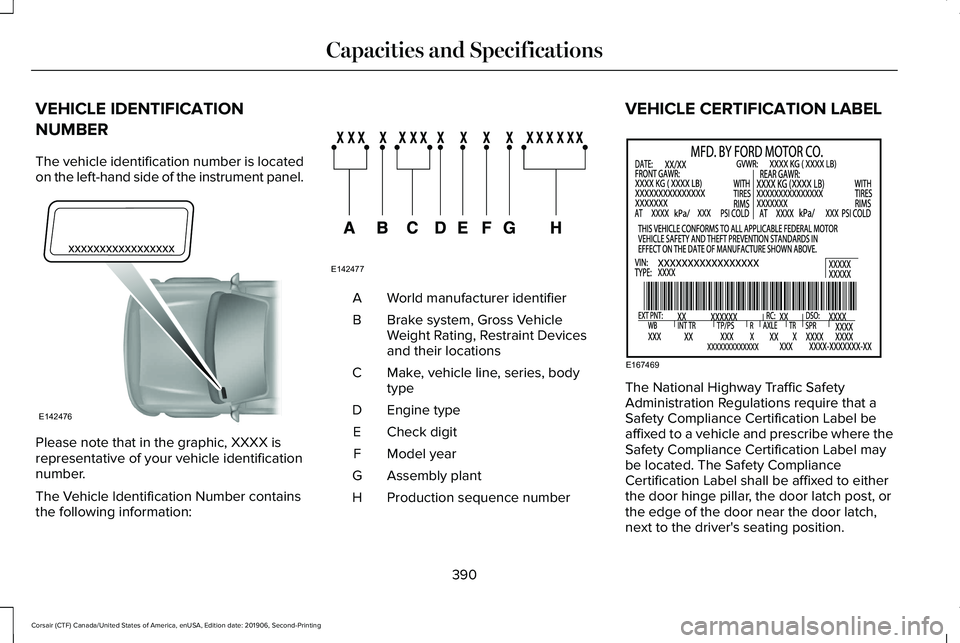
The vehicle identification number is located
on the left-hand side of the instrument panel.
Please note that in the graphic, XXXX is
representative of your vehicle identification
number.
The Vehicle Identification Number contains
the following information: World manufacturer identifier
A
Brake system, Gross Vehicle
Weight Rating, Restraint Devices
and their locations
B
Make, vehicle line, series, body
type
C
Engine type
D
Check digit
E
Model year
F
Assembly plant
G
Production sequence number
H VEHICLE CERTIFICATION LABEL
The National Highway Traffic Safety
Administration Regulations require that a
Safety Compliance Certification Label be
affixed to a vehicle and prescribe where the
Safety Compliance Certification Label may
be located. The Safety Compliance
Certification Label shall be affixed to either
the door hinge pillar, the door latch post, or
the edge of the door near the door latch,
next to the driver's seating position.
390
Corsair (CTF) Canada/United States of America, enUSA, Edition date: 201906, Second-Printing Capacities and SpecificationsE142476 E142477 E167469
Page 417 of 591
CONNECTING THE VEHICLE TO A
MOBILE NETWORK
What Is the Modem
The modem allows you to connect your
vehicle to the Internet to use when you are
on the road.
If you enable the modem using the Lincoln
Way app, you can access the following
services:
•
Locating and remotely starting, locking
and unlocking your vehicle. See the
information in the Lincoln Way app.
• Automatic system updates. Note:
We may need to update operating
system software on your vehicle to keep
connected services updated without prior
notice to you.
Enabling the Modem Using The Lincoln
Way
1. Open the Lincoln Way app on your device and log in.
2. Select your vehicle.
3. Select the option for vehicle details.
4. Select the option to activate your vehicle.
5. Switch the ignition on. 6. Make sure that the name on the screen
matches the name shown in your Lincoln
Way account.
7. Confirm the association of your vehicle with your Lincoln Way account.
Enabling the Modem Using the
Touchscreen Select the settings option on the
feature bar.
1. Select Lincoln Connect .
2. Select
Connectivity Settings.
3. Switch connectivity features on.
414
Corsair (CTF) Canada/United States of America, enUSA, Edition date: 201906, Second-Printing Network ConnectivityE280315
Page 420 of 591
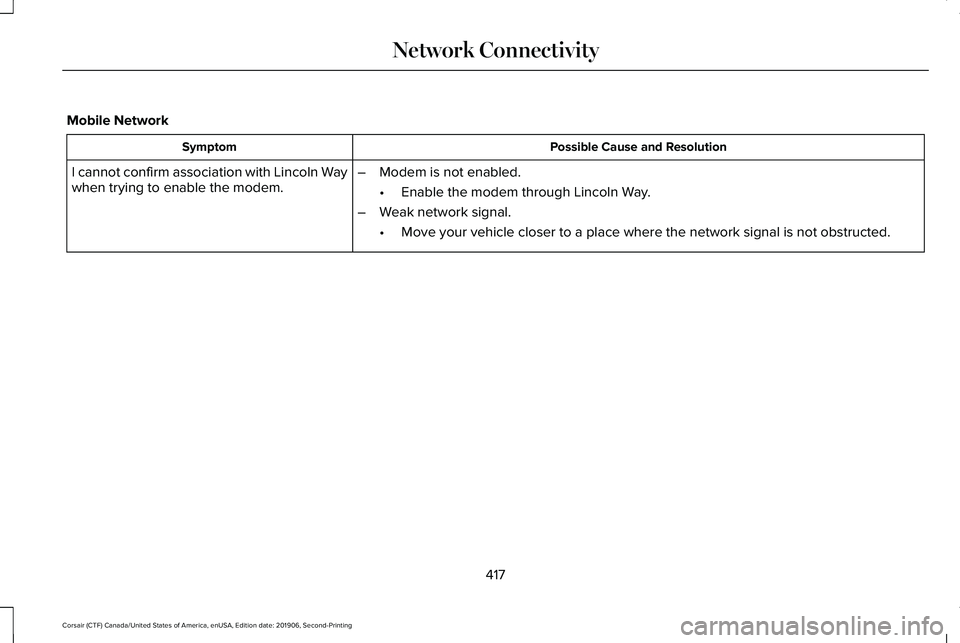
Mobile Network
Possible Cause and Resolution
Symptom
–Modem is not enabled.
•Enable the modem through Lincoln Way.
– Weak network signal.
•Move your vehicle closer to a place where the network signal is not obst\
ructed.
I cannot confirm association with Lincoln Way
when trying to enable the modem.
417
Corsair (CTF) Canada/United States of America, enUSA, Edition date: 201906, Second-Printing Network Connectivity
Page 424 of 591
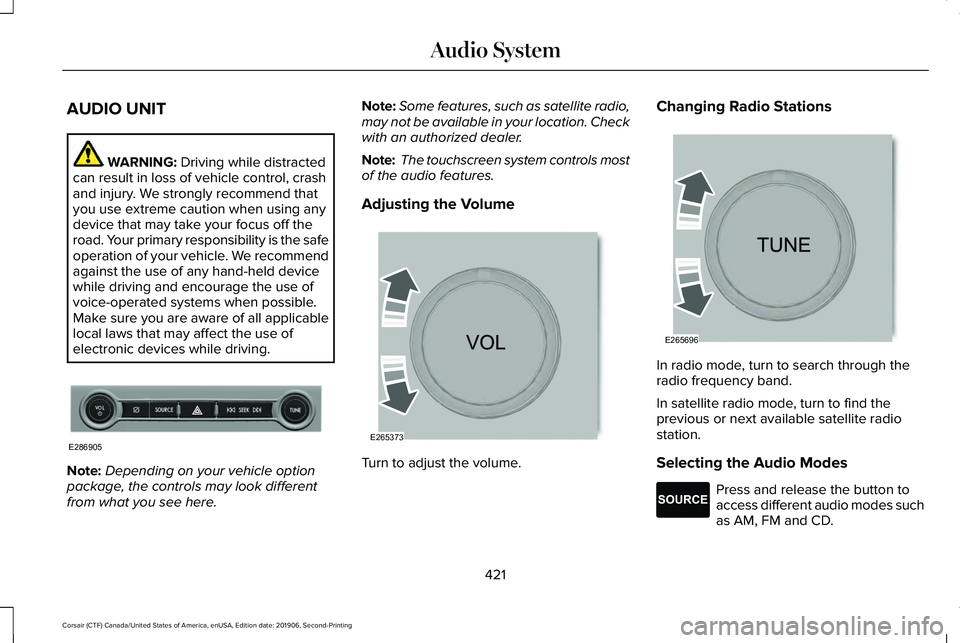
AUDIO UNIT
WARNING: Driving while distracted
can result in loss of vehicle control, crash
and injury. We strongly recommend that
you use extreme caution when using any
device that may take your focus off the
road. Your primary responsibility is the safe
operation of your vehicle. We recommend
against the use of any hand-held device
while driving and encourage the use of
voice-operated systems when possible.
Make sure you are aware of all applicable
local laws that may affect the use of
electronic devices while driving. Note:
Depending on your vehicle option
package, the controls may look different
from what you see here. Note:
Some features, such as satellite radio,
may not be available in your location. Check
with an authorized dealer.
Note: The touchscreen system controls most
of the audio features.
Adjusting the Volume Turn to adjust the volume.Changing Radio Stations
In radio mode, turn to search through the
radio frequency band.
In satellite radio mode, turn to find the
previous or next available satellite radio
station.
Selecting the Audio Modes
Press and release the button to
access different audio modes such
as AM, FM and CD.
421
Corsair (CTF) Canada/United States of America, enUSA, Edition date: 201906, Second-Printing Audio SystemE286905 E265373 E265696 E265276
Page 425 of 591
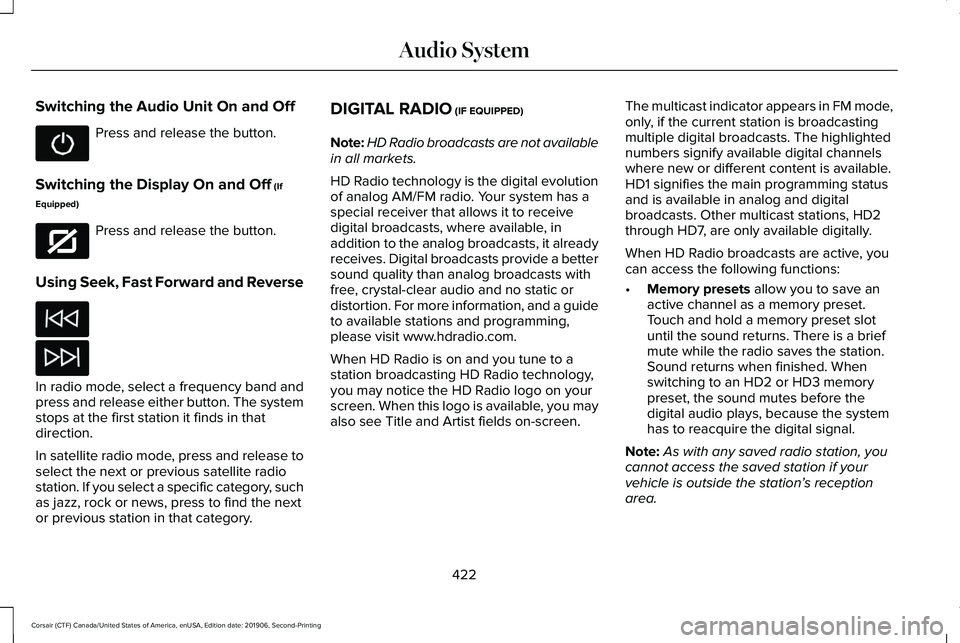
Switching the Audio Unit On and Off
Press and release the button.
Switching the Display On and Off (If
Equipped) Press and release the button.
Using Seek, Fast Forward and Reverse In radio mode, select a frequency band and
press and release either button. The system
stops at the first station it finds in that
direction.
In satellite radio mode, press and release to
select the next or previous satellite radio
station. If you select a specific category, such
as jazz, rock or news, press to find the next
or previous station in that category. DIGITAL RADIO
(IF EQUIPPED)
Note: HD Radio broadcasts are not available
in all markets.
HD Radio technology is the digital evolution
of analog AM/FM radio. Your system has a
special receiver that allows it to receive
digital broadcasts, where available, in
addition to the analog broadcasts, it already
receives. Digital broadcasts provide a better
sound quality than analog broadcasts with
free, crystal-clear audio and no static or
distortion. For more information, and a guide
to available stations and programming,
please visit www.hdradio.com.
When HD Radio is on and you tune to a
station broadcasting HD Radio technology,
you may notice the HD Radio logo on your
screen. When this logo is available, you may
also see Title and Artist fields on-screen. The multicast indicator appears in FM mode,
only, if the current station is broadcasting
multiple digital broadcasts. The highlighted
numbers signify available digital channels
where new or different content is available.
HD1 signifies the main programming status
and is available in analog and digital
broadcasts. Other multicast stations, HD2
through HD7, are only available digitally.
When HD Radio broadcasts are active, you
can access the following functions:
•
Memory presets
allow you to save an
active channel as a memory preset.
Touch and hold a memory preset slot
until the sound returns. There is a brief
mute while the radio saves the station.
Sound returns when finished. When
switching to an HD2 or HD3 memory
preset, the sound mutes before the
digital audio plays, because the system
has to reacquire the digital signal.
Note: As with any saved radio station, you
cannot access the saved station if your
vehicle is outside the station’ s reception
area.
422
Corsair (CTF) Canada/United States of America, enUSA, Edition date: 201906, Second-Printing Audio System E272035
Page 445 of 591
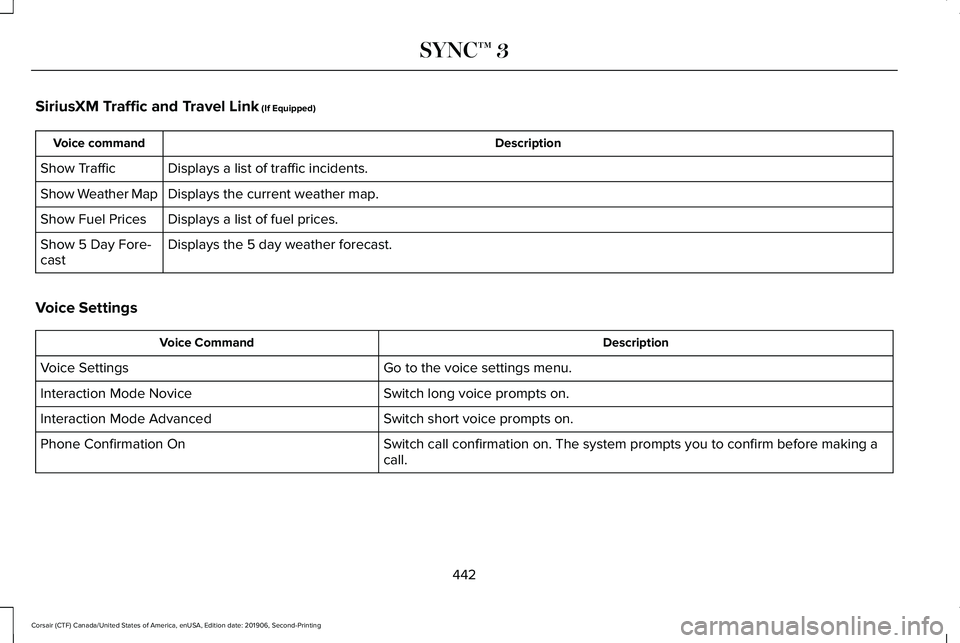
SiriusXM Traffic and Travel Link (If Equipped)
Description
Voice command
Displays a list of traffic incidents.
Show Traffic
Displays the current weather map.
Show Weather Map
Displays a list of fuel prices.
Show Fuel Prices
Displays the 5 day weather forecast.
Show 5 Day Fore-
cast
Voice Settings Description
Voice Command
Go to the voice settings menu.
Voice Settings
Switch long voice prompts on.
Interaction Mode Novice
Switch short voice prompts on.
Interaction Mode Advanced
Switch call confirmation on. The system prompts you to confirm before mak\
ing a
call.
Phone Confirmation On
442
Corsair (CTF) Canada/United States of America, enUSA, Edition date: 201906, Second-Printing SYNC™ 3
Page 450 of 591
Action and Description
Menu Item
Replay audio on the current channel. You can replay approximately 45 minutes of audio as long as
you remain tuned to the current station. Changing stations erases the pr\
evious audio.
Replay
When you are in replay mode, you are not able to select a different
preset until you return to live audio. Pressing this button returns you
to the live broadcast.
Live
Save the current song, artist, or team as a favorite. The system alerts you when it plays again on
any channel.
ALERT
Selecting this button allows you to enable and edit alerts. See Settings (page 478).
Memory Presets
To set a preset, tune to the station then press
and hold one of the memory preset buttons.
The audio mutes briefly while the system
saves the station and returns once the
station is stored. You may be able to add additional preset
pages using the settings option on the
feature bar.
Satellite Radio Electronic Serial Number
(ESN)
You need your ESN to activate, modify or
track your satellite radio account.
See
Settings (page 478).
447
Corsair (CTF) Canada/United States of America, enUSA, Edition date: 201906, Second-Printing SYNC™ 3
Page 453 of 591
HD Radio technology is the digital evolution
of analog AM/FM radio. Your system has a
special receiver that allows it to receive
digital broadcasts (where available) in
addition to the analog broadcasts, it already
receives. Digital broadcasts provide a better
sound quality than analog broadcasts with
free, crystal-clear audio and no static or
distortion. For more information, and a guide
to available stations and programming,
please visit:
Website
www.hdradio.com
When HD Radio is on and you tune to a
station broadcasting HD Radio technology,
you may notice the following indicators on
your screen: The HD logo is grey when acquiring a digital
station, and then changes to orange when
digital audio is playing. When this logo is
available, you may also see Title and Artist
fields on-screen.
The multicast indicator appears in FM mode
(only) if the current station is broadcasting
multiple digital broadcasts. The highlighted
numbers signify available digital channels
where new or different content is available.
HD1 signifies the main programming status
and is available in analog and digital
broadcasts. Other multicast stations (HD2
through HD7) are only available digitally.
Note:
There is also an additional feature for
stations that have more than 1 HD multicast
(For example, HD1 or HD2). The HD logo and
Radio text appears as a button. Pressing this
button allows you to cycle through all of the
HD stations on that specific frequency. For
example, if you are on 101.1 and it has HD1,
HD2, HD3, pressing the button repeatedly
causes the radio to cycle through the HD
stations in a cyclic increasing order.
450
Corsair (CTF) Canada/United States of America, enUSA, Edition date: 201906, Second-Printing SYNC™ 3E142616