ECO mode LINCOLN CORSAIR 2020 Workshop Manual
[x] Cancel search | Manufacturer: LINCOLN, Model Year: 2020, Model line: CORSAIR, Model: LINCOLN CORSAIR 2020Pages: 591, PDF Size: 6 MB
Page 210 of 591
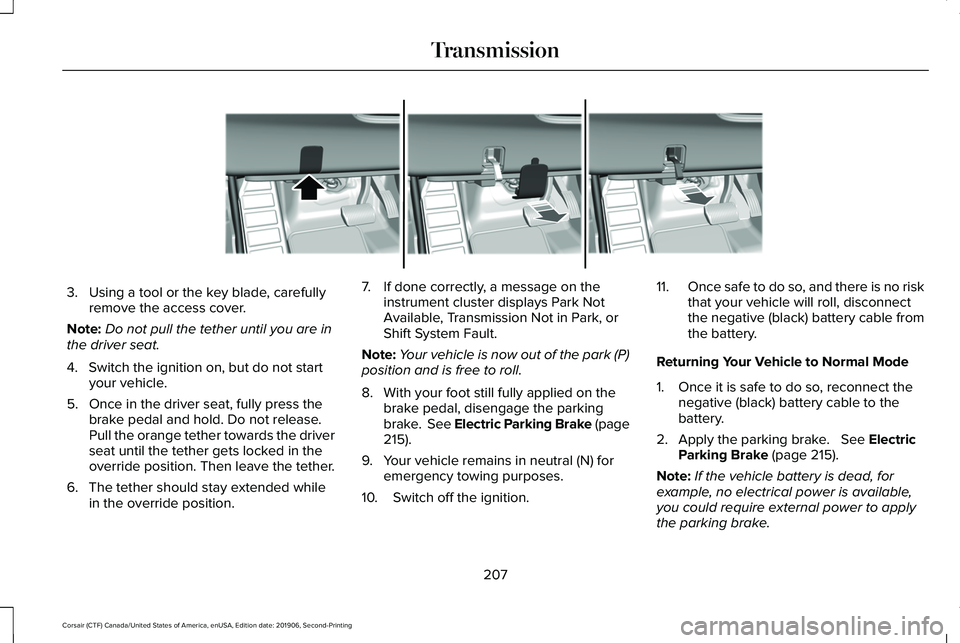
3. Using a tool or the key blade, carefully
remove the access cover.
Note: Do not pull the tether until you are in
the driver seat.
4. Switch the ignition on, but do not start your vehicle.
5. Once in the driver seat, fully press the brake pedal and hold. Do not release.
Pull the orange tether towards the driver
seat until the tether gets locked in the
override position. Then leave the tether.
6. The tether should stay extended while in the override position. 7. If done correctly, a message on the
instrument cluster displays Park Not
Available, Transmission Not in Park, or
Shift System Fault.
Note: Your vehicle is now out of the park (P)
position and is free to roll.
8. With your foot still fully applied on the brake pedal, disengage the parking
brake. See Electric Parking Brake (page
215).
9. Your vehicle remains in neutral (N) for emergency towing purposes.
10. Switch off the ignition. 11.
Once safe to do so, and there is no risk
that your vehicle will roll, disconnect
the negative (black) battery cable from
the battery.
Returning Your Vehicle to Normal Mode
1. Once it is safe to do so, reconnect the negative (black) battery cable to the
battery.
2. Apply the parking brake. See Electric
Parking Brake (page 215).
Note: If the vehicle battery is dead, for
example, no electrical power is available,
you could require external power to apply
the parking brake.
207
Corsair (CTF) Canada/United States of America, enUSA, Edition date: 201906, Second-Printing TransmissionE307867
Page 222 of 591
Note:
The system only activates if you apply
enough brake pressure. If your vehicle is on
a steep slope, you need to press the brake
pedal harder before the system activates.
Note: Under certain conditions, the system
could apply the electric parking brake. The
brake system warning lamp illuminates. The
electric parking brake releases when you
press the accelerator pedal. See Electric
Parking Brake (page 215).
Note: If auto-start-stop turns off the engine,
auto hold remains active.
Note: The system deactivates if you shift into
reverse (R) and press the brake pedal.
3. Pull away in the normal manner. The system releases the brakes and the auto
hold active indicator turns off.
Auto Hold Indicator The auto hold indicator illuminates
in the information display when the
system is on and is either active or
unavailable. Illuminates when the system is
active. Your vehicle remains
stationary after you release the
brake pedal.
Illuminates when the system is on but
unavailable to hold your vehicle at a
standstill.
The system could be unavailable when any
of the following occur:
• During an active park assist maneuver.
• Your vehicle is in stay in neutral mode.
• The driver door is open.
• You do not fasten your seatbelt.
• You shift into reverse (R) before the
system is active.
219
Corsair (CTF) Canada/United States of America, enUSA, Edition date: 201906, Second-Printing BrakesE197933 E197934
Page 237 of 591
Using Active Park Assist
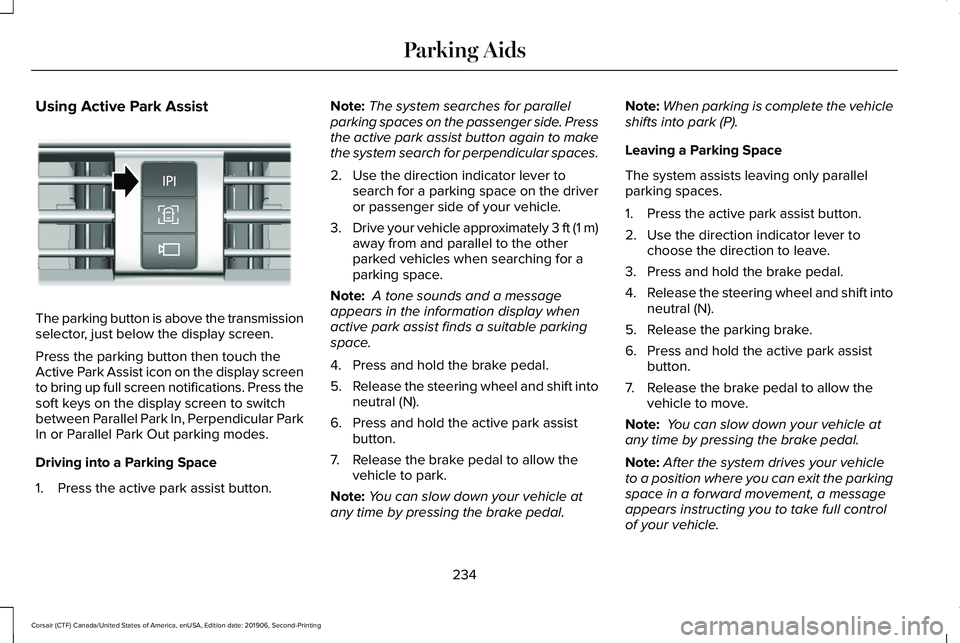
The parking button is above the transmission
selector, just below the display screen.
Press the parking button then touch the
Active Park Assist icon on the display screen
to bring up full screen notifications. Press the
soft keys on the display screen to switch
between Parallel Park In, Perpendicular Park
In or Parallel Park Out parking modes.
Driving into a Parking Space
1. Press the active park assist button. Note:
The system searches for parallel
parking spaces on the passenger side. Press
the active park assist button again to make
the system search for perpendicular spaces.
2. Use the direction indicator lever to search for a parking space on the driver
or passenger side of your vehicle.
3. Drive your vehicle approximately 3 ft (1 m)
away from and parallel to the other
parked vehicles when searching for a
parking space.
Note: A tone sounds and a message
appears in the information display when
active park assist finds a suitable parking
space.
4. Press and hold the brake pedal.
5. Release the steering wheel and shift into
neutral (N).
6. Press and hold the active park assist button.
7. Release the brake pedal to allow the vehicle to park.
Note: You can slow down your vehicle at
any time by pressing the brake pedal. Note:
When parking is complete the vehicle
shifts into park (P).
Leaving a Parking Space
The system assists leaving only parallel
parking spaces.
1. Press the active park assist button.
2. Use the direction indicator lever to choose the direction to leave.
3. Press and hold the brake pedal.
4. Release the steering wheel and shift into
neutral (N).
5. Release the parking brake.
6. Press and hold the active park assist button.
7. Release the brake pedal to allow the vehicle to move.
Note: You can slow down your vehicle at
any time by pressing the brake pedal.
Note: After the system drives your vehicle
to a position where you can exit the parking
space in a forward movement, a message
appears instructing you to take full control
of your vehicle.
234
Corsair (CTF) Canada/United States of America, enUSA, Edition date: 201906, Second-Printing Parking AidsE306156
Page 246 of 591
WHAT IS CRUISE CONTROL
Cruise control lets you maintain a set speed
without keeping your foot on the accelerator
pedal. You can use cruise control when your
vehicle speed is greater than 20 mph
(30 km/h).
SWITCHING CRUISE CONTROL ON
AND OFF WARNING:
Do not use cruise control
on winding roads, in heavy traffic or when
the road surface is slippery. This could
result in loss of vehicle control, serious
injury or death.
The cruise controls are on the steering
wheel.
See Cruise Control (page 93).
Switching Cruise Control On Press to set the system in standby
mode. Switching Cruise Control Off Press the button when the system
is in standby mode.
The system also turns off when you switch
the ignition off.
Note: The set speed erases when you switch
the system off.
SETTING THE CRUISE CONTROL
SPEED WARNING:
When you are going
downhill, your vehicle speed could
increase above the set speed. The system
does not apply the brakes.
Drive to the speed you prefer. Press either button to set the
current speed.Take your foot off the accelerator pedal.
Note:
The indicator changes color in the
information display.
Changing the Set Speed Press and release the button to
increase the set speed in small
increments.
Press and hold the button to accelerate.
Release the button when you reach your
preferred speed. Press and release the button to
decrease the set speed in small
increments.
Press and hold the button to decelerate.
Release the button when you reach your
preferred speed.
Note: If you accelerate by pressing the
accelerator pedal, the set speed does not
change. When you release the accelerator
pedal, your vehicle returns to the speed that
you previously set.
243
Corsair (CTF) Canada/United States of America, enUSA, Edition date: 201906, Second-Printing Cruise ControlE71340 E71340
Page 252 of 591
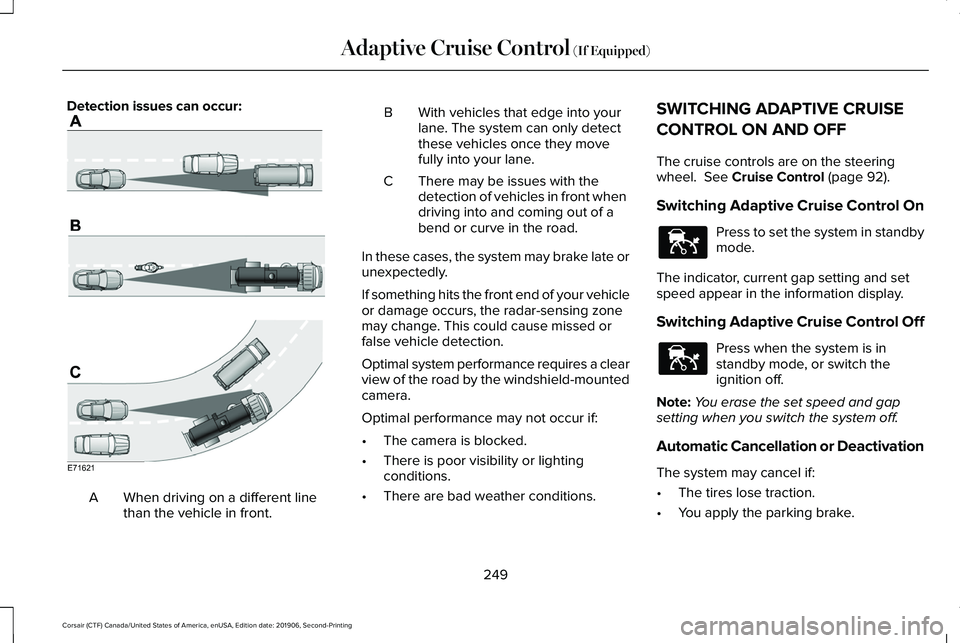
Detection issues can occur:
When driving on a different line
than the vehicle in front.
A B With vehicles that edge into your
lane. The system can only detect
these vehicles once they move
fully into your lane.
There may be issues with the
detection of vehicles in front when
driving into and coming out of a
bend or curve in the road.
C
In these cases, the system may brake late or
unexpectedly.
If something hits the front end of your vehicle
or damage occurs, the radar-sensing zone
may change. This could cause missed or
false vehicle detection.
Optimal system performance requires a clear
view of the road by the windshield-mounted
camera.
Optimal performance may not occur if:
• The camera is blocked.
• There is poor visibility or lighting
conditions.
• There are bad weather conditions. SWITCHING ADAPTIVE CRUISE
CONTROL ON AND OFF
The cruise controls are on the steering
wheel. See Cruise Control (page 92).
Switching Adaptive Cruise Control On Press to set the system in standby
mode.
The indicator, current gap setting and set
speed appear in the information display.
Switching Adaptive Cruise Control Off Press when the system is in
standby mode, or switch the
ignition off.
Note: You erase the set speed and gap
setting when you switch the system off.
Automatic Cancellation or Deactivation
The system may cancel if:
• The tires lose traction.
• You apply the parking brake.
249
Corsair (CTF) Canada/United States of America, enUSA, Edition date: 201906, Second-Printing Adaptive Cruise Control
(If Equipped)E71621 E144529 E144529
Page 256 of 591
ADAPTIVE CRUISE CONTROL
INDICATORS - VEHICLES WITH:
ADAPTIVE CRUISE CONTROL
WITH STOP AND GO
Illuminates when you switch the
system on. The color of the
indicator changes to indicate the
system status.
White indicates the system is on but inactive.
Green indicates the system is active and the
speed has been set. ADAPTIVE CRUISE CONTROL
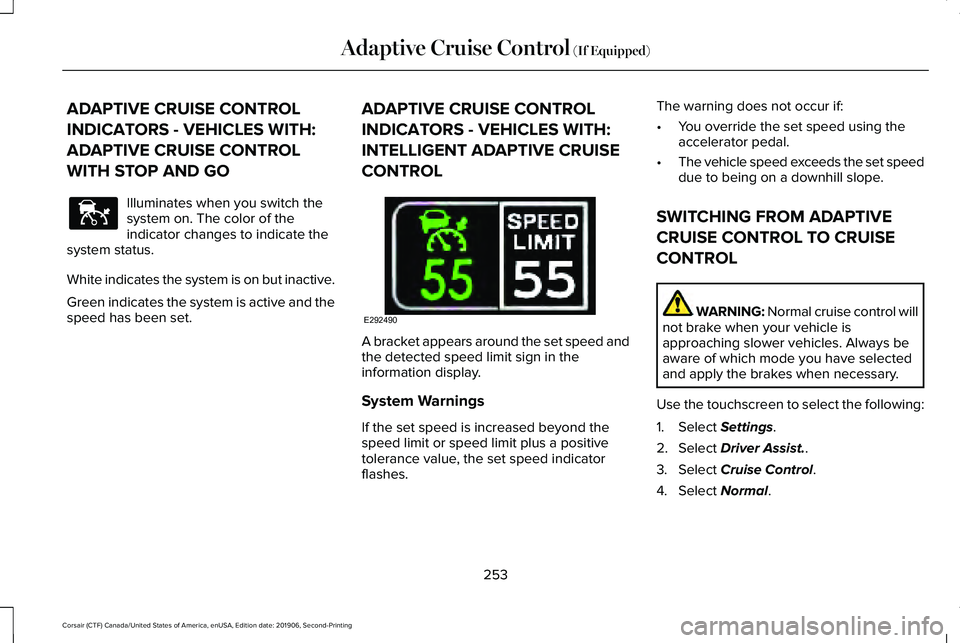
INDICATORS - VEHICLES WITH:
INTELLIGENT ADAPTIVE CRUISE
CONTROL A bracket appears around the set speed and
the detected speed limit sign in the
information display.
System Warnings
If the set speed is increased beyond the
speed limit or speed limit plus a positive
tolerance value, the set speed indicator
flashes.The warning does not occur if:
•
You override the set speed using the
accelerator pedal.
• The vehicle speed exceeds the set speed
due to being on a downhill slope.
SWITCHING FROM ADAPTIVE
CRUISE CONTROL TO CRUISE
CONTROL WARNING: Normal cruise control will
not brake when your vehicle is
approaching slower vehicles. Always be
aware of which mode you have selected
and apply the brakes when necessary.
Use the touchscreen to select the following:
1. Select
Settings.
2. Select
Driver Assist..
3. Select
Cruise Control.
4. Select
Normal.
253
Corsair (CTF) Canada/United States of America, enUSA, Edition date: 201906, Second-Printing Adaptive Cruise Control
(If Equipped)E144529 E292490
Page 258 of 591
SWITCHING INTELLIGENT MODE
ON AND OFF
WARNING: You are responsible for
controlling your vehicle at all times. The
system is designed to be an aid and does
not relieve you of your responsibility to
drive with due care and attention. Failure
to follow this instruction could result in the
loss of control of your vehicle, personal
injury or death.
Use the touchscreen to select the following:
1. Select Settings. See Settings (page
478).
2. Select
Driver Assist..
3. Select
Cruise Control.
Changing the Set Speed with
Intelligent Adaptive Cruise Control
When intelligent mode is on, the system
adjusts the set speed to the speed limit
detected by the camera and the speed limit
information provided by the navigation
system. Note:
The set speed adjusts when the
system detects a different maximum speed
limit.
Note: The speed limit information provided
by the navigation map data may be
inaccurate or out of date.
See Navigation
(page 461).
Note: The system alerts you if the set speed
increases beyond the speed limit.
See
Adaptive Cruise Control Indicators (page
252).
If the system does not detect a speed limit,
the vehicle speed remains at the current set
speed.
You can override the set speed at any time.
You may need to override or cancel the
system in certain situations such as inclement
weather or if an incorrect speed is set.
Note: The system may not detect and read
speed limit signs with conditional
information, for example, when a sign is
flashing, during specific time ranges, or when
children are present. Note:
Under certain conditions, the system
may not adjust the vehicle speed until after
your vehicle passes the speed limit sign.
ADJUSTING THE SET SPEED
TOLERANCE
You can set a permanent speed tolerance
that is above or below the detected speed
limit.
Use the touchscreen to select the following:
1. Select Settings. See Settings (page
478).
2. Select
Driver Assist.
3. Select
Cruise Control.
4. Select
Tolerance.
5. Use
+ and - to set the tolerance.
Note: You cannot set the tolerance more
than
20 mph (30 km/h) above or below the
recognized speed.
255
Corsair (CTF) Canada/United States of America, enUSA, Edition date: 201906, Second-Printing Adaptive Cruise Control
(If Equipped)
Page 264 of 591
WARNING: The system will not
operate if the sensor cannot track the road
lane markings. WARNING:
The sensor may
incorrectly track lane markings as other
structures or objects. This can result in a
false or missed warning. WARNING:
The system may not
operate properly if the sensor is blocked.
Keep the windshield free from obstruction. WARNING:
If damage occurs in the
immediate area surrounding the sensor,
have your vehicle checked as soon as
possible. WARNING:
The system may not
correctly operate if your vehicle is fitted
with a suspension kit not approved by us.
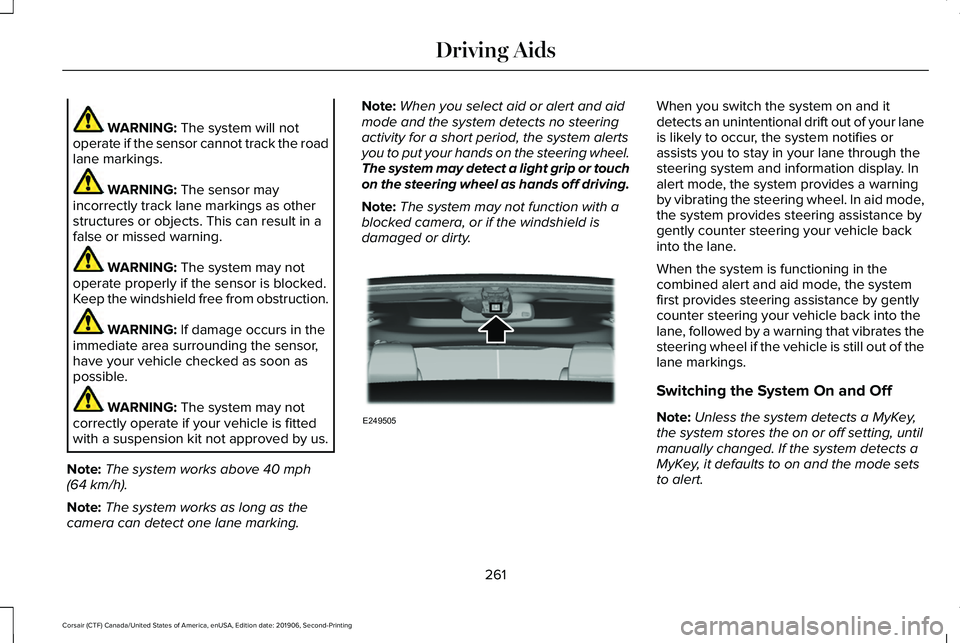
Note: The system works above
40 mph
(64 km/h).
Note: The system works as long as the
camera can detect one lane marking. Note:
When you select aid or alert and aid
mode and the system detects no steering
activity for a short period, the system alerts
you to put your hands on the steering wheel.
The system may detect a light grip or touch
on the steering wheel as hands off driving.
Note: The system may not function with a
blocked camera, or if the windshield is
damaged or dirty. When you switch the system on and it
detects an unintentional drift out of your lane
is likely to occur, the system notifies or
assists you to stay in your lane through the
steering system and information display. In
alert mode, the system provides a warning
by vibrating the steering wheel. In aid mode,
the system provides steering assistance by
gently counter steering your vehicle back
into the lane.
When the system is functioning in the
combined alert and aid mode, the system
first provides steering assistance by gently
counter steering your vehicle back into the
lane, followed by a warning that vibrates the
steering wheel if the vehicle is still out of the
lane markings.
Switching the System On and Off
Note:
Unless the system detects a MyKey,
the system stores the on or off setting, until
manually changed. If the system detects a
MyKey, it defaults to on and the mode sets
to alert.
261
Corsair (CTF) Canada/United States of America, enUSA, Edition date: 201906, Second-Printing Driving AidsE249505
Page 265 of 591
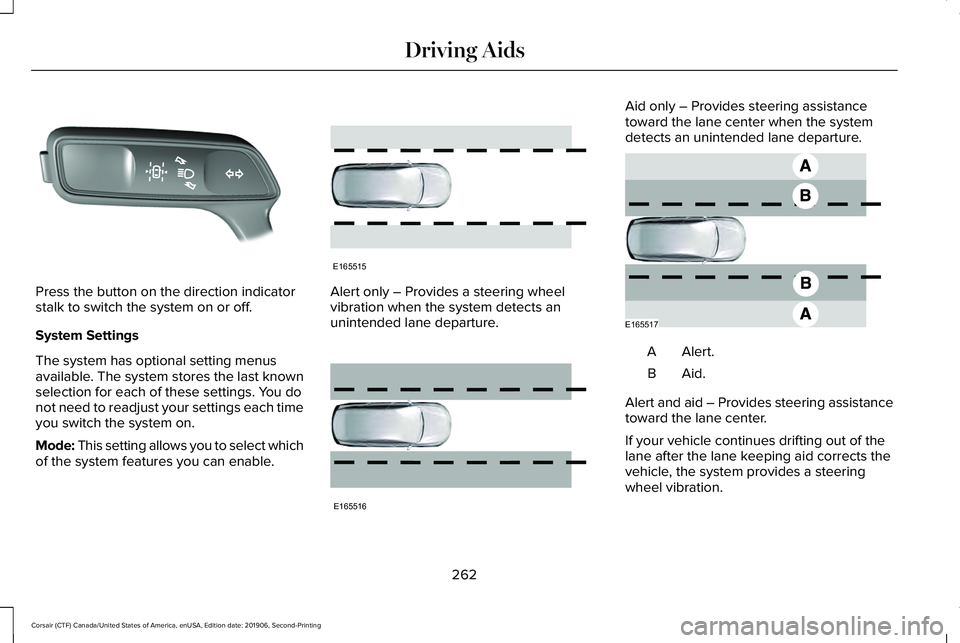
Press the button on the direction indicator
stalk to switch the system on or off.
System Settings
The system has optional setting menus
available. The system stores the last known
selection for each of these settings. You do
not need to readjust your settings each time
you switch the system on.
Mode: This setting allows you to select which
of the system features you can enable.
Alert only – Provides a steering wheel
vibration when the system detects an
unintended lane departure. Aid only – Provides steering assistance
toward the lane center when the system
detects an unintended lane departure.
Alert.A
Aid.B
Alert and aid – Provides steering assistance
toward the lane center.
If your vehicle continues drifting out of the
lane after the lane keeping aid corrects the
vehicle, the system provides a steering
wheel vibration.
262
Corsair (CTF) Canada/United States of America, enUSA, Edition date: 201906, Second-Printing Driving AidsE321224 E165515 E165516 E165517
Page 266 of 591
If your vehicle stays to one side of the lane
after the lane keeping aid corrects your
vehicle and then subsequently drifts out of
the lane again, the system only provides an
alert at the steering wheel.
Note:
The alert and aid diagrams illustrate
general zone coverage. They do not provide
exact zone parameters.
Intensity: This setting affects the intensity of
the steering wheel vibration used for the alert
and alert and aid modes.
This setting does
not affect the aid mode.
• Low.
• Normal.
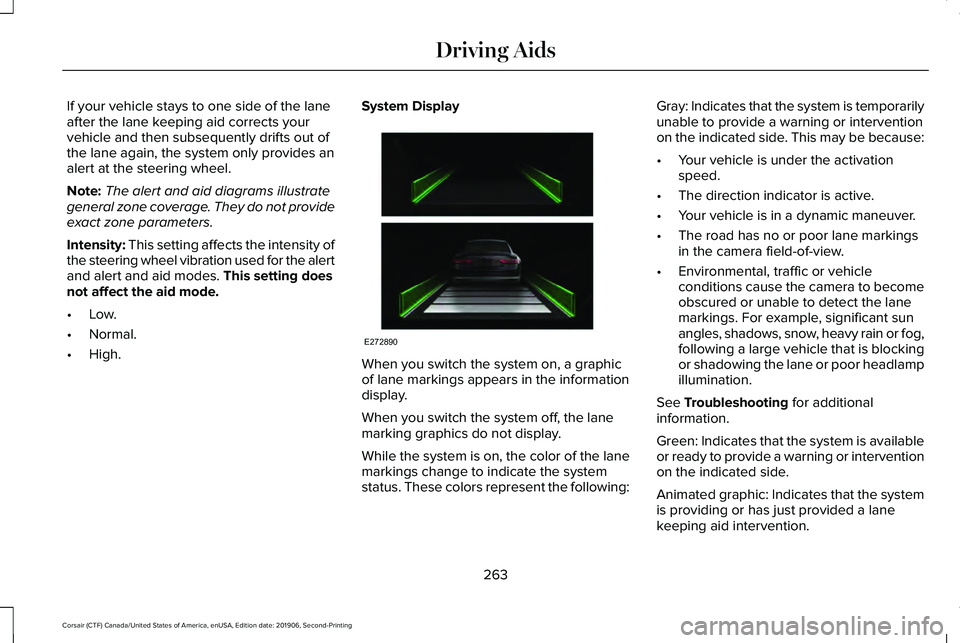
• High. System Display
When you switch the system on, a graphic
of lane markings appears in the information
display.
When you switch the system off, the lane
marking graphics do not display.
While the system is on, the color of the lane
markings change to indicate the system
status. These colors represent the following:Gray: Indicates that the system is temporarily
unable to provide a warning or intervention
on the indicated side. This may be because:
•
Your vehicle is under the activation
speed.
• The direction indicator is active.
• Your vehicle is in a dynamic maneuver.
• The road has no or poor lane markings
in the camera field-of-view.
• Environmental, traffic or vehicle
conditions cause the camera to become
obscured or unable to detect the lane
markings. For example, significant sun
angles, shadows, snow, heavy rain or fog,
following a large vehicle that is blocking
or shadowing the lane or poor headlamp
illumination.
See
Troubleshooting for additional
information.
Green: Indicates that the system is available
or ready to provide a warning or intervention
on the indicated side.
Animated graphic: Indicates that the system
is providing or has just provided a lane
keeping aid intervention.
263
Corsair (CTF) Canada/United States of America, enUSA, Edition date: 201906, Second-Printing Driving AidsE272890