display LINCOLN CORSAIR 2021 Owners Manual
[x] Cancel search | Manufacturer: LINCOLN, Model Year: 2021, Model line: CORSAIR, Model: LINCOLN CORSAIR 2021Pages: 638, PDF Size: 5.7 MB
Page 263 of 638
The system detects large objects when you
shift into reverse (R) and any of the following
occur:
•
Your vehicle is moving backward at low
speed.
• Your vehicle is stationary but an object
is approaching the rear of your vehicle
at low speed.
• Your vehicle is moving backward at low
speed and an object is moving toward
your vehicle, for example another vehicle
at low speed.
If your vehicle remains stationary for two
seconds the audible warning turns off. If your
vehicle moves backward the tone sounds
again.
Note: If the detected object is 12 in (30 cm)
or less from the rear bumper, the audible
warning does not turn off. Object Distance Indicator
(If Equipped)
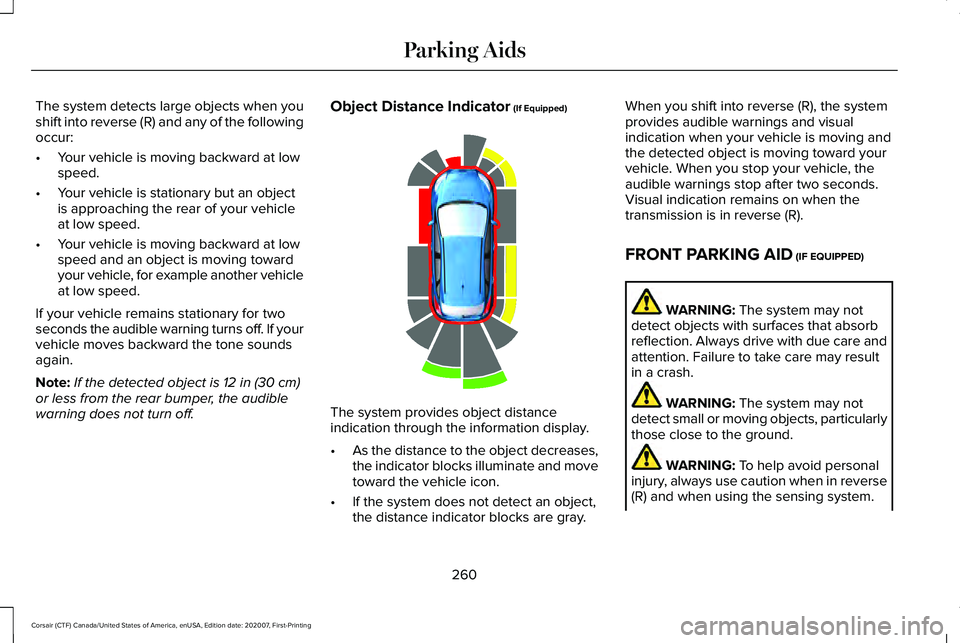
The system provides object distance
indication through the information display.
•
As the distance to the object decreases,
the indicator blocks illuminate and move
toward the vehicle icon.
• If the system does not detect an object,
the distance indicator blocks are gray. When you shift into reverse (R), the system
provides audible warnings and visual
indication when your vehicle is moving and
the detected object is moving toward your
vehicle. When you stop your vehicle, the
audible warnings stop after two seconds.
Visual indication remains on when the
transmission is in reverse (R).
FRONT PARKING AID
(IF EQUIPPED)
WARNING:
The system may not
detect objects with surfaces that absorb
reflection. Always drive with due care and
attention. Failure to take care may result
in a crash. WARNING:
The system may not
detect small or moving objects, particularly
those close to the ground. WARNING:
To help avoid personal
injury, always use caution when in reverse
(R) and when using the sensing system.
260
Corsair (CTF) Canada/United States of America, enUSA, Edition date: 202007, First-Printing Parking AidsE190459
Page 264 of 638
WARNING: The parking aid system
can only assist you to detect objects when
your vehicle is moving at parking speeds.
To help avoid personal injury you must
take care when using the parking aid
system.
Note: Keep the sensors free from snow, ice
and large accumulations of dirt.
Note: Do not cover up the sensors.
Note: Do not clean the sensors with sharp
objects.
Note: If your vehicle sustains damage
leaving the sensors misaligned, this may
cause inaccurate measurements or false
alerts.
Note: Some accessories, for example large
trailer hitches or bike or surfboard racks can
cause reduced performance or false alerts.
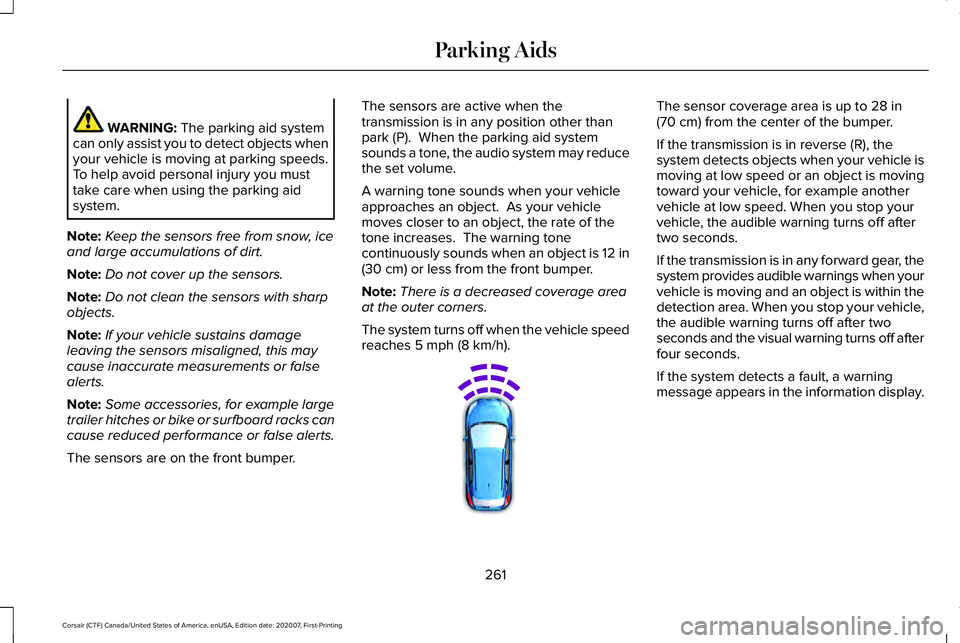
The sensors are on the front bumper. The sensors are active when the
transmission is in any position other than
park (P). When the parking aid system
sounds a tone, the audio system may reduce
the set volume.
A warning tone sounds when your vehicle
approaches an object. As your vehicle
moves closer to an object, the rate of the
tone increases. The warning tone
continuously sounds when an object is 12 in
(30 cm)
or less from the front bumper.
Note: There is a decreased coverage area
at the outer corners.
The system turns off when the vehicle speed
reaches
5 mph (8 km/h). The sensor coverage area is up to
28 in
(70 cm) from the center of the bumper.
If the transmission is in reverse (R), the
system detects objects when your vehicle is
moving at low speed or an object is moving
toward your vehicle, for example another
vehicle at low speed. When you stop your
vehicle, the audible warning turns off after
two seconds.
If the transmission is in any forward gear, the
system provides audible warnings when your
vehicle is moving and an object is within the
detection area. When you stop your vehicle,
the audible warning turns off after two
seconds and the visual warning turns off after
four seconds.
If the system detects a fault, a warning
message appears in the information display.
261
Corsair (CTF) Canada/United States of America, enUSA, Edition date: 202007, First-Printing Parking AidsE187330
Page 265 of 638
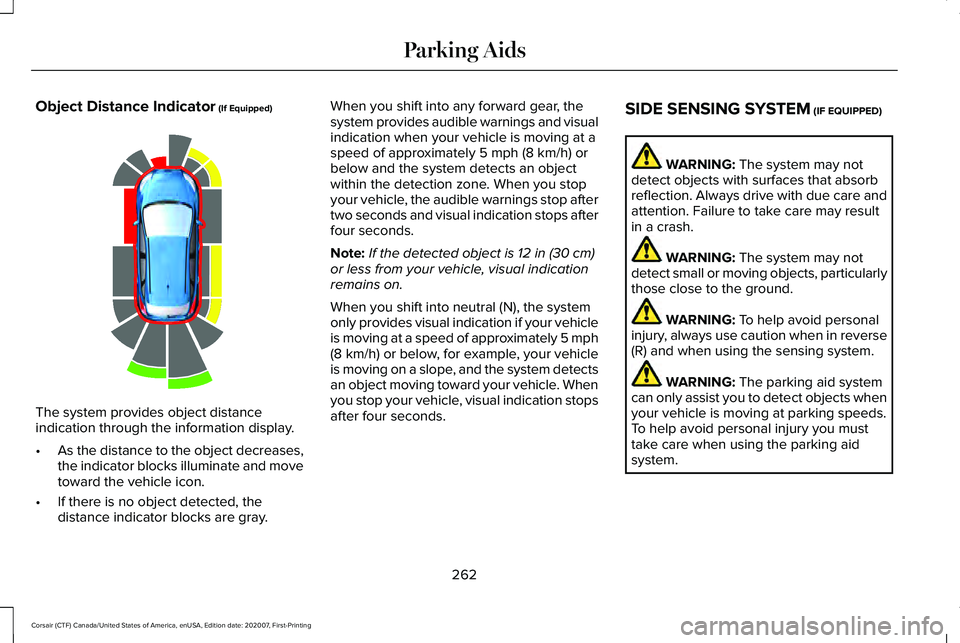
Object Distance Indicator (If Equipped)
The system provides object distance
indication through the information display.
•
As the distance to the object decreases,
the indicator blocks illuminate and move
toward the vehicle icon.
• If there is no object detected, the
distance indicator blocks are gray. When you shift into any forward gear, the
system provides audible warnings and visual
indication when your vehicle is moving at a
speed of approximately
5 mph (8 km/h) or
below and the system detects an object
within the detection zone. When you stop
your vehicle, the audible warnings stop after
two seconds and visual indication stops after
four seconds.
Note: If the detected object is
12 in (30 cm)
or less from your vehicle, visual indication
remains on.
When you shift into neutral (N), the system
only provides visual indication if your vehicle
is moving at a speed of approximately 5 mph
(8 km/h)
or below, for example, your vehicle
is moving on a slope, and the system detects
an object moving toward your vehicle. When
you stop your vehicle, visual indication stops
after four seconds. SIDE SENSING SYSTEM
(IF EQUIPPED) WARNING:
The system may not
detect objects with surfaces that absorb
reflection. Always drive with due care and
attention. Failure to take care may result
in a crash. WARNING:
The system may not
detect small or moving objects, particularly
those close to the ground. WARNING:
To help avoid personal
injury, always use caution when in reverse
(R) and when using the sensing system. WARNING:
The parking aid system
can only assist you to detect objects when
your vehicle is moving at parking speeds.
To help avoid personal injury you must
take care when using the parking aid
system.
262
Corsair (CTF) Canada/United States of America, enUSA, Edition date: 202007, First-Printing Parking AidsE190459
Page 266 of 638
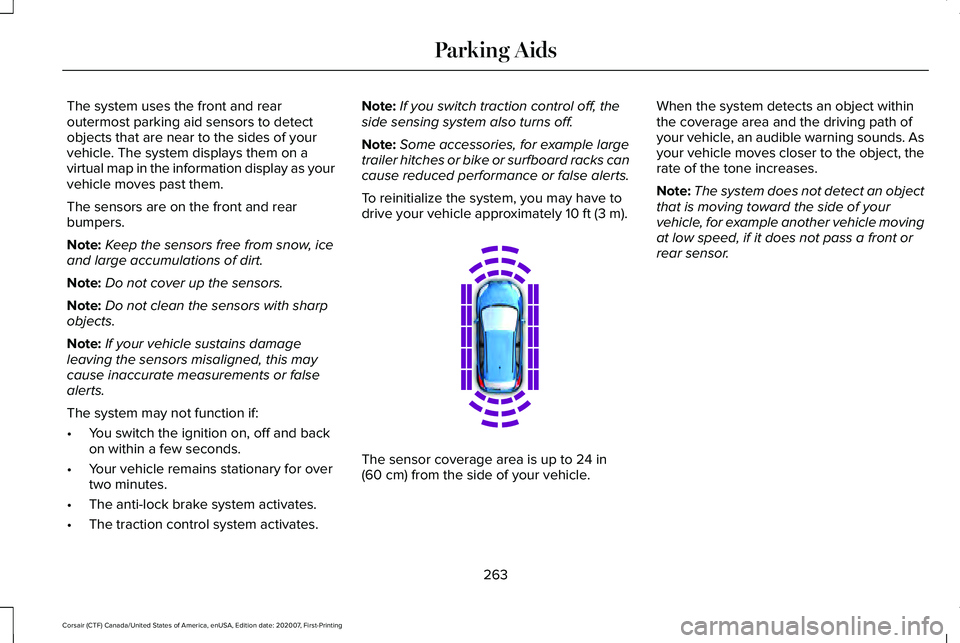
The system uses the front and rear
outermost parking aid sensors to detect
objects that are near to the sides of your
vehicle. The system displays them on a
virtual map in the information display as your
vehicle moves past them.
The sensors are on the front and rear
bumpers.
Note:
Keep the sensors free from snow, ice
and large accumulations of dirt.
Note: Do not cover up the sensors.
Note: Do not clean the sensors with sharp
objects.
Note: If your vehicle sustains damage
leaving the sensors misaligned, this may
cause inaccurate measurements or false
alerts.
The system may not function if:
• You switch the ignition on, off and back
on within a few seconds.
• Your vehicle remains stationary for over
two minutes.
• The anti-lock brake system activates.
• The traction control system activates. Note:
If you switch traction control off, the
side sensing system also turns off.
Note: Some accessories, for example large
trailer hitches or bike or surfboard racks can
cause reduced performance or false alerts.
To reinitialize the system, you may have to
drive your vehicle approximately 10 ft (3 m). The sensor coverage area is up to
24 in
(60 cm) from the side of your vehicle. When the system detects an object within
the coverage area and the driving path of
your vehicle, an audible warning sounds. As
your vehicle moves closer to the object, the
rate of the tone increases.
Note:
The system does not detect an object
that is moving toward the side of your
vehicle, for example another vehicle moving
at low speed, if it does not pass a front or
rear sensor.
263
Corsair (CTF) Canada/United States of America, enUSA, Edition date: 202007, First-Printing Parking AidsE190458
Page 267 of 638
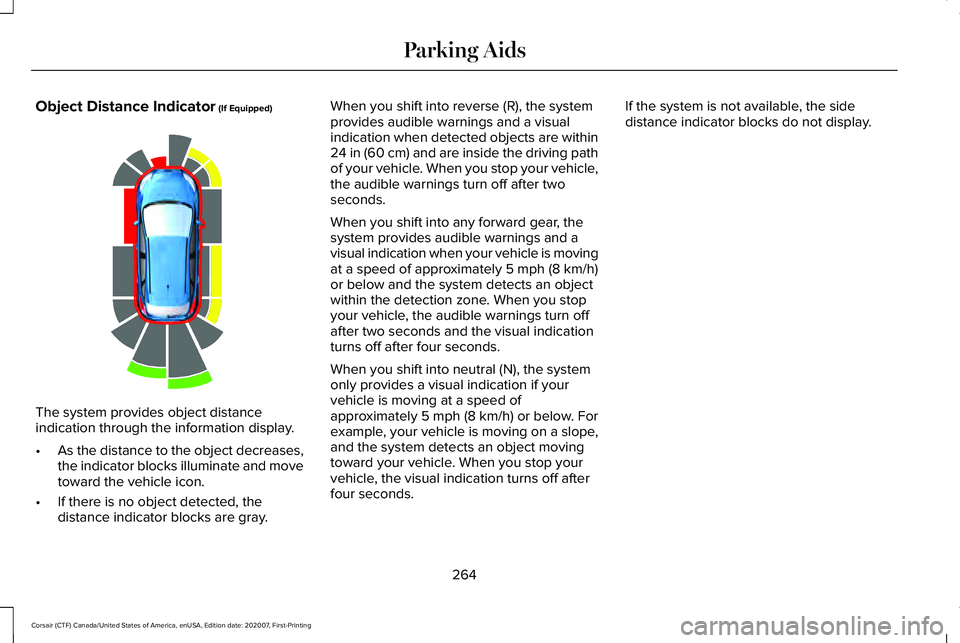
Object Distance Indicator (If Equipped)
The system provides object distance
indication through the information display.
•
As the distance to the object decreases,
the indicator blocks illuminate and move
toward the vehicle icon.
• If there is no object detected, the
distance indicator blocks are gray. When you shift into reverse (R), the system
provides audible warnings and a visual
indication when detected objects are within
24 in (60 cm)
and are inside the driving path
of your vehicle. When you stop your vehicle,
the audible warnings turn off after two
seconds.
When you shift into any forward gear, the
system provides audible warnings and a
visual indication when your vehicle is moving
at a speed of approximately
5 mph (8 km/h)
or below and the system detects an object
within the detection zone. When you stop
your vehicle, the audible warnings turn off
after two seconds and the visual indication
turns off after four seconds.
When you shift into neutral (N), the system
only provides a visual indication if your
vehicle is moving at a speed of
approximately
5 mph (8 km/h) or below. For
example, your vehicle is moving on a slope,
and the system detects an object moving
toward your vehicle. When you stop your
vehicle, the visual indication turns off after
four seconds. If the system is not available, the side
distance indicator blocks do not display.
264
Corsair (CTF) Canada/United States of America, enUSA, Edition date: 202007, First-Printing Parking AidsE190459
Page 269 of 638
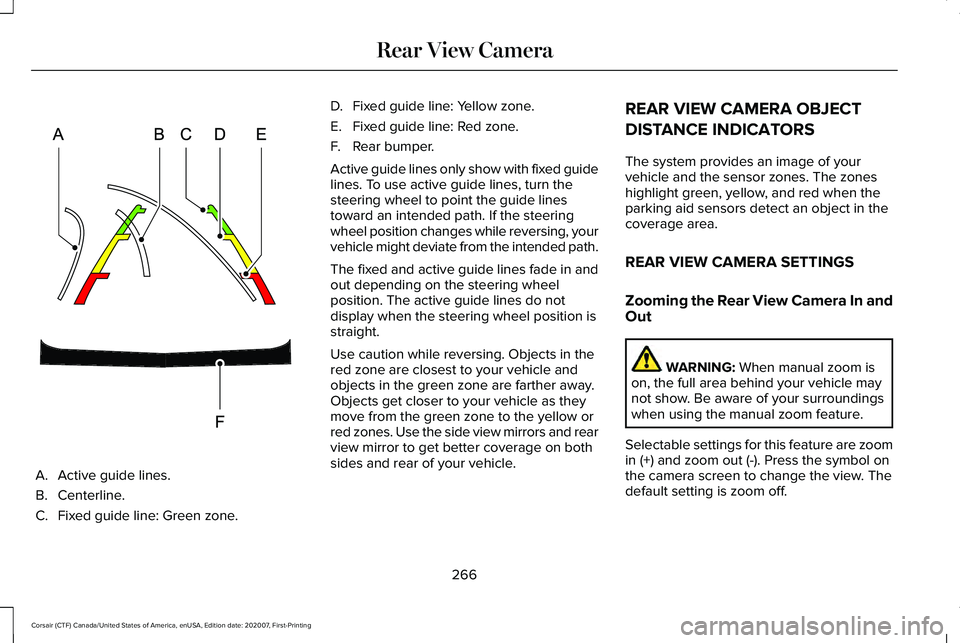
A. Active guide lines.
B. Centerline.
C.
Fixed guide line: Green zone. D.
Fixed guide line: Yellow zone.
E. Fixed guide line: Red zone.
F. Rear bumper.
Active guide lines only show with fixed guide
lines. To use active guide lines, turn the
steering wheel to point the guide lines
toward an intended path. If the steering
wheel position changes while reversing, your
vehicle might deviate from the intended path.
The fixed and active guide lines fade in and
out depending on the steering wheel
position. The active guide lines do not
display when the steering wheel position is
straight.
Use caution while reversing. Objects in the
red zone are closest to your vehicle and
objects in the green zone are farther away.
Objects get closer to your vehicle as they
move from the green zone to the yellow or
red zones. Use the side view mirrors and rear
view mirror to get better coverage on both
sides and rear of your vehicle. REAR VIEW CAMERA OBJECT
DISTANCE INDICATORS
The system provides an image of your
vehicle and the sensor zones. The zones
highlight green, yellow, and red when the
parking aid sensors detect an object in the
coverage area.
REAR VIEW CAMERA SETTINGS
Zooming the Rear View Camera In and
Out
WARNING: When manual zoom is
on, the full area behind your vehicle may
not show. Be aware of your surroundings
when using the manual zoom feature.
Selectable settings for this feature are zoom
in (+) and zoom out (-). Press the symbol on
the camera screen to change the view. The
default setting is zoom off.
266
Corsair (CTF) Canada/United States of America, enUSA, Edition date: 202007, First-Printing Rear View CameraE306774
Page 270 of 638
This allows you to get a closer view of an
object behind your vehicle. The zoomed
image keeps the bumper in the image to
provide a reference. The zoom is only active
while the transmission is in reverse (R).
Note:
Manual zoom is only available when
the transmission is in reverse (R).
Note: Only the centerline shows when you
enable manual zoom.
Switching Rear View Camera Delay On
and Off
1. Press Features on the touchscreen.
2. Press
Driver Assistance.
3. Press
Rear View Camera.
4. Switch
Rear View Camera Delay on or
off.
When shifting the transmission out of reverse
(R) and into any gear other than park (P), the
camera image remains in the display until:
• Your vehicle speed reaches
approximately
5 mph (8 km/h).
• You shift your vehicle into park (P).
267
Corsair (CTF) Canada/United States of America, enUSA, Edition date: 202007, First-Printing Rear View Camera
Page 272 of 638
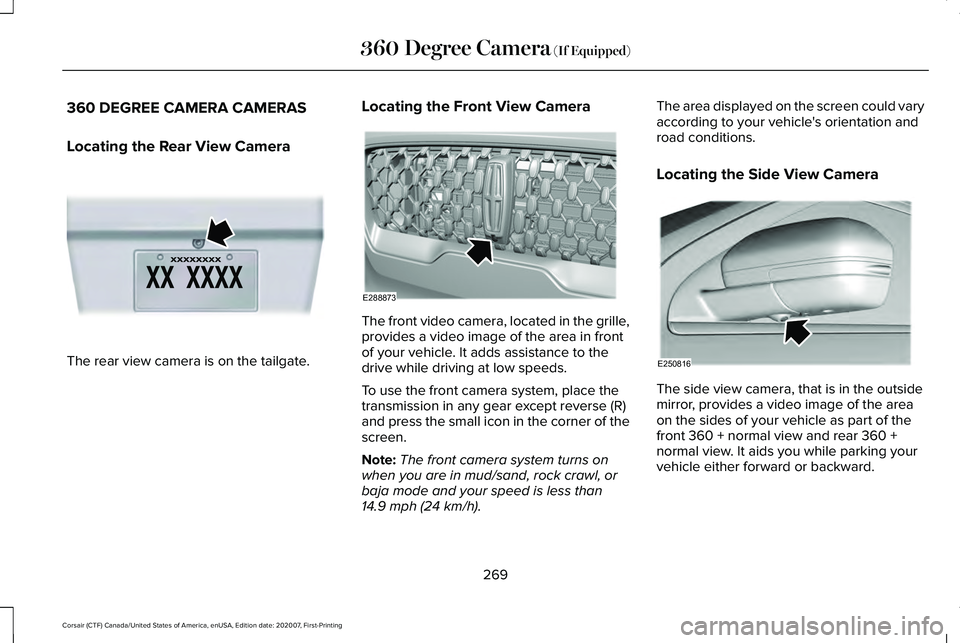
360 DEGREE CAMERA CAMERAS
Locating the Rear View Camera
The rear view camera is on the tailgate. Locating the Front View Camera The front video camera, located in the grille,
provides a video image of the area in front
of your vehicle. It adds assistance to the
drive while driving at low speeds.
To use the front camera system, place the
transmission in any gear except reverse (R)
and press the small icon in the corner of the
screen.
Note:
The front camera system turns on
when you are in mud/sand, rock crawl, or
baja mode and your speed is less than
14.9 mph (24 km/h). The area displayed on the screen could vary
according to your vehicle's orientation and
road conditions.
Locating the Side View Camera
The side view camera, that is in the outside
mirror, provides a video image of the area
on the sides of your vehicle as part of the
front 360 + normal view and rear 360 +
normal view. It aids you while parking your
vehicle either forward or backward.
269
Corsair (CTF) Canada/United States of America, enUSA, Edition date: 202007, First-Printing 360 Degree Camera
(If Equipped)E142435 E288873 E250816
Page 273 of 638
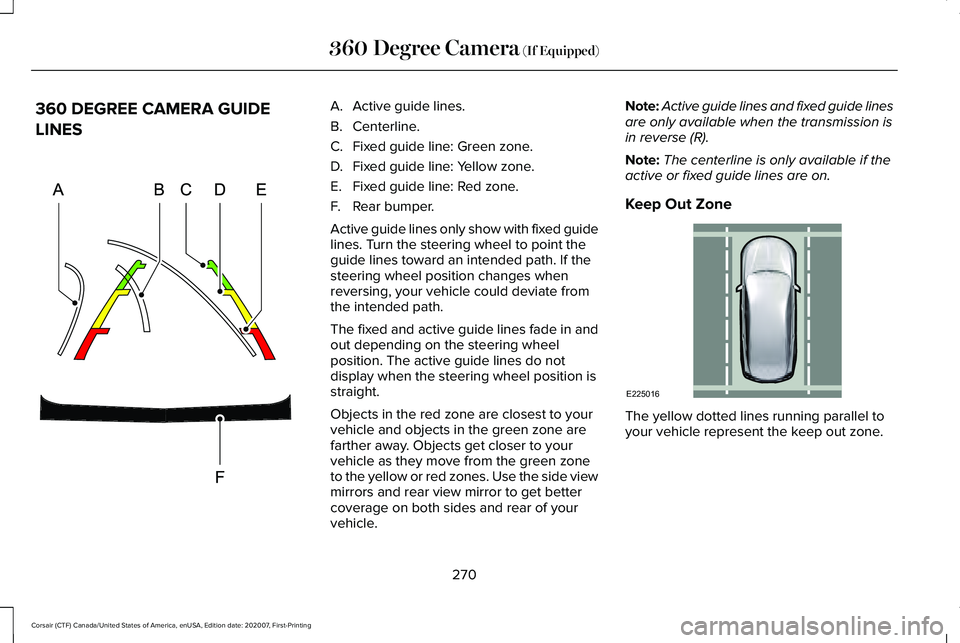
360 DEGREE CAMERA GUIDE
LINES A. Active guide lines.
B. Centerline.
C.
Fixed guide line: Green zone.
D. Fixed guide line: Yellow zone.
E. Fixed guide line: Red zone.
F. Rear bumper.
Active guide lines only show with fixed guide
lines. Turn the steering wheel to point the
guide lines toward an intended path. If the
steering wheel position changes when
reversing, your vehicle could deviate from
the intended path.
The fixed and active guide lines fade in and
out depending on the steering wheel
position. The active guide lines do not
display when the steering wheel position is
straight.
Objects in the red zone are closest to your
vehicle and objects in the green zone are
farther away. Objects get closer to your
vehicle as they move from the green zone
to the yellow or red zones. Use the side view
mirrors and rear view mirror to get better
coverage on both sides and rear of your
vehicle. Note:
Active guide lines and fixed guide lines
are only available when the transmission is
in reverse (R).
Note: The centerline is only available if the
active or fixed guide lines are on.
Keep Out Zone The yellow dotted lines running parallel to
your vehicle represent the keep out zone.
270
Corsair (CTF) Canada/United States of America, enUSA, Edition date: 202007, First-Printing 360 Degree Camera (If Equipped)E306774 E225016
Page 274 of 638
360 DEGREE CAMERA SETTINGS
Switching the 360 Degree Camera On
and Off
The 360 degree camera system
button is on the touchscreen and
allows you to toggle through
different camera views. The front and rear
cameras have multiple screens which consist
of:
• Normal view
• Normal view with 360
• Split view
When in park (P), neutral (N) or drive (D), only
the front images display when you press the
button. When in reverse (R), only the rear
images display when you press the button.
Note: The 360 degree camera system turns
off when your vehicle is in motion at low
speed, except when in reverse (R). Switching the 360 Degree Camera
View Press to access the different
camera views.
Normal + 360 view: Contains the
normal camera view next to a 360
degree camera view. Normal view:
Provides an image
of what is directly in front of or
behind your vehicle. Split view:
Provides an extended
view of what is in front of or behind
your vehicle. Zooms in on the image.
271
Corsair (CTF) Canada/United States of America, enUSA, Edition date: 202007, First-Printing 360 Degree Camera
(If Equipped)E183663 E224483 E224783 E224784 E224785 E224485