remote LINCOLN CORSAIR 2021 Owner's Guide
[x] Cancel search | Manufacturer: LINCOLN, Model Year: 2021, Model line: CORSAIR, Model: LINCOLN CORSAIR 2021Pages: 638, PDF Size: 5.7 MB
Page 164 of 638
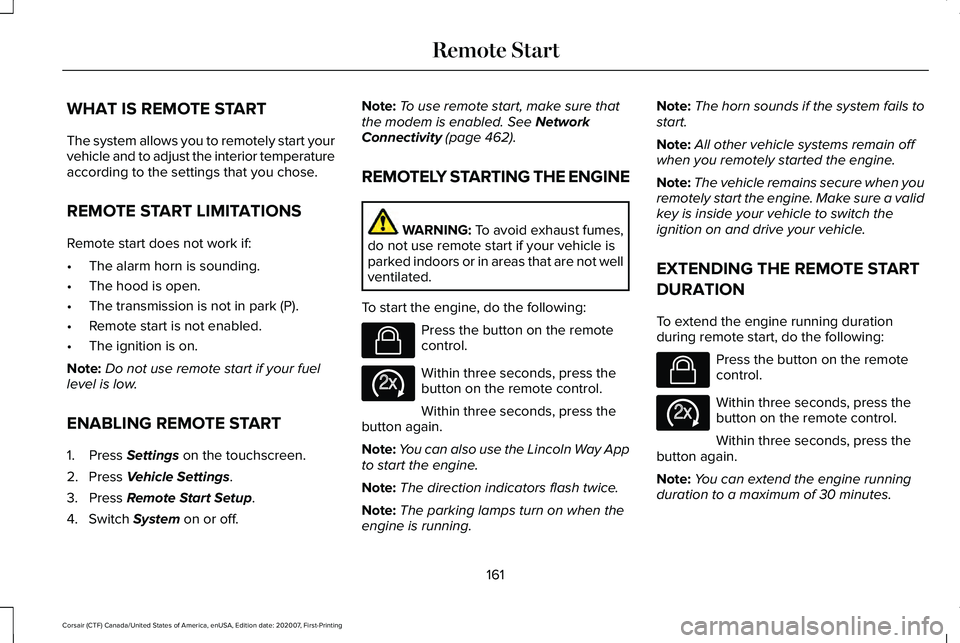
WHAT IS REMOTE START
The system allows you to remotely start your
vehicle and to adjust the interior temperature
according to the settings that you chose.
REMOTE START LIMITATIONS
Remote start does not work if:
•
The alarm horn is sounding.
• The hood is open.
• The transmission is not in park (P).
• Remote start is not enabled.
• The ignition is on.
Note: Do not use remote start if your fuel
level is low.
ENABLING REMOTE START
1. Press Settings on the touchscreen.
2. Press
Vehicle Settings.
3. Press
Remote Start Setup.
4. Switch
System on or off. Note:
To use remote start, make sure that
the modem is enabled.
See Network
Connectivity (page 462).
REMOTELY STARTING THE ENGINE WARNING:
To avoid exhaust fumes,
do not use remote start if your vehicle is
parked indoors or in areas that are not well
ventilated.
To start the engine, do the following: Press the button on the remote
control.
Within three seconds, press the
button on the remote control.
Within three seconds, press the
button again.
Note: You can also use the Lincoln Way App
to start the engine.
Note: The direction indicators flash twice.
Note: The parking lamps turn on when the
engine is running. Note:
The horn sounds if the system fails to
start.
Note: All other vehicle systems remain off
when you remotely started the engine.
Note: The vehicle remains secure when you
remotely start the engine. Make sure a valid
key is inside your vehicle to switch the
ignition on and drive your vehicle.
EXTENDING THE REMOTE START
DURATION
To extend the engine running duration
during remote start, do the following: Press the button on the remote
control.
Within three seconds, press the
button on the remote control.
Within three seconds, press the
button again.
Note: You can extend the engine running
duration to a maximum of 30 minutes.
161
Corsair (CTF) Canada/United States of America, enUSA, Edition date: 202007, First-Printing Remote StartE138623 E138625 E138623 E138625
Page 165 of 638
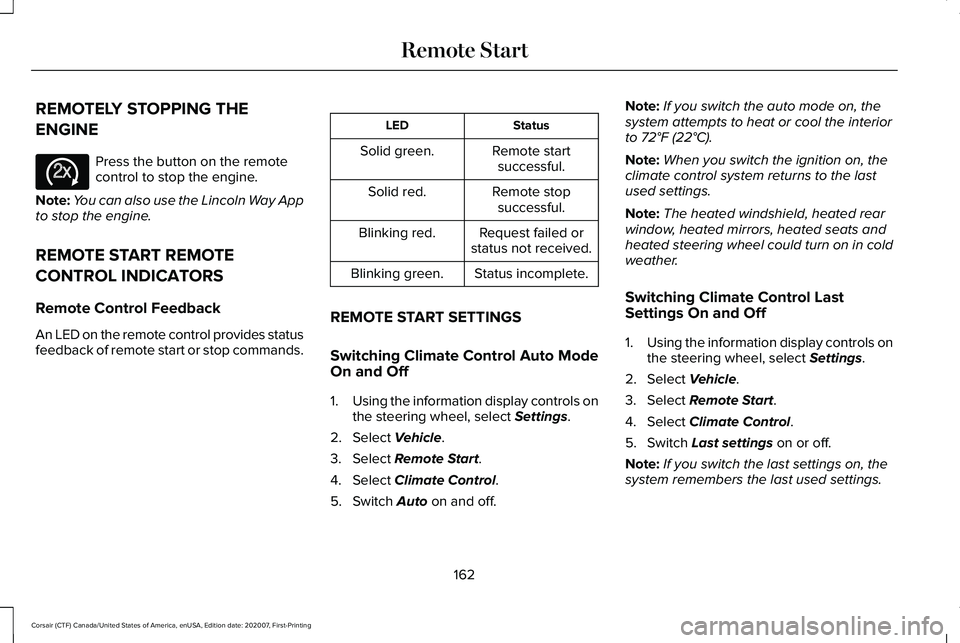
REMOTELY STOPPING THE
ENGINE
Press the button on the remote
control to stop the engine.
Note: You can also use the Lincoln Way App
to stop the engine.
REMOTE START REMOTE
CONTROL INDICATORS
Remote Control Feedback
An LED on the remote control provides status
feedback of remote start or stop commands. Status
LED
Remote startsuccessful.
Solid green.
Remote stopsuccessful.
Solid red.
Request failed or
status not received.
Blinking red.
Status incomplete.
Blinking green.
REMOTE START SETTINGS
Switching Climate Control Auto Mode
On and Off
1. Using the information display controls on
the steering wheel, select Settings.
2. Select
Vehicle.
3. Select
Remote Start.
4. Select
Climate Control.
5. Switch
Auto on and off. Note:
If you switch the auto mode on, the
system attempts to heat or cool the interior
to
72°F (22°C).
Note: When you switch the ignition on, the
climate control system returns to the last
used settings.
Note: The heated windshield, heated rear
window, heated mirrors, heated seats and
heated steering wheel could turn on in cold
weather.
Switching Climate Control Last
Settings On and Off
1. Using the information display controls on
the steering wheel, select
Settings.
2. Select
Vehicle.
3. Select
Remote Start.
4. Select
Climate Control.
5. Switch
Last settings on or off.
Note: If you switch the last settings on, the
system remembers the last used settings.
162
Corsair (CTF) Canada/United States of America, enUSA, Edition date: 202007, First-Printing Remote StartE138625
Page 166 of 638
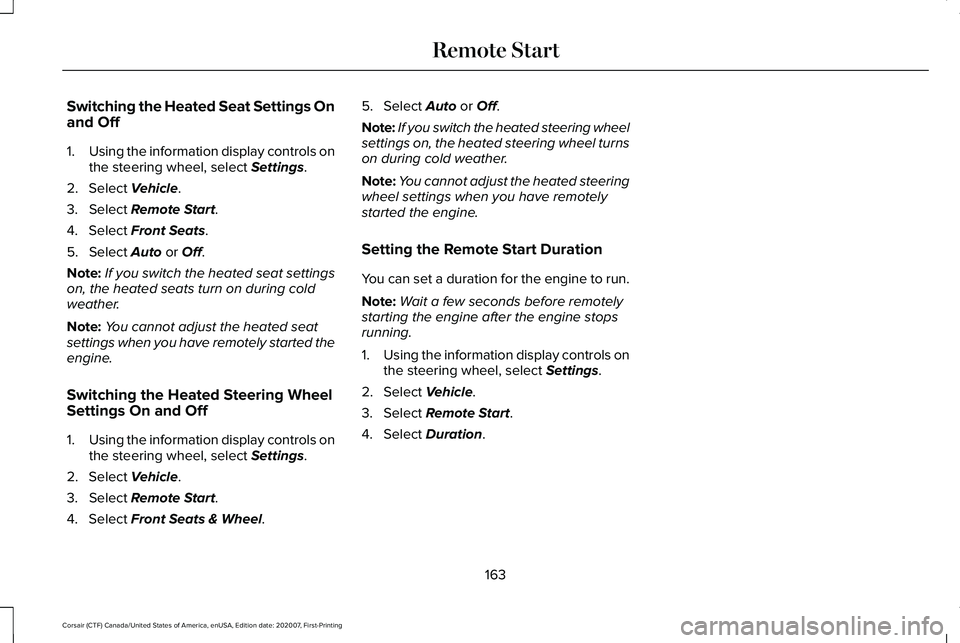
Switching the Heated Seat Settings On
and Off
1.
Using the information display controls on
the steering wheel, select Settings.
2. Select
Vehicle.
3. Select
Remote Start.
4. Select
Front Seats.
5. Select
Auto or Off.
Note: If you switch the heated seat settings
on, the heated seats turn on during cold
weather.
Note: You cannot adjust the heated seat
settings when you have remotely started the
engine.
Switching the Heated Steering Wheel
Settings On and Off
1. Using the information display controls on
the steering wheel, select
Settings.
2. Select
Vehicle.
3. Select
Remote Start.
4. Select
Front Seats & Wheel. 5. Select
Auto or Off.
Note: If you switch the heated steering wheel
settings on, the heated steering wheel turns
on during cold weather.
Note: You cannot adjust the heated steering
wheel settings when you have remotely
started the engine.
Setting the Remote Start Duration
You can set a duration for the engine to run.
Note: Wait a few seconds before remotely
starting the engine after the engine stops
running.
1. Using the information display controls on
the steering wheel, select
Settings.
2. Select
Vehicle.
3. Select
Remote Start.
4. Select
Duration.
163
Corsair (CTF) Canada/United States of America, enUSA, Edition date: 202007, First-Printing Remote Start
Page 181 of 638
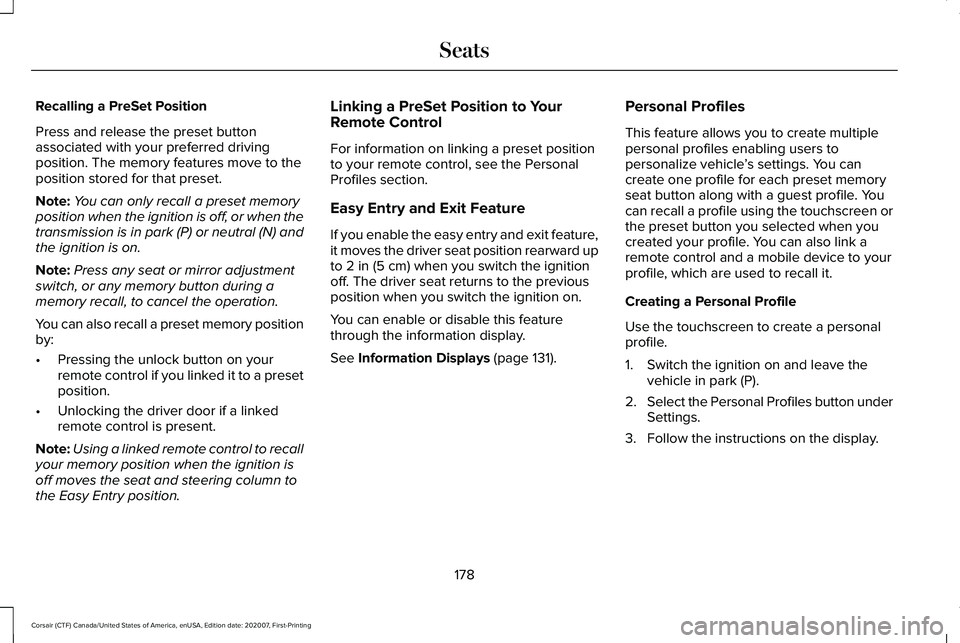
Recalling a PreSet Position
Press and release the preset button
associated with your preferred driving
position. The memory features move to the
position stored for that preset.
Note:
You can only recall a preset memory
position when the ignition is off, or when the
transmission is in park (P) or neutral (N) and
the ignition is on.
Note: Press any seat or mirror adjustment
switch, or any memory button during a
memory recall, to cancel the operation.
You can also recall a preset memory position
by:
• Pressing the unlock button on your
remote control if you linked it to a preset
position.
• Unlocking the driver door if a linked
remote control is present.
Note: Using a linked remote control to recall
your memory position when the ignition is
off moves the seat and steering column to
the Easy Entry position. Linking a PreSet Position to Your
Remote Control
For information on linking a preset position
to your remote control, see the Personal
Profiles section.
Easy Entry and Exit Feature
If you enable the easy entry and exit feature,
it moves the driver seat position rearward up
to 2 in (5 cm) when you switch the ignition
off. The driver seat returns to the previous
position when you switch the ignition on.
You can enable or disable this feature
through the information display.
See
Information Displays (page 131). Personal Profiles
This feature allows you to create multiple
personal profiles enabling users to
personalize vehicle
’s settings. You can
create one profile for each preset memory
seat button along with a guest profile. You
can recall a profile using the touchscreen or
the preset button you selected when you
created your profile. You can also link a
remote control and a mobile device to your
profile, which are used to recall it.
Creating a Personal Profile
Use the touchscreen to create a personal
profile.
1. Switch the ignition on and leave the vehicle in park (P).
2. Select the Personal Profiles button under
Settings.
3. Follow the instructions on the display.
178
Corsair (CTF) Canada/United States of America, enUSA, Edition date: 202007, First-Printing Seats
Page 182 of 638
Linking a Personal Profile to Your Remote
Control or Mobile Device
You can save preset memory positions for
up to three remote controls by assigning a
remote control to a personal profile using
the touchscreen. You can assign three
additional remote controls set up as Phone
as a Key.
Use the touchscreen to link a remote control,
mobile device or both to a personal profile.
1. Switch the ignition on and leave the
vehicle in park (P).
2. Select the Personal Profiles button under
Settings.
3. Touch the arrow for the profile you wish to link to a remote control or mobile
device.
4. Select remote control, mobile device, or
both.
5. Follow the instructions on the display.
Note: To successfully link a mobile device,
the mobile device must be in your vehicle,
and must have previously been setup as a
remote control for your vehicle. Note:
If more than one linked remote control
is in range, the memory function moves to
the settings of the first key to initiate a
memory recall.
Note: The guest profile consists of existing
settings when there is no driver profile
created. After you create a driver profile, the
guest profile serves as an additional driver
profile.
Note: You cannot link a personalized name,
a memory seat button or a remote control
to a guest profile.
Personal Settings
Personal Profiles allow you to personalize
positional settings such as seats and mirrors,
as well as non-positional settings such as
radio, navigation, driver assist and system
settings. See SYNC™ 3 (page 478). You
cannot change the menu locations and
settings of those personalized features with
Personal Profiles.
Note: Non-positional settings save to the
active driver profile whenever you change
a setting. Note:
You can save positional settings if you
press and hold a memory seat button.
Recalling and Changing a Profile
You can recall a profile by:
• Using a remote control or mobile device
linked to a driver profile to access the
remote start feature, press an unlock
button or open the door with the exterior
door handle.
• Pressing a memory seat button linked to
a driver profile.
• Using the Personal Profiles menu on the
touchscreen.
Note: The recalled profile replaces the
previously active profile. If the active profile
is not your preferred profile, you can change
it using any of the three methods listed.
179
Corsair (CTF) Canada/United States of America, enUSA, Edition date: 202007, First-Printing Seats
Page 183 of 638
When you switch on the Personal Profiles
feature:
•
Unlocking a door with a remote control
or mobile device that is not linked to a
driver profile recalls non-positional
settings from the guest profile. It does
not change the positional settings.
• Pressing a memory seat button that is
not linked to a driver profile or saved to
a preset setting recalls non-positional
settings from the guest profile. It does
not change the positional settings.
• Pressing a memory seat button that is
not linked to a driver profile but is saved
to a preset setting recalls non-positional
settings from the guest profile. It recalls
the positional settings that you saved to
that memory seat button.
See SYNC™ 3 (page 478). When you switch off a Personal Profiles
feature:
•
Unlocking a door with a remote control
or mobile device recalls non-positional
settings from the guest profile and still
recalls positional settings from the driver
profile which the remote control or
mobile device is linked to.
• Pressing a memory seat button that is
not linked to a driver profile or saved to
a preset setting recalls non-positional
settings from the guest profile. It does
not change the positional settings.
• Pressing a memory seat button that is
linked to a driver profile or has saved to
a preset setting recalls non-positional
settings from the guest profile. It recalls
the positional settings that you saved to
that memory seat button. REAR SEATS
Moving the Seats Backward and
Forward WARNING:
Make sure the seat fully
locks into place by rocking it backward and
forward.
180
Corsair (CTF) Canada/United States of America, enUSA, Edition date: 202007, First-Printing Seats
Page 186 of 638
Note:
Depending on your remote start
settings, the heated seats may remain on
after you remote start your vehicle. The
heated seats may also turn on when you
start your vehicle if they were on when your
vehicle was turned off.
Rear Seats (If Equipped) WARNING:
Persons who are unable
to feel pain to the skin because of
advanced age, chronic illness, diabetes,
spinal cord injury, medication, alcohol use,
exhaustion, or other physical conditions,
must exercise care when using the seat
heater. The seat heater may cause burns
even at low temperatures, especially if
used for long periods of time. Do not place
anything on the seat that insulates against
heat, such as a blanket or cushion,
because this may cause the seat heater to overheat. Do not puncture the seat with
pins, needles, or other pointed objects
because this may damage the heating
element which may cause the seat heater
to overheat. An overheated seat may
cause serious personal injury.
Do not do the following:
• Place heavy objects on the seat.
• Operate the seat heater if water or any
other liquid spills on the seat. Allow the
seat to dry thoroughly.
Note: The heated seats will only function
when the engine is running.
The rear seat heat controls are located on
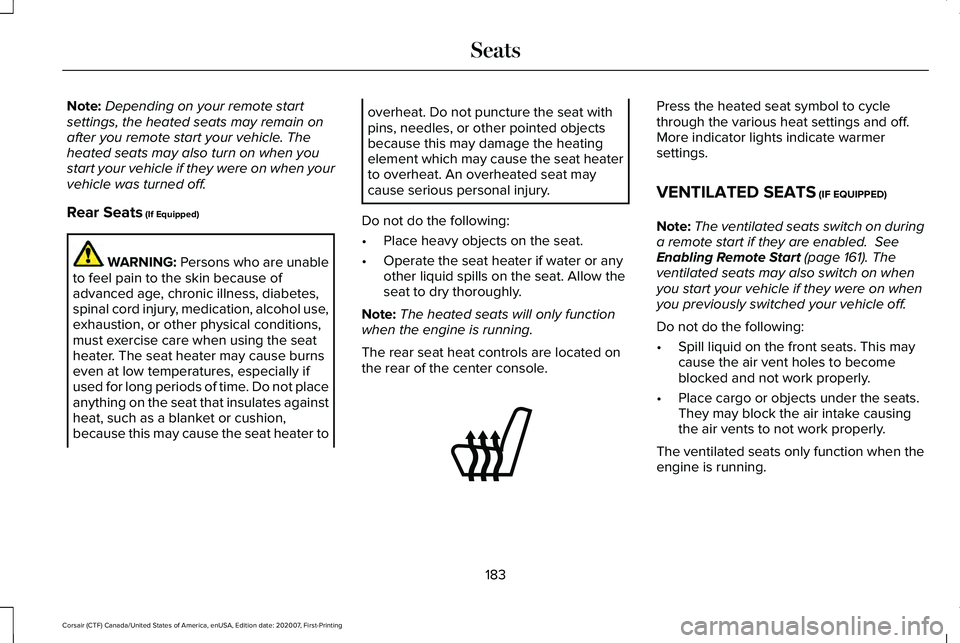
the rear of the center console. Press the heated seat symbol to cycle
through the various heat settings and off.
More indicator lights indicate warmer
settings.
VENTILATED SEATS
(IF EQUIPPED)
Note: The ventilated seats switch on during
a remote start if they are enabled.
See
Enabling Remote Start (page 161). The
ventilated seats may also switch on when
you start your vehicle if they were on when
you previously switched your vehicle off.
Do not do the following:
• Spill liquid on the front seats. This may
cause the air vent holes to become
blocked and not work properly.
• Place cargo or objects under the seats.
They may block the air intake causing
the air vents to not work properly.
The ventilated seats only function when the
engine is running.
183
Corsair (CTF) Canada/United States of America, enUSA, Edition date: 202007, First-Printing SeatsE146322
Page 190 of 638
WHAT IS THE GARAGE DOOR
OPENER
Universal Garage Door Opener: HomeLink
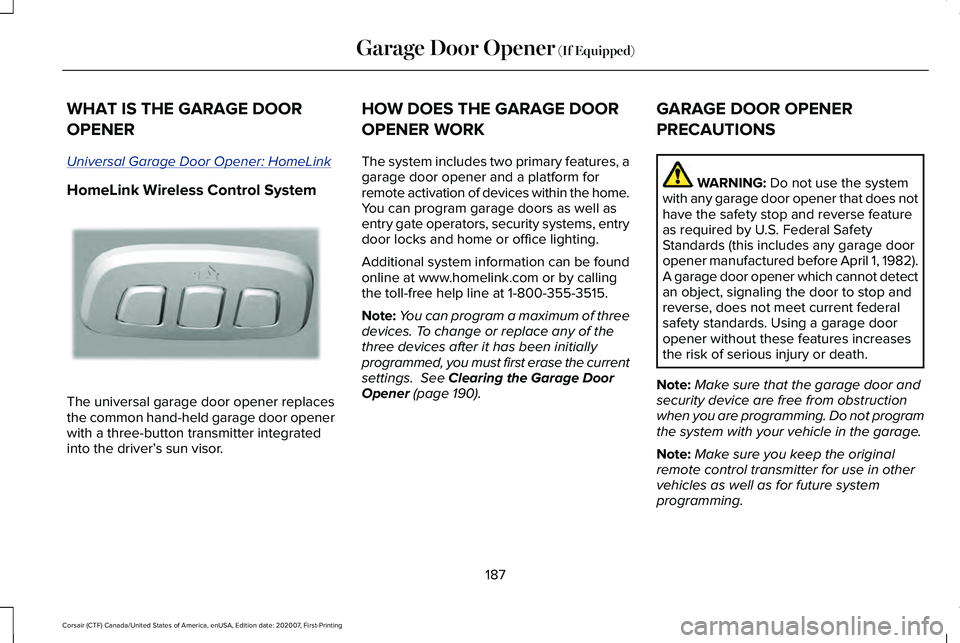
HomeLink Wireless Control System
The universal garage door opener replaces
the common hand-held garage door opener
with a three-button transmitter integrated
into the driver’
s sun visor. HOW DOES THE GARAGE DOOR
OPENER WORK
The system includes two primary features, a
garage door opener and a platform for
remote activation of devices within the home.
You can program garage doors as well as
entry gate operators, security systems, entry
door locks and home or office lighting.
Additional system information can be found
online at www.homelink.com or by calling
the toll-free help line at 1-800-355-3515.
Note:
You can program a maximum of three
devices. To change or replace any of the
three devices after it has been initially
programmed, you must first erase the current
settings. See Clearing the Garage Door
Opener (page 190). GARAGE DOOR OPENER
PRECAUTIONS WARNING:
Do not use the system
with any garage door opener that does not
have the safety stop and reverse feature
as required by U.S. Federal Safety
Standards (this includes any garage door
opener manufactured before April 1, 1982).
A garage door opener which cannot detect
an object, signaling the door to stop and
reverse, does not meet current federal
safety standards. Using a garage door
opener without these features increases
the risk of serious injury or death.
Note: Make sure that the garage door and
security device are free from obstruction
when you are programming. Do not program
the system with your vehicle in the garage.
Note: Make sure you keep the original
remote control transmitter for use in other
vehicles as well as for future system
programming.
187
Corsair (CTF) Canada/United States of America, enUSA, Edition date: 202007, First-Printing Garage Door Opener
(If Equipped)E188211
Page 196 of 638
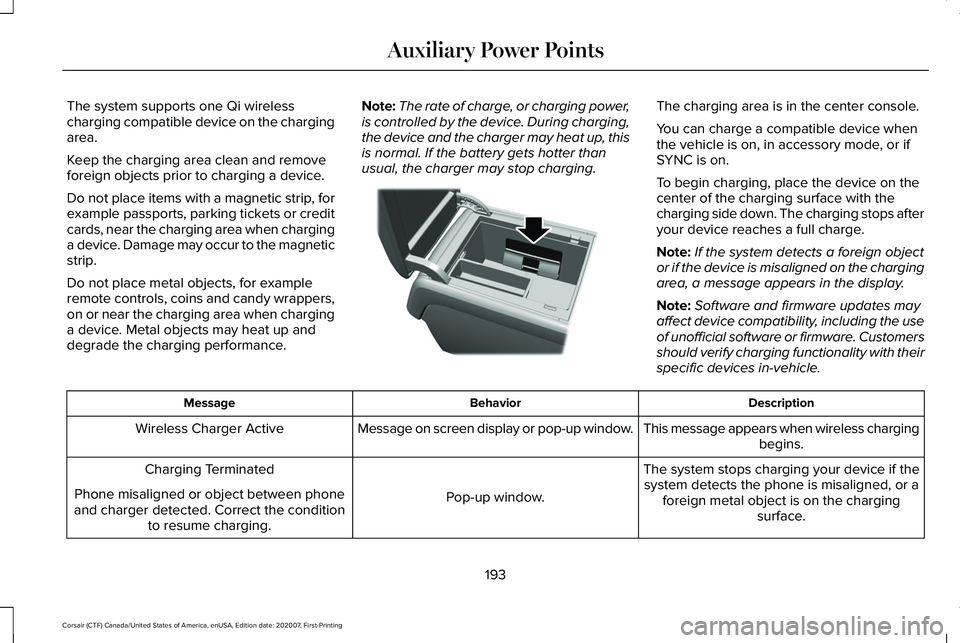
The system supports one Qi wireless
charging compatible device on the charging
area.
Keep the charging area clean and remove
foreign objects prior to charging a device.
Do not place items with a magnetic strip, for
example passports, parking tickets or credit
cards, near the charging area when charging
a device. Damage may occur to the magnetic
strip.
Do not place metal objects, for example
remote controls, coins and candy wrappers,
on or near the charging area when charging
a device. Metal objects may heat up and
degrade the charging performance.
Note:
The rate of charge, or charging power,
is controlled by the device. During charging,
the device and the charger may heat up, this
is normal. If the battery gets hotter than
usual, the charger may stop charging. The charging area is in the center console.
You can charge a compatible device when
the vehicle is on, in accessory mode, or if
SYNC is on.
To begin charging, place the device on the
center of the charging surface with the
charging side down. The charging stops after
your device reaches a full charge.
Note:
If the system detects a foreign object
or if the device is misaligned on the charging
area, a message appears in the display.
Note: Software and firmware updates may
affect device compatibility, including the use
of unofficial software or firmware. Customers
should verify charging functionality with their
specific devices in-vehicle. Description
Behavior
Message
This message appears when wireless chargingbegins.
Message on screen display or pop-up window.
Wireless Charger Active
The system stops charging your device if thesystem detects the phone is misaligned, or a foreign metal object is on the charging surface.
Pop-up window.
Charging Terminated
Phone misaligned or object between phone
and charger detected. Correct the condition to resume charging.
193
Corsair (CTF) Canada/United States of America, enUSA, Edition date: 202007, First-Printing Auxiliary Power PointsE317944
Page 200 of 638
•
Without applying the brake pedal, press
and release the button once when the
ignition is in the on mode, or when the
engine is running but the vehicle is not
moving.
On: All electrical circuits are operational and
the warning lamps and indicators illuminate.
• Without applying the brake pedal, press
and release the button once.
Note: You may have to press the push
button ignition switch twice to switch the
ignition on.
Start:
Starts the engine.
• Press the brake pedal, and then press
the button for any length of time. An
indicator light on the button illuminates
when then ignition is on and when the
engine starts. STARTING A GASOLINE ENGINE
When you start the engine, the idle speed
increases, this helps to warm up the engine.
If the engine idle speed does not slow down,
have your vehicle checked as soon as
possible.
Note:
If your vehicle has remote start, you
can start your vehicle with the remote, and
then drive away by pressing the brake pedal
and pushing a button on the transmission.
This allows you to drive away without
pressing the engine start button.
Before starting the engine, check the
following:
• Make sure all occupants have fastened
their seatbelts.
• Make sure the headlamps and electrical
accessories are off.
• Make sure the parking brake is on.
• Make sure the transmission is in park (P).
Note: Do not touch the accelerator pedal.
1. Fully press the brake pedal.
2. Press the push button ignition switch. The system does not function if:
•
The key frequencies are jammed.
• The key battery has no charge.
If you are unable to start the engine, do the
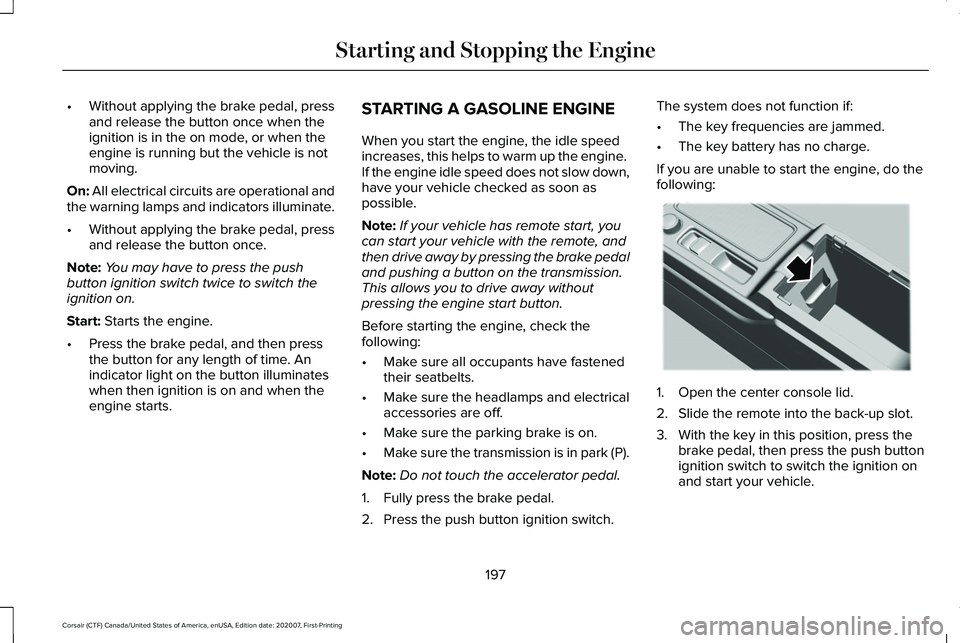
following: 1. Open the center console lid.
2. Slide the remote into the back-up slot.
3. With the key in this position, press the
brake pedal, then press the push button
ignition switch to switch the ignition on
and start your vehicle.
197
Corsair (CTF) Canada/United States of America, enUSA, Edition date: 202007, First-Printing Starting and Stopping the EngineE306288