install LINCOLN CORSAIR 2021 Repair Manual
[x] Cancel search | Manufacturer: LINCOLN, Model Year: 2021, Model line: CORSAIR, Model: LINCOLN CORSAIR 2021Pages: 638, PDF Size: 5.7 MB
Page 431 of 638
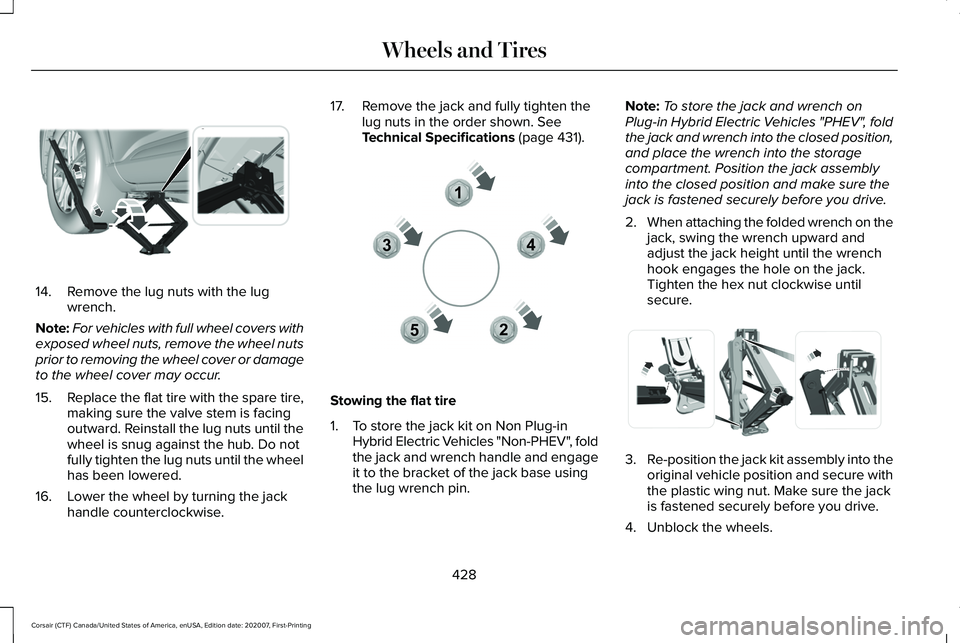
14. Remove the lug nuts with the lug
wrench.
Note: For vehicles with full wheel covers with
exposed wheel nuts, remove the wheel nuts
prior to removing the wheel cover or damage
to the wheel cover may occur.
15. Replace the flat tire with the spare tire,
making sure the valve stem is facing
outward. Reinstall the lug nuts until the
wheel is snug against the hub. Do not
fully tighten the lug nuts until the wheel
has been lowered.
16. Lower the wheel by turning the jack handle counterclockwise. 17. Remove the jack and fully tighten the
lug nuts in the order shown. See
Technical Specifications (page 431). Stowing the flat tire
1. To store the jack kit on Non Plug-in
Hybrid Electric Vehicles "Non-PHEV", fold
the jack and wrench handle and engage
it to the bracket of the jack base using
the lug wrench pin. Note:
To store the jack and wrench on
Plug-in Hybrid Electric Vehicles "PHEV", fold
the jack and wrench into the closed position,
and place the wrench into the storage
compartment. Position the jack assembly
into the closed position and make sure the
jack is fastened securely before you drive.
2. When attaching the folded wrench on the
jack, swing the wrench upward and
adjust the jack height until the wrench
hook engages the hole on the jack.
Tighten the hex nut clockwise until
secure. 3.
Re-position the jack kit assembly into the
original vehicle position and secure with
the plastic wing nut. Make sure the jack
is fastened securely before you drive.
4. Unblock the wheels.
428
Corsair (CTF) Canada/United States of America, enUSA, Edition date: 202007, First-Printing Wheels and TiresE294119 12
3
4
5E306781 E294121
Page 434 of 638

TECHNICAL SPECIFICATIONS
Wheel Lug Nut Torque Specifications
WARNING: When you install a wheel, always remove any corrosion, dirt or foreign m\
aterials present on the mounting surfaces of the
wheel or the surface of the wheel hub, brake drum or brake disc that contacts the wheel. Make sure to secure any fasteners that attach
the rotor to the hub so they do not interfere with the mounting surfaces\
of the wheel. Installing wheels without correct metal-to-metal contact
at the wheel mounting surfaces can cause the wheel nuts to loosen and th\
e wheel to come off while your vehicle is in motion, resulting in
loss of vehicle control, personal injury or death. Ib-ft (Nm)
*
Bolt size
99.57 lb.ft (135 Nm)
M12 x 1.5
* Torque specifications are for nut and bolt threads free of oil, dirt and \
rust. Use only Ford recommended replacement fasteners.
Retighten the lug nuts to the specified torque within 100 mi (160 km) after any wheel disturbance (such as tire rotation, changing a flat ti\
re,
wheel removal).
431
Corsair (CTF) Canada/United States of America, enUSA, Edition date: 202007, First-Printing Wheels and Tires
Page 435 of 638
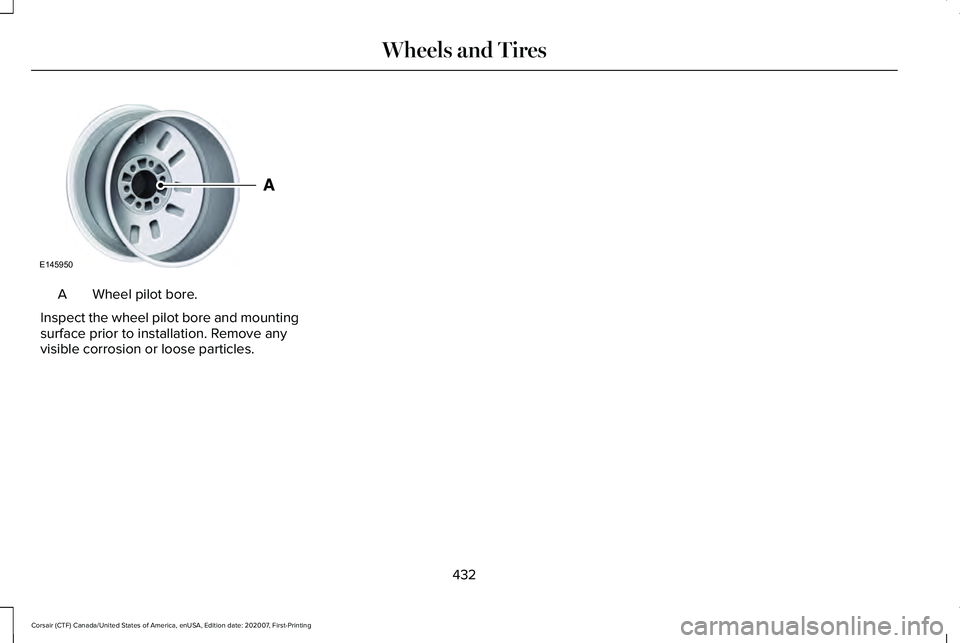
Wheel pilot bore.
A
Inspect the wheel pilot bore and mounting
surface prior to installation. Remove any
visible corrosion or loose particles.
432
Corsair (CTF) Canada/United States of America, enUSA, Edition date: 202007, First-Printing Wheels and TiresE145950
Page 477 of 638
SiriusXM Satellite Radio Service
Note:
SiriusXM reserves the unrestricted
right to change, rearrange, add or delete
programming including canceling, moving
or adding particular channels, and its prices,
at any time, with or without notice to you.
Ford Motor Company shall not be
responsible for any such programming
changes. SiriusXM satellite radio is a
subscription-based satellite radio service that
broadcasts a variety of music, sports, news,
weather, traffic and entertainment
programming. Your factory-installed SiriusXM
satellite radio system includes hardware and
a limited subscription term, which begins on
the date of sale or lease of your vehicle. See
an authorized dealer for availability.
For more information on extended
subscription terms (a service fee is required),
the online media player and a complete list
of SiriusXM satellite radio channels, and
other features, please visit www.siriusxm.com
in the United States, www.siriusxm.ca in
Canada, or call SiriusXM at 1-888-539-7474.
Satellite Radio Electronic Serial
Number (ESN)
You need your ESN to activate, modify or
track your satellite radio account.
Locating Your ESN
With satellite radio as the source, use the
touchscreen to select the following:
1.
Select Settings. See Settings (page 526).
2. Select
SiriusXM.
3. Select
SiriusXM information.
474
Corsair (CTF) Canada/United States of America, enUSA, Edition date: 202007, First-Printing Audio SystemE208625
Page 482 of 638
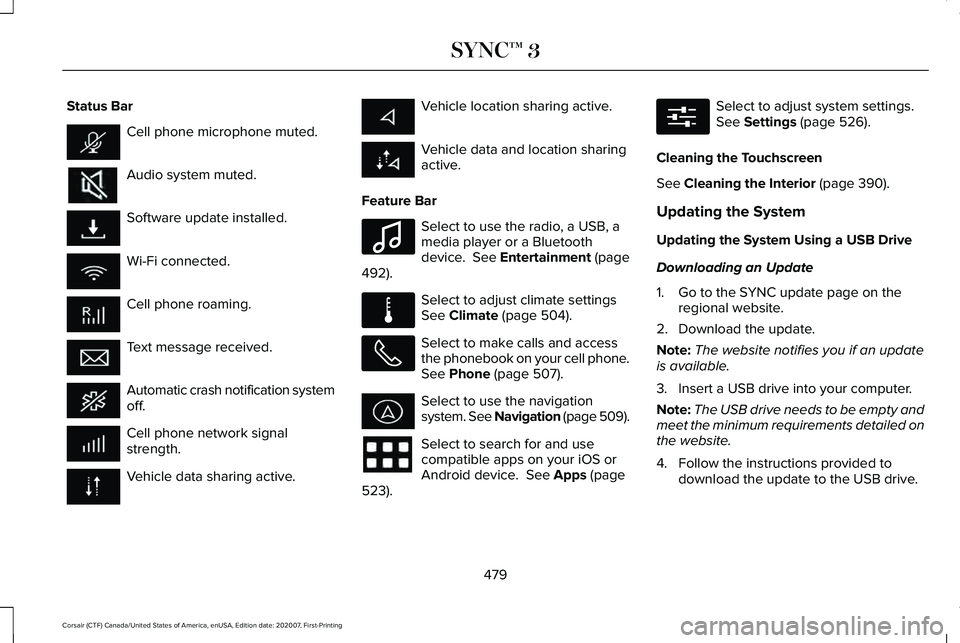
Status Bar
Cell phone microphone muted.
Audio system muted.
Software update installed.
Wi-Fi connected.
Cell phone roaming.
Text message received.
Automatic crash notification system
off.
Cell phone network signal
strength.
Vehicle data sharing active. Vehicle location sharing active.
Vehicle data and location sharing
active.
Feature Bar Select to use the radio, a USB, a
media player or a Bluetooth
device. See Entertainment (page
492). Select to adjust climate settings
See
Climate (page 504).
Select to make calls and access
the phonebook on your cell phone.
See
Phone (page 507).
Select to use the navigation
system. See Navigation (page 509).
Select to search for and use
compatible apps on your iOS or
Android device.
See Apps (page
523). Select to adjust system settings.
See
Settings (page 526).
Cleaning the Touchscreen
See
Cleaning the Interior (page 390).
Updating the System
Updating the System Using a USB Drive
Downloading an Update
1. Go to the SYNC update page on the regional website.
2. Download the update.
Note: The website notifies you if an update
is available.
3. Insert a USB drive into your computer.
Note: The USB drive needs to be empty and
meet the minimum requirements detailed on
the website.
4. Follow the instructions provided to download the update to the USB drive.
479
Corsair (CTF) Canada/United States of America, enUSA, Edition date: 202007, First-Printing SYNC™ 3 E100027 E283811 E280315
Page 483 of 638
Installing an Update
Note:
You can use the system when an
installation is in progress.
1. Disconnect all other USB devices from the USB ports.
2. Connect the USB drive with the update to a USB port.
Note: Installation starts automatically within
a few minutes.
Updating the System Using a Wi-Fi Network
Connection
Switching Automatic System Updates On Select the settings option on the
feature bar.
1. Select Automatic Updates.
2. Switch
Automatic System Updates on.
The system is now set to check for and
receive system updates when it is connected
to a Wi-Fi network. Note:
You can use the system when a
download is in progress.
Note: If the system is disconnected from the
Wi-Fi network when a download is in
progress, the download continues the next
time the system is connected to a Wi-Fi
network.
Connecting to a Wi-Fi Network
See
Vehicle Wi-Fi Hotspot (page 466).
Additional Information and Assistance
For additional information and assistance,
we recommend that you contact an
authorized dealer or refer to the local
website.
USING VOICE RECOGNITION
The system allows you to interact with the
entertainment, information and
communication systems on your vehicle
using voice commands. This allows you to
keep your hands on the steering wheel and
focus on what is in front of you. Press the voice control button on
the steering wheel and wait for the
voice prompt.
Note: Press the voice control button again
to interrupt a voice prompt and begin
speaking.
Note: Turn the volume control when a voice
prompt plays to adjust the volume.
Note: Press and hold the voice control
button on the steering wheel to use Siri on
your iOS device.
The following voice commands are designed
to help you from any screen:
• List of Commands
• Help
The following tables list some of the more
frequently used voice commands. For a
complete list of voice commands, refer to
our website.
480
Corsair (CTF) Canada/United States of America, enUSA, Edition date: 202007, First-Printing SYNC™ 3E280315 E142599
Page 497 of 638
SiriusXM satellite radio is a
subscription-based satellite radio service that
broadcasts a variety of music, sports, news,
weather, traffic and entertainment
programming. Your factory-installed SiriusXM
satellite radio system includes hardware and
a limited subscription term that begins on
the date of sale or lease of your vehicle. See
an authorized dealer for availability.
For more information on extended
subscription terms (a service fee is required),
the online media player and a list of SiriusXM
satellite radio channels, and other features,
please visit www.siriusxm.com in the United
States, www.siriusxm.ca in Canada, or call
SiriusXM at 1-888-539-7474.
Note:
SiriusXM reserves the unrestricted
right to change, rearrange, add or delete
programming. This includes canceling,
moving or adding particular channels, and
its prices, at any time, with or without notice
to you. We are not responsible for any such
programming changes.
Note: This receiver includes the eCos
real-time operating system. eCos is
published under the eCos License.
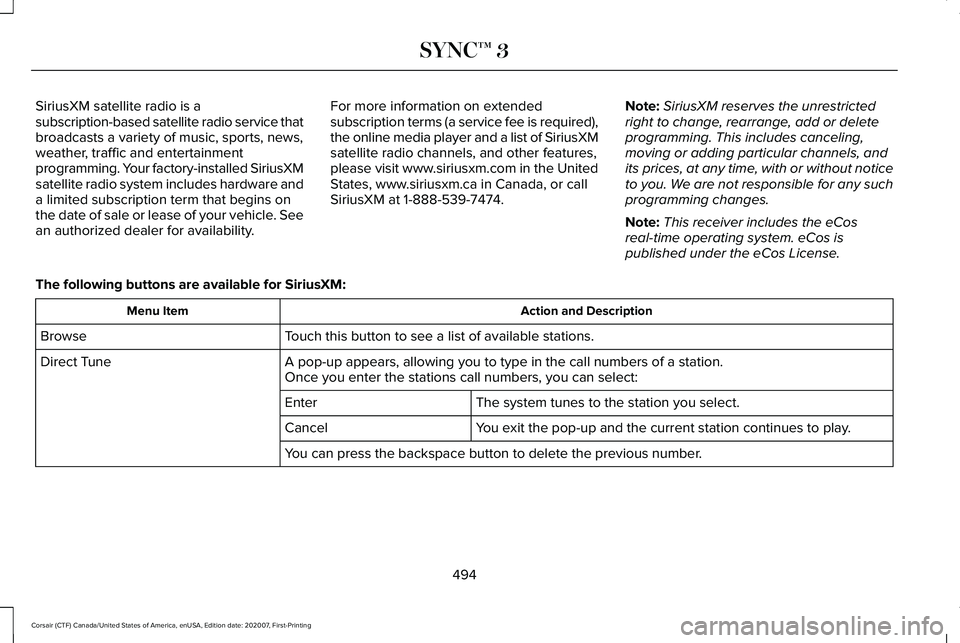
The following buttons are available for SiriusXM: Action and Description
Menu Item
Touch this button to see a list of available stations.
Browse
A pop-up appears, allowing you to type in the call numbers of a station.\
Direct Tune
Once you enter the stations call numbers, you can select:
The system tunes to the station you select.
Enter
You exit the pop-up and the current station continues to play.
Cancel
You can press the backspace button to delete the previous number.
494
Corsair (CTF) Canada/United States of America, enUSA, Edition date: 202007, First-Printing SYNC™ 3
Page 534 of 638

Possible Cause and Resolution
Symptom
–Incorrect device settings.
•Make sure that your device does not have an auto-install program or active \
security
settings.
• Check that your device is not set only to charge.
– Device lock screen enabled.
•Unlock your device before connecting it.
The system does not recognize my device. –Device limitation.
•Do not leave your device in your vehicle during very hot or very cold we\
ather condi-
tions.
– Cable connection issue.
•Correctly connect the cable to your device and the vehicle USB port.
– Incompatible cable.
•Use the cable recommended by the manufacturer of your device.
The system does not understand the name of
a track or artist. –
Device limitation. Bluetooth does not support voice commands.
•Connect your device to a USB port.
• If you have an iOS device, press and hold the voice control button on the steering
wheel to use Siri to play specific tracks.
531
Corsair (CTF) Canada/United States of America, enUSA, Edition date: 202007, First-Printing SYNC™ 3
Page 539 of 638
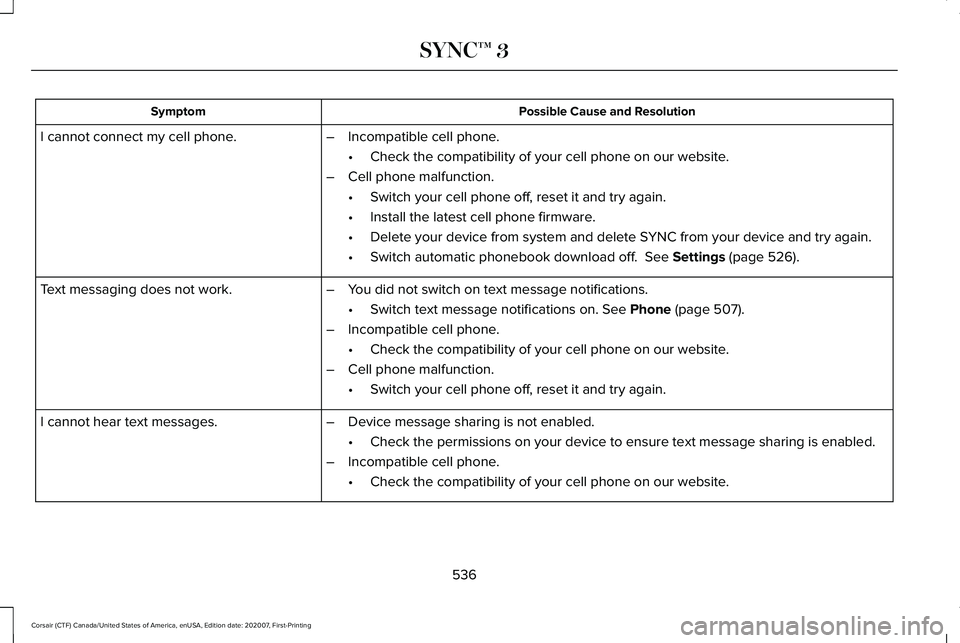
Possible Cause and Resolution
Symptom
–Incompatible cell phone.
•Check the compatibility of your cell phone on our website.
– Cell phone malfunction.
•Switch your cell phone off, reset it and try again.
• Install the latest cell phone firmware.
• Delete your device from system and delete SYNC from your device and try again.
• Switch automatic phonebook download off. See Settings (page 526).
I cannot connect my cell phone.
Text messaging does not work.
–You did not switch on text message notifications.
•Switch text message notifications on.
See Phone (page 507).
– Incompatible cell phone.
•Check the compatibility of your cell phone on our website.
– Cell phone malfunction.
•Switch your cell phone off, reset it and try again.
– Device message sharing is not enabled.
•Check the permissions on your device to ensure text message sharing is e\
nabled.
– Incompatible cell phone.
•Check the compatibility of your cell phone on our website.
I cannot hear text messages.
536
Corsair (CTF) Canada/United States of America, enUSA, Edition date: 202007, First-Printing SYNC™ 3
Page 541 of 638

Apps
Possible Cause and Resolution
Symptom
The system cannot find any apps. –Incompatible device.
•You will need an Android device with OS 4.3 or higher or an iOS device wi\
th iOS 8.0
or higher. Pair and connect your Android device to find AppLink compatible apps.
Connect your iOS device to a USB port or pair and connect using Bluetoot\
h.
I have a compatible device and it is correctly
connected but the system still cannot find any
apps. –
AppLink compatible apps not installed on your device.
•Download and install the latest version of the app.
– AppLink compatible apps not running on your device.
•Start the apps to allow the system to find them and make sure you sign in to any apps
if required.
– Incorrect app settings.
•Check and adjust the app settings on your device and allow SYNC to access the app
if required.
I have a compatible device, it is correctly
connected and my apps are running but the
system still cannot find any apps. –
Apps failed to fully close.
•Restart the apps and try again.
• If you have an Android device with apps that have an exit or quit option\
, use this and
then restart the apps. Alternatively, use the force stop option in the settings menu on
your device.
• If you have an iOS device with iOS 7.0 or higher, tap the home button on your device
twice and then swipe the app upward to close it.
538
Corsair (CTF) Canada/United States of America, enUSA, Edition date: 202007, First-Printing SYNC™ 3