key LINCOLN CORSAIR 2022 Manual PDF
[x] Cancel search | Manufacturer: LINCOLN, Model Year: 2022, Model line: CORSAIR, Model: LINCOLN CORSAIR 2022Pages: 676, PDF Size: 7.67 MB
Page 367 of 676
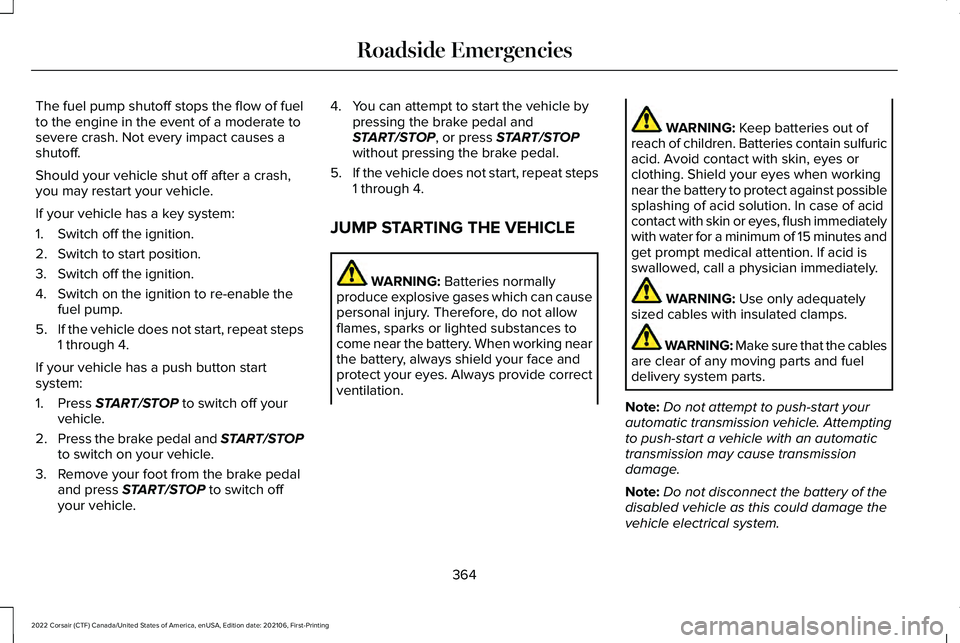
The fuel pump shutoff stops the flow of fuel
to the engine in the event of a moderate to
severe crash. Not every impact causes a
shutoff.
Should your vehicle shut off after a crash,
you may restart your vehicle.
If your vehicle has a key system:
1. Switch off the ignition.
2. Switch to start position.
3. Switch off the ignition.
4. Switch on the ignition to re-enable the
fuel pump.
5. If the vehicle does not start, repeat steps
1 through 4.
If your vehicle has a push button start
system:
1. Press START/STOP to switch off your
vehicle.
2. Press the brake pedal and
START/STOP
to switch on your vehicle.
3. Remove your foot from the brake pedal and press
START/STOP to switch off
your vehicle. 4. You can attempt to start the vehicle by
pressing the brake pedal and
START/STOP
, or press START/STOP
without pressing the brake pedal.
5. If the vehicle does not start, repeat steps
1 through 4.
JUMP STARTING THE VEHICLE WARNING:
Batteries normally
produce explosive gases which can cause
personal injury. Therefore, do not allow
flames, sparks or lighted substances to
come near the battery. When working near
the battery, always shield your face and
protect your eyes. Always provide correct
ventilation. WARNING:
Keep batteries out of
reach of children. Batteries contain sulfuric
acid. Avoid contact with skin, eyes or
clothing. Shield your eyes when working
near the battery to protect against possible
splashing of acid solution. In case of acid
contact with skin or eyes, flush immediately
with water for a minimum of 15 minutes and
get prompt medical attention. If acid is
swallowed, call a physician immediately. WARNING:
Use only adequately
sized cables with insulated clamps. WARNING: Make sure that the cables
are clear of any moving parts and fuel
delivery system parts.
Note: Do not attempt to push-start your
automatic transmission vehicle. Attempting
to push-start a vehicle with an automatic
transmission may cause transmission
damage.
Note: Do not disconnect the battery of the
disabled vehicle as this could damage the
vehicle electrical system.
364
2022 Corsair (CTF) Canada/United States of America, enUSA, Edition date: 202106, First-Printing Roadside Emergencies
Page 390 of 676
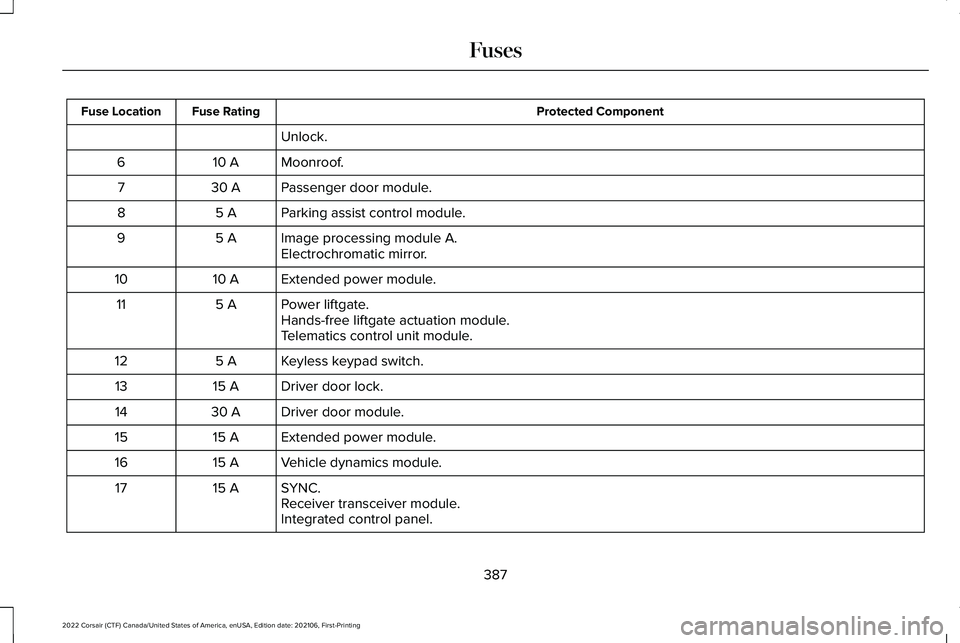
Protected Component
Fuse Rating
Fuse Location
Unlock.
Moonroof.
10 A
6
Passenger door module.
30 A
7
Parking assist control module.
5 A
8
Image processing module A.
5 A
9
Electrochromatic mirror.
Extended power module.
10 A
10
Power liftgate.
5 A
11
Hands-free liftgate actuation module.
Telematics control unit module.
Keyless keypad switch.
5 A
12
Driver door lock.
15 A
13
Driver door module.
30 A
14
Extended power module.
15 A
15
Vehicle dynamics module.
15 A
16
SYNC.
15 A
17
Receiver transceiver module.
Integrated control panel.
387
2022 Corsair (CTF) Canada/United States of America, enUSA, Edition date: 202106, First-Printing Fuses
Page 507 of 676
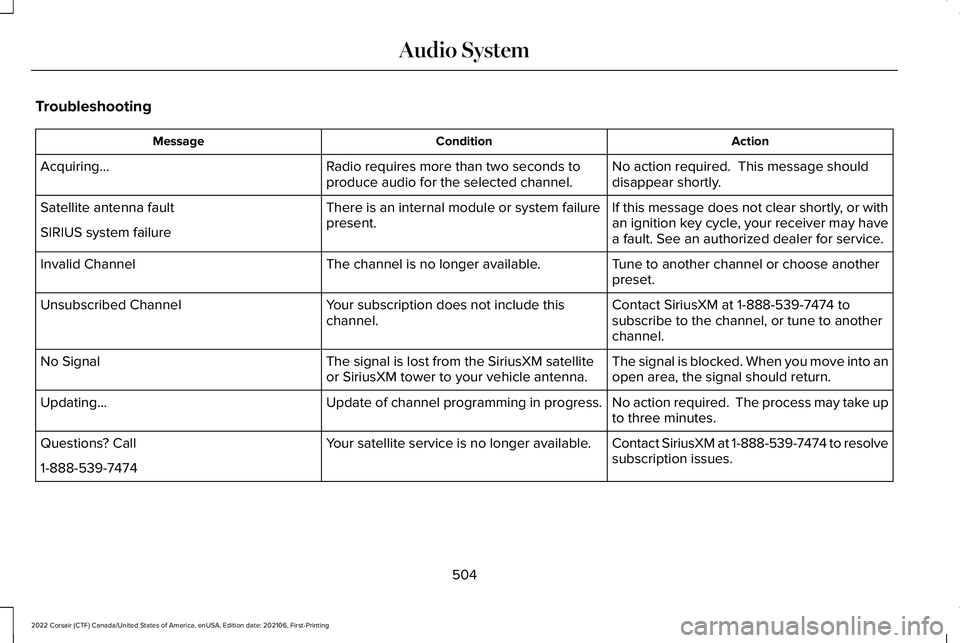
Troubleshooting
Action
Condition
Message
No action required. This message should
disappear shortly.
Radio requires more than two seconds to
produce audio for the selected channel.
Acquiring…
If this message does not clear shortly, or with
an ignition key cycle, your receiver may have
a fault. See an authorized dealer for service.
There is an internal module or system failure
present.
Satellite antenna fault
SIRIUS system failure
Tune to another channel or choose another
preset.
The channel is no longer available.
Invalid Channel
Contact SiriusXM at 1-888-539-7474 to
subscribe to the channel, or tune to another
channel.
Your subscription does not include this
channel.
Unsubscribed Channel
The signal is blocked. When you move into an
open area, the signal should return.
The signal is lost from the SiriusXM satellite
or SiriusXM tower to your vehicle antenna.
No Signal
No action required. The process may take up
to three minutes.
Update of channel programming in progress.
Updating…
Contact SiriusXM at 1-888-539-7474 to resolve
subscription issues.
Your satellite service is no longer available.
Questions? Call
1-888-539-7474
504
2022 Corsair (CTF) Canada/United States of America, enUSA, Edition date: 202106, First-Printing Audio System
Page 528 of 676
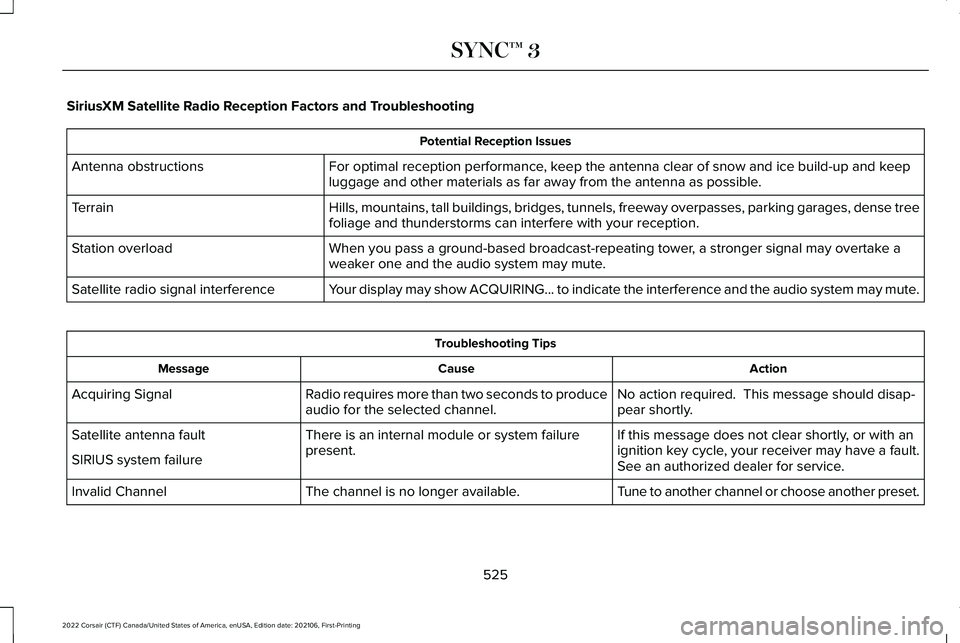
SiriusXM Satellite Radio Reception Factors and Troubleshooting
Potential Reception Issues
For optimal reception performance, keep the antenna clear of snow and ice build-up and keep
luggage and other materials as far away from the antenna as possible.
Antenna obstructions
Hills, mountains, tall buildings, bridges, tunnels, freeway overpasses, \
parking garages, dense tree
foliage and thunderstorms can interfere with your reception.
Terrain
When you pass a ground-based broadcast-repeating tower, a stronger signal may overtake a
weaker one and the audio system may mute.
Station overload
Your display may show ACQUIRING... to indicate the interference and the a\
udio system may mute.
Satellite radio signal interference Troubleshooting Tips
Action
Cause
Message
No action required. This message should disap-
pear shortly.
Radio requires more than two seconds to produce
audio for the selected channel.
Acquiring Signal
If this message does not clear shortly, or with an
ignition key cycle, your receiver may have a fault.
See an authorized dealer for service.
There is an internal module or system failure
present.
Satellite antenna fault
SIRIUS system failure
Tune to another channel or choose another preset.
The channel is no longer available.
Invalid Channel
525
2022 Corsair (CTF) Canada/United States of America, enUSA, Edition date: 202106, First-Printing SYNC™ 3
Page 540 of 676
1. Select Add Phone.
Note: A prompt alerts you to search for your
vehicle on your cell phone.
2. Select your vehicle on your cell phone.
Note: A number appears on your cell phone
and on the touchscreen.
3. Confirm that the number on your cell phone matches the number on the
touchscreen.
Note: The touchscreen indicates that you
have successfully paired your cell phone.
4. Download the phonebook from your cell
phone when you are prompted.
Note: If you pair more than one cell phone,
use the phone settings to specify the primary
phone. You can change this setting at any
time.
Using Your Cell Phone
(If Equipped)
Recent Call List
Display and select an entry from a list of
previous calls. Contacts
Display a smart search form to look up your
contacts. Use the List button to alphabetically
sort your contacts.
Change Phone
Display the list of paired or connected
devices that you can select.
Phone Settings
Change ring tones, alerts or pair another
phone.
Do Not Disturb
Reject incoming calls and switch ring tones
and alerts off.
Phone Keypad
Directly dial a number.
Mute
Mute the microphone when in a call.
Phone Voice Assistant
Say a command to use the Google or Siri
voice assistant available on your connected
phone to access supported features.
Text Messaging
Setting Text Message Notification
iOS
1. Go to the settings menu on your cell
phone.
2. Select
Bluetooth®.
3. Select the information icon to the right of
your vehicle.
4. Switch text message notification on.
Android
1. Go to the settings menu on your cell phone.
2. Select
Bluetooth®.
3. Select the profiles option.
4. Select the phone profile.
5. Switch text message notification on.
537
2022 Corsair (CTF) Canada/United States of America, enUSA, Edition date: 202106, First-Printing SYNC™ 3
Page 544 of 676
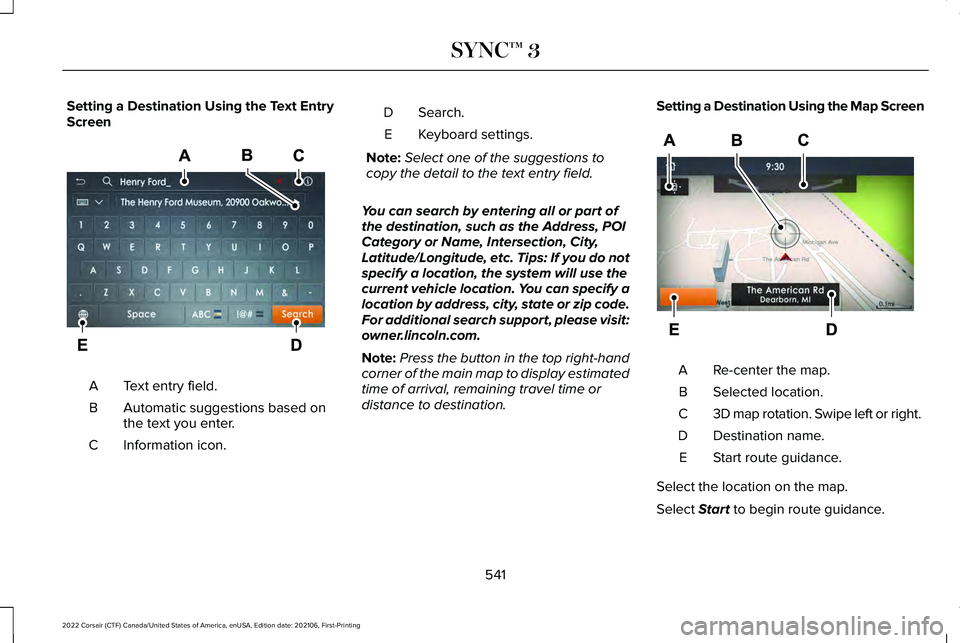
Setting a Destination Using the Text Entry
Screen
Text entry field.
A
Automatic suggestions based on
the text you enter.
B
Information icon.
C Search.
D
Keyboard settings.
E
Note: Select one of the suggestions to
copy the detail to the text entry field.
You can search by entering all or part of
the destination, such as the Address, POI
Category or Name, Intersection, City,
Latitude/Longitude, etc. Tips: If you do not
specify a location, the system will use the
current vehicle location. You can specify a
location by address, city, state or zip code.
For additional search support, please visit:
owner.lincoln.com.
Note: Press the button in the top right-hand
corner of the main map to display estimated
time of arrival, remaining travel time or
distance to destination. Setting a Destination Using the Map Screen
Re-center the map.
A
Selected location.
B
3D map rotation. Swipe left or right.
C
Destination name.
D
Start route guidance.
E
Select the location on the map.
Select Start to begin route guidance.
541
2022 Corsair (CTF) Canada/United States of America, enUSA, Edition date: 202106, First-Printing SYNC™ 3E297857 E297858
Page 559 of 676

Driver Assist (If Equipped)
Select this tile to adjust Driver Assist features
like Parking Aids, Lane Keeping system,
Pedestrian Detection, and Auto-Start-Stop.
Vehicle
Select this tile to adjust vehicle settings like
windows, alarm, lighting, backup starting
passcode, and MyKey settings.
Lincoln Way
Select this tile to adjust the Lincoln Way
settings.
General
Select this tile to adjust settings like
language, measurement units, or to reset the
system.
911 Assist
(If Equipped)
Select this tile to switch 911 Assist on and off. Automatic Updates
Select this tile to adjust automatic update
settings.
Mobile Apps
Select this tile to adjust permissions, enable,
disable, and update mobile apps.
Display
Select this tile to adjust display settings like
brightness and auto dim.
Charge Settings
(If Equipped)
Select this tile to adjust the electric vehicle
charge setting.
Voice Control
Select this tile to adjust voice control settings
like command confirmations and displayed
lists. Navigation
(If Equipped)
Select this tile to adjust navigation settings
like map preferences and route guidance.
Seats
(If Equipped)
Select this tile to adjust the lumbar function
and massage function of your multi contour
seats.
Message Center
(If Equipped)
Select this tile to view vehicle messages.
Personal Profiles
(If Equipped)
Select this tile to adjust recalled memory
features when using personal profiles.
Valet Mode
(If Equipped)
Select this tile to enable and disable valet
mode.
Ambient Lighting
(If Equipped)
Select this tile to change the color or
intensity of the interior lighting.
556
2022 Corsair (CTF) Canada/United States of America, enUSA, Edition date: 202106, First-Printing SYNC™ 3
Page 608 of 676
This device complies with Part 15 of the FCC
Rules and with Innovation, Science and
Economic Development Canada
’s
licence-exempt RSS(s). Operation is subject
to the following two conditions:
1. This device may not cause harmful interference, and
2. This device must accept any interference
received, including interference that may
cause undesired operation.
Zambia GARAGE DOOR OPENER
United States and Canada
WARNING: Changes or modifications
not expressively approved by the party
responsible for compliance could void the
user's authority to operate the equipment.
The term "IC:" before the radio certification
number only signifies that Industry Canada
technical specifications were met.
FCC ID: NZLSAHL5E
IC: 4112A-SAHL5E
This device complies with Part 15 of the FCC
Rules and with Innovation, Science and
Economic Development Canada ’s
licence-exempt RSS(s). Operation is subject
to the following two conditions:
1. This device may not cause harmful interference, and
2. This device must accept any interference
received, including interference that may
cause undesired operation. KEYS AND REMOTE CONTROLS
Argentina
605
2022 Corsair (CTF) Canada/United States of America, enUSA, Edition date: 202106, First-Printing Customer InformationE340196 E339844 E340316
Page 668 of 676
Catalytic Converter......................................232
Changing a Bulb............................................412
Changing a Fuse..........................................389
Changing a Road Wheel.............................451
Changing the 12V Battery..........................406
Changing the Engine Air Filter - 2.0L/ 2.3L................................................................397
Changing the Engine Air Filter - 2.5L, Plug-In Hybrid Electric Vehicle
(PHEV)..........................................................399
Changing the Vehicle Wi-Fi Hotspot Name or Password................................................495
Changing the Wiper Blades........................411
Charging the High Voltage Battery.........235
Checking MyKey System Status.................75
Checking the Wiper Blades........................410
Child Restraint and Seatbelt Maintenance..................................................49
Child Restraint Positioning...........................38
Child Safety
......................................................27
General Information.............................................27
Child Safety Locks..........................................40
Cleaning Leather Seats...............................418
Cleaning Products.........................................413
Cleaning the Engine
.....................................416
Cleaning the Exterior....................................414
Cleaning the Instrument Panel and Instrument Cluster Lens
............................417 Cleaning the Interior.....................................417
Cleaning the Wheels....................................419
Cleaning the Windows and Wiper
Blades............................................................416
Clearing All MyKeys
........................................74
Clearing the Garage Door Opener...........196
Climate............................................................533
Climate Control..............................................169
Closing the Liftgate.........................................91 Closing the Hands-Free Liftgate.......................92
Closing the Liftgate From Inside Your
Vehicle.................................................................91
Closing the Liftgate From Outside Your Vehicle.................................................................91
Closing the Liftgate Using the Remote Control................................................................92
Connected Vehicle
.......................................491
Connected Vehicle – Troubleshooting.........492
Connecting the Vehicle to a Mobile
Network.............................................................491
Connected Vehicle Limitations..................491
Connected Vehicle Requirements............491
Connected Vehicle – Troubleshooting.........................................492
Connected Vehicle – Frequently Asked Questions.........................................................492 Connecting the Vehicle to a Mobile
Network.........................................................491
Connecting Lincoln Way to the Modem........491
Enabling and Disabling the Modem...............491
What Is the Modem.............................................491
Connecting the Vehicle to a Wi-Fi Network.........................................................491
Coolant Check See: Engine Coolant Check............................400
Crash Sensors and Airbag Indicator.........60
Creating a MyKey............................................74
Creating a Vehicle Wi-Fi Hotspot
.............495
Cross Traffic Alert.........................................326
Cruise Control................................................301
Cruise Control Indicators...........................302
Customer Assistance..................................369
Customer Information
.................................592
Radio Frequency Certification Labels...........592
D
Data Recording
.................................................14
Daytime Running Lamps - Vehicles With: Configurable Daytime Running
Lamps............................................................107
Daytime Running Lamps - Vehicles With: Daytime Running Lamps (DRL)................107
Digital Radio..................................................499
665
2022 Corsair (CTF) Canada/United States of America, enUSA, Edition date: 202106, First-Printing Index
Page 671 of 676
J
Jump Starting the Vehicle..........................364
K
Keyless Entry...................................................82
Keyless Entry – Troubleshooting......................83
Keyless Entry Keypad
....................................84
Keyless Entry Keypad – Troubleshooting.......87
Keyless Entry Keypad Limitations...............84
Keyless Entry Keypad Master Access Code................................................................84
Keyless Entry Keypad Personal Access Codes..............................................................85
Keyless Entry Keypad – Troubleshooting............................................87
Keyless Entry Keypad – Frequently Asked Questions...........................................................87
Keyless Entry Limitations..............................82
Keyless Entry Settings
...................................82
Keyless Entry – Troubleshooting................83 Keyless Entry – Frequently Asked
Questions...........................................................83
Keyless Starting
............................................202
Keys and Remote Controls..........................65 L
Lane Keeping System..................................318
Liftgate...............................................................88
Closing the Liftgate...............................................91
Liftgate – Troubleshooting.................................94
Opening the Liftgate............................................88
Liftgate Obstacle Detection
.........................93
Liftgate Precautions.......................................88
Liftgate – Troubleshooting...........................94 Liftgate – Frequently Asked Questions..........
95
Liftgate – Information Messages......................94
Lighting Control.............................................105
Lighting............................................................105 General Information............................................105
Lincoln Automotive Financial Services......18
Lincoln Protect
..............................................576
Load Carriers See: Roof Racks and Load Carriers...............343
Load Carrying................................................343
Load Limit
.......................................................345
Locating the Cabin Air Filter.......................174
Locating the Keyless Entry Keypad............84
Locating the Rear View Camera..............290
Locking and Unlocking..................................77
Luggage Covers
...........................................343
Lug Nuts See: Changing a Road Wheel..........................451 M
Maintenance...................................................391
General Information............................................391
Memory Function..........................................183
Message Center See: Information Displays.................................136
Mirrors See: Windows and Mirrors.................................115
Mobile Communications Equipment..........21
Moonroof
..........................................................119
Motorcraft Parts - 2.0L................................464
Motorcraft Parts - 2.3L
................................465
Motorcraft Parts - 2.5L, Plug-In Hybrid Electric Vehicle (PHEV)............................466
MyKey Settings................................................73 Configurable MyKey Settings............................73
Non-Configurable MyKey Settings...................73
MyKey – Troubleshooting.............................75 MyKey – Frequently Asked Questions............
76
MyKey – Information Messages........................75
MyKey™...............................................................73 MyKey Settings......................................................73
MyKey – Troubleshooting...................................75
N
Navigation......................................................538
668
2022 Corsair (CTF) Canada/United States of America, enUSA, Edition date: 202106, First-Printing Index