navigation LINCOLN CORSAIR 2023 User Guide
[x] Cancel search | Manufacturer: LINCOLN, Model Year: 2023, Model line: CORSAIR, Model: LINCOLN CORSAIR 2023Pages: 690, PDF Size: 15.04 MB
Page 329 of 690
PREDICTIVE SPEED ASSIST – TROUBLESHOOTING
PREDICTIVE SPEED ASSIST – INFORMATION MESSAGES
ActionMessage
Navigation system based speed limit information is not available. If the message continues toappear, have your vehicle checked as soon as possible.Adaptive Cruise Control Speed SignRecognition Not Available
The system is going to cancel and you must take control.Driver Resume Control
ADAPTIVE CRUISE CONTROL –
TROUBLESHOOTING
ADAPTIVE CRUISE CONTROL –INFORMATION MESSAGES - VEHICLESWITH: LANE CENTERING
Note:Depending on your vehicle optionsand instrument cluster type, some messagescan appear different or not at all.
325
2023 Corsair (CTF) Canada/United States of America, enUSA, Edition date: 202208, DOMAdaptive Cruise Control
Page 334 of 690
Note:The system must meet certain locationrequirements for the hands-free mode ofActiveGlide to work.
Note:The system may require softwareupdates for hands-free mode. See VehicleSoftware Updates (page 554).
ACTIVEGLIDE™ LIMITATIONS
Any of the following conditions could resultin ActiveGlide not operating correctly:
•You do not have your vehicle centeredin the lane.
•The lane is too narrow or too wide.
•The system does not detect at least onelane marking or when lanes merge orsplit.
•You have limited steering input.
•Using the system in areas underconstruction.
•If you make any aftermarket modificationsto the steering system.
•When using a spare tire.
The driver-facing camera may not operatecorrectly due to any of the following:
•If you have a pre-existing eye condition,such as an eye misalignment, or havehad eye surgery.
•You cover your facial features by a mask,hat or other items.
•The lighting conditions changesignificantly.
•You are not in the field of view of thecamera.
•You position or tilt yourself to one side.
•You are moving around extensively.
•You are wearing glasses or sunglassesthat are too dark or reflective.
Note:The system has limited steeringassistance and may not be sufficient for alldriving situations.
Note:In exceptional conditions, such asinclement weather or direct sunlight, thesystem could deviate from the center line.
Note:The information provided by thenavigation map data could be inaccurate orout of date.
ACTIVEGLIDE™ SETTINGS
Enabling ActiveGlide
1.Press Features on the touchscreen.
2.Press Driver Assistance.
3.Press Cruise Control.
4.Press Adaptive Cruise Control.
5.Press Lane Centering with Hands-Free.
Enabling Activation Prompts
1.Press Features on the touchscreen.
2.Press Driver Assistance.
3.Press Cruise Control.
4.Press Adaptive Cruise Control.
5.Press Activation Prompts.
SWITCHING ACTIVEGLIDE™ ON
AND OFF
Switching ActiveGlide On
The controls are on the steering wheel.
330
2023 Corsair (CTF) Canada/United States of America, enUSA, Edition date: 202208, DOMActiveGlide™ (If Equipped)
Page 378 of 690
WHAT IS SPEED SIGN
RECOGNITION
Speed sign recognition detects speed limitsigns to inform you of the current speed limit.Detected speed signs appear in theinstrument cluster display.
HOW DOES SPEED SIGN
RECOGNITION WORK
Speed sign recognition uses a sensor behindthe interior mirror to detect speed signs.
If your vehicle has speed sign recognitionwith navigation, stored speed sign data mayinfluence the indicated speed limit value.
SPEED SIGN RECOGNITION
PRECAUTIONS
WARNING: You are responsible forcontrolling your vehicle at all times. Thesystem is designed to be an aid and doesnot relieve you of your responsibility todrive with due care and attention. Failureto follow this instruction could result in theloss of control of your vehicle, personalinjury or death.
WARNING: In cold and severeweather conditions the system may notfunction. Rain, snow and spray can all limitsensor performance.
WARNING: The system may notoperate properly if the sensor is blocked.Keep the windshield free from obstruction.
WARNING: Do not performwindshield repairs in the area surroundingthe sensor.
WARNING: The system may notcorrectly operate if your vehicle is fittedwith a suspension kit not approved byFord.
WARNING: Not all traffic signs canbe recognized by the system anddisplayed correctly.
Note:Always fit our original parts whenreplacing headlamp bulbs. Other bulbs mayreduce system performance. See ExteriorBulb Specification Chart (page 450).
SPEED SIGN RECOGNITION
LIMITATIONS
Speed sign recognition may not operatecorrectly due to:
•Outdated map data.
•Incorrect recognition of speed limits bythe sensor of signs on parallel roads orexit ramps.
•Missed recognition of faded, dirty, ordistorted signs.
374
2023 Corsair (CTF) Canada/United States of America, enUSA, Edition date: 202208, DOMSpeed Sign Recognition
Page 380 of 690

SPEED SIGN RECOGNITION – TROUBLESHOOTING
SPEED SIGN RECOGNITION – INFORMATION MESSAGES
ActionMessage
The traffic sign data provided by the navigation system is unavailabledue to weak or no signal. Wait for a short period of time for the signalto improve. If the message continues to appear, have the systemchecked as soon as possible.
Traffic Sign Reduced Performance See Manual
376
2023 Corsair (CTF) Canada/United States of America, enUSA, Edition date: 202208, DOMSpeed Sign Recognition
Page 447 of 690

WARNING: This vehicle may havemore than one battery. Removing thebattery cables from only one battery doesnot disconnect your vehicle electricalsystem. Make sure you disconnect thebattery cables from all batteries whendisconnecting power. Failure to do so maycause serious personal injury or propertydamage.
WARNING: For vehicles withAuto-Start-Stop the battery requirement isdifferent. You must replace the battery withone of exactly the same specification.
WHAT IS THE BATTERYMANAGEMENT SYSTEM
The battery management system monitorsbattery conditions and takes actions toextend battery life.
HOW DOES THE BATTERYMANAGEMENT SYSTEM WORK
If excessive battery drain is detected, thesystem temporarily disables some electricalsystems to protect the battery.
Systems included are:
•Heated rear window.
•Heated seats.
•Climate control.
•Heated steering wheel.
•Audio unit.
•Navigation system.
A message could appear in the informationdisplay to alert you that battery protectionactions are active. This message is only fornotification that an action is taking place, andnot intended to indicate an electrical problemor that the battery requires replacement.
BATTERY MANAGEMENT SYSTEMLIMITATIONS
After battery replacement, or in some casesafter charging the battery with an externalcharger, the battery management systemrequires eight hours of vehicle sleep time torelearn the battery state of charge. Duringthis time, your vehicle must remain fullylocked with the ignition switched off.
Note:Prior to relearning the battery state ofcharge, the battery management systemcould temporarily disable some electricalsystems.
Electrical Accessory Installation
To make sure the battery managementsystem works correctly, do not connect anelectrical device ground connection directlyto the battery negative post. This can causeinaccurate measurements of the batterycondition and potential incorrect systemoperation.
443
2023 Corsair (CTF) Canada/United States of America, enUSA, Edition date: 202208, DOMMaintenance
Page 537 of 690
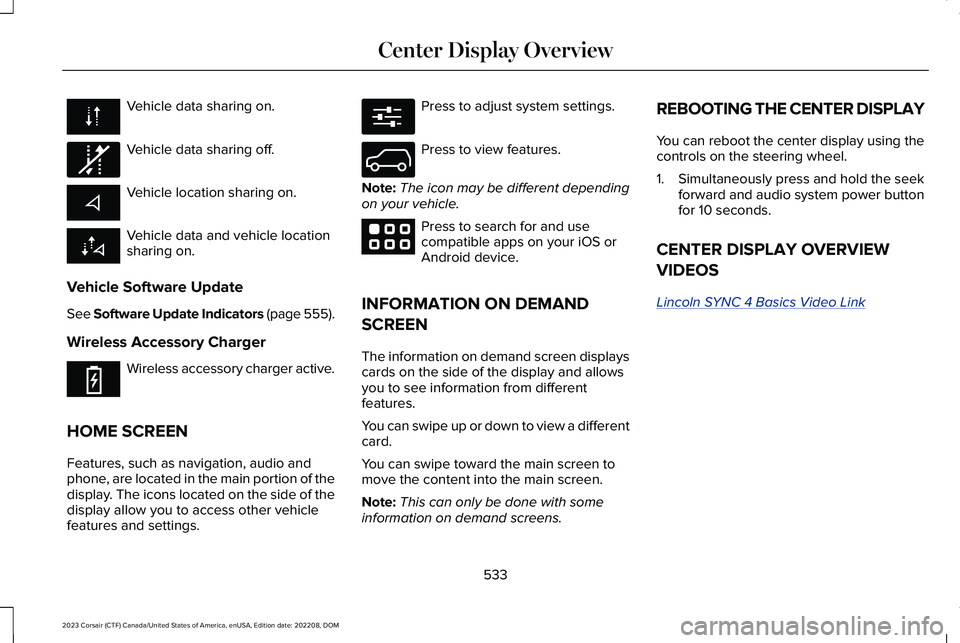
Vehicle data sharing on.
Vehicle data sharing off.
Vehicle location sharing on.
Vehicle data and vehicle locationsharing on.
Vehicle Software Update
See Software Update Indicators (page 555).
Wireless Accessory Charger
Wireless accessory charger active.
HOME SCREEN
Features, such as navigation, audio andphone, are located in the main portion of thedisplay. The icons located on the side of thedisplay allow you to access other vehiclefeatures and settings.
Press to adjust system settings.
Press to view features.
Note:The icon may be different dependingon your vehicle.
Press to search for and usecompatible apps on your iOS orAndroid device.
INFORMATION ON DEMAND
SCREEN
The information on demand screen displayscards on the side of the display and allowsyou to see information from differentfeatures.
You can swipe up or down to view a differentcard.
You can swipe toward the main screen tomove the content into the main screen.
Note:This can only be done with someinformation on demand screens.
REBOOTING THE CENTER DISPLAY
You can reboot the center display using thecontrols on the steering wheel.
1.Simultaneously press and hold the seekforward and audio system power buttonfor 10 seconds.
CENTER DISPLAY OVERVIEW
VIDEOS
Lincoln SYNC 4 Basics Video Link
533
2023 Corsair (CTF) Canada/United States of America, enUSA, Edition date: 202208, DOMCenter Display Overview E335292 E353214 E280315 E335299 E353220
Page 540 of 690
WHAT IS ALEXA BUILT-IN
Allows you to use Alexa in your vehicle forauto specific use cases on the road andgives you access to an ever evolving numberof skills that help to make your life moreproductive, entertaining, and connectedwhile using your vehicle.
ALEXA BUILT-IN REQUIREMENTS
To use Alexa, all of the following must occur:
•Your vehicle modem is enabled.
•You are logged into an existing Amazonaccount.
•Vehicle location services are enabled.
•Vehicle connectivity and vehicle datasharing is enabled.
SIGNING INTO YOUR ACCOUNT
Press the button in the status barand follow the on-screen prompts.
To sign in using the settings menu:
1.Press Settings on the touchscreen.
2.Press Amazon Alexa.
3.Press Get Started.
4.Sign into your account by either scanningthe QR code or entering the on-screencode into the Amazon website.
5.Once logged in, follow the on-screenprompts.
6.When complete, the vehicle informs youthat Alexa is ready to be used in thevehicle.
Signing Out of Your Account
1.Press Settings on the touchscreen.
2.Press Amazon Alexa.
3.Press Sign Out.
USING ALEXA BUILT-IN
To use Alexa, say “Alexa” or press the voiceinteraction button on the steering wheel andthen say “Alexa” to invoke Alexa to startlistening.
Note:If the wake word is not enabled, youcan only use the voice interaction button.
You can use Alexa for the following andmore:
•Entertainment.
•Hands-free calling.
•Traffic and navigation.
•Vehicle controls.
•Smart home device control.
•Weather and news information.
ALEXA BUILT-IN SETTINGS
Enabling the Wake Word
1.Press Settings on the touchscreen.
2.Press Amazon Alexa.
3.Switch Listen for Wake Word on or off.
Note:If the wake word is not enabled, youcan only use the voice interaction button.
Contact List
Displays a list of connected phones andcontact sharing status for each phone.
536
2023 Corsair (CTF) Canada/United States of America, enUSA, Edition date: 202208, DOMAlexa Built-InE368039
Page 552 of 690
HOW DO PERSONAL PROFILES
WORK
This feature allows you to create multiplepersonal profiles enabling users topersonalize vehicle’s settings such as seatsand mirrors, as well as non-positional settingslike radio, navigation, driver assist systemsettings. Positional settings are saved byholding a memory seat button.Non-positional settings are saved youchange a setting while a profile is active. Youcan create one profile for each presetmemory seat button along with a guestprofile.
Recalling and Changing a Profile
You can recall a profile using thetouchscreen or the preset button youselected when you created your profile. Youcan also link a remote control and a mobiledevice to your profile, which are used torecall it.
ENABLING OR DISABLING
PERSONAL PROFILES
1.Switch the vehicle on and leave thevehicle in park (P).
2.Press Settings on the touchscreen.
3.Press Personal Profiles.
4.Switch Personal Profiles on or off.
When enabled:
•Unlocking a door with a remote controlor mobile device that is not linked to adriver profile does not change the activeprofile, but remains in the last knownprofile. It does not change the positionalsettings.
•Pressing a memory seat button that isnot linked to a driver profile or saved toa preset setting does not change theactive profile, but remains in the lastknown profile. It does not change thepositional settings.
•Pressing a memory seat button that isnot linked to a driver profile but is savedto a preset setting does not change theactive profile, but remains in the lastknown profile. It recalls the positionalsettings that you saved to that memoryseat button.
548
2023 Corsair (CTF) Canada/United States of America, enUSA, Edition date: 202208, DOMPersonal Profiles
Page 555 of 690
CONNECTED NAVIGATION (IF
EQUIPPED)
Your vehicle may be equipped withconnected navigation. Depending on yourversion, you are given a 90 day or 3 yeartrial. After the trial period, you need to signup to continue the experience. For additionalinformation, visit lincoln.com/connectedservices.
Note:If you do not sign up or renew yoursubscription, you can still use navigationthrough a connected device.
ACCESSING NAVIGATION
Press the button to accessNavigation.
Note:As the driver, be aware of all localtraffic regulations and road attributes, andoperate your vehicle in a safe and legalmanner.
NAVIGATION MAP UPDATES
To update your map data over Wi-Fi, yourvehicle must be connected to a Wi-Fi accesspoint. For USB updates and other details,contact dealers at 1-866-462-8837 in theUnited States and Canada, or 800-557-5539in Mexico.
Note:If you find map data errors, you mayreport them by going towww.here.com/mapcreator.
ADJUSTING THE MAP
ZOOMING THE MAP IN AND OUT
You can use pinch gestures to zoom in andout. Place two fingers on the screen andmove them apart to zoom in. Place twofingers on the screen and bring themtogether to zoom out.
CHANGING THE FORMAT OF THEMAP
Press the Menu button.
1.Press the Map Orientation tile.
2.Select a map orientation.
LIVE TRAFFIC
WHAT IS LIVE TRAFFIC
You can observe real-time road congestionwhen live traffic is on.
SWITCHING LIVE TRAFFIC ON ANDOFF
Press the Menu button.
1.Press the Traffic on Map tile.
2.Press Traffic on or Traffic Off.
551
2023 Corsair (CTF) Canada/United States of America, enUSA, Edition date: 202208, DOMNavigation E328845 E328845
Page 556 of 690
SETTING A DESTINATION
SETTING A DESTINATION USING THETEXT ENTRY SCREEN
1.Press the search bar at the top of thescreen.
2.Enter your destination using thekeyboard.
3.Press Search.
4.Select a destination from the list.
5.Press Start to begin navigation.
SETTING A DESTINATION USING THEMAP SCREEN
Press and hold on the map to place a pin atthat location. Information about the locationof the pin appears on the screen.
Press the button to beginnavigation to the pin.
SETTING A DESTINATION USING APREDICTIVE DESTINATION
Press the predicted destination card on thescreen to navigate to it. These appear whenthe navigation system has learned yourdriving habits.
SETTING A DESTINATION USING ARECENT DESTINATION
1.Press the Recents tile.
2.Select a destination from the list.
SETTING A DESTINATION USINGA SAVED DESTINATION
1.Press Saved Places.
2.Select a saved destination.
Note:Press the star icon next when viewinglocation details to save the location.
SETTING A DESTINATION USING APOINT OF INTEREST
Press a point of interest icon on the map.Information about the location of the pointof interest appears on the screen.
Press the button to beginnavigation to the point of interest.
WAYPOINTS
ADDING A WAYPOINT
Press the Add Waypoint buttonwhen in an active navigationsession.
1.Select a catagory or enter your waypointon the keyboard and press Search.
2.Select a waypoint from the list.
3.Press Add to Trip.
EDITING WAYPOINTS
1.Press the waypoint you would like to edit.
552
2023 Corsair (CTF) Canada/United States of America, enUSA, Edition date: 202208, DOMNavigationE328844 E328844 E328843