navigation LINCOLN CORSAIR 2023 Owners Manual
[x] Cancel search | Manufacturer: LINCOLN, Model Year: 2023, Model line: CORSAIR, Model: LINCOLN CORSAIR 2023Pages: 690, PDF Size: 15.04 MB
Page 20 of 690
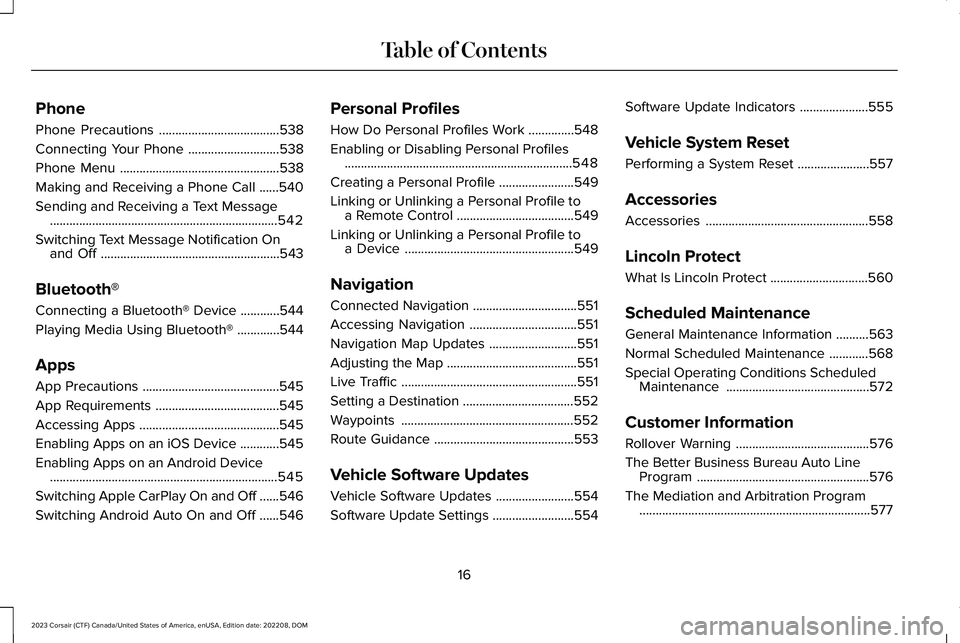
Phone
Phone Precautions.....................................538
Connecting Your Phone............................538
Phone Menu.................................................538
Making and Receiving a Phone Call......540
Sending and Receiving a Text Message......................................................................542
Switching Text Message Notification Onand Off.......................................................543
Bluetooth®
Connecting a Bluetooth® Device............544
Playing Media Using Bluetooth®.............544
Apps
App Precautions..........................................545
App Requirements......................................545
Accessing Apps...........................................545
Enabling Apps on an iOS Device............545
Enabling Apps on an Android Device......................................................................545
Switching Apple CarPlay On and Off......546
Switching Android Auto On and Off......546
Personal Profiles
How Do Personal Profiles Work..............548
Enabling or Disabling Personal Profiles......................................................................548
Creating a Personal Profile.......................549
Linking or Unlinking a Personal Profile toa Remote Control....................................549
Linking or Unlinking a Personal Profile toa Device....................................................549
Navigation
Connected Navigation................................551
Accessing Navigation.................................551
Navigation Map Updates...........................551
Adjusting the Map........................................551
Live Traffic......................................................551
Setting a Destination..................................552
Waypoints.....................................................552
Route Guidance...........................................553
Vehicle Software Updates
Vehicle Software Updates........................554
Software Update Settings.........................554
Software Update Indicators.....................555
Vehicle System Reset
Performing a System Reset......................557
Accessories
Accessories..................................................558
Lincoln Protect
What Is Lincoln Protect..............................560
Scheduled Maintenance
General Maintenance Information..........563
Normal Scheduled Maintenance............568
Special Operating Conditions ScheduledMaintenance............................................572
Customer Information
Rollover Warning.........................................576
The Better Business Bureau Auto LineProgram.....................................................576
The Mediation and Arbitration Program.......................................................................577
16
2023 Corsair (CTF) Canada/United States of America, enUSA, Edition date: 202208, DOMTable of Contents
Page 32 of 690
EVENT DATA
This vehicle is equipped with an event datarecorder. The main purpose of an event datarecorder is to record, in certain crash or nearcrash-like situations, such as an airbagdeployment or hitting a road obstacle; thisdata will assist in understanding how avehicle’s systems performed. The event datarecorder is designed to record data relatedto vehicle dynamics and safety systems fora short period of time, typically 30 secondsor less.
The event data recorder in this vehicle isdesigned to record such data as:
•How various systems in your vehiclewere operating.
•Whether or not the driver and passengerseatbelts were buckled/fastened.
•How far (if at all) the driver wasdepressing the accelerator and/or thebrake pedal.
•How fast the vehicle was traveling.
•Where the driver was positioning thesteering wheel.
This data can help provide a betterunderstanding of the circumstances in whichcrashes and injuries occur.
Note:Event data recorder data is recordedby your vehicle only if a non-trivial crashsituation occurs; no data is recorded by theevent data recorder under normal drivingconditions and no personal data orinformation (for example name, gender, age,and crash location) is recorded. However,parties, such as law enforcement, couldcombine the event data recorder data withthe type of personally identifying dataroutinely acquired during a crashinvestigation.
To read data recorded by an event datarecorder, special equipment is required, andaccess to the vehicle or the event datarecorder is needed. In addition to the vehiclemanufacturer, other parties, such as lawenforcement, that have such specialequipment, can read the information if theyhave access to the vehicle or the event datarecorder.
SETTINGS DATA
Your vehicle has electronic control units thathave the ability to store data based on yourpersonalized settings. The data is storedlocally in the vehicle or on devices that youconnect to it, for example, a USB drive ordigital music player. You can delete some ofthis data and also choose whether to shareit through the services to which yousubscribe.
Comfort and Convenience Data
Data recorded includes, for example:
•Seat and steering wheel position.
•Climate control settings.
•Radio presets.
Entertainment Data
Data recorded includes, for example:
•Music, videos or album art.
•Contacts and corresponding addressbook entries.
•Navigation destinations.
28
2023 Corsair (CTF) Canada/United States of America, enUSA, Edition date: 202208, DOMData Privacy
Page 156 of 690
USING THE INSTRUMENT
CLUSTER DISPLAY CONTROLS
WARNING: Driving while distractedcan result in loss of vehicle control, crashand injury. We strongly recommend thatyou use extreme caution when using anydevice that may take your focus off theroad. Your primary responsibility is the safeoperation of your vehicle. We recommendagainst the use of any hand-held devicewhile driving and encourage the use ofvoice-operated systems when possible.Make sure you are aware of all applicablelocal laws that may affect the use ofelectronic devices while driving.
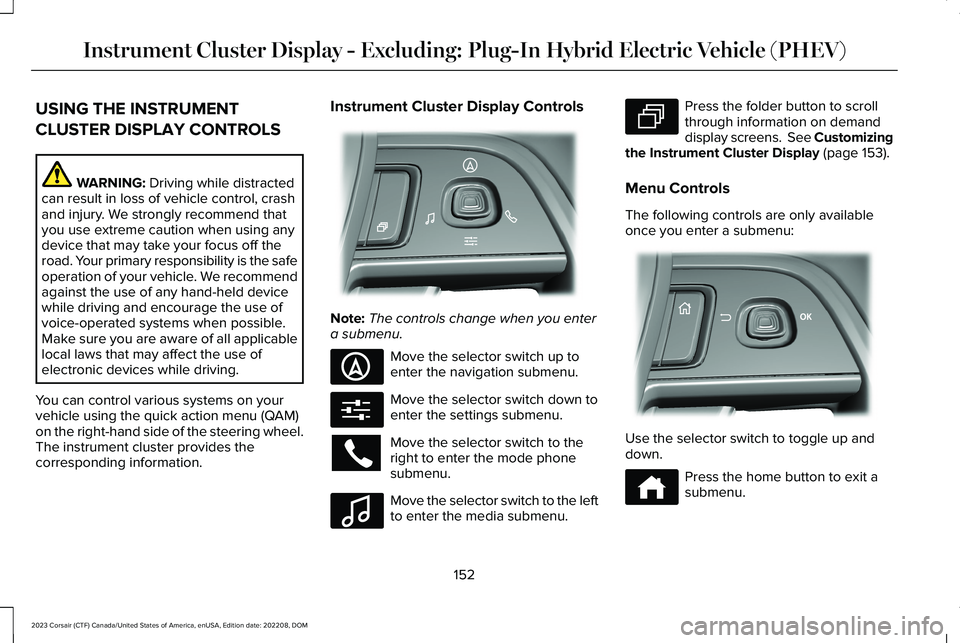
You can control various systems on yourvehicle using the quick action menu (QAM)on the right-hand side of the steering wheel.The instrument cluster provides thecorresponding information.
Instrument Cluster Display Controls
Note:The controls change when you entera submenu.
Move the selector switch up toenter the navigation submenu.
Move the selector switch down toenter the settings submenu.
Move the selector switch to theright to enter the mode phonesubmenu.
Move the selector switch to the leftto enter the media submenu.
Press the folder button to scrollthrough information on demanddisplay screens. See Customizingthe Instrument Cluster Display (page 153).
Menu Controls
The following controls are only availableonce you enter a submenu:
Use the selector switch to toggle up anddown.
Press the home button to exit asubmenu.
152
2023 Corsair (CTF) Canada/United States of America, enUSA, Edition date: 202208, DOMInstrument Cluster Display - Excluding: Plug-In Hybrid Electric Vehicle (PHEV)E281220 E281481 E280315 E100027 E281483 E299701 E272621
Page 157 of 690
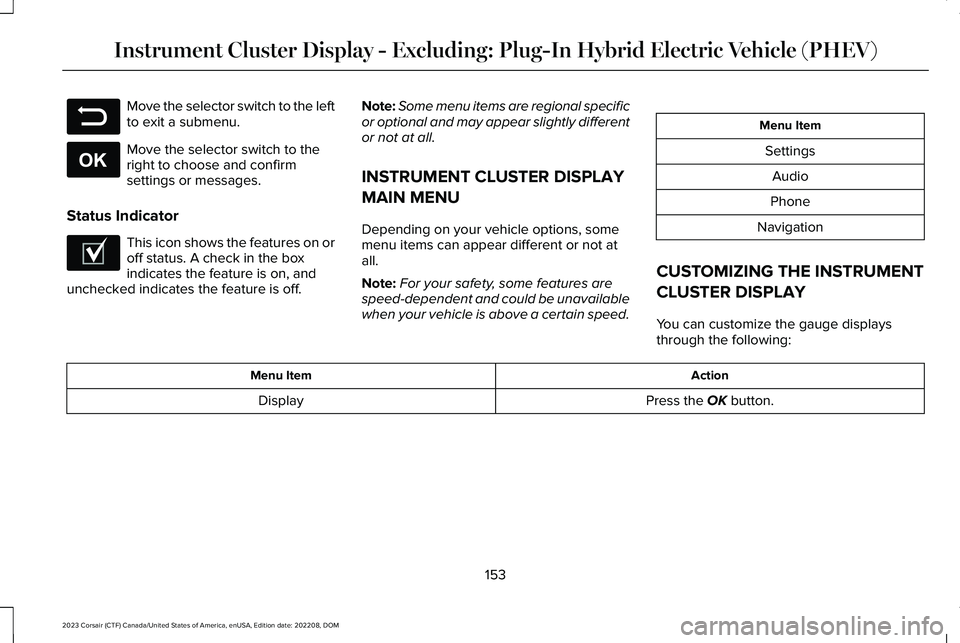
Move the selector switch to the leftto exit a submenu.
Move the selector switch to theright to choose and confirmsettings or messages.
Status Indicator
This icon shows the features on oroff status. A check in the boxindicates the feature is on, andunchecked indicates the feature is off.
Note:Some menu items are regional specificor optional and may appear slightly differentor not at all.
INSTRUMENT CLUSTER DISPLAY
MAIN MENU
Depending on your vehicle options, somemenu items can appear different or not atall.
Note:For your safety, some features arespeed-dependent and could be unavailablewhen your vehicle is above a certain speed.
Menu Item
Settings
Audio
Phone
Navigation
CUSTOMIZING THE INSTRUMENT
CLUSTER DISPLAY
You can customize the gauge displaysthrough the following:
ActionMenu Item
Press the OK button.Display
153
2023 Corsair (CTF) Canada/United States of America, enUSA, Edition date: 202208, DOMInstrument Cluster Display - Excluding: Plug-In Hybrid Electric Vehicle (PHEV)E281480 E265041 E204495
Page 158 of 690
USING THE INSTRUMENT
CLUSTER DISPLAY CONTROLS
WARNING: Driving while distractedcan result in loss of vehicle control, crashand injury. We strongly recommend thatyou use extreme caution when using anydevice that may take your focus off theroad. Your primary responsibility is the safeoperation of your vehicle. We recommendagainst the use of any hand-held devicewhile driving and encourage the use ofvoice-operated systems when possible.Make sure you are aware of all applicablelocal laws that may affect the use ofelectronic devices while driving.
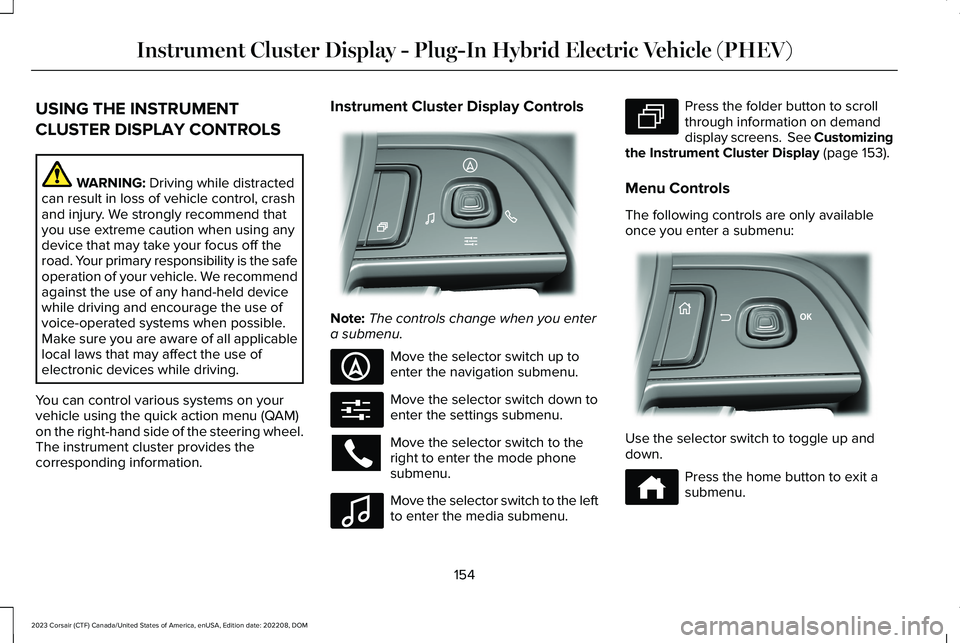
You can control various systems on yourvehicle using the quick action menu (QAM)on the right-hand side of the steering wheel.The instrument cluster provides thecorresponding information.
Instrument Cluster Display Controls
Note:The controls change when you entera submenu.
Move the selector switch up toenter the navigation submenu.
Move the selector switch down toenter the settings submenu.
Move the selector switch to theright to enter the mode phonesubmenu.
Move the selector switch to the leftto enter the media submenu.
Press the folder button to scrollthrough information on demanddisplay screens. See Customizingthe Instrument Cluster Display (page 153).
Menu Controls
The following controls are only availableonce you enter a submenu:
Use the selector switch to toggle up anddown.
Press the home button to exit asubmenu.
154
2023 Corsair (CTF) Canada/United States of America, enUSA, Edition date: 202208, DOMInstrument Cluster Display - Plug-In Hybrid Electric Vehicle (PHEV)E281220 E281481 E280315 E100027 E281483 E299701 E272621
Page 159 of 690
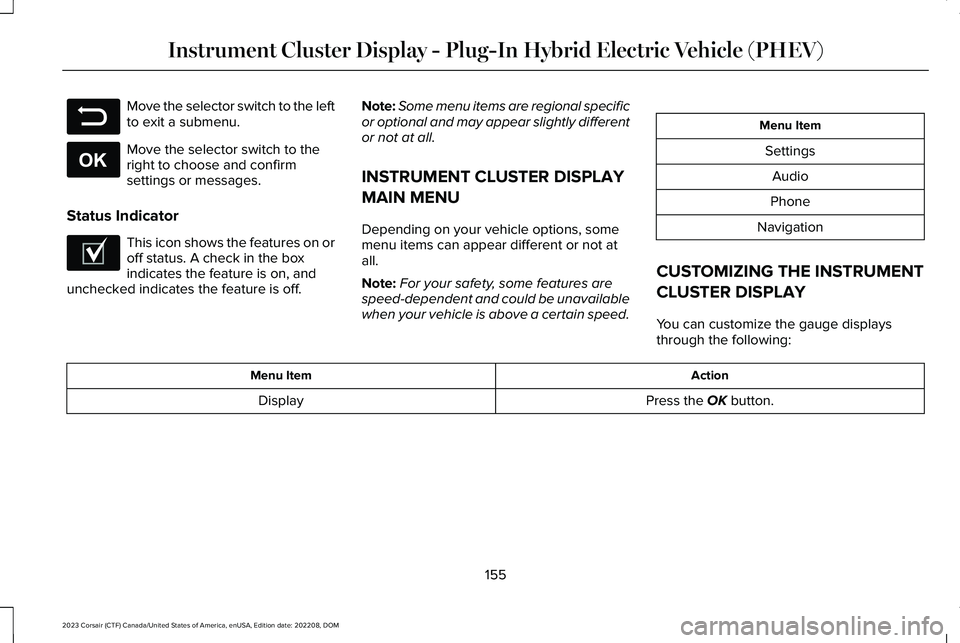
Move the selector switch to the leftto exit a submenu.
Move the selector switch to theright to choose and confirmsettings or messages.
Status Indicator
This icon shows the features on oroff status. A check in the boxindicates the feature is on, andunchecked indicates the feature is off.
Note:Some menu items are regional specificor optional and may appear slightly differentor not at all.
INSTRUMENT CLUSTER DISPLAY
MAIN MENU
Depending on your vehicle options, somemenu items can appear different or not atall.
Note:For your safety, some features arespeed-dependent and could be unavailablewhen your vehicle is above a certain speed.
Menu Item
Settings
Audio
Phone
Navigation
CUSTOMIZING THE INSTRUMENT
CLUSTER DISPLAY
You can customize the gauge displaysthrough the following:
ActionMenu Item
Press the OK button.Display
155
2023 Corsair (CTF) Canada/United States of America, enUSA, Edition date: 202208, DOMInstrument Cluster Display - Plug-In Hybrid Electric Vehicle (PHEV)E281480 E265041 E204495
Page 166 of 690
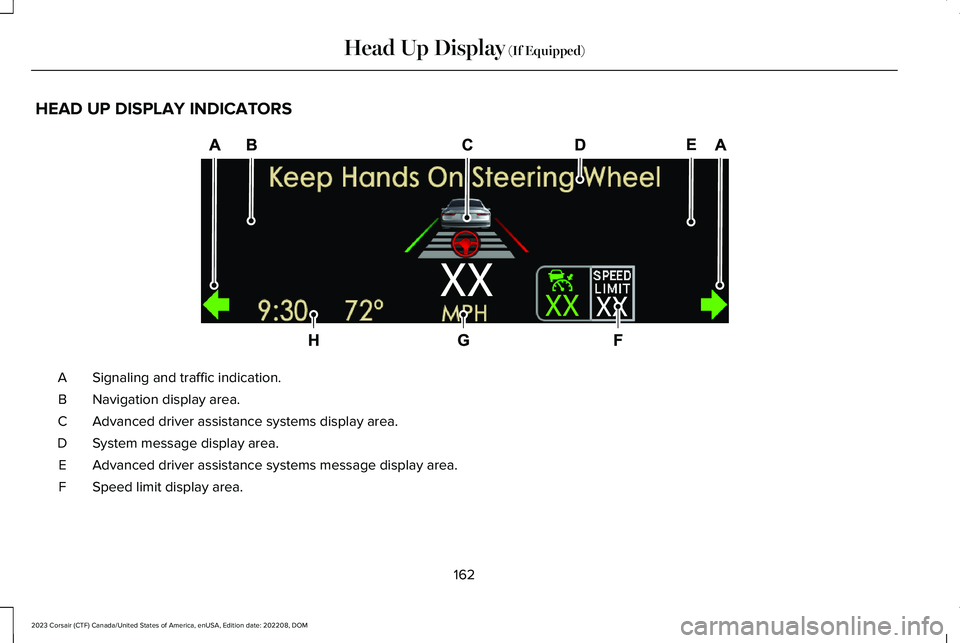
HEAD UP DISPLAY INDICATORS
Signaling and traffic indication.A
Navigation display area.B
Advanced driver assistance systems display area.C
System message display area.D
Advanced driver assistance systems message display area.E
Speed limit display area.F
162
2023 Corsair (CTF) Canada/United States of America, enUSA, Edition date: 202208, DOMHead Up Display (If Equipped)E307581
Page 167 of 690
Speedometer display area.G
Status bar.H
Signaling and Traffic Indication
Displays turn signals and blind spotinformation, if turn signals are active.
Navigation Display Area
Displays navigation next turn instructions.
Advanced Driver Assistance SystemsDisplay Area
Displays adaptive cruise control, lanecentering aid and lane keeping system statusand warnings.
System Message Display Area
Displays system messages and notificationsincluding incoming phone calls.
Advanced Driver Assistance SystemsMessage Display Area
Displays advanced driver assistance systemsmessages and image adjustment prompts.
Speed Limit Display Area
Displays the speed limit information if it isavailable in the map database or is detectedby the camera.
Speedometer Display Area
Displays the current vehicle speed and thetransmission gear selection.
Status Bar
Displays distance to empty, time and outsideair temperature. Next to distance to empty,the fuel gauge fill color changes to yellow inlow fuel conditions. You can switch off thestatus bar in the head up display settingsmenu.
163
2023 Corsair (CTF) Canada/United States of America, enUSA, Edition date: 202208, DOMHead Up Display (If Equipped)
Page 258 of 690
2.On the charging locations screen selectadd new location. You can also editsettings for previously saved locationslisted on this screen.
3.Select an address from the list of recentcharge locations.
4.Confirm that this is the location you wantto save with the help of the map view.Edit the location name if desired and seta maximum charge limit. Press continueto schedule.
Note:Depending on the GPS location, theaddress on the navigation may not preciselymatch up with your charging location.Confirm on the map that the pin is in theexpected location.
Note:Charging stops when your vehiclereaches the maximum charge limit setting.
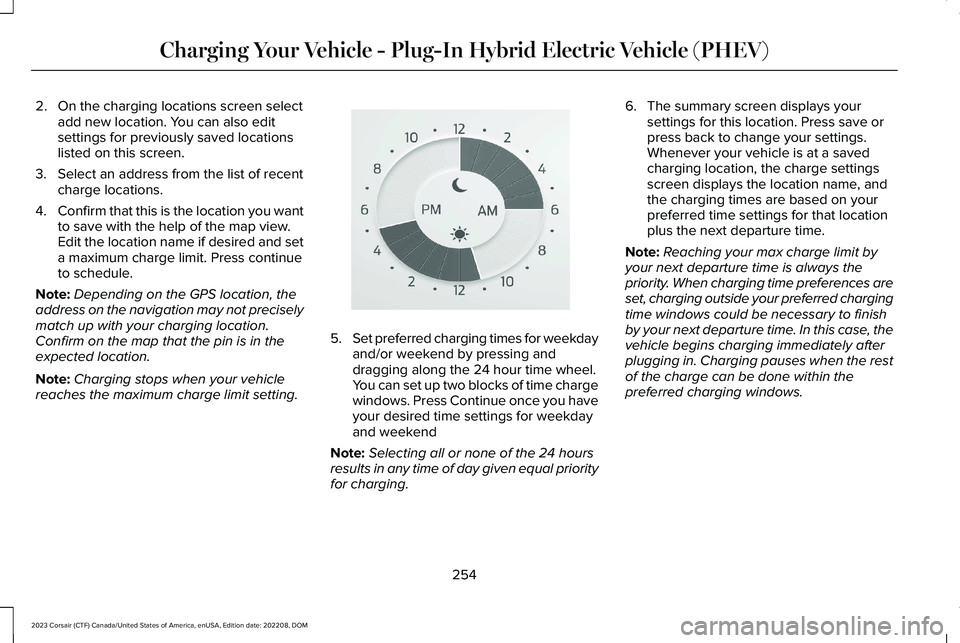
5.Set preferred charging times for weekdayand/or weekend by pressing anddragging along the 24 hour time wheel.You can set up two blocks of time chargewindows. Press Continue once you haveyour desired time settings for weekdayand weekend
Note:Selecting all or none of the 24 hoursresults in any time of day given equal priorityfor charging.
6.The summary screen displays yoursettings for this location. Press save orpress back to change your settings.Whenever your vehicle is at a savedcharging location, the charge settingsscreen displays the location name, andthe charging times are based on yourpreferred time settings for that locationplus the next departure time.
Note:Reaching your max charge limit byyour next departure time is always thepriority. When charging time preferences areset, charging outside your preferred chargingtime windows could be necessary to finishby your next departure time. In this case, thevehicle begins charging immediately afterplugging in. Charging pauses when the restof the charge can be done within thepreferred charging windows.
254
2023 Corsair (CTF) Canada/United States of America, enUSA, Edition date: 202208, DOMCharging Your Vehicle - Plug-In Hybrid Electric Vehicle (PHEV)E359594
Page 327 of 690
WARNING: The system does notactivate the turn signal.
Adaptive cruise control precautions apply topredictive speed assist unless statedotherwise or contradicted by a predictivespeed assist precaution. See AdaptiveCruise Control Precautions (page 310).
The system only applies limited braking. Youcan override the system with the acceleratorpedal or cancel the system by applying thebrakes.
The system may adapt to various factorssuch as time of day, lane width. This couldinfluence speed adjustments andaccelerations.
The system may adapt to various drivemodes. See Drive Mode Control (page 338).This could influence speed adjustments andaccelerations.
Note:The system does not activate the turnsignal automatically.
PREDICTIVE SPEED ASSISTLIMITATIONS
WARNING: The system may notalways adjust vehicle speed in certain roador weather conditions such as crossingtraffic, yield or stop signs, right of way,traffic lights, speed bumps, rain, snow, fog.You must always apply the brake oraccelerator pedal when necessary.
The road geometry and speed limitinformation provided by the navigation mapdata could be inaccurate or out of date.
The system may not detect and read speedlimit signs with conditional information, forexample, when a sign is flashing, duringspecific time ranges, or when children arepresent.
Note:The system does not set the vehiclespeed to speed limits shown with asupplementary traffic sign.
Under certain conditions, the system maynot adjust the vehicle speed until after yourvehicle passes the speed limit.
Detection of road geometry operates onlywhere related information is available. Roadgeometry information may not be availablein some areas.
SWITCHING PREDICTIVE SPEED
ASSIST MODE ON AND OFF
1.Press Features on the touchscreen.
2.Press Driver Assistance.
3.Press Cruise Control.
4.Press Adaptive Cruise Control.
5.Switch Predictive Speed Assist on or off.
ADJUSTING THE SET SPEEDTOLERANCE
1.Press Features on the touchscreen.
2.Press Driver Assistance.
3.Press Cruise Control.
4.Press Adaptive Cruise Control.
5.Switch Predictive Speed Assist on.
6.Press Tolerance.
7.Adjust the slider to set the tolerance.
323
2023 Corsair (CTF) Canada/United States of America, enUSA, Edition date: 202208, DOMAdaptive Cruise Control