change wheel LINCOLN MKC 2015 Owner's Manual
[x] Cancel search | Manufacturer: LINCOLN, Model Year: 2015, Model line: MKC, Model: LINCOLN MKC 2015Pages: 490, PDF Size: 4.74 MB
Page 357 of 490
Using Your Steering Wheel Controls
Depending on your vehicle and option
package, use these controls on your steering
wheel:
•
VOL: Control the volume of playing
media.
• SEEK/PHONE
: Seek presets or use as
you normally would in other
entertainment modes. Press to answer,
to end a phone call or to reject an
incoming call.
• Voice
: Press to start a voice session.
Press again to end and active voice
prompt so you can begin speaking Press
and hold to end a voice session.
Cleaning the Touchscreen Display
Use a clean, soft cloth such as one used for
cleaning glasses. If dirt or fingerprints are
still visible, apply a small amount of alcohol
to the cloth. Do not pour or spray alcohol
onto the display. Do not use detergent or
any type of solvent to clean the display. Support
The SYNC support team is available to help
you with any questions you are not able to
answer on your own.
Monday-Saturday, 8:30am-9:00pm EST.
Sunday, 10:30am-7:30pm EST.
In the United States, call: 1-800-392-3673.
In Canada, call: 1-800-565-3673.
Times are subject to change due to holidays.
Safety Information WARNING
Driving while distracted can result in
loss of vehicle control, crash and injury.
We strongly recommend that you use
extreme caution when using any device that
may take your focus off the road. Your
primary responsibility is the safe operation
of your vehicle. We recommend against the
use of any hand-held device while driving
and encourage the use of voice-operated
systems when possible. Make sure you are
aware of all applicable local laws that may
affect the use of electronic devices while
driving. •
Do not attempt to service or repair the
system. See an authorized dealer.
• Do not operate playing devices if the
power cords or cables are broken, split
or damaged. Place cords and cables out
of the way, so they do not interfere with
the operation of pedals, seats,
compartments or safe driving abilities.
354
MKC (TME), enUSA MyLincoln Touch™
Page 362 of 490
The display is located on the center of your
instrument cluster. It allows you to view and
make minor adjustments to active modes
without taking your hands off the wheel. For
example:
•
In entertainment mode, you can view
what is now playing, change the audio
source, select presets and make some
adjustments.
• In navigation mode (if equipped), you can
view the current route or activate a route.
• In phone mode, you can accept or reject
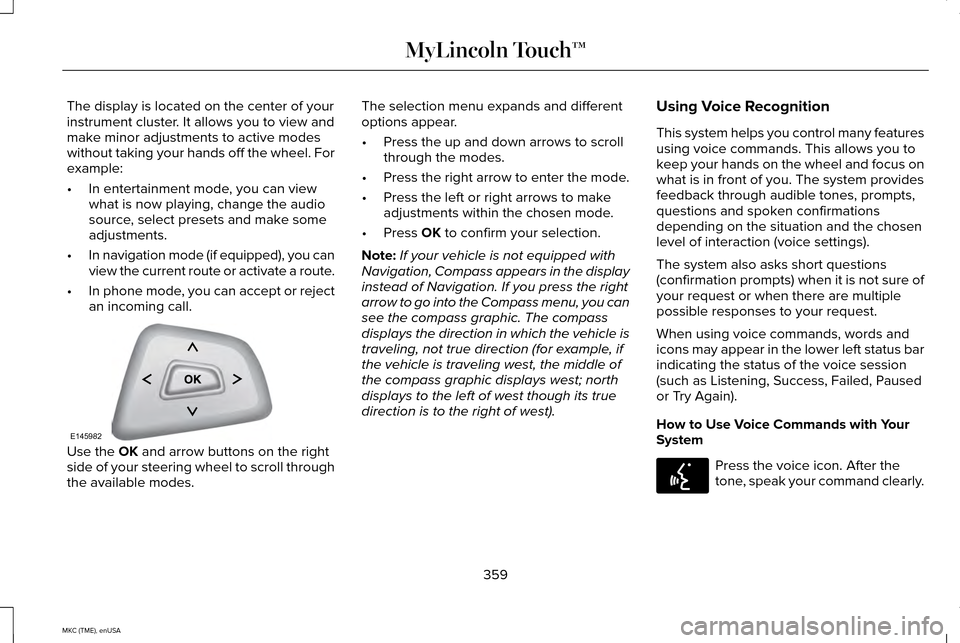
an incoming call. Use the OK and arrow buttons on the right
side of your steering wheel to scroll through
the available modes. The selection menu expands and different
options appear.
•
Press the up and down arrows to scroll
through the modes.
• Press the right arrow to enter the mode.
• Press the left or right arrows to make
adjustments within the chosen mode.
• Press
OK to confirm your selection.
Note: If your vehicle is not equipped with
Navigation, Compass appears in the display
instead of Navigation. If you press the right
arrow to go into the Compass menu, you can
see the compass graphic. The compass
displays the direction in which the vehicle is
traveling, not true direction (for example, if
the vehicle is traveling west, the middle of
the compass graphic displays west; north
displays to the left of west though its true
direction is to the right of west). Using Voice Recognition
This system helps you control many features
using voice commands. This allows you to
keep your hands on the wheel and focus on
what is in front of you. The system provides
feedback through audible tones, prompts,
questions and spoken confirmations
depending on the situation and the chosen
level of interaction (voice settings).
The system also asks short questions
(confirmation prompts) when it is not sure of
your request or when there are multiple
possible responses to your request.
When using voice commands, words and
icons may appear in the lower left status bar
indicating the status of the voice session
(such as Listening, Success, Failed, Paused
or Try Again).
How to Use Voice Commands with Your
System
Press the voice icon. After the
tone, speak your command clearly.
359
MKC (TME), enUSA MyLincoln Touch™E145982 E142599
Page 367 of 490
Under this menu, you can set your
clock, access and adjust the
display, sound and vehicle settings
as well as access settings for specific modes
or the help feature.
Clock
Note: You cannot manually set the date.
Your vehicle ’s GPS does this for you.
Note: If the battery has been disconnected,
your vehicle needs to acquire a GPS signal
to update the clock. Once your vehicle
acquires the signal, it may take a few
minutes for the update to display the correct
time. 1. Press the Settings icon > Clock.
2. Press
+ and - to adjust the time.
From this screen, you can also make other
adjustments such as 12-hour or 24-hour
mode, activate GPS time synchronization and
have the system automatically update new
time zones. You can also switch the outside air
temperature display off and on. It appears at
the top center of the touchscreen, next to
the time and date.
The system automatically saves any updates
you make to the settings.
Display
You can adjust the touchscreen display
through the touchscreen or by pressing the
voice button on your steering wheel controls
and when prompted, say, "Display settings".
Press the Settings icon >
Display,
to access and make adjustments
using the touchscreen.
• Brightness
allows you to make the
screen display brighter or dimmer.
• Auto DIM
, when set to On, lets you use
the Auto Dim Manual Offset feature.
When set to
Off, screen brightness does
not change. •
Mode
allows you to set the screen to a
certain brightness or have the system
automatically change based on the
outside light level, or switch the display
off.
• If you select
AUTO or NIGHT, you
have the options of switching the
display's Auto Dim feature on or off
and changing the Auto Dim Manual
Offset feature.
• Auto Dim Manual Offset
allows you to
adjust screen dimming as the outside
lighting conditions change from day to
night. This feature also allows you to
adjust screen brightness using the
instrument panel dimming control.
• Edit Wallpaper
•You can have your touchscreen
display the default photo or upload
your own.
364
MKC (TME), enUSA MyLincoln Touch™E142607 E142607 E142607
Page 380 of 490
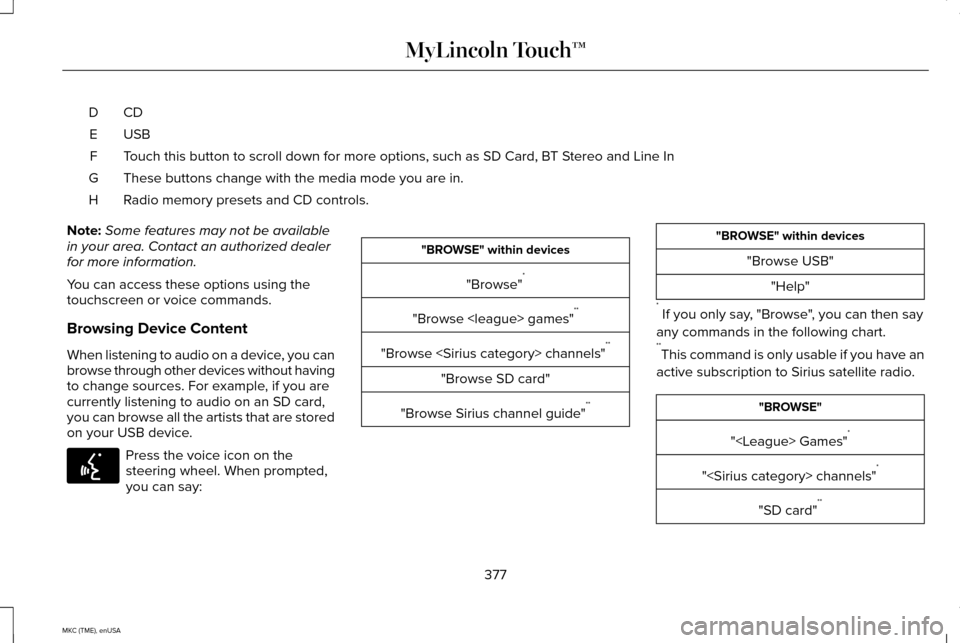
CDD
USBE
Touch this button to scroll down for more options, such as SD Card, BT Stereo and Line In
F
These buttons change with the media mode you are in.
G
Radio memory presets and CD controls.
H
Note: Some features may not be available
in your area. Contact an authorized dealer
for more information.
You can access these options using the
touchscreen or voice commands.
Browsing Device Content
When listening to audio on a device, you can
browse through other devices without having
to change sources. For example, if you are
currently listening to audio on an SD card,
you can browse all the artists that are stored
on your USB device. Press the voice icon on the
steering wheel. When prompted,
you can say: "BROWSE" within devices
"Browse" *
"Browse
"Browse
"Browse SD card"
"Browse Sirius channel guide" ** "BROWSE" within devices
"Browse USB""Help"
* If you only say, "Browse", you can then say
any commands in the following chart.
** This command is only usable if you have an
active subscription to Sirius satellite radio. "BROWSE"
"
"
"SD card" **
377
MKC (TME), enUSA MyLincoln Touch™E142599
Page 381 of 490
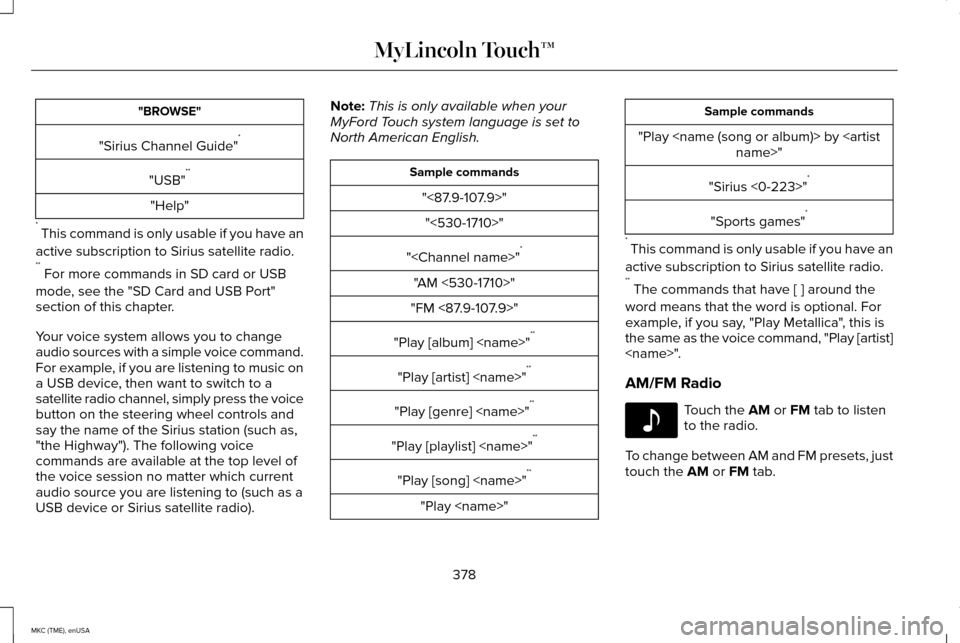
"BROWSE"
"Sirius Channel Guide" *
"USB" **
"Help"
* This command is only usable if you have an
active subscription to Sirius satellite radio.
** For more commands in SD card or USB
mode, see the "SD Card and USB Port"
section of this chapter.
Your voice system allows you to change
audio sources with a simple voice command.
For example, if you are listening to music on
a USB device, then want to switch to a
satellite radio channel, simply press the voice
button on the steering wheel controls and
say the name of the Sirius station (such as,
"the Highway"). The following voice
commands are available at the top level of
the voice session no matter which current
audio source you are listening to (such as a
USB device or Sirius satellite radio). Note:
This is only available when your
MyFord Touch system language is set to
North American English. Sample commands
"<87.9-107.9>""<530-1710>"
"
"AM <530-1710>"
"FM <87.9-107.9>"
"Play [album]
"Play [artist]
"Play [genre]
"Play [playlist]
"Play [song]
"Play
"Play
"Sirius <0-223>" *
"Sports games" *
* This command is only usable if you have an
active subscription to Sirius satellite radio.
** The commands that have [ ] around the
word means that the word is optional. For
example, if you say, "Play Metallica", this is
the same as the voice command, "Play [artist]
AM/FM Radio Touch the AM or FM tab to listen
to the radio.
To change between AM and FM presets, just
touch the
AM or FM tab.
378
MKC (TME), enUSA MyLincoln Touch™E142611
Page 386 of 490
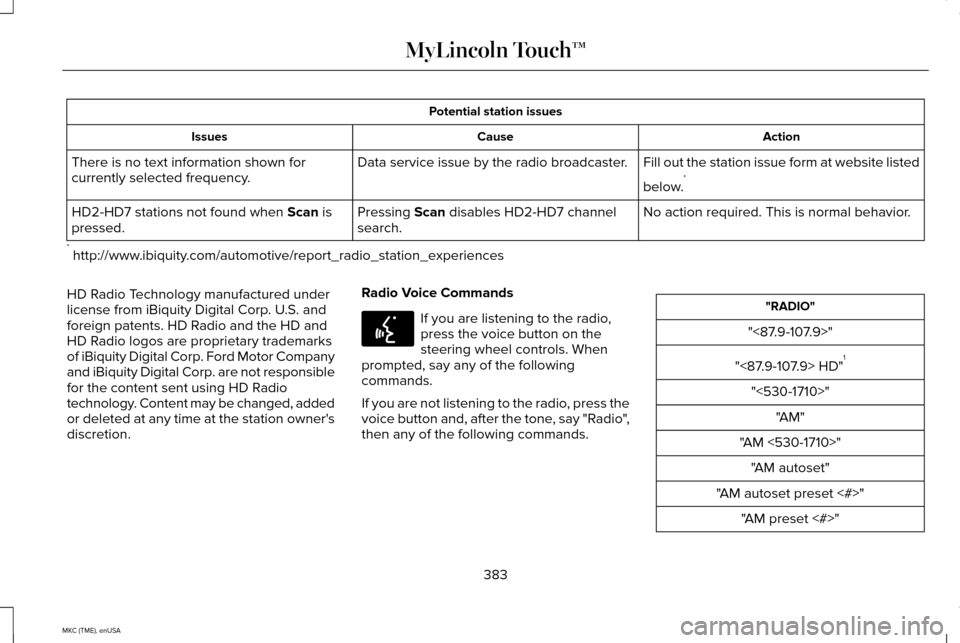
Potential station issues
Action
Cause
Issues
Fill out the station issue form at website listed
below.*
Data service issue by the radio broadcaster.
There is no text information shown for
currently selected frequency.
No action required. This is normal behavior.
Pressing Scan disables HD2-HD7 channel
search.
HD2-HD7 stations not found when Scan is
pressed.
* http://www.ibiquity.com/automotive/report_radio_station_experiences
HD Radio Technology manufactured under
license from iBiquity Digital Corp. U.S. and
foreign patents. HD Radio and the HD and
HD Radio logos are proprietary trademarks
of iBiquity Digital Corp. Ford Motor Company
and iBiquity Digital Corp. are not responsible
for the content sent using HD Radio
technology. Content may be changed, added
or deleted at any time at the station owner's
discretion. Radio Voice Commands If you are listening to the radio,
press the voice button on the
steering wheel controls. When
prompted, say any of the following
commands.
If you are not listening to the radio, press the
voice button and, after the tone, say "Radio",
then any of the following commands. "RADIO"
"<87.9-107.9>"
"<87.9-107.9> HD" 1
"<530-1710>" "AM"
"AM <530-1710>" "AM autoset"
"AM autoset preset <#>" "AM preset <#>"
383
MKC (TME), enUSA MyLincoln Touch™E142599
Page 395 of 490
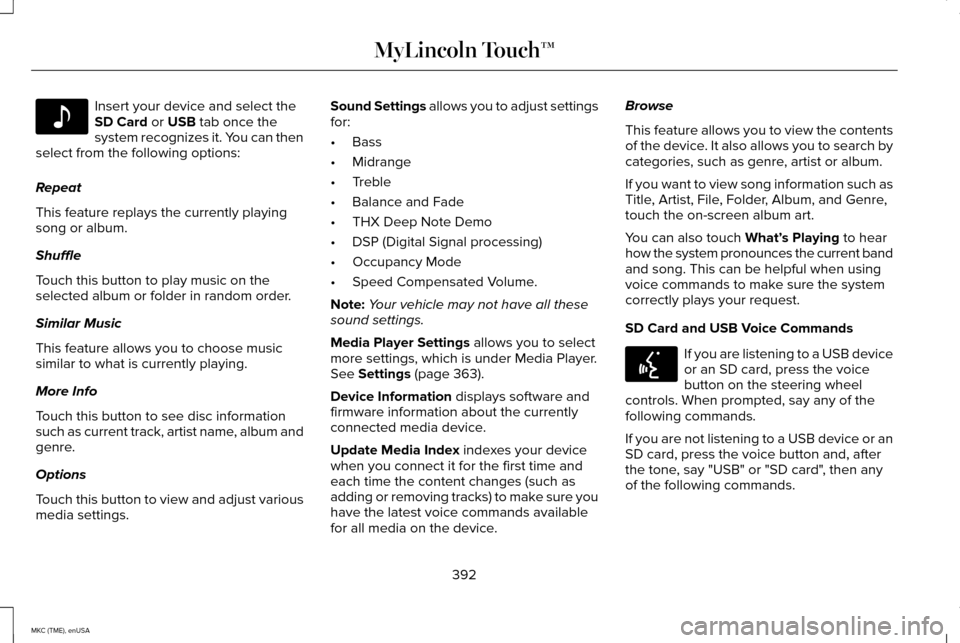
Insert your device and select the
SD Card or USB tab once the
system recognizes it. You can then
select from the following options:
Repeat
This feature replays the currently playing
song or album.
Shuffle
Touch this button to play music on the
selected album or folder in random order.
Similar Music
This feature allows you to choose music
similar to what is currently playing.
More Info
Touch this button to see disc information
such as current track, artist name, album and
genre.
Options
Touch this button to view and adjust various
media settings. Sound Settings allows you to adjust settings
for:
• Bass
• Midrange
• Treble
• Balance and Fade
• THX Deep Note Demo
• DSP (Digital Signal processing)
• Occupancy Mode
• Speed Compensated Volume.
Note: Your vehicle may not have all these
sound settings.
Media Player Settings
allows you to select
more settings, which is under Media Player.
See
Settings (page 363).
Device Information
displays software and
firmware information about the currently
connected media device.
Update Media Index
indexes your device
when you connect it for the first time and
each time the content changes (such as
adding or removing tracks) to make sure you
have the latest voice commands available
for all media on the device. Browse
This feature allows you to view the contents
of the device. It also allows you to search by
categories, such as genre, artist or album.
If you want to view song information such as
Title, Artist, File, Folder, Album, and Genre,
touch the on-screen album art.
You can also touch
What’
s Playing to hear
how the system pronounces the current band
and song. This can be helpful when using
voice commands to make sure the system
correctly plays your request.
SD Card and USB Voice Commands If you are listening to a USB device
or an SD card, press the voice
button on the steering wheel
controls. When prompted, say any of the
following commands.
If you are not listening to a USB device or an
SD card, press the voice button and, after
the tone, say "USB" or "SD card", then any
of the following commands.
392
MKC (TME), enUSA MyLincoln Touch™E142611 E142599
Page 439 of 490
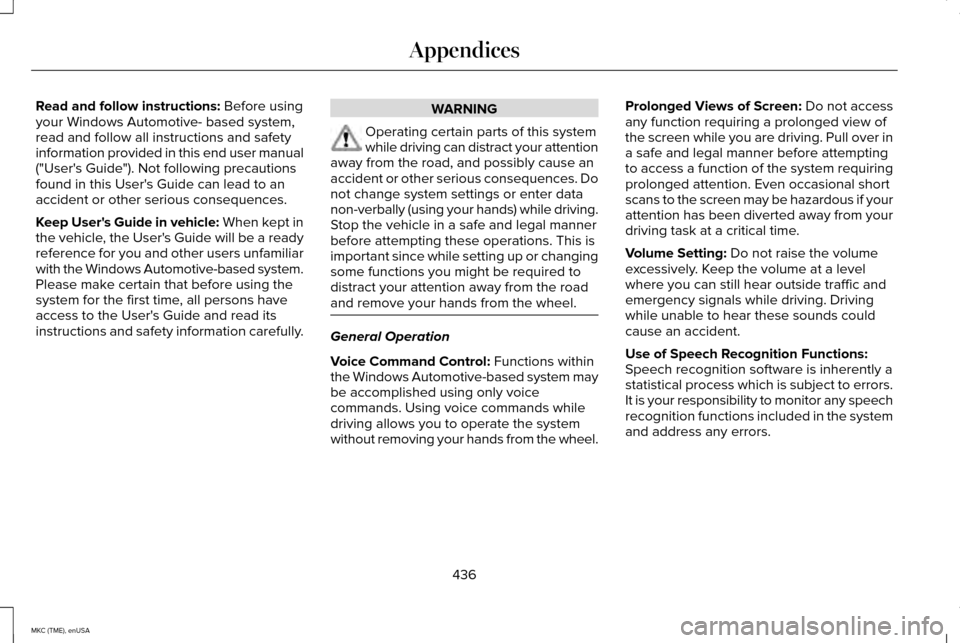
Read and follow instructions: Before using
your Windows Automotive- based system,
read and follow all instructions and safety
information provided in this end user manual
("User's Guide"). Not following precautions
found in this User's Guide can lead to an
accident or other serious consequences.
Keep User's Guide in vehicle: When kept in
the vehicle, the User's Guide will be a ready
reference for you and other users unfamiliar
with the Windows Automotive-based system.
Please make certain that before using the
system for the first time, all persons have
access to the User's Guide and read its
instructions and safety information carefully. WARNING
Operating certain parts of this system
while driving can distract your attention
away from the road, and possibly cause an
accident or other serious consequences. Do
not change system settings or enter data
non-verbally (using your hands) while driving.
Stop the vehicle in a safe and legal manner
before attempting these operations. This is
important since while setting up or changing
some functions you might be required to
distract your attention away from the road
and remove your hands from the wheel. General Operation
Voice Command Control:
Functions within
the Windows Automotive-based system may
be accomplished using only voice
commands. Using voice commands while
driving allows you to operate the system
without removing your hands from the wheel. Prolonged Views of Screen: Do not access
any function requiring a prolonged view of
the screen while you are driving. Pull over in
a safe and legal manner before attempting
to access a function of the system requiring
prolonged attention. Even occasional short
scans to the screen may be hazardous if your
attention has been diverted away from your
driving task at a critical time.
Volume Setting:
Do not raise the volume
excessively. Keep the volume at a level
where you can still hear outside traffic and
emergency signals while driving. Driving
while unable to hear these sounds could
cause an accident.
Use of Speech Recognition Functions:
Speech recognition software is inherently a
statistical process which is subject to errors.
It is your responsibility to monitor any speech
recognition functions included in the system
and address any errors.
436
MKC (TME), enUSA Appendices
Page 460 of 490
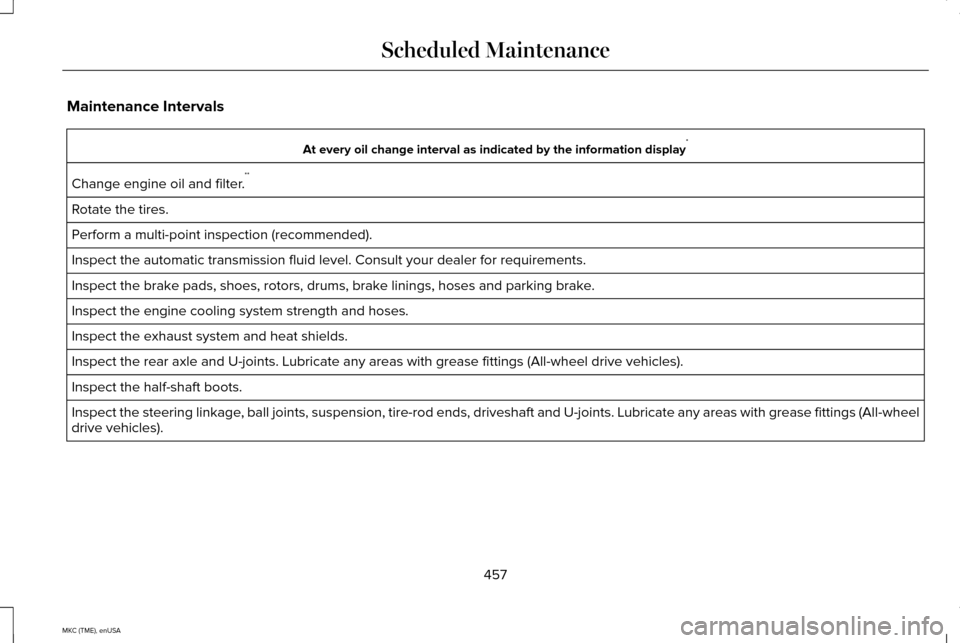
Maintenance Intervals
At every oil change interval as indicated by the information display
*
Change engine oil and filter. **
Rotate the tires.
Perform a multi-point inspection (recommended).
Inspect the automatic transmission fluid level. Consult your dealer for \
requirements.
Inspect the brake pads, shoes, rotors, drums, brake linings, hoses and parking brake.
Inspect the engine cooling system strength and hoses.
Inspect the exhaust system and heat shields.
Inspect the rear axle and U-joints. Lubricate any areas with grease fittings (All-wheel drive vehicles).
Inspect the half-shaft boots.
Inspect the steering linkage, ball joints, suspension, tire-rod ends, driveshaft and U-joints. Lubricate any areas with grease fittings (All-wheel
drive vehicles).
457
MKC (TME), enUSA Scheduled Maintenance
Page 461 of 490
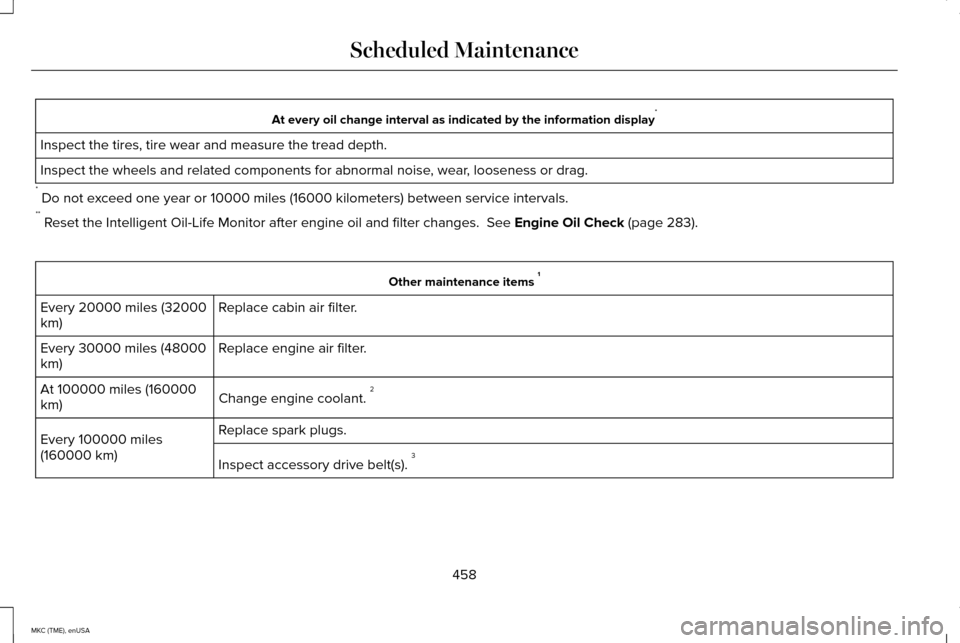
At every oil change interval as indicated by the information display
*
Inspect the tires, tire wear and measure the tread depth.
Inspect the wheels and related components for abnormal noise, wear, looseness or drag.
* Do not exceed one year or 10000 miles (16000 kilometers) between service interv\
als.
** Reset the Intelligent Oil-Life Monitor after engine oil and filter change\
s. See Engine Oil Check (page 283). Other maintenance items
1
Replace cabin air filter.
Every 20000 miles (32000
km)
Replace engine air filter.
Every 30000 miles (48000
km)
Change engine coolant. 2
At 100000 miles (160000
km)
Replace spark plugs.
Every 100000 miles
(160000 km)
Inspect accessory drive belt(s). 3
458
MKC (TME), enUSA Scheduled Maintenance