Back LINCOLN MKC 2015 Repair Manual
[x] Cancel search | Manufacturer: LINCOLN, Model Year: 2015, Model line: MKC, Model: LINCOLN MKC 2015Pages: 490, PDF Size: 4.74 MB
Page 293 of 490
Some other computer settings, like the clock
and radio station presets, are also maintained
in memory by power from the low voltage
battery. When a technician disconnects and
connects the low voltage battery, these
settings are erased.
Note:
Until you switch the ignition to the on
position, you will receive a message in your
information display stating that your vehicle
is not in park.
Complete the following procedure in order
to restore the settings:
1. With the vehicle at a complete stop, set the parking brake.
2. Shift the transmission into P.
3. Turn off all accessories.
4. Step on the brake pedal and start the vehicle. 5. Run the engine until it reaches normal
operating temperature. While the engine
is warming up, complete the following:
Reset the clock. See Audio System
(page 345). Reset the power windows
bounce-back feature. See Windows and
Mirrors (page 97). Reset the radio station
presets.
See Audio System (page 345).
6. Allow the engine to idle for at least one minute. If the engine turns off, step on
the accelerator to start the engine.
7. While the engine is running, step on the brake pedal and shift the transmission to
N.
8. Allow the engine to run for at least one minute by pressing on the accelerator
pedal.
9. Drive your vehicle at least 10 miles (16 kilometers) to completely relearn the idle
and fuel trim strategy.
Note: Certain features may not operate if
the Battery Monitor System is not reset with
a scan tool following a jump start or battery
replacement. Normal electrical accessory
operation should resume after your vehicle
is left undisturbed for 8 hours. Note:
If you do not allow the engine to
relearn the idle and fuel trim strategy, the
idle quality of your vehicle may be adversely
affected until the engine computer
eventually relearns the idle trim and fuel trim
strategy.
Note: Always dispose of automotive
batteries in a responsible manner. Follow
your local authorized standards for disposal.
Call your local authorized recycling center
to find out more about recycling automotive
batteries.
Note: It is recommended that the negative
battery cable terminal be disconnected from
the battery if you plan to store your vehicle
for an extended period of time.
290
MKC (TME), enUSA Maintenance
Page 294 of 490
CHECKING THE WIPER BLADES
Run the tip of your fingers over the edge of
the blade to check for roughness.
Clean the wiper blades with washer fluid or
water applied with a soft sponge or cloth.
CHANGING THE WIPER BLADES
The wiper arms can be manually moved
when the ignition is off. This allows for ease
of blade replacement and cleaning under
the blades.
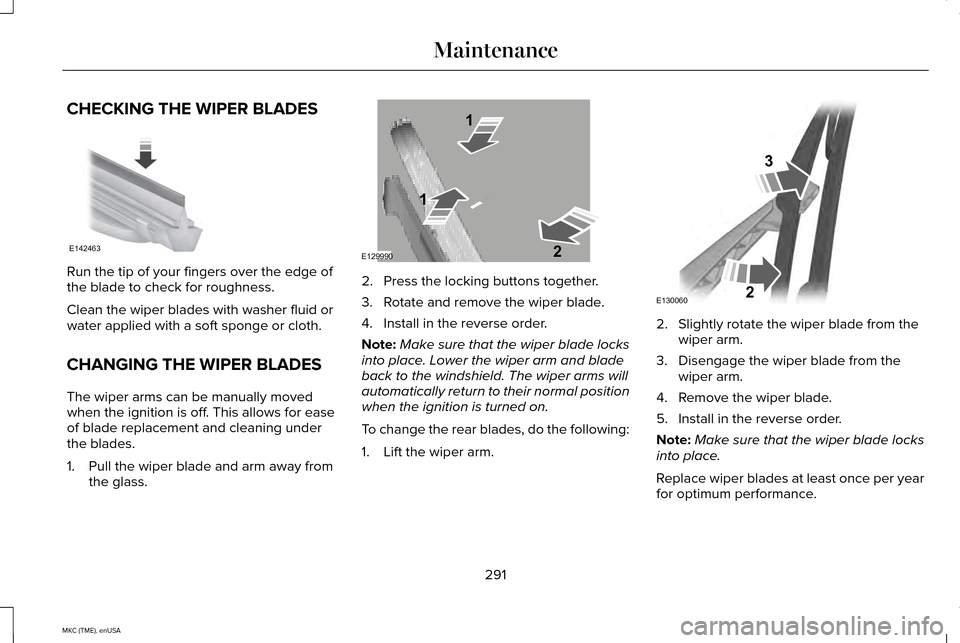
1. Pull the wiper blade and arm away from
the glass. 2. Press the locking buttons together.
3. Rotate and remove the wiper blade.
4. Install in the reverse order.
Note:
Make sure that the wiper blade locks
into place. Lower the wiper arm and blade
back to the windshield. The wiper arms will
automatically return to their normal position
when the ignition is turned on.
To change the rear blades, do the following:
1. Lift the wiper arm. 2. Slightly rotate the wiper blade from the
wiper arm.
3. Disengage the wiper blade from the wiper arm.
4. Remove the wiper blade.
5. Install in the reverse order.
Note: Make sure that the wiper blade locks
into place.
Replace wiper blades at least once per year
for optimum performance.
291
MKC (TME), enUSA MaintenanceE142463 E129990
1
1 2 E130060
3
2
Page 299 of 490

Trade number
Function
LED
* Tail/brake lamp
LED
* Turn lamp - rear
LED
* Backup lamp
W5W
License plate lamp
LED
* High-mount brake lamp
LED
* Interior lamps
* To replace these lamps, see your authorized dealer.
To replace instrument panel lights, see your authorized dealer.
296
MKC (TME), enUSA Maintenance
Page 303 of 490
Stripes or Graphics (if equipped)
Do not use a commercial or high-pressure
sprayer on the surface or edge of stripes and
graphics. This can cause damage to the film
and cause the edge of the film to peel away
from the vehicle surface.
Exterior Chrome
Note:
Never use abrasive materials such as
steel wool or plastic pads as they can
scratch the chrome surface.
Note: Do not use chrome cleaner, metal
cleaner or polish on wheels and wheel
covers
• Wash your vehicle first, using cool or
lukewarm water and a neutral pH
shampoo, such as Motorcraft Detail
Wash.
• Use Motorcraft Custom Bright Metal
Cleaner. Apply the product as you would
a wax to clean bumpers and other
chrome parts; allow the cleaner to dry for
a few minutes, then wipe off the haze
with a clean, dry rag. •
Do not apply cleaning product to hot
surfaces and do not leave cleaning
product on chrome surfaces longer than
the time recommended.
• Using other non-recommended cleaners
can result in severe and permanent
cosmetic damage.
Underbody
Flush the complete underside of your vehicle
frequently. Keep body and door drain holes
free from packed dirt.
Cleaning Plastic Exterior Parts
Use only approved products to clean plastic
parts
• For routine cleaning, use Motorcraft
Detail Wash.
• If tar or grease spots are present, use
Motorcraft Bug and Tar Remover. WAXING
Regular waxing is necessary to protect your
car's paint from the elements. We
recommend that you wash and wax the
painted surface once or twice a year.
When washing and waxing, park your vehicle
in a shaded area out of direct sunlight.
Always wash your vehicle before applying
wax.
•
Use a quality wax that does not contain
abrasives.
• Follow the manufacturer’ s instructions to
apply and remove the wax.
• Apply a small amount of wax in a
back-and-forth motion, not in circles.
300
MKC (TME), enUSA Vehicle Care
Page 310 of 490
Miscellaneous
•
Make sure all linkages, cables, levers and
pins under your vehicle are covered with
grease to prevent rust.
• Move vehicles at least 25 feet (8 meters)
every 15 days to lubricate working parts
and prevent corrosion.
Removing Vehicle From Storage
When your vehicle is ready to come out of
storage, do the following:
• Wash your vehicle to remove any dirt or
grease film build-up on window surfaces.
• Check windshield wipers for any
deterioration.
• Check under the hood for any foreign
material that may have collected during
storage (mice/squirrel nests).
• Check the exhaust for any foreign
material that may have collected during
storage.
• Check tire pressures and set tire inflation
per the Tire Label. •
Check brake pedal operation. Drive your
vehicle 15 feet (4.5 meters) back and forth
to remove rust build-up.
• Check fluid levels (including coolant, oil
and gas) to make sure there are no leaks,
and fluids are at recommended levels.
• If the battery was removed, clean the
battery cable ends and inspect.
Contact your authorized dealer if you have
any concerns or issues.
307
MKC (TME), enUSA Vehicle Care
Page 329 of 490
Understanding Your Tire Pressure
Monitoring System
The tire pressure monitoring system
measures pressure in your four road tires
and sends the tire pressure readings to your
vehicle. The low tire pressure warning light
will turn on if the tire pressure is significantly
low. Once the light is illuminated, your tires
are under-inflated and need to be inflated to
the manufacturer’
s recommended tire
pressure. Even if the light turns on and a
short time later turns off, your tire pressure
still needs to be checked. When Your Temporary Spare Tire is
Installed
When one of your road tires needs to be
replaced with the temporary spare, the
system will continue to identify an issue to
remind you that the damaged road wheel
and tire assembly needs to be repaired and
put back on your vehicle.
To restore the full function of the tire
pressure monitoring system, have the
damaged road wheel and tire assembly
repaired and remounted on your vehicle.
When You Believe Your System is Not
Operating Properly
The main function of the tire pressure
monitoring system is to warn you when your
tires need air. It can also warn you in the
event the system is no longer capable of
functioning as intended. See the following
chart for information concerning your tire
pressure monitoring system:
326
MKC (TME), enUSA Wheels and Tires
Page 335 of 490
13. Remove the jack and fully tighten the
lug nuts in the order shown. See
Technical Specifications (page 334).
Stowing the flat tire
1. Put the jack and lug wrench away. Make
sure the jack is fastened so it does not
rattle when you drive.
2. Unblock the wheels.
3. Stow the flat tire on the floor in the cargo
area. Secure with the flat tire retainer
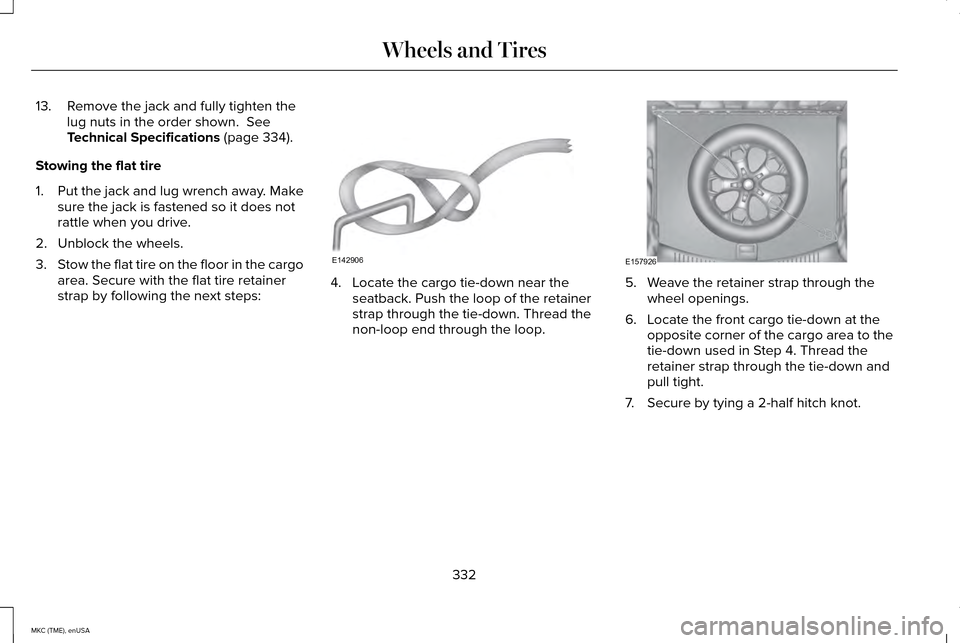
strap by following the next steps: 4. Locate the cargo tie-down near the
seatback. Push the loop of the retainer
strap through the tie-down. Thread the
non-loop end through the loop. 5. Weave the retainer strap through the
wheel openings.
6. Locate the front cargo tie-down at the opposite corner of the cargo area to the
tie-down used in Step 4. Thread the
retainer strap through the tie-down and
pull tight.
7. Secure by tying a 2-half hitch knot.
332
MKC (TME), enUSA Wheels and TiresE142906 E157926
Page 349 of 490
Do not expose discs to direct sunlight or heat
sources for extended periods.
MP3 and WMA Track and Folder
Structure
Audio systems capable of recognizing and
playing MP3 and WMA individual tracks and
folder structures work as follows:
•
There are two different modes for MP3
and WMA disc playback: MP3 and WMA
track mode (system default) and MP3 and
WMA folder mode.
• MP3 and WMA track mode ignores any
folder structure on the MP3 and WMA
disc. The player numbers each MP3 and
WMA track on the disc (noted by the MP3
or WMA file extension) from T001 to a
maximum of T255. The maximum number
of playable MP3 and WMA files may be
less depending on the structure of the
CD and exact model of radio present. •
MP3 and WMA folder mode represents
a folder structure consisting of one level
of folders. The CD player numbers all
MP3 and WMA tracks on the disc (noted
by the MP3 or WMA file extension) and
all folders containing MP3 and WMA files,
from F001 (folder) T001 (track) to F253
T255.
• Creating discs with only one level of
folders helps with navigation through the
disc files.
If you are burning your own MP3 and WMA
discs, it is important to understand how the
system reads the structures you create. While
various files may be present, (files with
extensions other than MP3 and WMA), only
files with the MP3 and WMA extension are
played; other files are ignored by the system.
This enables you to use the same MP3 and
WMA disc for a variety of tasks on your work
computer, home computer and your
in-vehicle system. In track mode, the system displays and plays
the structure as if it were only one level deep
(all MP3 and WMA files play, regardless of
being in a specific folder). In folder mode,
the system only plays the MP3 and WMA files
in the current folder.
AUDIO UNIT - VEHICLES WITH:
PREMIUM AM/FM/CD
WARNING
Driving while distracted can result in
loss of vehicle control, crash and injury.
We strongly recommend that you use
extreme caution when using any device that
may take your focus off the road. Your
primary responsibility is the safe operation
of your vehicle. We recommend against the
use of any hand-held device while driving
and encourage the use of voice-operated
systems when possible. Make sure you are
aware of all applicable local laws that may
affect the use of electronic devices while
driving. 346
MKC (TME), enUSA Audio System
Page 362 of 490
The display is located on the center of your
instrument cluster. It allows you to view and
make minor adjustments to active modes
without taking your hands off the wheel. For
example:
•
In entertainment mode, you can view
what is now playing, change the audio
source, select presets and make some
adjustments.
• In navigation mode (if equipped), you can
view the current route or activate a route.
• In phone mode, you can accept or reject
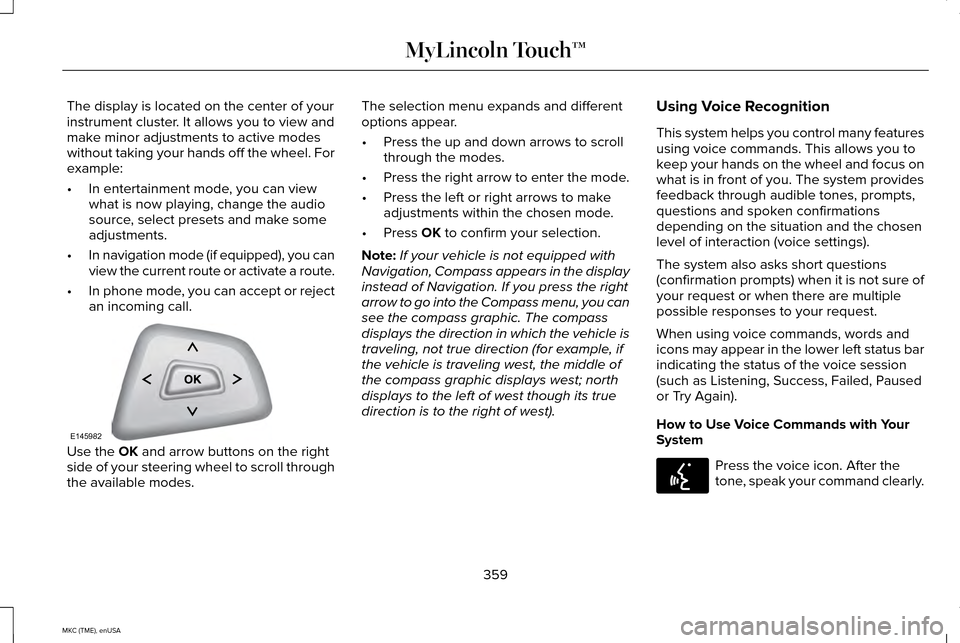
an incoming call. Use the OK and arrow buttons on the right
side of your steering wheel to scroll through
the available modes. The selection menu expands and different
options appear.
•
Press the up and down arrows to scroll
through the modes.
• Press the right arrow to enter the mode.
• Press the left or right arrows to make
adjustments within the chosen mode.
• Press
OK to confirm your selection.
Note: If your vehicle is not equipped with
Navigation, Compass appears in the display
instead of Navigation. If you press the right
arrow to go into the Compass menu, you can
see the compass graphic. The compass
displays the direction in which the vehicle is
traveling, not true direction (for example, if
the vehicle is traveling west, the middle of
the compass graphic displays west; north
displays to the left of west though its true
direction is to the right of west). Using Voice Recognition
This system helps you control many features
using voice commands. This allows you to
keep your hands on the wheel and focus on
what is in front of you. The system provides
feedback through audible tones, prompts,
questions and spoken confirmations
depending on the situation and the chosen
level of interaction (voice settings).
The system also asks short questions
(confirmation prompts) when it is not sure of
your request or when there are multiple
possible responses to your request.
When using voice commands, words and
icons may appear in the lower left status bar
indicating the status of the voice session
(such as Listening, Success, Failed, Paused
or Try Again).
How to Use Voice Commands with Your
System
Press the voice icon. After the
tone, speak your command clearly.
359
MKC (TME), enUSA MyLincoln Touch™E145982 E142599
Page 363 of 490
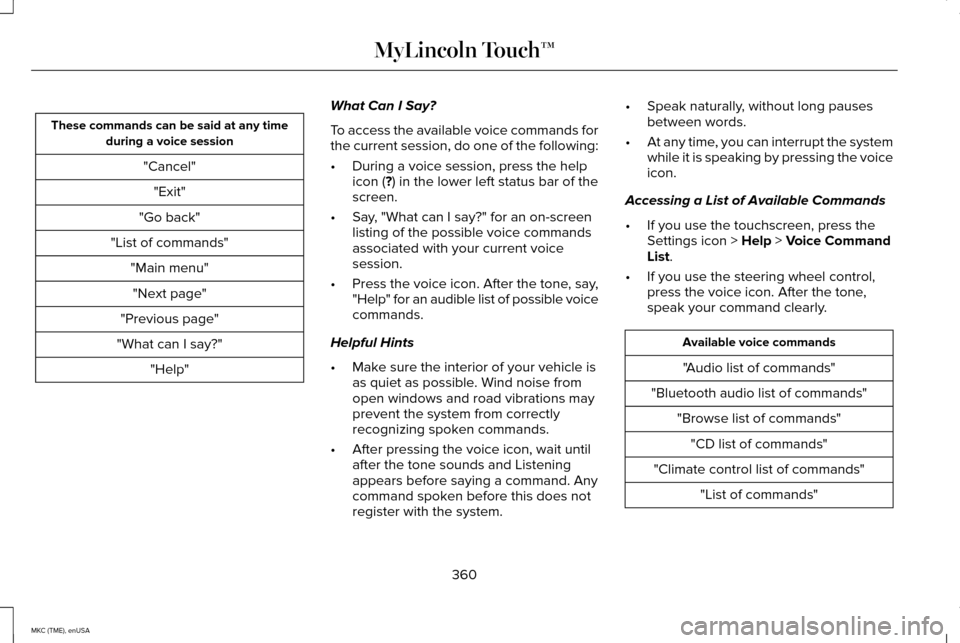
These commands can be said at any time
during a voice session
"Cancel""Exit"
"Go back"
"List of commands" "Main menu""Next page"
"Previous page"
"What can I say?" "Help" What Can I Say?
To access the available voice commands for
the current session, do one of the following:
•
During a voice session, press the help
icon (?) in the lower left status bar of the
screen.
• Say, "What can I say?" for an on-screen
listing of the possible voice commands
associated with your current voice
session.
• Press the voice icon. After the tone, say,
"Help" for an audible list of possible voice
commands.
Helpful Hints
• Make sure the interior of your vehicle is
as quiet as possible. Wind noise from
open windows and road vibrations may
prevent the system from correctly
recognizing spoken commands.
• After pressing the voice icon, wait until
after the tone sounds and Listening
appears before saying a command. Any
command spoken before this does not
register with the system. •
Speak naturally, without long pauses
between words.
• At any time, you can interrupt the system
while it is speaking by pressing the voice
icon.
Accessing a List of Available Commands
• If you use the touchscreen, press the
Settings icon >
Help > Voice Command
List.
• If you use the steering wheel control,
press the voice icon. After the tone,
speak your command clearly. Available voice commands
"Audio list of commands"
"Bluetooth audio list of commands" "Browse list of commands""CD list of commands"
"Climate control list of commands" "List of commands"
360
MKC (TME), enUSA MyLincoln Touch™