change time LINCOLN MKC 2016 Owners Manual
[x] Cancel search | Manufacturer: LINCOLN, Model Year: 2016, Model line: MKC, Model: LINCOLN MKC 2016Pages: 432, PDF Size: 4.89 MB
Page 2 of 432

The information contained in this publication was correct at the time of\
going to print. In the interest of continuous development, we reserve t\
he right to change specifications, design
or equipment at any time without notice or obligation. No part of this p\
ublication may be reproduced, transmitted, stored in a retrieval system \
or translated into any language in any
form by any means without our written permission. Errors and omissions e\
xcepted.
© Ford Motor Company 2015
All rights reserved.
Part Number: 20150413002934
Page 60 of 432
PRINCIPLE OF OPERATION
MyKey allows you to program keys with
restricted driving modes to promote good
driving habits. All but one of the keys can be
activated with these restricted modes.
Any keys that remain unprogrammed are
referred to as administrator keys or admin
keys. They can be used to:
•
Create a MyKey.
• Program configurable MyKey settings.
• Clear all MyKey features.
When you have created a MyKey, you can
access the following information by using
the information display to determine:
• How many admin keys and MyKeys are
programmed to your vehicle.
• The total distance your vehicle traveled
with a MyKey.
Note: Switch the vehicle on to use the
system.
Note: All MyKeys are programmed to the
same settings. You cannot program them
individually. Note:
For vehicles equipped with
push-button start, when both a MyKey and
an admin remote transmitter are present,
the admin remote transmitter will be
recognized by the vehicle while switching
the vehicle on to start the vehicle.
Non-configurable Settings
The following settings cannot be changed
by an admin key user:
• Safety belt reminder. You cannot disable
this feature. The audio system will mute
when the front seat passengers ’ safety
belts are not fastened.
• Early low fuel or charge. The low-fuel or
low charge warning activates earlier,
giving the MyKey user more time to refuel
or recharge.
• Driver assist features, if equipped on your
vehicle, are forced on: parking aid and
Blind Spot Information System (BLIS) with
cross traffic alert.
• Satellite radio adult content restrictions,
if equipped on your vehicle. Configurable Settings
With an admin key, you can configure certain
MyKey settings when you first create a
MyKey and before you recycle the key or
restart the vehicle. You can also change the
settings afterward with an admin key.
•
A vehicle speed limit can be set.
Warnings will be shown in the display
followed by an audible tone when your
vehicle reaches the set speed. You
cannot override the set speed by fully
depressing the accelerator pedal or by
setting cruise control. WARNING
Do not set MyKey maximum speed limit
to a limit that will prevent the driver
from maintaining a safe speed considering
posted speed limits and prevailing road
conditions. The driver is always responsible
to drive in accordance with local laws and
prevailing conditions. Failure to do so could
result in accident or injury. 57
MKC (TME), enUSA, First Printing MyKey™
Page 62 of 432
2.
Access the main menu on the information
display controls. Use the arrow keys to get to the following menu selections: Action and Description
Message
Press the OK button or the right arrow key.
Settings
Press the
OK button or the right arrow key.
MyKey
Note: You can clear or change your MyKey
settings at any time during the same key
cycle as you created the MyKey. Once you
have switched the vehicle off, however, you
will need an admin key to change or clear
your MyKey settings. CLEARING ALL MYKEYS
You can clear or change your MyKey settings
using the information display control on the
steering wheel.
See Information Displays
(page 109). Switch the ignition on using an admin key or
remote control.
To clear all MyKeys of all MyKey settings, press the left arrow button to access the main menu and scr\
oll to: Action and Description
Message
Press the
OK button.
Settings
Press the
OK button.
MyKey
Press and hold the
OK button until the following message displays.
Clear MyKey
59
MKC (TME), enUSA, First Printing MyKey™
Page 67 of 432
LOCKING AND UNLOCKING
You can use the power door lock or the
remote control to lock and unlock your
vehicle.
Power Door Locks
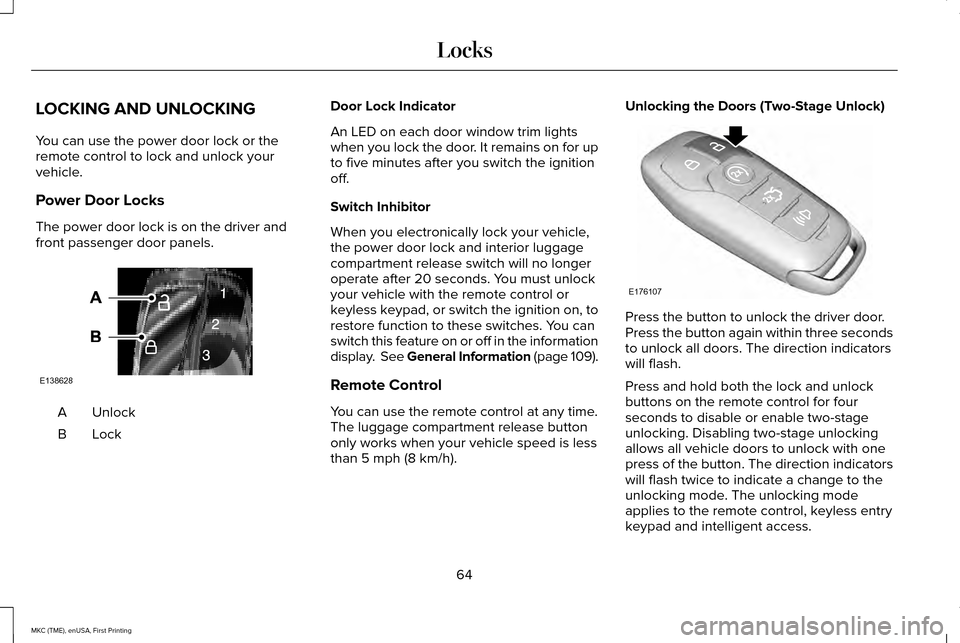
The power door lock is on the driver and
front passenger door panels.
Unlock
A
LockB Door Lock Indicator
An LED on each door window trim lights
when you lock the door. It remains on for up
to five minutes after you switch the ignition
off.
Switch Inhibitor
When you electronically lock your vehicle,
the power door lock and interior luggage
compartment release switch will no longer
operate after 20 seconds. You must unlock
your vehicle with the remote control or
keyless keypad, or switch the ignition on, to
restore function to these switches. You can
switch this feature on or off in the information
display. See General Information (page 109).
Remote Control
You can use the remote control at any time.
The luggage compartment release button
only works when your vehicle speed is less
than 5 mph (8 km/h).Unlocking the Doors (Two-Stage Unlock)
Press the button to unlock the driver door.
Press the button again within three seconds
to unlock all doors. The direction indicators
will flash.
Press and hold both the lock and unlock
buttons on the remote control for four
seconds to disable or enable two-stage
unlocking. Disabling two-stage unlocking
allows all vehicle doors to unlock with one
press of the button. The direction indicators
will flash twice to indicate a change to the
unlocking mode. The unlocking mode
applies to the remote control, keyless entry
keypad and intelligent access.
64
MKC (TME), enUSA, First Printing LocksE138628 E176107
Page 89 of 432
Press the top of the button at the end of the
lever to switch on the intermittent wiper.
Press the button again to switch on
low-speed wipe. Press the bottom of the
button to switch the wiper off, or to change
the wiper speed from low-speed to
intermittent.
When you shift into R (Reverse), the rear
wiper will turn on to intermittent if the front
wiper sensor activates the front wipers.
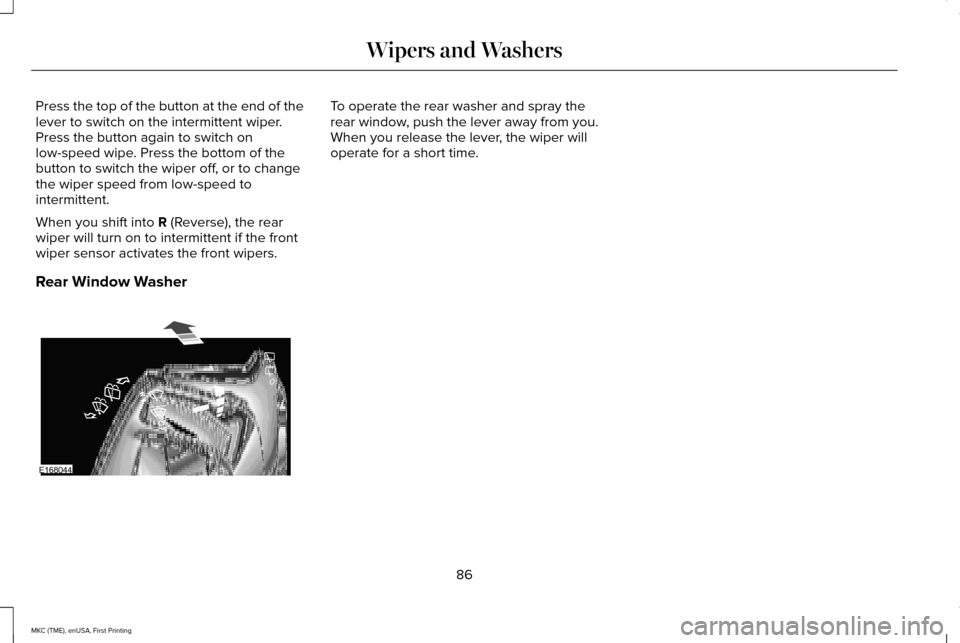
Rear Window Washer To operate the rear washer and spray the
rear window, push the lever away from you.
When you release the lever, the wiper will
operate for a short time.
86
MKC (TME), enUSA, First Printing Wipers and WashersE168044
Page 90 of 432
GENERAL INFORMATION
Condensation in Lamp Assemblies
Exterior lamps have vents to accommodate
normal changes in air pressure.
Condensation can be a natural by-product
of this design. When moist air enters the
lamp assembly through the vents, there is a
possibility that condensation can occur when
the temperature is cold. When normal
condensation occurs, a fine mist can form on
the interior of the lens. The fine mist
eventually clears and exits through the vents
during normal operation.
Clearing time may take as long as 48 hours
under dry weather conditions.
Examples of acceptable condensation are:
•
The presence of a fine mist (no streaks,
drip marks or large droplets).
• A fine mist covers less than 50% of the
lens. Examples of unacceptable condensation are:
•
A water puddle inside the lamp.
• Streaks, drip marks or large droplets
present on the interior of the lens.
If you see any unacceptable condensation,
have your vehicle checked by an authorized
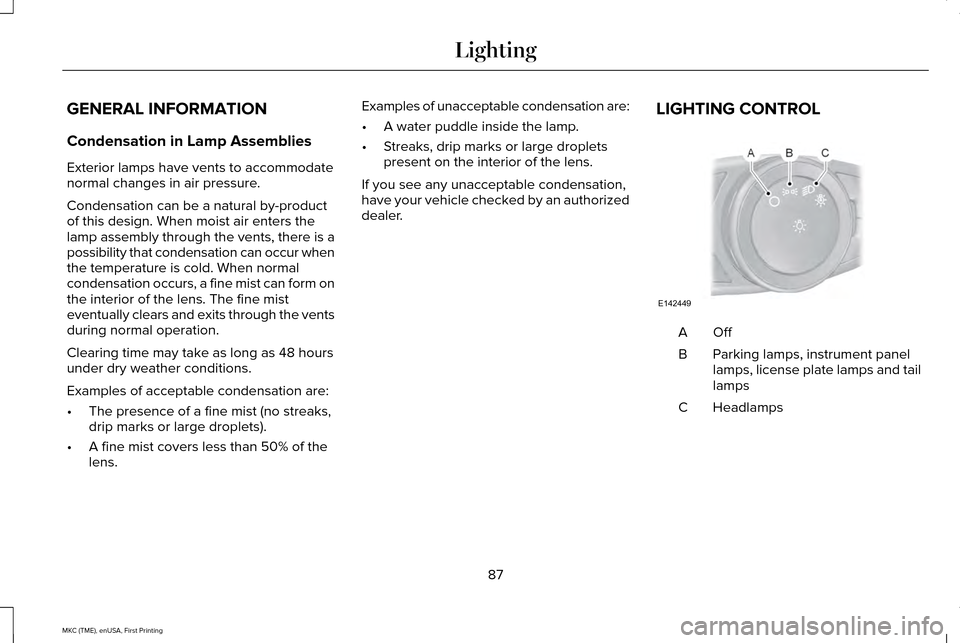
dealer. LIGHTING CONTROL OffA
Parking lamps, instrument panel
lamps, license plate lamps and tail
lamps
B
Headlamps
C
87
MKC (TME), enUSA, First Printing LightingE142449
Page 94 of 432
When switched off in the information display,
the daytime running lamps are off in all
lighting control switch positions.
AUTOMATIC HIGH BEAM
CONTROL (If Equipped)
The system automatically turns on the high
beams if it is dark enough and no other traffic
is present. When it detects the headlights of
an approaching vehicle, the rear lamps of
the preceding vehicle or street lighting, the
system turns off the high beams before they
distract other drivers. The low beams remain
on.
Note: If it appears that automatic high beam
is not functioning properly, check the
windshield in front of the camera for a
blockage. A clear view of the road is
required for proper system operation. Make
sure that authorized personnel repair any
windshield damage in the area of the
camera's field of view. Note:
If the system detects a blockage such
as bird droppings, bug splatter, snow or ice,
and you do not observe changes, the system
may go into low beam mode until you clear
the blockage. A message may also appear
in the information display noting the front
camera is blocked.
Note: Typical road dust, dirt and water spots
do not affect the performance of the
automatic high beam control. However, in
cold or inclement weather conditions, you
may notice a decrease in the availability of
the automatic high beam control, especially
at start up. If you want to change the beam
state independently of the system, you may
switch the high beams on or off using the
lighting control switch. Automatic high beam
control resumes when conditions are correct.
Note: Modification of your vehicle ride height
such as using much larger tires, may
degrade feature performance.
A camera sensor, centrally mounted behind
the windshield of your vehicle, continuously
monitors conditions to decide when to switch
the high beams off and on. Once the system is active, the high beams
switch on if:
•
The ambient light level is low enough.
• There is no traffic in front of the vehicle.
• The vehicle speed is greater than
31 mph
(50 km/h).
The high beams switch off if:
• The system detects the headlamps of an
approaching vehicle or the rear lamps of
a preceding vehicle.
• Vehicle speed falls below
26 mph
(42 km/h).
• The ambient light level is high enough
that high beams are not required.
• The system detects severe rain, snow or
fog.
• The camera is blocked.
Activating the System
Switch on the system in the information
display and switch the lighting control to the
autolamps position.
See Information
Displays (page 109). See Autolamps (page
88).
91
MKC (TME), enUSA, First Printing Lighting
Page 95 of 432
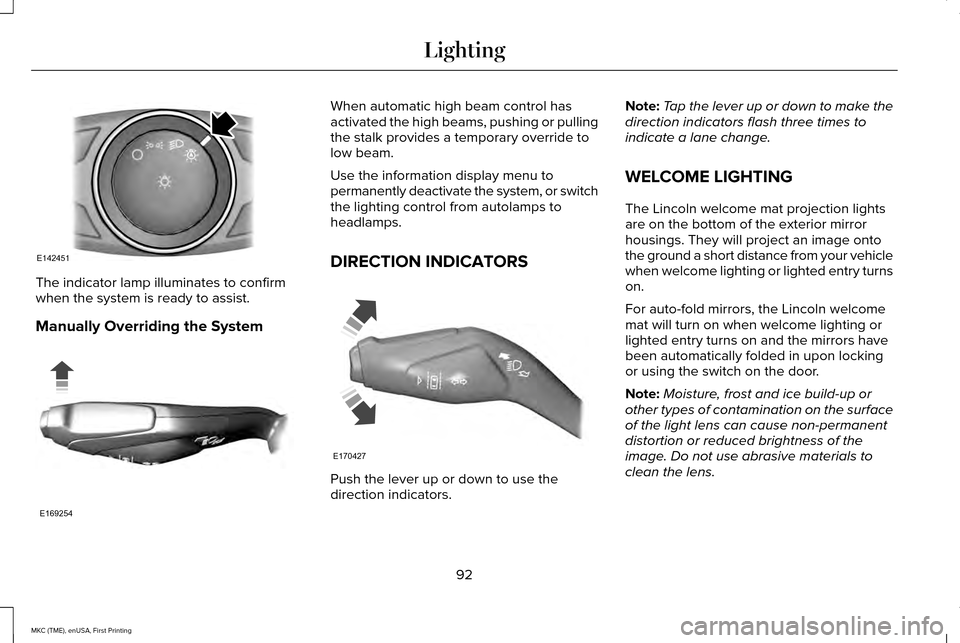
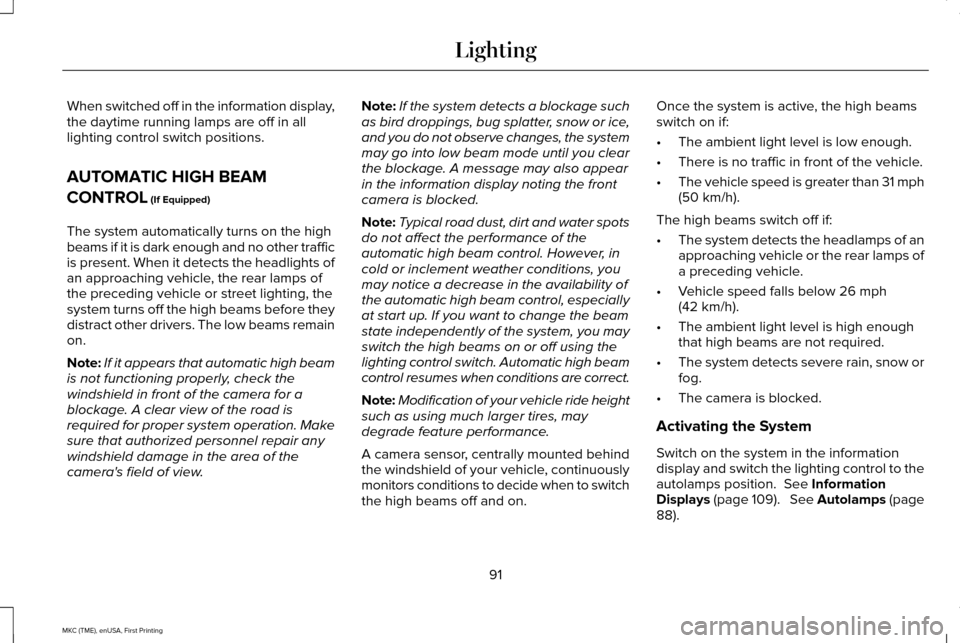
The indicator lamp illuminates to confirm
when the system is ready to assist.
Manually Overriding the System When automatic high beam control has
activated the high beams, pushing or pulling
the stalk provides a temporary override to
low beam.
Use the information display menu to
permanently deactivate the system, or switch
the lighting control from autolamps to
headlamps.
DIRECTION INDICATORS
Push the lever up or down to use the
direction indicators.Note:
Tap the lever up or down to make the
direction indicators flash three times to
indicate a lane change.
WELCOME LIGHTING
The Lincoln welcome mat projection lights
are on the bottom of the exterior mirror
housings. They will project an image onto
the ground a short distance from your vehicle
when welcome lighting or lighted entry turns
on.
For auto-fold mirrors, the Lincoln welcome
mat will turn on when welcome lighting or
lighted entry turns on and the mirrors have
been automatically folded in upon locking
or using the switch on the door.
Note: Moisture, frost and ice build-up or
other types of contamination on the surface
of the light lens can cause non-permanent
distortion or reduced brightness of the
image. Do not use abrasive materials to
clean the lens.
92
MKC (TME), enUSA, First Printing LightingE142451 E169254 E170427
Page 155 of 432
3. Press and hold the function button you
want to program for 2 seconds, then
release. Repeat this step. Depending on
your brand of garage door opener, you
may need to repeat this sequence a third
time.
Gate Operator / Canadian Programming
Canadian radio-frequency laws require
transmitter signals to “time-out” (or quit) after
several seconds of transmission – which may
not be long enough for HomeLink to pick up
the signal during programming. Similar to
this Canadian law, some U.S. gate operators
are designed to “time-out” in the same
manner. Note:
If programming a garage door opener
or gate operator, it is advised to unplug the
device during the “cycling” process to
prevent possible overheating.
1. Press and hold the HomeLink button while you press and release, every two
seconds, your hand-held transmitter until
the HomeLink indicator light changes
from a slow to a rapidly blinking light.
2. Release both the HomeLink and hand-held transmitter buttons.
3. Continue programing HomeLink. See In-Vehicle Programming
.
Erasing the Function Button Codes
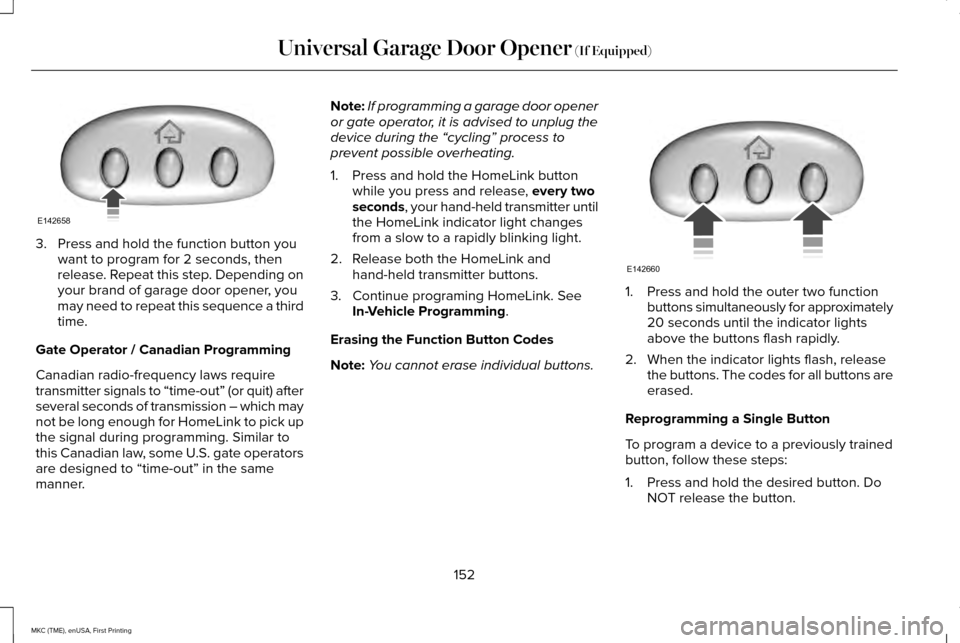
Note: You cannot erase individual buttons. 1. Press and hold the outer two function
buttons simultaneously for approximately
20 seconds until the indicator lights
above the buttons flash rapidly.
2. When the indicator lights flash, release the buttons. The codes for all buttons are
erased.
Reprogramming a Single Button
To program a device to a previously trained
button, follow these steps:
1. Press and hold the desired button. Do NOT release the button.
152
MKC (TME), enUSA, First Printing Universal Garage Door Opener
(If Equipped)E142658 E142660
Page 156 of 432
2.
The indicator light will begin to flash after
20 seconds. Without releasing the
button, follow Step 1 in the Programming
section.
For questions or comments, contact
HomeLink at www.homelink.com,
www.youtube.com/HomeLinkGentex or
1-800-355-3515.
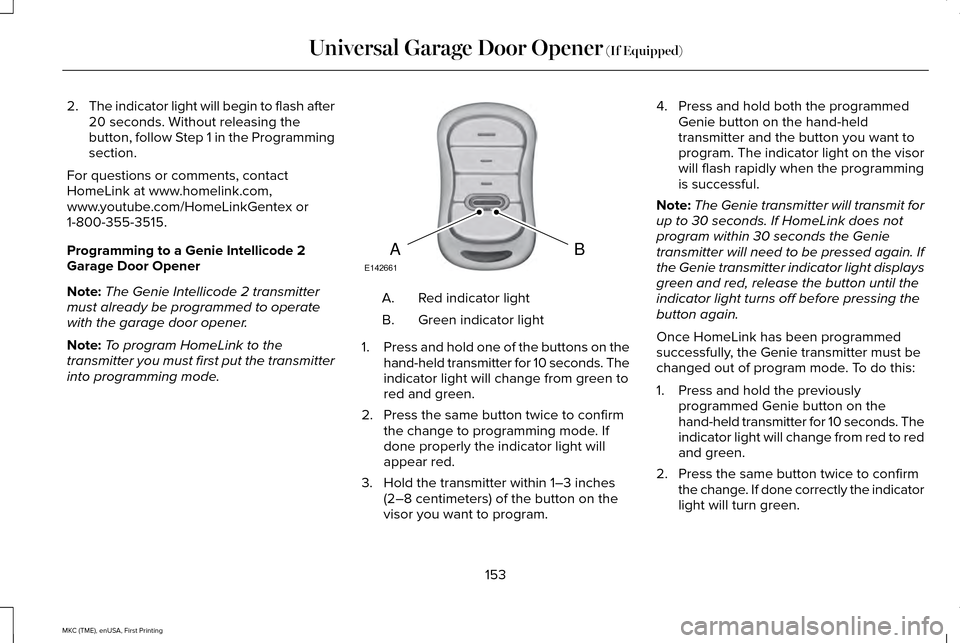
Programming to a Genie Intellicode 2
Garage Door Opener
Note: The Genie Intellicode 2 transmitter
must already be programmed to operate
with the garage door opener.
Note: To program HomeLink to the
transmitter you must first put the transmitter
into programming mode. Red indicator light
A.
Green indicator light
B.
1. Press and hold one of the buttons on the
hand-held transmitter for 10 seconds. The
indicator light will change from green to
red and green.
2. Press the same button twice to confirm the change to programming mode. If
done properly the indicator light will
appear red.
3. Hold the transmitter within 1–3 inches (2–8 centimeters) of the button on the
visor you want to program. 4. Press and hold both the programmed
Genie button on the hand-held
transmitter and the button you want to
program. The indicator light on the visor
will flash rapidly when the programming
is successful.
Note: The Genie transmitter will transmit for
up to 30 seconds. If HomeLink does not
program within 30 seconds the Genie
transmitter will need to be pressed again. If
the Genie transmitter indicator light displays
green and red, release the button until the
indicator light turns off before pressing the
button again.
Once HomeLink has been programmed
successfully, the Genie transmitter must be
changed out of program mode. To do this:
1. Press and hold the previously programmed Genie button on the
hand-held transmitter for 10 seconds. The
indicator light will change from red to red
and green.
2. Press the same button twice to confirm the change. If done correctly the indicator
light will turn green.
153
MKC (TME), enUSA, First Printing Universal Garage Door Opener (If Equipped)BAE142661