change time LINCOLN MKC 2017 Owner's Manual
[x] Cancel search | Manufacturer: LINCOLN, Model Year: 2017, Model line: MKC, Model: LINCOLN MKC 2017Pages: 538, PDF Size: 4.8 MB
Page 223 of 538
Note:
The alert and aid diagrams illustrate
general zone coverage. They do not indicate
the exact zone coverage area.
Intensity: This setting affects the intensity of
the steering wheel vibration used for the alert
and alert + aid modes. This setting is not valid
for the aid mode.
• Low
• Medium
• High
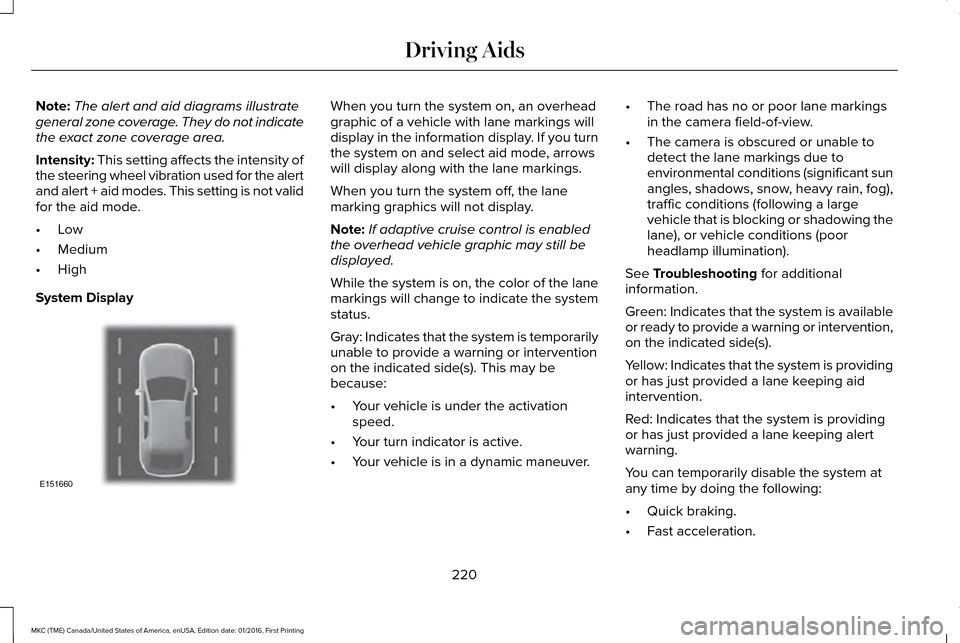
System Display When you turn the system on, an overhead
graphic of a vehicle with lane markings will
display in the information display. If you turn
the system on and select aid mode, arrows
will display along with the lane markings.
When you turn the system off, the lane
marking graphics will not display.
Note:
If adaptive cruise control is enabled
the overhead vehicle graphic may still be
displayed.
While the system is on, the color of the lane
markings will change to indicate the system
status.
Gray: Indicates that the system is temporarily
unable to provide a warning or intervention
on the indicated side(s). This may be
because:
• Your vehicle is under the activation
speed.
• Your turn indicator is active.
• Your vehicle is in a dynamic maneuver. •
The road has no or poor lane markings
in the camera field-of-view.
• The camera is obscured or unable to
detect the lane markings due to
environmental conditions (significant sun
angles, shadows, snow, heavy rain, fog),
traffic conditions (following a large
vehicle that is blocking or shadowing the
lane), or vehicle conditions (poor
headlamp illumination).
See
Troubleshooting for additional
information.
Green: Indicates that the system is available
or ready to provide a warning or intervention,
on the indicated side(s).
Yellow: Indicates that the system is providing
or has just provided a lane keeping aid
intervention.
Red: Indicates that the system is providing
or has just provided a lane keeping alert
warning.
You can temporarily disable the system at
any time by doing the following:
• Quick braking.
• Fast acceleration.
220
MKC (TME) Canada/United States of America, enUSA, Edition date: 01/2016, First Printing Driving AidsE151660
Page 236 of 538
DRIVE CONTROL (If Equipped)
LINCOLN DRIVE CONTROL
Lincoln Drive Control delivers the Lincoln
driving experience through a suite of
sophisticated electronic vehicle systems.
These systems continuously monitor your
driving inputs and the road conditions to
optimize ride comfort, steering, handling,
powertrain response and sound. You can
preset your preferences for these systems
within the information display. Lincoln Drive
Control will respond to your preferences
based on what gear position you select. This
provides a single location to control multiple
systems performance settings. Lincoln Drive Control consists of the
following systems:
•
Continuously controlled damping
dynamically adjusts the shock absorbers
stiffness in real time to match the road
surface and driver inputs. This system
continuously monitors your vehicle ’s
motion (roll, pitch, bounce), suspension
position, load, speed, road conditions,
and steering to adjust the suspension
damping for optimal vehicle control.
• Electronically power-assisted steering
adjusts steering effort and feel based on
your vehicle speed and your inputs.
• Adaptive steering optimizes your
vehicle's steering response based on
your steering wheel input, changes in
vehicle speed and other conditions.
• Active noise control utilizes your vehicle
electronics to enhance the acoustic
experience. •
Electronic stability control and traction
control maintain your vehicle control in
adverse conditions or high performance
driving.
• Electronic throttle control enhances the
powertrain response to your inputs.
Using Lincoln Drive Control
You can configure which of the Drive Control
modes are active when your vehicle is in
drive (D) or in Sport (S). The configuration
remains active until modified from the main
menu on the information display.
233
MKC (TME) Canada/United States of America, enUSA, Edition date: 01/2016, First Printing Driving Aids
Page 252 of 538
BREAKING-IN
You need to break in new tires for
approximately 300 miles (480 kilometers).
During this time, your vehicle may exhibit
some unusual driving characteristics.
Avoid driving too fast during the first 1000
miles (1600 kilometers). Vary your speed
frequently and change up through the gears
early. Do not labor the engine.
Do not tow during the first 1000 miles (1600
kilometers).
ECONOMICAL DRIVING
Your fuel economy is affected by several
things, such as how you drive, the conditions
you drive under, and how you maintain your
vehicle.
You may improve your fuel economy by
keeping these things in mind:
•
Accelerate and slow down in a smooth,
moderate fashion.
• Drive at steady speeds without stopping. •
Anticipate stops; slowing down may
eliminate the need to stop.
• Combine errands and minimize
stop-and-go driving.
• Close the windows for high-speed
driving.
• Drive at reasonable speeds (traveling at
55 mph [88 km/h] uses 15% less fuel than
traveling at 65 mph [105 km/h]).
• Keep the tires properly inflated and use
only the recommended size.
• Use the recommended engine oil.
• Perform all regularly scheduled
maintenance.
Avoid these actions; they reduce your fuel
economy:
• Sudden accelerations or hard
accelerations.
• Revving the engine before turning it off.
• Idle for periods longer than one minute.
• Warm up your vehicle on cold mornings.
• Use the air conditioner or front defroster.
• Use the speed control in hilly terrain. •
Rest your foot on the brake pedal while
driving.
• Drive a heavily loaded vehicle or tow a
trailer.
• Carry unnecessary weight (approximately
1 mpg [0.4 km/L] is lost for every 400 lb
[180 kilogram] of weight carried).
• Driving with the wheels out of alignment.
Conditions
• Heavily loading a vehicle or towing a
trailer may reduce fuel economy at any
speed.
• Adding certain accessories to your
vehicle (for example bug deflectors,
rollbars, light bars, running boards, ski
racks or luggage racks) may reduce fuel
economy.
• To maximize the fuel economy, drive with
the tonneau cover installed (if equipped).
• Using fuel blended with alcohol may
lower fuel economy.
• Fuel economy may decrease with lower
temperatures during the first 8–10 miles
(12–16 kilometers) of driving.
249
MKC (TME) Canada/United States of America, enUSA, Edition date: 01/2016, First Printing Driving Hints
Page 265 of 538
Disputes submitted to the BBB AUTO LINE
program are usually decided within forty days
after you file your claim with the BBB. You
are not bound by the decision, and may
reject the decision and proceed to court
where all findings of the BBB Auto Line
dispute, and decision, are admissible in the
court action. Should you choose to accept
the BBB AUTO LINE decision, Ford is then
bound by the decision, and must comply with
the decision within 30 days of receipt of your
acceptance letter.
BBB AUTO LINE Application: Using the
information provided below, please call or
write to request a program application. You
will be asked for your name and address,
general information about your new vehicle,
information about your warranty concerns,
and any steps you have already taken to try
to resolve them. A Customer Claim Form will
be mailed that will need to be completed,
signed and returned to the BBB along with
proof of ownership. Upon receipt, the BBB
will review the claim for eligibility under the
Program Summary Guidelines.
You can get more information by calling
BBB AUTO LINE at 1-800-955-5100, or
writing to:
BBB AUTO LINE
3033 Wilson Boulevard, Suite 600
Arlington, Virginia 22201
BBB AUTO LINE applications can also be
requested by calling the Ford Motor
Company Customer Relationship Center at
1-800-392-3673.
Note:
Ford Motor Company reserves the
right to change eligibility limitations, modify
procedures, or to discontinue this process
at any time without notice and without
obligation. UTILIZING THE
MEDIATION/ARBITRATION
PROGRAM (CANADA ONLY)
For vehicles delivered to authorized
Canadian dealers. In those cases where you
continue to feel that the efforts by Ford of
Canada and the authorized dealer to resolve
a factory-related vehicle service concern
have been unsatisfactory, Ford of Canada
participates in an impartial third party
mediation/arbitration program administered
by the Canadian Motor Vehicle Arbitration
Plan (CAMVAP).
The CAMVAP program is a straight forward
and relatively speedy alternative to resolve
a disagreement when all other efforts to
produce a settlement have failed. This
procedure is without cost to you and is
designed to eliminate the need for lengthy
and expensive legal proceedings.
262
MKC (TME) Canada/United States of America, enUSA, Edition date: 01/2016, First Printing Customer Assistance
Page 323 of 538
Information on P Type Tires
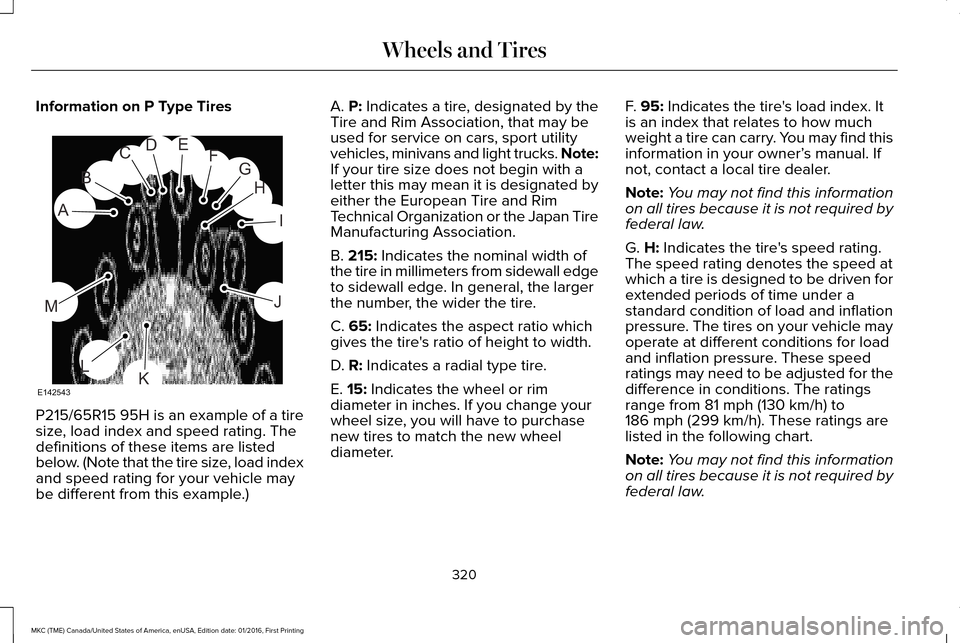
P215/65R15 95H is an example of a tire
size, load index and speed rating. The
definitions of these items are listed
below. (Note that the tire size, load index
and speed rating for your vehicle may
be different from this example.) A. P: Indicates a tire, designated by the
Tire and Rim Association, that may be
used for service on cars, sport utility
vehicles, minivans and light trucks.
Note:
If your tire size does not begin with a
letter this may mean it is designated by
either the European Tire and Rim
Technical Organization or the Japan Tire
Manufacturing Association.
B.
215: Indicates the nominal width of
the tire in millimeters from sidewall edge
to sidewall edge. In general, the larger
the number, the wider the tire.
C.
65: Indicates the aspect ratio which
gives the tire's ratio of height to width.
D.
R: Indicates a radial type tire.
E.
15: Indicates the wheel or rim
diameter in inches. If you change your
wheel size, you will have to purchase
new tires to match the new wheel
diameter. F.
95: Indicates the tire's load index. It
is an index that relates to how much
weight a tire can carry. You may find this
information in your owner’ s manual. If
not, contact a local tire dealer.
Note: You may not find this information
on all tires because it is not required by
federal law.
G.
H: Indicates the tire's speed rating.
The speed rating denotes the speed at
which a tire is designed to be driven for
extended periods of time under a
standard condition of load and inflation
pressure. The tires on your vehicle may
operate at different conditions for load
and inflation pressure. These speed
ratings may need to be adjusted for the
difference in conditions. The ratings
range from
81 mph (130 km/h) to
186 mph (299 km/h). These ratings are
listed in the following chart.
Note: You may not find this information
on all tires because it is not required by
federal law.
320
MKC (TME) Canada/United States of America, enUSA, Edition date: 01/2016, First Printing Wheels and TiresH
I
J
KL
M
A
B
CDEFG
E142543
Page 369 of 538
GENERAL INFORMATION
WARNING
Driving while distracted can result in
loss of vehicle control, crash and injury.
We strongly recommend that you use
extreme caution when using any device that
may take your focus off the road. Your
primary responsibility is the safe operation
of your vehicle. We recommend against the
use of any hand-held device while driving
and encourage the use of voice-operated
systems when possible. Make sure you are
aware of all applicable local laws that may
affect the use of electronic devices while
driving. Getting to Know Your System
The SYNC 3 system allows you to interact
with a variety of features using the
touchscreen and voice commands. By
integrating with your Bluetooth-enabled
phone, the touchscreen provides easy
interaction with audio, multimedia, climate
control, navigation, and your phone's SYNC
3 compatible apps.
Using the Touchscreen
To operate the touchscreen, you can simply
touch the item or option that you want to
select. The button changes color when you
select it.
The SYNC 3 layout allows you to quickly
select the feature you wish to use.
366
MKC (TME) Canada/United States of America, enUSA, Edition date: 01/2016, First Printing SYNC™ 3
Page 386 of 538
download continues where it left off at the
next Wi-Fi connected opportunity. Upon
activation of an update, a banner displays
on the touchscreen indicating the system
update. Select the icon to see more detail.
This icon displays for two ignition cycles.
To switch this feature off:
Menu Item
Settings
General In this menu selection, you
can change the selection for
automatic updates to OFF.
Automatic
System
Updates
Support
The SYNC support team is available to help
you with any questions you are not able to
answer on your own.
Monday-Saturday, 8:30am-8:00pm EST. United States: 1-800-521-4140.
Canada: 1-800-387-9333.
Times are subject to change due to holidays.
Privacy Information
When you connect a cellular phone to SYNC
3, the system creates a profile within your
vehicle that links to that cellular phone. This
profile helps in offering you more cellular
features and operating more efficiently.
Among other things, this profile may contain
data about your cellular phone book, text
messages (read and unread), and call history,
including history of calls when your cell
phone was not connected to the system. In
addition, if you connect a media device, the
system creates and retains an index of
supported media content. The system also
records a short diagnostic log of
approximately 10 minutes of all recent system
activity. The log profile and other system data
may be used to improve the system and help
diagnose any problems that may occur.The cellular profile, media device index, and
diagnostic log remain in your vehicle unless
you delete them and are generally accessible
only in your vehicle when the cellular phone
or media player is connected.
If you no longer plan to use the system or
your vehicle, we recommend you perform a
Master Reset to erase all stored information.
You can find more information about the
Master Reset in General Settings. See
Settings (page 434). System data cannot be
accessed without special equipment and
access to your vehicle's SYNC 3 module. The
Lincoln Motor Company does not access the
system data for any purpose other than as
described absent consent, a court order, or
where required by law enforcement, other
government authorities, or other third parties
acting with lawful authority. Other parties
may seek to access the information
independently of The Lincoln Motor
Company.
383
MKC (TME) Canada/United States of America, enUSA, Edition date: 01/2016, First Printing SYNC™ 3
Page 402 of 538
For more information on extended
subscription terms (a service fee is required),
the online media player and a list of SIRIUS
satellite radio channels, and other features,
please visit www.siriusxm.com in the United
States, www.siriusxm.ca in Canada, or call
SIRIUS at 1-888-539-7474.
Note:
SIRIUS reserves the unrestricted right
to change, rearrange, add or delete
programming. This includes canceling,
moving or adding particular channels, and
its prices, at any time, with or without notice
to you. Ford Motor Company shall not be
responsible for any such programming
changes. Note:
This receiver includes the eCos
real-time operating system. eCos is
published under the eCos License.
The following buttons are available for Sirius: Action and description
Menu item
Touch this button to see a list of available stations.
Browse
A pop-up appears, allowing you to type in the call numbers of a station.\
Direct Tune
Once you enter the stations call numbers, you can select:
The system tunes to the station you select.
Enter
You exit the pop-up and the current station continues to play.
Cancel
You can press the backspace button to delete the previous number.
399
MKC (TME) Canada/United States of America, enUSA, Edition date: 01/2016, First Printing SYNC™ 3
Page 409 of 538
HD Radio Technology manufactured under
license from iBiquity Digital Corp. U.S. and
foreign patents. HD Radio and the HD and
HD Radio logos are proprietary trademarks
of iBiquity Digital Corp. Ford Motor Company
and iBiquity Digital Corp. are not responsible
for the content sent using HD Radio
technology. Content may be changed, added
or deleted at any time at the station owner's
discretion.
* You can find the form here: Website
http://www.ibiquity.com/automotive/
report_radio_station_experiences
CD (If equipped)
Once you select this option, the system
returns you to the main audio screen. The current audio information appears on
the screen.
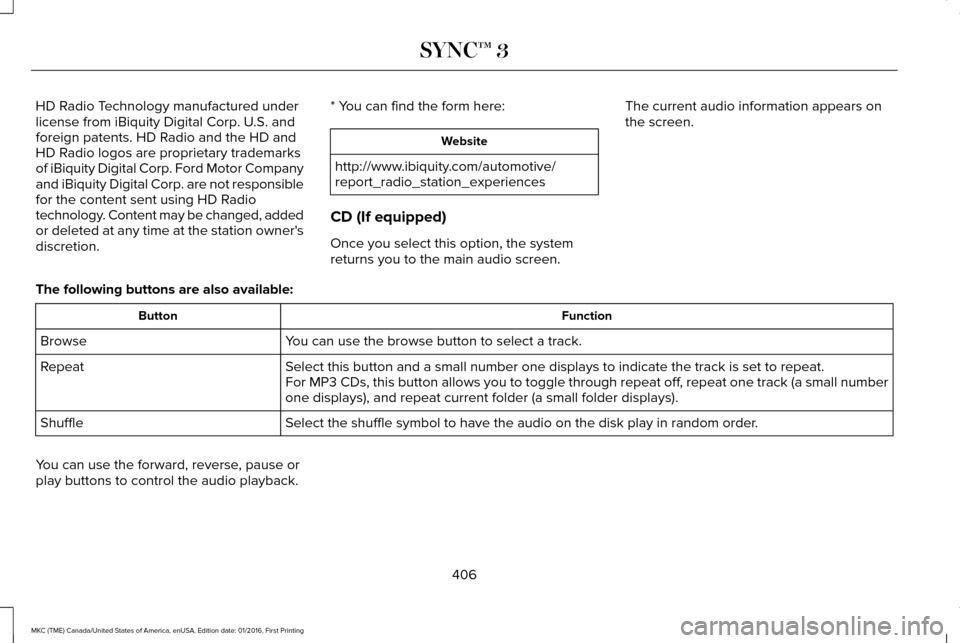
The following buttons are also available: Function
Button
You can use the browse button to select a track.
Browse
Select this button and a small number one displays to indicate the track\
is set to repeat.
Repeat
For MP3 CDs, this button allows you to toggle through repeat off, repeat one track (a small number
one displays), and repeat current folder (a small folder displays).
Select the shuffle symbol to have the audio on the disk play in random o\
rder.
Shuffle
You can use the forward, reverse, pause or
play buttons to control the audio playback.
406
MKC (TME) Canada/United States of America, enUSA, Edition date: 01/2016, First Printing SYNC™ 3
Page 435 of 538
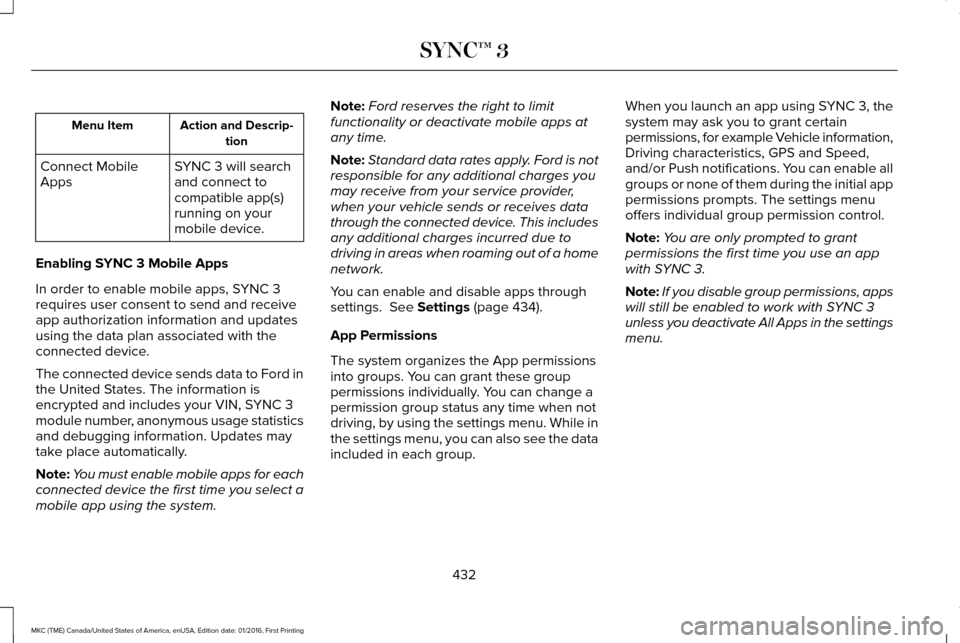
Action and Descrip-
tion
Menu Item
SYNC 3 will search
and connect to
compatible app(s)
running on your
mobile device.
Connect Mobile
Apps
Enabling SYNC 3 Mobile Apps
In order to enable mobile apps, SYNC 3
requires user consent to send and receive
app authorization information and updates
using the data plan associated with the
connected device.
The connected device sends data to Ford in
the United States. The information is
encrypted and includes your VIN, SYNC 3
module number, anonymous usage statistics
and debugging information. Updates may
take place automatically.
Note: You must enable mobile apps for each
connected device the first time you select a
mobile app using the system. Note:
Ford reserves the right to limit
functionality or deactivate mobile apps at
any time.
Note: Standard data rates apply. Ford is not
responsible for any additional charges you
may receive from your service provider,
when your vehicle sends or receives data
through the connected device. This includes
any additional charges incurred due to
driving in areas when roaming out of a home
network.
You can enable and disable apps through
settings. See Settings (page 434).
App Permissions
The system organizes the App permissions
into groups. You can grant these group
permissions individually. You can change a
permission group status any time when not
driving, by using the settings menu. While in
the settings menu, you can also see the data
included in each group. When you launch an app using SYNC 3, the
system may ask you to grant certain
permissions, for example Vehicle information,
Driving characteristics, GPS and Speed,
and/or Push notifications. You can enable all
groups or none of them during the initial app
permissions prompts. The settings menu
offers individual group permission control.
Note:
You are only prompted to grant
permissions the first time you use an app
with SYNC 3.
Note: If you disable group permissions, apps
will still be enabled to work with SYNC 3
unless you deactivate All Apps in the settings
menu.
432
MKC (TME) Canada/United States of America, enUSA, Edition date: 01/2016, First Printing SYNC™ 3