lock LINCOLN MKS 2015 Owners Manual
[x] Cancel search | Manufacturer: LINCOLN, Model Year: 2015, Model line: MKS, Model: LINCOLN MKS 2015Pages: 424, PDF Size: 3.96 MB
Page 297 of 424
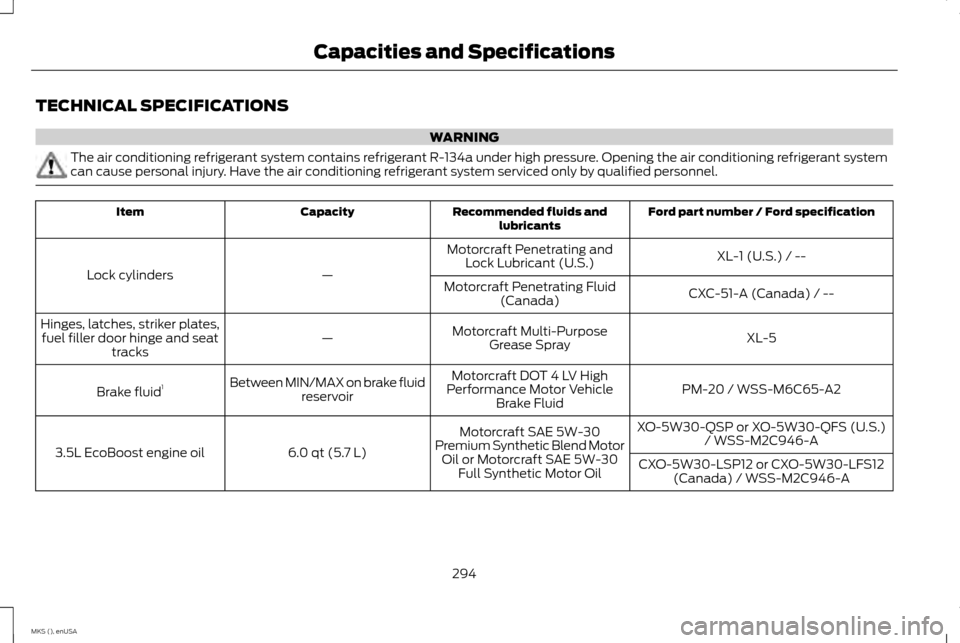
TECHNICAL SPECIFICATIONS
WARNING
The air conditioning refrigerant system contains refrigerant R-134a under high pressure. Opening the air conditioning refrigerant system
can cause personal injury. Have the air conditioning refrigerant system serviced only by qualified personnel.
Ford part number / Ford specification
Recommended fluids and
lubricants
Capacity
Item
XL-1 (U.S.) / --
Motorcraft Penetrating and
Lock Lubricant (U.S.)
—
Lock cylinders
CXC-51-A (Canada) / --
Motorcraft Penetrating Fluid
(Canada)
XL-5
Motorcraft Multi-Purpose
Grease Spray
—
Hinges, latches, striker plates,
fuel filler door hinge and seat tracks
PM-20 / WSS-M6C65-A2
Motorcraft DOT 4 LV High
Performance Motor Vehicle Brake Fluid
Between MIN/MAX on brake fluid
reservoir
Brake fluid 1
XO-5W30-QSP or XO-5W30-QFS (U.S.)/ WSS-M2C946-A
Motorcraft SAE 5W-30
Premium Synthetic Blend Motor Oil or Motorcraft SAE 5W-30 Full Synthetic Motor Oil
6.0 qt (5.7 L)
3.5L EcoBoost engine oil
CXO-5W30-LSP12 or CXO-5W30-LFS12
(Canada) / WSS-M2C946-A
294
MKS (), enUSA Capacities and Specifications
Page 308 of 424
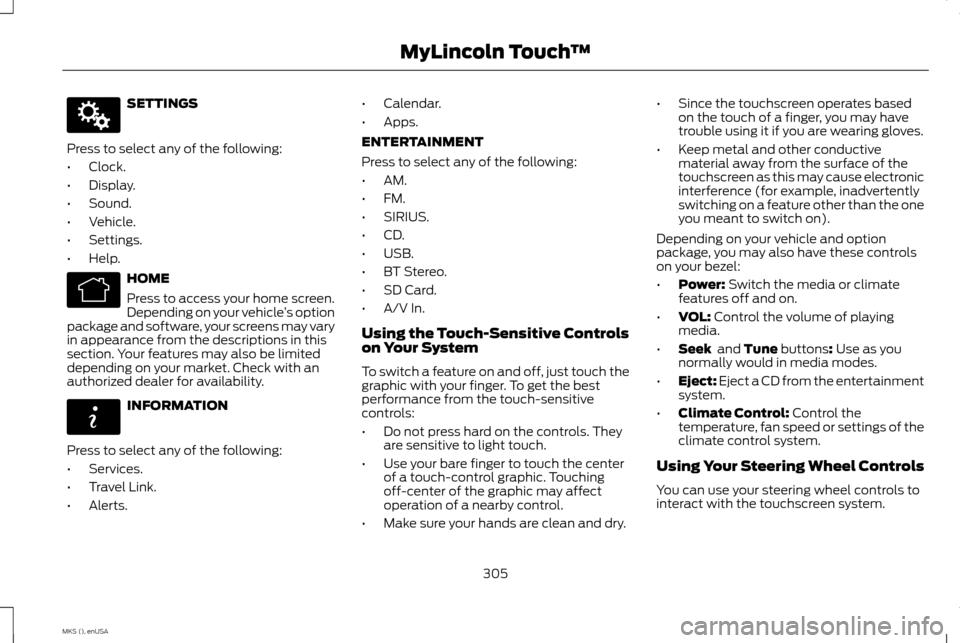
SETTINGS
Press to select any of the following:
• Clock.
• Display.
• Sound.
• Vehicle.
• Settings.
• Help. HOME
Press to access your home screen.
Depending on your vehicle
’s option
package and software, your screens may vary
in appearance from the descriptions in this
section. Your features may also be limited
depending on your market. Check with an
authorized dealer for availability. INFORMATION
Press to select any of the following:
• Services.
• Travel Link.
• Alerts. •
Calendar.
• Apps.
ENTERTAINMENT
Press to select any of the following:
• AM.
• FM.
• SIRIUS.
• CD.
• USB.
• BT Stereo.
• SD Card.
• A/V In.
Using the Touch-Sensitive Controls
on Your System
To switch a feature on and off, just touch the
graphic with your finger. To get the best
performance from the touch-sensitive
controls:
• Do not press hard on the controls. They
are sensitive to light touch.
• Use your bare finger to touch the center
of a touch-control graphic. Touching
off-center of the graphic may affect
operation of a nearby control.
• Make sure your hands are clean and dry. •
Since the touchscreen operates based
on the touch of a finger, you may have
trouble using it if you are wearing gloves.
• Keep metal and other conductive
material away from the surface of the
touchscreen as this may cause electronic
interference (for example, inadvertently
switching on a feature other than the one
you meant to switch on).
Depending on your vehicle and option
package, you may also have these controls
on your bezel:
• Power: Switch the media or climate
features off and on.
• VOL:
Control the volume of playing
media.
• Seek
and Tune buttons: Use as you
normally would in media modes.
• Eject:
Eject a CD from the entertainment
system.
• Climate Control:
Control the
temperature, fan speed or settings of the
climate control system.
Using Your Steering Wheel Controls
You can use your steering wheel controls to
interact with the touchscreen system.
305
MKS (), enUSA MyLincoln Touch
™E142607 E142613 E142608
Page 316 of 424
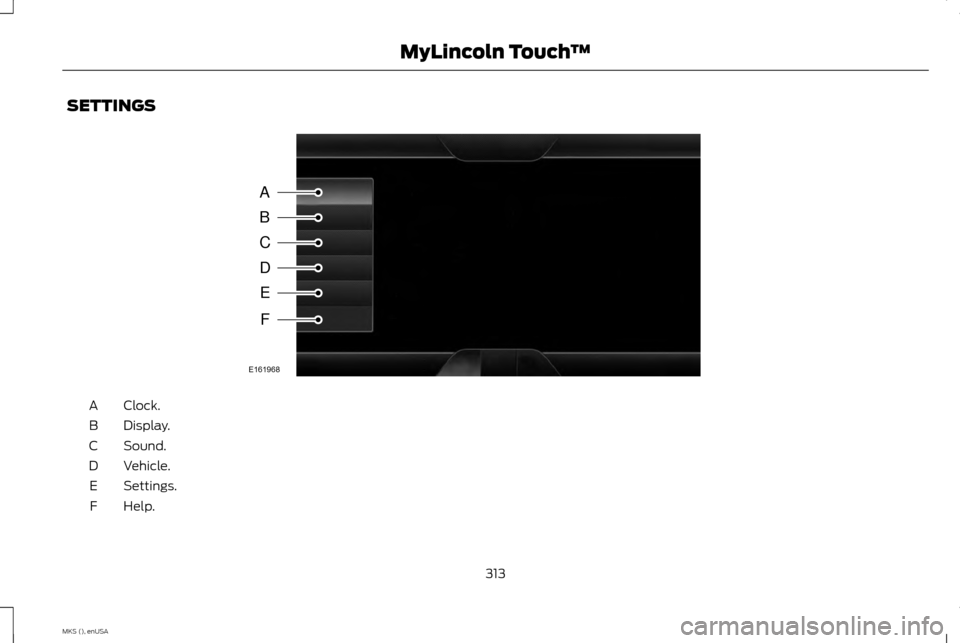
SETTINGS
Clock.
A
Display.
B
Sound.
C
Vehicle.
D
Settings.
E
Help.
F
313
MKS (), enUSA MyLincoln Touch
™A
B
C
D
E
F
E161968
Page 317 of 424
Under this menu, you can set your
clock, access and adjust the
display, sound and vehicle settings
as well as access settings for specific modes
or the help feature.
Clock
Note: You cannot manually set the date. Your
vehicle ’s GPS does this for you.
Note: If the battery has been disconnected,
your vehicle needs to acquire a GPS signal to
update the clock. Once your vehicle acquires
the signal, it may take a few minutes for the
update to display the correct time. 1. Press the Settings icon > Clock.
2. Press
+ and - to adjust the time.
From this screen, you can also make other
adjustments such as 12-hour or 24-hour
mode, activate GPS time synchronization
and have the system automatically update
new time zones.
You can also switch the outside air
temperature display off and on. It appears at
the top center of the touchscreen, next to the
time and date. The system automatically saves any updates
you make to the settings.
Display
You can adjust the touchscreen display
through the touchscreen or by pressing the
voice button on your steering wheel controls
and when prompted, say, "Display settings".
Press the Settings icon >
Display,
to access and make adjustments
using the touchscreen.
• Brightness
allows you to make the
screen display brighter or dimmer.
• Auto DIM
, when set to On, lets you use
the Auto Dim Manual Offset feature.
When set to Off, screen brightness does
not change.
• Mode
allows you to set the screen to a
certain brightness or have the system
automatically change based on the
outside light level, or switch the display
off.
• If you select
AUTO or NIGHT, you
have the options of switching the
display's Auto Dim feature on or off
and changing the Auto Dim Manual
Offset feature. •
Auto Dim Manual Offset allows you to
adjust screen dimming as the outside
lighting conditions change from day to
night. This feature also allows you to
adjust screen brightness using the
instrument panel dimming control.
• Edit Wallpaper
•You can have your touchscreen
display the default photo or upload
your own.
Uploading Photos for Your Home Screen
Wallpaper
Note: You cannot load photos directly from
your camera. You must access the photos
either from your USB mass storage device or
from an SD card.
Note: Photographs with extremely large
dimensions (such as 2048 x 1536) may not be
compatible and appear as a blank (black)
image on the display.
Your system allows you to upload and view
up to 32 photos. To access, press the Settings icon
>
Display > Edit Wallpaper, and
then follow the system prompts to
upload your photographs.
314
MKS (), enUSA MyLincoln Touch
™E142607 E142607 E142607 E142607
Page 319 of 424
You can find more information on the rear
view camera in another chapter. See Rear
View Camera (page 160).
Enable Valet Mode
Valet mode allows you to lock the system.
No information is accessible until the system
is unlocked with the correct PIN. You can
create your own four-digit PIN to lock and
unlock the system. 1. Press the Settings icon >
Vehicle >
Enable Valet Mode.
2. Enter a four-digit PIN twice, as prompted.
After you press
Continue, the system locks
until you enter the PIN again.
Note: If the system locks, and you need to
reset the PIN, enter 3681 and the system
unlocks. Settings
Access and adjust system settings, voice
features, as well as phone, navigation and
wireless settings.
System Press the Settings icon > Settings
> System, then select from the
following: System
Select to have the touchscreen display in English, Spanish or French.
Language
Select to display units in kilometers or miles.
Distance
Select to display units in Celsius or Fahrenheit.
Temperature
Adjust the volume of voice prompts from the system.
System Prompt Volume
Select to have the system beep to confirm choices made through the touchscreen.
Touch Screen Button Beep
Select to have the system beep to confirm button choices made through the climate or audio system.
Touch Panel Button Beep
Have the touchscreen keyboard display in QWERTY or ABC format.
Keyboard Layout
Install any downloaded applications or view the current software licenses.
Install Applications
Select to restore factory defaults. This erases all personal settings and personal data.
Master Reset
316
MKS (), enUSA MyLincoln Touch
™E142607 E142607
Page 337 of 424
Set Category for Seek/Scan
This allows you to select a category of music
you would like to search for. You can then
choose to either seek or scan for the stations
playing that category.
Parental Lockout
This allows you to lock and unlock channels,
change or reset your PIN or unlock all
channels. To use this feature, you need your
initial PIN, which is 1234.
Artist/Title/Team Alerts
This feature allows you to select Artists,
Titles and Teams that you would like the
system to alert you to when they are playing
on other channels. Press Edit Alerts to delete
or turn off alerts. You can also set all alerts
to on or off. When an alert appears on the
screen, you can choose to Tune to the
channel, to Cancel the alert or to Disable
Alerts. If you are listening to a sporting event,
you can save your favorite teams so that the
system can alert you when they are playing
on a satellite radio channel.
Note:
Sirius does not support the Alert feature
on all channels. Ford Motor Company shall not
be responsible for Alert feature variation. Electronic Serial Number (ESN)
Sirius requires this number when
communicating with you about your account.
Direct Tune
Touch this button to enter the desired
satellite channel number manually. Touch
Enter when you are done.
Browse
Touch this button to view a list of all available
stations. Scroll to see more categories. Touch
the station you want to listen to.
Touch
Skip if you want to skip this channel.
Touch
Lock if you do not want anyone to
listen to this channel.
Touch
Title or Artist to see song and artists
on other stations.
Sirius Satellite Radio Information
Note: Sirius reserves the unrestricted right to
change, rearrange, add or delete programming
including canceling, moving or adding
particular channels, and its prices, at any time,
with or without notice to you. Ford Motor
Company shall not be responsible for any such
programming changes. Sirius satellite radio is a subscription-based
satellite radio service that broadcasts a
variety of music, sports, news, weather, traffic
and entertainment programming. Your
factory-installed Sirius satellite radio system
includes hardware and a limited subscription
term that begins on the date of sale or lease
of your vehicle. See an authorized dealer for
availability.
For more information on extended
subscription terms (a service fee is required),
the online media player and a list of Sirius
satellite radio channels, and other features,
please visit www.siriusxm.com in the United
States, www.sirius.ca in Canada, or call Sirius
at 1-888-539-7474.
Note:
This receiver includes the eCos
real-time operating system. eCos is published
under the eCos License.
334
MKS (), enUSA MyLincoln Touch
™E142593
Page 339 of 424
Troubleshooting tips
Action
Cause
Radio display
No action required. This message should
disappear shortly.
Radio requires more than two seconds to
produce audio for the selected channel.
Acquiring...
If this message does not clear shortly, or with
an ignition key cycle, your receiver may have a
fault. See an authorized dealer for service.
There is an internal module or system failure
present.
Sat Fault/Sirius System Failure.
Tune to another channel or choose another
preset.
The channel is no longer available.
Invalid Channel.
Contact Sirius at 1-888-539-7474 to subscribe
to the channel, or tune to another channel.
Your subscription does not include this
channel.
Unsubscribed Channel.
The signal is blocked. When you move into an
open area, the signal should return.
The signal is lost from the Sirius satellite or
Sirius tower to your vehicle antenna.
No Signal.
No action required. The process may take up
to three minutes.
Update of channel programming in progress.
Updating.
Contact Sirius at 1-888-539-7474 to resolve
subscription issues.
Your satellite service is no longer available.
Call Sirius
1-888-539-7474.
Use the channel guide to turn off the Lock or
Skip function on that station.
All the channels in the selected category are
either skipped or locked.
None found. Check Channel Guide.
No action required.
Sirius has updated the channels available for
your vehicle.
Subscription Updated.
336
MKS (), enUSA MyLincoln Touch
™
Page 355 of 424
Under the Information menu, you can access
features such as:
•
SYNC Services
• Sirius Travel Link
• Alerts
• Calendar
• SYNC Applications If your vehicle is equipped with
Navigation, press the Information
button to access these features. If
your vehicle is not equipped with Navigation,
press the corner of the touchscreen with the
green tab.
SYNC Services (If Equipped, United
States Only)
Note: SYNC Services varies by trim level and
model year and may require a subscription.
Traffic alerts and turn-by-turn directions
available in select markets. Message and data
rates may apply. Ford Motor Company reserves
the right to change or discontinue this product
service at any time without prior notification
or incurring any future obligation. Note:
SYNC Services requires activation
before use. Visit www.SYNCMyRide.com to
register and check your eligibility for
complimentary services. Standard phone and
message rates may apply. Subscription may
be required. You must also have the active
SYNC Services Bluetooth-enabled cellular
phone paired and connected to the system in
order to connect to, and use, SYNC Services.
See Phone (page 344).
Note: This feature does not function properly
if you have enabled caller ID blocking on your
cellular phone. Make sure your cellular phone
is not blocking caller ID before using SYNC
Services.
Note: The driver is ultimately responsible for
the safe operation of the vehicle, and
therefore, must evaluate whether it is safe to
follow the suggested directions. Any
navigation features provided are only an aid.
Make your driving decisions based on your
observations of local conditions and existing
traffic regulations. Do not follow the route
suggestions if doing so would result in an
unsafe or illegal maneuver, if you would be
placed in an unsafe situation, or if you would
be directed into an area that you consider
unsafe. Maps used by this system may be
inaccurate because of errors, changes in roads,
traffic conditions or driving conditions. Note:
When you connect, the service uses
GPS technology and advanced vehicle sensors
to collect your vehicle's current location, travel
direction and speed to help provide you with
the directions, traffic reports, or business
searches you request. Further, to provide the
services you request, for continuous
improvement, the service may collect and
record call details and voice communications.
For more information, see SYNC Services
Terms and Conditions at
www.SYNCMyRide.com. If you do not want
Ford or its service providers to collect your
vehicle travel information or other information
identified in the Terms and Conditions, do not
subscribe or use the service.
SYNC Services uses advanced vehicle
sensors, integrated GPS technology and
comprehensive map and traffic data, to give
you personalized traffic reports, precise
turn-by-turn directions, business search,
news, sports, weather and more. For a
complete list of services, or to learn more,
please visit www.SYNCMyRide.com.
Connecting to SYNC Services Using Voice
Commands 352
MKS (), enUSA MyLincoln Touch
™E142608 E142599
Page 362 of 424
Before making the call:
•
SYNC provides a short window of time
(about 10 seconds) to cancel the call. If
you fail to cancel the call, SYNC attempts
to dial 911.
• SYNC says the following, or a similar
message: "SYNC will attempt to call 911,
to cancel the call, press Cancel on your
screen or press and hold the phone
button on your steering wheel."
If you do not cancel the call, and SYNC
makes a successful call, a pre-recorded
message plays for the 911 operator, and then
the occupant(s) in your vehicle is able to talk
with the operator. Be prepared to provide
your name, phone number and location
immediately, because not all 911 systems are
capable of receiving this information
electronically.
911 Assist May Not Work If
• Your cellular phone or 911 Assist hardware
sustains damage in a crash.
• The vehicle's battery or the SYNC system
has no power.
• The phones(s) previously paired or
connected to the system are thrown from
the vehicle. 911 Assist Privacy Notice
When you turn on 911 Assist, it may disclose
to emergency services that your vehicle has
been in a crash involving the deployment of
an airbag or activation of the fuel pump
shut-off. Certain versions or updates to 911
Assist may also be capable of electronically
or verbally disclosing to 911 operators your
vehicle location or other details about your
vehicle or crash to assist 911 operators to
provide the most appropriate emergency
services. If you do not want to disclose this
information, do not turn the feature on.
Vehicle Health Report (If Equipped)
WARNING
Always follow scheduled maintenance
instructions, regularly inspect your
vehicle, and seek repair for any damage
or problem you suspect. Vehicle Health
Report supplements, but cannot replace,
normal maintenance and vehicle inspection.
Vehicle Health Report only monitors certain
systems electronically monitored by your
vehicle and will not monitor or report the
status of any other system, (such as brake
lining wear). Failure to perform scheduled
maintenance and regularly inspect your
vehicle may result in vehicle damage and
serious injury. Note:
This feature is only available in the
United States.
Note: Your Vehicle Health Report feature
requires activation prior to use. Visit
www.SYNCMyRide.com to register. There is
no fee or subscription associated with Vehicle
Health Report, but you must register to use
this feature.
Note: This feature may not function properly
if you have enabled caller ID blocking on your
cellular phone. Before running a report, review
the Vehicle Health Report Privacy Notice.
Note: In order to allow a break-in period for
your vehicle, you may not be able to create a
Vehicle Health Report until your vehicle
odometer has reached 200 miles.
Note: Cellular phone and SMS charges may
apply when making a report.
Register for Vehicle Health Report and set
your report preferences at
www.SYNCMyRide.com. After registering,
you can request a Vehicle Health Report
(inside your vehicle). Return to your account
at www.SYNCMyRide.com to view your
report. You can also choose for SYNC to
remind you automatically to run reports at
specific mileage intervals. Cellular phone
airtime usage may apply when reporting.
359
MKS (), enUSA MyLincoln Touch
™
Page 366 of 424
Note: To prevent window fogging, you cannot select recirculated air when MAX Defrost is on.
Driver settings:
J
Touch the
+ or – to increase or decrease the air temperature on the passenger side of the vehicle.
Touch the heated seat icon to turn the heated seat off and on (if equipped).
Touch the climate-controlled seat icon to turn the climate-controlled seat off and on (if equipped).
Touch
MyTemp to select your preset temperature setpoint. Touch and hold MyTemp to save a new preset temperature setpoint.
Touch the heated steering wheel icon to turn the heated steering wheel on and off (if equipped).
Note: If your vehicle is equipped with a
wood-trimmed steering wheel, it does not heat
between the 10 o'clock and 2 o'clock positions.
Climate Control Voice Commands Press the voice button on the
steering wheel controls. When
prompted, say any of the following
commands: Climate control commands
"Climate automatic"
"Climate my temperature" "Climate off""Climate on" Climate control commands
"Climate temperature <15.5-29.5> degrees" "Climate temperature <60-85> degrees" "Help"
There are additional climate control
commands but in order to access them, you
have to say "Climate" first. When the system
is ready to listen, you may say any of the
following commands: "CLIMATE"
"A/C off""A/C on"
"Automatic" "CLIMATE"
"Defrost off" "Defrost on" "Dual off"
"Floor on"
"Fan decrease" "Fan increase"
"MAX A/C off" "MAX A/C on" "My temp" "Off""On"
363
MKS (), enUSA MyLincoln Touch
™E142599