warning LINCOLN MKS 2015 Owners Manual
[x] Cancel search | Manufacturer: LINCOLN, Model Year: 2015, Model line: MKS, Model: LINCOLN MKS 2015Pages: 424, PDF Size: 3.96 MB
Page 306 of 424
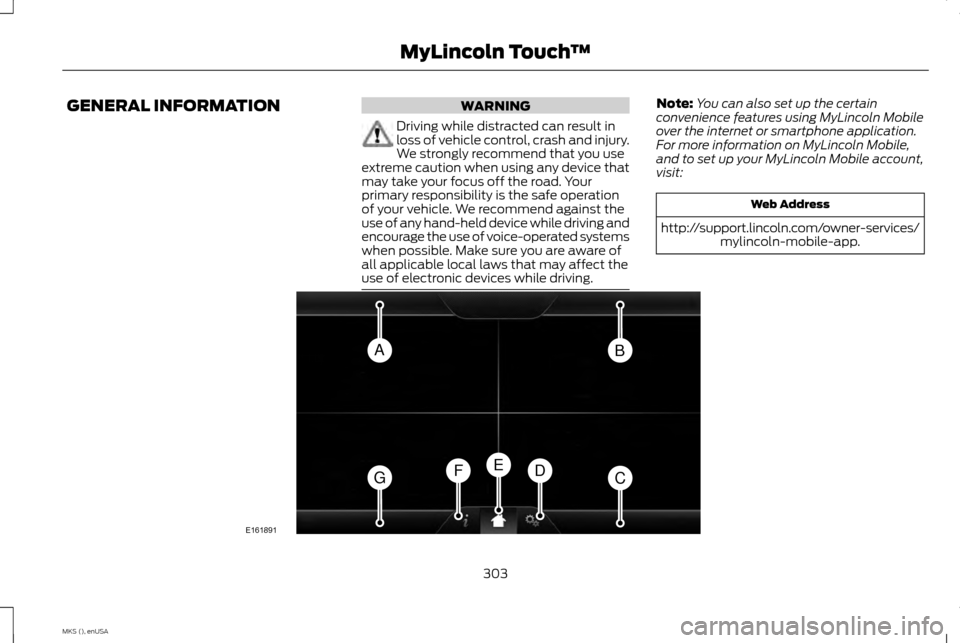
GENERAL INFORMATION WARNING
Driving while distracted can result in
loss of vehicle control, crash and injury.
We strongly recommend that you use
extreme caution when using any device that
may take your focus off the road. Your
primary responsibility is the safe operation
of your vehicle. We recommend against the
use of any hand-held device while driving and
encourage the use of voice-operated systems
when possible. Make sure you are aware of
all applicable local laws that may affect the
use of electronic devices while driving. Note:
You can also set up the certain
convenience features using MyLincoln Mobile
over the internet or smartphone application.
For more information on MyLincoln Mobile,
and to set up your MyLincoln Mobile account,
visit: Web Address
http://support.lincoln.com/owner-services/ mylincoln-mobile-app. 303
MKS (), enUSA MyLincoln Touch
™AB
GCDFE
E161891
Page 309 of 424
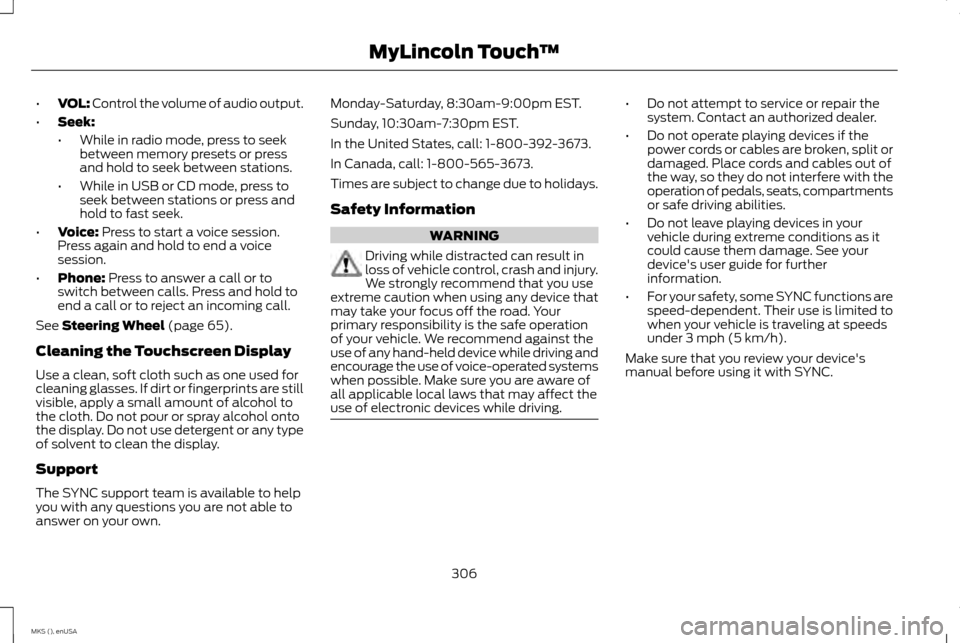
•
VOL: Control the volume of audio output.
• Seek:
•While in radio mode, press to seek
between memory presets or press
and hold to seek between stations.
• While in USB or CD mode, press to
seek between stations or press and
hold to fast seek.
• Voice: Press to start a voice session.
Press again and hold to end a voice
session.
• Phone:
Press to answer a call or to
switch between calls. Press and hold to
end a call or to reject an incoming call.
See
Steering Wheel (page 65).
Cleaning the Touchscreen Display
Use a clean, soft cloth such as one used for
cleaning glasses. If dirt or fingerprints are still
visible, apply a small amount of alcohol to
the cloth. Do not pour or spray alcohol onto
the display. Do not use detergent or any type
of solvent to clean the display.
Support
The SYNC support team is available to help
you with any questions you are not able to
answer on your own. Monday-Saturday, 8:30am-9:00pm EST.
Sunday, 10:30am-7:30pm EST.
In the United States, call: 1-800-392-3673.
In Canada, call: 1-800-565-3673.
Times are subject to change due to holidays.
Safety Information
WARNING
Driving while distracted can result in
loss of vehicle control, crash and injury.
We strongly recommend that you use
extreme caution when using any device that
may take your focus off the road. Your
primary responsibility is the safe operation
of your vehicle. We recommend against the
use of any hand-held device while driving and
encourage the use of voice-operated systems
when possible. Make sure you are aware of
all applicable local laws that may affect the
use of electronic devices while driving. •
Do not attempt to service or repair the
system. Contact an authorized dealer.
• Do not operate playing devices if the
power cords or cables are broken, split or
damaged. Place cords and cables out of
the way, so they do not interfere with the
operation of pedals, seats, compartments
or safe driving abilities.
• Do not leave playing devices in your
vehicle during extreme conditions as it
could cause them damage. See your
device's user guide for further
information.
• For your safety, some SYNC functions are
speed-dependent. Their use is limited to
when your vehicle is traveling at speeds
under 3 mph (5 km/h).
Make sure that you review your device's
manual before using it with SYNC.
306
MKS (), enUSA MyLincoln Touch
™
Page 323 of 424
Navigation
Have the system display any smog alerts.
Have the system display weather warnings.
Have the system display where there may be reduced visibility.
Have the system turn on your radio for traffic announcements.
Have the system avoid traffic problems automatically.
Switch traffic alert notifications on and off.
Have the system display accident icons.
Have the system display traffic jam icons.
Have the system display closed roads.
Enter specific areas that you would like to avoid on planned navigation routes.
Avoid Areas
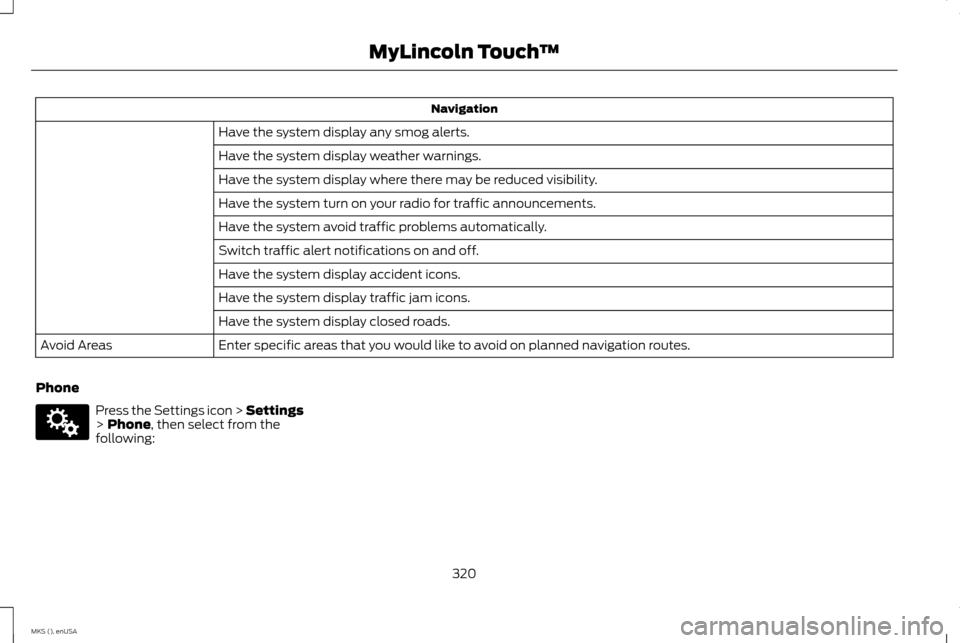
Phone Press the Settings icon > Settings
> Phone, then select from the
following:
320
MKS (), enUSA MyLincoln Touch
™E142607
Page 324 of 424
Phone
Connect, disconnect, add or delete a device, as well as save it as a favorite.
Bluetooth Devices
Switch Bluetooth on and off.
Bluetooth
Have all calls go directly to your voice mail and not ring inside your vehicle. With this feature switched on, text
message notifications are also suppressed and do not ring inside your vehicle.
Do Not Disturb
Switch on or switch off the 911 Assist feature. See Information (page 351).
911 Assist
Select the type of notification for phone calls - ring tone, beep, text to speech, or have it be silent.
Phone Ringer
Select the type of notification for text messages - alert tone, beep, text to speech, or have it be silent.
Text Message Notification
If compatible with your phone, you can adjust your internet data connection. Select to make your connection
profile with the personal area network or to switch off your connection. You can also choose to adjust your
settings or have the system always connect, never connect when roaming or query on connect. Press ? for more
information.
Internet Data Connection
Access features, such as automatic phonebook download, re-download your phonebook, add contacts from
your phone as well as delete or upload your phonebook.
Manage Phonebook
Have the system alert you when in Roaming mode.
Roaming Warning
321
MKS (), enUSA MyLincoln Touch
™
Page 345 of 424
"BROWSE"
"Genre
"Playlist
"Podcast
"TV show
"Video
"Video playlist
"Video podcast
"Help"
* This command is only available in USB
mode and is device-dependent.
Supported Media Players, Formats
and Metadata Information
SYNC is capable of hosting nearly any digital
media player, including iPod, Zune ™, plays
from device players, and most USB drives.
Supported audio formats include MP3, WMA,
WAV and AAC. It is also able to organize your indexed media
from your playing device by metadata tags.
Metadata tags, which are descriptive
software identifiers embedded in the media
files, provide information about the file.
If your indexed media files contain no
information embedded in these metadata
tags, SYNC may classify the empty metadata
tags as Unknown.
In order to playback video from your iPod or
iPhone, you must have a special combination
USB/RCA composite video cable (which you
can buy from Apple). When you connect the
cable to your iPod or iPhone, plug the other
end into both the RCA jacks and the USB
port.
Bluetooth Audio
Your system allows you to stream audio over
your vehicle's speakers from your connected,
Bluetooth-enabled cellular phone. To access, press the lower left
corner on the touchscreen, then
select the
BT Stereo tab.Bluetooth Audio Voice Commands If you are listening to a Bluetooth
audio device, press the voice
button on the steering wheel
control. When prompted, say "Next song",
"Pause", "Play" or "Previous song".
If you are not listening to a Bluetooth audio
device, press the voice button and, after the
tone, say "Next song", "Pause", "Play" or
"Previous song".
A/V Inputs WARNINGS
Driving while distracted can result in
loss of vehicle control, crash and injury.
We strongly recommend that you use
extreme caution when using any device that
may take your focus off the road. Your
primary responsibility is the safe operation
of your vehicle. We recommend against the
use of any handheld device while driving and
encourage the use of voice-operated systems
when possible. Make sure you are aware of
all applicable local laws that may affect the
use of electronic devices while driving. For safety reasons, do not connect or
adjust the settings on your portable
music player while your vehicle is
moving.
342
MKS (), enUSA MyLincoln Touch
™E142611 E142599
Page 346 of 424
WARNINGS
Store the portable music player in a
secure location, such as the center
console or the glove box, when your
vehicle is moving. Hard objects may become
projectiles in a crash or sudden stop, which
may increase the risk of serious injury. The
audio extension cable must be long enough
to allow the portable music player to be
safely stored while your vehicle is moving. Your A/V inputs allow you to connect an
auxiliary audio/video source (such as a
gaming systems or a personal camcorder)
by connecting RCA cords (not included) to
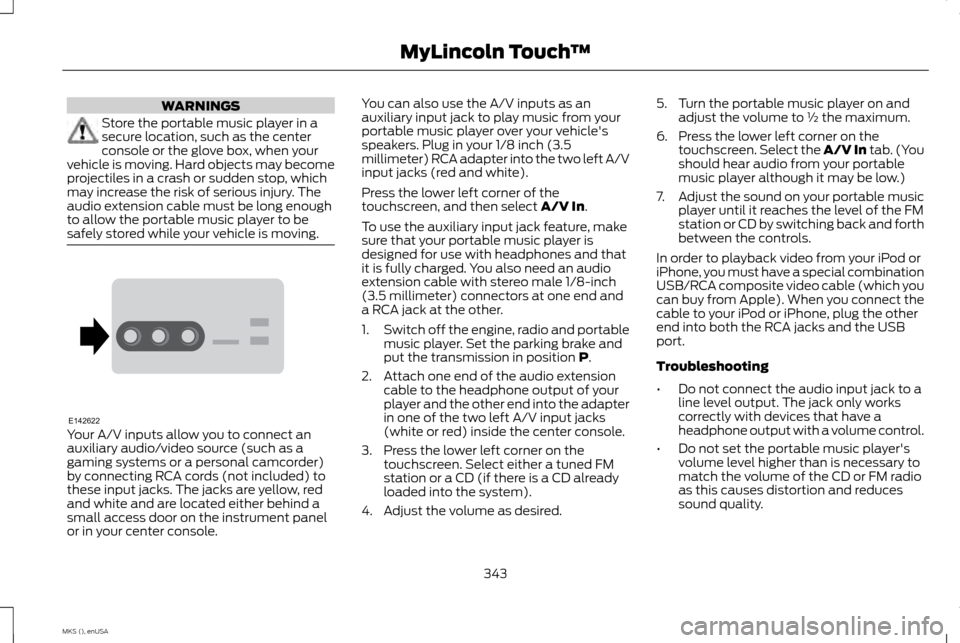
these input jacks. The jacks are yellow, red
and white and are located either behind a
small access door on the instrument panel
or in your center console. You can also use the A/V inputs as an
auxiliary input jack to play music from your
portable music player over your vehicle's
speakers. Plug in your 1/8 inch (3.5
millimeter) RCA adapter into the two left A/V
input jacks (red and white).
Press the lower left corner of the
touchscreen, and then select A/V In.
To use the auxiliary input jack feature, make
sure that your portable music player is
designed for use with headphones and that
it is fully charged. You also need an audio
extension cable with stereo male 1/8-inch
(3.5 millimeter) connectors at one end and
a RCA jack at the other.
1. Switch off the engine, radio and portable
music player. Set the parking brake and
put the transmission in position
P.
2. Attach one end of the audio extension cable to the headphone output of your
player and the other end into the adapter
in one of the two left A/V input jacks
(white or red) inside the center console.
3. Press the lower left corner on the touchscreen. Select either a tuned FM
station or a CD (if there is a CD already
loaded into the system).
4. Adjust the volume as desired. 5. Turn the portable music player on and
adjust the volume to ½ the maximum.
6. Press the lower left corner on the touchscreen. Select the A/V In tab. (You
should hear audio from your portable
music player although it may be low.)
7. Adjust the sound on your portable music
player until it reaches the level of the FM
station or CD by switching back and forth
between the controls.
In order to playback video from your iPod or
iPhone, you must have a special combination
USB/RCA composite video cable (which you
can buy from Apple). When you connect the
cable to your iPod or iPhone, plug the other
end into both the RCA jacks and the USB
port.
Troubleshooting
• Do not connect the audio input jack to a
line level output. The jack only works
correctly with devices that have a
headphone output with a volume control.
• Do not set the portable music player's
volume level higher than is necessary to
match the volume of the CD or FM radio
as this causes distortion and reduces
sound quality.
343
MKS (), enUSA MyLincoln Touch
™E142622
Page 348 of 424
Phone
A
Quick Dial
B
Phonebook
C
History
D
Messaging
E
Settings
F
Hands-free calling is one of the main features
of SYNC. Once you pair your phone, you can
access many options using the touchscreen
or voice commands. While the system
supports a variety of features, many are
dependent on your cellular phone ’s
functionality.
At a minimum, most cellular phones with
Bluetooth wireless technology support the
following functions:
• Answering an incoming call.
• Ending a call.
• Using privacy mode.
• Dialing a number.
• Redialing.
• Call waiting notification.
• Caller ID. Other features, such as text messaging using
Bluetooth and automatic phonebook
download, are phone-dependent features.
To check your phone
’s compatibility, see your
device ’s manual and visit
www.SYNCMyRide.com,
www.SYNCMyRide.ca or
www.syncmaroute.ca. Pairing Your Phone for the First Time WARNING
Driving while distracted can result in
loss of vehicle control, crash and injury.
We strongly recommend that you use
extreme caution when using any device that
may take your focus off the road. Your
primary responsibility is the safe operation
of your vehicle. We recommend against the
use of any hand-held device while driving and
encourage the use of voice-operated systems
when possible. Make sure you are aware of
all applicable local laws that may affect the
use of electronic devices while driving The first thing you must do to use the phone
features of SYNC is to pair your
Bluetooth-enabled cellular phone with SYNC.
This allows you to use your phone in a
hands-free manner.
345
MKS (), enUSA MyLincoln Touch
™
Page 352 of 424
911 Assist
Switch on or switch off the 911 Assist feature.
See Information (page 351).
Phone Ringer
Select the ring tone you want to hear when
you receive a call. Choose from possible
system ring tones, your currently paired
phone ’s ring tone, a beep, text-to-speech or
a silent notification.
Text Message Notification
Select a text message notification, if
supported by your phone. Choose from
possible system alert tones, text-to-speech
or silent.
Internet Data Connection
If your phone is compatible, use this screen
to adjust your internet data connection.
Select to make your connection profile with
the personal area network or to switch off
your connection. You can also choose to
adjust your settings or have the system
always connect, never connect when roaming
or query on connect. Press
? for more
information. Manage Phonebook
Touch this button to access features such as
automatic phonebook download,
re-download your phonebook, add contacts
from your phone as well as delete or upload
your phonebook.
Roaming Warning
Touch this button to have the system alert
you when your phone is in roaming mode.
Phone Voice Commands
Press the voice button on the
steering wheel controls. When
prompted, say any of the following
commands: "PHONE"
"Call"
"Call
"Call
"Call
"Call voicemail" "Dial"
"Do not disturb off" "Do not disturb on"
"Forward text messages"
"Go to hands free" *
"Hold call off" *
"Hold on" *
"Join calls" *
"Listen to text message <#>" "Listen to text messages"
"Messages" **
"Mute call" *
"Pair phone"
"Privacy on" *
"Read text message"
349
MKS (), enUSA MyLincoln Touch
™E142599
Page 358 of 424
Sirius Travel Link (If Equipped)
WARNING
Driving while distracted can result in
loss of vehicle control, crash and injury.
We strongly recommend that you use
extreme caution when using any device that
may take your focus off the road. Your
primary responsibility is the safe operation
of your vehicle. We recommend against the
use of any handheld device while driving and
encourage the use of voice-operated systems
when possible. Make sure you are aware of
all applicable local laws that may affect the
use of electronic devices while driving. Note:
In order to use Sirius Travel Link, your
vehicle must be equipped with navigation and
your navigation SD card must be in the SD card
slot.
Note: A paid subscription is required to access
and use these features. Go to
www.siriusxm.com/travellink for more
information.
Note: Visit www.siriusxm.com/traffic# and
click on Coverage map and details for a
complete listing of all traffic areas covered by
Sirius Travel Link. Note:
Neither Sirius nor Ford is responsible for
any errors or inaccuracies in the Sirius Travel
Link services or its use in vehicles.
When you subscribe to Sirius Travel Link, it
can help you locate the best gas prices, find
movie listings, get current traffic alerts, view
the current weather map, get accurate ski
conditions and see scores to current sports
games. If your vehicle is equipped with
Navigation, touch the i
(Information) button to access
these features. If your vehicle is not equipped
with Navigation, touch the corner of the
touchscreen with the green tab.
Traffic On Route and Traffic Nearby
Touch these buttons to identify traffic
incidents on your route, nearby your vehicle ’s
current location or near any of your favorite
places, if programmed.
Fuel Prices
Touch this button to view fuel prices at
stations close to your vehicle ’s location or on
an active navigation route. Movie Listings
Touch this button to view nearby movie
theaters and their show times, if available.
Weather
Touch this button to view the nearby
weather, current weather, or the five day
forecast for the chosen area. Select
Map to
see the weather map, which can show
storms, radar information, charts and winds.
Select
Area to select from a listing of
weather locations.
Sports Info
Touch this button to view scores and
schedules from a variety of sports. You can
also save up to 10 favorite teams for easier
access. The score automatically refreshes
when a game is in progress.
Ski Conditions
Touch this button to view ski conditions for
a specific area.
Sirius Travel Link Voice Commands Press the voice button on the
steering wheel controls. When
prompted, say any of the following
commands:
355
MKS (), enUSA MyLincoln Touch
™E142608 E142599
Page 360 of 424
Additional sports-related voice commands
"Motor sports schedule""My team headlines"
"My teams schedule" "My teams scores""NBA headlines""NBA schedule" "NBA scores"
"NFL headlines" "NFL schedule" "NFL scores"
"NHL headlines" "NHL schedule" "NHL scores"
"WNBA headlines" "WNBA schedule" "WNBA scores" "Help" Alerts If your vehicle is equipped with
Navigation, touch the i
(Information) button to access
these features. If your vehicle is not equipped
with Navigation, touch the corner of the
touchscreen with the green tab.
Press Alerts, and then choose from any of
the following services:
• View
the complete message
• Delete
the message
• Delete All
messages
This screen displays any system messages
(such as an SD card fault).
Note: The system alerts you to any messages
by turning the information icon yellow. After
you read or delete the messages, the icon
returns to white.
Calendar If your vehicle is equipped with
Navigation, touch the i
(Information) button to access
these features. If your vehicle is not equipped
with Navigation, touch the corner of the
touchscreen with the green tab. Press
Calendar. You can view the current
calendar by day, week or month.
911 Assist
(If Equipped) WARNINGS
Unless the 911 Assist setting is set on
before a crash, the system will not dial
for help, which could delay response
time, potentially increasing the risk of serious
injury or death after a crash. Do not wait for 911 Assist to make an
emergency call if you can do it yourself.
Dial emergency services immediately
to avoid delayed response time, which could
increase the risk of serious injury or death
after a crash. If you do not hear 911 Assist
within five seconds of the crash, the system
or phone may be damaged or non-functional. Always place your phone in a secure
location in your vehicle so it does not
become a projectile or damaged in a
crash. Failure to do so may cause serious
injury to someone or damage the phone,
which could prevent 911 Assist from working
properly. Note:
The SYNC 911 Assist feature must be
set on prior to the incident.
357
MKS (), enUSA MyLincoln Touch
™E142608 E142608