buttons LINCOLN MKS 2015 User Guide
[x] Cancel search | Manufacturer: LINCOLN, Model Year: 2015, Model line: MKS, Model: LINCOLN MKS 2015Pages: 424, PDF Size: 3.96 MB
Page 124 of 424
1. Press and hold the outer two function
buttons simultaneously for approximately
20 seconds until the indicator lights
above the buttons flash rapidly.
2. When the indicator lights flash, release the buttons. The codes for all buttons are
erased.
Reprogramming a Single Button
To program a device to a previously trained
button, follow these steps:
1. Press and hold the desired button. Do NOT release the button.
2. The indicator light will begin to flash after
20 seconds. Without releasing the button,
follow Step 1 in the Programming section.
For questions or comments, contact
HomeLink at www.homelink.com or
1-800-355-3515.
Programming to a Genie Intellicode 2
Garage Door Opener
Note: The Genie Intellicode 2 transmitter must
already be programmed to operate with the
garage door opener.
Note: To program HomeLink to the
transmitter you must first put the transmitter
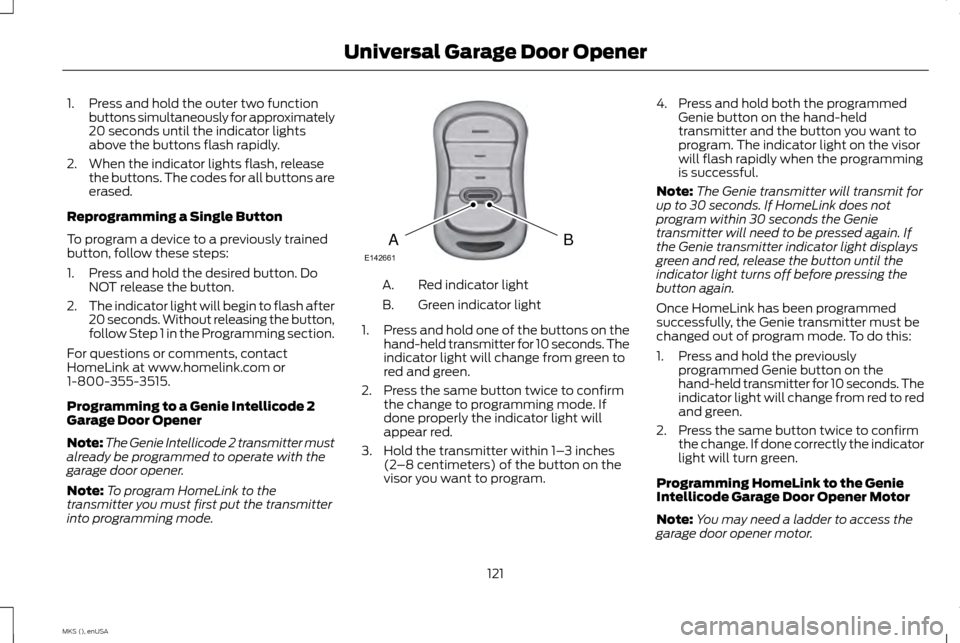
into programming mode. Red indicator light
A.
Green indicator light
B.
1. Press and hold one of the buttons on the
hand-held transmitter for 10 seconds. The
indicator light will change from green to
red and green.
2. Press the same button twice to confirm the change to programming mode. If
done properly the indicator light will
appear red.
3. Hold the transmitter within 1– 3 inches
(2 –8 centimeters) of the button on the
visor you want to program. 4. Press and hold both the programmed
Genie button on the hand-held
transmitter and the button you want to
program. The indicator light on the visor
will flash rapidly when the programming
is successful.
Note: The Genie transmitter will transmit for
up to 30 seconds. If HomeLink does not
program within 30 seconds the Genie
transmitter will need to be pressed again. If
the Genie transmitter indicator light displays
green and red, release the button until the
indicator light turns off before pressing the
button again.
Once HomeLink has been programmed
successfully, the Genie transmitter must be
changed out of program mode. To do this:
1. Press and hold the previously programmed Genie button on the
hand-held transmitter for 10 seconds. The
indicator light will change from red to red
and green.
2. Press the same button twice to confirm the change. If done correctly the indicator
light will turn green.
Programming HomeLink to the Genie
Intellicode Garage Door Opener Motor
Note: You may need a ladder to access the
garage door opener motor.
121
MKS (), enUSA Universal Garage Door OpenerBAE142661
Page 125 of 424
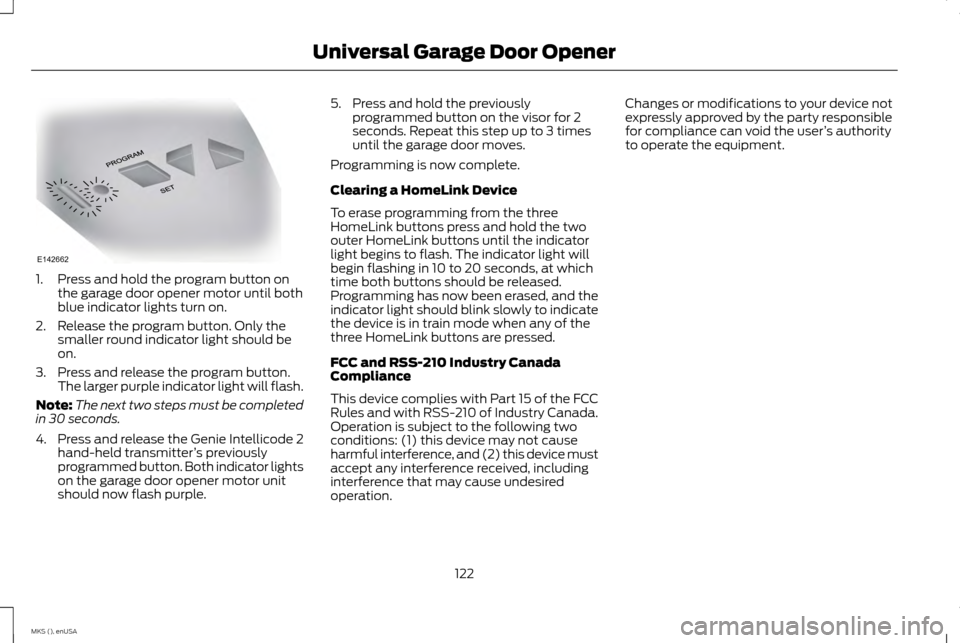
1. Press and hold the program button on
the garage door opener motor until both
blue indicator lights turn on.
2. Release the program button. Only the smaller round indicator light should be
on.
3. Press and release the program button. The larger purple indicator light will flash.
Note: The next two steps must be completed
in 30 seconds.
4. Press and release the Genie Intellicode 2 hand-held transmitter ’s previously
programmed button. Both indicator lights
on the garage door opener motor unit
should now flash purple. 5. Press and hold the previously
programmed button on the visor for 2
seconds. Repeat this step up to 3 times
until the garage door moves.
Programming is now complete.
Clearing a HomeLink Device
To erase programming from the three
HomeLink buttons press and hold the two
outer HomeLink buttons until the indicator
light begins to flash. The indicator light will
begin flashing in 10 to 20 seconds, at which
time both buttons should be released.
Programming has now been erased, and the
indicator light should blink slowly to indicate
the device is in train mode when any of the
three HomeLink buttons are pressed.
FCC and RSS-210 Industry Canada
Compliance
This device complies with Part 15 of the FCC
Rules and with RSS-210 of Industry Canada.
Operation is subject to the following two
conditions: (1) this device may not cause
harmful interference, and (2) this device must
accept any interference received, including
interference that may cause undesired
operation. Changes or modifications to your device not
expressly approved by the party responsible
for compliance can void the user
’s authority
to operate the equipment.
122
MKS (), enUSA Universal Garage Door OpenerE142662
Page 130 of 424
On: All electrical circuits are operational and
the warning lamps and indicators illuminate.
• Without applying the brake pedal, press
and release the button once.
Start:
Starts the engine.
• Press the brake pedal, and then press the
button for any length of time. An indicator
light on the button illuminates when then
ignition is on and when the engine starts.
STARTING A GASOLINE ENGINE
When you start the engine, the idle speed
increases, this helps to warm up the engine.
If the engine idle speed does not slow down
automatically, have your vehicle checked by
an authorized dealer. Note:
You can crank the engine for a total of
60 seconds (without the engine starting)
before the starting system temporarily
disables. The 60 seconds does not have to be
all at once. For example, if you crank the
engine three times for 20 seconds each time,
without the engine starting, you reached the
60-second time limit. A message appears in
the information display alerting you that you
exceeded the cranking time. You cannot
attempt to start the engine for at least 15
minutes. After 15 minutes, you are limited to a
15-second engine cranking time. You need to
wait 60 minutes before you can crank the
engine for 60 seconds again.
Before starting the engine, check the
following:
• Make sure all occupants have fastened
their safety belts.
• Make sure the headlamps and electrical
accessories are off.
• Make sure the parking brake is on.
• Put the transmission in park (P).
Note: Do not touch the accelerator pedal.
1. Fully press the brake pedal.
2. Press the button. The system does not function if:
•
The key frequencies are jammed.
• The key battery has no charge.
If you are unable to start the engine, do the
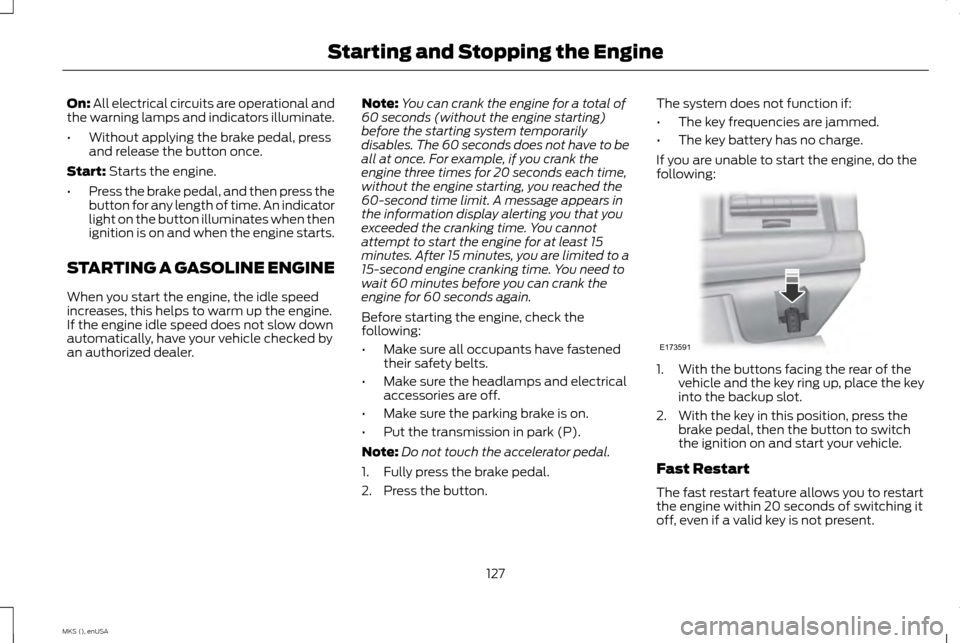
following: 1. With the buttons facing the rear of the
vehicle and the key ring up, place the key
into the backup slot.
2. With the key in this position, press the brake pedal, then the button to switch
the ignition on and start your vehicle.
Fast Restart
The fast restart feature allows you to restart
the engine within 20 seconds of switching it
off, even if a valid key is not present.
127
MKS (), enUSA Starting and Stopping the EngineE173591
Page 254 of 424
2. Press the locking buttons together.
3. Rotate and remove the wiper blade.
4. Install in the reverse order.
Note:
Make sure that the wiper blade locks
into place. Lower the wiper arm and blade
back to the windshield. The wiper arms will
automatically return to their normal position
when the ignition is turned on.
Replace wiper blades at least once per year
for optimum performance.
Poor wiper quality can be improved by
cleaning the wiper blades and the windshield. ADJUSTING THE HEADLAMPS
Vertical Aim Adjustment
The headlamps on your vehicle are properly
aimed at the assembly plant. If your vehicle
has been in an accident, have the alignment
of your headlamps checked by your
authorized dealer.
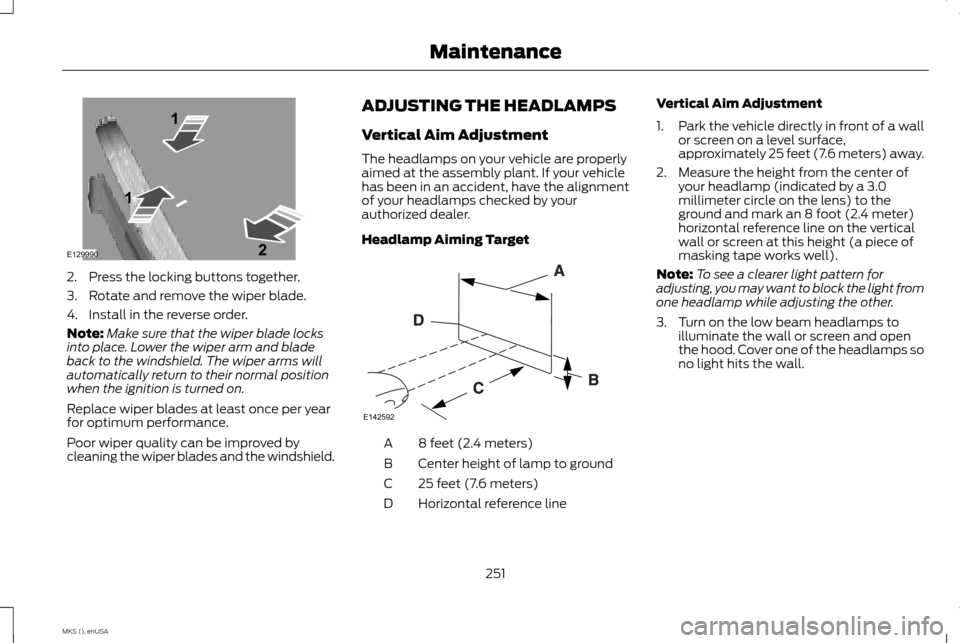
Headlamp Aiming Target
8 feet (2.4 meters)
A
Center height of lamp to ground
B
25 feet (7.6 meters)
C
Horizontal reference line
D Vertical Aim Adjustment
1.
Park the vehicle directly in front of a wall
or screen on a level surface,
approximately 25 feet (7.6 meters) away.
2. Measure the height from the center of your headlamp (indicated by a 3.0
millimeter circle on the lens) to the
ground and mark an 8 foot (2.4 meter)
horizontal reference line on the vertical
wall or screen at this height (a piece of
masking tape works well).
Note: To see a clearer light pattern for
adjusting, you may want to block the light from
one headlamp while adjusting the other.
3. Turn on the low beam headlamps to illuminate the wall or screen and open
the hood. Cover one of the headlamps so
no light hits the wall.
251
MKS (), enUSA MaintenanceE129990
1
1 2 E142592
Page 304 of 424
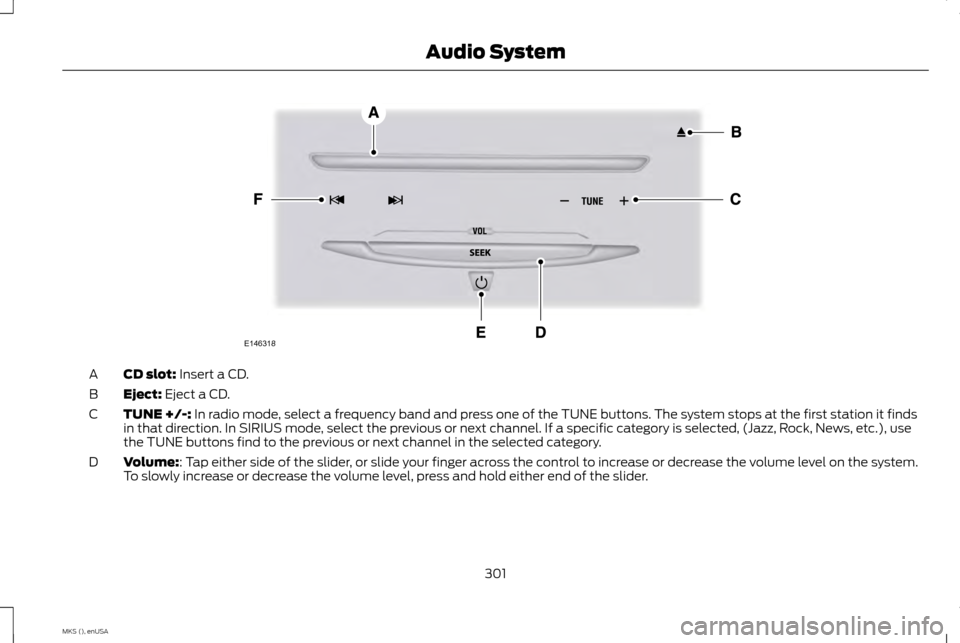
CD slot: Insert a CD.
A
Eject:
Eject a CD.
B
TUNE +/-:
In radio mode, select a frequency band and press one of the TUNE buttons. The system stops at the first station it finds
in that direction. In SIRIUS mode, select the previous or next channel. If a specific category is selected, (Jazz, Rock, News, etc.), use
the TUNE buttons find to the previous or next channel in the selected category.
C
Volume:
: Tap either side of the slider, or slide your finger across the control to increase or decrease the volume level on the system.
To slowly increase or decrease the volume level, press and hold either end of the slider.
D
301
MKS (), enUSA Audio SystemE146318
Page 308 of 424
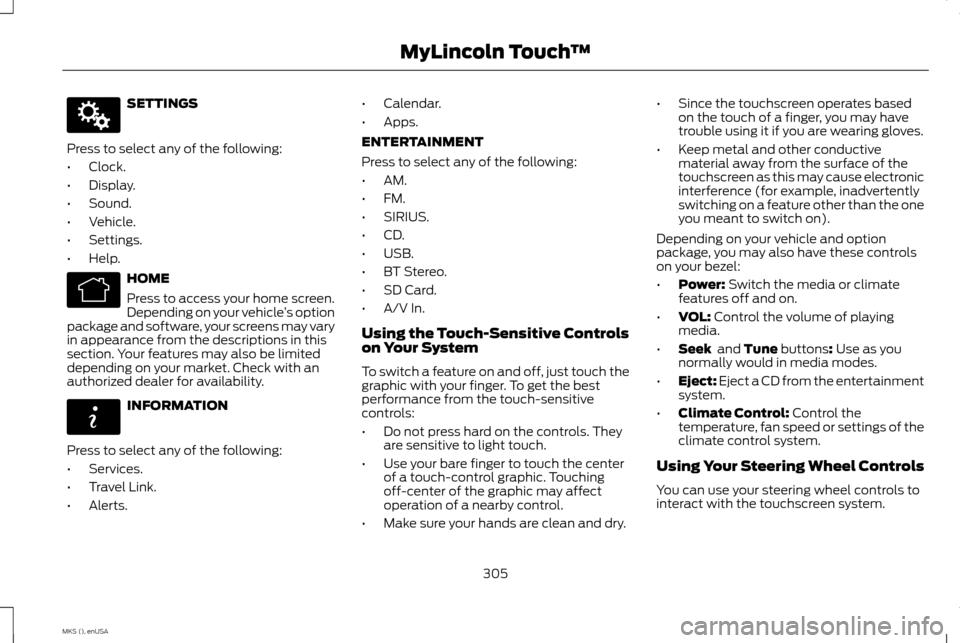
SETTINGS
Press to select any of the following:
• Clock.
• Display.
• Sound.
• Vehicle.
• Settings.
• Help. HOME
Press to access your home screen.
Depending on your vehicle
’s option
package and software, your screens may vary
in appearance from the descriptions in this
section. Your features may also be limited
depending on your market. Check with an
authorized dealer for availability. INFORMATION
Press to select any of the following:
• Services.
• Travel Link.
• Alerts. •
Calendar.
• Apps.
ENTERTAINMENT
Press to select any of the following:
• AM.
• FM.
• SIRIUS.
• CD.
• USB.
• BT Stereo.
• SD Card.
• A/V In.
Using the Touch-Sensitive Controls
on Your System
To switch a feature on and off, just touch the
graphic with your finger. To get the best
performance from the touch-sensitive
controls:
• Do not press hard on the controls. They
are sensitive to light touch.
• Use your bare finger to touch the center
of a touch-control graphic. Touching
off-center of the graphic may affect
operation of a nearby control.
• Make sure your hands are clean and dry. •
Since the touchscreen operates based
on the touch of a finger, you may have
trouble using it if you are wearing gloves.
• Keep metal and other conductive
material away from the surface of the
touchscreen as this may cause electronic
interference (for example, inadvertently
switching on a feature other than the one
you meant to switch on).
Depending on your vehicle and option
package, you may also have these controls
on your bezel:
• Power: Switch the media or climate
features off and on.
• VOL:
Control the volume of playing
media.
• Seek
and Tune buttons: Use as you
normally would in media modes.
• Eject:
Eject a CD from the entertainment
system.
• Climate Control:
Control the
temperature, fan speed or settings of the
climate control system.
Using Your Steering Wheel Controls
You can use your steering wheel controls to
interact with the touchscreen system.
305
MKS (), enUSA MyLincoln Touch
™E142607 E142613 E142608
Page 312 of 424
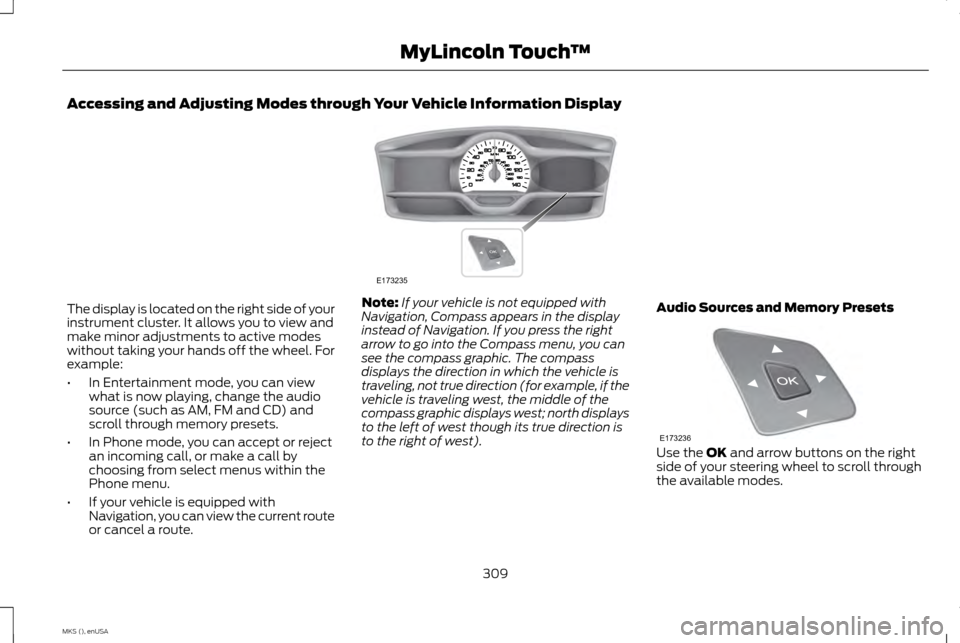
Accessing and Adjusting Modes through Your Vehicle Information Display
The display is located on the right side of your
instrument cluster. It allows you to view and
make minor adjustments to active modes
without taking your hands off the wheel. For
example:
•
In Entertainment mode, you can view
what is now playing, change the audio
source (such as AM, FM and CD) and
scroll through memory presets.
• In Phone mode, you can accept or reject
an incoming call, or make a call by
choosing from select menus within the
Phone menu.
• If your vehicle is equipped with
Navigation, you can view the current route
or cancel a route. Note:
If your vehicle is not equipped with
Navigation, Compass appears in the display
instead of Navigation. If you press the right
arrow to go into the Compass menu, you can
see the compass graphic. The compass
displays the direction in which the vehicle is
traveling, not true direction (for example, if the
vehicle is traveling west, the middle of the
compass graphic displays west; north displays
to the left of west though its true direction is
to the right of west). Audio Sources and Memory Presets Use the OK and arrow buttons on the right
side of your steering wheel to scroll through
the available modes.
309
MKS (), enUSA MyLincoln Touch
™E173235 E173236
Page 327 of 424
Help
View your vehicle's current location if your vehicle is equipped with navigation. If your vehicle is not equipped
with navigation, you do not see this button.
Where Am I?
Touchscreen system serial number
System Information
Your vehicle identification number (VIN)
Touchscreen system software version
Navigation system version
Map database version
Sirius satellite radio ESN
Gracenote Database Information and Library version
View the licenses for any software and applications installed on your system.
Software Licenses
Certain features are not accessible when your vehicle is moving.
Driving Restrictions
Switch on and switch off the 911 Assist feature. See Information (page 351).
911 Assist
In Case of Emergency (ICE) Quick Dial: allows you to save up to two numbers as ICE contacts for quick
access if there is an emergency. Select Edit to access your phonebook and then select the desired contacts.
The numbers then appear as options on this screen for the ICE 1 and ICE 2 buttons. The ICE contacts you select
appear at the end of the 911 Assist call process.
View categorized lists of voice commands.
Voice Command List
324
MKS (), enUSA MyLincoln Touch
™
Page 329 of 424
USBE
Touch this button to scroll down for more options, such as SD Card, BT Stereo and A/V In
F
These buttons change with the media mode you are in.
G
Radio memory presets and CD controls.
H
Note: Some features may not be available in
your area. Contact an authorized dealer for
more information.
You can access these options using the
touchscreen or voice commands.
Browsing Device Content
When listening to audio on a device, you can
browse through other devices without having
to change sources. For example, if you are
currently listening to audio on an SD card,
you can browse all the artists that are stored
on your USB device. Press the voice icon on the steering
wheel. When prompted, you can
say: "BROWSE" within devices
"Browse" *
"Browse
"Browse
"Browse SD card"
"Browse Sirius channel guide" **
"Browse USB" "Help"
* If you only say, "Browse", you can then say
any commands in the following chart.
** This command is only usable if you have an
active subscription to Sirius satellite radio. "BROWSE"
"
"
"SD card" **
"Sirius Channel Guide" *
"USB" **
"Help"
* This command is only usable if you have an
active subscription to Sirius satellite radio.
** For more commands in SD card or USB
mode, see the "SD Card and USB Port"
section of this chapter.
326
MKS (), enUSA MyLincoln Touch
™E142599
Page 336 of 424
"TUNE"
"AM autoset preset <#>" "AM preset <#>" "FM"
"FM <87.9-107.9>"
"FM <87.9-107.9> HD <#>" *
"FM autoset"
"FM autoset preset <#>" "FM preset <#>" "FM 1"
"FM 1 preset <#>" "FM 2"
"FM 2 preset <#>"
"HD <#>" *
"Preset <#>" "Help"
* If available. Sirius® Satellite Radio (If Activated) Press the lower left corner of the
touchscreen, and then select the
SIRIUS tab.
Memory Presets
Save a channel by pressing and holding one
of the memory preset areas. There is a brief
mute while the radio saves the channel.
Sound returns when finished.
ALERT
Save the current song, artist, or team as a
favorite. The system alerts you when it plays
again on any channel.
Replay
Replay audio on the current channel. You can
replay approximately 45 minutes of audio as
long as you have remained tuned to the
current station. Changing stations erases the
previous audio.
While in replay mode:
• Press and release the seek buttons to
hear the previous or next song.
• Press and hold the seek buttons to
reverse or fast forward in the current
track. •
Press play or pause to play or pause the
audio.
• Press
Replay to return to live audio if you
have been using the feature to replay
audio.
Scan
Touch this button to hear a brief sampling of
channels.
Options
Touch this button to view and adjust various
media settings.
Sound Settings
Touch this button to adjust settings for:
• Bass
• Midrange
• Treble
• Balance and Fade
• THX Deep Note Demo
• DSP (Digital Signal processing)
• Occupancy Mode
• Speed Compensated Volume.
Note: Your vehicle may not have all these
sound settings.
333
MKS (), enUSA MyLincoln Touch
™E142611