instrument panel LINCOLN MKS 2015 User Guide
[x] Cancel search | Manufacturer: LINCOLN, Model Year: 2015, Model line: MKS, Model: LINCOLN MKS 2015Pages: 424, PDF Size: 3.96 MB
Page 163 of 424
REAR VIEW CAMERA (If Equipped)
WARNINGS
The rear view camera system is a
reverse aid supplement device that still
requires the driver to use it in
conjunction with the interior and exterior
mirrors for maximum coverage. Objects that are close to either corner
of the bumper or under the bumper,
might not be seen on the screen due to
the limited coverage of the camera system. Back up as slow as possible since
higher speeds might limit your reaction
time to stop the vehicle.
Use caution when using the rear video
camera and the trunk is ajar. If the trunk
is ajar, the camera will be out of
position and the video image may be
incorrect. All guidelines (if enabled) have
been removed when the trunk is ajar. Use caution when turning camera
features on or off while in R (Reverse).
Make sure the vehicle is not moving. The rear view camera system provides a
video image of the area behind your vehicle.
The image will display in either the rear view
mirror or the display in the center of the
instrument panel.
During operation, lines will appear in the
display that represent your vehicle
’s path and
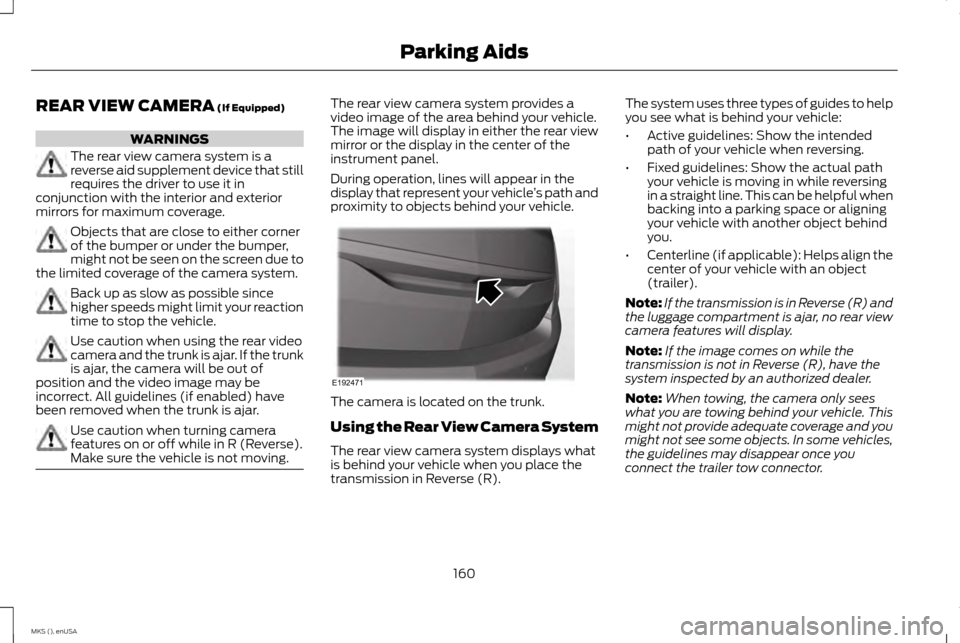
proximity to objects behind your vehicle. The camera is located on the trunk.
Using the Rear View Camera System
The rear view camera system displays what
is behind your vehicle when you place the
transmission in Reverse (R).The system uses three types of guides to help
you see what is behind your vehicle:
•
Active guidelines: Show the intended
path of your vehicle when reversing.
• Fixed guidelines: Show the actual path
your vehicle is moving in while reversing
in a straight line. This can be helpful when
backing into a parking space or aligning
your vehicle with another object behind
you.
• Centerline (if applicable): Helps align the
center of your vehicle with an object
(trailer).
Note: If the transmission is in Reverse (R) and
the luggage compartment is ajar, no rear view
camera features will display.
Note: If the image comes on while the
transmission is not in Reverse (R), have the
system inspected by an authorized dealer.
Note: When towing, the camera only sees
what you are towing behind your vehicle. This
might not provide adequate coverage and you
might not see some objects. In some vehicles,
the guidelines may disappear once you
connect the trailer tow connector.
160
MKS (), enUSA Parking AidsE192471
Page 211 of 424
driving, logging, autocross and any other form
of off-road use. Well maintained roads and
surfaces help ensure safe travel for the
Supplier, and allow their representatives to
perform service as per the standard operating
procedures.
In Remote Locations
If our supplier cannot take your vehicle by
road to the nearest authorized dealership,
transportation by rail or water may be
necessary. The program covers a tow to the
dock or rail terminal and also to the
dealership at the end of the trip.
For rail or water transportation, however,
contact your authorized dealer to confirm if
you are eligible for additional coverage before
you authorize or pay for the service.
Call the Lincoln Roadside Assistance at
1-800-387-9333 for additional information.
Vehicles Sold In Canada: Using
Roadside Assistance
Canadian Roadside coverage and benefits
may differ from the United States coverage.
Please refer to your warranty information or
visit our website at www.lincolncanada.com
for information on Canadian services and
benefits.
Canadian clients who need to obtain roadside
information, call 1-800-387-9333 or visit our
website at www.lincolncanada.com.
HAZARD WARNING FLASHERS
Note:
If used when the vehicle is not running,
the battery will lose charge. There may be
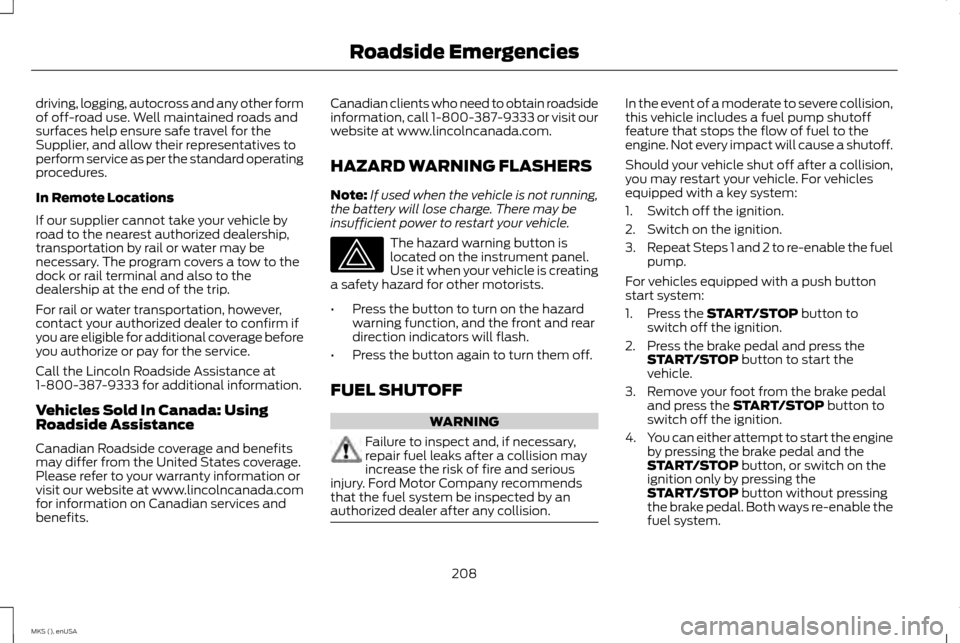
insufficient power to restart your vehicle. The hazard warning button is
located on the instrument panel.
Use it when your vehicle is creating
a safety hazard for other motorists.
• Press the button to turn on the hazard
warning function, and the front and rear
direction indicators will flash.
• Press the button again to turn them off.
FUEL SHUTOFF WARNING
Failure to inspect and, if necessary,
repair fuel leaks after a collision may
increase the risk of fire and serious
injury. Ford Motor Company recommends
that the fuel system be inspected by an
authorized dealer after any collision. In the event of a moderate to severe collision,
this vehicle includes a fuel pump shutoff
feature that stops the flow of fuel to the
engine. Not every impact will cause a shutoff.
Should your vehicle shut off after a collision,
you may restart your vehicle. For vehicles
equipped with a key system:
1. Switch off the ignition.
2. Switch on the ignition.
3.
Repeat Steps 1 and 2 to re-enable the fuel
pump.
For vehicles equipped with a push button
start system:
1. Press the START/STOP button to
switch off the ignition.
2. Press the brake pedal and press the START/STOP
button to start the
vehicle.
3. Remove your foot from the brake pedal and press the
START/STOP button to
switch off the ignition.
4. You can either attempt to start the engine
by pressing the brake pedal and the
START/STOP
button, or switch on the
ignition only by pressing the
START/STOP
button without pressing
the brake pedal. Both ways re-enable the
fuel system.
208
MKS (), enUSA Roadside Emergencies
Page 229 of 424
Protected components
Fuse amp rating
Fuse or relay number
Not used.
-
97
Not used.
-
98
1 Mini Fuses
2 Cartridge Fuses
Passenger Compartment Fuse Panel
The fuse panel is under the instrument panel
to the left of the steering wheel. You may
need to remove a trim panel to access it.
226
MKS (), enUSA Fuses
Page 237 of 424
GENERAL INFORMATION
Have your vehicle serviced regularly to help
maintain its roadworthiness and resale value.
There is a large network of authorized dealers
that are there to help you with their
professional servicing expertise. We believe
that their specially trained technicians are
best qualified to service your vehicle properly
and expertly. They are supported by a wide
range of highly specialized tools developed
specifically for servicing your vehicle.
To help you service your vehicle, we provide
scheduled maintenance information which
makes tracking routine service easy. See
Scheduled Maintenance (page 392).
If your vehicle requires professional service,
an authorized dealer can provide the
necessary parts and service. Check your
warranty information to find out which parts
and services are covered.
Use only recommended fuels, lubricants,
fluids and service parts conforming to
specifications. Motorcraft® parts are
designed and built to provide the best
performance in your vehicle. Precautions
•
Do not work on a hot engine.
• Make sure that nothing gets caught in
moving parts.
• Do not work on a vehicle with the engine
running in an enclosed space, unless you
are sure you have enough ventilation.
• Keep all open flames and other burning
material (such as cigarettes) away from
the battery and all fuel related parts.
Working with the Engine Off
1. Set the parking brake and shift to park (P).
2. Switch off the engine.
3. Block the wheels.
Working with the Engine On WARNING
To reduce the risk of vehicle damage
and/or personal burn injuries, do not
start your engine with the air cleaner
removed and do not remove it while the
engine is running. 1. Set the parking brake and shift to park
(P). 2. Block the wheels
OPENING AND CLOSING THE
HOOD
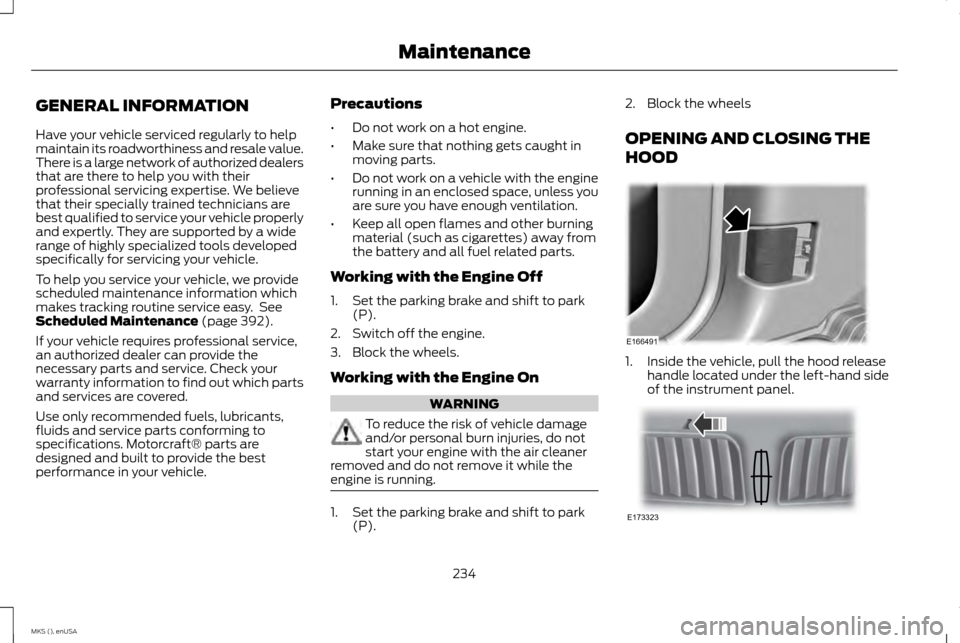
1. Inside the vehicle, pull the hood release
handle located under the left-hand side
of the instrument panel. 234
MKS (), enUSA MaintenanceE166491 E173323
Page 257 of 424
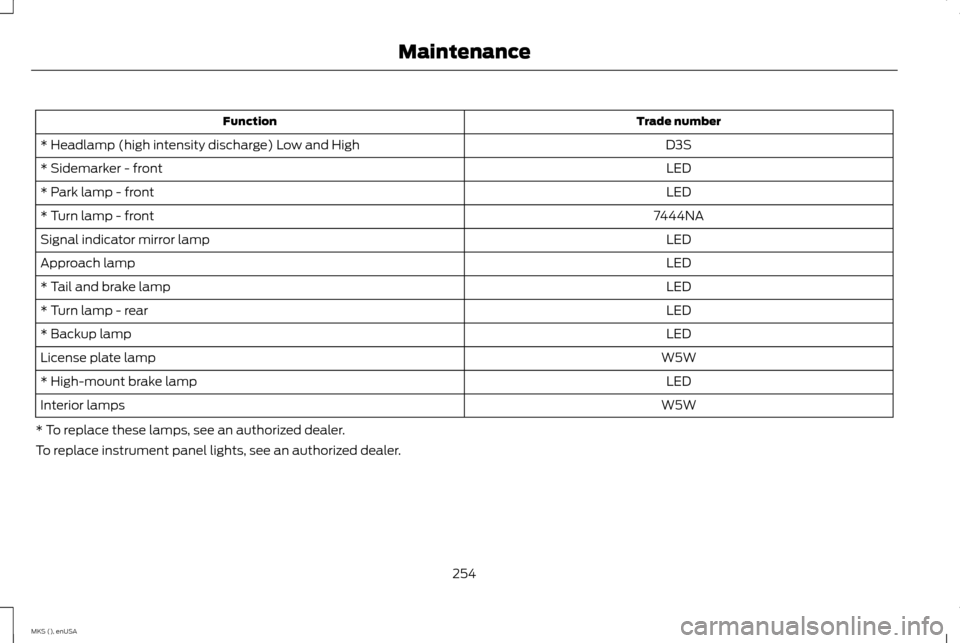
Trade number
Function
D3S
* Headlamp (high intensity discharge) Low and High
LED
* Sidemarker - front
LED
* Park lamp - front
7444NA
* Turn lamp - front
LED
Signal indicator mirror lamp
LED
Approach lamp
LED
* Tail and brake lamp
LED
* Turn lamp - rear
LED
* Backup lamp
W5W
License plate lamp
LED
* High-mount brake lamp
W5W
Interior lamps
* To replace these lamps, see an authorized dealer.
To replace instrument panel lights, see an authorized dealer.
254
MKS (), enUSA Maintenance
Page 263 of 424
•
If grease or tar is present on the material,
spot-clean the area first with Motorcraft
Spot and Stain Remover. In Canada, use
Motorcraft Multi-Purpose Cleaner.
• If a ring forms on the fabric after spot
cleaning, clean the entire area
immediately (but do not oversaturate)
or the ring will set.
• Do not use household cleaning products
or glass cleaners, which can stain and
discolor the fabric and affect the flame
retardant abilities of the seat materials.
CLEANING THE INSTRUMENT
PANEL AND INSTRUMENT
CLUSTER LENS WARNING
Do not use chemical solvents or strong
detergents when cleaning the steering
wheel or instrument panel to avoid
contamination of the airbag system. Note:
Follow the same procedure as cleaning
leather seats for cleaning leather instrument
panels and leather interior trim surfaces. See
Cleaning Leather Seats (page 260). Clean the instrument panel and cluster lens
with a clean, damp and soft cloth, then use
a clean, dry and soft cloth to dry these areas.
•
Avoid cleaners or polishes that increase
the gloss of the upper portion of the
instrument panel. The dull finish in this
area helps protect you from undesirable
windshield reflection.
• Do not use any household cleaning
products or glass cleaners as these may
damage the finish of the instrument
panel, interior trim and cluster lens.
• Wash or wipe your hands clean if you
have been in contact with certain
products such as insect repellent and
suntan lotion to avoid possible damage
to the interior painted surfaces.
• Do not allow air fresheners and hand
sanitizers to spill onto interior surfaces. If
a spill occurs, wipe off immediately. Your
warranty may not cover these damages.
If a staining liquid like coffee or juice has been
spilled on the instrument panel or on interior
trim surfaces:
1. Wipe up spilled liquid using a clean, soft cloth as quickly as possible. 2. Use Motorcraft Premium Leather and
Vinyl Cleaner or a commercially available
leather cleaning product for automotive
interiors. Test any cleaner or stain
remover on an inconspicuous area.
3. Alternatively, wipe the surface with a clean, soft cloth and a mild soap and
water solution. Dry the area with a clean,
soft cloth.
4. If necessary, apply more soap and water solution or cleaning product to a clean,
soft cloth and press it onto the soiled
area. Allow this to set at room
temperature for 30 minutes.
5. Remove the soaked cloth, then with a clean, damp cloth, use a rubbing motion
for 60 seconds on the soiled area.
6. Dry the area with a clean, soft cloth.
CLEANING LEATHER SEATS
(If
Equipped)
Note: Follow the same procedure as cleaning
leather seats for cleaning leather instrument
panels and leather interior trim surfaces.
For routine cleaning, wipe the surface with a
soft, damp cloth and a mild soap and water
solution. Dry the area with a clean, soft cloth.
260
MKS (), enUSA Vehicle Care
Page 294 of 424
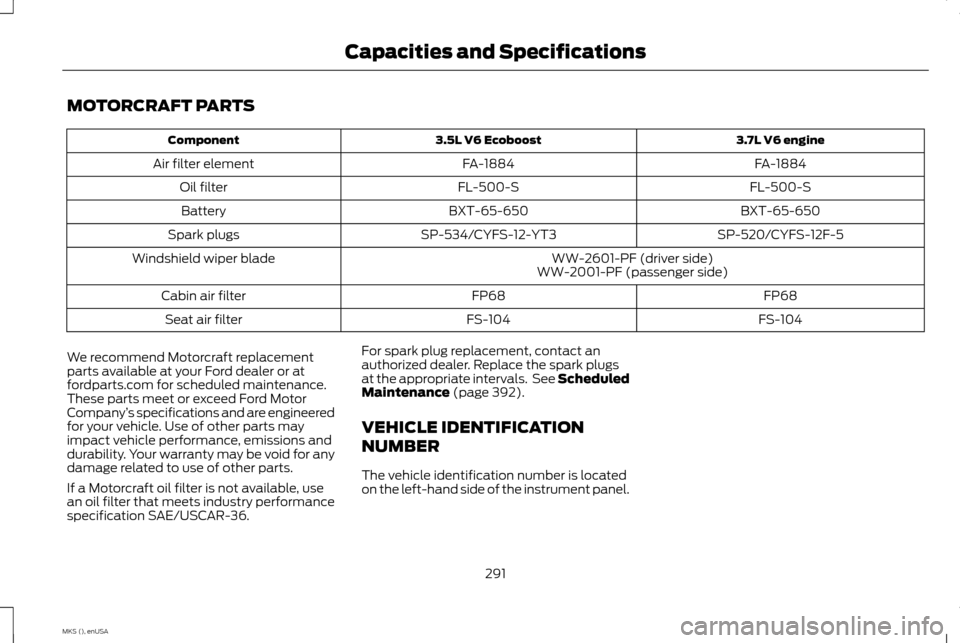
MOTORCRAFT PARTS
3.7L V6 engine
3.5L V6 Ecoboost
Component
FA-1884
FA-1884
Air filter element
FL-500-S
FL-500-S
Oil filter
BXT-65-650
BXT-65-650
Battery
SP-520/CYFS-12F-5
SP-534/CYFS-12-YT3
Spark plugs
WW-2601-PF (driver side)
Windshield wiper blade
WW-2001-PF (passenger side)
FP68
FP68
Cabin air filter
FS-104
FS-104
Seat air filter
We recommend Motorcraft replacement
parts available at your Ford dealer or at
fordparts.com for scheduled maintenance.
These parts meet or exceed Ford Motor
Company ’s specifications and are engineered
for your vehicle. Use of other parts may
impact vehicle performance, emissions and
durability. Your warranty may be void for any
damage related to use of other parts.
If a Motorcraft oil filter is not available, use
an oil filter that meets industry performance
specification SAE/USCAR-36. For spark plug replacement, contact an
authorized dealer. Replace the spark plugs
at the appropriate intervals. See Scheduled
Maintenance (page 392).
VEHICLE IDENTIFICATION
NUMBER
The vehicle identification number is located
on the left-hand side of the instrument panel.
291
MKS (), enUSA Capacities and Specifications
Page 317 of 424
Under this menu, you can set your
clock, access and adjust the
display, sound and vehicle settings
as well as access settings for specific modes
or the help feature.
Clock
Note: You cannot manually set the date. Your
vehicle ’s GPS does this for you.
Note: If the battery has been disconnected,
your vehicle needs to acquire a GPS signal to
update the clock. Once your vehicle acquires
the signal, it may take a few minutes for the
update to display the correct time. 1. Press the Settings icon > Clock.
2. Press
+ and - to adjust the time.
From this screen, you can also make other
adjustments such as 12-hour or 24-hour
mode, activate GPS time synchronization
and have the system automatically update
new time zones.
You can also switch the outside air
temperature display off and on. It appears at
the top center of the touchscreen, next to the
time and date. The system automatically saves any updates
you make to the settings.
Display
You can adjust the touchscreen display
through the touchscreen or by pressing the
voice button on your steering wheel controls
and when prompted, say, "Display settings".
Press the Settings icon >
Display,
to access and make adjustments
using the touchscreen.
• Brightness
allows you to make the
screen display brighter or dimmer.
• Auto DIM
, when set to On, lets you use
the Auto Dim Manual Offset feature.
When set to Off, screen brightness does
not change.
• Mode
allows you to set the screen to a
certain brightness or have the system
automatically change based on the
outside light level, or switch the display
off.
• If you select
AUTO or NIGHT, you
have the options of switching the
display's Auto Dim feature on or off
and changing the Auto Dim Manual
Offset feature. •
Auto Dim Manual Offset allows you to
adjust screen dimming as the outside
lighting conditions change from day to
night. This feature also allows you to
adjust screen brightness using the
instrument panel dimming control.
• Edit Wallpaper
•You can have your touchscreen
display the default photo or upload
your own.
Uploading Photos for Your Home Screen
Wallpaper
Note: You cannot load photos directly from
your camera. You must access the photos
either from your USB mass storage device or
from an SD card.
Note: Photographs with extremely large
dimensions (such as 2048 x 1536) may not be
compatible and appear as a blank (black)
image on the display.
Your system allows you to upload and view
up to 32 photos. To access, press the Settings icon
>
Display > Edit Wallpaper, and
then follow the system prompts to
upload your photographs.
314
MKS (), enUSA MyLincoln Touch
™E142607 E142607 E142607 E142607
Page 342 of 424
Note:
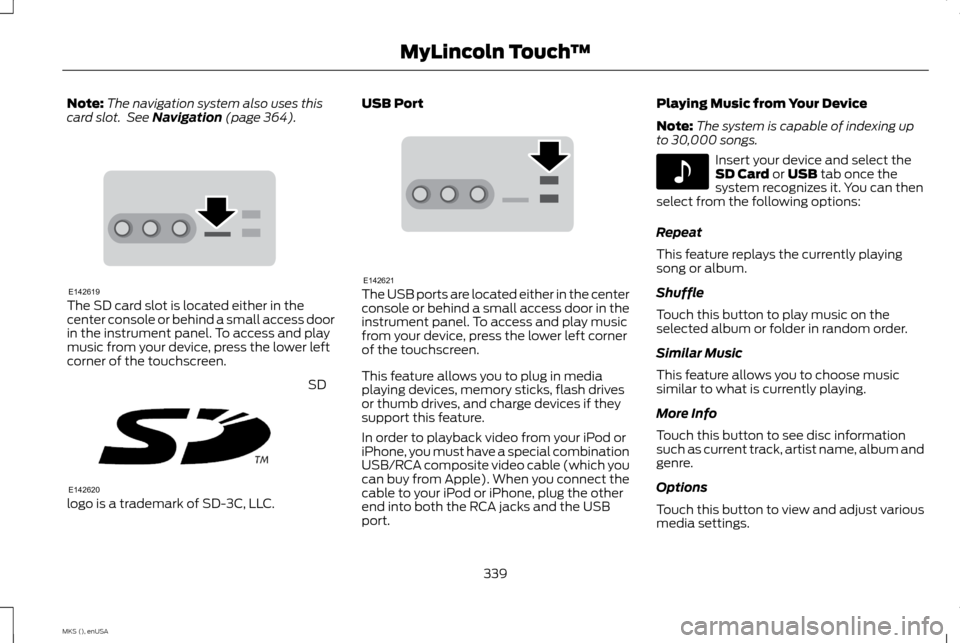
The navigation system also uses this
card slot. See Navigation (page 364). The SD card slot is located either in the
center console or behind a small access door
in the instrument panel. To access and play
music from your device, press the lower left
corner of the touchscreen.
SD
logo is a trademark of SD-3C, LLC. USB Port
The USB ports are located either in the center
console or behind a small access door in the
instrument panel. To access and play music
from your device, press the lower left corner
of the touchscreen.
This feature allows you to plug in media
playing devices, memory sticks, flash drives
or thumb drives, and charge devices if they
support this feature.
In order to playback video from your iPod or
iPhone, you must have a special combination
USB/RCA composite video cable (which you
can buy from Apple). When you connect the
cable to your iPod or iPhone, plug the other
end into both the RCA jacks and the USB
port.Playing Music from Your Device
Note:
The system is capable of indexing up
to 30,000 songs. Insert your device and select the
SD Card
or USB tab once the
system recognizes it. You can then
select from the following options:
Repeat
This feature replays the currently playing
song or album.
Shuffle
Touch this button to play music on the
selected album or folder in random order.
Similar Music
This feature allows you to choose music
similar to what is currently playing.
More Info
Touch this button to see disc information
such as current track, artist name, album and
genre.
Options
Touch this button to view and adjust various
media settings.
339
MKS (), enUSA MyLincoln Touch
™E142619 E142620 E142621 E142611
Page 346 of 424
WARNINGS
Store the portable music player in a
secure location, such as the center
console or the glove box, when your
vehicle is moving. Hard objects may become
projectiles in a crash or sudden stop, which
may increase the risk of serious injury. The
audio extension cable must be long enough
to allow the portable music player to be
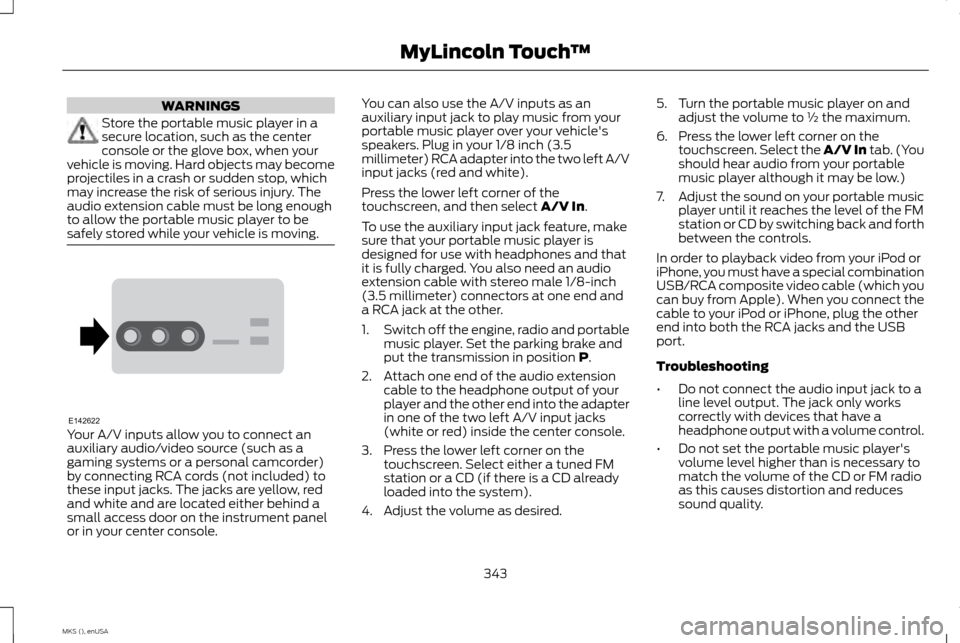
safely stored while your vehicle is moving. Your A/V inputs allow you to connect an
auxiliary audio/video source (such as a
gaming systems or a personal camcorder)
by connecting RCA cords (not included) to
these input jacks. The jacks are yellow, red
and white and are located either behind a
small access door on the instrument panel
or in your center console. You can also use the A/V inputs as an
auxiliary input jack to play music from your
portable music player over your vehicle's
speakers. Plug in your 1/8 inch (3.5
millimeter) RCA adapter into the two left A/V
input jacks (red and white).
Press the lower left corner of the
touchscreen, and then select A/V In.
To use the auxiliary input jack feature, make
sure that your portable music player is
designed for use with headphones and that
it is fully charged. You also need an audio
extension cable with stereo male 1/8-inch
(3.5 millimeter) connectors at one end and
a RCA jack at the other.
1. Switch off the engine, radio and portable
music player. Set the parking brake and
put the transmission in position
P.
2. Attach one end of the audio extension cable to the headphone output of your
player and the other end into the adapter
in one of the two left A/V input jacks
(white or red) inside the center console.
3. Press the lower left corner on the touchscreen. Select either a tuned FM
station or a CD (if there is a CD already
loaded into the system).
4. Adjust the volume as desired. 5. Turn the portable music player on and
adjust the volume to ½ the maximum.
6. Press the lower left corner on the touchscreen. Select the A/V In tab. (You
should hear audio from your portable
music player although it may be low.)
7. Adjust the sound on your portable music
player until it reaches the level of the FM
station or CD by switching back and forth
between the controls.
In order to playback video from your iPod or
iPhone, you must have a special combination
USB/RCA composite video cable (which you
can buy from Apple). When you connect the
cable to your iPod or iPhone, plug the other
end into both the RCA jacks and the USB
port.
Troubleshooting
• Do not connect the audio input jack to a
line level output. The jack only works
correctly with devices that have a
headphone output with a volume control.
• Do not set the portable music player's
volume level higher than is necessary to
match the volume of the CD or FM radio
as this causes distortion and reduces
sound quality.
343
MKS (), enUSA MyLincoln Touch
™E142622