change wheel LINCOLN MKS 2015 Owner's Manual
[x] Cancel search | Manufacturer: LINCOLN, Model Year: 2015, Model line: MKS, Model: LINCOLN MKS 2015Pages: 424, PDF Size: 3.96 MB
Page 329 of 424
USBE
Touch this button to scroll down for more options, such as SD Card, BT Stereo and A/V In
F
These buttons change with the media mode you are in.
G
Radio memory presets and CD controls.
H
Note: Some features may not be available in
your area. Contact an authorized dealer for
more information.
You can access these options using the
touchscreen or voice commands.
Browsing Device Content
When listening to audio on a device, you can
browse through other devices without having
to change sources. For example, if you are
currently listening to audio on an SD card,
you can browse all the artists that are stored
on your USB device. Press the voice icon on the steering
wheel. When prompted, you can
say: "BROWSE" within devices
"Browse" *
"Browse
"Browse
"Browse SD card"
"Browse Sirius channel guide" **
"Browse USB" "Help"
* If you only say, "Browse", you can then say
any commands in the following chart.
** This command is only usable if you have an
active subscription to Sirius satellite radio. "BROWSE"
"
"
"SD card" **
"Sirius Channel Guide" *
"USB" **
"Help"
* This command is only usable if you have an
active subscription to Sirius satellite radio.
** For more commands in SD card or USB
mode, see the "SD Card and USB Port"
section of this chapter.
326
MKS (), enUSA MyLincoln Touch
™E142599
Page 330 of 424
Your voice system allows you to change
audio sources with a simple voice command.
For example, if you are listening to music on
a USB device, then want to switch to a
satellite radio channel, simply press the voice
button on the steering wheel controls and
say the name of the Sirius station (such as,
"the Highway"). The following voice
commands are available at the top level of
the voice session no matter which current
audio source you are listening to (such as a
USB device or Sirius satellite radio).
Note:
This is only available when your
MyLincoln Touch system language is set to
North American English. Sample commands
"<87.9-107.9>""<530-1710>"
"
"AM <530-1710>"
"FM <87.9-107.9>"
"Play [album]
"Play [artist]
"Play [genre]
"Play [playlist]
"Play [song]
"Play
"Play
"Sirius <0-223>" *
"Sports games" *
* This command is only usable if you have an
active subscription to Sirius satellite radio.
** The commands that have [ ] around the
word means that the word is optional. For
example, if you say, "Play Metallica", this is
the same as the voice command, "Play
[artist]
AM/FM Radio Touch the AM or FM tab to listen
to the radio. To change between AM and FM presets, just
touch the
AM or FM tab.
Memory Presets
Save a station by pressing and holding one
of the memory preset areas. There is a brief
mute while the radio saves the station. Sound
returns when finished.
HD Radio
Touch this button to turn HD Radio on. The
light on the button illuminates when the
feature is on. HD Radio allows you to receive
radio broadcasts digitally, where available,
providing free, crystal-clear sound. See HD
Radio information later in this chapter.
Scan
Touch this button to go to the next strong
AM or FM radio station. The light on the
button illuminates when the feature is on.
Options
Sound Settings
Touch this button to adjust settings for:
• Bass
• Midrange
• Treble
327
MKS (), enUSA MyLincoln Touch
™E142611
Page 335 of 424
HD Radio Technology manufactured under
license from iBiquity Digital Corp. U.S. and
foreign patents. HD Radio and the HD and
HD Radio logos are proprietary trademarks
of iBiquity Digital Corp. Ford Motor Company
and iBiquity Digital Corp. are not responsible
for the content sent using HD Radio
technology. Content may be changed, added
or deleted at any time at the station owner's
discretion.
Radio Voice Commands
If you are listening to the radio,
press the voice button on the
steering wheel controls. When
prompted, say any of the following
commands.
If you are not listening to the radio, press the
voice button and, after the tone, say "Radio",
then any of the following commands. "RADIO"
"<87.9-107.9>"
"<87.9-107.9> HD" 1
"<530-1710>" "AM" "RADIO"
"AM <530-1710>" "AM autoset"
"AM autoset preset <#>" "AM preset <#>"
"Browse" 2
"FM"
"FM <87.9-107.9>"
"FM <87.9-107.9> HD <#>" 1
"FM autoset"
"FM autoset preset <#>" "FM preset <#>" "FM 1"
"FM 1 preset <#>" "FM 2"
"FM 2 preset <#>"
"HD <#>" 1
"Preset <#>" "RADIO"
"Radio off" "Radio on" "Set PTY"
"Tune" 3
"Help"
1 If available.
2 If you have said "Browse", see the "Browse"
chart later in this section.
3 If you have said "Tune", see the following
"Tune" chart. "TUNE"
"<530-1710>"
"<87.9-107.9>"
"<87.9-107.9> HD <#>" *
"AM"
"AM <530-1710>" "AM autoset"
332
MKS (), enUSA MyLincoln Touch
™E142599
Page 343 of 424
Sound Settings allows you to adjust
settings for:
• Bass
• Midrange
• Treble
• Balance and Fade
• THX Deep Note Demo
• DSP (Digital Signal processing)
• Occupancy Mode
• Speed Compensated Volume.
Note: Your vehicle may not have all these
sound settings.
Media Player Settings allows you to select
more settings, which is under Media Player.
See
Settings (page 313).
Device Information
displays software and
firmware information about the currently
connected media device.
Update Media Index
indexes your device
when you connect it for the first time and
each time the content changes (such as
adding or removing tracks) to make sure you
have the latest voice commands available
for all media on the device. Browse
This feature allows you to view the contents
of the device. It also allows you to search by
categories, such as genre, artist or album.
If you want to view song information such as
Title, Artist, File, Folder, Album, and Genre,
touch the on-screen album art.
You can also touch
What’
s Playing to hear
how the system pronounces the current band
and song. This can be helpful when using
voice commands to make sure the system
correctly plays your request.
Playing Video from Your Device
To access and play video from your device,
your vehicle's transmission must be in
position
P with the ignition in accessory
mode. See Starting and Stopping the
Engine (page 126).
SD Card and USB Voice Commands If you are listening to a USB device
or an SD card, press the voice
button on the steering wheel
controls. When prompted, say any of the
following commands. If you are not listening to a USB device or an
SD card, press the voice button and, after the
tone, say "USB" or "SD card", then any of the
following commands. "USB" or "SD CARD"
"Browse" *
"Next"
"Pause" "Play"
"Play album
"Play artist
"Play audiobook
"Play composer
"Play movie
340
MKS (), enUSA MyLincoln Touch
™E142599
Page 382 of 424
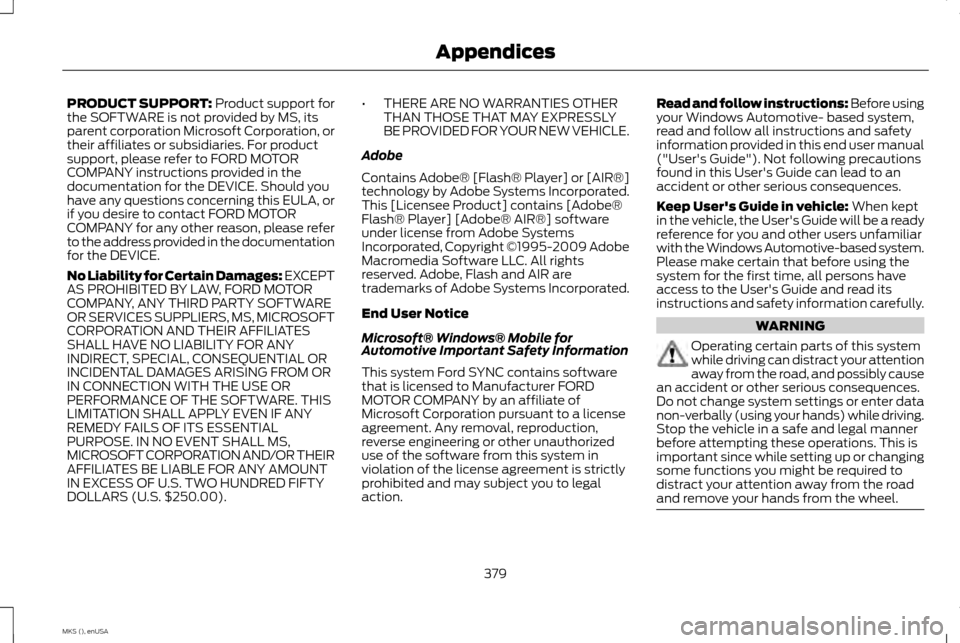
PRODUCT SUPPORT: Product support for
the SOFTWARE is not provided by MS, its
parent corporation Microsoft Corporation, or
their affiliates or subsidiaries. For product
support, please refer to FORD MOTOR
COMPANY instructions provided in the
documentation for the DEVICE. Should you
have any questions concerning this EULA, or
if you desire to contact FORD MOTOR
COMPANY for any other reason, please refer
to the address provided in the documentation
for the DEVICE.
No Liability for Certain Damages: EXCEPT
AS PROHIBITED BY LAW, FORD MOTOR
COMPANY, ANY THIRD PARTY SOFTWARE
OR SERVICES SUPPLIERS, MS, MICROSOFT
CORPORATION AND THEIR AFFILIATES
SHALL HAVE NO LIABILITY FOR ANY
INDIRECT, SPECIAL, CONSEQUENTIAL OR
INCIDENTAL DAMAGES ARISING FROM OR
IN CONNECTION WITH THE USE OR
PERFORMANCE OF THE SOFTWARE. THIS
LIMITATION SHALL APPLY EVEN IF ANY
REMEDY FAILS OF ITS ESSENTIAL
PURPOSE. IN NO EVENT SHALL MS,
MICROSOFT CORPORATION AND/OR THEIR
AFFILIATES BE LIABLE FOR ANY AMOUNT
IN EXCESS OF U.S. TWO HUNDRED FIFTY
DOLLARS (U.S. $250.00). •
THERE ARE NO WARRANTIES OTHER
THAN THOSE THAT MAY EXPRESSLY
BE PROVIDED FOR YOUR NEW VEHICLE.
Adobe
Contains Adobe® [Flash® Player] or [AIR®]
technology by Adobe Systems Incorporated.
This [Licensee Product] contains [Adobe®
Flash® Player] [Adobe® AIR®] software
under license from Adobe Systems
Incorporated, Copyright ©1995-2009 Adobe
Macromedia Software LLC. All rights
reserved. Adobe, Flash and AIR are
trademarks of Adobe Systems Incorporated.
End User Notice
Microsoft® Windows® Mobile for
Automotive Important Safety Information
This system Ford SYNC contains software
that is licensed to Manufacturer FORD
MOTOR COMPANY by an affiliate of
Microsoft Corporation pursuant to a license
agreement. Any removal, reproduction,
reverse engineering or other unauthorized
use of the software from this system in
violation of the license agreement is strictly
prohibited and may subject you to legal
action. Read and follow instructions: Before using
your Windows Automotive- based system,
read and follow all instructions and safety
information provided in this end user manual
("User's Guide"). Not following precautions
found in this User's Guide can lead to an
accident or other serious consequences.
Keep User's Guide in vehicle:
When kept
in the vehicle, the User's Guide will be a ready
reference for you and other users unfamiliar
with the Windows Automotive-based system.
Please make certain that before using the
system for the first time, all persons have
access to the User's Guide and read its
instructions and safety information carefully. WARNING
Operating certain parts of this system
while driving can distract your attention
away from the road, and possibly cause
an accident or other serious consequences.
Do not change system settings or enter data
non-verbally (using your hands) while driving.
Stop the vehicle in a safe and legal manner
before attempting these operations. This is
important since while setting up or changing
some functions you might be required to
distract your attention away from the road
and remove your hands from the wheel. 379
MKS (), enUSA Appendices
Page 383 of 424
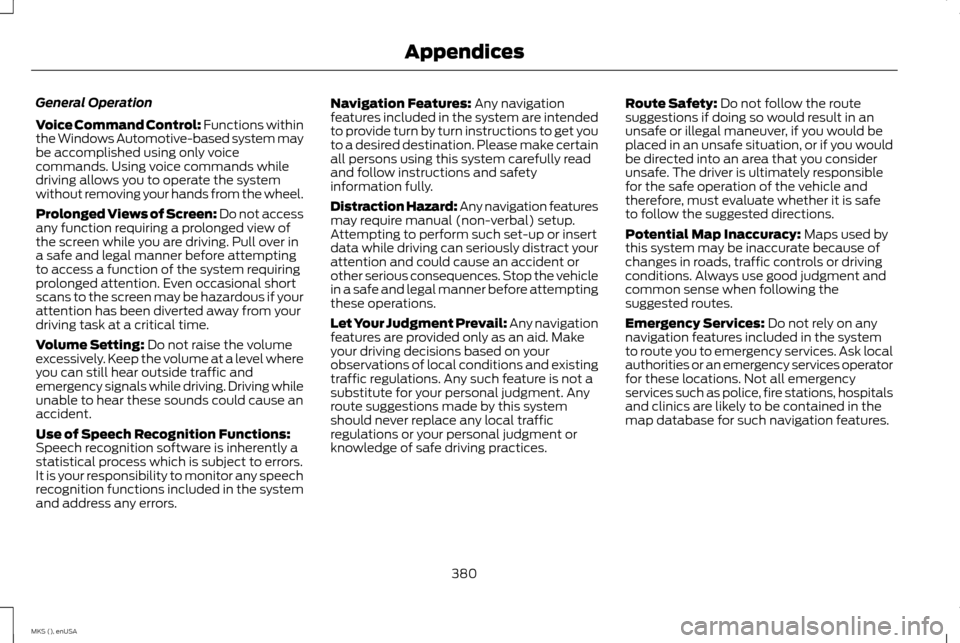
General Operation
Voice Command Control: Functions within
the Windows Automotive-based system may
be accomplished using only voice
commands. Using voice commands while
driving allows you to operate the system
without removing your hands from the wheel.
Prolonged Views of Screen:
Do not access
any function requiring a prolonged view of
the screen while you are driving. Pull over in
a safe and legal manner before attempting
to access a function of the system requiring
prolonged attention. Even occasional short
scans to the screen may be hazardous if your
attention has been diverted away from your
driving task at a critical time.
Volume Setting:
Do not raise the volume
excessively. Keep the volume at a level where
you can still hear outside traffic and
emergency signals while driving. Driving while
unable to hear these sounds could cause an
accident.
Use of Speech Recognition Functions:
Speech recognition software is inherently a
statistical process which is subject to errors.
It is your responsibility to monitor any speech
recognition functions included in the system
and address any errors. Navigation Features:
Any navigation
features included in the system are intended
to provide turn by turn instructions to get you
to a desired destination. Please make certain
all persons using this system carefully read
and follow instructions and safety
information fully.
Distraction Hazard: Any navigation features
may require manual (non-verbal) setup.
Attempting to perform such set-up or insert
data while driving can seriously distract your
attention and could cause an accident or
other serious consequences. Stop the vehicle
in a safe and legal manner before attempting
these operations.
Let Your Judgment Prevail: Any navigation
features are provided only as an aid. Make
your driving decisions based on your
observations of local conditions and existing
traffic regulations. Any such feature is not a
substitute for your personal judgment. Any
route suggestions made by this system
should never replace any local traffic
regulations or your personal judgment or
knowledge of safe driving practices. Route Safety: Do not follow the route
suggestions if doing so would result in an
unsafe or illegal maneuver, if you would be
placed in an unsafe situation, or if you would
be directed into an area that you consider
unsafe. The driver is ultimately responsible
for the safe operation of the vehicle and
therefore, must evaluate whether it is safe
to follow the suggested directions.
Potential Map Inaccuracy:
Maps used by
this system may be inaccurate because of
changes in roads, traffic controls or driving
conditions. Always use good judgment and
common sense when following the
suggested routes.
Emergency Services:
Do not rely on any
navigation features included in the system
to route you to emergency services. Ask local
authorities or an emergency services operator
for these locations. Not all emergency
services such as police, fire stations, hospitals
and clinics are likely to be contained in the
map database for such navigation features.
380
MKS (), enUSA Appendices
Page 400 of 424
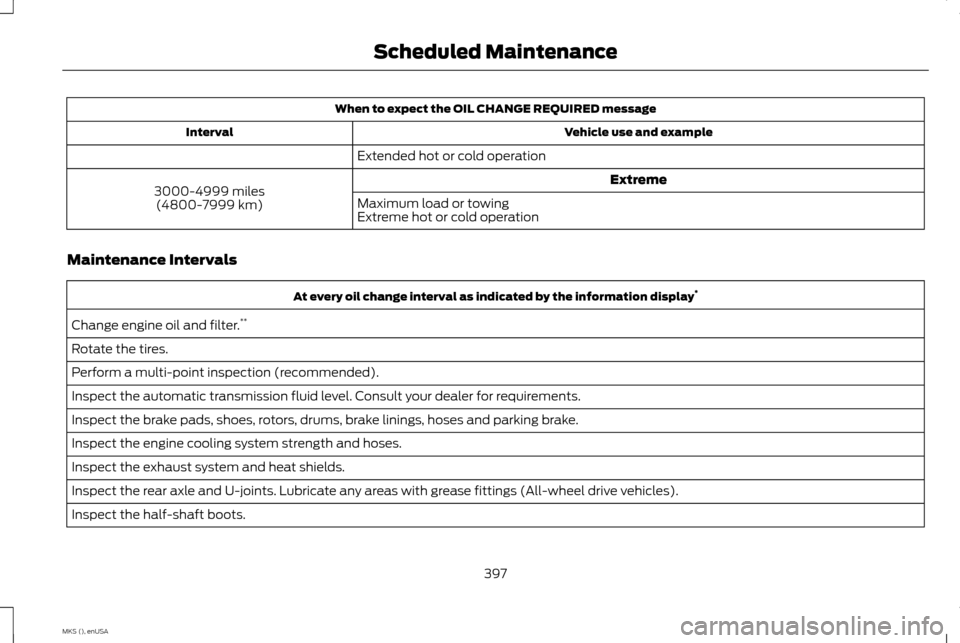
When to expect the OIL CHANGE REQUIRED message
Vehicle use and example
Interval
Extended hot or cold operation Extreme
3000-4999 miles
(4800-7999 km) Maximum load or towing
Extreme hot or cold operation
Maintenance Intervals At every oil change interval as indicated by the information display
*
Change engine oil and filter. **
Rotate the tires.
Perform a multi-point inspection (recommended).
Inspect the automatic transmission fluid level. Consult your dealer for requirements.
Inspect the brake pads, shoes, rotors, drums, brake linings, hoses and parking brake.
Inspect the engine cooling system strength and hoses.
Inspect the exhaust system and heat shields.
Inspect the rear axle and U-joints. Lubricate any areas with grease fittings (All-wheel drive vehicles).
Inspect the half-shaft boots.
397
MKS (), enUSA Scheduled Maintenance
Page 401 of 424
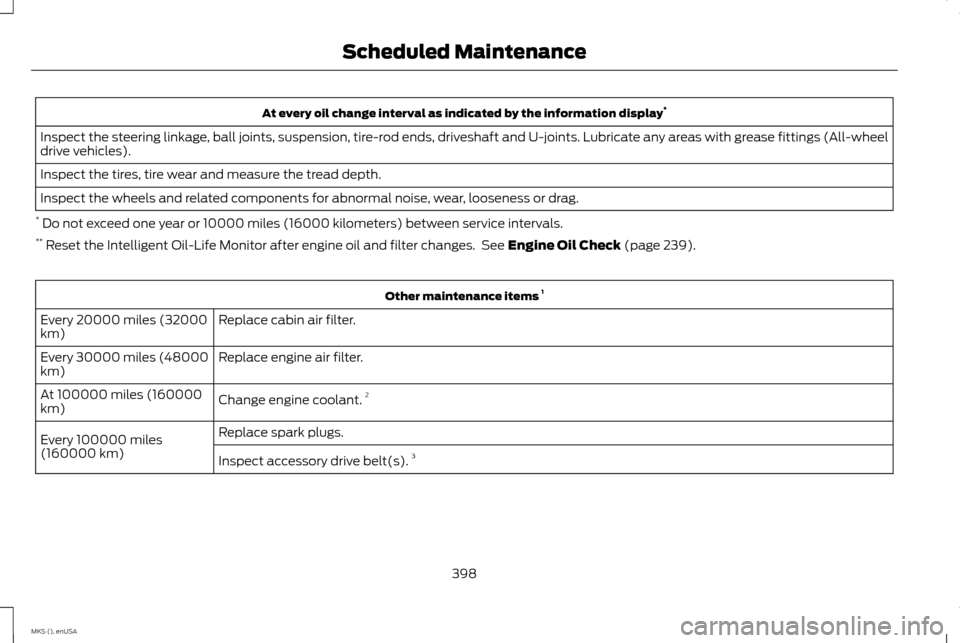
At every oil change interval as indicated by the information display
*
Inspect the steering linkage, ball joints, suspension, tire-rod ends, driveshaft and U-joints. Lubricate any areas with grease fittings (All-wheel
drive vehicles).
Inspect the tires, tire wear and measure the tread depth.
Inspect the wheels and related components for abnormal noise, wear, looseness or drag.
* Do not exceed one year or 10000 miles (16000 kilometers) between service intervals.
** Reset the Intelligent Oil-Life Monitor after engine oil and filter changes. See Engine Oil Check (page 239). Other maintenance items
1
Replace cabin air filter.
Every 20000 miles (32000
km)
Replace engine air filter.
Every 30000 miles (48000
km)
Change engine coolant.2
At 100000 miles (160000
km)
Replace spark plugs.
Every 100000 miles
(160000 km) Inspect accessory drive belt(s). 3
398
MKS (), enUSA Scheduled Maintenance
Page 404 of 424
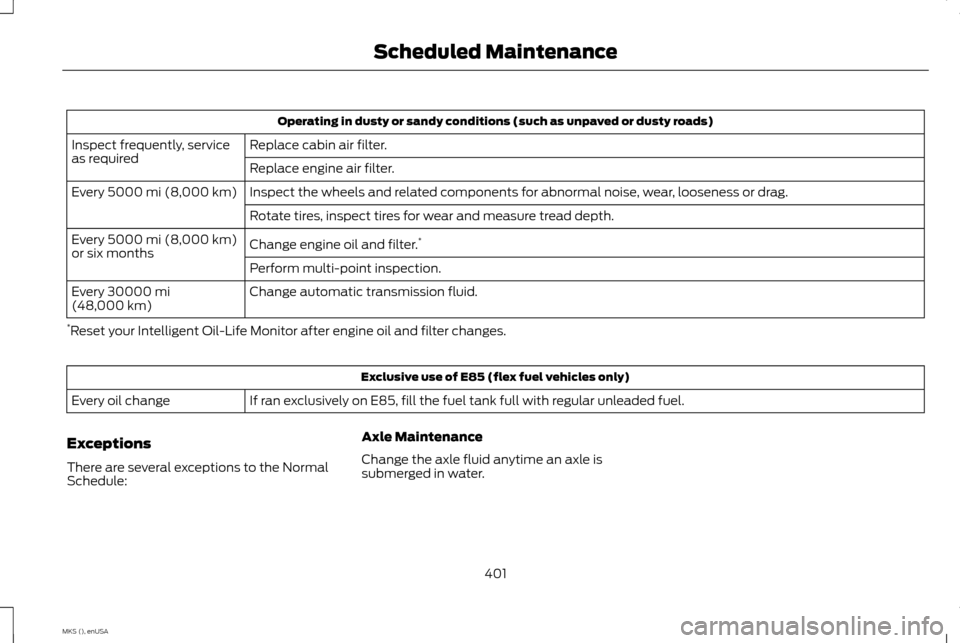
Operating in dusty or sandy conditions (such as unpaved or dusty roads)
Replace cabin air filter.
Inspect frequently, service
as required
Replace engine air filter.
Inspect the wheels and related components for abnormal noise, wear, looseness or drag.
Every 5000 mi (8,000 km)
Rotate tires, inspect tires for wear and measure tread depth.
Change engine oil and filter. *
Every
5000 mi (8,000 km)
or six months
Perform multi-point inspection.
Change automatic transmission fluid.
Every
30000 mi
(48,000 km)
* Reset your Intelligent Oil-Life Monitor after engine oil and filter changes. Exclusive use of E85 (flex fuel vehicles only)
If ran exclusively on E85, fill the fuel tank full with regular unleaded fuel.
Every oil change
Exceptions
There are several exceptions to the Normal
Schedule: Axle Maintenance
Change the axle fluid anytime an axle is
submerged in water.
401
MKS (), enUSA Scheduled Maintenance
Page 417 of 424
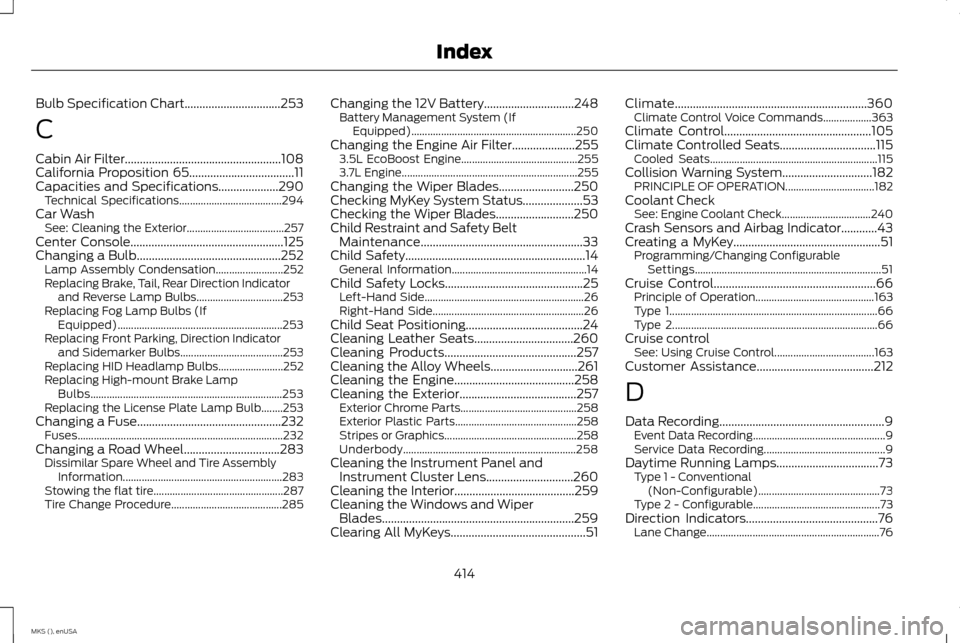
Bulb Specification Chart................................253
C
Cabin Air Filter....................................................108
California Proposition 65...................................11
Capacities and Specifications....................290 Technical Specifications...................................... 294
Car Wash See: Cleaning the Exterior.................................... 257
Center Console
...................................................125
Changing a Bulb................................................252
Lamp Assembly Condensation......................... 252
Replacing Brake, Tail, Rear Direction Indicator and Reverse Lamp Bulbs................................ 253
Replacing Fog Lamp Bulbs (If Equipped)............................................................. 253
Replacing Front Parking, Direction Indicator and Sidemarker Bulbs...................................... 253
Replacing HID Headlamp Bulbs........................ 252
Replacing High-mount Brake Lamp Bulbs....................................................................... 253
Replacing the License Plate Lamp Bulb........253
Changing a Fuse................................................232 Fuses........................................................................\
.... 232
Changing a Road Wheel
................................283
Dissimilar Spare Wheel and Tire Assembly
Information........................................................... 283
Stowing the flat tire................................................ 287
Tire Change Procedure......................................... 285Changing the 12V Battery..............................248
Battery Management System (If
Equipped)............................................................. 250
Changing the Engine Air Filter
.....................255
3.5L EcoBoost Engine........................................... 255
3.7L Engine................................................................. 255
Changing the Wiper Blades.........................250
Checking MyKey System Status....................53
Checking the Wiper Blades..........................250
Child Restraint and Safety Belt Maintenance......................................................33
Child Safety............................................................14 General Information.................................................. 14
Child Safety Locks..............................................25 Left-Hand Side........................................................... 26
Right-Hand Side........................................................ 26
Child Seat Positioning.......................................24
Cleaning Leather Seats.................................260
Cleaning Products
............................................257
Cleaning the Alloy Wheels.............................261
Cleaning the Engine
........................................258
Cleaning the Exterior.......................................257 Exterior Chrome Parts........................................... 258
Exterior Plastic Parts............................................. 258
Stripes or Graphics................................................. 258
Underbody................................................................ 258
Cleaning the Instrument Panel and Instrument Cluster Lens.............................260
Cleaning the Interior
........................................259
Cleaning the Windows and Wiper Blades................................................................259
Clearing All MyKeys.............................................51 Climate................................................................360
Climate Control Voice Commands.................. 363
Climate Control
.................................................105
Climate Controlled Seats................................115
Cooled Seats.............................................................. 115
Collision Warning System..............................182 PRINCIPLE OF OPERATION................................. 182
Coolant Check See: Engine Coolant Check................................. 240
Crash Sensors and Airbag Indicator............43
Creating a MyKey
.................................................51
Programming/Changing Configurable
Settings..................................................................... 51
Cruise Control
......................................................66
Principle of Operation............................................ 163
Type 1........................................................................\
..... 66
Type 2........................................................................\
.... 66
Cruise control See: Using Cruise Control..................................... 163
Customer Assistance
.......................................212
D
Data Recording
.......................................................9
Event Data Recording................................................. 9
Service Data Recording............................................. 9
Daytime Running Lamps..................................73 Type 1 - Conventional
(Non-Configurable)............................................. 73
Type 2 - Configurable............................................... 73
Direction Indicators
............................................76
Lane Change................................................................ 76
414
MKS (), enUSA Index