turn signal LINCOLN MKT 2014 Owner's Manual
[x] Cancel search | Manufacturer: LINCOLN, Model Year: 2014, Model line: MKT, Model: LINCOLN MKT 2014Pages: 498, PDF Size: 7.3 MB
Page 394 of 498
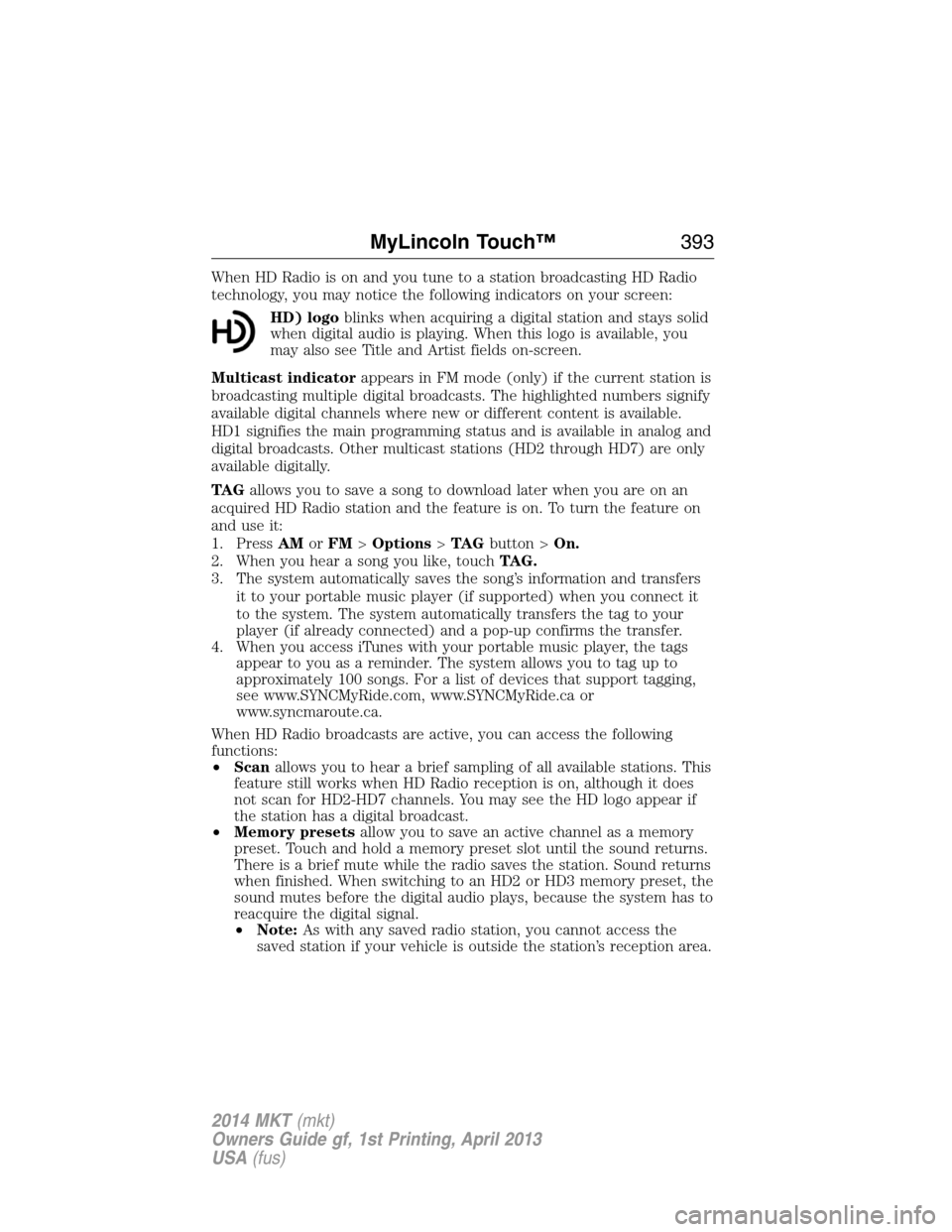
When HD Radio is on and you tune to a station broadcasting HD Radio
technology, you may notice the following indicators on your screen:
HD) logoblinks when acquiring a digital station and stays solid
when digital audio is playing. When this logo is available, you
may also see Title and Artist fields on-screen.
Multicast indicatorappears in FM mode (only) if the current station is
broadcasting multiple digital broadcasts. The highlighted numbers signify
available digital channels where new or different content is available.
HD1 signifies the main programming status and is available in analog and
digital broadcasts. Other multicast stations (HD2 through HD7) are only
available digitally.
TA Gallows you to save a song to download later when you are on an
acquired HD Radio station and the feature is on. To turn the feature on
and use it:
1. PressAMorFM>Options>TA Gbutton >On.
2. When you hear a song you like, touchTAG.
3. The system automatically saves the song’s information and transfers
it to your portable music player (if supported) when you connect it
to the system. The system automatically transfers the tag to your
player (if already connected) and a pop-up confirms the transfer.
4. When you access iTunes with your portable music player, the tags
appear to you as a reminder. The system allows you to tag up to
approximately 100 songs. For a list of devices that support tagging,
see www.SYNCMyRide.com, www.SYNCMyRide.ca or
www.syncmaroute.ca.
When HD Radio broadcasts are active, you can access the following
functions:
•Scanallows you to hear a brief sampling of all available stations. This
feature still works when HD Radio reception is on, although it does
not scan for HD2-HD7 channels. You may see the HD logo appear if
the station has a digital broadcast.
•Memory presetsallow you to save an active channel as a memory
preset. Touch and hold a memory preset slot until the sound returns.
There is a brief mute while the radio saves the station. Sound returns
when finished. When switching to an HD2 or HD3 memory preset, the
sound mutes before the digital audio plays, because the system has to
reacquire the digital signal.
•Note:As with any saved radio station, you cannot access the
saved station if your vehicle is outside the station’s reception area.
MyLincoln Touch™393
2014 MKT(mkt)
Owners Guide gf, 1st Printing, April 2013
USA(fus)
Page 398 of 498
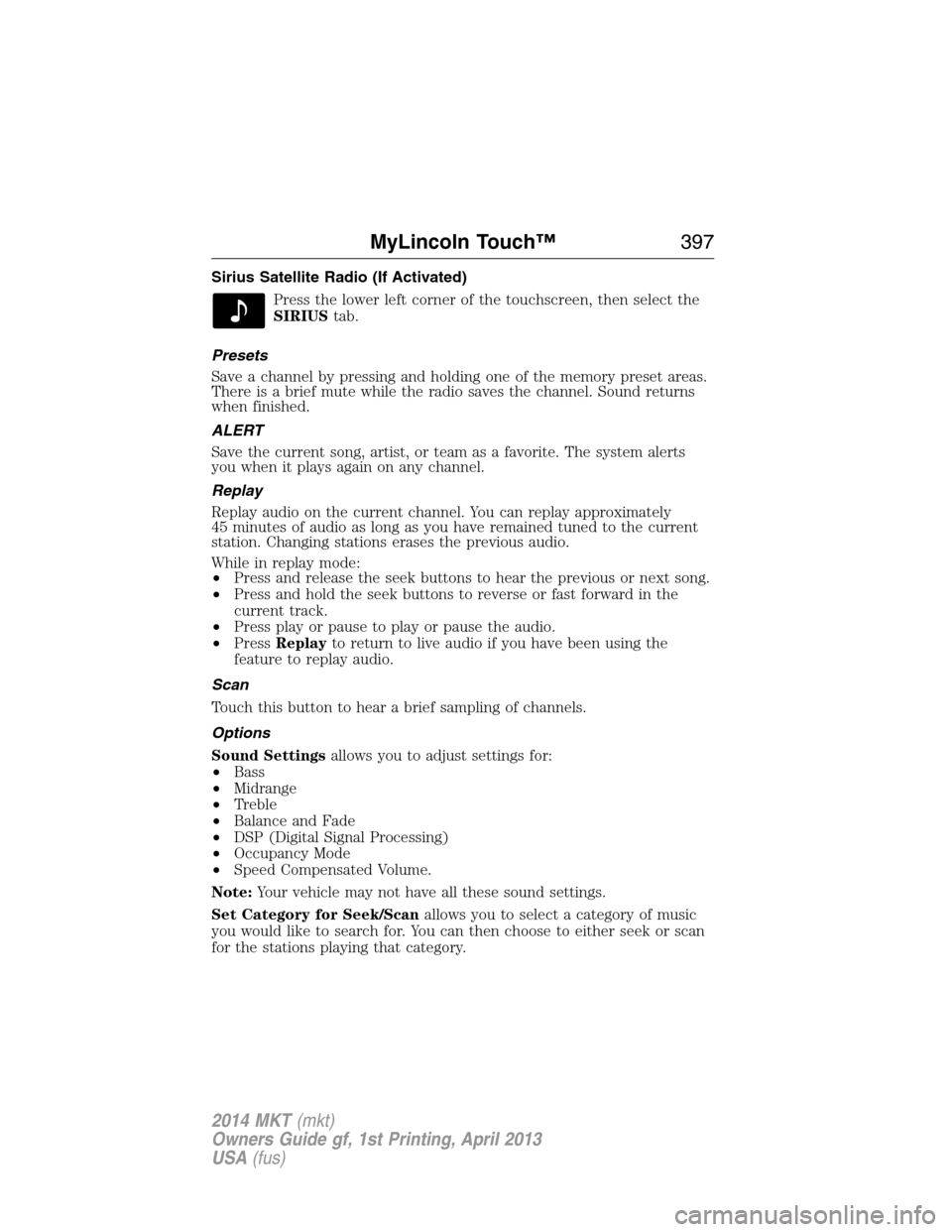
Sirius Satellite Radio (If Activated)
Press the lower left corner of the touchscreen, then select the
SIRIUStab.
Presets
Save a channel by pressing and holding one of the memory preset areas.
There is a brief mute while the radio saves the channel. Sound returns
when finished.
ALERT
Save the current song, artist, or team as a favorite. The system alerts
you when it plays again on any channel.
Replay
Replay audio on the current channel. You can replay approximately
45 minutes of audio as long as you have remained tuned to the current
station. Changing stations erases the previous audio.
While in replay mode:
•Press and release the seek buttons to hear the previous or next song.
•Press and hold the seek buttons to reverse or fast forward in the
current track.
•Press play or pause to play or pause the audio.
•PressReplayto return to live audio if you have been using the
feature to replay audio.
Scan
Touch this button to hear a brief sampling of channels.
Options
Sound Settingsallows you to adjust settings for:
•Bass
•Midrange
•Treble
•Balance and Fade
•DSP (Digital Signal Processing)
•Occupancy Mode
•Speed Compensated Volume.
Note:Your vehicle may not have all these sound settings.
Set Category for Seek/Scanallows you to select a category of music
you would like to search for. You can then choose to either seek or scan
for the stations playing that category.
MyLincoln Touch™397
2014 MKT(mkt)
Owners Guide gf, 1st Printing, April 2013
USA(fus)
Page 402 of 498
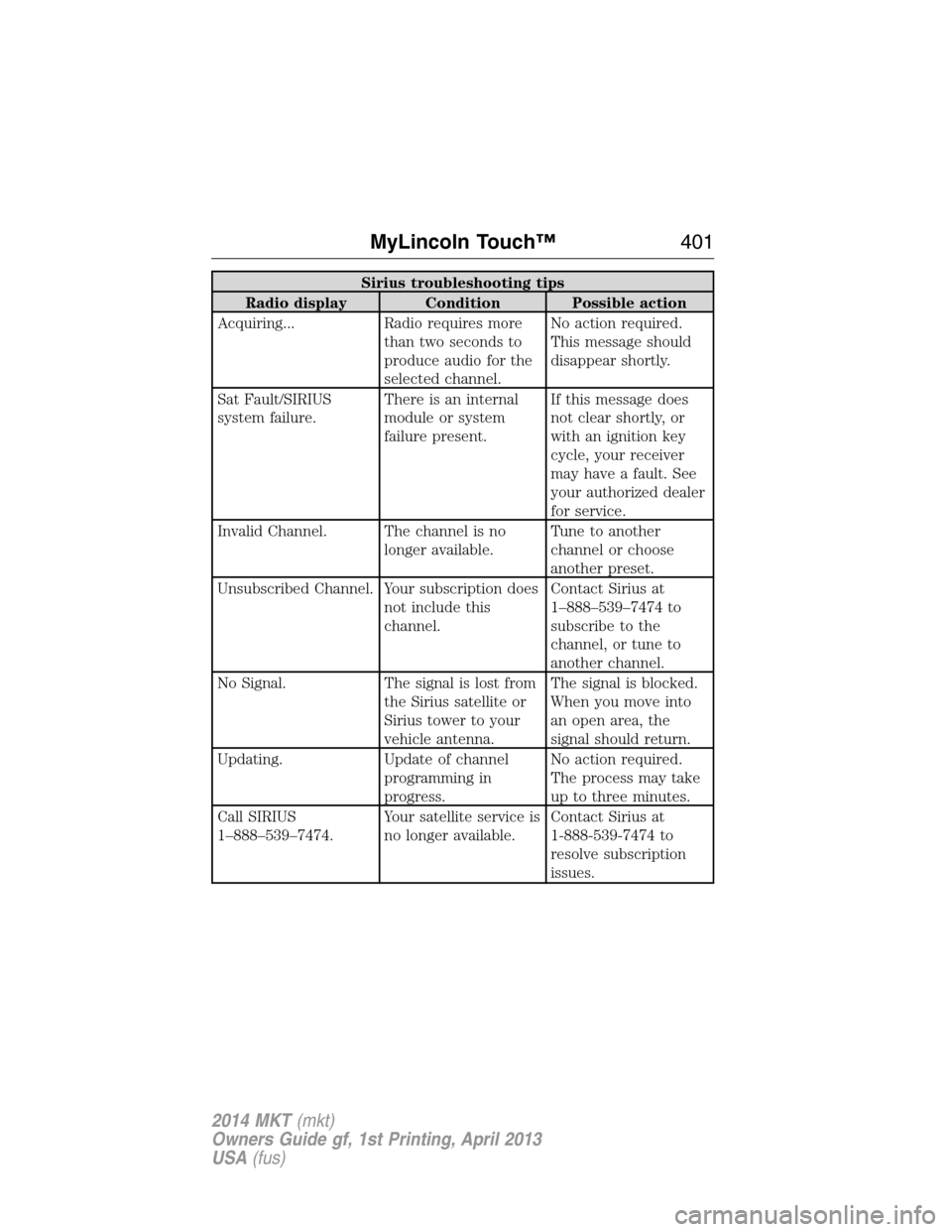
Sirius troubleshooting tips
Radio display Condition Possible action
Acquiring... Radio requires more
than two seconds to
produce audio for the
selected channel.No action required.
This message should
disappear shortly.
Sat Fault/SIRIUS
system failure.There is an internal
module or system
failure present.If this message does
not clear shortly, or
with an ignition key
cycle, your receiver
may have a fault. See
your authorized dealer
for service.
Invalid Channel. The channel is no
longer available.Tune to another
channel or choose
another preset.
Unsubscribed Channel. Your subscription does
not include this
channel.Contact Sirius at
1–888–539–7474 to
subscribe to the
channel, or tune to
another channel.
No Signal. The signal is lost from
the Sirius satellite or
Sirius tower to your
vehicle antenna.The signal is blocked.
When you move into
an open area, the
signal should return.
Updating. Update of channel
programming in
progress.No action required.
The process may take
up to three minutes.
Call SIRIUS
1–888–539–7474.Your satellite service is
no longer available.Contact Sirius at
1-888-539-7474 to
resolve subscription
issues.
MyLincoln Touch™401
2014 MKT(mkt)
Owners Guide gf, 1st Printing, April 2013
USA(fus)
Page 403 of 498
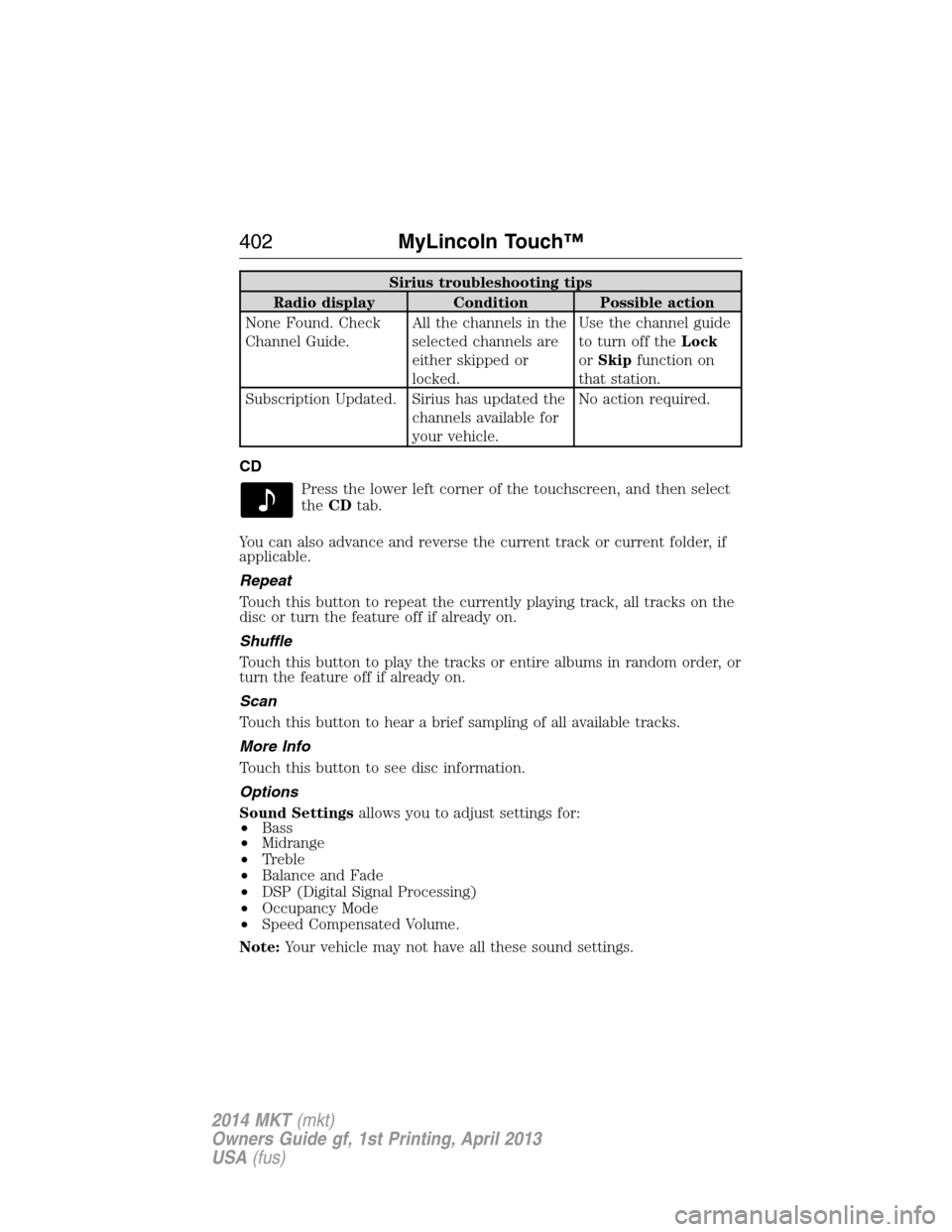
Sirius troubleshooting tips
Radio display Condition Possible action
None Found. Check
Channel Guide.All the channels in the
selected channels are
either skipped or
locked.Use the channel guide
to turn off theLock
orSkipfunction on
that station.
Subscription Updated. Sirius has updated the
channels available for
your vehicle.No action required.
CD
Press the lower left corner of the touchscreen, and then select
theCDtab.
You can also advance and reverse the current track or current folder, if
applicable.
Repeat
Touch this button to repeat the currently playing track, all tracks on the
disc or turn the feature off if already on.
Shuffle
Touch this button to play the tracks or entire albums in random order, or
turn the feature off if already on.
Scan
Touch this button to hear a brief sampling of all available tracks.
More Info
Touch this button to see disc information.
Options
Sound Settingsallows you to adjust settings for:
•Bass
•Midrange
•Treble
•Balance and Fade
•DSP (Digital Signal Processing)
•Occupancy Mode
•Speed Compensated Volume.
Note:Your vehicle may not have all these sound settings.
402MyLincoln Touch™
2014 MKT(mkt)
Owners Guide gf, 1st Printing, April 2013
USA(fus)
Page 438 of 498
Wireless & Internet
Your system has a Wi-Fi feature that creates a wireless network within
your vehicle, thereby allowing other devices (such as personal computers
or phones) in your vehicle to speak to each other, share files or play
games. Using this Wi-Fi feature, everyone in your vehicle can also gain
access the internet if you have a USB mobile broadband connection
inside your vehicle, your phone supports personal area networking and if
you park outside a wireless hotspot.
Press the Settings icon >Settings>Wireless & Internet,
then select from the following:
Wireless & Internet
Wi-Fi Settings Wi-Fi Network (Client) Modeturns the
Wi-Fi feature on and off in your vehicle. Make
sure you turn it on for connectivity purposes.
Choose a Wireless Networkallows you to
use a previously stored wireless network. You
can categorize by alphabetical listing, priority
and signal strength. You can also choose to
search for a network, connect to a network,
disconnect from a network, receive more
information, prioritize a network or delete a
network.
Gateway (Access Point) Modemakes
SYNC an access point for a phone or a
computer when turned on. This forms the
local area network within your vehicle for
things, such as game playing, file transfer and
internet browsing. Press?for more
information.
Gateway (Access Point) Settingsallows
you to view and change settings for using
SYNC as the internet gateway.
Gateway (Access Point) Device List
allows you to view recent connections to your
Wi-Fi system.
MyLincoln Touch™437
2014 MKT(mkt)
Owners Guide gf, 1st Printing, April 2013
USA(fus)
Page 453 of 498
No GPS symbolindicates that insufficient GPS satellite signals
are available for accurate map positioning. This icon may display
under normal operation in an area with poor GPS access.
Quick-touch Buttons
When in map mode, touch anywhere on the map display to access more
features.
Set as Dest
Touch this button to select a scrolled location on the map as your
destination. You may scroll the map by pressing your index finger on the
map display. When you reach the desired location, simply let go and then
touchSet as Dest.
Set as Waypoint
Touch this button to set the current location as a waypoint.
Save to Favorites
Touch this button to save the current location to your favorites.
POI Icons
Touch this button to select icons to display on the map. You can select
up to three icons to display on the map at the same time. Turn theseON
orOFF.
Cancel Route
Touch this button to cancel the active route.
View/Edit Route
Access these features when a route is active:
•View Route
•Edit Destination/Waypoints
•Edit Turn List
•Detour
•Edit Route Preferences
•Edit Traffic Preferences
•Cancel Route.
Nokia is the digital map provider for the navigation application. If you
find map data errors, you may report them directly to Nokia by going to
http://mapreporter.navteq.com. Nokia evaluates all reported map errors
and responds with the result of their investigation by e-mail.
452MyLincoln Touch™
2014 MKT(mkt)
Owners Guide gf, 1st Printing, April 2013
USA(fus)
Page 462 of 498
WARNING:Operating certain parts of this system while driving
can distract your attention away from the road, and possibly
cause an accident or other serious consequences. Do not change
system settings or enter data non-verbally (using your hands) while
driving. Stop the vehicle in a safe and legal manner before attempting
these operations. This is important since while setting up or changing
some functions you might be required to distract your attention away
from the road and remove your hands from the wheel.
General operation
Voice Command Control
Functions within the Windows Automotive-based system may be
accomplished using only voice commands. Using voice commands while
driving allows you to operate the system without removing your hands
from the wheel.
Prolonged Views of Screen
Do not access any function requiring a prolonged view of the screen
while you are driving. Pull over in a safe and legal manner before
attempting to access a function of the system requiring prolonged
attention. Even occasional short scans to the screen may be hazardous if
your attention has been diverted away from your driving task at a critical
time.
Volume Setting
Do not raise the volume excessively. Keep the volume at a level where
you can still hear outside traffic and emergency signals while driving.
Driving while unable to hear these sounds could cause an accident.
Use of Speech Recognition Functions
Speech recognition software is inherently a statistical process which is
subject to errors. It is your responsibility to monitor any speech
recognition functions included in the system and address any errors.
Navigation Features
Any navigation features included in the system are intended to provide
turn by turn instructions to get you to a desired destination. Please
make certain all persons using this system carefully read and follow
instructions and safety information fully.
Appendices461
2014 MKT(mkt)
Owners Guide gf, 1st Printing, April 2013
USA(fus)
Page 498 of 498
T
Temperature control
(see Climate control) .......135, 440
Text messaging .........................413
Third-row power fold seat .......159
Tilt steering wheel ......................89
Tires ...........................328–329, 349
alignment ................................342
care ..........................................328
changing ..........................349, 351
checking the pressure ............338
inflating ...................................336
label .........................................335
replacing ..................................340
rotating ....................................343
safety practices .......................342
sidewall information ...............330
snow tires and chains ............343
spare tire .................................349
terminology .............................329
tire grades ...............................329
treadwear ........................328, 338
Touchscreen features
(climate) ....................................440
Towing .......................252, 259–260
recreational towing .................260
Trailer Brake
Controller-Integrated ..............256
trailer towing ..........................252
wrecker ....................................259
Traction control ........................202
Traffic preferences ...................447
Trailer Brake
Controller-Integrated ................256
Trailer sway control ..................253Transaxle
fluid, refill capacities ..............360
lubricant specifications ..........360
Transmission
brake-shift interlock (BSI) ....191
fluid, checking and adding
(automatic) .............................301
Turn signal ................................102
U
USB port ............................376, 403
V
Vehicle health report ................427
Vehicle Identification
Number (VIN) ...........................364
Vehicle loading ..........................244
Ventilating your vehicle ...........177
Voice recognition ......................385
W
Warning lights (see Lights) .....113
Washer fluid ......................306–307
Water, Driving through .............263
Windows
power .......................................105
rear wiper/washer .....................95
Windshield washer fluid and
wipers ..........................................94
checking and adding
fluid ..................................306–307
replacing wiper blades ...309–310
Wrecker towing .........................259
Index497
2014 MKT(mkt)
Owners Guide gf, 1st Printing, April 2013
USA(fus)