change time LINCOLN MKT 2016 User Guide
[x] Cancel search | Manufacturer: LINCOLN, Model Year: 2016, Model line: MKT, Model: LINCOLN MKT 2016Pages: 452, PDF Size: 4.69 MB
Page 157 of 452
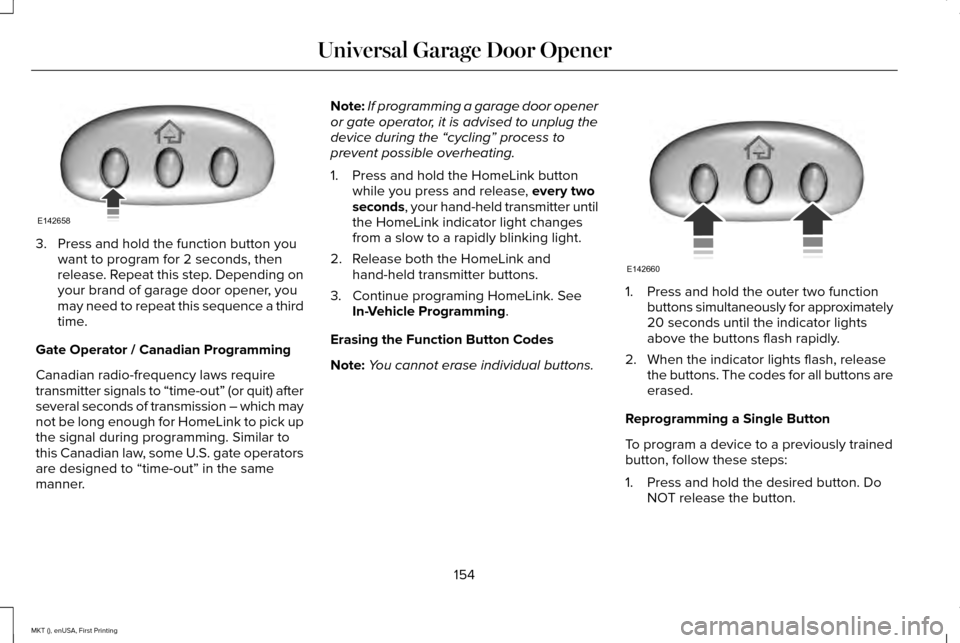
3. Press and hold the function button you
want to program for 2 seconds, then
release. Repeat this step. Depending on
your brand of garage door opener, you
may need to repeat this sequence a third
time.
Gate Operator / Canadian Programming
Canadian radio-frequency laws require
transmitter signals to “time-out” (or quit) after
several seconds of transmission – which may
not be long enough for HomeLink to pick up
the signal during programming. Similar to
this Canadian law, some U.S. gate operators
are designed to “time-out” in the same
manner. Note:
If programming a garage door opener
or gate operator, it is advised to unplug the
device during the “cycling” process to
prevent possible overheating.
1. Press and hold the HomeLink button while you press and release, every two
seconds, your hand-held transmitter until
the HomeLink indicator light changes
from a slow to a rapidly blinking light.
2. Release both the HomeLink and hand-held transmitter buttons.
3. Continue programing HomeLink. See In-Vehicle Programming
.
Erasing the Function Button Codes
Note: You cannot erase individual buttons. 1. Press and hold the outer two function
buttons simultaneously for approximately
20 seconds until the indicator lights
above the buttons flash rapidly.
2. When the indicator lights flash, release the buttons. The codes for all buttons are
erased.
Reprogramming a Single Button
To program a device to a previously trained
button, follow these steps:
1. Press and hold the desired button. Do NOT release the button.
154
MKT (), enUSA, First Printing Universal Garage Door OpenerE142658 E142660
Page 158 of 452
2.
The indicator light will begin to flash after
20 seconds. Without releasing the
button, follow Step 1 in the Programming
section.
For questions or comments, contact
HomeLink at www.homelink.com,
www.youtube.com/HomeLinkGentex or
1-800-355-3515.
Programming to a Genie Intellicode 2
Garage Door Opener
Note: The Genie Intellicode 2 transmitter
must already be programmed to operate
with the garage door opener.
Note: To program HomeLink to the
transmitter you must first put the transmitter
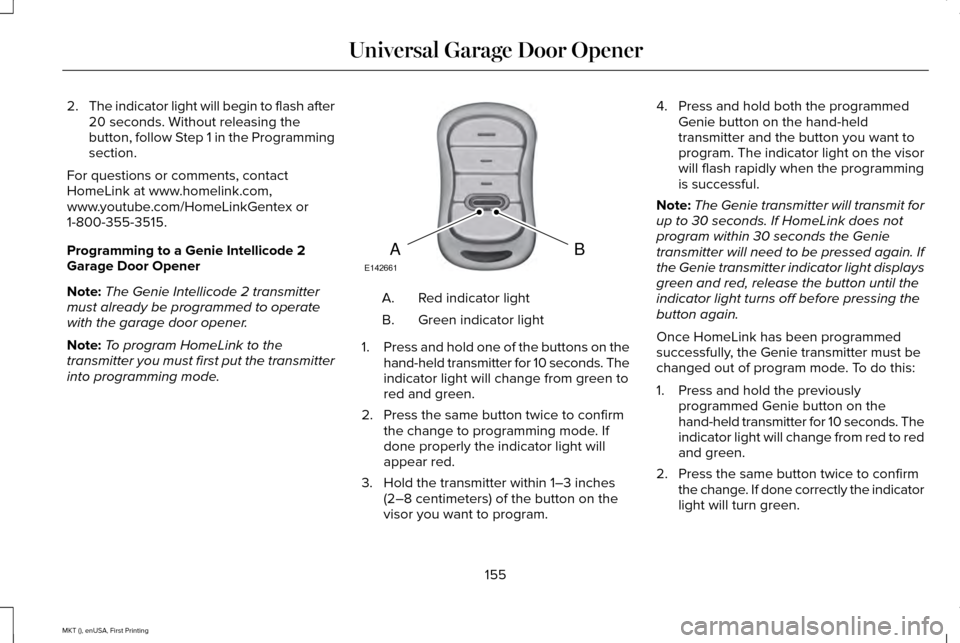
into programming mode. Red indicator light
A.
Green indicator light
B.
1. Press and hold one of the buttons on the
hand-held transmitter for 10 seconds. The
indicator light will change from green to
red and green.
2. Press the same button twice to confirm the change to programming mode. If
done properly the indicator light will
appear red.
3. Hold the transmitter within 1–3 inches (2–8 centimeters) of the button on the
visor you want to program. 4. Press and hold both the programmed
Genie button on the hand-held
transmitter and the button you want to
program. The indicator light on the visor
will flash rapidly when the programming
is successful.
Note: The Genie transmitter will transmit for
up to 30 seconds. If HomeLink does not
program within 30 seconds the Genie
transmitter will need to be pressed again. If
the Genie transmitter indicator light displays
green and red, release the button until the
indicator light turns off before pressing the
button again.
Once HomeLink has been programmed
successfully, the Genie transmitter must be
changed out of program mode. To do this:
1. Press and hold the previously programmed Genie button on the
hand-held transmitter for 10 seconds. The
indicator light will change from red to red
and green.
2. Press the same button twice to confirm the change. If done correctly the indicator
light will turn green.
155
MKT (), enUSA, First Printing Universal Garage Door OpenerBAE142661
Page 159 of 452
Programming HomeLink to the Genie
Intellicode Garage Door Opener Motor
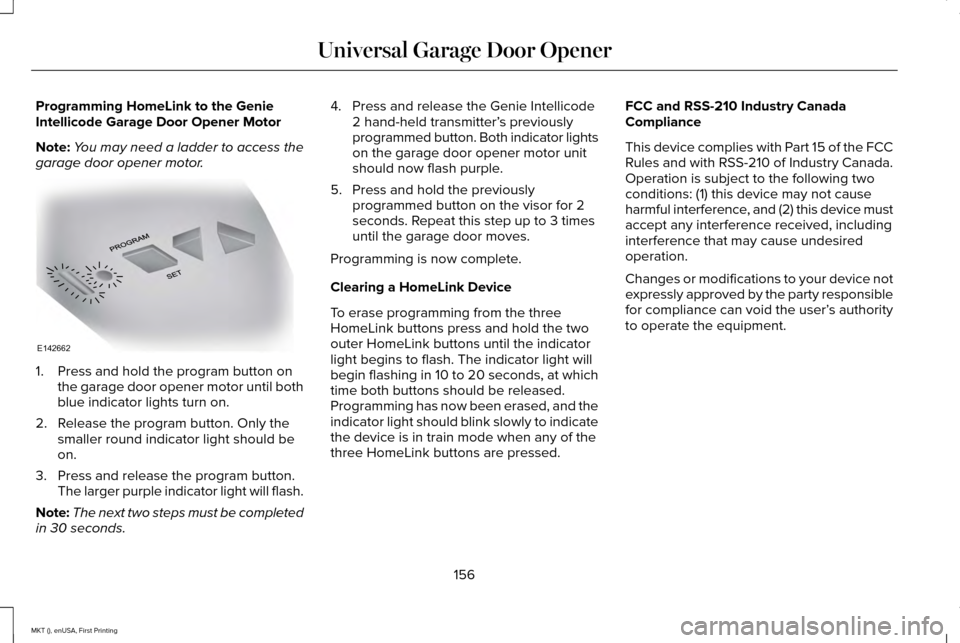
Note:
You may need a ladder to access the
garage door opener motor. 1. Press and hold the program button on
the garage door opener motor until both
blue indicator lights turn on.
2. Release the program button. Only the smaller round indicator light should be
on.
3. Press and release the program button. The larger purple indicator light will flash.
Note: The next two steps must be completed
in 30 seconds. 4. Press and release the Genie Intellicode
2 hand-held transmitter’ s previously
programmed button. Both indicator lights
on the garage door opener motor unit
should now flash purple.
5. Press and hold the previously programmed button on the visor for 2
seconds. Repeat this step up to 3 times
until the garage door moves.
Programming is now complete.
Clearing a HomeLink Device
To erase programming from the three
HomeLink buttons press and hold the two
outer HomeLink buttons until the indicator
light begins to flash. The indicator light will
begin flashing in 10 to 20 seconds, at which
time both buttons should be released.
Programming has now been erased, and the
indicator light should blink slowly to indicate
the device is in train mode when any of the
three HomeLink buttons are pressed. FCC and RSS-210 Industry Canada
Compliance
This device complies with Part 15 of the FCC
Rules and with RSS-210 of Industry Canada.
Operation is subject to the following two
conditions: (1) this device may not cause
harmful interference, and (2) this device must
accept any interference received, including
interference that may cause undesired
operation.
Changes or modifications to your device not
expressly approved by the party responsible
for compliance can void the user’
s authority
to operate the equipment.
156
MKT (), enUSA, First Printing Universal Garage Door OpenerE142662
Page 181 of 452
SelectShift Automatic
™ Transmission (If
Equipped)
Your vehicle is equipped with a SelectShift
Automatic transmission. The SelectShift
Automatic transmission gives you the ability
to change gears up or down (without a
clutch) as desired.
In order to prevent the engine from running
at too low an RPM, which may cause it to
stall, SelectShift still automatically makes
some downshifts if it has determined that
you have not downshifted in time. Although
SelectShift makes some downshifts for you,
it still allows you to downshift at any time as
long as the SelectShift determines that
damage will not be caused to the engine
from over-revving.
Note: Engine damage may occur if you
maintain excessive engine revving without
shifting. SelectShift does not automatically upshift,
even if the engine is approaching the RPM
limit. It must be shifted manually by pressing
the + button. Notice should be taken of the
shift indicator lamp, which alerts you when
to shift to make sure you achieve the highest
level or efficiency and fuel economy.
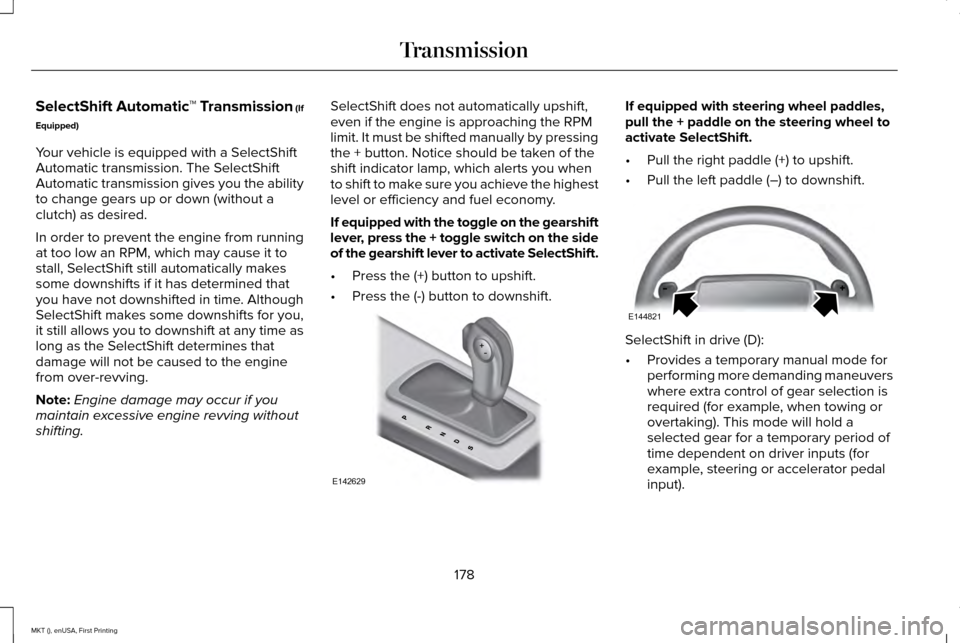
If equipped with the toggle on the gearshift
lever, press the + toggle switch on the side
of the gearshift lever to activate SelectShift.
•
Press the (+) button to upshift.
• Press the (-) button to downshift. If equipped with steering wheel paddles,
pull the + paddle on the steering wheel to
activate SelectShift.
•
Pull the right paddle (+) to upshift.
• Pull the left paddle (–) to downshift. SelectShift in drive (D):
•
Provides a temporary manual mode for
performing more demanding maneuvers
where extra control of gear selection is
required (for example, when towing or
overtaking). This mode will hold a
selected gear for a temporary period of
time dependent on driver inputs (for
example, steering or accelerator pedal
input).
178
MKT (), enUSA, First Printing TransmissionE142629 E144821
Page 189 of 452
acceleration or braking which could result
in an increased risk of loss of vehicle
control, vehicle rollover and/or personal
injury. Use all available road surface to
return the vehicle to a safe direction of
travel.
• In the event of an emergency stop, avoid
skidding the tires and do not attempt any
sharp steering wheel movements.
• If the vehicle goes from one type of
surface to another (that is, from concrete
to gravel) there will be a change in the
way the vehicle responds to a maneuver
(steering, acceleration or braking). Again,
avoid these abrupt inputs.
Sand
Most of the time traction control improves
tire traction by managing wheel slip through
Brake, Engine, and AWD calibrations.
However, during low speed driving, disabling
traction control in deep sand can help keep
the wheels moving to maintain vehicle
momentum. When driving over sand, try to keep all four
wheels on the most solid area of the trail.
Avoid reducing the tire pressures but shift
to a lower gear and drive steadily through
the terrain. Apply the accelerator slowly and
avoid spinning the wheels.
Do not drive your vehicle in deep sand for
an extended period of time. This could cause
the AWD system to overheat and default to
front-wheel drive. If this occurs, an AWD OFF
message displays in the information display.
To resume normal AWD function as soon as
possible, stop the vehicle in a safe location
and stop the engine for at least 10 minutes.
After the engine has been restarted and the
AWD system has adequately cooled, the
AWD OFF message turns off and normal
AWD function returns. In the event the
engine is not stopped, the
AWD OFF
message turns off when the system cools
and normal AWD function returns.
When driving at slow speeds in deep sand
under high outside temperatures, use L (Low)
gear when possible. L (Low) gear operation
will maximize the engine and transmission
cooling capability. Under severe operating conditions, the A/C
may cycle on and off to protect overheating
of the engine.
Avoid excessive speed because vehicle
momentum can work against you and cause
the vehicle to become stuck to the point that
assistance may be required from another
vehicle. Remember, you may be able to back
out the way you came if you proceed with
caution.
Mud and Water
If you must drive through high water, drive
slowly. Traction or brake capability may be
limited.
When driving through water, determine the
depth; avoid water higher than the bottom
of the wheel rims (for cars) or the bottom of
the hubs (for trucks) (if possible) and proceed
slowly. If the ignition system gets wet, the
vehicle may stall.
186
MKT (), enUSA, First Printing All-Wheel Drive
(If Equipped)
Page 197 of 452
PRINCIPLE OF OPERATION
WARNINGS
Vehicle modifications involving braking
system, aftermarket roof racks,
suspension, steering system, tire
construction and wheel and tire size may
change the handling characteristics of your
vehicle and may adversely affect the
performance of the electronic stability control
system. In addition, installing any stereo
loudspeakers may interfere with and
adversely affect the electronic stability
control system. Install any aftermarket stereo
loudspeaker as far as possible from the front
center console, the tunnel, and the front
seats in order to minimize the risk of
interfering with the electronic stability control
sensors. Reducing the effectiveness of the
electronic stability control system could lead
to an increased risk of loss of vehicle control,
vehicle rollover, personal injury and death. WARNINGS
Remember that even advanced
technology cannot defy the laws of
physics. It’ s always possible to lose control
of a vehicle due to inappropriate driver input
for the conditions. Aggressive driving on any
road condition can cause you to lose control
of your vehicle increasing the risk of personal
injury or property damage. Activation of the
electronic stability control system is an
indication that at least some of the tires have
exceeded their ability to grip the road; this
could reduce the operator’ s ability to control
the vehicle potentially resulting in a loss of
vehicle control, vehicle rollover, personal
injury and death. If your electronic stability
control system activates, SLOW DOWN. The system automatically turns on each time
you switch the ignition on.
If a driving condition activates either the
stability control or the traction control system
you may experience the following conditions:
•
The stability and traction control light
flashes.
• Your vehicle slows down. •
Reduced engine power.
• A vibration in the brake pedal.
• The brake pedal is stiffer than usual.
• If the driving condition is severe and your
foot is not on the brake, the brake pedal
may move as the systems applies higher
brake forces.
The stability control system has several
features built into it to help you maintain
control of your vehicle:
Electronic Stability Control
The system enhances your vehicle ’s ability
to prevent skids or lateral slides by applying
brakes to one or more of the wheels
individually and, if necessary, reducing
engine power.
Roll Stability Control
The system enhances your vehicle ’s ability
to prevent rollovers by detecting your
vehicle ’s roll motion and the rate at which it
changes by applying the brakes to one or
more wheels individually.
194
MKT (), enUSA, First Printing Stability Control
Page 207 of 452
Note:
When towing, the camera only sees
what you are towing. This might not provide
adequate coverage as it usually provides in
normal operation and some objects might
not be seen. In some vehicles, the guidelines
may disappear when you connect the trailer
tow connector.
The camera may not operate correctly under
the following conditions:
• Nighttime or dark areas if one or both
reverse lamps are not operating.
• Mud, water or debris obstructs the
camera's view. Clean the lens with a soft,
lint-free cloth and non-abrasive cleaner.
• The rear of your vehicle is hit or
damaged, causing the camera to become
misaligned.
Camera Guidelines
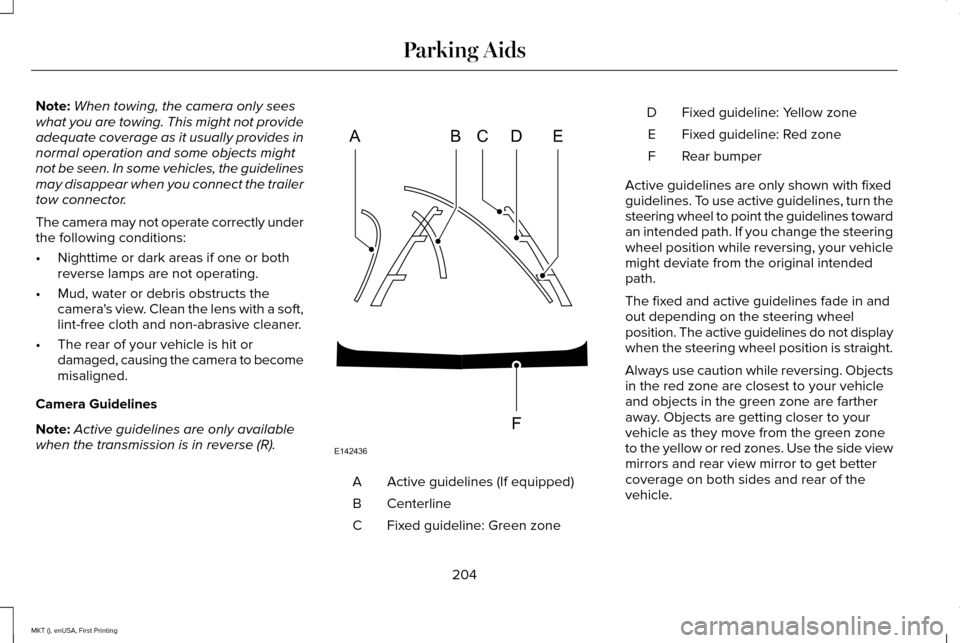
Note: Active guidelines are only available
when the transmission is in reverse (R). Active guidelines (If equipped)
A
Centerline
B
Fixed guideline: Green zone
C Fixed guideline: Yellow zone
D
Fixed guideline: Red zone
E
Rear bumper
F
Active guidelines are only shown with fixed
guidelines. To use active guidelines, turn the
steering wheel to point the guidelines toward
an intended path. If you change the steering
wheel position while reversing, your vehicle
might deviate from the original intended
path.
The fixed and active guidelines fade in and
out depending on the steering wheel
position. The active guidelines do not display
when the steering wheel position is straight.
Always use caution while reversing. Objects
in the red zone are closest to your vehicle
and objects in the green zone are farther
away. Objects are getting closer to your
vehicle as they move from the green zone
to the yellow or red zones. Use the side view
mirrors and rear view mirror to get better
coverage on both sides and rear of the
vehicle.
204
MKT (), enUSA, First Printing Parking AidsABCD
F
E
E142436
Page 214 of 452
Changing the Set Speed
•
Press and release SET+ or SET-. When
you select km/h as the display
measurement in the information display
the set speed changes in approximately
2 km/h increments. When you select mph
as the display measurement in the
information display the set speed
changes in approximately 1 mph
increments.
• Press the accelerator or brake pedal until
you reach the desired speed. Press and
release
SET+.
• Press and hold
SET+ or SET- until the
desired set speed shows on the
information display. The vehicle speed
will gradually change to the selected
speed.
The system may apply the brakes to slow
the vehicle to the new set speed. The set
speed displays continuously in the
information display when the system is
active. Resuming the Set Speed
Press and release
RES. Your vehicle speed
returns to the previously set speed and gap
setting.
Note: Only use resume if you are aware of
the set speed and intend to return to it.
Automatic Cancellation
The system does not operate below
12 mph
(20 km/h). An audible warning sounds and
the automatic braking releases if the vehicle
drops below this speed.
Hilly Condition Usage
You should select a lower gear position
when the system is active in situations such
as prolonged downhill driving on steep
grades, for example in mountainous areas.
The system needs additional engine braking
in these situations to reduce the load on the
vehicle ’s regular brake system to prevent
them from overheating. Note:
An audible warning sounds and the
system shuts down if it applies brakes for an
extended period of time. This allows the
brakes to cool down. The system functions
normally again when the brakes have cooled
down.
Switching Adaptive Cruise Control Off
Press and release
OFF when the system is
in stand by mode or switch the ignition off.
Note: You erase the set speed when you
switch the system off.
Detection Issues WARNING
On rare occasions, detection issues
can occur due to the road
infrastructures, for example bridges, tunnels
and safety barriers. In these cases, the
system may brake late or unexpectedly. At
all times, you are responsible for controlling
your vehicle, supervising the system and
intervening, if required. 211
MKT (), enUSA, First Printing Cruise Control
Page 219 of 452
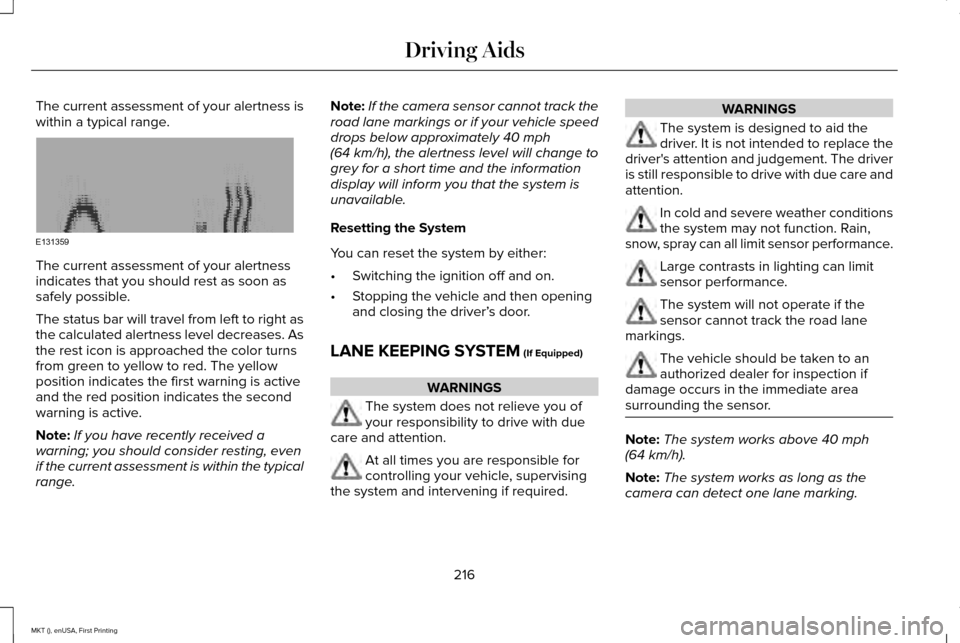
The current assessment of your alertness is
within a typical range.
The current assessment of your alertness
indicates that you should rest as soon as
safely possible.
The status bar will travel from left to right as
the calculated alertness level decreases. As
the rest icon is approached the color turns
from green to yellow to red. The yellow
position indicates the first warning is active
and the red position indicates the second
warning is active.
Note:
If you have recently received a
warning; you should consider resting, even
if the current assessment is within the typical
range. Note:
If the camera sensor cannot track the
road lane markings or if your vehicle speed
drops below approximately 40 mph
(64 km/h), the alertness level will change to
grey for a short time and the information
display will inform you that the system is
unavailable.
Resetting the System
You can reset the system by either:
• Switching the ignition off and on.
• Stopping the vehicle and then opening
and closing the driver’ s door.
LANE KEEPING SYSTEM
(If Equipped) WARNINGS
The system does not relieve you of
your responsibility to drive with due
care and attention. At all times you are responsible for
controlling your vehicle, supervising
the system and intervening if required. WARNINGS
The system is designed to aid the
driver. It is not intended to replace the
driver's attention and judgement. The driver
is still responsible to drive with due care and
attention. In cold and severe weather conditions
the system may not function. Rain,
snow, spray can all limit sensor performance. Large contrasts in lighting can limit
sensor performance.
The system will not operate if the
sensor cannot track the road lane
markings. The vehicle should be taken to an
authorized dealer for inspection if
damage occurs in the immediate area
surrounding the sensor. Note:
The system works above
40 mph
(64 km/h).
Note: The system works as long as the
camera can detect one lane marking.
216
MKT (), enUSA, First Printing Driving AidsE131359
Page 220 of 452
Note:
The system may not function if the
camera is blocked or there is damage to the
windshield.
Note: When Aid mode is on and the system
detects no steering activity for a short period,
the system will alert you to put your hands
on the steering wheel. The system may
detect a light grip or touch on the steering
wheel as hands off driving.
The system notifies you to stay in your lane
through the steering system and the
instrument cluster display when the front
camera detects an unintentional drift out of
your lane is likely to occur. The system
automatically detects and tracks the road
lane markings using a camera mounted
behind the interior rear view mirror.
Switching the System On and Off
Note: The system on or off setting is stored
until it is manually changed, unless a MyKey
is detected. If the system detects a MyKey
it defaults to on and the mode is set to Alert.
Note: If a MyKey is detected, pressing the
button will not affect the on or off status of
the system. Press the button located on the
center console to switch the
system on or off.
System Settings
The system has optional setting menus
available. To view or adjust the settings, See
General Information (page 108). The system
stores the last-known selection for each of
these settings. You do not need to readjust
your settings each time you turn on the
system.
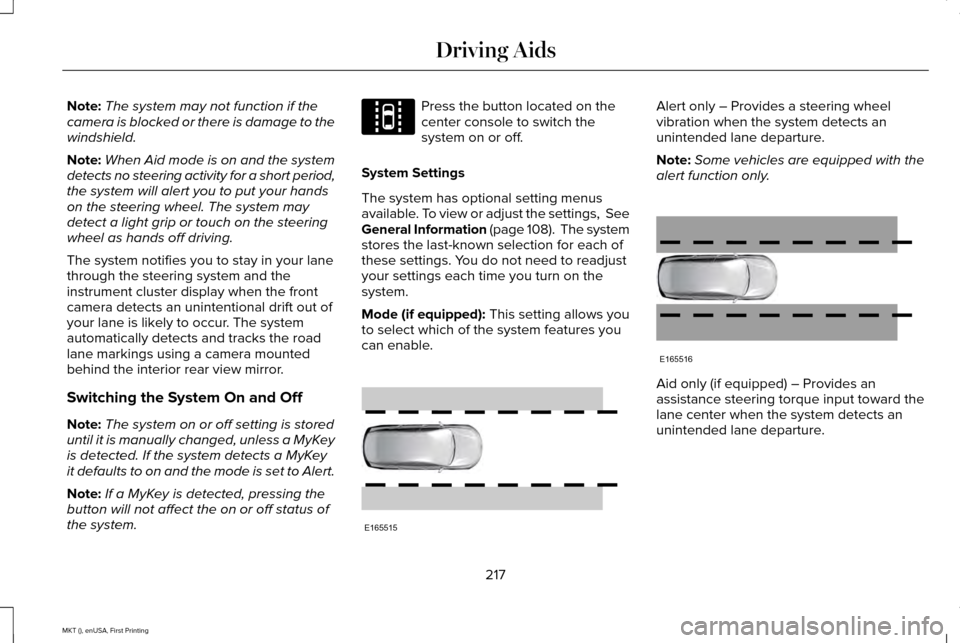
Mode (if equipped): This setting allows you
to select which of the system features you
can enable. Alert only – Provides a steering wheel
vibration when the system detects an
unintended lane departure.
Note:
Some vehicles are equipped with the
alert function only. Aid only (if equipped) – Provides an
assistance steering torque input toward the
lane center when the system detects an
unintended lane departure.
217
MKT (), enUSA, First Printing Driving AidsE144813 E165515 E165516