phone LINCOLN MKT 2017 User Guide
[x] Cancel search | Manufacturer: LINCOLN, Model Year: 2017, Model line: MKT, Model: LINCOLN MKT 2017Pages: 558, PDF Size: 4.59 MB
Page 263 of 558
Web Address
www.LincolnCanada.com
Online Resources
Twitter English
@LincolnMotorCA
Twitter French
@LincolnQC
Instagram
@LincolnMotorCA
Facebook
/LincolnMotorCA
Additional Assistance
If you have questions or concerns, or are
unsatisfied with the service you are receiving,
follow these steps:
1. Contact your Sales Representative or Service Advisor at your selling or
servicing authorized dealer. 2. If your inquiry or concern remains
unresolved, contact the Sales Manager,
Service Manager or Customer Relations
Manager.
3. If you require assistance or clarification on Lincoln Motor Company policies,
please contact the Lincoln Client
Relationship Center.
In order to help us serve you better, please
have the following information available
when contacting a Client Relationship
Center:
• Vehicle Identification Number.
• Your telephone number (home and
business).
• The name of the authorized dealer and
city where located.
• The vehicle ’s current odometer reading.
In some states, you must directly notify
Lincoln in writing before pursuing remedies
under your state ’s warranty laws. Lincoln is
also allowed a final repair attempt in some
states. In the United States, a warranty dispute must
be submitted to the BBB AUTO LINE before
taking action under the Magnuson-Moss
Warranty Act, or to the extent allowed by
state law, before pursuing replacement or
repurchase remedies provided by certain
state laws. This dispute handling procedure
is not required prior to enforcing state
created rights or other rights which are
independent of the Magnuson-Moss
Warranty Act or state replacement or
repurchase laws.
IN CALIFORNIA (U.S. ONLY)
California Civil Code Section 1793.2(d)
requires that, if a manufacturer or its
representative is unable to repair a motor
vehicle to conform to the vehicle
’s applicable
express warranty after a reasonable number
of attempts, the manufacturer shall be
required to either replace the vehicle with
one substantially identical or repurchase the
260
MKT (TP4) , enUSA, First Printing Customer Assistance
Page 267 of 558
E-mail
Fax
Phone
Customer Relationship Center
[email protected]
N/A
N/A
Asia Pacific
[email protected]
-
+1 313 594 4857
Caribbean and Central America
[email protected]
971 4 3327 266
FORD
Ford Middle East
80004443673
Lincoln
80004441067
UAE
80004441066
Saudi Arabia
8008443673
Mobily and Zain cell phone users in Saudi
800850078
[email protected]
N/A
+1-800-841-3673
Puerto Rico and U.S. Virgin Islands
[email protected]
+1 313 390 0804
+1-313-594-4857
Sub-Saharan Africa
[email protected] [email protected]
N/A
+63-2-717-6410
South Korea
264
MKT (TP4) , enUSA, First Printing Customer Assistance
Page 269 of 558
To contact NHTSA, you may call the
Vehicle Safety Hotline toll-free at
1-888-327-4236 (TTY: 1-800-424-9153);
go to http://www.safercar.gov; or write
to:
Administrator
1200 New Jersey Avenue, Southeast
Washington, D.C. 20590
You can also obtain other information
about motor vehicle safety from
http://www.safercar.gov.
REPORTING SAFETY DEFECTS
(CANADA ONLY)
If you believe that your vehicle has a defect
which could cause a crash or could cause
injury or death, you should immediately
inform Transport Canada and Ford of
Canada. Transport Canada Contact Information
www.tc.gc.ca/eng/motorvehiclesafety/safevehicles-defectinvestigations-index-76.htm\
(English)
Website
www.tc.gc.ca/fra/securiteautomobile/VehiculesSecuritaires-Enquetes-index-76.htm (French)
Website
1–800–333–0510
Phone Ford of Canada Contact Information
www.ford.ca
Website
1–800–565-3673
Phone
266
MKT (TP4) , enUSA, First Printing Customer Assistance
Page 379 of 558
GENERAL INFORMATION
WARNING
Driving while distracted can result in
loss of vehicle control, crash and injury.
We strongly recommend that you use
extreme caution when using any device that
may take your focus off the road. Your
primary responsibility is the safe operation
of your vehicle. We recommend against the
use of any hand-held device while driving
and encourage the use of voice-operated
systems when possible. Make sure you are
aware of all applicable local laws that may
affect the use of electronic devices while
driving. Getting to Know Your System
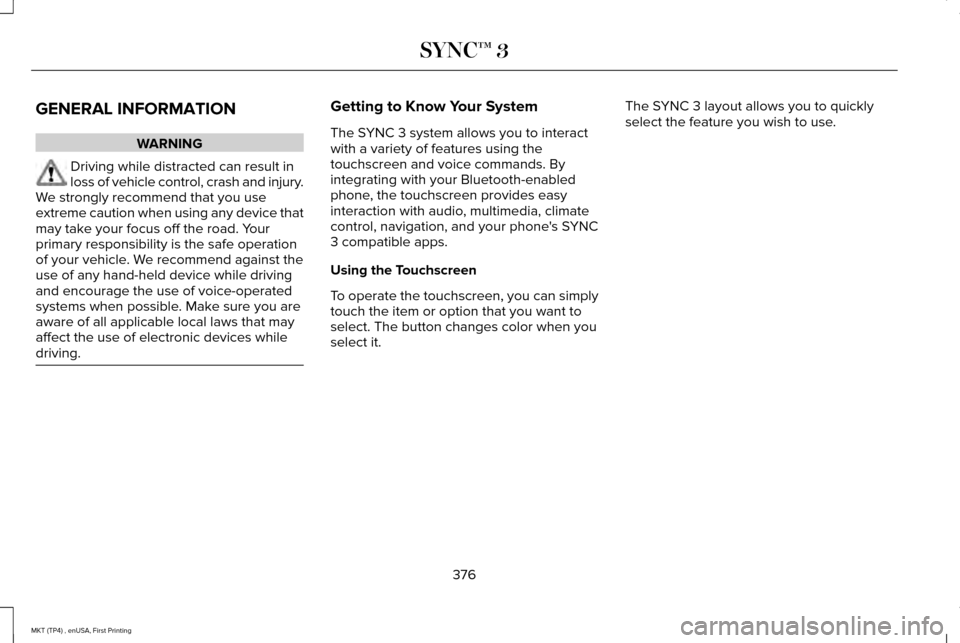
The SYNC 3 system allows you to interact
with a variety of features using the
touchscreen and voice commands. By
integrating with your Bluetooth-enabled
phone, the touchscreen provides easy
interaction with audio, multimedia, climate
control, navigation, and your phone's SYNC
3 compatible apps.
Using the Touchscreen
To operate the touchscreen, you can simply
touch the item or option that you want to
select. The button changes color when you
select it.
The SYNC 3 layout allows you to quickly
select the feature you wish to use.
376
MKT (TP4) , enUSA, First Printing SYNC™ 3
Page 381 of 558

Action and Description
Menu Item
Item
This bar displays icons and messages pertaining to current system activi\
ties including climate
settings, voice commands and phone functions such as text messages.
Status Bar
A
This button is available on the main screens. Pressing it takes you to the home screen view.
Home
B
This shows the current time. You can set the clock manually or have it controlled by the vehicle's
GPS location. See Settings (page 444).
Clock
C
This displays the current outside temperature.
Outside Temperature
D
You can touch any of the buttons on this bar to select a feature.
Feature Bar
E
The touchscreen allows you quick access to
all of your comfort, navigation,
communication and entertainment options.
Using the status and feature bar you can
quickly select the feature you want to use. Note:
Your system is equipped with a feature
that allows you to access and control audio
features for 10 minutes after you switch the
ignition off (and no doors open). The Status Bar
Additional icons also display in the status bar
depending on market, vehicle options and
current operation. If a feature is not active,
the icon does not display. Certain icons may
move to the left or right depending on what
options are active.
378
MKT (TP4) , enUSA, First Printing SYNC™ 3
Page 383 of 558

Description
Item
Callout
This shows the temperature the driver selects through the climate contro\
l system.
Driver Temperature
A
When the passenger's temperature has been adjusted and is no longer linked to the
driver's temperature, it displays here. If Dual is turned off and the temperatures are
linked, the passenger's temperature does not display.
Passenger Temperature
B
This icon displays when your phone's microphone is muted. A caller cannot hear you.
Microphone Mute
C
This icon displays when the audio system is muted.
Mute
D
This icon appears when SYNC 3 receives a software update. Pressing the icon shows
more details about the new software.
Download
E
This icon appears when you connect to a Wi-Fi network.
Wi-Fi
F
An available Wi-Fi network is within range.
Wi-Fi in Range
G
This icon displays when your cell phone is roaming.
Roaming
H
This icon displays when you receive a text message on your phone.
Text Message
I
This icon displays when 911 Assist is set to off and your phone is conne\
cted to SYNC.
911 Assist Off
J
The Bluetooth alert icon displays when there is an active Bluetooth aler\
t.
Bluetooth Alert
K
This icon displays to show an active Bluetooth connection.
Bluetooth
L
380
MKT (TP4) , enUSA, First Printing SYNC™ 3
Page 384 of 558
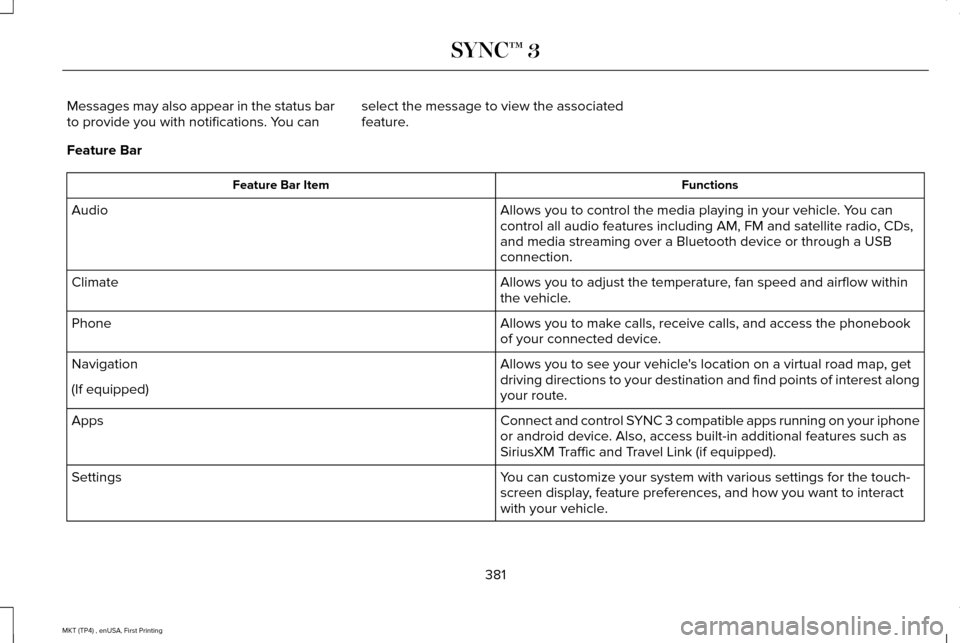
Messages may also appear in the status bar
to provide you with notifications. You can
select the message to view the associated
feature.
Feature Bar Functions
Feature Bar Item
Allows you to control the media playing in your vehicle. You can
control all audio features including AM, FM and satellite radio, CDs,
and media streaming over a Bluetooth device or through a USB
connection.
Audio
Allows you to adjust the temperature, fan speed and airflow within
the vehicle.
Climate
Allows you to make calls, receive calls, and access the phonebook
of your connected device.
Phone
Allows you to see your vehicle's location on a virtual road map, get
driving directions to your destination and find points of interest along\
your route.
Navigation
(If equipped)
Connect and control SYNC 3 compatible apps running on your iphone
or android device. Also, access built-in additional features such as
SiriusXM Traffic and Travel Link (if equipped).
Apps
You can customize your system with various settings for the touch-
screen display, feature preferences, and how you want to interact
with your vehicle.
Settings
381
MKT (TP4) , enUSA, First Printing SYNC™ 3
Page 387 of 558
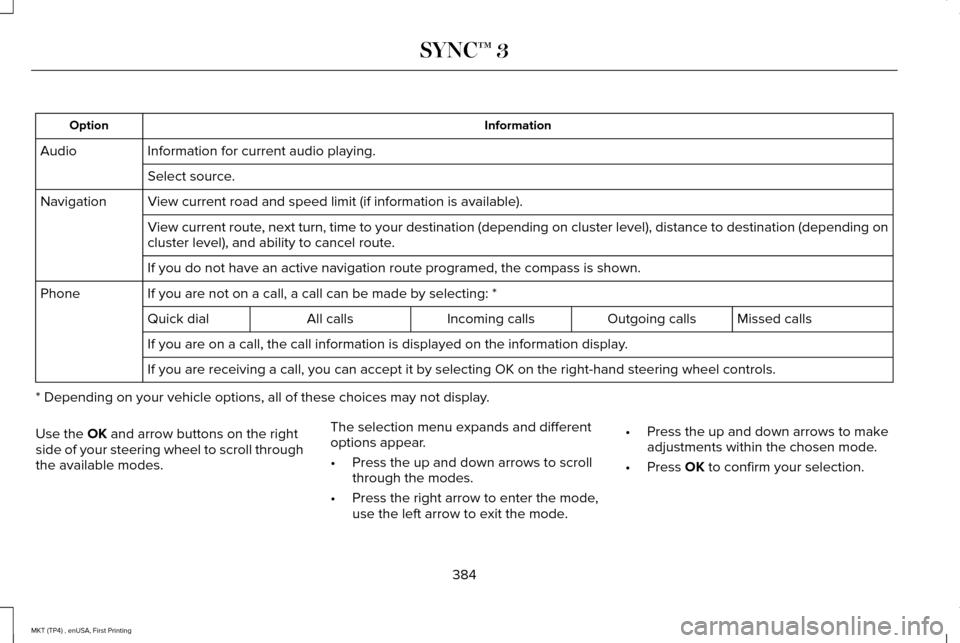
Information
Option
Information for current audio playing.
Audio
Select source.
View current road and speed limit (if information is available).
Navigation
View current route, next turn, time to your destination (depending on cluster level), di\
stance to destination (depending on
cluster level), and ability to cancel route.
If you do not have an active navigation route programed, the compass is \
shown.
If you are not on a call, a call can be made by selecting: *
Phone
Missed calls
Outgoing calls
Incoming calls
All calls
Quick dial
If you are on a call, the call information is displayed on the informati\
on display.
If you are receiving a call, you can accept it by selecting OK on the ri\
ght-hand steering wheel controls.
* Depending on your vehicle options, all of these choices may not displa\
y.
Use the OK and arrow buttons on the right
side of your steering wheel to scroll through
the available modes. The selection menu expands and different
options appear.
•
Press the up and down arrows to scroll
through the modes.
• Press the right arrow to enter the mode,
use the left arrow to exit the mode. •
Press the up and down arrows to make
adjustments within the chosen mode.
• Press
OK to confirm your selection.
384
MKT (TP4) , enUSA, First Printing SYNC™ 3
Page 388 of 558
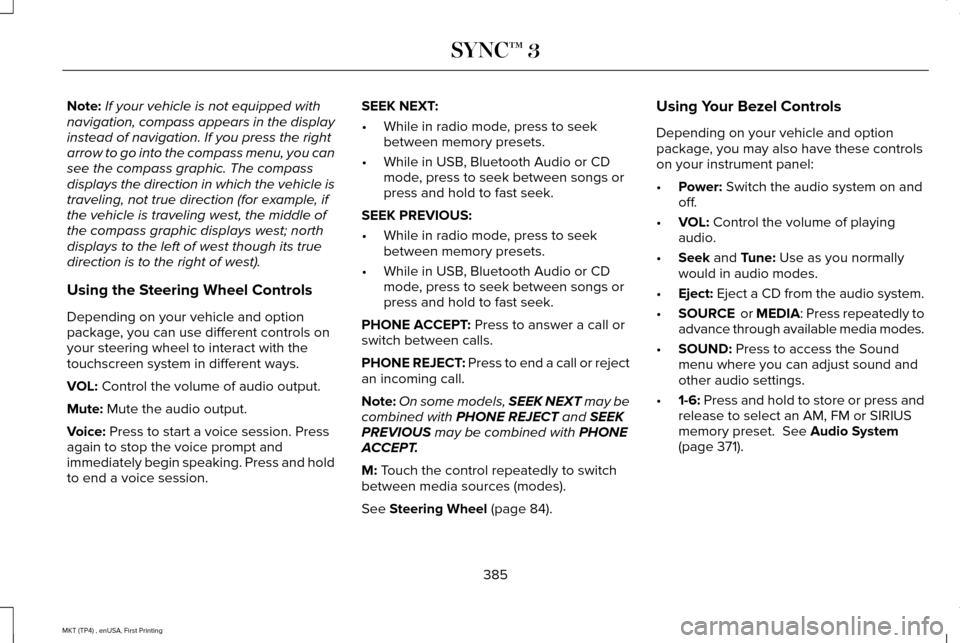
Note:
If your vehicle is not equipped with
navigation, compass appears in the display
instead of navigation. If you press the right
arrow to go into the compass menu, you can
see the compass graphic. The compass
displays the direction in which the vehicle is
traveling, not true direction (for example, if
the vehicle is traveling west, the middle of
the compass graphic displays west; north
displays to the left of west though its true
direction is to the right of west).
Using the Steering Wheel Controls
Depending on your vehicle and option
package, you can use different controls on
your steering wheel to interact with the
touchscreen system in different ways.
VOL: Control the volume of audio output.
Mute:
Mute the audio output.
Voice:
Press to start a voice session. Press
again to stop the voice prompt and
immediately begin speaking. Press and hold
to end a voice session. SEEK NEXT:
•
While in radio mode, press to seek
between memory presets.
• While in USB, Bluetooth Audio or CD
mode, press to seek between songs or
press and hold to fast seek.
SEEK PREVIOUS:
• While in radio mode, press to seek
between memory presets.
• While in USB, Bluetooth Audio or CD
mode, press to seek between songs or
press and hold to fast seek.
PHONE ACCEPT:
Press to answer a call or
switch between calls.
PHONE REJECT: Press to end a call or reject
an incoming call.
Note: On some models, SEEK NEXT may be
combined with
PHONE REJECT and SEEK
PREVIOUS may be combined with PHONE
ACCEPT.
M:
Touch the control repeatedly to switch
between media sources (modes).
See
Steering Wheel (page 84). Using Your Bezel Controls
Depending on your vehicle and option
package, you may also have these controls
on your instrument panel:
•
Power:
Switch the audio system on and
off.
• VOL:
Control the volume of playing
audio.
• Seek
and Tune: Use as you normally
would in audio modes.
• Eject:
Eject a CD from the audio system.
• SOURCE
or MEDIA: Press repeatedly to
advance through available media modes.
• SOUND:
Press to access the Sound
menu where you can adjust sound and
other audio settings.
• 1-6:
Press and hold to store or press and
release to select an AM, FM or SIRIUS
memory preset.
See Audio System
(page 371).
385
MKT (TP4) , enUSA, First Printing SYNC™ 3
Page 389 of 558
•
DISP: Switch the display on or off. You
can also touch the screen to switch the
display back on.
• Temperature, fan and climate control
buttons:
Control the temperature, fan
speed or settings of the climate control
system. See Climate Control (page 130).
911 Assist WARNINGS
Unless the 911 Assist setting is set on
before a crash, the system will not dial
for help which could delay response time,
potentially increasing the risk of serious
injury or death after a crash. setting is set on
before a crash, the system will not dial for
help which could delay response time,
potentially increasing the risk of serious
injury or death after a crash. WARNINGS
Do not wait for 911 Assist to make an
emergency call if you can do it yourself.
Dial emergency services immediately to
avoid delayed response time which could
increase the risk of serious injury or death
after a crash. If you do not hear 911 Assist
within five seconds of the crash, the system
or phone may be damaged or non-functional. Always place your phone in a secure
location in your vehicle so it does not
become a projectile or get damaged in a
crash. Failure to do so may cause serious
injury to someone or damage the phone
which could prevent 911 Assist from working
properly. Note:
The SYNC 911 Assist feature must be
set on before the incident.
Note: The SYNC 911 Assist feature only
operates in the U.S., Canada or in a territory
in which 911 is the emergency number.
Note: Before setting this feature on, make
sure that you read the 911 Assist Privacy
Notice later in this section for important
information. Note:
If any user sets 911 Assist to on or off,
that setting applies for all paired phones. If
911 Assist is switched off and the phone is
connected to SYNC, an icon displays on the
status bar.
Note: Every phone operates differently.
While SYNC 911 Assist works with most
cellular phones, some may have trouble
using this feature.
If a crash deploys an airbag (excluding knee
airbags and rear inflatable safety belts [if
equipped]) or activates the fuel pump
shut-off, your SYNC-equipped vehicle may
be able to contact emergency services by
dialing 911 through a paired and connected
Bluetooth-enabled phone. You can learn
more about the 911 Assist feature, by visiting: Website
www.owner.lincoln.com
www.syncmyride.ca
386
MKT (TP4) , enUSA, First Printing SYNC™ 3