USB LINCOLN MKT 2018 User Guide
[x] Cancel search | Manufacturer: LINCOLN, Model Year: 2018, Model line: MKT, Model: LINCOLN MKT 2018Pages: 564, PDF Size: 4.66 MB
Page 418 of 564
You can use the forward, reverse, pause or
play buttons to control the audio playback.
Bluetooth Stereo or USB
Bluetooth Stereo and USB allow you to
access media that you store on your
Bluetooth device or USB device such as
music, audio books or podcasts.
The following buttons are available for Bluetooth and USB: Function
Button
Pressing the repeat button toggles the repeat setting through three mode\
s: repeat off (button not
highlighted), repeat all (button highlighted) and repeat track (butt\
on highlighted with a small number
one).
Repeat
Play the tracks in random order.
Shuffle
You can use the forward, reverse, pause or
play buttons to control the audio playback.
To get more information about the currently
playing track, press the cover art or Info
button. For some devices, SYNC 3 is able to provide
30-second skip buttons when you listen to
audio books or podcasts. These buttons
allow you to skip forward or backward within
a track.
While playing audio from a USB device you
can look for certain music by selecting the
following:
415
MKT (TP4) , enUSA, Edition date: 201703, First Printing SYNC™ 3
Page 419 of 564
Function
Button
If available, displays the list of tracks in the Now Playing playlist.
Browse
This option, which is available under browse, allows you to play all
tracks or to filter the available media into one of the below categories\
.
New Search
Play All
Playlists
Artists
Albums
Songs
Genres
Podcasts
Audio books
Composers
This button allows you to choose a specific letter to view within the
category you are browsing.
A-Z Jump
If available, this allows you to browse the folders and files on your
USB device.
Explore Device
416
MKT (TP4) , enUSA, Edition date: 201703, First Printing SYNC™ 3
Page 420 of 564
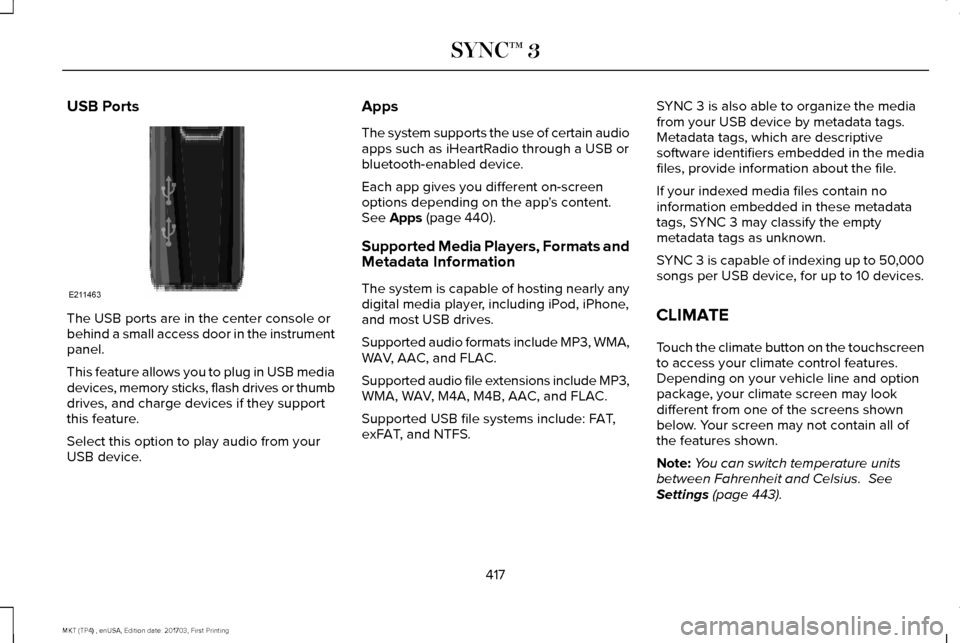
USB Ports
The USB ports are in the center console or
behind a small access door in the instrument
panel.
This feature allows you to plug in USB media
devices, memory sticks, flash drives or thumb
drives, and charge devices if they support
this feature.
Select this option to play audio from your
USB device. Apps
The system supports the use of certain audio
apps such as iHeartRadio through a USB or
bluetooth-enabled device.
Each app gives you different on-screen
options depending on the app's content.
See Apps (page 440).
Supported Media Players, Formats and
Metadata Information
The system is capable of hosting nearly any
digital media player, including iPod, iPhone,
and most USB drives.
Supported audio formats include MP3, WMA,
WAV, AAC, and FLAC.
Supported audio file extensions include MP3,
WMA, WAV, M4A, M4B, AAC, and FLAC.
Supported USB file systems include: FAT,
exFAT, and NTFS. SYNC 3 is also able to organize the media
from your USB device by metadata tags.
Metadata tags, which are descriptive
software identifiers embedded in the media
files, provide information about the file.
If your indexed media files contain no
information embedded in these metadata
tags, SYNC 3 may classify the empty
metadata tags as unknown.
SYNC 3 is capable of indexing up to 50,000
songs per USB device, for up to 10 devices.
CLIMATE
Touch the climate button on the touchscreen
to access your climate control features.
Depending on your vehicle line and option
package, your climate screen may look
different from one of the screens shown
below. Your screen may not contain all of
the features shown.
Note:
You can switch temperature units
between Fahrenheit and Celsius.
See
Settings (page 443).
417
MKT (TP4) , enUSA, Edition date: 201703, First Printing SYNC™ 3E211463
Page 431 of 564
Smartphone Connectivity (If Equipped)
SYNC 3 allows you to use Apple CarPlay and
Android Auto to access your phone.
When you use Apple CarPlay or Android
Auto, you can:
• Make calls.
• Send and receive messages.
• Listen to music.
• Use your phone's voice assistant.
Apple CarPlay and Android Auto disable
some SYNC 3 features.
Most Apple CarPlay and Android Auto
features use mobile data.
Apple CarPlay
Apple CarPlay requires an iPhone 5 or newer
with iOS 7.1 or newer. Updating to the latest
iOS version is recommended.
1. Plug your phone into a USB port.
See
USB Port (page 374).
2. Follow the prompts on the touchscreen.
3. Follow the prompts that appear on your phone to allow access to Apple CarPlay. After completing the setup, your phone
connects to Apple CarPlay automatically
when plugged into a USB port.
To disable this feature from the Settings
screen, select:
Menu Item
Apple CarPlay Preferences
Your device is listed if SYNC detects Apple
CarPlay. Select the name of your device
and select:
Disable
To return to SYNC 3, go to the Apple CarPlay
home screen and select the SYNC app.
Note: Contact Apple for Apple CarPlay
support.
Android Auto
Android Auto is compatible with most
devices with Android 5.0 or newer. 1.
Download the Android Auto app to your
device from Google Play to prepare your
device (this may require mobile data
usage).
Note: The Android Auto App may not be
available within your current market.
2. To switch this feature on from the Settings screen, scroll left on the screen
and select: Menu Item
Android Auto Preferences
Enable Android Auto
Note: Android Auto must be switched on
prior to plugging your device.
You can then plug your device into a USB
port.
See USB Port (page 374).
428
MKT (TP4) , enUSA, Edition date: 201703, First Printing SYNC™ 3
Page 443 of 564
HERE is the digital map provider for the
navigation application. If you find map data
errors, you may report them directly to HERE
by going to www.here.com/mapcreator.
HERE evaluates all reported map errors and
responds with the result of their investigation
by e-mail.
Map coverage includes the USA (including
Puerto Rico and the US Virgin Islands),
Canada and Mexico.
APPS
The system enables voice, steering wheel,
and touch screen control of SYNC 3 AppLink
enabled smartphone apps. Once an app is
running through AppLink, you can control
main features of the app through voice
commands and steering wheel controls.
Note:
Available AppLink enabled apps will
vary by market.
Note: You must pair and connect your
smartphone via Bluetooth to SYNC 3 to
access AppLink. Note:
iPhone users need to connect the
phone to the USB port.
Note: For information on available apps,
supported smartphone devices and
troubleshooting tips please visit: Websites
owner.lincoln.com
www.syncmyride.ca
www.syncmaroute.ca
Note: Make sure you have an active account
for the app that you have downloaded. Some
apps will work automatically with no setup.
Other apps will want you to configure your
personal settings and personalize your
experience by creating stations or favorites.
We recommend you do this at home or
outside of your vehicle.
Note: We encourage you to review the
smartphone app ’s terms of service and
privacy policies because Ford is not
responsible for your app or its use of data. Note:
AppLink is a native SYNC system
feature. Accessing mobile apps through
AppLink is only possible when Android Auto
or Apple CarPlay are disabled. Some apps
may only be accessible in the car through
AppLink and others only through Android
Auto or Apple CarPlay. Please refer to the
Smartphone Connectivity information to
disable Android Auto or Apple CarPlay.
Note: In order to use an app with SYNC 3,
the app needs to be running in the
background of your phone. If you shut down
the app on your phone, it shuts down the
app on SYNC 3 as well.
Note: If a SYNC 3 AppLink compatible app
is not shown in the Apps Domain, make sure
the required app is running on the mobile
device.
440
MKT (TP4) , enUSA, Edition date: 201703, First Printing SYNC™ 3
Page 447 of 564
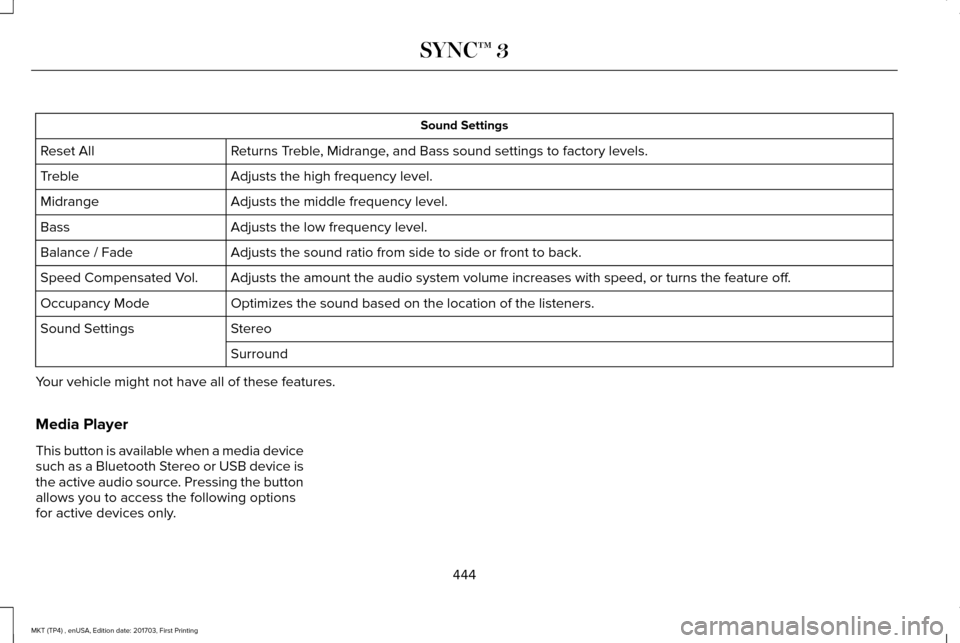
Sound Settings
Returns Treble, Midrange, and Bass sound settings to factory levels.
Reset All
Adjusts the high frequency level.
Treble
Adjusts the middle frequency level.
Midrange
Adjusts the low frequency level.
Bass
Adjusts the sound ratio from side to side or front to back.
Balance / Fade
Adjusts the amount the audio system volume increases with speed, or turn\
s the feature off.
Speed Compensated Vol.
Optimizes the sound based on the location of the listeners.
Occupancy Mode
Stereo
Sound Settings
Surround
Your vehicle might not have all of these features.
Media Player
This button is available when a media device
such as a Bluetooth Stereo or USB device is
the active audio source. Pressing the button
allows you to access the following options
for active devices only.
444
MKT (TP4) , enUSA, Edition date: 201703, First Printing SYNC™ 3
Page 448 of 564

Action and Description
Menu Item
For some USB devices, SYNC 3 can adjust the playback speed of podcasts. When a podcast is playi\
ng, you
can choose:
Podcast Speed
Faster
Normal
Slower
For some USB devices, SYNC 3 can adjust the playback speed of audiobooks. When an audiobook is \
playing,
you can choose:
Audiobook Speed
Faster
Normal
Slower
Cover art displays from your device ’s music files. If no cover art for the files
exists on the device, then the Gracenote Database provides cover art.
Media Player
Cover Art Priority
The Gracenote Database supplied cover art is used for your music files.
This overrides any cover art from your device.
Gracenote®
Switches on and off Gracenote® to provide metadata information such as genre, artist, album.
Gracenote® Management
This allows you to view the version level of the Gracenote Database.
Gracenote® Database Info
This allows you to view the manufacturer and model number of your media \
device.
Device Information
Erase the stored in media information in order to re-index.
Update Media Index
445
MKT (TP4) , enUSA, Edition date: 201703, First Printing SYNC™ 3
Page 458 of 564
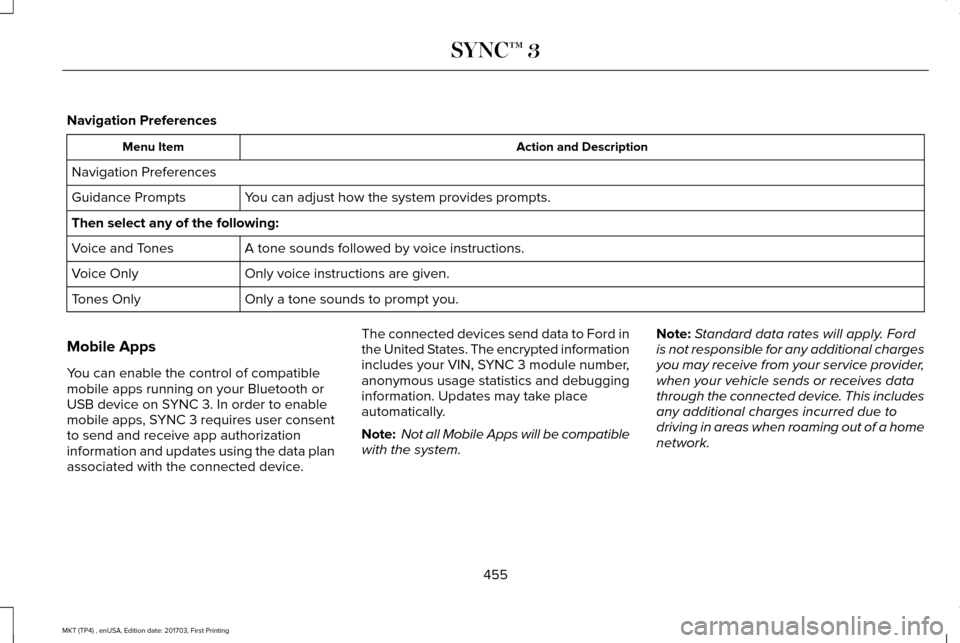
Navigation Preferences
Action and Description
Menu Item
Navigation Preferences You can adjust how the system provides prompts.
Guidance Prompts
Then select any of the following:
A tone sounds followed by voice instructions.
Voice and Tones
Only voice instructions are given.
Voice Only
Only a tone sounds to prompt you.
Tones Only
Mobile Apps
You can enable the control of compatible
mobile apps running on your Bluetooth or
USB device on SYNC 3. In order to enable
mobile apps, SYNC 3 requires user consent
to send and receive app authorization
information and updates using the data plan
associated with the connected device. The connected devices send data to Ford in
the United States. The encrypted information
includes your VIN, SYNC 3 module number,
anonymous usage statistics and debugging
information. Updates may take place
automatically.
Note:
Not all Mobile Apps will be compatible
with the system. Note:
Standard data rates will apply. Ford
is not responsible for any additional charges
you may receive from your service provider,
when your vehicle sends or receives data
through the connected device. This includes
any additional charges incurred due to
driving in areas when roaming out of a home
network.
455
MKT (TP4) , enUSA, Edition date: 201703, First Printing SYNC™ 3
Page 465 of 564
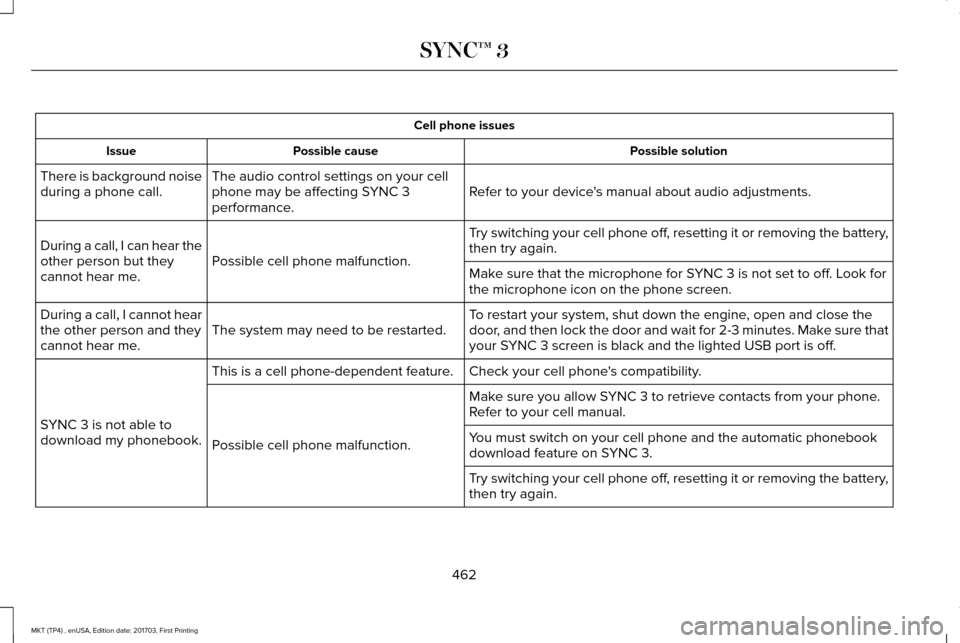
Cell phone issues
Possible solution
Possible cause
Issue
Refer to your device's manual about audio adjustments.
The audio control settings on your cell
phone may be affecting SYNC 3
performance.
There is background noise
during a phone call.
Try switching your cell phone off, resetting it or removing the battery,
then try again.
Possible cell phone malfunction.
During a call, I can hear the
other person but they
cannot hear me.
Make sure that the microphone for SYNC 3 is not set to off. Look for
the microphone icon on the phone screen.
To restart your system, shut down the engine, open and close the
door, and then lock the door and wait for 2-3 minutes. Make sure that
your SYNC 3 screen is black and the lighted USB port is off.
The system may need to be restarted.
During a call, I cannot hear
the other person and they
cannot hear me.
Check your cell phone's compatibility.
This is a cell phone-dependent feature.
SYNC 3 is not able to
download my phonebook. Make sure you allow SYNC 3 to retrieve contacts from your phone.
Refer to your cell manual.
Possible cell phone malfunction. You must switch on your cell phone and the automatic phonebook
download feature on SYNC 3.
Try switching your cell phone off, resetting it or removing the battery,
then try again.
462
MKT (TP4) , enUSA, Edition date: 201703, First Printing SYNC™ 3
Page 468 of 564
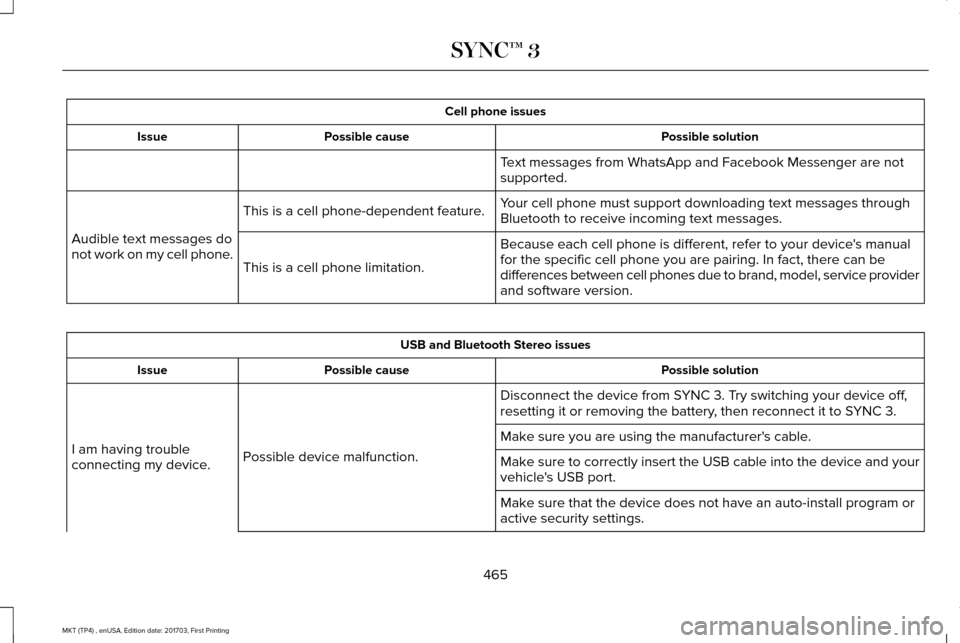
Cell phone issues
Possible solution
Possible cause
Issue
Text messages from WhatsApp and Facebook Messenger are not
supported.
Your cell phone must support downloading text messages through
Bluetooth to receive incoming text messages.
This is a cell phone-dependent feature.
Audible text messages do
not work on my cell phone. Because each cell phone is different, refer to your device's manual
for the specific cell phone you are pairing. In fact, there can be
differences between cell phones due to brand, model, service provider
and software version.
This is a cell phone limitation. USB and Bluetooth Stereo issues
Possible solution
Possible cause
Issue
Disconnect the device from SYNC 3. Try switching your device off,
resetting it or removing the battery, then reconnect it to SYNC 3.
Possible device malfunction.
I am having trouble
connecting my device. Make sure you are using the manufacturer's cable.
Make sure to correctly insert the USB cable into the device and your
vehicle's USB port.
Make sure that the device does not have an auto-install program or
active security settings.
465
MKT (TP4) , enUSA, Edition date: 201703, First Printing SYNC™ 3