audio LINCOLN MKT 2018 User Guide
[x] Cancel search | Manufacturer: LINCOLN, Model Year: 2018, Model line: MKT, Model: LINCOLN MKT 2018Pages: 564, PDF Size: 4.66 MB
Page 374 of 564
Do not expose discs to direct sunlight or heat
sources for extended periods.
MP3 and WMA Track and Folder
Structure
Audio systems capable of recognizing and
playing MP3 and WMA individual tracks and
folder structures work as follows:
•
There are two different modes for MP3
and WMA disc playback: MP3 and WMA
track mode (system default) and MP3 and
WMA folder mode.
• MP3 and WMA track mode ignores any
folder structure on the MP3 and WMA
disc. The player numbers each MP3 and
WMA track on the disc (noted by the MP3
or WMA file extension) from T001 to a
maximum of T255. The maximum number
of playable MP3 and WMA files may be
less depending on the structure of the
CD and exact model of radio present. •
MP3 and WMA folder mode represents
a folder structure consisting of one level
of folders. The CD player numbers all
MP3 and WMA tracks on the disc (noted
by the MP3 or WMA file extension) and
all folders containing MP3 and WMA files,
from F001 (folder) T001 (track) to F253
T255.
• Creating discs with only one level of
folders helps with navigation through the
disc files.
If you are burning your own MP3 and WMA
discs, it is important to understand how the
system reads the structures you create. While
various files may be present (files with
extensions other than MP3 and WMA), only
files with the MP3 and WMA extension are
played; other files are ignored by the system.
This enables you to use the same MP3 and
WMA disc for a variety of tasks on your work
computer, home computer and your
in-vehicle system. In track mode, the system displays and plays
the structure as if it were only one level deep
(all MP3 and WMA files play, regardless of
being in a specific folder). In folder mode,
the system only plays the MP3 and WMA files
in the current folder.
AUDIO UNIT WARNING
Driving while distracted can result in
loss of vehicle control, crash and injury.
We strongly recommend that you use
extreme caution when using any device that
may take your focus off the road. Your
primary responsibility is the safe operation
of your vehicle. We recommend against the
use of any hand-held device while driving
and encourage the use of voice-operated
systems when possible. Make sure you are
aware of all applicable local laws that may
affect the use of electronic devices while
driving. 371
MKT (TP4) , enUSA, Edition date: 201703, First Printing Audio System
Page 375 of 564
Note:
The touchscreen system controls most
of the audio features. See your SYNC
information. 372
MKT (TP4) , enUSA, Edition date: 201703, First Printing Audio SystemE210744
Page 376 of 564

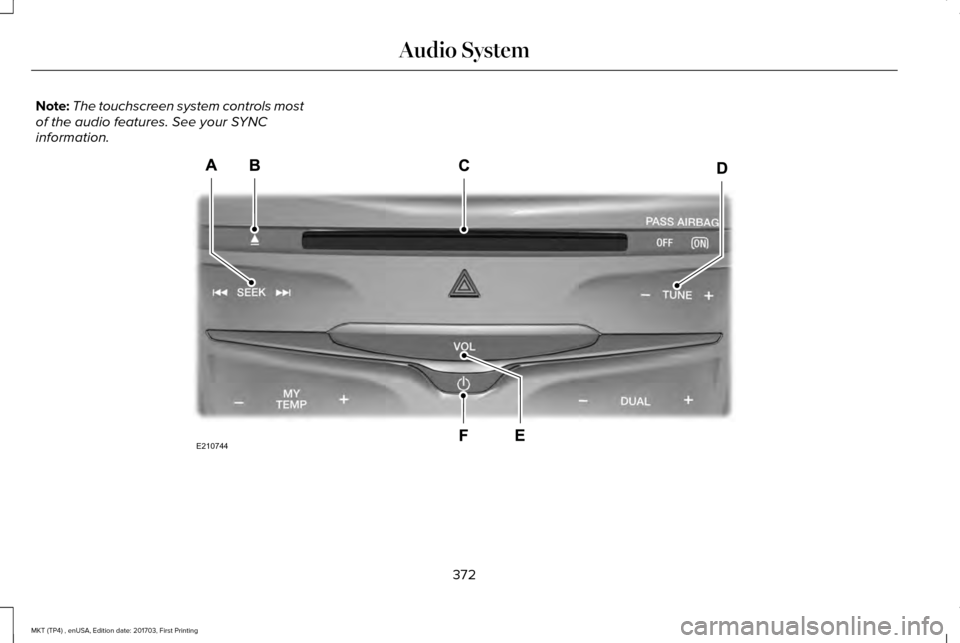
Seek, Fast Forward and Reverse: In radio mode, select a frequency band and press either button. The system stops at t\
he first
station it finds in that direction. In SIRIUS mode, press to select the next or previous satellite radio station. If you s\
elect a specific
category (such as jazz, rock or news), press to find the next or previ\
ous station in the category you select. In CD mode, press to
select the next or previous track. Press and hold to move quickly forwar\
d or backward through the current track.
A
Eject:
Press to eject a CD.
B
CD slot:
Insert a CD.
C
TUNE:
In radio mode, press to search through the radio frequency band. In SIRIUS mode, press to find the previous or next available
satellite radio station.
D
Volume:
Press to adjust the volume.
E
Power:
Press to switch the system on and off.
F
Rear Seat Audio Controls
(If Equipped) 373
MKT (TP4) , enUSA, Edition date: 201703, First Printing Audio SystemE182082
Page 377 of 564
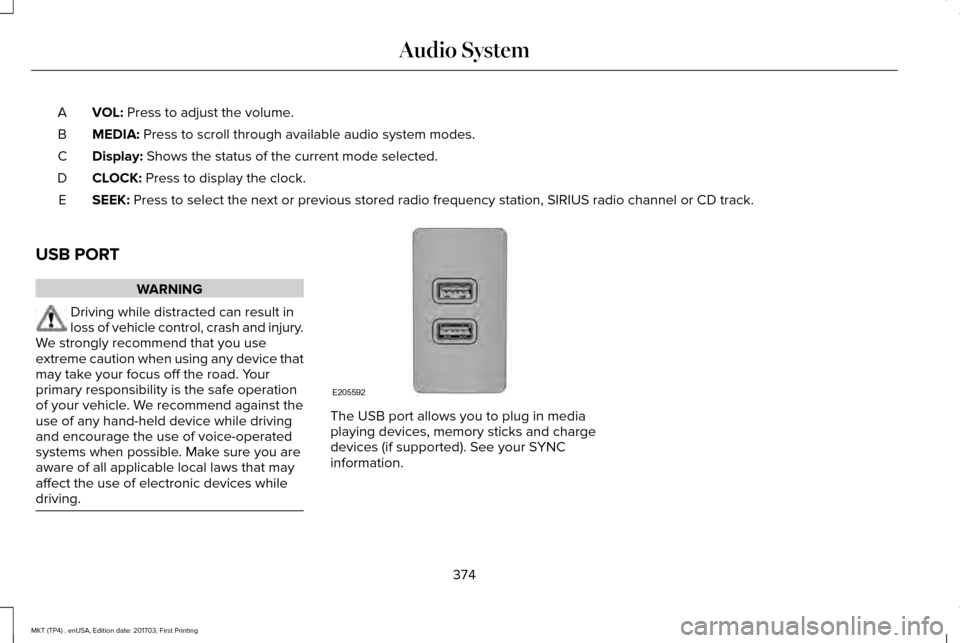
VOL: Press to adjust the volume.
A
MEDIA:
Press to scroll through available audio system modes.
B
Display:
Shows the status of the current mode selected.
C
CLOCK:
Press to display the clock.
D
SEEK:
Press to select the next or previous stored radio frequency station, SI\
RIUS radio channel or CD track.
E
USB PORT WARNING
Driving while distracted can result in
loss of vehicle control, crash and injury.
We strongly recommend that you use
extreme caution when using any device that
may take your focus off the road. Your
primary responsibility is the safe operation
of your vehicle. We recommend against the
use of any hand-held device while driving
and encourage the use of voice-operated
systems when possible. Make sure you are
aware of all applicable local laws that may
affect the use of electronic devices while
driving. The USB port allows you to plug in media
playing devices, memory sticks and charge
devices (if supported). See your SYNC
information.
374
MKT (TP4) , enUSA, Edition date: 201703, First Printing Audio SystemE205592
Page 378 of 564
GENERAL INFORMATION
WARNING
Driving while distracted can result in
loss of vehicle control, crash and injury.
We strongly recommend that you use
extreme caution when using any device that
may take your focus off the road. Your
primary responsibility is the safe operation
of your vehicle. We recommend against the
use of any hand-held device while driving
and encourage the use of voice-operated
systems when possible. Make sure you are
aware of all applicable local laws that may
affect the use of electronic devices while
driving. Getting to Know Your System
The SYNC 3 system allows you to interact
with a variety of features using the
touchscreen and voice commands. By
integrating with your Bluetooth-enabled
phone, the touchscreen provides easy
interaction with audio, multimedia, climate
control, navigation, and your phone's SYNC
3 compatible apps.
Using the Touchscreen
To operate the touchscreen, you can simply
touch the item or option that you want to
select. The button changes color when you
select it.
The SYNC 3 layout allows you to quickly
select the feature you wish to use.
375
MKT (TP4) , enUSA, Edition date: 201703, First Printing SYNC™ 3
Page 380 of 564

Action and Description
Menu Item
Item
This bar displays icons and messages pertaining to current system activi\
ties including climate
settings, voice commands and phone functions such as text messages.
Status Bar
A
This button is available on the main screens. Pressing it takes you to the home screen view.
Home
B
This shows the current time. You can set the clock manually or have it controlled by the vehicle's
GPS location. See Settings (page 443).
Clock
C
This displays the current outside temperature.
Outside Temperature
D
You can touch any of the buttons on this bar to select a feature.
Feature Bar
E
The touchscreen allows you quick access to
all of your comfort, navigation,
communication and entertainment options.
Using the status and feature bar you can
quickly select the feature you want to use. Note:
Your system is equipped with a feature
that allows you to access and control audio
features for 10 minutes after you switch the
ignition off (and no doors open). The Status Bar
Additional icons also display in the status bar
depending on market, vehicle options and
current operation. If a feature is not active,
the icon does not display. Certain icons may
move to the left or right depending on what
options are active.
377
MKT (TP4) , enUSA, Edition date: 201703, First Printing SYNC™ 3
Page 382 of 564

Description
Item
Callout
This shows the temperature the driver selects through the climate contro\
l system.
Driver Temperature
A
When the passenger's temperature has been adjusted and is no longer linked to the
driver's temperature, it displays here. If Dual is turned off and the temperatures are
linked, the passenger's temperature does not display.
Passenger Temperature
B
This icon displays when your phone's microphone is muted. A caller cannot hear you.
Microphone Mute
C
This icon displays when the audio system is muted.
Mute
D
This icon appears when SYNC 3 receives a software update. Pressing the icon shows
more details about the new software.
Download
E
This icon appears when you connect to a Wi-Fi network.
Wi-Fi
F
An available Wi-Fi network is within range.
Wi-Fi in Range
G
This icon displays when your cell phone is roaming.
Roaming
H
This icon displays when you receive a text message on your phone.
Text Message
I
This icon displays when 911 Assist is set to off and your phone is conne\
cted to SYNC.
911 Assist Off
J
The Bluetooth alert icon displays when there is an active Bluetooth aler\
t.
Bluetooth Alert
K
This icon displays to show an active Bluetooth connection.
Bluetooth
L
379
MKT (TP4) , enUSA, Edition date: 201703, First Printing SYNC™ 3
Page 383 of 564
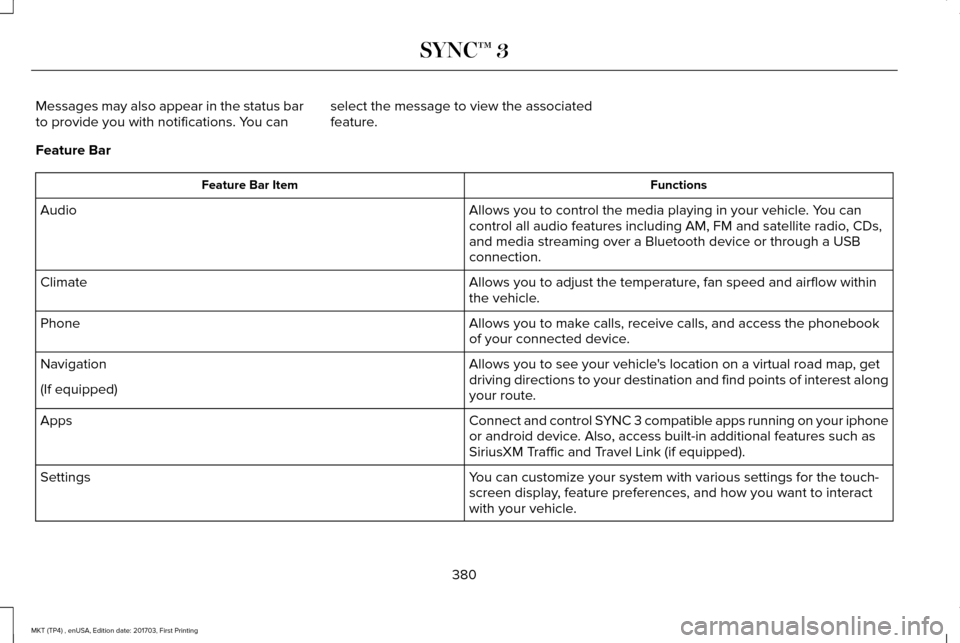
Messages may also appear in the status bar
to provide you with notifications. You can
select the message to view the associated
feature.
Feature Bar Functions
Feature Bar Item
Allows you to control the media playing in your vehicle. You can
control all audio features including AM, FM and satellite radio, CDs,
and media streaming over a Bluetooth device or through a USB
connection.
Audio
Allows you to adjust the temperature, fan speed and airflow within
the vehicle.
Climate
Allows you to make calls, receive calls, and access the phonebook
of your connected device.
Phone
Allows you to see your vehicle's location on a virtual road map, get
driving directions to your destination and find points of interest along\
your route.
Navigation
(If equipped)
Connect and control SYNC 3 compatible apps running on your iphone
or android device. Also, access built-in additional features such as
SiriusXM Traffic and Travel Link (if equipped).
Apps
You can customize your system with various settings for the touch-
screen display, feature preferences, and how you want to interact
with your vehicle.
Settings
380
MKT (TP4) , enUSA, Edition date: 201703, First Printing SYNC™ 3
Page 386 of 564
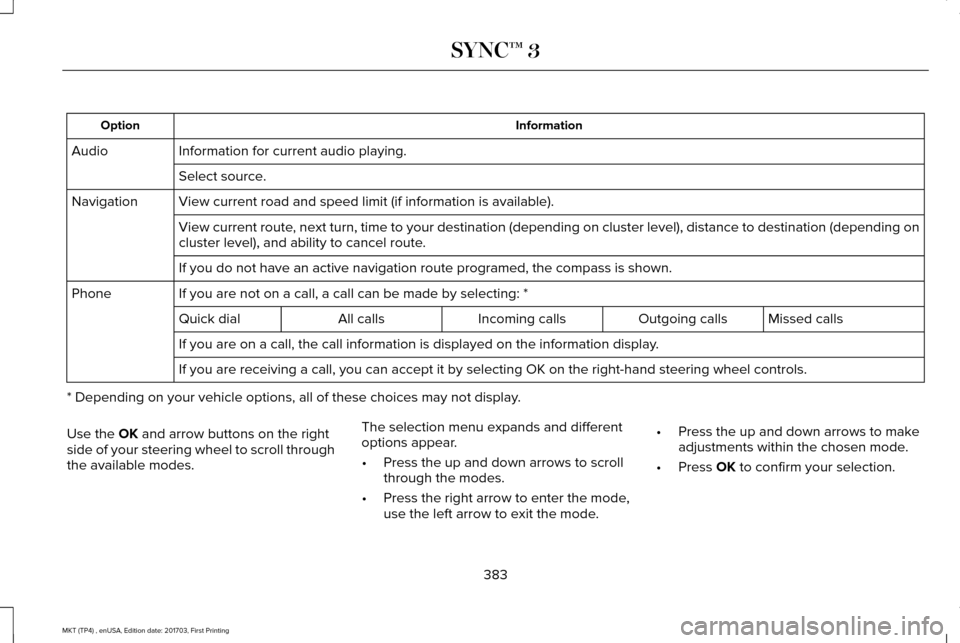
Information
Option
Information for current audio playing.
Audio
Select source.
View current road and speed limit (if information is available).
Navigation
View current route, next turn, time to your destination (depending on cluster level), di\
stance to destination (depending on
cluster level), and ability to cancel route.
If you do not have an active navigation route programed, the compass is \
shown.
If you are not on a call, a call can be made by selecting: *
Phone
Missed calls
Outgoing calls
Incoming calls
All calls
Quick dial
If you are on a call, the call information is displayed on the informati\
on display.
If you are receiving a call, you can accept it by selecting OK on the ri\
ght-hand steering wheel controls.
* Depending on your vehicle options, all of these choices may not displa\
y.
Use the OK and arrow buttons on the right
side of your steering wheel to scroll through
the available modes. The selection menu expands and different
options appear.
•
Press the up and down arrows to scroll
through the modes.
• Press the right arrow to enter the mode,
use the left arrow to exit the mode. •
Press the up and down arrows to make
adjustments within the chosen mode.
• Press
OK to confirm your selection.
383
MKT (TP4) , enUSA, Edition date: 201703, First Printing SYNC™ 3
Page 387 of 564
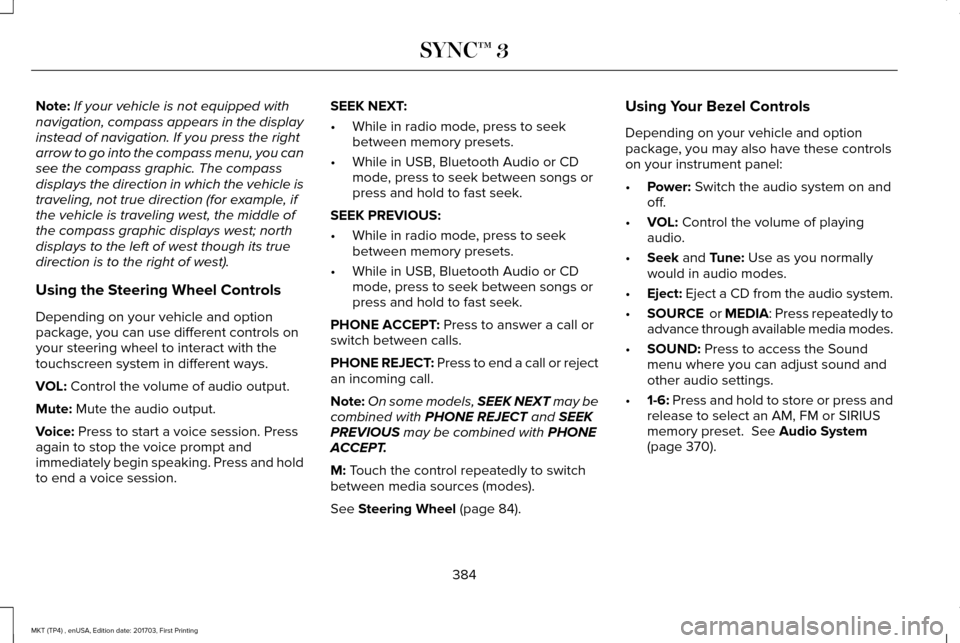
Note:
If your vehicle is not equipped with
navigation, compass appears in the display
instead of navigation. If you press the right
arrow to go into the compass menu, you can
see the compass graphic. The compass
displays the direction in which the vehicle is
traveling, not true direction (for example, if
the vehicle is traveling west, the middle of
the compass graphic displays west; north
displays to the left of west though its true
direction is to the right of west).
Using the Steering Wheel Controls
Depending on your vehicle and option
package, you can use different controls on
your steering wheel to interact with the
touchscreen system in different ways.
VOL: Control the volume of audio output.
Mute:
Mute the audio output.
Voice:
Press to start a voice session. Press
again to stop the voice prompt and
immediately begin speaking. Press and hold
to end a voice session. SEEK NEXT:
•
While in radio mode, press to seek
between memory presets.
• While in USB, Bluetooth Audio or CD
mode, press to seek between songs or
press and hold to fast seek.
SEEK PREVIOUS:
• While in radio mode, press to seek
between memory presets.
• While in USB, Bluetooth Audio or CD
mode, press to seek between songs or
press and hold to fast seek.
PHONE ACCEPT:
Press to answer a call or
switch between calls.
PHONE REJECT: Press to end a call or reject
an incoming call.
Note: On some models, SEEK NEXT may be
combined with
PHONE REJECT and SEEK
PREVIOUS may be combined with PHONE
ACCEPT.
M:
Touch the control repeatedly to switch
between media sources (modes).
See
Steering Wheel (page 84). Using Your Bezel Controls
Depending on your vehicle and option
package, you may also have these controls
on your instrument panel:
•
Power:
Switch the audio system on and
off.
• VOL:
Control the volume of playing
audio.
• Seek
and Tune: Use as you normally
would in audio modes.
• Eject:
Eject a CD from the audio system.
• SOURCE
or MEDIA: Press repeatedly to
advance through available media modes.
• SOUND:
Press to access the Sound
menu where you can adjust sound and
other audio settings.
• 1-6:
Press and hold to store or press and
release to select an AM, FM or SIRIUS
memory preset.
See Audio System
(page 370).
384
MKT (TP4) , enUSA, Edition date: 201703, First Printing SYNC™ 3