ANC LINCOLN MKX 2016 Owners Manual
[x] Cancel search | Manufacturer: LINCOLN, Model Year: 2016, Model line: MKX, Model: LINCOLN MKX 2016Pages: 563, PDF Size: 4.96 MB
Page 218 of 563
Note:
If the clearance in front of your vehicle
allows easy departure, the Park Out Assist
feature might not be available.
Note: You are responsible for controlling
your vehicle and making sure the path is
clear prior to pulling into traffic.
Note: This system is not intended to assist
in exiting perpendicular parking spaces,
damages to your vehicle may occur.
Note: If your vehicle speed exceeds 6 mph
(9 km/h) or the maneuver is interrupted
(driver input), the system switches off and
you need to take full control of your vehicle. Deactivating the Active Park Assist
Feature
Manually deactivate the system by:
•
Pressing the active park assist button
twice.
• Grabbing the steering wheel during an
active maneuver.
• Driving above approximately
22 mph
(35 km/h) for 30 seconds during an active
park search.
• Driving above
6 mph (9 km/h) during
automatic steering.
• Switching off the traction control system. Certain vehicle conditions can also
deactivate the system, such as:
•
Traction control has activated.
• There is an anti-lock brake system
activation or failure.
If a problem occurs with the system, a
warning message displays accompanied by
a tone. Occasional system messages may
occur in normal operation. For recurring or
frequent system faults, contact an authorized
dealer to have your vehicle serviced.
Troubleshooting the System The system does not look for a space
The traction control system may be off.
The transmission is in reverse ( R). Your vehicle must be moving forward to be able to detect a parking space.
215
MKX (CD9) Canada/United States of America, enUSA, ASO/OGC Review Parking Aids
Page 219 of 563
The system does not offer a particular space
The sensors may be covered (for example, snow, ice or dirt buildup). Covered senors can affect the system's functionality.
There is not enough room in the parking space for your vehicle to safely\
park.
There is not enough space for the parking maneuver on the opposite side \
of the parking space.
The parking space is farther than 5 ft (1.5 m) or closer than 16 in (0.4 m) away.
The transmission is in reverse ( R). Your vehicle must be moving forward to be able to detect a parking space.
Your vehicle is going faster than
22 mph (35 km/h) for parallel and 19 mph (30 km/h) for perpendicular parking. The system does not position the vehicle where I want in the space
Your vehicle is rolling in the opposite direction of the transmission (r\
olling forward with reverse [R] selected).
An irregular curb along the parking space prevents the system from align\
ing your vehicle properly.
Vehicles or objects bordering the space may not be positioned correctly.
You pulled your vehicle too far past the parking space. The system performs best when you drive the same distance past the par\
king space.
The tires may not be installed or maintained correctly (not inflated co\
rrectly, improper size, or of different sizes).
A repair or alteration has changed detection capabilities.
216
MKX (CD9) Canada/United States of America, enUSA, ASO/OGC Review Parking Aids
Page 222 of 563
Fixed guideline: Yellow zone
D
Fixed guideline: Red zone
E
Rear bumper
F
Active guidelines are only shown with fixed
guidelines. To use active guidelines, turn the
steering wheel to point the guidelines toward
an intended path. If you change the steering
wheel position while reversing, your vehicle
might deviate from the original intended
path.
The fixed and active guidelines fade in and
out depending on the steering wheel
position. The active guidelines do not display
when the steering wheel position is straight.
Always use caution while reversing. Objects
in the red zone are closest to your vehicle
and objects in the green zone are farther
away. Objects are getting closer to your
vehicle as they move from the green zone
to the yellow or red zones. Use the side view
mirrors and rear view mirror to get better
coverage on both sides and rear of the
vehicle. Manual Zoom WARNING
When manual zoom is on, the full area
behind your vehicle may not show. Be
aware of your surroundings when using the
manual zoom feature. Note:
Manual zoom is only available when
the transmission is in reverse (R).
Note: When you enable manual zoom, only
the centerline is shown.
Selectable settings for this feature are Zoom
in (+) and Zoom out (-). Press the symbol in
the camera screen to change the view. The
default setting is Zoom OFF.
This allows you to get a closer view of an
object behind your vehicle. The zoomed
image keeps the bumper in the image to
provide a reference. The zoom is only active
while the transmission is in reverse (R). Camera System Settings
To access any of the rear view camera
system settings, make the following
selections in the multifunctional display when
the transmission is not in reverse (R): Main Menu
SettingsVehicle
Camera Settings
Enhanced Park Aids or Park Pilot
Selectable settings for this feature are ON
and OFF.
The system uses red, yellow and green
highlights that appear on top of the video
image when any of the sensing systems
detect an object.
Rear Camera Delay
Selectable settings for this feature are ON
and OFF.
219
MKX (CD9) Canada/United States of America, enUSA, ASO/OGC Review Parking Aids
Page 225 of 563
The front video camera, located behind the
star emblem on the grille, provides a video
image of the area in front of your vehicle. It
adds assistance to the driver while driving
forward at low speeds. To use the front video
camera system, place the transmission in any
gear except reverse (R). An image will display
once the camera enable button is pressed.
The area displayed on the screen may vary
according to your vehicle's orientation and/or
road condition.
Note:
Keep the star emblem free from snow,
ice and large accumulations of dirt. If
something is blocking the star emblem from
moving, the camera will not deploy.
Side Camera
The side view camera, located in the outside
mirror, provides a video image of the area
on the sides of your vehicle as part of the
front 360 + normal view and rear 360 +
normal view. It aids you while parking your
vehicle either forward or backwards. Note:
Use caution when using the 360 view
while any of the doors are ajar. If a door is
ajar, the camera will be out of position and
the video image may be incorrect.
222
MKX (CD9) Canada/United States of America, enUSA, ASO/OGC Review Parking Aids
Page 227 of 563
Canceling the Set Speed
Press and release CNCL or tap the brake
pedal. The set speed does not erase.
Resuming the Set Speed
Press and release
RES.
Switching Cruise Control Off
Press and release
OFF when the system is
in stand by mode or switch the ignition off.
Note: You erase the set speed when you
switch the system off.
USING ADAPTIVE CRUISE
CONTROL
(If Equipped) WARNINGS
Always pay close attention to changing
road conditions, especially when using
adaptive cruise control. Adaptive cruise
control cannot replace attentive driving.
Failing to follow any of the warnings below
or failing to pay attention to the road may
result in a crash, serious injury or death. WARNINGS
Adaptive cruise control is not a crash
warning or avoidance system.
Adaptive cruise control does not detect
stationary or slow moving vehicles
below 6 mph (10 km/h). Adaptive cruise control does not detect
pedestrians or objects in the roadway.
Adaptive cruise control does not detect
oncoming vehicles in the same lane.
Do not use the adaptive cruise control
when entering or leaving a highway, in
heavy traffic or on roads that are winding,
slippery or unpaved. Do not use in poor visibility, specifically
fog, rain, spray or snow.
Note:
It is your responsibility to stay alert,
drive safely and be in control of the vehicle
at all times.
The system adjusts your speed to maintain
a proper distance between you and the
vehicle in front of you in the same lane. You
can select from one of four gap settings. The controls for using your cruise control are
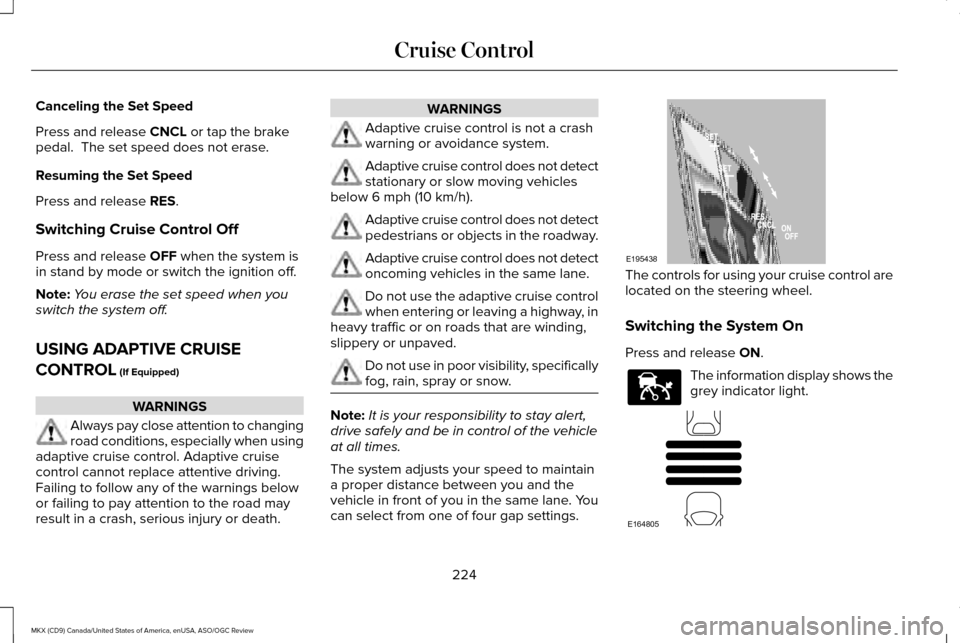
located on the steering wheel.
Switching the System On
Press and release
ON.
The information display shows the
grey indicator light.
224
MKX (CD9) Canada/United States of America, enUSA, ASO/OGC Review Cruise ControlE195438 E144529 E164805
Page 228 of 563
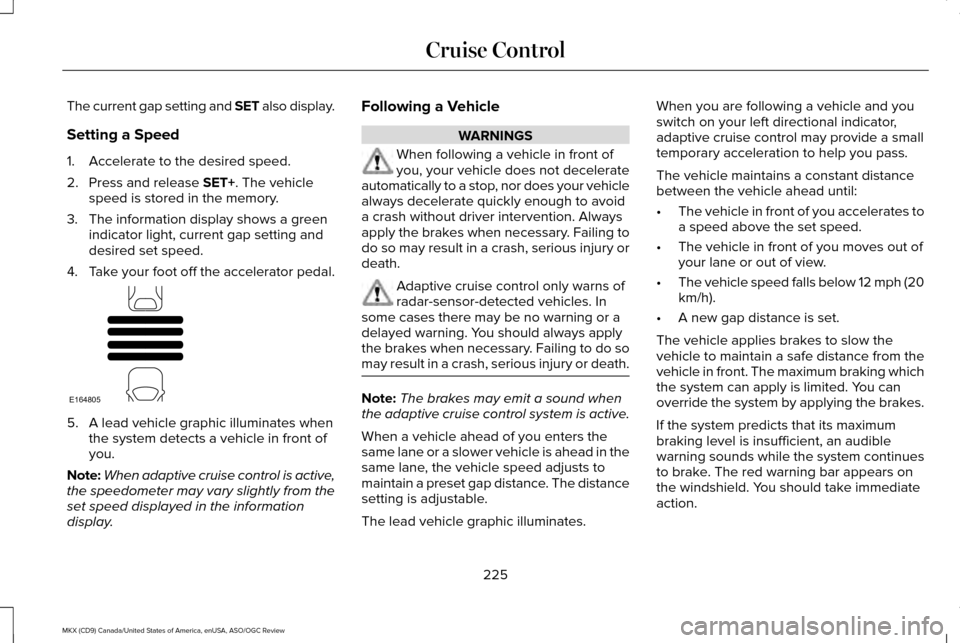
The current gap setting and SET also display.
Setting a Speed
1. Accelerate to the desired speed.
2. Press and release SET+. The vehicle
speed is stored in the memory.
3. The information display shows a green indicator light, current gap setting and
desired set speed.
4. Take your foot off the accelerator pedal. 5. A lead vehicle graphic illuminates when
the system detects a vehicle in front of
you.
Note: When adaptive cruise control is active,
the speedometer may vary slightly from the
set speed displayed in the information
display. Following a Vehicle WARNINGS
When following a vehicle in front of
you, your vehicle does not decelerate
automatically to a stop, nor does your vehicle
always decelerate quickly enough to avoid
a crash without driver intervention. Always
apply the brakes when necessary. Failing to
do so may result in a crash, serious injury or
death. Adaptive cruise control only warns of
radar-sensor-detected vehicles. In
some cases there may be no warning or a
delayed warning. You should always apply
the brakes when necessary. Failing to do so
may result in a crash, serious injury or death. Note:
The brakes may emit a sound when
the adaptive cruise control system is active.
When a vehicle ahead of you enters the
same lane or a slower vehicle is ahead in the
same lane, the vehicle speed adjusts to
maintain a preset gap distance. The distance
setting is adjustable.
The lead vehicle graphic illuminates. When you are following a vehicle and you
switch on your left directional indicator,
adaptive cruise control may provide a small
temporary acceleration to help you pass.
The vehicle maintains a constant distance
between the vehicle ahead until:
•
The vehicle in front of you accelerates to
a speed above the set speed.
• The vehicle in front of you moves out of
your lane or out of view.
• The vehicle speed falls below 12 mph (20
km/h).
• A new gap distance is set.
The vehicle applies brakes to slow the
vehicle to maintain a safe distance from the
vehicle in front. The maximum braking which
the system can apply is limited. You can
override the system by applying the brakes.
If the system predicts that its maximum
braking level is insufficient, an audible
warning sounds while the system continues
to brake. The red warning bar appears on
the windshield. You should take immediate
action.
225
MKX (CD9) Canada/United States of America, enUSA, ASO/OGC Review Cruise ControlE164805
Page 229 of 563
Setting the Gap Distance
Note:
It is your responsibility to select a gap
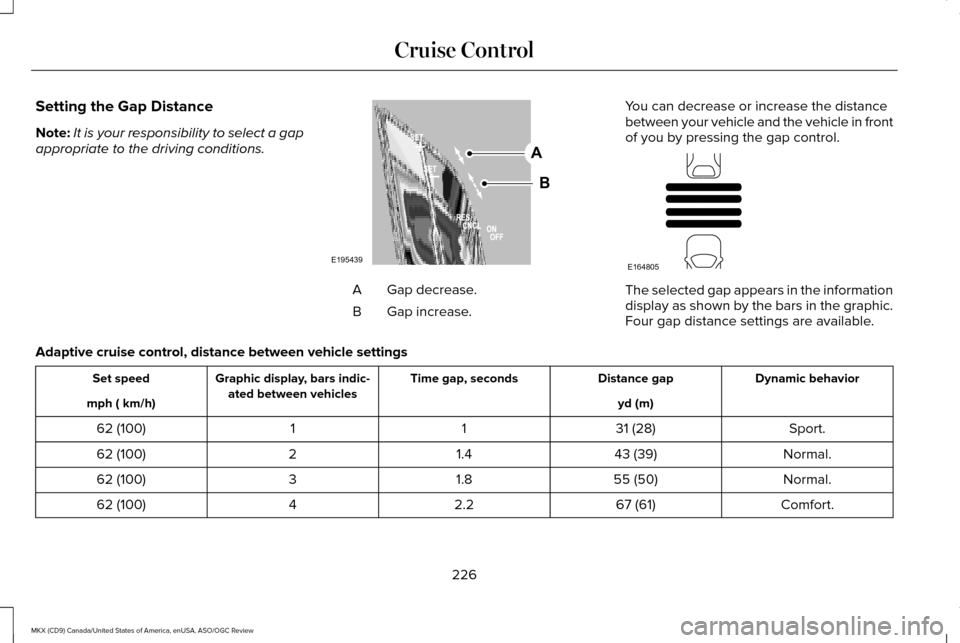
appropriate to the driving conditions. Gap decrease.
A
Gap increase.
B You can decrease or increase the distance
between your vehicle and the vehicle in front
of you by pressing the gap control. The selected gap appears in the information
display as shown by the bars in the graphic.
Four gap distance settings are available.
Adaptive cruise control, distance between vehicle settings Dynamic behavior
Distance gap
Time gap, seconds
Graphic display, bars indic-
ated between vehicles
Set speed
yd (m)
mph ( km/h)
Sport.
31 (28)
1
1
62 (100)
Normal.
43 (39)
1.4
2
62 (100)
Normal.
55 (50)
1.8
3
62 (100)
Comfort.
67 (61)
2.2
4
62 (100)
226
MKX (CD9) Canada/United States of America, enUSA, ASO/OGC Review Cruise ControlE195439
A
B E164805
Page 230 of 563
Each time you start the vehicle, the system
selects the last chosen gap for the current
driver.
Disengaging the System
Press the brake pedal or press and release
CNCL. The last set speed displays in grey
but does not erase.
Overriding the System WARNING
Whenever the driver presses the
accelerator pedal and overrides the
system, the system does not automatically
apply the brakes to maintain the set distance
from any vehicle ahead. Press the accelerator pedal to override the
set speed and gap distance.
When you override the system,
the green indicator light
illuminates and the lead vehicle
graphic does not show in the information
display. The system resumes operation when you
release the accelerator pedal. The vehicle
speed decreases to the set speed, or a
slower speed if following a slower vehicle.
Changing the Set Speed
•
Accelerate or brake to the desired speed,
then press and release
SET+.
• Press and hold
SET+ or SET- until the
desired set speed shows on the
information display. The vehicle speed
gradually changes to the selected speed.
• Press and release SET+ or SET-. The set
speed changes in approximately 1 mph
(2 km/h) increments.
The system may apply the brakes to slow
the vehicle to the new set speed. The set
speed displays continuously in the
information display when the system is
active.
Resuming the Set Speed
Note: Only use resume if you are aware of
the set speed and intend to return to it. Press and release
RES. The vehicle returns
to the previously set speed. The set speed
displays continuously in the information
display while the system is active.
Low Speed Automatic Cancellation
The system does not function at speeds
below 12 mph (20 km/h). An audible alarm
sounds and the automatic braking releases
if your vehicle drops below this speed.
Hilly Condition Usage
Note: An audible alarm sounds and the
system shuts down if it is applying brakes
for an extended period of time. This allows
the brakes to cool. The system functions
normally again when the brakes cool.
Select a lower gear during prolonged
downhill driving on steep slopes, such as
mountainous areas, when the system is
active. In such situations, the system needs
additional engine braking to reduce the load
on the vehicle ’s regular brake system to
prevent the brakes from overheating.
227
MKX (CD9) Canada/United States of America, enUSA, ASO/OGC Review Cruise ControlE144529
Page 235 of 563
The current assessment of your alertness is
within a typical range.
The current assessment of your alertness
indicates that you should rest as soon as
safely possible.
The status bar will travel from left to right as
the calculated alertness level decreases. As
the rest icon is approached the color turns
from green to yellow to red.
The yellow position indicates the first
warning is active and the red position
indicates the second warning is active.
Note:
If you have recently received a
warning; you should consider resting, even
if the current assessment is within the typical
range. Note:
If the camera sensor cannot track the
road lane markings or if your vehicle speed
drops below approximately 40 mph
(64 km/h), the alertness level will change to
grey for a short time and the information
display will inform you that the system is
unavailable.
Resetting the System
You can reset the system by either:
• Switching the ignition off and on.
• Stopping the vehicle and then opening
and closing the driver’ s door.
LANE KEEPING SYSTEM
(If Equipped) WARNINGS
The system does not relieve you of
your responsibility to drive with due
care and attention. At all times you are responsible for
controlling your vehicle, supervising
the system and intervening if required. If the sensor becomes blocked the
system may not function. WARNINGS
In cold and severe weather conditions
the system may not function. Rain,
snow, spray can all limit sensor performance. Large contrasts in lighting can limit
sensor performance.
The system will not operate if the
sensor cannot track the road lane
markings. The vehicle should be taken to an
authorized dealer for inspection if
damage occurs in the immediate area
surrounding the sensor. Note:
The system works above 40 mph
(64 km/h).
Note: The system works as long as the
camera can detect one lane marking.
Note: The system may not function if the
camera is blocked or there is damage to the
windshield.
232
MKX (CD9) Canada/United States of America, enUSA, ASO/OGC Review Driving AidsE131359
Page 236 of 563
Note:
When Aid mode is on and the system
detects no steering activity for a short period,
the system will alert you to put your hands
on the steering wheel. The system may
detect a light grip or touch on the steering
wheel as hands off driving.
The system notifies you to stay in your lane
through the steering system and the
instrument cluster display when the front
camera detects an unintentional drift out of
your lane is likely to occur. The system
automatically detects and tracks the road
lane markings using a camera mounted
behind the interior rear view mirror.
Switching the System On and Off
Note: The system on or off setting is stored
until it is manually changed, unless a MyKey
is detected. If the system detects a MyKey
it defaults to on and the mode is set to Alert.
Note: If a MyKey is detected, pressing the
button will not affect the on or off status of
the system. Press the button located on the left
steering wheel stalk to switch the
system on or off. System Settings
The system has optional setting menus
available. To view or adjust the settings, See
General Information (page 114). The system
stores the last-known selection for each of
these settings. You do not need to readjust
your settings each time you turn on the
system.
Mode: This setting allows you to select which
of the system features you can enable.
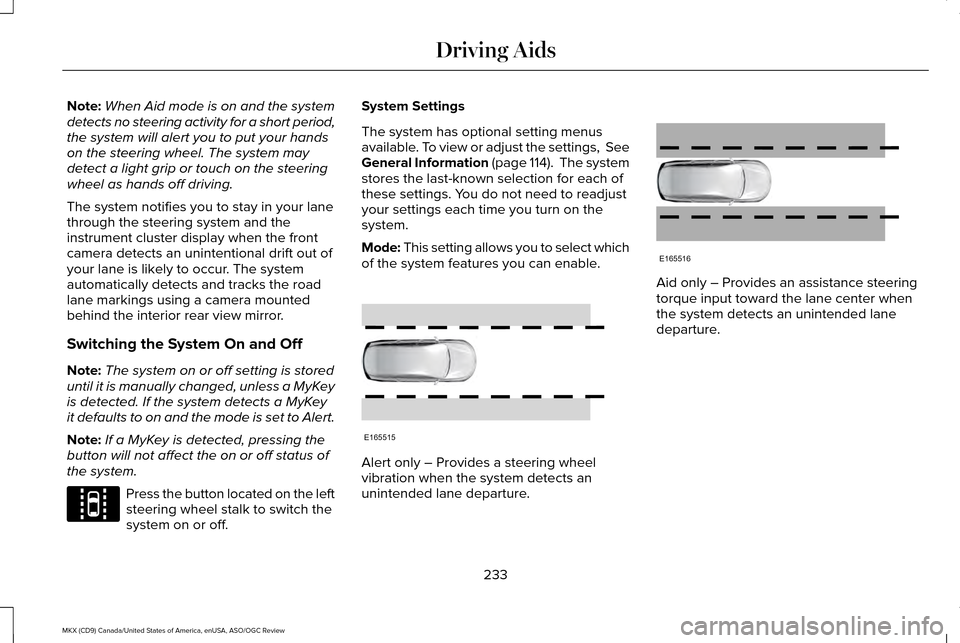
Alert only – Provides a steering wheel
vibration when the system detects an
unintended lane departure. Aid only – Provides an assistance steering
torque input toward the lane center when
the system detects an unintended lane
departure.
233
MKX (CD9) Canada/United States of America, enUSA, ASO/OGC Review Driving AidsE144813 E165515 E165516