steering LINCOLN MKX 2016 User Guide
[x] Cancel search | Manufacturer: LINCOLN, Model Year: 2016, Model line: MKX, Model: LINCOLN MKX 2016Pages: 563, PDF Size: 4.96 MB
Page 99 of 563
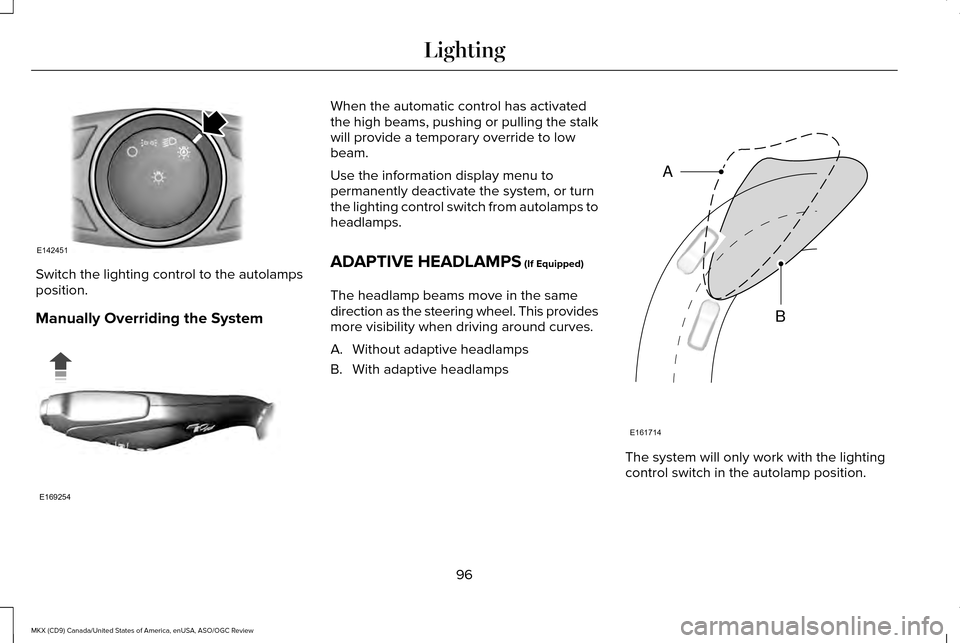
Switch the lighting control to the autolamps
position.
Manually Overriding the System When the automatic control has activated
the high beams, pushing or pulling the stalk
will provide a temporary override to low
beam.
Use the information display menu to
permanently deactivate the system, or turn
the lighting control switch from autolamps to
headlamps.
ADAPTIVE HEADLAMPS (If Equipped)
The headlamp beams move in the same
direction as the steering wheel. This provides
more visibility when driving around curves.
A. Without adaptive headlamps
B. With adaptive headlamps The system will only work with the lighting
control switch in the autolamp position.
96
MKX (CD9) Canada/United States of America, enUSA, ASO/OGC Review LightingE142451 E169254 E161714
B
A
Page 117 of 563
GENERAL INFORMATION
WARNING
Driving while distracted can result in
loss of vehicle control, crash and injury.
We strongly recommend that you use
extreme caution when using any device that
may take your focus off the road. Your
primary responsibility is the safe operation
of your vehicle. We recommend against the
use of any hand-held device while driving
and encourage the use of voice-operated
systems when possible. Make sure you are
aware of all applicable local laws that may
affect the use of electronic devices while
driving. You can control various systems on your
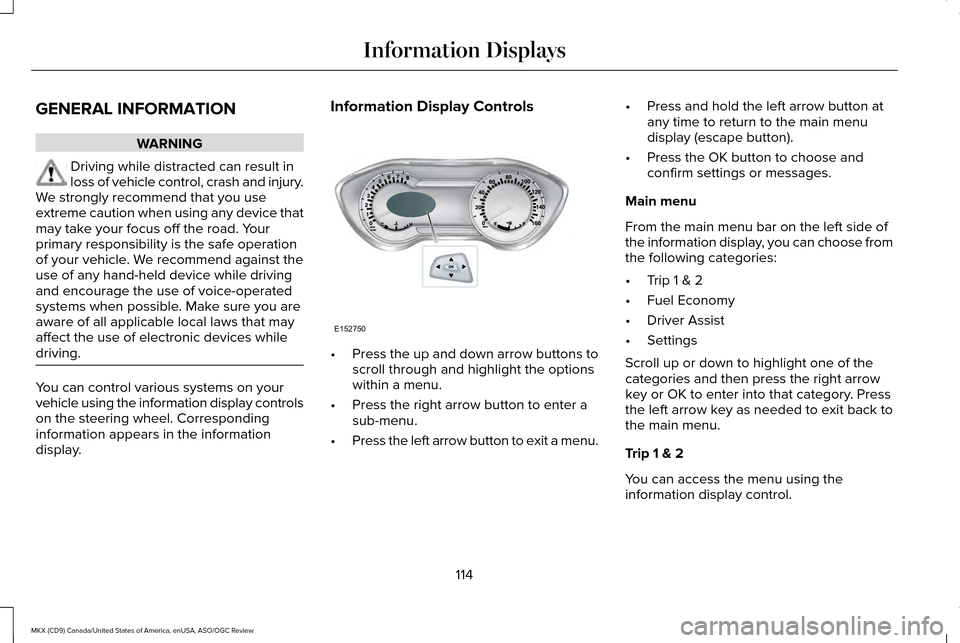
vehicle using the information display controls
on the steering wheel. Corresponding
information appears in the information
display. Information Display Controls
•
Press the up and down arrow buttons to
scroll through and highlight the options
within a menu.
• Press the right arrow button to enter a
sub-menu.
• Press the left arrow button to exit a menu. •
Press and hold the left arrow button at
any time to return to the main menu
display (escape button).
• Press the OK button to choose and
confirm settings or messages.
Main menu
From the main menu bar on the left side of
the information display, you can choose from
the following categories:
• Trip 1 & 2
• Fuel Economy
• Driver Assist
• Settings
Scroll up or down to highlight one of the
categories and then press the right arrow
key or OK to enter into that category. Press
the left arrow key as needed to exit back to
the main menu.
Trip 1 & 2
You can access the menu using the
information display control.
114
MKX (CD9) Canada/United States of America, enUSA, ASO/OGC Review Information DisplaysE152750
Page 119 of 563

Fuel Economy
Instant Fuel Economy
Fuel History
Average Speed
• Instant Fuel Economy - Shows a visual graph of your instantaneous fuel e\
conomy since the function was last reset.
• Fuel History - Shows a bar chart of your fuel history.
• Average Speed - Displays the average speed you have driven.
Driver Assist
In this mode, you can configure different
driver setting choices. Note:
Some items are optional and may not
appear. Driver Assist
Traction Control - check enabled or uncheck disabled Sport or Normal
Steering in "D"
Adaptive Steering
Sport or Normal
Steering in "S"
Blind Spot - check enabled or uncheck disabled
Cross Traffic Alert - check enabled or uncheck disabled
116
MKX (CD9) Canada/United States of America, enUSA, ASO/OGC Review Information Displays
Page 122 of 563
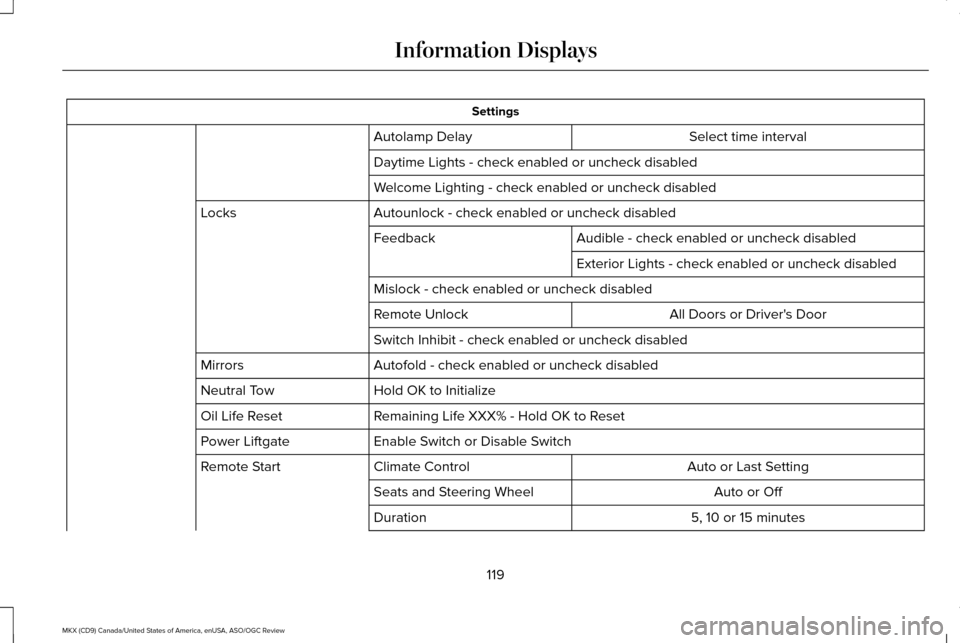
Settings
Select time interval
Autolamp Delay
Daytime Lights - check enabled or uncheck disabled
Welcome Lighting - check enabled or uncheck disabled
Autounlock - check enabled or uncheck disabled
Locks
Audible - check enabled or uncheck disabled
Feedback
Exterior Lights - check enabled or uncheck disabled
Mislock - check enabled or uncheck disabled All Doors or Driver's Door
Remote Unlock
Switch Inhibit - check enabled or uncheck disabled
Autofold - check enabled or uncheck disabled
Mirrors
Hold OK to Initialize
Neutral Tow
Remaining Life XXX% - Hold OK to Reset
Oil Life Reset
Enable Switch or Disable Switch
Power Liftgate
Auto or Last Setting
Climate Control
Remote Start
Auto or Off
Seats and Steering Wheel
5, 10 or 15 minutes
Duration
119
MKX (CD9) Canada/United States of America, enUSA, ASO/OGC Review Information Displays
Page 127 of 563
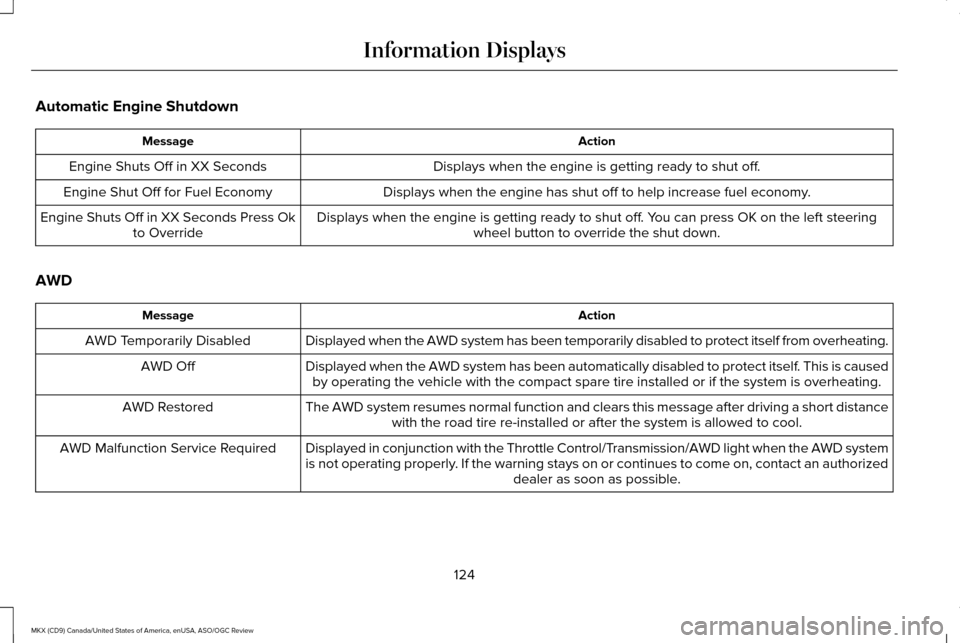
Automatic Engine Shutdown
Action
Message
Displays when the engine is getting ready to shut off.
Engine Shuts Off in XX Seconds
Displays when the engine has shut off to help increase fuel economy.
Engine Shut Off for Fuel Economy
Displays when the engine is getting ready to shut off. You can press OK on the left steeringwheel button to override the shut down.
Engine Shuts Off in XX Seconds Press Ok
to Override
AWD Action
Message
Displayed when the AWD system has been temporarily disabled to protect i\
tself from overheating.
AWD Temporarily Disabled
Displayed when the AWD system has been automatically disabled to protect\
itself. This is causedby operating the vehicle with the compact spare tire installed or if the\
system is overheating.
AWD Off
The AWD system resumes normal function and clears this message after dri\
ving a short distancewith the road tire re-installed or after the system is allowed to cool.
AWD Restored
Displayed in conjunction with the Throttle Control/Transmission/AWD light when the AWD system
is not operating properly. If the warning stays on or continues to come on, contact an authorized\
dealer as soon as possible.
AWD Malfunction Service Required
124
MKX (CD9) Canada/United States of America, enUSA, ASO/OGC Review Information Displays
Page 133 of 563
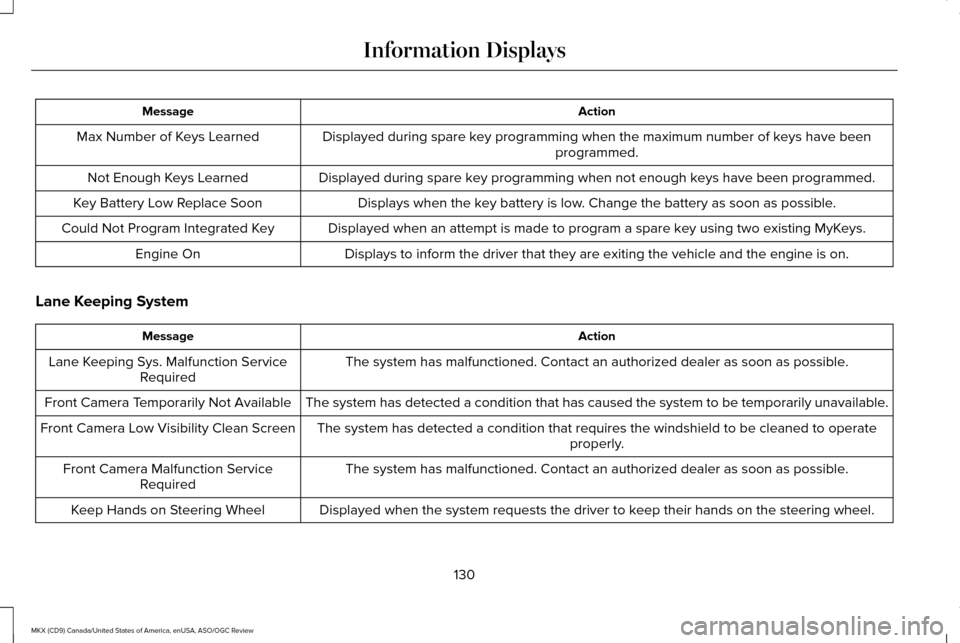
Action
Message
Displayed during spare key programming when the maximum number of keys have been programmed.
Max Number of Keys Learned
Displayed during spare key programming when not enough keys have been programmed.
Not Enough Keys Learned
Displays when the key battery is low. Change the battery as soon as possible.
Key Battery Low Replace Soon
Displayed when an attempt is made to program a spare key using two existing MyKeys.
Could Not Program Integrated Key
Displays to inform the driver that they are exiting the vehicle and the \
engine is on.
Engine On
Lane Keeping System Action
Message
The system has malfunctioned. Contact an authorized dealer as soon as po\
ssible.
Lane Keeping Sys. Malfunction Service
Required
The system has detected a condition that has caused the system to be tem\
porarily unavailable.
Front Camera Temporarily Not Available
The system has detected a condition that requires the windshield to be c\
leaned to operateproperly.
Front Camera Low Visibility Clean Screen
The system has malfunctioned. Contact an authorized dealer as soon as po\
ssible.
Front Camera Malfunction Service
Required
Displayed when the system requests the driver to keep their hands on the steering wheel.
Keep Hands on Steering Wheel
130
MKX (CD9) Canada/United States of America, enUSA, ASO/OGC Review Information Displays
Page 137 of 563
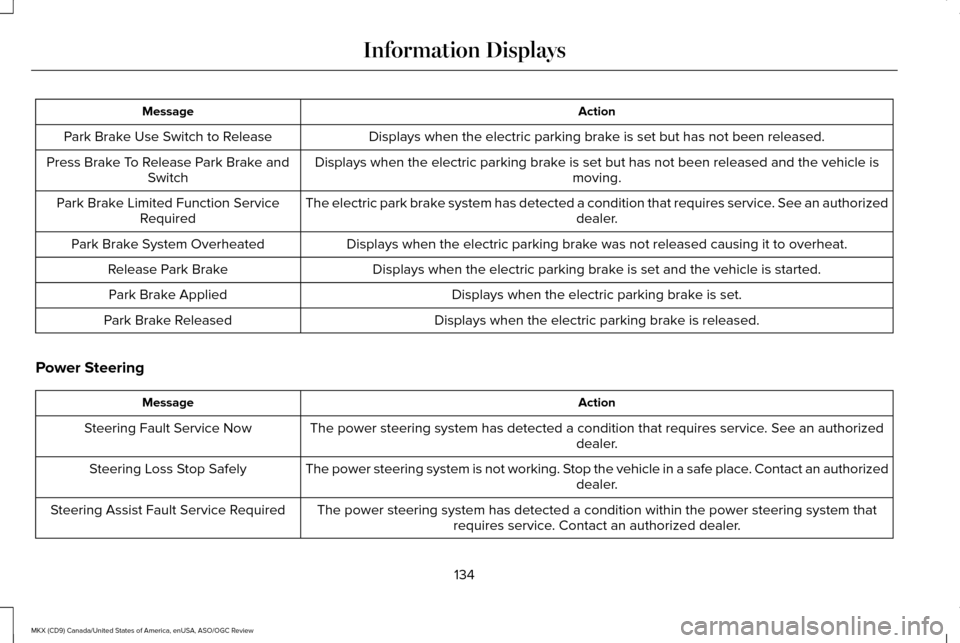
Action
Message
Displays when the electric parking brake is set but has not been released.
Park Brake Use Switch to Release
Displays when the electric parking brake is set but has not been released and the vehicle is moving.
Press Brake To Release Park Brake and
Switch
The electric park brake system has detected a condition that requires service. See an authorized dealer.
Park Brake Limited Function Service
Required
Displays when the electric parking brake was not released causing it to overheat.
Park Brake System Overheated
Displays when the electric parking brake is set and the vehicle is started.
Release Park Brake
Displays when the electric parking brake is set.
Park Brake Applied
Displays when the electric parking brake is released.
Park Brake Released
Power Steering Action
Message
The power steering system has detected a condition that requires service\
. See an authorized dealer.
Steering Fault Service Now
The power steering system is not working. Stop the vehicle in a safe place. Contact an authorized dealer.
Steering Loss Stop Safely
The power steering system has detected a condition within the power stee\
ring system thatrequires service. Contact an authorized dealer.
Steering Assist Fault Service Required
134
MKX (CD9) Canada/United States of America, enUSA, ASO/OGC Review Information Displays
Page 147 of 563
Note:
Make sure you have a cabin air filter
installed at all times. This prevents foreign
objects from entering the system. Running
the system without a filter in place could
result in degradation or damage to the
system.
Replace the filter at regular intervals. See
Scheduled Maintenance (page 499).
For additional cabin air filter information, or
to replace the filter, see an authorized dealer.
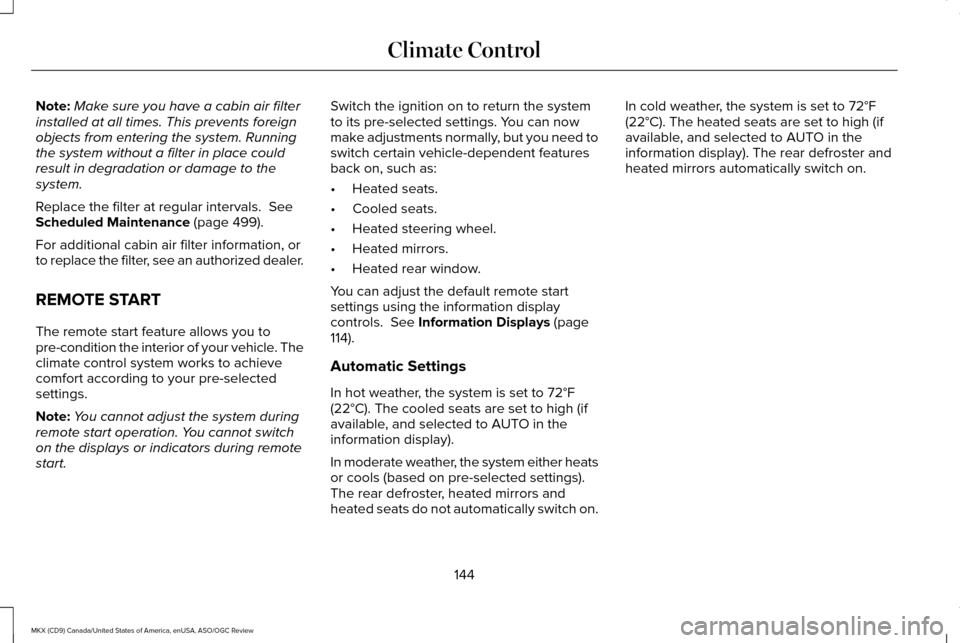
REMOTE START
The remote start feature allows you to
pre-condition the interior of your vehicle. The
climate control system works to achieve
comfort according to your pre-selected
settings.
Note: You cannot adjust the system during
remote start operation. You cannot switch
on the displays or indicators during remote
start. Switch the ignition on to return the system
to its pre-selected settings. You can now
make adjustments normally, but you need to
switch certain vehicle-dependent features
back on, such as:
•
Heated seats.
• Cooled seats.
• Heated steering wheel.
• Heated mirrors.
• Heated rear window.
You can adjust the default remote start
settings using the information display
controls.
See Information Displays (page
114).
Automatic Settings
In hot weather, the system is set to 72°F
(22°C). The cooled seats are set to high (if
available, and selected to AUTO in the
information display).
In moderate weather, the system either heats
or cools (based on pre-selected settings).
The rear defroster, heated mirrors and
heated seats do not automatically switch on. In cold weather, the system is set to 72°F
(22°C). The heated seats are set to high (if
available, and selected to AUTO in the
information display). The rear defroster and
heated mirrors automatically switch on.
144
MKX (CD9) Canada/United States of America, enUSA, ASO/OGC Review Climate Control
Page 148 of 563
SITTING IN THE CORRECT
POSITION
WARNINGS
Sitting improperly, out of position or
with the seatback reclined too far can
take weight off the seat cushion and affect
the decision of the passenger sensing
system, resulting in serious injury or death
in the event of a crash. Always sit upright
against your seat back, with your feet on the
floor. Do not recline the seatback as this can
cause the occupant to slide under the
safety belt, resulting in serious injury in the
event of a crash. Do not place objects higher than the
seatback to reduce the risk of serious
injury in the event of a crash or during heavy
braking. When you use them properly, the seat, head
restraint, safety belt and airbags will provide
optimum protection in the event of a crash.
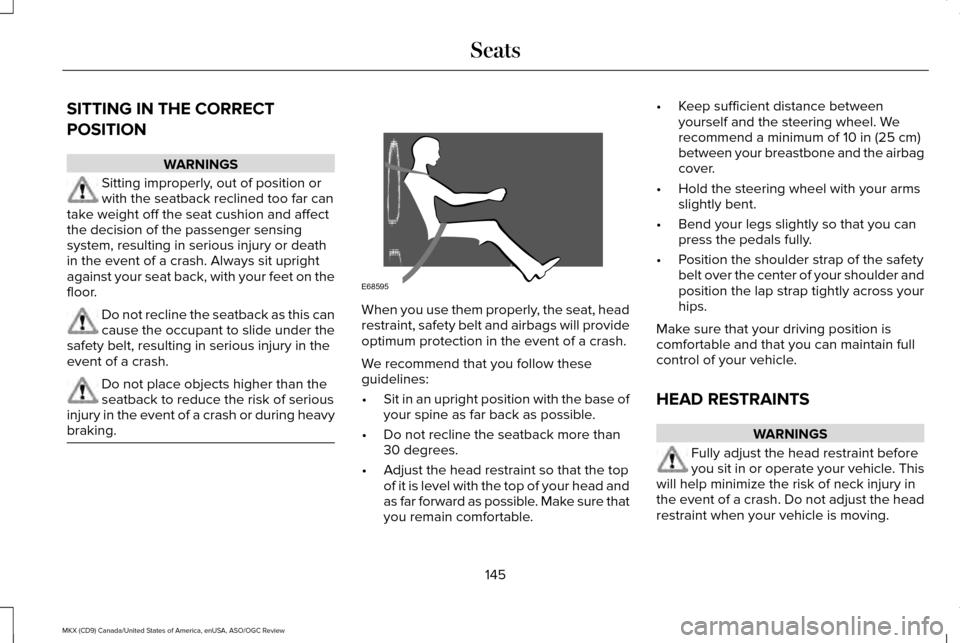
We recommend that you follow these
guidelines:
•
Sit in an upright position with the base of
your spine as far back as possible.
• Do not recline the seatback more than
30 degrees.
• Adjust the head restraint so that the top
of it is level with the top of your head and
as far forward as possible. Make sure that
you remain comfortable. •
Keep sufficient distance between
yourself and the steering wheel. We
recommend a minimum of 10 in (25 cm)
between your breastbone and the airbag
cover.
• Hold the steering wheel with your arms
slightly bent.
• Bend your legs slightly so that you can
press the pedals fully.
• Position the shoulder strap of the safety
belt over the center of your shoulder and
position the lap strap tightly across your
hips.
Make sure that your driving position is
comfortable and that you can maintain full
control of your vehicle.
HEAD RESTRAINTS WARNINGS
Fully adjust the head restraint before
you sit in or operate your vehicle. This
will help minimize the risk of neck injury in
the event of a crash. Do not adjust the head
restraint when your vehicle is moving.
145
MKX (CD9) Canada/United States of America, enUSA, ASO/OGC Review SeatsE68595
Page 155 of 563
WARNINGS
Do not use the memory function when
your vehicle is moving.
This feature automatically recalls the position
of the following:
•
Driver seat.
• Power mirrors.
• Power adjustable foot pedals.
• Optional power steering column.
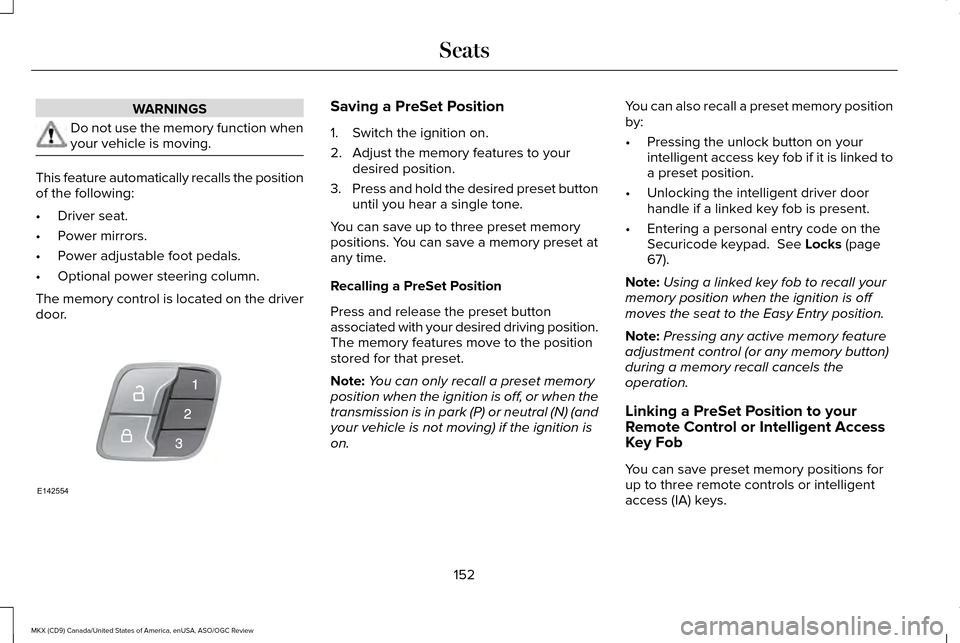
The memory control is located on the driver
door. Saving a PreSet Position
1. Switch the ignition on.
2. Adjust the memory features to your
desired position.
3. Press and hold the desired preset button
until you hear a single tone.
You can save up to three preset memory
positions. You can save a memory preset at
any time.
Recalling a PreSet Position
Press and release the preset button
associated with your desired driving position.
The memory features move to the position
stored for that preset.
Note: You can only recall a preset memory
position when the ignition is off, or when the
transmission is in park (P) or neutral (N) (and
your vehicle is not moving) if the ignition is
on. You can also recall a preset memory position
by:
•
Pressing the unlock button on your
intelligent access key fob if it is linked to
a preset position.
• Unlocking the intelligent driver door
handle if a linked key fob is present.
• Entering a personal entry code on the
Securicode keypad. See Locks (page
67).
Note: Using a linked key fob to recall your
memory position when the ignition is off
moves the seat to the Easy Entry position.
Note: Pressing any active memory feature
adjustment control (or any memory button)
during a memory recall cancels the
operation.
Linking a PreSet Position to your
Remote Control or Intelligent Access
Key Fob
You can save preset memory positions for
up to three remote controls or intelligent
access (IA) keys.
152
MKX (CD9) Canada/United States of America, enUSA, ASO/OGC Review SeatsE142554