Driver aid LINCOLN MKX 2017 User Guide
[x] Cancel search | Manufacturer: LINCOLN, Model Year: 2017, Model line: MKX, Model: LINCOLN MKX 2017Pages: 587, PDF Size: 5.4 MB
Page 225 of 587
•
Front 360 + Normal: Contains the normal
front camera view next to a 360 degree
camera view. This view will appear on
the screen when the button is pressed
in any gear other than reverse (R).
• Front Normal View: Provides an image
of what is directly in front of your vehicle.
Access this view by pressing the camera
button from the Front 360 + Normal View
screen.
• Front Split View:
Provides an extended
view of what is in front of your vehicle.
Access this view by pressing the camera
button from the Front Normal View
screen.
• Rear 360 + Normal: Contains the normal
rear camera view next to a 360 degree
camera view. This view can be accessed
by putting your vehicle in reverse (R), or
by pressing the camera button from the
Rear Split View screen. •
Rear Normal View:
Provides an image
of what is directly behind your vehicle.
Access this view by pressing the camera
button from the Rear 360 + Normal
screen.
• Rear Split View:
Provides an extended
view of what is behind your vehicle.
Access this view by pressing the camera
button from the Rear Normal View
screen.
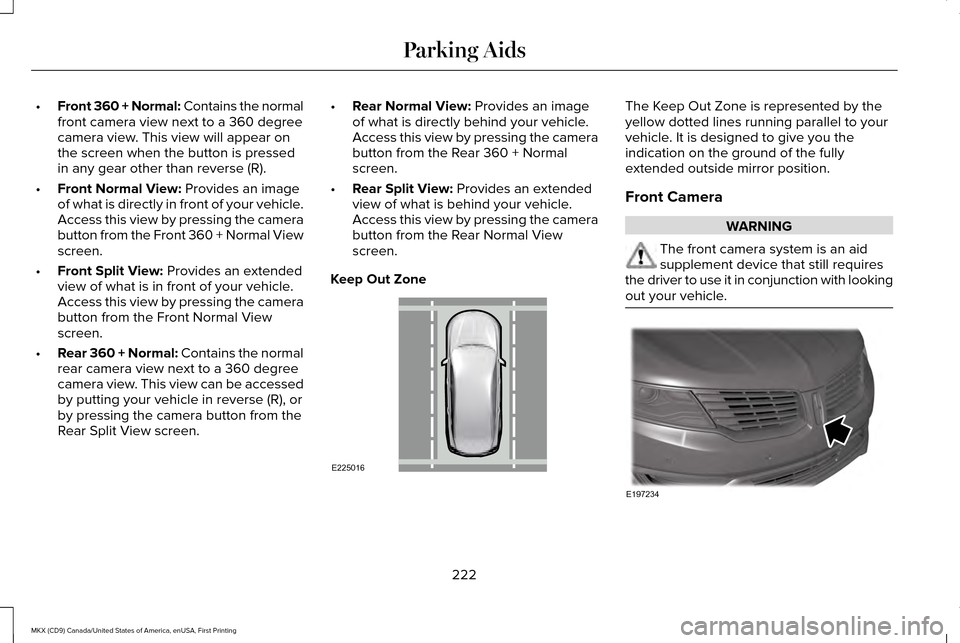
Keep Out Zone The Keep Out Zone is represented by the
yellow dotted lines running parallel to your
vehicle. It is designed to give you the
indication on the ground of the fully
extended outside mirror position.
Front Camera
WARNING
The front camera system is an aid
supplement device that still requires
the driver to use it in conjunction with looking
out your vehicle. 222
MKX (CD9) Canada/United States of America, enUSA, First Printing Parking AidsE225016 E197234
Page 226 of 587
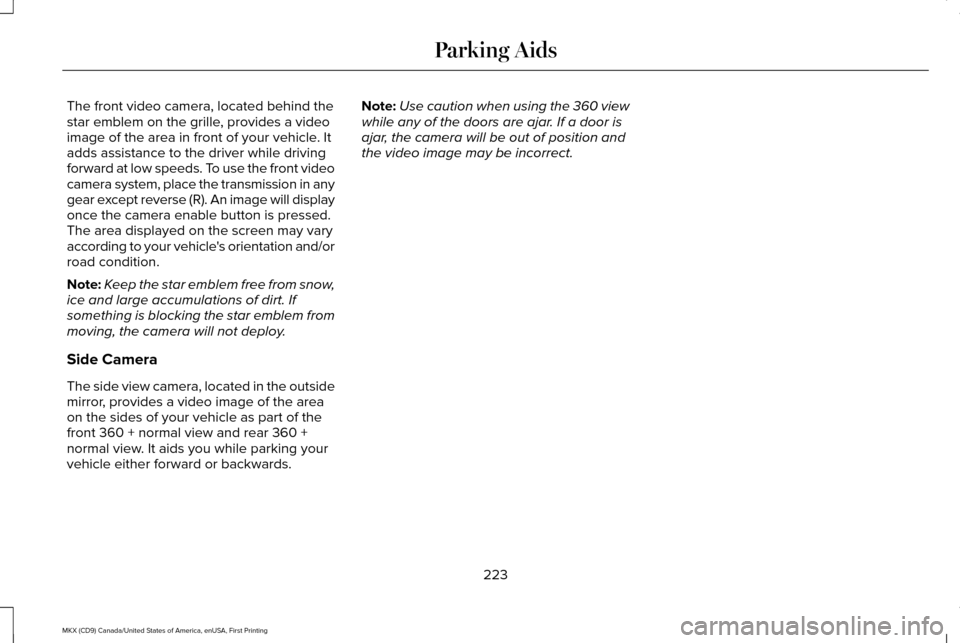
The front video camera, located behind the
star emblem on the grille, provides a video
image of the area in front of your vehicle. It
adds assistance to the driver while driving
forward at low speeds. To use the front video
camera system, place the transmission in any
gear except reverse (R). An image will display
once the camera enable button is pressed.
The area displayed on the screen may vary
according to your vehicle's orientation and/or
road condition.
Note:
Keep the star emblem free from snow,
ice and large accumulations of dirt. If
something is blocking the star emblem from
moving, the camera will not deploy.
Side Camera
The side view camera, located in the outside
mirror, provides a video image of the area
on the sides of your vehicle as part of the
front 360 + normal view and rear 360 +
normal view. It aids you while parking your
vehicle either forward or backwards. Note:
Use caution when using the 360 view
while any of the doors are ajar. If a door is
ajar, the camera will be out of position and
the video image may be incorrect.
223
MKX (CD9) Canada/United States of America, enUSA, First Printing Parking Aids
Page 236 of 587
DRIVER ALERT (If Equipped)
PRINCIPLE OF OPERATION WARNINGS
The system is designed to aid the
driver. It is not intended to replace your
attention and judgment. You are still
responsible to drive with due care and
attention. At all times, you are responsible for
controlling your vehicle, supervising
the system and intervening, if required.
Failure to take care may result in the loss of
control of your vehicle, serious personal
injury or death. The system may not function if the
sensor is blocked.
Take regular rest breaks if you feel
tired. Do not wait for the system to
warn you. Certain driving styles may result in the
system warning you even if you are not
feeling tired. WARNINGS
In cold and severe weather conditions
the system may not function. Rain,
snow and spray can all limit sensor
performance. The system will not operate if the
sensor cannot track the road lane
markings. If damage occurs in the immediate area
surrounding the sensor, have your
vehicle checked as soon as possible. The system may not correctly operate
if your vehicle is fitted with a
suspension kit not approved by us. Note:
Keep the windshield free from
obstructions for example bird droppings,
insects and snow or ice.
Note: If the camera is blocked or if the
windshield is damaged, the system may not
function.
Note: The system will store the on or off
setting in the information display menu
through ignition cycles. Note:
If enabled in the menu, the system will
be active at speeds above 40 mph (64 km/h).
When below the activation speed, the
information display will inform the driver that
the system is unavailable.
The system automatically monitors your
driving behavior using various inputs
including the front camera sensor.
If the system detects that your driving
alertness is reduced below a certain
threshold, the system will alert you using a
chime and a message in the cluster display.
USING DRIVER ALERT
Switching the System On and Off
Switch the system on or off using the
information display.
See General
Information (page 114).
When activated, the system will monitor your
alertness level based upon your driving
behavior in relation to the lane markings, and
other factors.
233
MKX (CD9) Canada/United States of America, enUSA, First Printing Driving Aids
Page 237 of 587
System Warnings
Note:
The system will not issue warnings
below approximately 40 mph (64 km/h).
The warning system has two stages. At first,
the system issues a temporary warning that
you need to take a rest. This message will
only appear for a short time. If the system
detects further reduction in driving alertness,
it may issue another warning that will remain
in the information display for a longer time.
You can press OK on the steering wheel
control to clear the warning.
System Display
When active the system will run automatically
in the background and only issue a warning
if required. You can view the status at any
time using the information display.
See
General Information (page 114).
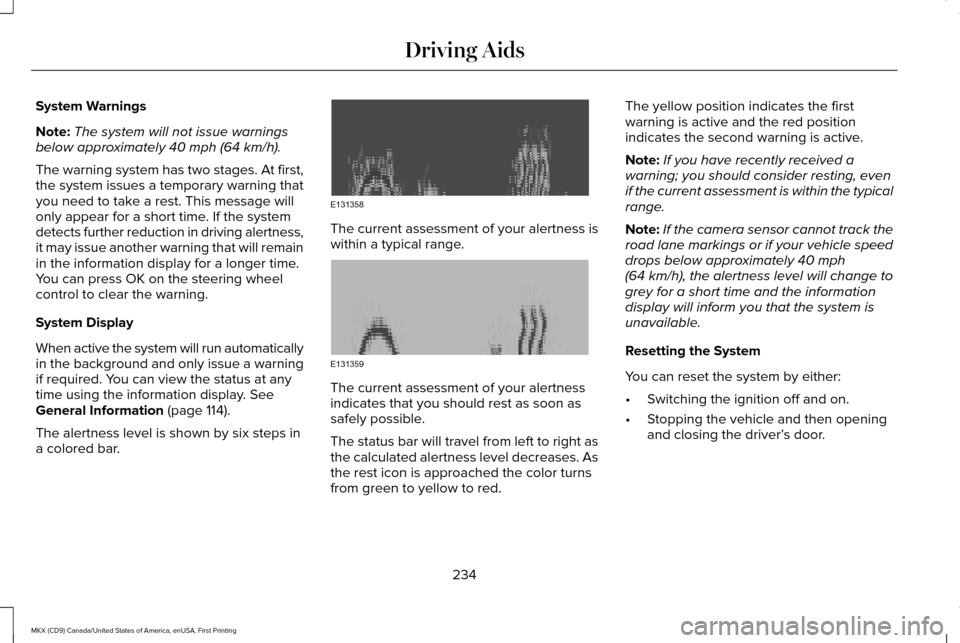
The alertness level is shown by six steps in
a colored bar. The current assessment of your alertness is
within a typical range.
The current assessment of your alertness
indicates that you should rest as soon as
safely possible.
The status bar will travel from left to right as
the calculated alertness level decreases. As
the rest icon is approached the color turns
from green to yellow to red.The yellow position indicates the first
warning is active and the red position
indicates the second warning is active.
Note:
If you have recently received a
warning; you should consider resting, even
if the current assessment is within the typical
range.
Note: If the camera sensor cannot track the
road lane markings or if your vehicle speed
drops below approximately
40 mph
(64 km/h), the alertness level will change to
grey for a short time and the information
display will inform you that the system is
unavailable.
Resetting the System
You can reset the system by either:
• Switching the ignition off and on.
• Stopping the vehicle and then opening
and closing the driver’ s door.
234
MKX (CD9) Canada/United States of America, enUSA, First Printing Driving AidsE131358 E131359
Page 238 of 587
LANE KEEPING SYSTEM (If Equipped)
WARNINGS
The system is designed to aid the
driver. It is not intended to replace your
attention and judgment. You are still
responsible to drive with due care and
attention. Always drive with due care and
attention when using and operating the
controls and features on your vehicle. At all times, you are responsible for
controlling your vehicle, supervising
the system and intervening, if required.
Failure to take care may result in the loss of
control of your vehicle, serious personal
injury or death. In cold and severe weather conditions
the system may not function. Rain,
snow and spray can all limit sensor
performance. The system will not operate if the
sensor cannot track the road lane
markings. WARNINGS
The sensor may incorrectly track lane
markings as other structures or objects.
This can result in a false or missed warning. Large contrasts in outside lighting can
limit sensor performance.
The system may not operate properly
if the sensor is blocked. Keep the
windshield free from obstruction. If damage occurs in the immediate area
surrounding the sensor, have your
vehicle checked as soon as possible. Note:
The system works above
40 mph
(64 km/h).
Note: The system works as long as the
camera can detect one lane marking.
Note: The system may not function if the
camera is blocked or there is damage to the
windshield. Note:
When Aid mode is on and the system
detects no steering activity for a short period,
the system will alert you to put your hands
on the steering wheel. The system may
detect a light grip or touch on the steering
wheel as hands off driving.
The system notifies you to stay in your lane
through the steering system and the
instrument cluster display when the front
camera detects an unintentional drift out of
your lane is likely to occur. The system
automatically detects and tracks the road
lane markings using a camera mounted
behind the interior rear view mirror.
Switching the System On and Off
Note: The system on or off setting is stored
until it is manually changed, unless a MyKey
is detected. If the system detects a MyKey
it defaults to on and the mode is set to Alert.
Note: If a MyKey is detected, pressing the
button will not affect the on or off status of
the system. Press the button on the steering
wheel stalk to switch the system
on or off.
235
MKX (CD9) Canada/United States of America, enUSA, First Printing Driving AidsE144813
Page 252 of 587
Brake Support: The brake support system
assists the driver in reducing the collision
speed by lightly applying the brakes. If the
risk of collision further increases after the
warning light illuminates, the brake support
prepares the brake system for rapid braking.
This may be apparent to the driver. The
system does not automatically activate the
brakes, but if you press the brake pedal, the
system may apply full force, even if the brake
pedal is lightly pressed.
Active Braking
: Active braking may activate
if the system determines that a collision is
imminent. The system may help the driver
reduce impact damage or avoid the crash
completely.
Some vehicles are able to switch active
braking off using the information display
controls.
See General Information (page
114). Active braking automatically turns on
every time you switch the ignition on. Note:
If you perceive Pre-Collision Assist
alerts as being too frequent or disturbing,
then you can reduce the alert sensitivity,
though the manufacturer recommends using
the highest sensitivity setting where possible.
Setting lower sensitivity would lead to fewer
and later system warnings.
Adjusting the Pre-Collision Assist Settings
You can adjust the Pre-Collision Assist
settings by using the information display
control. See General Information (page 114).
If required, you can switch active braking off
using the information display control.
See
General Information (page 114).
Note: Active braking automatically turns on
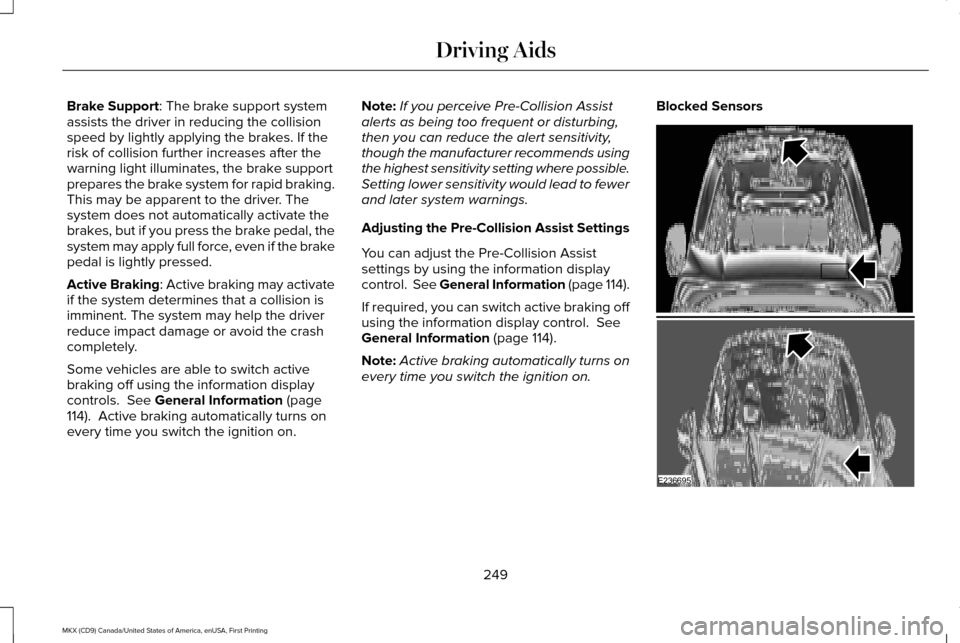
every time you switch the ignition on. Blocked Sensors
249
MKX (CD9) Canada/United States of America, enUSA, First Printing Driving AidsE236695
Page 253 of 587
If a message regarding a blocked sensor or
camera appears in the information display,
the radar signals or camera images are
obstructed. The radar sensor is located
behind a fascia cover near the driver side of
the lower grille. With an obstructed radar,
the Pre-Collision Assist system does not
function and cannot detect a vehicle ahead.
With the front camera obstructed, the
Pre-Collision Assist system does not respond
to pedestrians or stationary vehicles and the
system performance on moving vehicles
reduces. The following table lists possible
causes and actions for when this message
displays. Action
Cause
Clean the grille surface in front of the radar or remove the objectcausing the obstruction.
The surface of the radar in the grille is dirty or obstructed in some
way.
Wait a short time. It may take several minutes for the radar to detectthat there is no obstruction.
The surface of the radar in the grille is clean but the message remains
in the display.
The Pre-Collision Assist system is temporarily disabled. Pre-CollisionAssist should automatically reactivate a short time after the weather conditions improve.
Heavy rain, spray, snow, or fog is interfering with the radar signals.
The Pre-Collision Assist system is temporarily disabled. Pre-CollisionAssist should automatically reactivate a short time after the weather conditions improve.
Swirling water, or snow or ice on the surface of the road may interfere
with the radar signals.
250
MKX (CD9) Canada/United States of America, enUSA, First Printing Driving Aids
Page 255 of 587
preset your preferences for these systems
within the information display. Lincoln Drive
Control will respond to your preferences
based on what gear position you select. This
provides a single location to control multiple
systems performance settings.
Lincoln Drive Control consists of the
following systems:
•
Continuously controlled damping
dynamically adjusts the shock absorbers
stiffness in real time to match the road
surface and driver inputs. This system
continuously monitors your vehicle ’s
motion (roll, pitch, bounce), suspension
position, load, speed, road conditions,
and steering to adjust the suspension
damping for optimal vehicle control.
• Electronically power-assisted steering
adjusts steering effort and feel based on
your vehicle speed and your inputs.
• Adaptive steering optimizes your
vehicle's steering response based on
your steering wheel input, changes in
vehicle speed and other conditions. •
Active noise control utilizes your vehicle
electronics to enhance the acoustic
experience.
• Electronic stability control and traction
control maintain your vehicle control in
adverse conditions or high performance
driving.
• Electronic throttle control enhances the
powertrain response to your inputs.
Using Lincoln Drive Control
You can configure which of the Drive Control
modes are active when your vehicle is in
drive (D) or in Sport (S). The configuration
remains active until modified from the main
menu on the information display. These systems have a range of modes which
you can choose from in order to customize
your ideal driving experience:
•
Comfort – Provides a more relaxed
driving experience, maximizing comfort.
Your steering effort decreases and the
suspension movement is more fluid.
Comfort mode is ideal when you desire
enhanced traveling comfort.
• Normal – Delivers a balanced
combination of comfortable, controlled
ride and confident handling. This mode
provides an engaging drive experience
and a direct connection to the road
without sacrificing any of the composure
demanded from a luxury vehicle.
• Sport – Provides a sportier driving
experience. The suspension stiffens, with
an emphasis on handling and control.
The engine responds more directly to
your inputs and takes on a more powerful
tone. Sport mode is ideal for use during
more spirited driving.
You can change your vehicle ’s Drive Control
settings from the main menu on the
information display. See General
Information (page 114).
252
MKX (CD9) Canada/United States of America, enUSA, First Printing Driving Aids
Page 550 of 587
•
Navigation Features: Any navigation
features included in the system are
intended to provide turn by turn
instructions to get you to a desired
destination. Please make certain all
persons using this system carefully read
and follow instructions and safety
information fully.
• Distraction Hazard:
Any navigation
features may require manual (non-verbal)
setup. Attempting to perform such set-up
or insert data while driving can distract
your attention and could cause an
accident or other serious injury. Stop the
vehicle in a safe and legal manner before
attempting these operations.
• Let Your Judgment Prevail:
Any
navigation features are provided only as
an aid. Make your driving decisions
based on your observations of local
conditions and existing traffic regulations.
Any such feature is not a substitute for
your personal judgment. Any route
suggestions made by this system should
never replace any local traffic regulations
or your personal judgment or knowledge
of safe driving practices. •
Route Safety:
Do not follow the route
suggestions if doing so would result in
an unsafe or illegal maneuver, if you
would be placed in an unsafe situation,
or if you would be directed into an area
that you consider unsafe. The driver is
ultimately responsible for the safe
operation of the vehicle and therefore,
must evaluate whether it is safe to follow
the suggested directions.
• Potential Map Inaccuracy:
Maps used
by this system may be inaccurate
because of changes in roads, traffic
controls or driving conditions. Always use
good judgment and common sense when
following the suggested routes.
• Emergency Services:
Do not rely on any
navigation features included in the
system to route you to emergency
services. Ask local authorities or an
emergency services operator for these
locations. Not all emergency services
such as police, fire stations, hospitals and
clinics are likely to be contained in the
map database for such navigation
features.
547
MKX (CD9) Canada/United States of America, enUSA, First Printing Appendices
Page 573 of 587
Website
www.sunatraffic.com.au/termsandcondi- tions/
2. Intellectual Property
SUNA Products and/or Services are for your
personal use. You may not record, or
retransmit the content, nor use the content
in association with any other traffic
information or route guidance service or
device not approved by Intelematics. You
obtain no right of ownership in any
Intellectual Property Rights (including
copyright) in the data that is used to provide
SUNA Products and/or Services.
3. Appropriate Use SUNA Products and/or Services are intended
as an aid to personal motoring and travel
planning, and do not provide comprehensive
or accurate information on all occasions. On
occasions, you may experience additional
delay as a result of using SUNA Products
and/or Services. You acknowledge that it is
not intended, or suitable, for use in
applications where time of arrival or driving
directions may impact the safety of the public
or yourself.
4. Use of SUNA Products and Services
while driving
You, and other authorised drivers of the
vehicle in which SUNA Products and/or
Services are available or installed and active,
remain at all times responsible for observing
all relevant laws and codes of safe driving.
In particular, you agree to only actively
operate SUNA Products and/or Services
when the Vehicle is at a complete stop and
it is safe to do so.
5. Service Continuity and Reception of the
SUNA Traffic ChannelWe will use reasonable endeavours to
provide the SUNA Traffic Channel 24 hours
a day, 365 days a year. The SUNA Traffic
Channel may occasionally be unavailable for
technical reasons or for planned
maintenance. We will try to perform
maintenance at times when congestion is
light. We reserve the right to withdraw SUNA
Products and/or Services at any time.
Also, we cannot assure the uninterrupted
reception of the SUNA Traffic Channel
RDS-TMC signal at any particular location.
6. Limitation of Liability
Neither Intelematics (nor its suppliers or the
manufacturer of your device (the
“Suppliers”)) shall be liable to you or to any
third party for any damages either direct,
indirect, incidental, consequential or
otherwise arising out of the use of or inability
to use SUNA Products and/or Services even
if Intelematics or a Supplier has been advised
of the possibility of such damages. You also
acknowledge that the neither Intelematics
nor any Supplier guarantees nor make any
warranties that relate to the availability,
accuracy or completeness of SUNA Products
570
MKX (CD9) Canada/United States of America, enUSA, First Printing Appendices