change time LINCOLN MKZ 2013 Owner's Manual
[x] Cancel search | Manufacturer: LINCOLN, Model Year: 2013, Model line: MKZ, Model: LINCOLN MKZ 2013Pages: 474, PDF Size: 3.79 MB
Page 374 of 474
You Can
When You Select
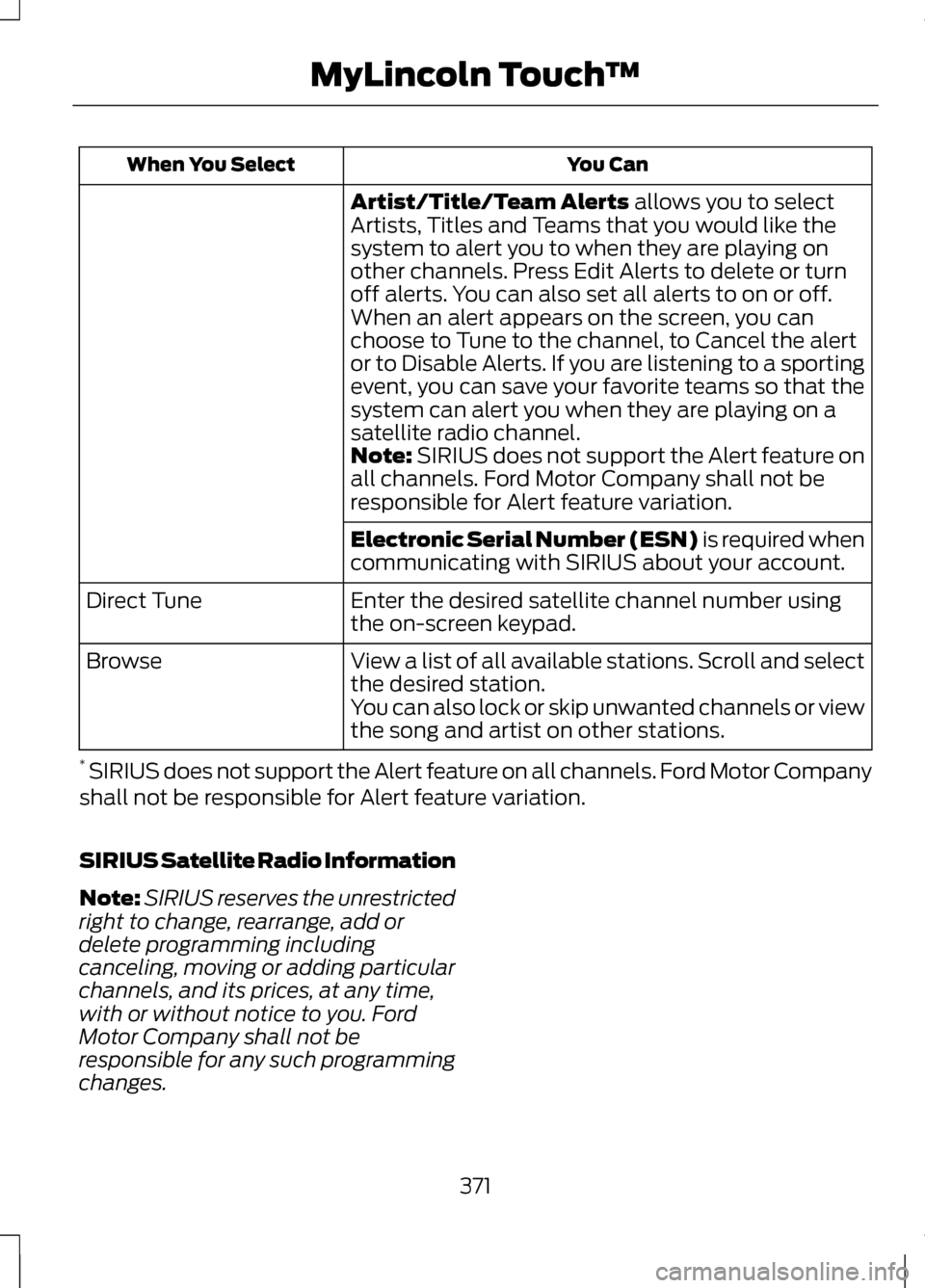
Artist/Title/Team Alerts allows you to select
Artists, Titles and Teams that you would like the
system to alert you to when they are playing on
other channels. Press Edit Alerts to delete or turn
off alerts. You can also set all alerts to on or off.
When an alert appears on the screen, you can
choose to Tune to the channel, to Cancel the alert
or to Disable Alerts. If you are listening to a sporting
event, you can save your favorite teams so that the
system can alert you when they are playing on a
satellite radio channel.
Note:
SIRIUS does not support the Alert feature on
all channels. Ford Motor Company shall not be
responsible for Alert feature variation.
Electronic Serial Number (ESN) is required when
communicating with SIRIUS about your account.
Enter the desired satellite channel number using
the on-screen keypad.
Direct Tune
View a list of all available stations. Scroll and select
the desired station.
Browse
You can also lock or skip unwanted channels or view
the song and artist on other stations.
* SIRIUS does not support the Alert feature on all channels. Ford Motor Company
shall not be responsible for Alert feature variation.
SIRIUS Satellite Radio Information
Note: SIRIUS reserves the unrestricted
right to change, rearrange, add or
delete programming including
canceling, moving or adding particular
channels, and its prices, at any time,
with or without notice to you. Ford
Motor Company shall not be
responsible for any such programming
changes.
371
MyLincoln Touch
™
Page 414 of 474
You Can
When You Select
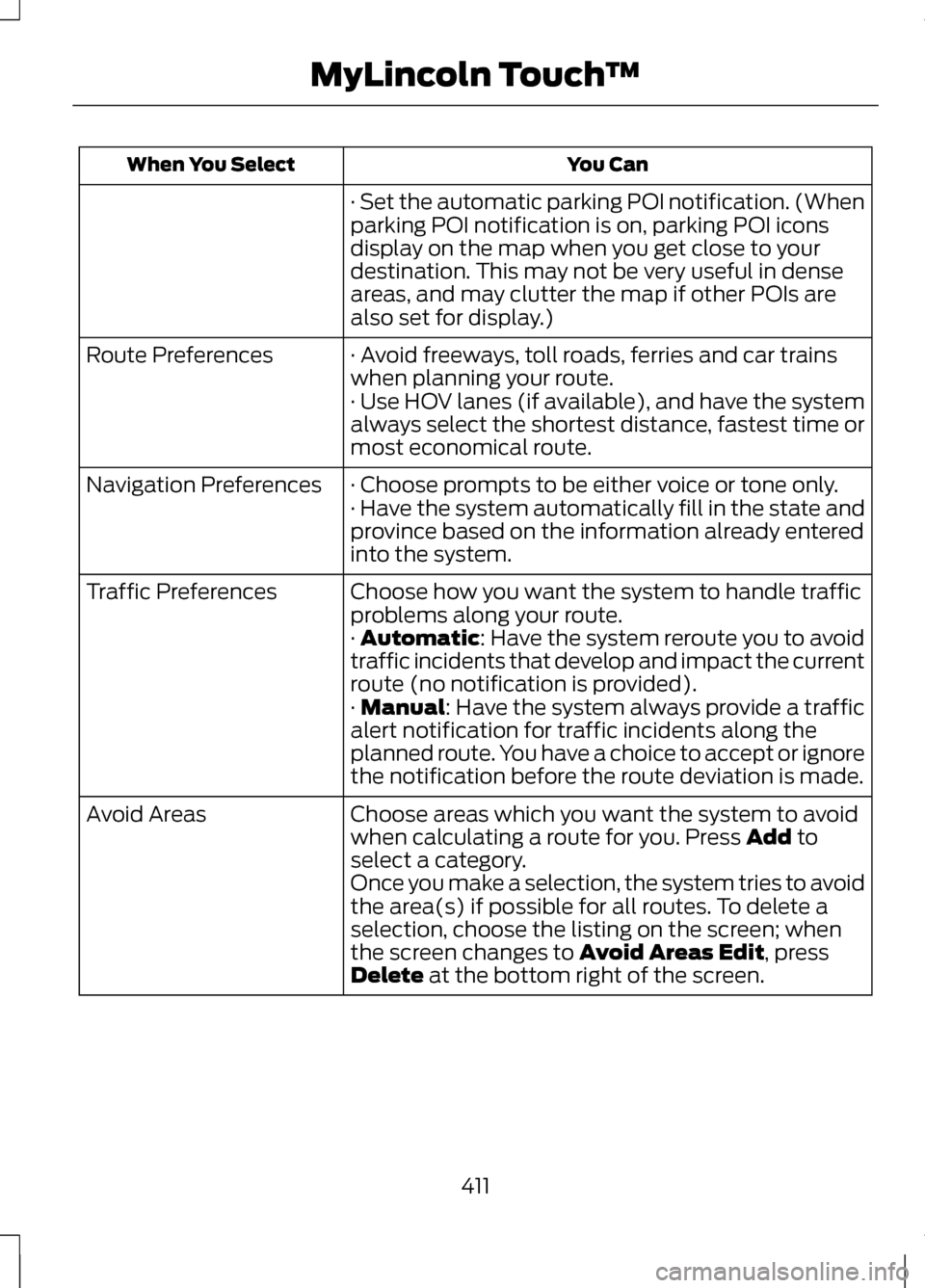
· Set the automatic parking POI notification. (When
parking POI notification is on, parking POI icons
display on the map when you get close to your
destination. This may not be very useful in dense
areas, and may clutter the map if other POIs are
also set for display.)
· Avoid freeways, toll roads, ferries and car trains
when planning your route.
Route Preferences
· Use HOV lanes (if available), and have the system
always select the shortest distance, fastest time or
most economical route.
· Choose prompts to be either voice or tone only.
Navigation Preferences
· Have the system automatically fill in the state and
province based on the information already entered
into the system.
Choose how you want the system to handle traffic
problems along your route.
Traffic Preferences
· Automatic: Have the system reroute you to avoid
traffic incidents that develop and impact the current
route (no notification is provided).
·
Manual: Have the system always provide a traffic
alert notification for traffic incidents along the
planned route. You have a choice to accept or ignore
the notification before the route deviation is made.
Choose areas which you want the system to avoid
when calculating a route for you. Press
Add to
select a category.
Avoid Areas
Once you make a selection, the system tries to avoid
the area(s) if possible for all routes. To delete a
selection, choose the listing on the screen; when
the screen changes to
Avoid Areas Edit, press
Delete at the bottom right of the screen.
411
MyLincoln Touch
™
Page 416 of 474
Auto Zoom
Press the green bar to access map
mode, then select the + or - zoom
button to bring up the zoom level and
Auto buttons on the touchscreen.
When the Auto button is pressed,
Auto Zoom is turned on and Auto is
displayed in the bottom left corner of
the screen. The map zoom level then
synchronizes with vehicle speed. The
slower the vehicle is traveling, the
farther in the map is zoomed in; the
faster the vehicle is traveling, the
farther the map is zoomed out. To turn
the feature off, just press the + or -
button again.
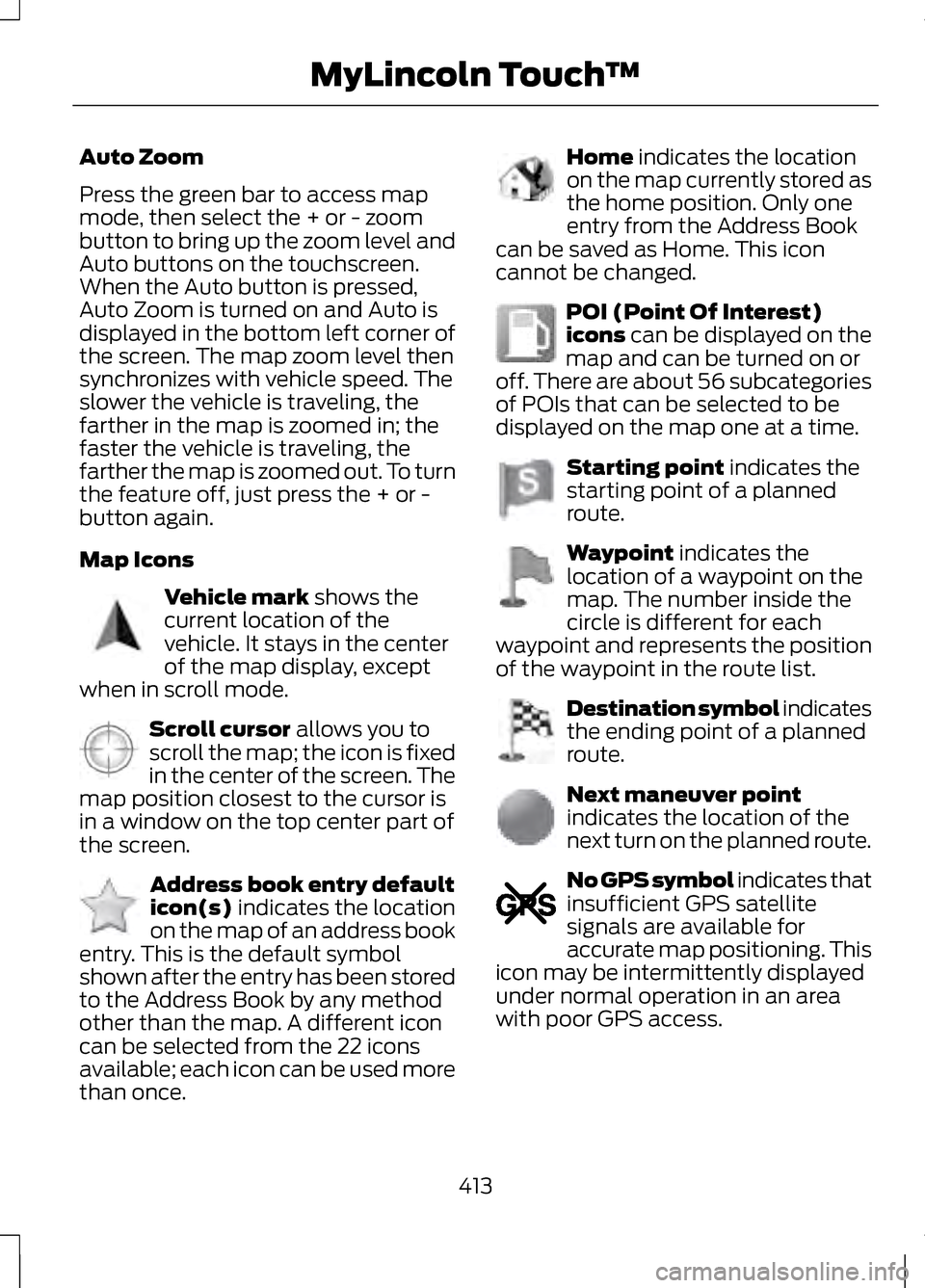
Map Icons
Vehicle mark shows the
current location of the
vehicle. It stays in the center
of the map display, except
when in scroll mode. Scroll cursor
allows you to
scroll the map; the icon is fixed
in the center of the screen. The
map position closest to the cursor is
in a window on the top center part of
the screen. Address book entry default
icon(s)
indicates the location
on the map of an address book
entry. This is the default symbol
shown after the entry has been stored
to the Address Book by any method
other than the map. A different icon
can be selected from the 22 icons
available; each icon can be used more
than once. Home
indicates the location
on the map currently stored as
the home position. Only one
entry from the Address Book
can be saved as Home. This icon
cannot be changed. POI (Point Of Interest)
icons
can be displayed on the
map and can be turned on or
off. There are about 56 subcategories
of POIs that can be selected to be
displayed on the map one at a time. Starting point
indicates the
starting point of a planned
route. Waypoint
indicates the
location of a waypoint on the
map. The number inside the
circle is different for each
waypoint and represents the position
of the waypoint in the route list. Destination symbol indicates
the ending point of a planned
route.
Next maneuver point
indicates the location of the
next turn on the planned route.
No GPS symbol indicates that
insufficient GPS satellite
signals are available for
accurate map positioning. This
icon may be intermittently displayed
under normal operation in an area
with poor GPS access.
413
MyLincoln Touch
™E142646 E142647 E142648 E142649 E142650 E142651 E142652 E142653 E142654 E142655
Page 428 of 474
End User Notice
Microsoft® Windows® Mobile for
Automotive Important Safety
Information
This system Ford SYNC™ contains
software that is licensed to
Manufacturer FORD MOTOR
COMPANY by an affiliate of Microsoft
Corporation pursuant to a license
agreement. Any removal,
reproduction, reverse engineering or
other unauthorized use of the
software from this system in violation
of the license agreement is strictly
prohibited and may subject you to
legal action.
Read and follow instructions:
Before using your Windows
Automotive- based system, read and
follow all instructions and safety
information provided in this end user
manual ("User's Guide"). Not
following precautions found in this
User's Guide can lead to an accident
or other serious consequences.
Keep User's Guide in vehicle: When
kept in the vehicle, the User's Guide
will be a ready reference for you and
other users unfamiliar with the
Windows Automotive-based system.
Please make certain that before using
the system for the first time, all
persons have access to the User's
Guide and read its instructions and
safety information carefully.
WARNING
Operating certain parts of this
system while driving can distract
your attention away from the road,
and possibly cause an accident or
other serious consequences. Do not
change system settings or enter data
non-verbally (using your hands) while
driving. Stop the vehicle in a safe and
legal manner before attempting these
operations. This is important since
while setting up or changing some
functions you might be required to
distract your attention away from the
road and remove your hands from the
wheel. General Operation
Voice Command Control: Functions
within the Windows
Automotive-based system may be
accomplished using only voice
commands. Using voice commands
while driving allows you to operate
the system without removing your
hands from the wheel.
Prolonged Views of Screen: Do not
access any function requiring a
prolonged view of the screen while
you are driving. Pull over in a safe and
legal manner before attempting to
access a function of the system
requiring prolonged attention. Even
occasional short scans to the screen
may be hazardous if your attention
has been diverted away from your
driving task at a critical time.
425
Appendices
Page 442 of 474
THE GRACENOTE SOFTWARE, EACH
ITEM OF GRACENOTE DATA AND
THE GRACENOTE CONTENT ARE
LICENSED TO YOU "AS IS". NEITHER
GRACENOTE MAKES ANY
REPRESENTATIONS OR
WARRANTIES, EXPRESS OR IMPLIED,
REGARDING THE ACCURACY OF ANY
GRACENOTE DATA FROM THE
GRACENOTE SERVERS OR
GRACENOTE CONTENT.
GRACENOTE COLLECTIVELY AND
SEPARATELY RESERVE THE RIGHT
TO DELETE DATA AND/OR CONTENT
FROM THE COMPANIES'
RESPECTIVE SERVERS OR, IN THE
CASE OF GRACENOTE, CHANGE
DATA CATEGORIES FOR ANY CAUSE
THAT GRACENOTE DEEMS
SUFFICIENT. NO WARRANTY IS
MADE THAT EITHER GRACENOTE
CONTENT OR THE GRACENOTE
SOFTWARE OR GRACENOTE
SERVERS ARE ERROR-FREE OR
THAT THE FUNCTIONING OF THE
GRACENOTE SOFTWARE OR
GRACENOTE SERVERS WILL BE
UNINTERRUPTED. GRACENOTE IS
NOT OBLIGATED TO PROVIDE YOU
WITH ANY ENHANCED OR
ADDITIONAL DATA TYPES THAT
GRACENOTE MAY CHOOSE TO
PROVIDE IN THE FUTURE AND IS
FREE TO DISCONTINUE ITS ONLINE
SERVICES AT ANY TIME.
GRACENOTE DISCLAIM ALL
WARRANTIES EXPRESS OR IMPLIED,
INCLUDING, BUT NOT LIMITED TO,
IMPLIED WARRANTIES OF
MERCHANTABILITY, FITNESS FOR A
PARTICULAR PURPOSE, TITLE, AND
NON-INFRINGEMENT. NEITHER
GRACENOTE WARRANTS THE
RESULTS THAT WILL BE OBTAINED
BY YOUR USE OF THE GRACENOTE
SOFTWARE OR ANY GRACENOTE
SERVER. IN NO CASE WILL
GRACENOTE BE LIABLE FOR ANY
CONSEQUENTIAL OR INCIDENTAL
DAMAGES OR FOR ANY LOST
PROFITS OR LOST REVENUES FOR
ANY REASON WHATSOEVER.
© Gracenote 2007.
FCC ID: KMHSYNCG2
IC: 1422A-SYNCG2
This device complies with Part 15 of
the FCC Rules and with RSS-210 of
Industry Canada. Operation is subject
to the following two conditions: (1)
This device may not cause harmful
interference, and (2) this device must
accept any interference received,
including interference that may cause
undesired operation.
WARNING
Changes or modifications not
expressively approved by the
party responsible for compliance
could void the user's authority to
operate the equipment. The term "IC"
before the radio certification number
only signifies that Industry Canada
technical specifications were met. The antenna used for this transmitter
must not be co-located or operating
in conjunction with any other antenna
or transmitter.
439
Appendices
Page 444 of 474
Protecting Your Investment
Maintenance is an investment that
pays dividends in the form of
improved reliability, durability and
resale value. To maintain the proper
performance of your vehicle and its
emission control systems, make sure
you have scheduled maintenance
performed at the designated intervals.
Your vehicle is equipped with the
Intelligent Oil-Life Monitor® system,
which displays a message in the
information display at the proper oil
change interval. This interval may be
up to one year or 10000 miles (16000
kilometers).
When ENGINE OIL CHANGE DUE or
OIL CHANGE REQUIRED appears in
the information display, it is time for
an oil change. Make sure you perform
the oil change within two weeks or
500 miles (800 kilometers) of the
ENGINE OIL CHANGE DUE or OIL
CHANGE REQUIRED message
appearing. Make sure you reset the
Intelligent Oil-Life Monitor® after
each oil change. See Engine Oil
Check (page 267).
If your information display resets
prematurely or becomes inoperative,
you should perform the oil change
interval at six months or 5000 miles
(8000 kilometers) from your last oil
change. Never exceed one year or
10000 miles (16000 kilometers)
between oil change intervals. Your vehicle is very sophisticated and
built with multiple, complex,
performance systems. Every
manufacturer develops these systems
using different specifications and
performance features. That is why it
is important to rely upon your
dealership to properly diagnose and
repair your vehicle.
Ford Motor Company has
recommended maintenance intervals
for various parts and component
systems based upon engineering
testing. Ford Motor Company relies
upon this testing to determine the
most appropriate mileage for
replacement of oils and fluids to
protect your vehicle at the lowest
overall cost to you and recommends
against maintenance schedules that
deviate from the scheduled
maintenance information.
We strongly recommend the use of
only genuine Ford, Motorcraft® or
Ford-authorized re-manufactured
replacement parts engineered for your
vehicle.
Additives and Chemicals
This owner's manual and the Ford
Workshop Manual list the
recommended additives and
chemicals for your vehicle. We do not
recommend using chemicals or
additives not approved by us as part
of your vehicle
’s normal maintenance.
Please consult your warranty
information.
441
Scheduled Maintenance
Page 447 of 474
Be sure to ask your dealership service
advisor or technician about the
multi-point vehicle inspection. It is a
comprehensive way to perform a
thorough inspection of your vehicle.
Your checklist gives you immediate
feedback on the overall condition of
your vehicle.
Normal Scheduled
Maintenance
Intelligent Oil-Life Monitor®
Your vehicle is equipped with an
Intelligent Oil-Life Monitor that
determines when you should change
the engine oil based on how your
vehicle is used. By using several
important factors in its calculations,
the monitor helps reduce the cost of
owning your vehicle and reduces
environmental waste at the same
time.
This means you do not have to
remember to change the oil on a
mileage-based schedule. Your vehicle
lets you know when an oil change is
due by displaying ENGINE OIL
CHANGE DUE or OIL CHANGE
REQUIRED in the information display.
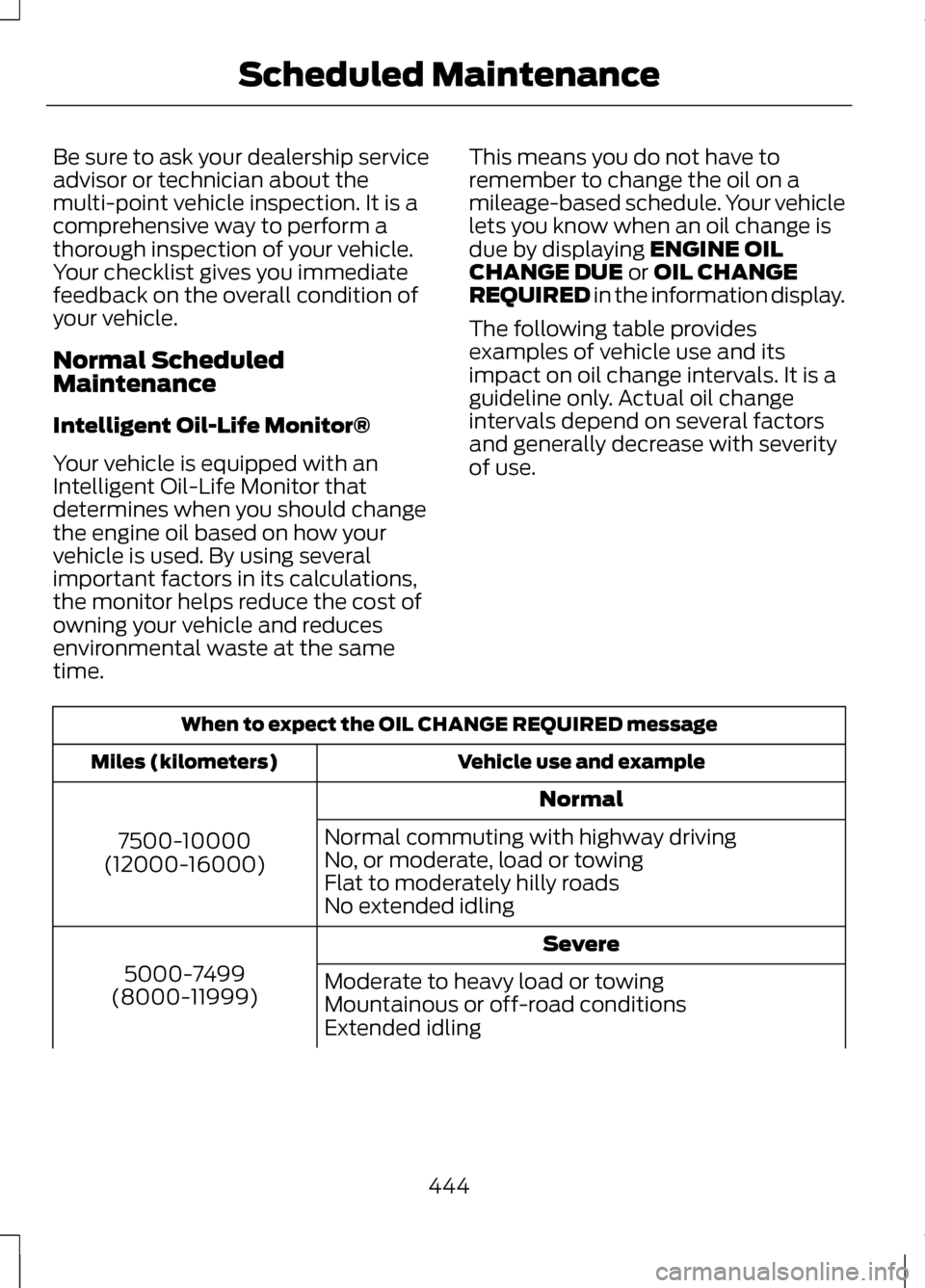
The following table provides
examples of vehicle use and its
impact on oil change intervals. It is a
guideline only. Actual oil change
intervals depend on several factors
and generally decrease with severity
of use. When to expect the OIL CHANGE REQUIRED message
Vehicle use and example
Miles (kilometers)
Normal
7500-10000
(12000-16000) Normal commuting with highway driving
No, or moderate, load or towing
Flat to moderately hilly roads
No extended idling
Severe
5000-7499
(8000-11999) Moderate to heavy load or towing
Mountainous or off-road conditions
Extended idling
444
Scheduled Maintenance