warning LINCOLN MKZ 2014 Owners Manual
[x] Cancel search | Manufacturer: LINCOLN, Model Year: 2014, Model line: MKZ, Model: LINCOLN MKZ 2014Pages: 468, PDF Size: 4.49 MB
Page 191 of 468
Rear Sensing System
The rear sensors are only active when
the transmission is in R. As the vehicle
moves closer to the obstacle, the rate
of the audible warning increases.
When the obstacle is fewer than 10
inches (25 centimeters) away, the
warning sounds continuously. If a
stationary or receding object is
detected farther than 10 inches (25
centimeters) from the side of the
vehicle, the tone sounds for only three
seconds. Once the system detects an
object approaching, the warning
sounds again.
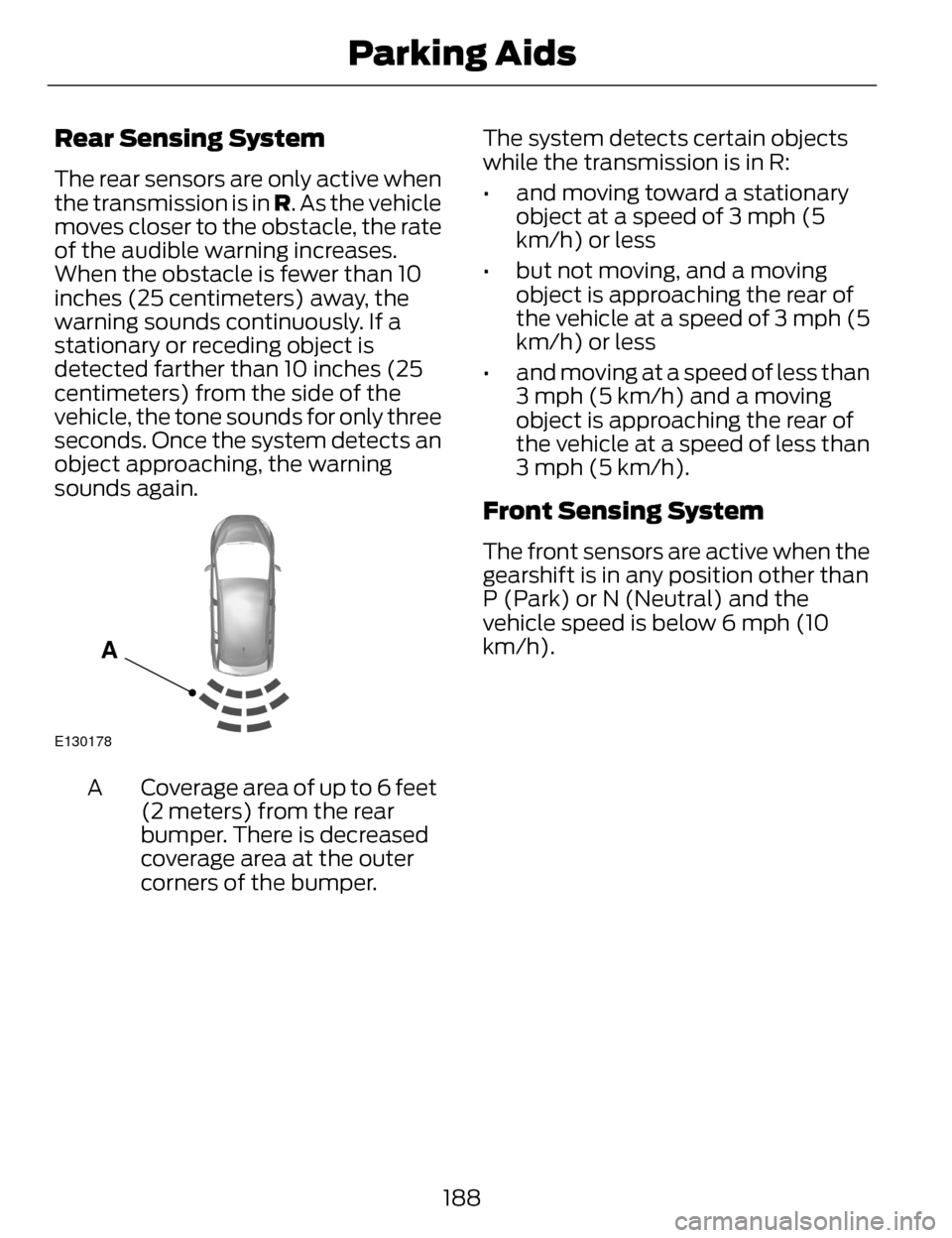
E130178
A
Coverage area of up to 6 feet
(2 meters) from the rear
bumper. There is decreased
coverage area at the outer
corners of the bumper.
A The system detects certain objects
while the transmission is in R:
• and moving toward a stationary
object at a speed of 3 mph (5
km/h) or less
• but not moving, and a moving object is approaching the rear of
the vehicle at a speed of 3 mph (5
km/h) or less
• and moving at a speed of less than 3 mph (5 km/h) and a moving
object is approaching the rear of
the vehicle at a speed of less than
3 mph (5 km/h).
Front Sensing System
The front sensors are active when the
gearshift is in any position other than
P (Park) or N (Neutral) and the
vehicle speed is below 6 mph (10
km/h).
188
Parking Aids
Page 192 of 468
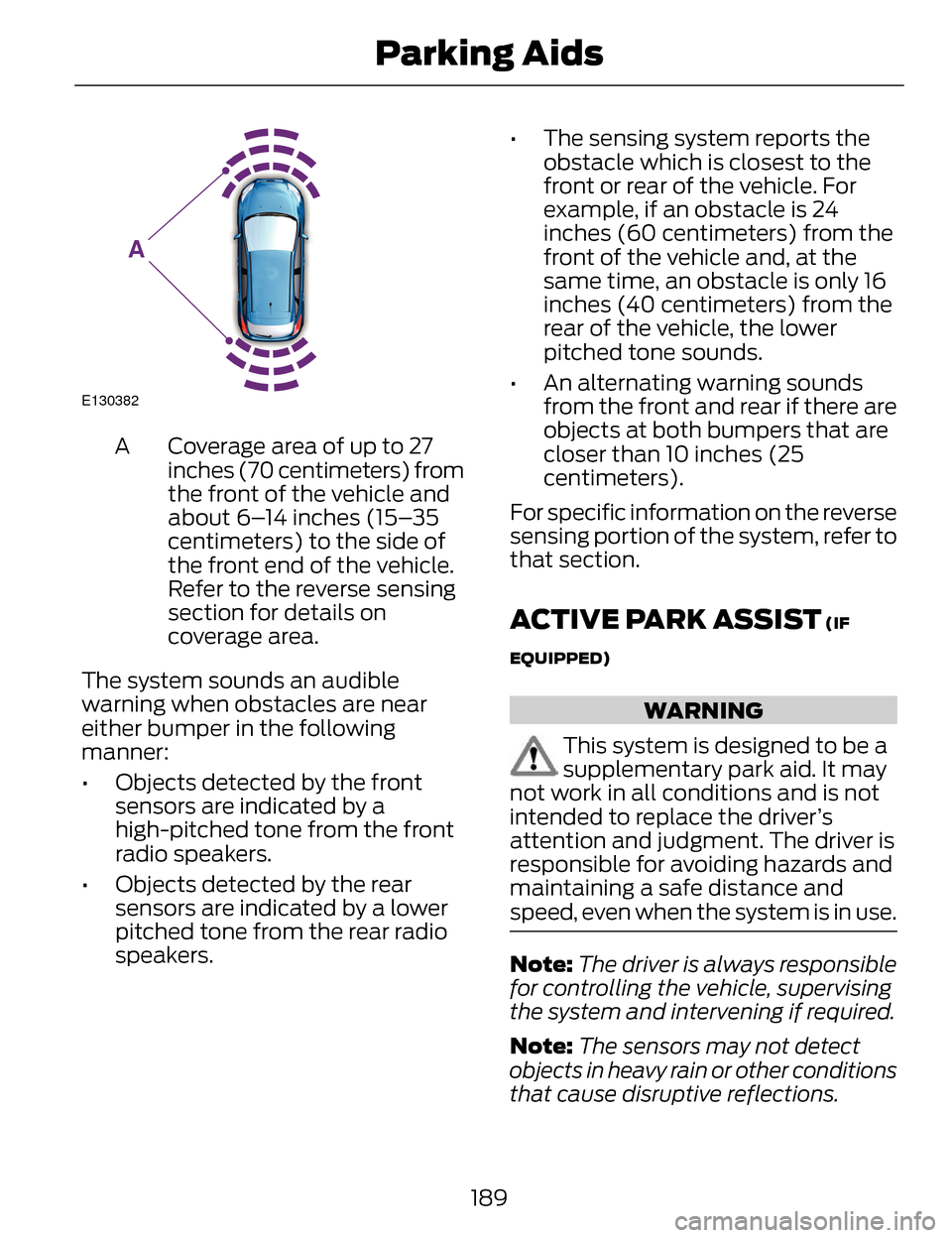
E130382
A
Coverage area of up to 27
inches (70 centimeters) from
the front of the vehicle and
about 6–14 inches (15–35
centimeters) to the side of
the front end of the vehicle.
Refer to the reverse sensing
section for details on
coverage area.
A
The system sounds an audible
warning when obstacles are near
either bumper in the following
manner:
• Objects detected by the front sensors are indicated by a
high-pitched tone from the front
radio speakers.
• Objects detected by the rear sensors are indicated by a lower
pitched tone from the rear radio
speakers. • The sensing system reports the
obstacle which is closest to the
front or rear of the vehicle. For
example, if an obstacle is 24
inches (60 centimeters) from the
front of the vehicle and, at the
same time, an obstacle is only 16
inches (40 centimeters) from the
rear of the vehicle, the lower
pitched tone sounds.
• An alternating warning sounds from the front and rear if there are
objects at both bumpers that are
closer than 10 inches (25
centimeters).
For specific information on the reverse
sensing portion of the system, refer to
that section.
ACTIVE PARK ASSIST (IF
EQUIPPED)
WARNING
This system is designed to be a
supplementary park aid. It may
not work in all conditions and is not
intended to replace the driver’s
attention and judgment. The driver is
responsible for avoiding hazards and
maintaining a safe distance and
speed, even when the system is in use.
Note: The driver is always responsible
for controlling the vehicle, supervising
the system and intervening if required.
Note: The sensors may not detect
objects in heavy rain or other conditions
that cause disruptive reflections.
189
Parking Aids
Page 195 of 468
When automatic steering is finished,
the touch screen displays a message
and a chime sounds, indicating that
the active park assist process is done.
The driver is responsible for checking
the parking job and making any
necessary corrections before putting
the transmission in P (Park).
Deactivating the Park Assist
Feature
The system can be deactivated
manually by:
• pressing the active park assistbutton
• grabbing the steering wheel
• driving above approximately 50 mph (80 km/h) for 30 seconds
during an active park search • driving above 6 mph (10 km/h)
during automatic steering
• turning off the traction control system.
Certain vehicle conditions can also
deactivate the system, such as:
• Traction control has activated on a slippery or loose surface.
• There is an anti-lock brake system activation or failure.
• Something touches the steering wheel.
If a problem occurs with the system,
a warning message is displayed,
followed by a chime. Occasional
system messages may occur in
normal operation. For recurring or
frequent system faults, contact an
authorized dealer to have your vehicle
serviced.
Troubleshooting the System
The system does not look for a space
The traction control system may be off
The transmission is in R (Reverse); the vehicle must be moving forward to
detect a parking space
The system does not offer a particular space
Something may be contacting the front bumper or side sensors
There is not enough room on both sides of the vehicle in order to park
There is not enough space for the parking maneuver on the opposite side of
the parking space
192
Parking Aids
Page 197 of 468
REAR VIEW CAMERA (IF
EQUIPPED)
WARNINGS
The rear view camera system is
a reverse aid supplement device
that still requires the driver to use it in
conjunction with the interior and
exterior mirrors for maximum
coverage.
Objects that are close to either
corner of the bumper or under
the bumper, might not be seen on the
screen due to the limited coverage of
the camera system.
Back up as slow as possible
since higher speeds might limit
your reaction time to stop the vehicle.
Use caution when using the rear
video camera and the trunk is
ajar. If the trunk is ajar, the camera will
be out of position and the video image
may be incorrect. All guidelines (if
enabled) have been removed when
the trunk is ajar.
Use caution when turning
camera features on or off while
in R (Reverse). Make sure the vehicle
is not moving.
The rear view camera system provides
a video image of the area behind the
vehicle. The image will be displayed
in either in the rear view mirror or the
display in the center of the instrument
panel. During operation, lines appear in the
display which represent your vehicle’s
path and proximity to objects behind
the vehicle.
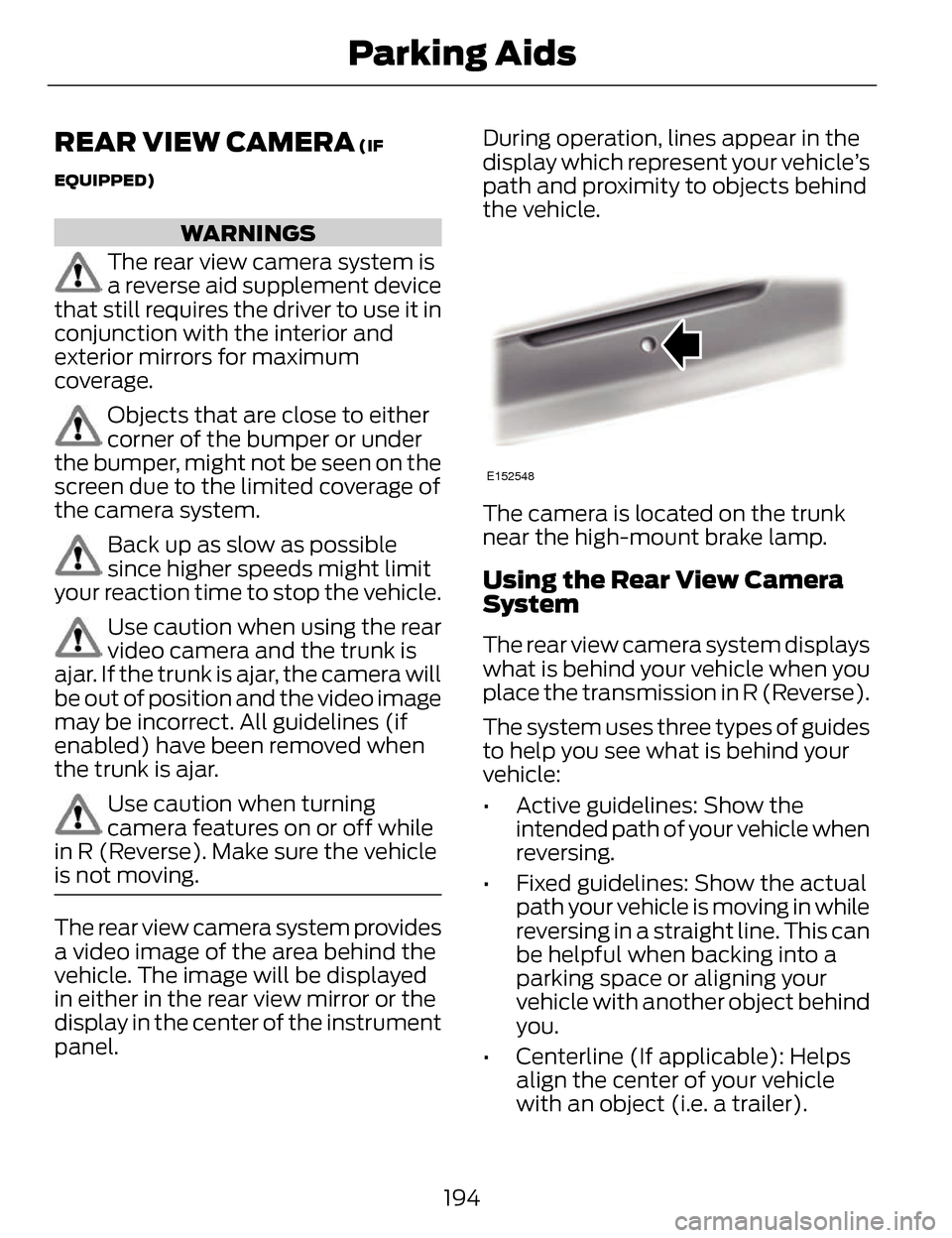
E152548
The camera is located on the trunk
near the high-mount brake lamp.
Using the Rear View Camera
System
The rear view camera system displays
what is behind your vehicle when you
place the transmission in R (Reverse).
The system uses three types of guides
to help you see what is behind your
vehicle:
• Active guidelines: Show the
intended path of your vehicle when
reversing.
• Fixed guidelines: Show the actual path your vehicle is moving in while
reversing in a straight line. This can
be helpful when backing into a
parking space or aligning your
vehicle with another object behind
you.
• Centerline (If applicable): Helps align the center of your vehicle
with an object (i.e. a trailer).
194
Parking Aids
Page 199 of 468
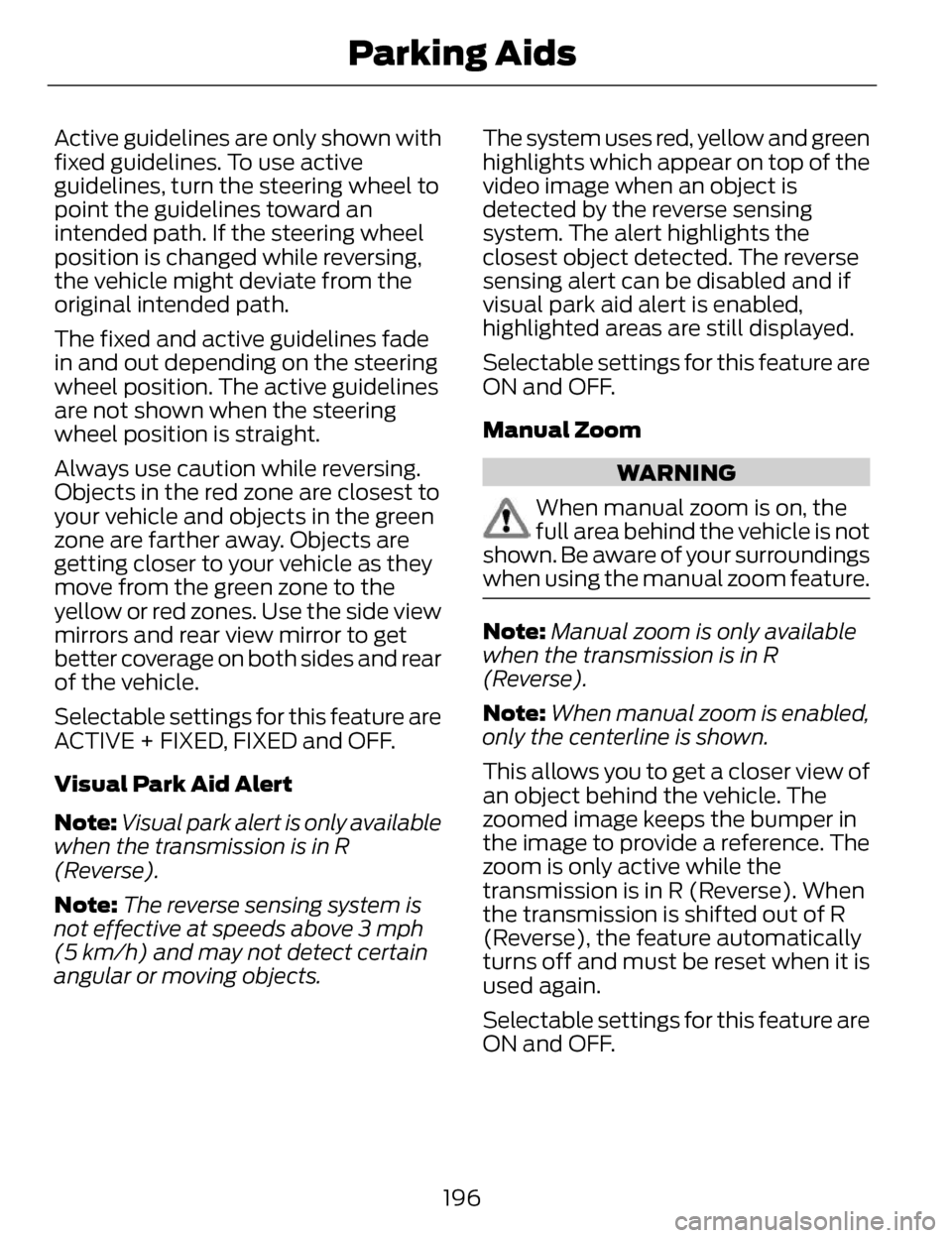
Active guidelines are only shown with
fixed guidelines. To use active
guidelines, turn the steering wheel to
point the guidelines toward an
intended path. If the steering wheel
position is changed while reversing,
the vehicle might deviate from the
original intended path.
The fixed and active guidelines fade
in and out depending on the steering
wheel position. The active guidelines
are not shown when the steering
wheel position is straight.
Always use caution while reversing.
Objects in the red zone are closest to
your vehicle and objects in the green
zone are farther away. Objects are
getting closer to your vehicle as they
move from the green zone to the
yellow or red zones. Use the side view
mirrors and rear view mirror to get
better coverage on both sides and rear
of the vehicle.
Selectable settings for this feature are
ACTIVE + FIXED, FIXED and OFF.
Visual Park Aid Alert
Note: Visual park alert is only available
when the transmission is in R
(Reverse).
Note: The reverse sensing system is
not effective at speeds above 3 mph
(5 km/h) and may not detect certain
angular or moving objects. The system uses red, yellow and green
highlights which appear on top of the
video image when an object is
detected by the reverse sensing
system. The alert highlights the
closest object detected. The reverse
sensing alert can be disabled and if
visual park aid alert is enabled,
highlighted areas are still displayed.
Selectable settings for this feature are
ON and OFF.
Manual Zoom
WARNING
When manual zoom is on, the
full area behind the vehicle is not
shown. Be aware of your surroundings
when using the manual zoom feature.
Note: Manual zoom is only available
when the transmission is in R
(Reverse).
Note: When manual zoom is enabled,
only the centerline is shown.
This allows you to get a closer view of
an object behind the vehicle. The
zoomed image keeps the bumper in
the image to provide a reference. The
zoom is only active while the
transmission is in R (Reverse). When
the transmission is shifted out of R
(Reverse), the feature automatically
turns off and must be reset when it is
used again.
Selectable settings for this feature are
ON and OFF.
196
Parking Aids
Page 201 of 468
PRINCIPLE OF OPERATION
Cruise control lets you maintain a set
speed without keeping your foot on
the accelerator pedal.
USING CRUISE CONTROL
WARNINGS
Do not use cruise control in
heavy traffic, on winding roads
or when the road surface is slippery.
This could result in loss of vehicle
control, serious injury or death.
When you are going downhill,
your vehicle speed may increase
above the set speed. The system will
not apply the brakes. Change down a
gear to assist the system in
maintaining the set speed. Failure to
do so could result in loss of vehicle
control, serious injury or death.
Note: Cruise control will disengage if
the vehicle speed decreases more than
10 mph (16 km/h) below your set
speed while driving uphill.
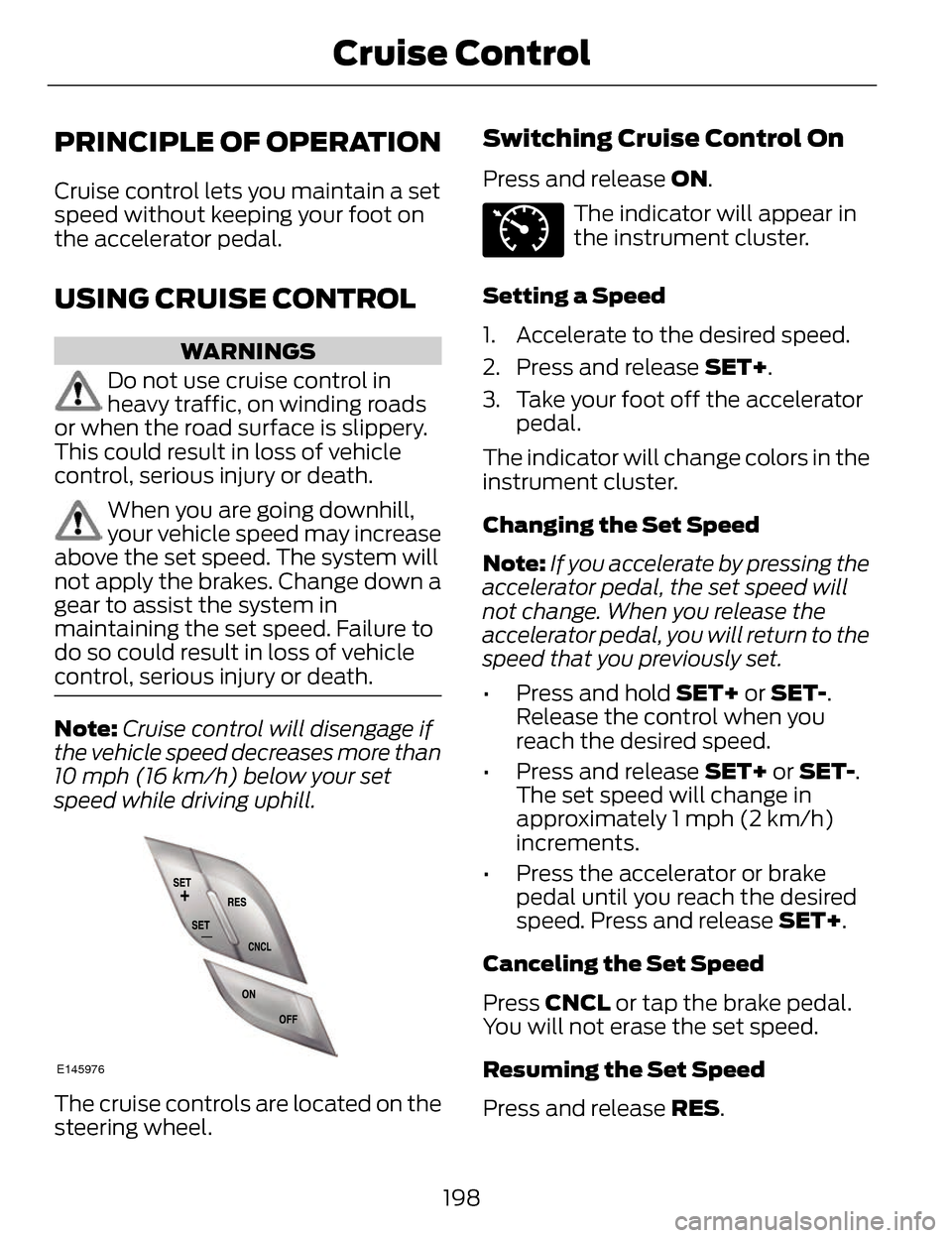
E145976
The cruise controls are located on the
steering wheel.
Switching Cruise Control On
Press and release ON.
E71340
The indicator will appear in
the instrument cluster.
Setting a Speed
1. Accelerate to the desired speed.
2. Press and release SET+.
3. Take your foot off the accelerator pedal.
The indicator will change colors in the
instrument cluster.
Changing the Set Speed
Note: If you accelerate by pressing the
accelerator pedal, the set speed will
not change. When you release the
accelerator pedal, you will return to the
speed that you previously set.
• Press and hold SET+ or SET-. Release the control when you
reach the desired speed.
• Press and release SET+ or SET-. The set speed will change in
approximately 1 mph (2 km/h)
increments.
• Press the accelerator or brake pedal until you reach the desired
speed. Press and release SET+.
Canceling the Set Speed
Press CNCL or tap the brake pedal.
You will not erase the set speed.
Resuming the Set Speed
Press and release RES.
198
Cruise Control
Page 202 of 468
Switching Cruise Control Off
Note:You will erase the set speed if
you switch the system off.
Press and release OFF or switch the
ignition off.
USING ADAPTIVE CRUISE
CONTROL
(IF EQUIPPED)
WARNINGS
Always pay close attention to
changing road conditions,
especially when using adaptive cruise
control. Adaptive cruise control
cannot replace attentive driving.
Failing to follow any of the warnings
below or failing to pay attention to the
road may result in a crash, serious
injury or death.
Adaptive cruise control is not a
crash warning or avoidance
system.
Adaptive cruise control will not
detect stationary or slow moving
vehicles below 6 mph (10 km/h).
Adaptive cruise control will not
detect pedestrians or objects in
the roadway.
Adaptive cruise control will not
detect oncoming vehicles in the
same lane.
Do not use the adaptive cruise
control when entering or leaving
a highway, in heavy traffic or on roads
that are winding, slippery or unpaved.
WARNINGS
Do not use in poor visibility,
specifically fog, rain, spray or
snow.
Note: It is your responsibility to stay
alert, drive safely and be in control of
the vehicle at all times.
The system adjusts your speed to
maintain a proper distance between
you and the vehicle in front of you in
the same lane. You can select from
one of four gap settings.
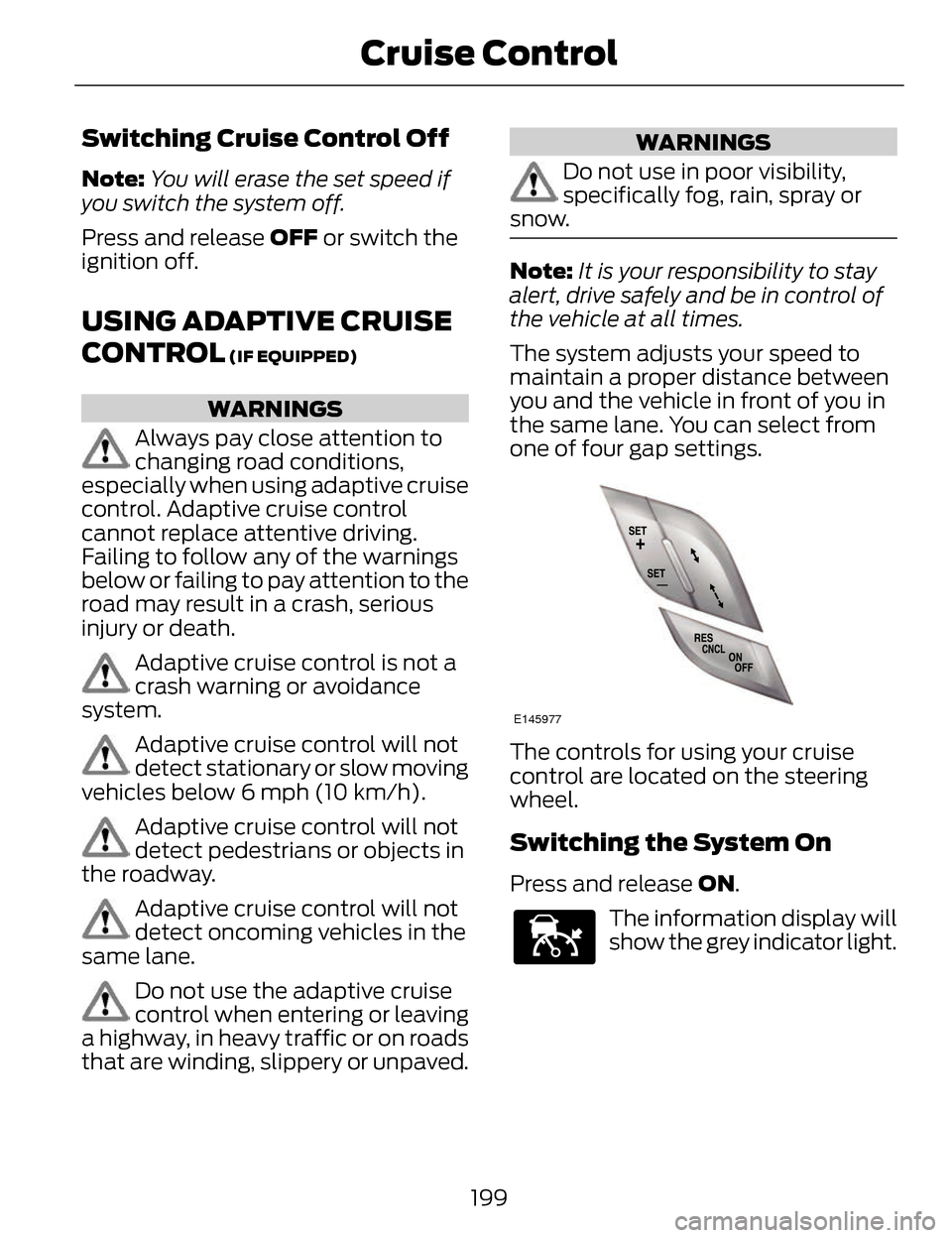
E145977
The controls for using your cruise
control are located on the steering
wheel.
Switching the System On
Press and release ON.
E144529
The information display will
show the grey indicator light.
199
Cruise Control
Page 203 of 468
E164805
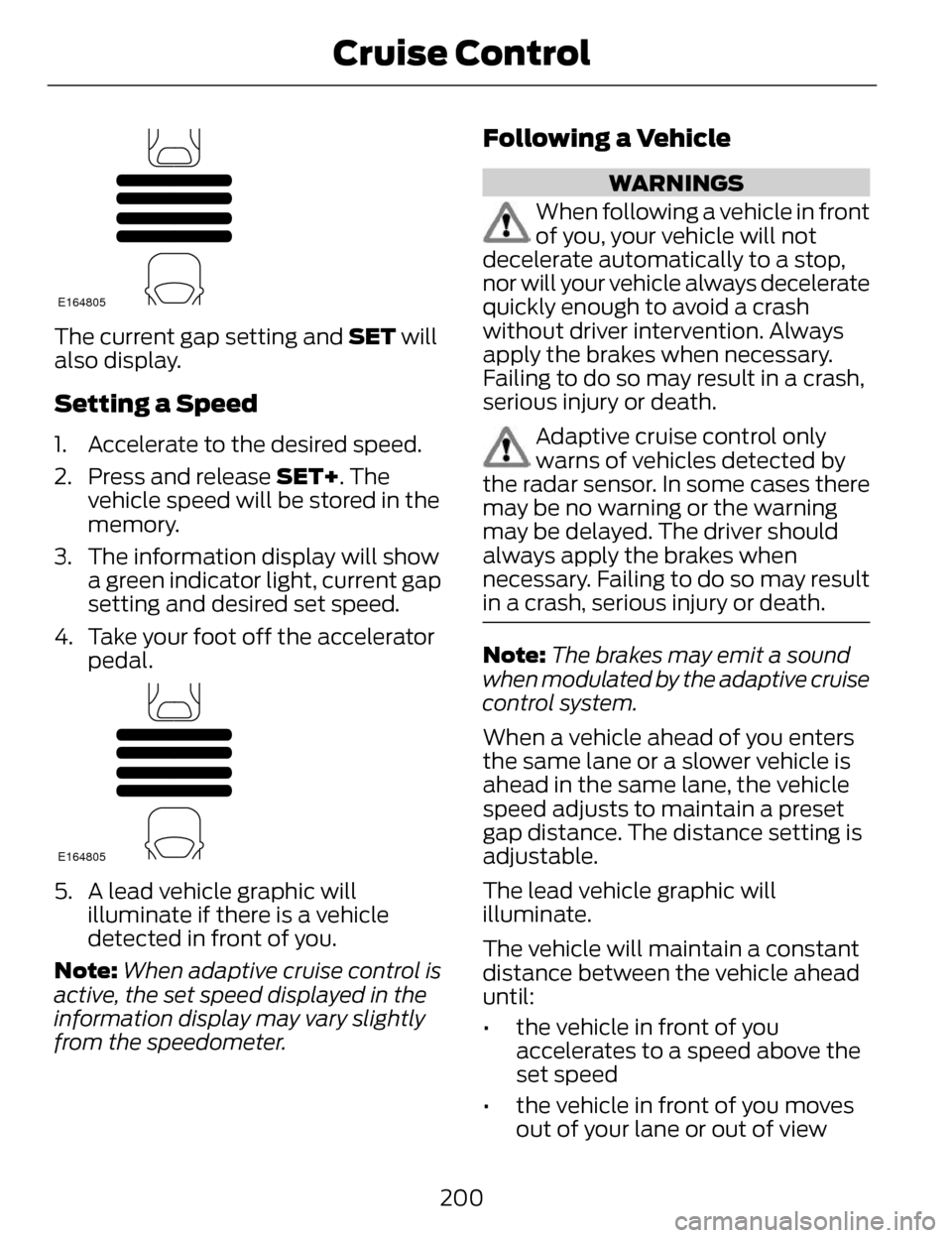
The current gap setting and SET will
also display.
Setting a Speed
1. Accelerate to the desired speed.
2. Press and release SET+. Thevehicle speed will be stored in the
memory.
3. The information display will show a green indicator light, current gap
setting and desired set speed.
4. Take your foot off the accelerator pedal.
E164805
5. A lead vehicle graphic willilluminate if there is a vehicle
detected in front of you.
Note: When adaptive cruise control is
active, the set speed displayed in the
information display may vary slightly
from the speedometer.
Following a Vehicle
WARNINGS
When following a vehicle in front
of you, your vehicle will not
decelerate automatically to a stop,
nor will your vehicle always decelerate
quickly enough to avoid a crash
without driver intervention. Always
apply the brakes when necessary.
Failing to do so may result in a crash,
serious injury or death.
Adaptive cruise control only
warns of vehicles detected by
the radar sensor. In some cases there
may be no warning or the warning
may be delayed. The driver should
always apply the brakes when
necessary. Failing to do so may result
in a crash, serious injury or death.
Note: The brakes may emit a sound
when modulated by the adaptive cruise
control system.
When a vehicle ahead of you enters
the same lane or a slower vehicle is
ahead in the same lane, the vehicle
speed adjusts to maintain a preset
gap distance. The distance setting is
adjustable.
The lead vehicle graphic will
illuminate.
The vehicle will maintain a constant
distance between the vehicle ahead
until:
• the vehicle in front of you accelerates to a speed above the
set speed
• the vehicle in front of you moves out of your lane or out of view
200
Cruise Control
Page 204 of 468
• the vehicle speed falls below 12mph (20 km/h)
• a new gap distance is set.
The vehicle will apply the brakes to
slow the vehicle to maintain a safe
distance from the vehicle in front. The
maximum braking which the system
can apply is limited. You can override
the system by applying the brakes.
If the system predicts that its
maximum braking level will not be
sufficient, an audible warning will
sound while the system continues to
brake. This is accompanied by a
heads-up display; a red warning bar
illuminating on the windshield. You
should take immediate action.
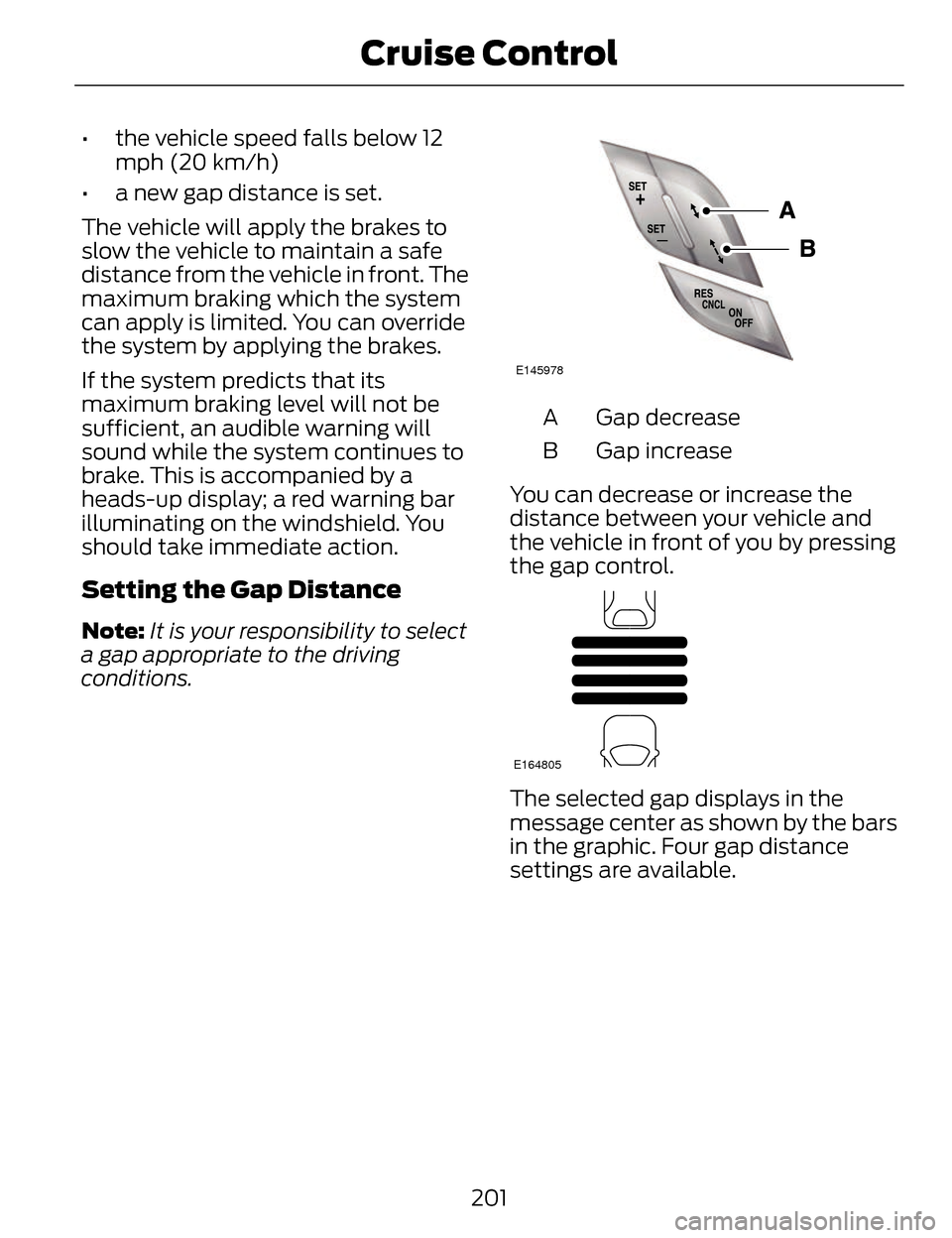
Setting the Gap Distance
Note: It is your responsibility to select
a gap appropriate to the driving
conditions.
E145978
Gap decrease
A
Gap increase
B
You can decrease or increase the
distance between your vehicle and
the vehicle in front of you by pressing
the gap control.
E164805
The selected gap displays in the
message center as shown by the bars
in the graphic. Four gap distance
settings are available.
201
Cruise Control
Page 205 of 468
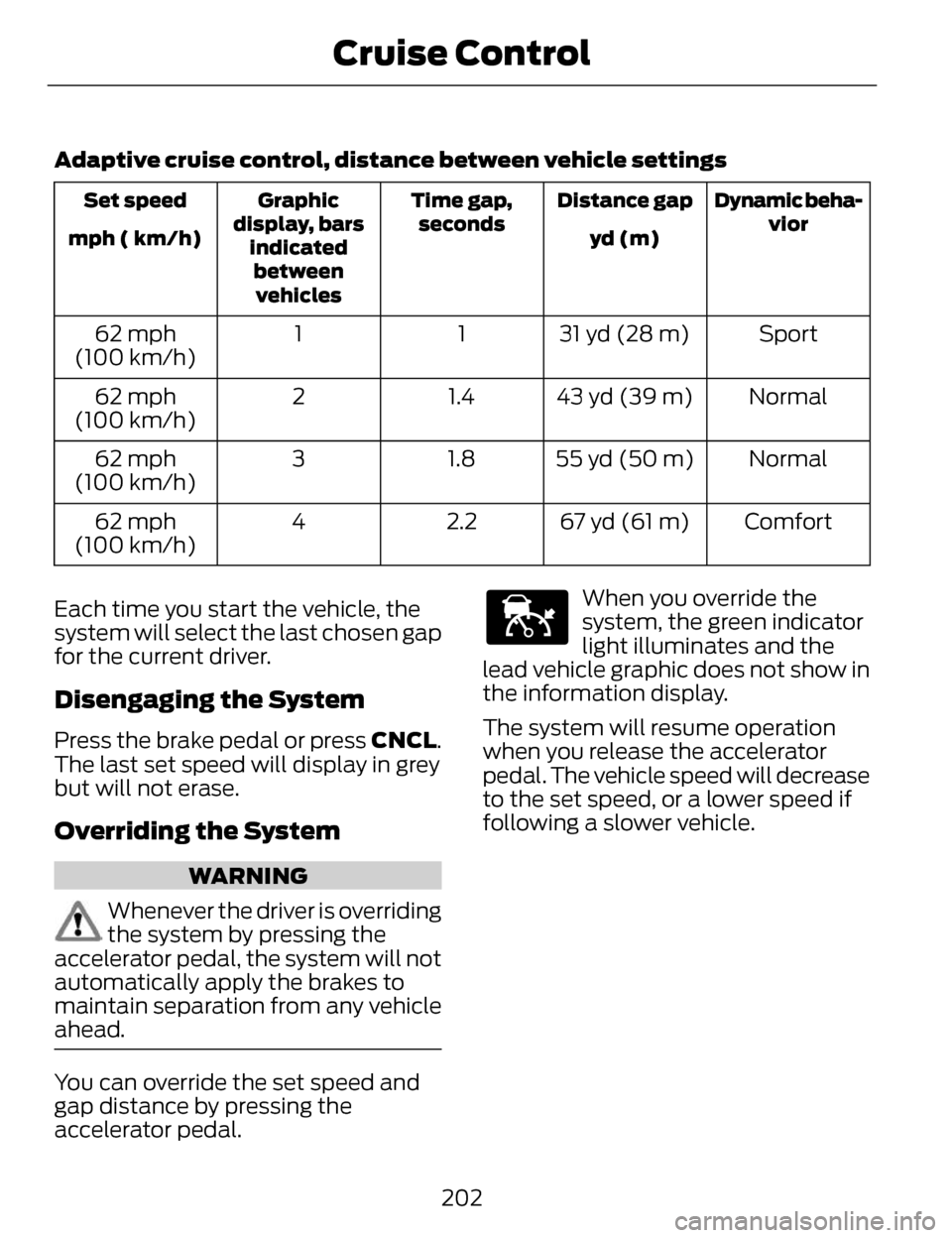
Adaptive cruise control, distance between vehicle settings
Dynamic beha-vior
Distance gap
Time gap,
seconds
Graphic
display, bars indicatedbetweenvehicles
Set speed
yd (m)
mph ( km/h)
Sport
31 yd (28 m)
1
1
62 mph
(100 km/h)
Normal
43 yd (39 m)
1.4
2
62 mph
(100 km/h)
Normal
55 yd (50 m)
1.8
3
62 mph
(100 km/h)
Comfort
67 yd (61 m)
2.2
4
62 mph
(100 km/h)
Each time you start the vehicle, the
system will select the last chosen gap
for the current driver.
Disengaging the System
Press the brake pedal or press CNCL.
The last set speed will display in grey
but will not erase.
Overriding the System
WARNING
Whenever the driver is overriding
the system by pressing the
accelerator pedal, the system will not
automatically apply the brakes to
maintain separation from any vehicle
ahead.
You can override the set speed and
gap distance by pressing the
accelerator pedal.
E144529
When you override the
system, the green indicator
light illuminates and the
lead vehicle graphic does not show in
the information display.
The system will resume operation
when you release the accelerator
pedal. The vehicle speed will decrease
to the set speed, or a lower speed if
following a slower vehicle.
202
Cruise Control