audio LINCOLN MKZ 2014 User Guide
[x] Cancel search | Manufacturer: LINCOLN, Model Year: 2014, Model line: MKZ, Model: LINCOLN MKZ 2014Pages: 468, PDF Size: 4.49 MB
Page 346 of 468
Information
F
Entertainment
G
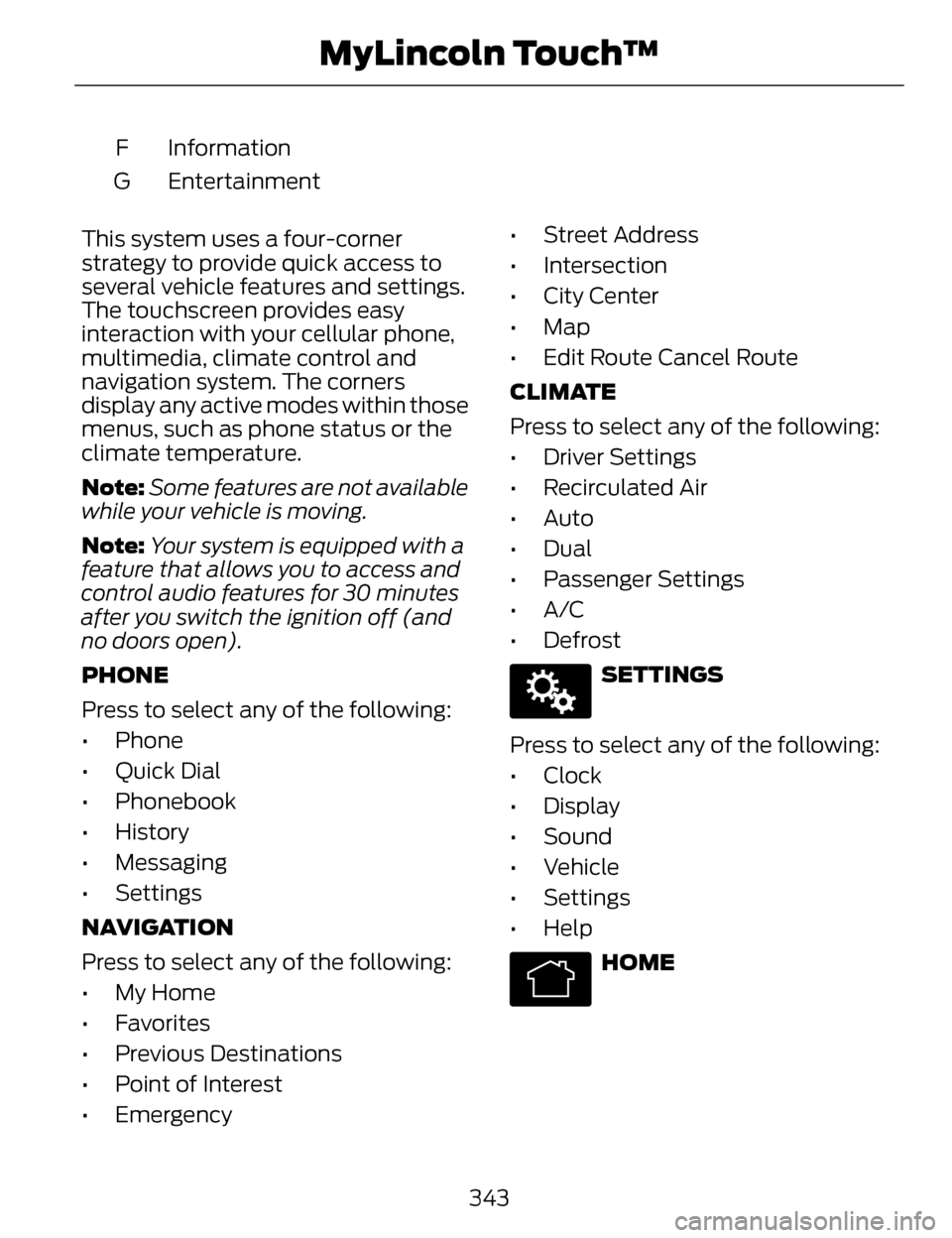
This system uses a four-corner
strategy to provide quick access to
several vehicle features and settings.
The touchscreen provides easy
interaction with your cellular phone,
multimedia, climate control and
navigation system. The corners
display any active modes within those
menus, such as phone status or the
climate temperature.
Note: Some features are not available
while your vehicle is moving.
Note: Your system is equipped with a
feature that allows you to access and
control audio features for 30 minutes
after you switch the ignition off (and
no doors open).
PHONE
Press to select any of the following:
• Phone
• Quick Dial
• Phonebook
• History
• Messaging
• Settings
NAVIGATION
Press to select any of the following:
• My Home
• Favorites
• Previous Destinations
• Point of Interest
• Emergency • Street Address
• Intersection
• City Center
• Map
• Edit Route Cancel Route
CLIMATE
Press to select any of the following:
• Driver Settings
• Recirculated Air
• Auto
•Dual
• Passenger Settings
•A/C
• Defrost
E142607
SETTINGS
Press to select any of the following:
• Clock
• Display
• Sound
• Vehicle
• Settings
• Help
E142613
HOME
343
MyLincoln Touch™
Page 351 of 468
access the information independently
of Ford Motor Company and Ford of
Canada. For further privacyinformation, see the sections on 911
Assist, Vehicle Health Report, and
Traffic, Directions and Information.
Accessing and Adjusting Modes through Your Vehicle Information
Display
E156609
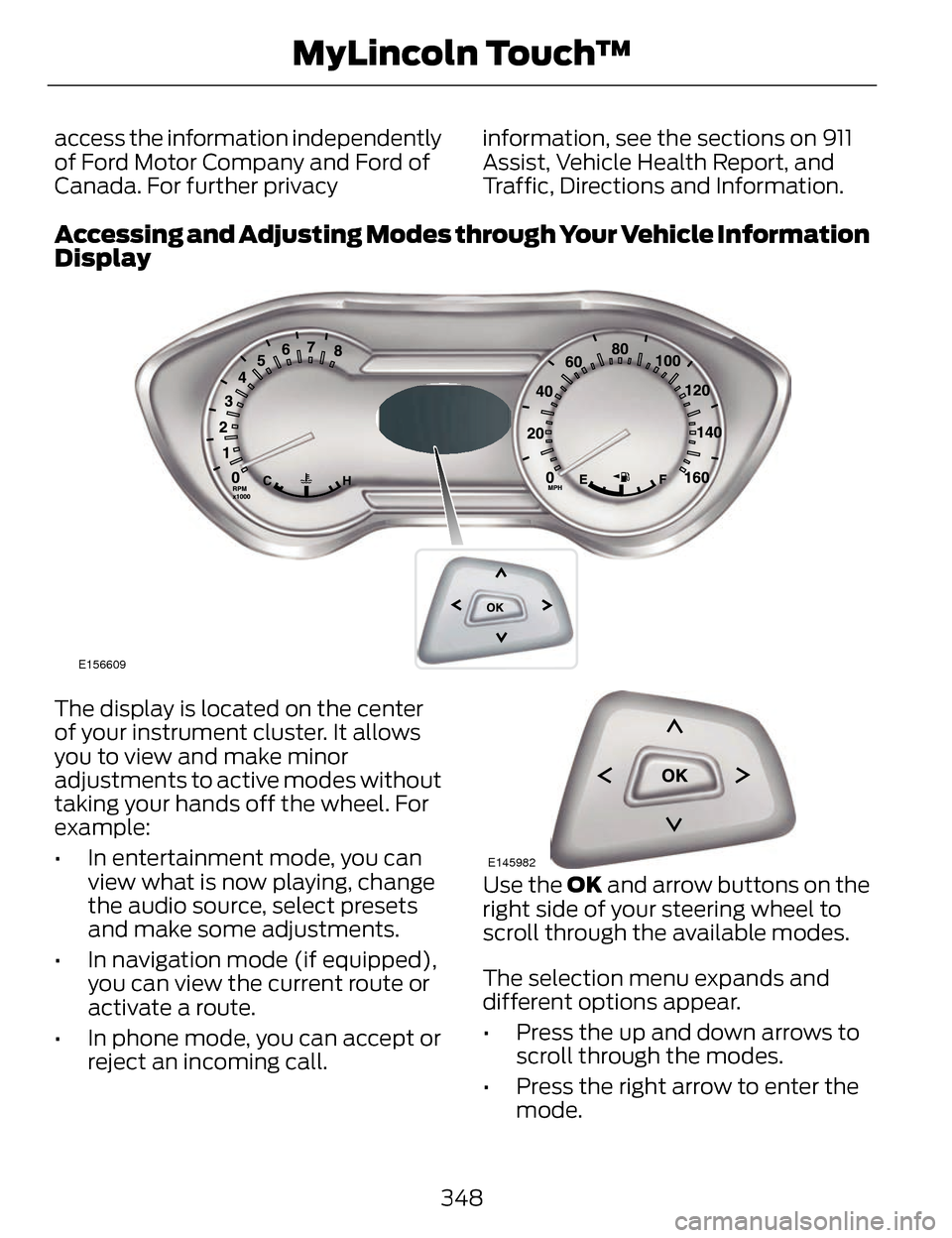
The display is located on the center
of your instrument cluster. It allows
you to view and make minor
adjustments to active modes without
taking your hands off the wheel. For
example:
• In entertainment mode, you can
view what is now playing, change
the audio source, select presets
and make some adjustments.
• In navigation mode (if equipped), you can view the current route or
activate a route.
• In phone mode, you can accept or reject an incoming call.
E145982
Use the OK and arrow buttons on the
right side of your steering wheel to
scroll through the available modes.
The selection menu expands and
different options appear.
• Press the up and down arrows to scroll through the modes.
• Press the right arrow to enter the mode.
348
MyLincoln Touch™
Page 353 of 468
Helpful Hints
• Make sure the interior of yourvehicle is as quiet as possible.
Wind noise from open windows
and road vibrations may prevent
the system from correctly
recognizing spoken commands.
• After pressing the voice icon, wait until after the tone sounds and
Listening appears before saying a
command. Any command spoken
before this does not register with
the system.
• Speak naturally, without long pauses between words.
• At any time, you can interrupt the system while it is speaking by
pressing the voice icon.
Accessing a List of Available
Commands
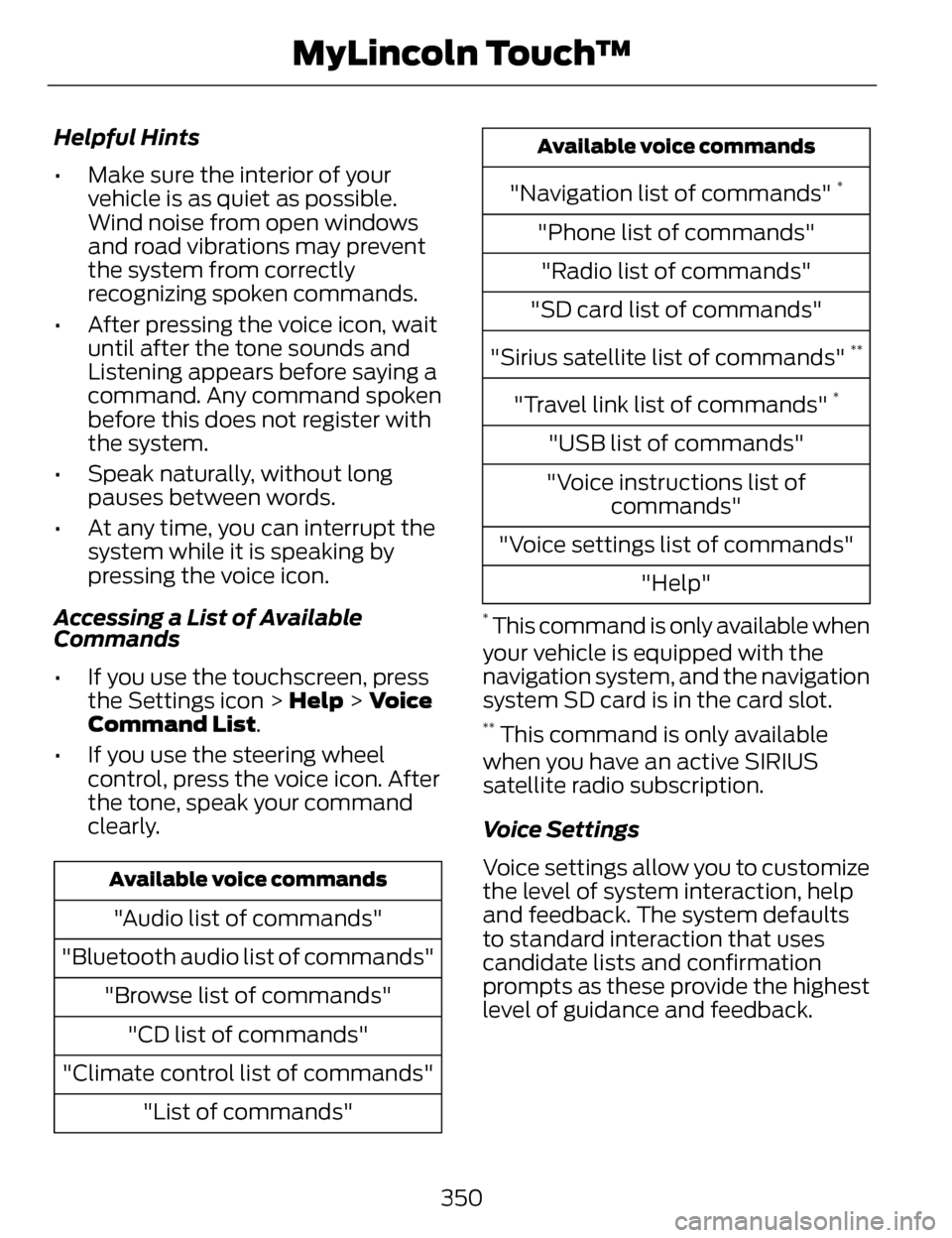
• If you use the touchscreen, press the Settings icon > Help > Voice
Command List.
• If you use the steering wheel control, press the voice icon. After
the tone, speak your command
clearly.
Available voice commands
"Audio list of commands"
"Bluetooth audio list of commands" "Browse list of commands""CD list of commands"
"Climate control list of commands" "List of commands"
Available voice commands
"Navigation list of commands" *
"Phone list of commands""Radio list of commands"
"SD card list of commands"
"Sirius satellite list of commands"
**
"Travel link list of commands" *
"USB list of commands"
"Voice instructions list of commands"
"Voice settings list of commands" "Help"
* This command is only available when
your vehicle is equipped with the
navigation system, and the navigation
system SD card is in the card slot.
** This command is only available
when you have an active SIRIUS
satellite radio subscription.
Voice Settings
Voice settings allow you to customize
the level of system interaction, help
and feedback. The system defaults
to standard interaction that uses
candidate lists and confirmation
prompts as these provide the highest
level of guidance and feedback.
350
MyLincoln Touch™
Page 358 of 468
• Rear Camera Delay
• Visual Park Aid Alert
• Guidelines.
You can find more information on the
rear view camera in another chapter.
See Rear View Camera (page 194).
Enable Valet Mode
Note: If the system locks, and you
need to reset the PIN, enter 3681 and
the system unlocks.
Valet mode allows you to lock the
system. No information is accessible
until the system is unlocked with the
correct PIN.
E142607
1. Press the Settings icon > Vehicle > Enable Valet Mode.
2. When prompted, enter a four-digit PIN.
After you press Continue, the system
locks until you enter the PIN again.
Settings
Access and adjust system settings,
voice features, as well as phone,
navigation and wireless settings.
System
E142607
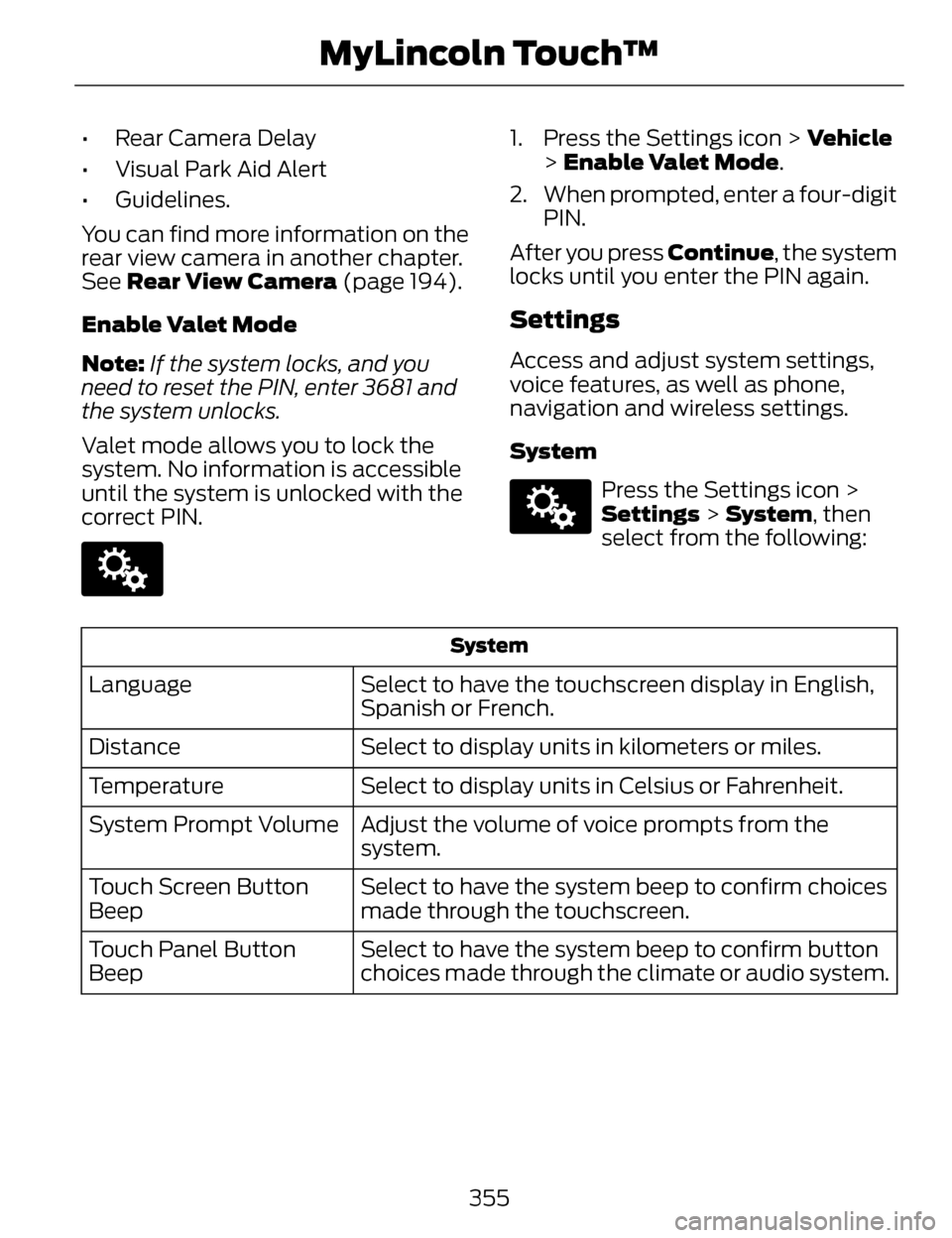
Press the Settings icon >
Settings > System , then
select from the following:
System
Select to have the touchscreen display in English,
Spanish or French.
Language
Select to display units in kilometers or miles.
Distance
Select to display units in Celsius or Fahrenheit.
Temperature
Adjust the volume of voice prompts from the
system.
System Prompt Volume
Select to have the system beep to confirm choices
made through the touchscreen.
Touch Screen Button
Beep
Select to have the system beep to confirm button
choices made through the climate or audio system.
Touch Panel Button
Beep
355
MyLincoln Touch™
Page 360 of 468
Media Player
E142607
Press the Settings icon >
Settings > Media Player,then select from the following:
Media player
When this feature is on, the system automatically
switches to the media source upon initial connec-
tion. This allows you to listen to music during the
indexing process. When this feature is off, the
system does not automatically switch to the
inserted media source.
Autoplay
Select to connect, disconnect, add or delete a
device. You can also set a device as your favorite so
that the system automatically attempts to connect
to that device at every ignition cycle.
Bluetooth Devices
When this feature is on, the system automatically
indexes media on your connected Bluetooth device.
Index Bluetooth Audio
Devices
This allows you to view the version level of the
Gracenote Database.
Gracenote Database Info
With this feature on, the Gracenote Database
supplies metadata information for your music files.
This overrides information from your device. This
feature defaults to off.
Gracenote Mgmt
With this feature on, the Gracenote Database
supplied cover art for your music files. This overrides
any art from your device. This feature defaults to
Media Player.
Cover Art Priority
Navigation
E142607
Press the Settings icon >
Settings > Navigation,
then select from the
following:
357
MyLincoln Touch™
Page 367 of 468
ENTERTAINMENT
A
B
C
D
E
F
G
H
E161892
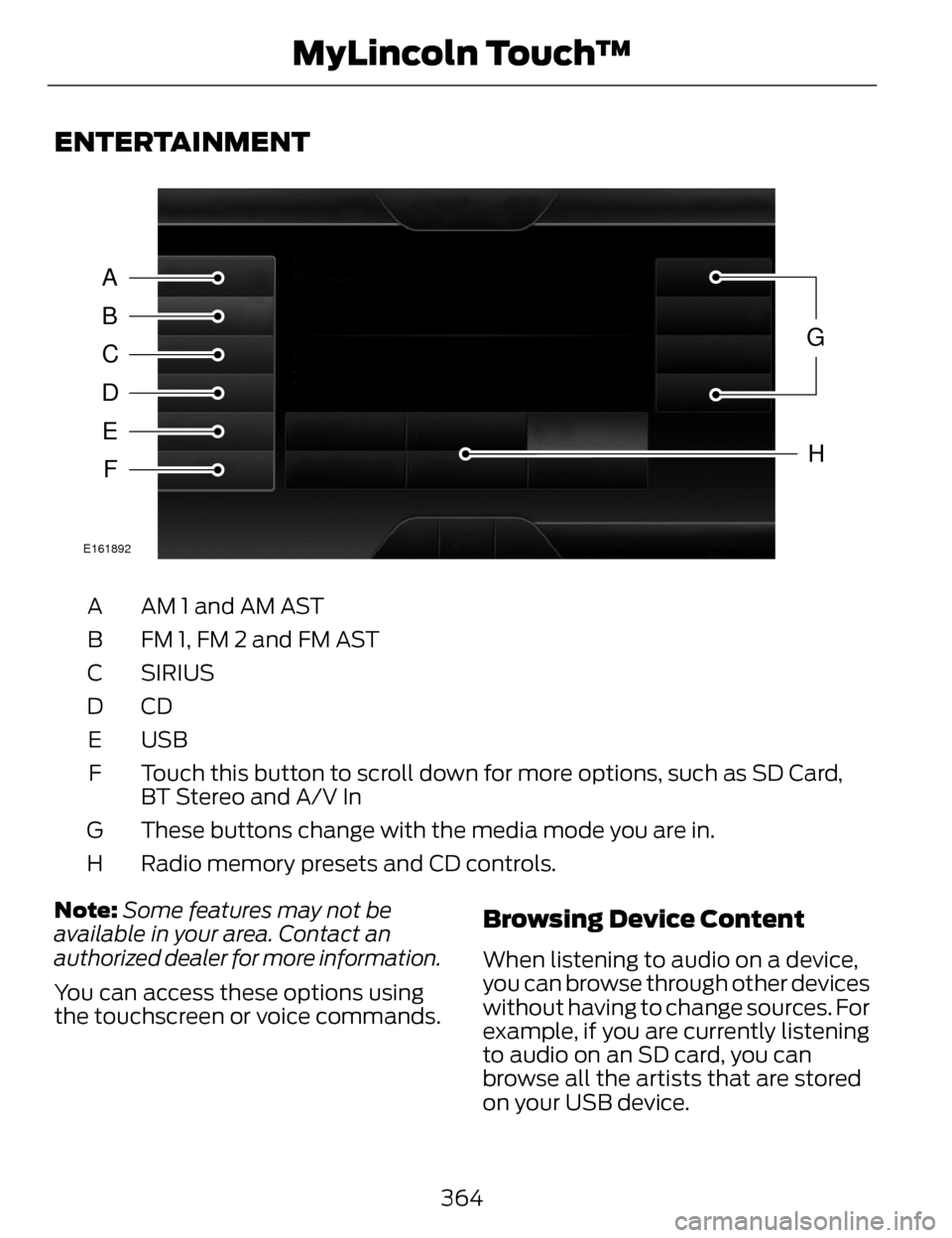
AM 1 and AM AST
A
FM 1, FM 2 and FM AST
B
SIRIUS
C
CDD
USB
E
Touch this button to scroll down for more options, such as SD Card,
BT Stereo and A/V In
F
These buttons change with the media mode you are in.
G
Radio memory presets and CD controls.
H
Note: Some features may not be
available in your area. Contact an
authorized dealer for more information.
You can access these options using
the touchscreen or voice commands.
Browsing Device Content
When listening to audio on a device,
you can browse through other devices
without having to change sources. For
example, if you are currently listening
to audio on an SD card, you can
browse all the artists that are stored
on your USB device.
364
MyLincoln Touch™
Page 368 of 468
E142599
Press the voice icon on the
steering wheel. When
prompted, you can say:
"BROWSE" within devices
"Browse"*
"Browse
"Browse
"Browse SD card"
"Browse Sirius channel guide"
**
"Browse USB" "Help"
* If you only say, "Browse", you can
then say any commands in the
following chart.
**This command is only usable if you
have an active subscription to Sirius
satellite radio.
"BROWSE"
"
"
"SD card"**
"Sirius Channel Guide"*
"BROWSE"
"USB"**
"Help"
* This command is only usable if you
have an active subscription to Sirius
satellite radio.
** For more commands in SD card or
USB mode, see the "SD Card and USB
Port" section of this chapter.
Your voice system allows you to
change audio sources with a simple
voice command. For example, if you
are listening to music on a USB device,
then want to switch to a satellite radio
channel, simply press the voice button
on the steering wheel controls and say
the name of the Sirius station (such
as, "the Highway"). The following
voice commands are available at the
top level of the voice session no
matter which current audio source you
are listening to (such as a USB device
or Sirius satellite radio).
Note: This is only available when your
MyFord Touch system language is set
to North American English.
Sample commands
"<87.7-107.9>"
"<530-1710>"
"
*
"AM <530-1710>"
"FM <87.7-107.9>"
365
MyLincoln Touch™
Page 370 of 468
Set PTY for Seek/Scan
This allows you to select a category
of music you would like to search for.
You can then choose to either seek or
scan for the stations playing that
category.
RDS Text Display
This allows you to view the
information broadcast by FM stations.
AST
AST (Autostore) allows you to have
the system automatically store the
six strongest stations in your current
location.
TAG Button
This feature is available when HD
Radio is on, and allows you to tag a
song to download later. When you
select On,TA G appears on-screen
when HD Radio is active. You can
touch TA G to save the information of
the song that is playing. When you
plug in your portable music player, the
information transfers, if supported by
your device. When you are connected
to iTunes®, the tags appear to remind
you of the songs you would like to
download. See HD Radio information
later in this chapter.
Direct Tune
Touch this button to enter the desired
station number manually. Touch
Enter when you are done. HD Radio™ Information (If
Available)
Note:
HD Radio broadcasts are not
available in all markets.
HD Radio technology is the digital
evolution of analog AM/FM radio. Your
system has a special receiver that
allows it to receive digital broadcasts
(where available) in addition to the
analog broadcasts, it already receives.
Digital broadcasts provide a better
sound quality than analog broadcasts
with free, crystal-clear audio and no
static or distortion. For more
information, and a guide to available
stations and programming, please
visit www.hdradio.com.
When HD Radio is on and you tune to
a station broadcasting HD Radio
technology, you may notice the
following indicators on your screen:
E142616
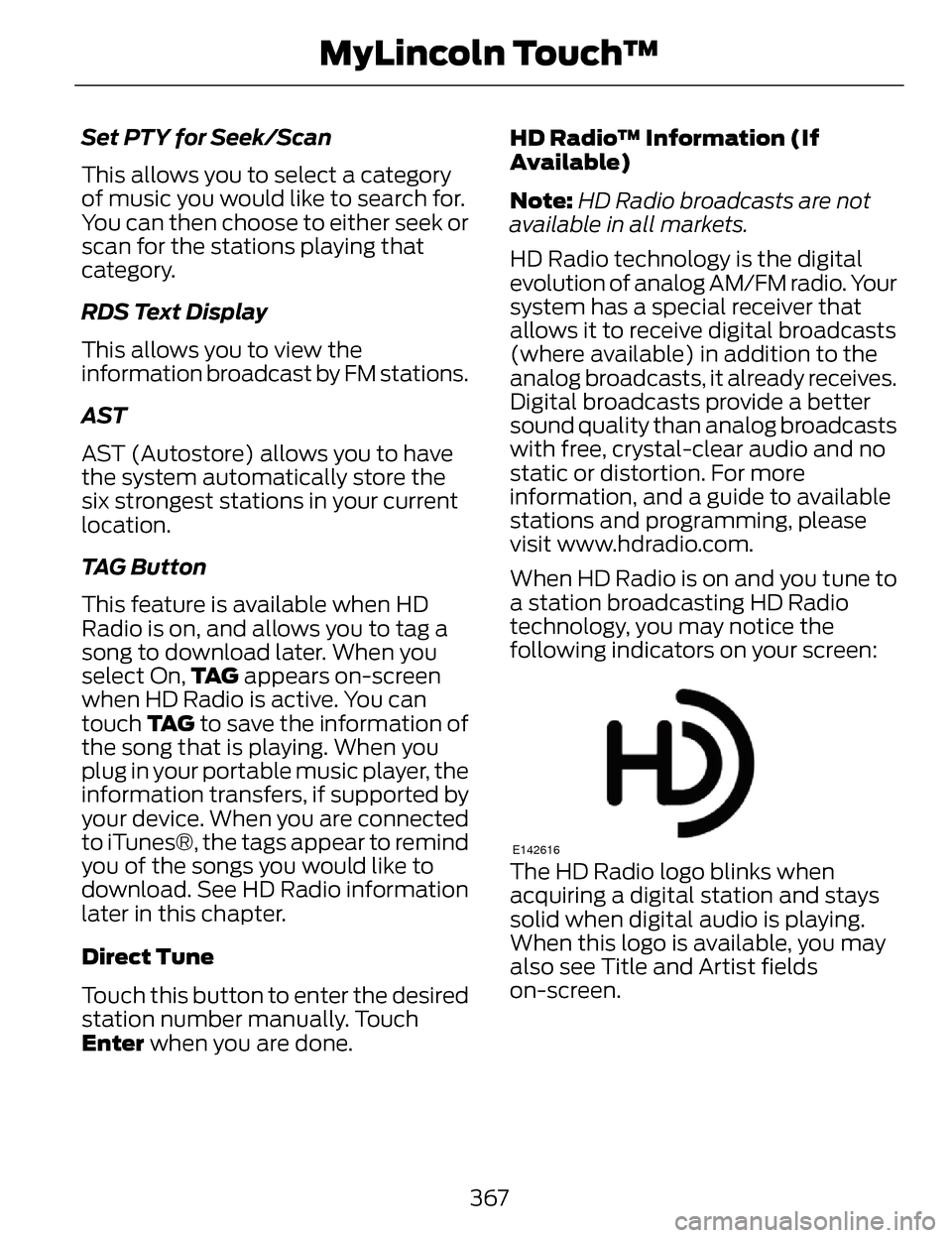
The HD Radio logo blinks when
acquiring a digital station and stays
solid when digital audio is playing.
When this logo is available, you may
also see Title and Artist fields
on-screen.
367
MyLincoln Touch™
Page 371 of 468
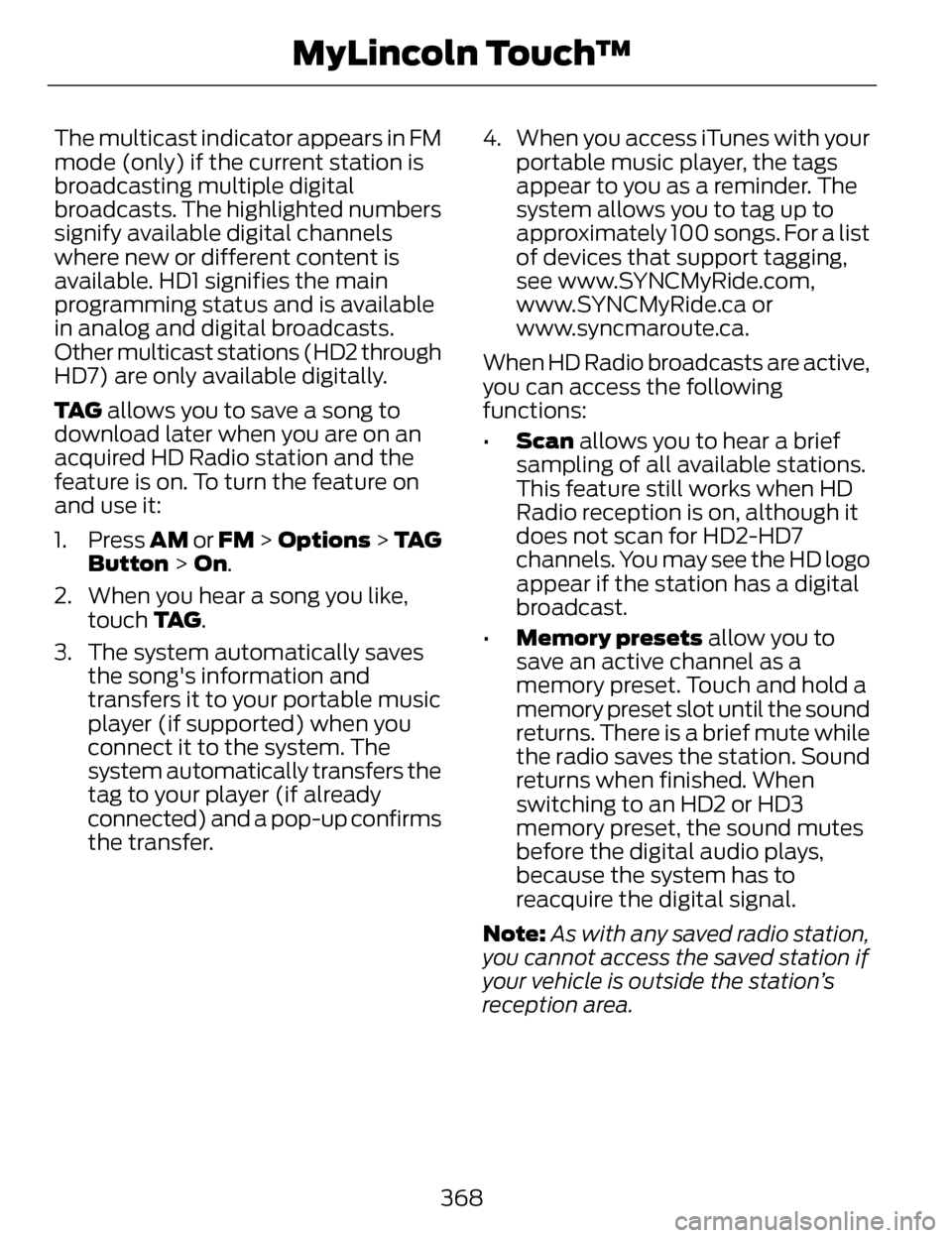
The multicast indicator appears in FM
mode (only) if the current station is
broadcasting multiple digital
broadcasts. The highlighted numbers
signify available digital channels
where new or different content is
available. HD1 signifies the main
programming status and is available
in analog and digital broadcasts.
Other multicast stations (HD2 through
HD7) are only available digitally.
TA G allows you to save a song to
download later when you are on an
acquired HD Radio station and the
feature is on. To turn the feature on
and use it:
1. Press AM or FM > Options > TA G
Button > On.
2. When you hear a song you like, touch TA G .
3. The system automatically saves the song's information and
transfers it to your portable music
player (if supported) when you
connect it to the system. The
system automatically transfers the
tag to your player (if already
connected) and a pop-up confirms
the transfer. 4. When you access iTunes with your
portable music player, the tags
appear to you as a reminder. The
system allows you to tag up to
approximately 100 songs. For a list
of devices that support tagging,
see www.SYNCMyRide.com,
www.SYNCMyRide.ca or
www.syncmaroute.ca.
When HD Radio broadcasts are active,
you can access the following
functions:
• Scan allows you to hear a brief
sampling of all available stations.
This feature still works when HD
Radio reception is on, although it
does not scan for HD2-HD7
channels. You may see the HD logo
appear if the station has a digital
broadcast.
• Memory presets allow you to
save an active channel as a
memory preset. Touch and hold a
memory preset slot until the sound
returns. There is a brief mute while
the radio saves the station. Sound
returns when finished. When
switching to an HD2 or HD3
memory preset, the sound mutes
before the digital audio plays,
because the system has to
reacquire the digital signal.
Note: As with any saved radio station,
you cannot access the saved station if
your vehicle is outside the station’s
reception area.
368
MyLincoln Touch™
Page 372 of 468
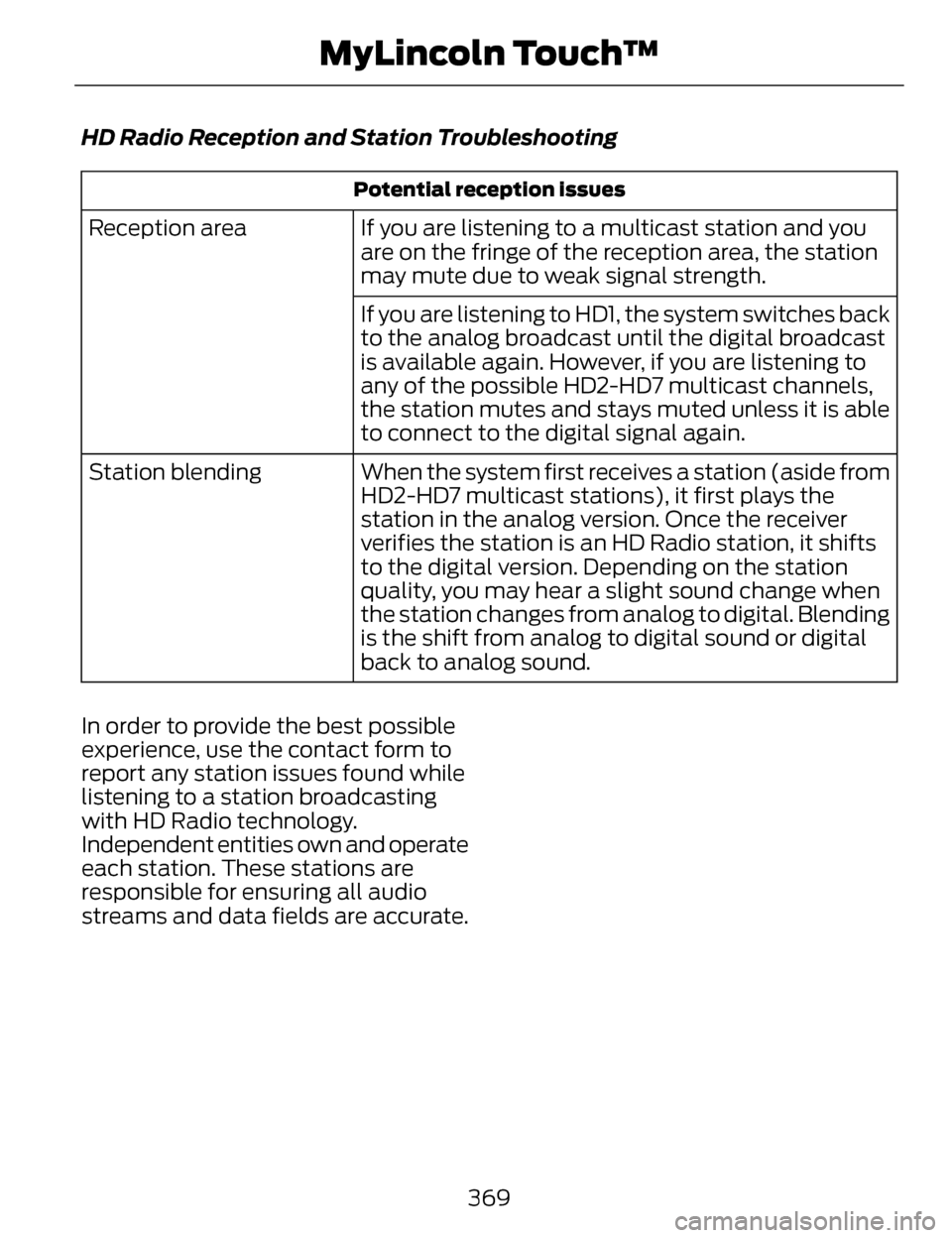
HD Radio Reception and Station Troubleshooting
Potential reception issues
If you are listening to a multicast station and you
are on the fringe of the reception area, the station
may mute due to weak signal strength.
Reception area
If you are listening to HD1, the system switches back
to the analog broadcast until the digital broadcast
is available again. However, if you are listening to
any of the possible HD2-HD7 multicast channels,
the station mutes and stays muted unless it is able
to connect to the digital signal again.
When the system first receives a station (aside from
HD2-HD7 multicast stations), it first plays the
station in the analog version. Once the receiver
verifies the station is an HD Radio station, it shifts
to the digital version. Depending on the station
quality, you may hear a slight sound change when
the station changes from analog to digital. Blending
is the shift from analog to digital sound or digital
back to analog sound.
Station blending
In order to provide the best possible
experience, use the contact form to
report any station issues found while
listening to a station broadcasting
with HD Radio technology.
Independent entities own and operate
each station. These stations are
responsible for ensuring all audio
streams and data fields are accurate.
369
MyLincoln Touch™